A first hire
Give one person an agreed workspace and a clear contact for help.


JUMP-TEAMS IN ACTION
Edited product recording with music and on-screen guidance. Fictional people, team and demonstration data. The running time is not a setup-time promise.
Open videoSee how a small business can bring people and Windows cloud PCs together. This edited product walkthrough follows a fictional Team from its first invitation to two desktops, including the member’s view and a second workspace in Virginia.
THE PRACTICAL ANSWER
Jump-Teams brings Team membership, desktop responsibility and Windows access into one administration flow. In this demo, Woody creates the Team, Buzz joins and connects to an existing Jump-Desk, and Jessie receives a second workspace. Each person’s Team role and Windows privileges are configured separately.
See the complete handover before starting a pilot.
See the workspace they receive after joining.
Repeat the flow with an appropriate region, plan and access.
WATCH OR READ
Use these notes to follow the video at your own pace.
Woody opens Teams and creates Andy’s House.
An invitation uses Buzz’s sign-in email, a Member role and selected capabilities.
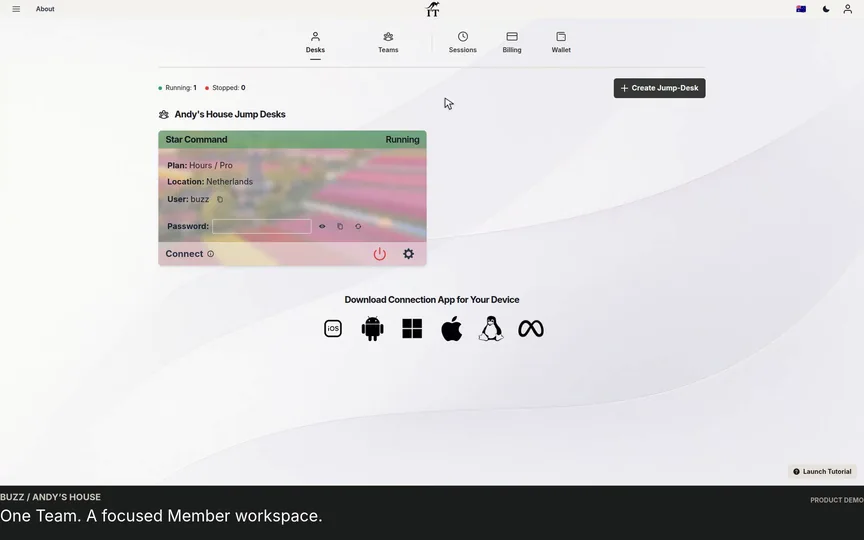
Buzz accepts the invitation. Woody assigns the existing Star Command desktop.
The recording switches to Buzz’s Desks and Teams views.
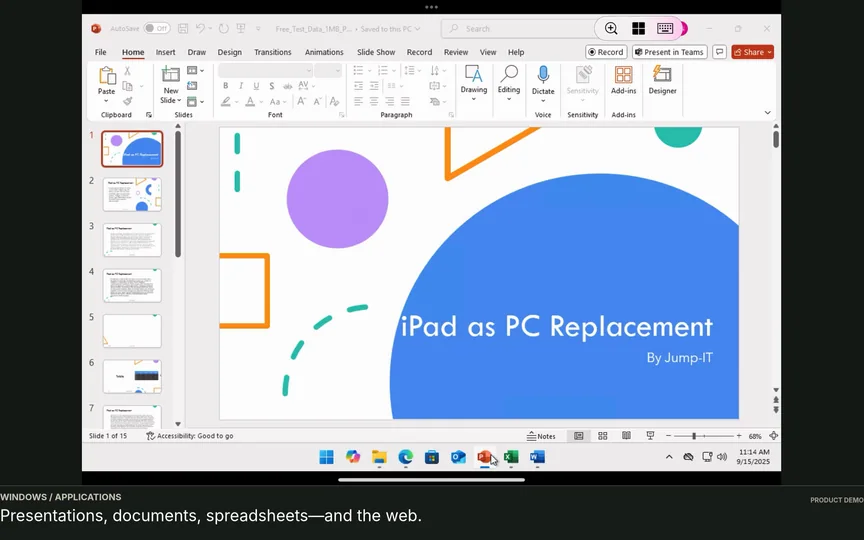
Buzz reviews connection settings, downloads his own connection file and opens Windows.
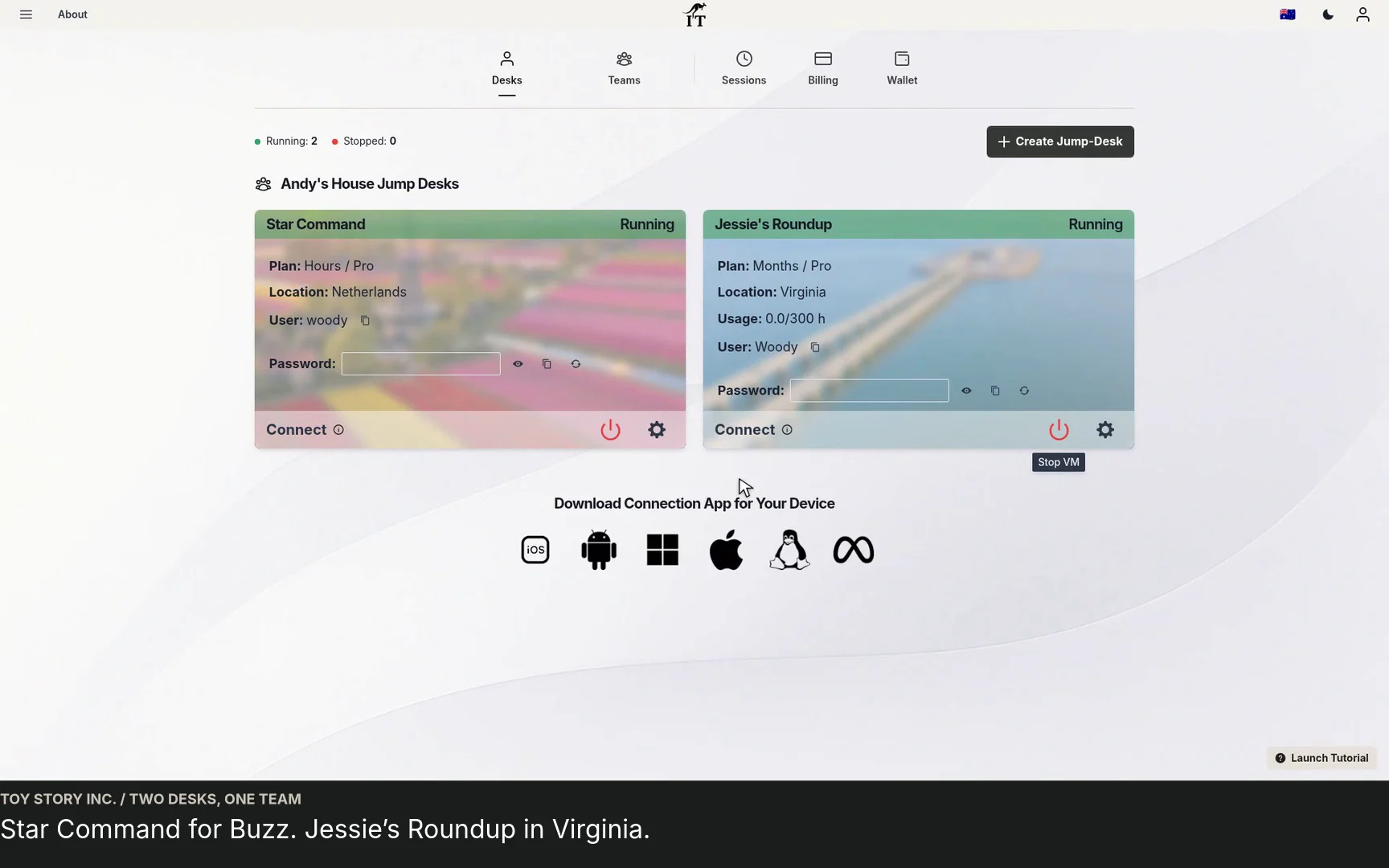
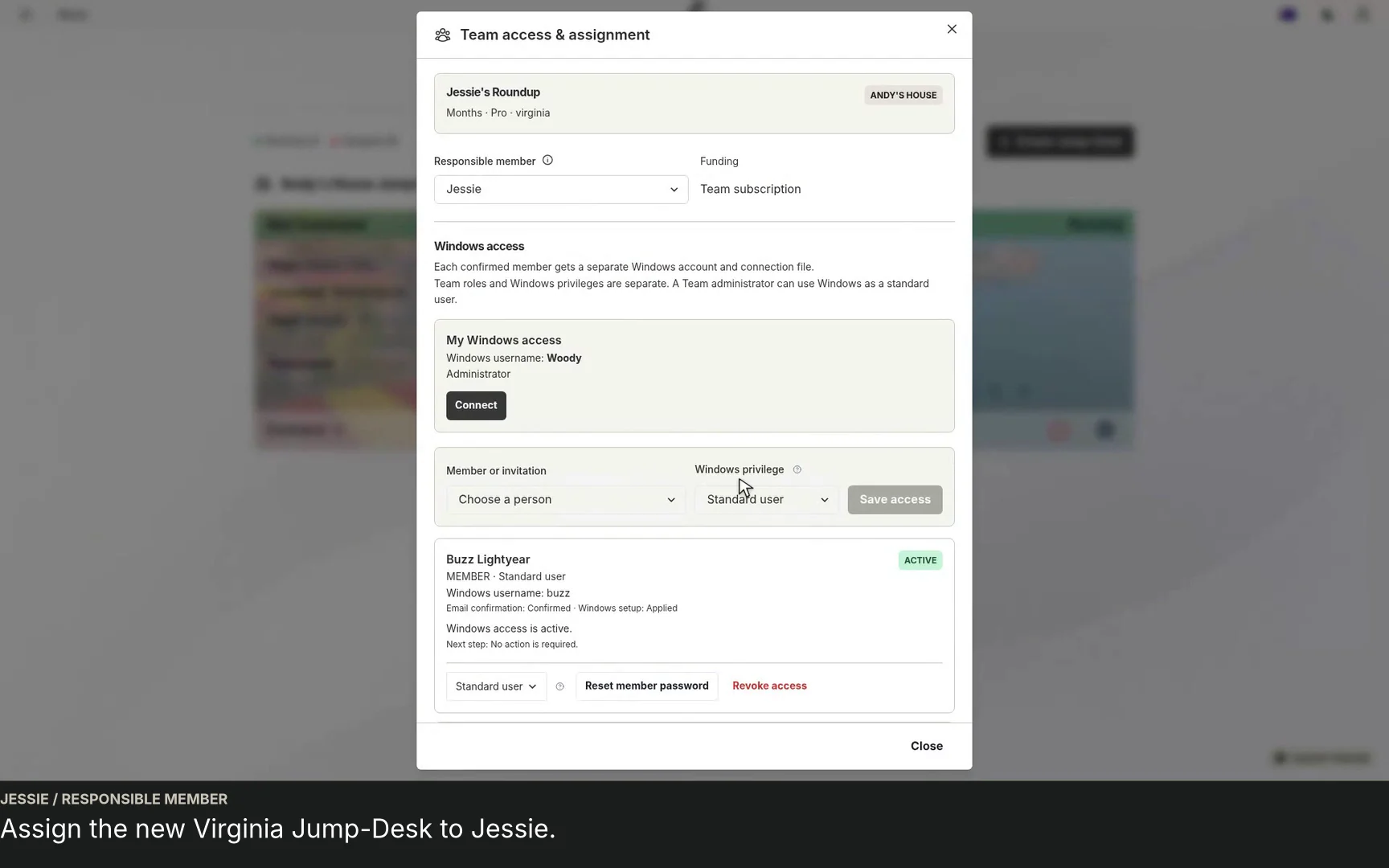
Woody begins a second Team Jump-Desk for Jessie, with a separate Windows access list.
The example uses Virginia, a Months subscription and the Pro tier.
Jessie becomes the responsible member. The final view shows two Team desktops.
THE BUSINESS PROBLEM
A new colleague may need a Windows application while already working from a Mac, an iPad or an existing laptop. The useful question is whether a remote Windows workspace fits that person’s actual work, connection and software requirements.
This demo makes that decision tangible. The owner can see the invitation and administration flow, while the colleague gets a focused view of the Team and desktop available to them. Start with one representative role and a real task before choosing the configuration for a wider rollout.
Give one person an agreed workspace and a clear contact for help.
Add another desktop when a second role needs its own Windows session.
Choose an available region for each desktop and test from the person’s normal location.
WATCH THE HANDOVER
The first half follows both sides of onboarding. Woody creates Andy’s House, invites Buzz and selects the Member role. After acceptance, the existing Star Command Jump-Desk is assigned to Buzz. The member view then shows the desktop and Team information available to that account.
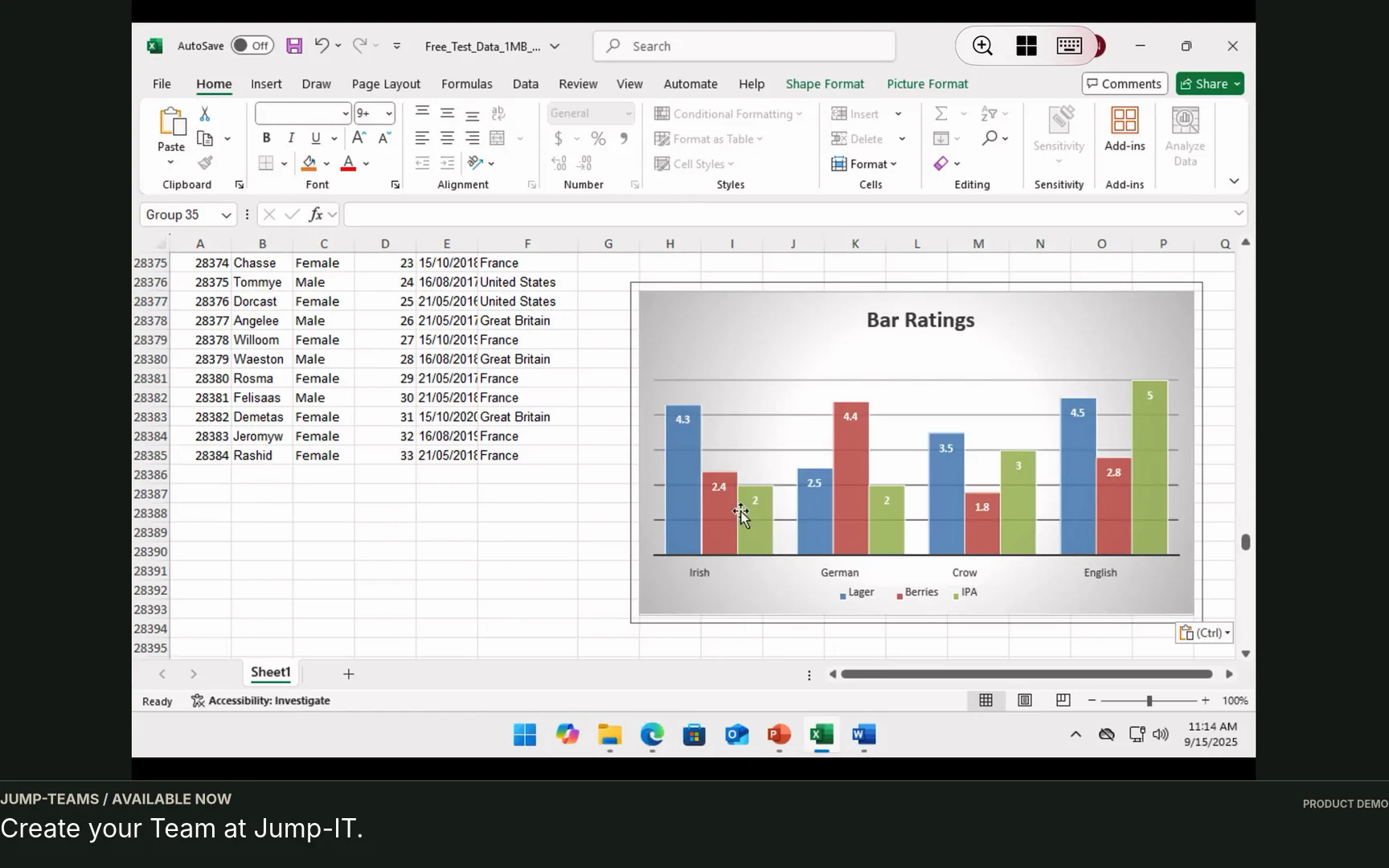
Buzz reviews the connection options and downloads his own connection file. The Windows sequence shows a desktop, presentation, document, spreadsheet and browser. These are demonstration applications and files; the recording does not mean that Microsoft 365 or other paid software is included with a desktop.
For the shorter walkthroughs, watch onboarding a first member or the member’s first Windows session.
THREE DIFFERENT DECISIONS
A Team role controls administration in Jump-IT. The responsible member is recorded against desktop usage. Windows access controls who can sign in to that machine and with which Windows privileges. Treat these as separate choices when setting up a colleague.
The second desktop illustrates the distinction: Jessie becomes the responsible member, while the Windows access list can also include Buzz as a Standard user. Each confirmed person receives their own Windows account and connection file. A Team administrator can use Windows as a Standard user when that is the appropriate access level.
| Setting | What it controls | What to decide |
|---|---|---|
| Team role and capabilities | Administration in Jump-IT, such as managing people or billing. | Give each person the controls their role requires. |
| Responsible member | The person recorded against the desktop’s usage. | Choose the colleague responsible for the workspace. |
| Windows privilege | Standard or Administrator access inside Windows. | Use the appropriate privilege for the actual task. |
ROOM FOR THE NEXT PERSON
The later sequence creates Jessie’s Roundup in Virginia with a Months plan and Pro capacity. The choices are examples, rather than a recommendation that every role needs the same region or tier. Review current regions, capacity and prices in the product.
A Months subscription does not require an Hours wallet top-up. Eligible Hours desktops use prepaid funding instead: compute is charged while running and a separate service charge applies while the desktop is retained. Include software subscriptions and your own backup process when planning the full cost.
Each Jump-Desk supports one active Windows user at a time. When two people need to work simultaneously, plan separate desktops. An additional Windows account is useful for an agreed handover or occasional access; it does not turn the machine into a concurrent multi-user desktop.
FROM WATCHING TO WORKING
Choose the role: a contractor building a customer portal, a colleague using Windows business software, or a developer testing a Windows application. Prepare the tools, project access and everyday device that role needs.
Check responsiveness, display, input, files and the normal internet connection.
Check the live plan, usage allowance, software licences and support requirements.
A FEW PRACTICAL DETAILS
It shows Team creation, invitations, member access, an existing desktop handover, a Windows connection and the creation of a second regional Team desktop. It is an edited product demonstration using a fictional team.
No. The 2 minute 39 second recording is edited. Account confirmation, invitations, payment, desktop provisioning and software setup can take additional time.
An administrator can configure separate Windows accounts for eligible colleagues. Each Jump-Desk supports one active Windows user at a time, so concurrent work needs separate desktops.
The video shows example Windows applications. Microsoft 365 and other paid applications require suitable licences unless the current product terms explicitly say otherwise.
Open Jump-IT, sign in and use Teams in the product dashboard. Review the current business offering and the plan for the first desktop before purchase.
ANOTHER VIEW OF THE WORKFLOW
Prefer an overview? Read the business guide or the owner’s onboarding guide.
YOUR TEAM’S NEXT WORKSPACE
Choose an available configuration, review the complete price and start with one role you can evaluate.
TEAMS GUIDES
STARTUP GUIDE
Built by a startup, for startups. Give your team Windows cloud PCs on supported devices you already own, with invitations, access controls and flexible funding.
Read the guide →