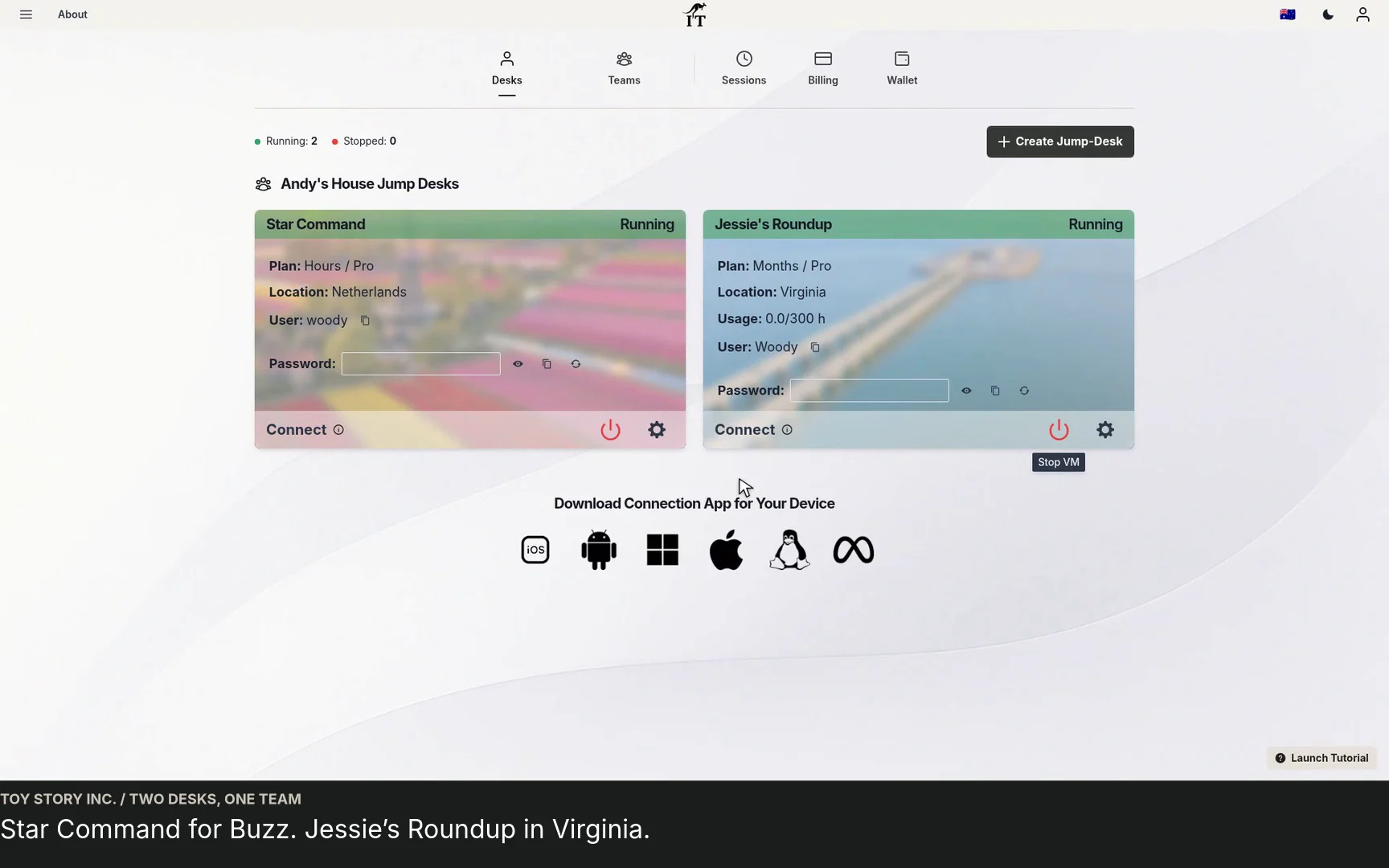
OPENAI DEVDAY 2026 · A PRACTICAL TEAM GUIDE
ChatGPT dots and DevDay 2026: put a full Windows workspace behind your next project
Bring a contractor onto a startup project, run your small business’s Windows applications from the device you prefer, or give developers a separate place to build and explore new AI tools. Here is where Jump-Desk and Jump-Teams fit—and where OpenAI’s own cloud tools may be enough.
What are the new ChatGPT “bots”?
OpenAI calls its new ongoing agents dots. Announced at DevDay on 29 September 2026, a dot works with approved tools and has its own cloud computer. A Jump-Desk is an optional, separately managed Windows workspace for the people testing a workflow; it is not required to run a dot. Jump-Teams helps organise your people, their desktops and Windows access.
This is an independent Jump-IT guide. OpenAI features, eligibility and charges are separate from Jump-IT. The product screenshots below use fictional demo data, not customer accounts or a completed OpenAI integration.

FIRST, THE FACTS
What actually changed at DevDay?
Start with the feature that fits the work. These announcements describe different products and environments, rather than one universal “bot” you install on a PC.
Swipe across the table to compare all columns.
| Development | What it is useful for | What to check before a trial |
|---|---|---|
| ChatGPT dots | Ongoing assistance across conversations, with approved app connections and a cloud computer of its own. | Gradual rollout. At launch, eligible adult Pro users outside the EEA, UK and Switzerland; Business Premium and Enterprise have different worldwide rollout arrangements. Enterprise requires admin enablement. Check current access. |
| Work across devices and ChatGPT Space | Continue new synced Work tasks across devices; bring files and Pages together for collaborative review. | Local steps need the connected computer available. Existing tasks retain their original mode. Space collaboration has its own sharing controls. DevDay recap. |
| Reusable Codex Cloud environments | Prepare repositories, dependencies and tools once, then start coding tasks in separate workspaces from that setup. | A strong first choice for work that fits the hosted coding environment. These tasks can continue while your own PC sleeps. Environment guide. |
| GPT-6.1 Sol and developer features | The recap includes GPT-6.1 Sol for coding and professional work, plus Plugin Extensions and MCP Events. | Check model access and feature maturity. Multi-agent in Responses is beta; MCP Events relies on a draft specification. These are not built-in Jump-Teams features. Official developer announcements. |
| Agents API: an earlier September release | A public-beta API for developers building longer-running agents on managed infrastructure. | Announced on 10 September, before DevDay. It requires a developer implementation and its own access and billing; a cloud PC subscription does not include it. Agents API announcement. |
For a small team, the opportunity is to apply these tools to useful work: developing a customer portal, preparing a client proposal or investigating a Windows application issue. Decide which parts happen in OpenAI’s cloud and which need a person’s complete Windows workspace. You can use features already available to your account while waiting for a new rollout.
CHOOSE FOR THE WORK
When does a Jump-Desk add value?
A contractor may need a Windows application, a consistent browser setup or a project workspace your business manages. A separate Jump-Desk can provide that working environment without putting the project on their everyday computer. If all the work fits in ChatGPT’s cloud tools, that extra desktop may be unnecessary.
Swipe across the table to compare all columns.
| Environment | A sensible fit | Where the boundary sits |
|---|---|---|
| Your existing computer | An individual already has the applications, project access and Windows setup required for the work. | You manage separation from your normal files, browser sessions and work. |
| Dot’s cloud computer or Codex Cloud | Supported research, document work or coding that does not require your Windows environment. | OpenAI manages the hosted environment. Its account, app and workspace controls apply. |
| Jump-Desk | A temporary Windows project workspace, or a repeatable setup for a specialist or contractor. | A separate Windows desktop with the apps and files you choose to prepare. AI services can still process data in their own clouds. |
| Jump-Teams with separate Jump-Desks | Several people testing workflows, including people in different regions. | Team management and Windows privileges are distinct. Use separate desktops for concurrent work: one active Windows user per desktop. |
What “sandbox” means here: a separate project workspace using fictional or approved sample data. It is not a claim that Jump-IT automatically contains malware, blocks every network destination, prevents copying, or keeps all AI processing inside the VM. Set the data, app permissions and review rules deliberately.
Explore Jump-Desk for an individual workspace, or Jump-Teams for a managed team setup.
FROM ANNOUNCEMENT TO A WORKING TRIAL
A practical setup for a contractor or regional team
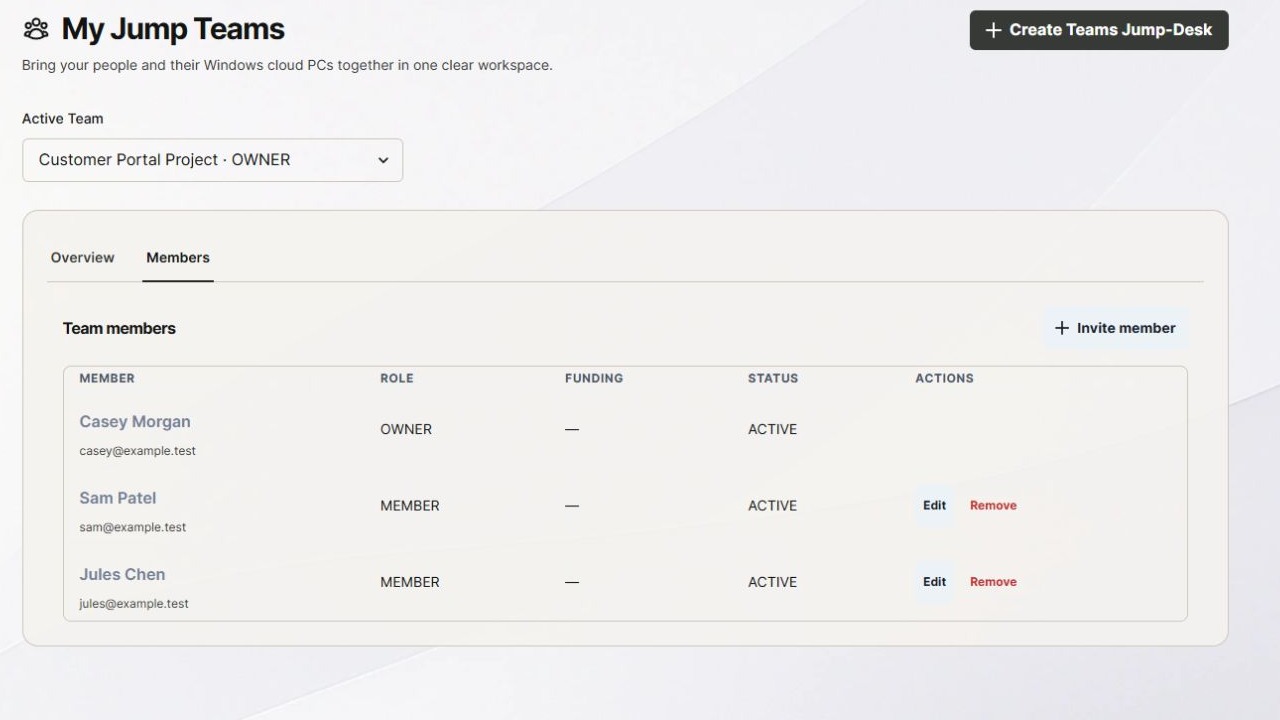
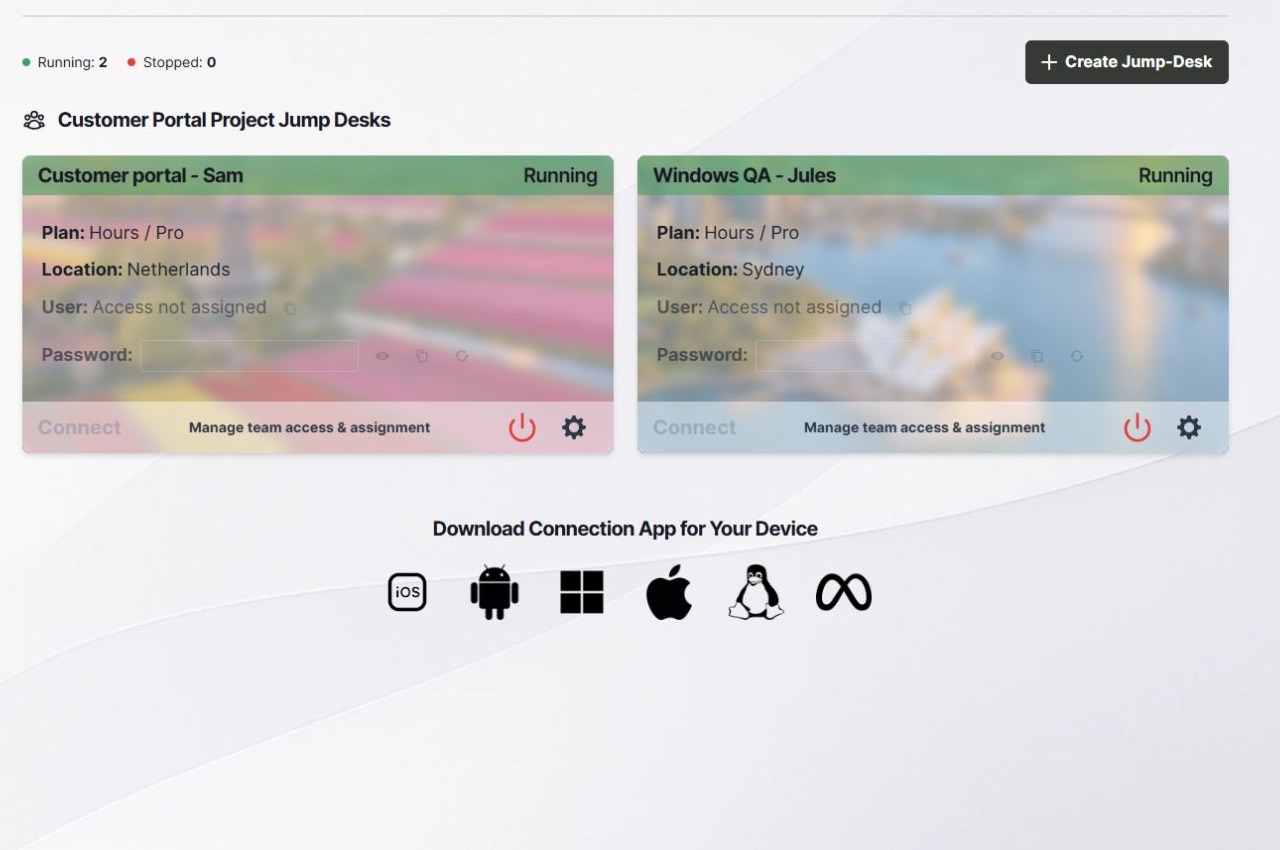
Here is a suggested startup project: Casey brings in Sam to build a customer portal, while Jules checks the application in Windows browsers and documents the handover. The screens are fresh captures of the actual Jump-IT interface running locally with demo records. They illustrate controls and states; no paid desktops were provisioned and no invitations were sent to make this guide.
Give the contractor a complete project workspace
The customer portal needs a working application, source control, browser testing and setup instructions. Prepare a Jump-Desk for that role with the chosen editor, Git, a compatible runtime, browsers, project repository and dedicated test accounts. These are tools you select and install; this guide does not claim they come preinstalled or include their licences.
Bring AI into the development workflow
Sam can use available AI assistance to investigate an unfamiliar codebase, explain an error, draft a change or research an API, while building and checking the application in the Windows workspace. Keep the project repository, development tools and relevant documentation together. Use a development branch and non-production accounts for experiments; use fictional customer records when testing a portal screen. Include only the apps and project access needed for the engagement. Sign in to an eligible OpenAI account in the Windows browser; use its supported desktop app only where the app, Windows version and workspace policies allow it. Never share one person’s login among contractors.
Give each person a clear Team role
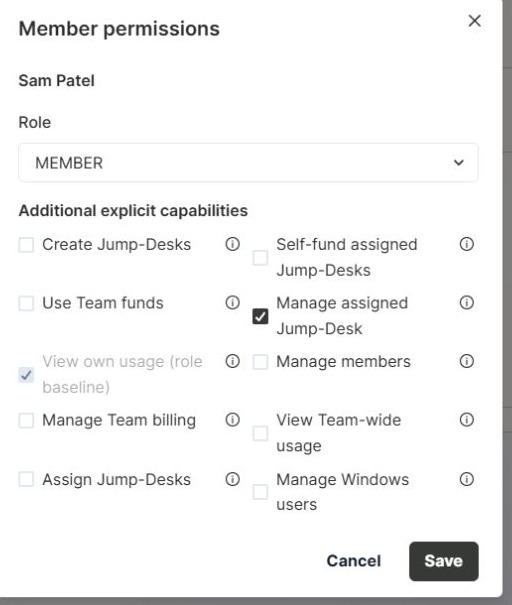
Open Jump-Teams, select the Team and review its Members. A colleague carrying out the trial usually needs fewer management capabilities than the person running billing or inviting people. Choose permissions for the job rather than giving everybody the Owner or Admin role.
4. Choose Windows access separately
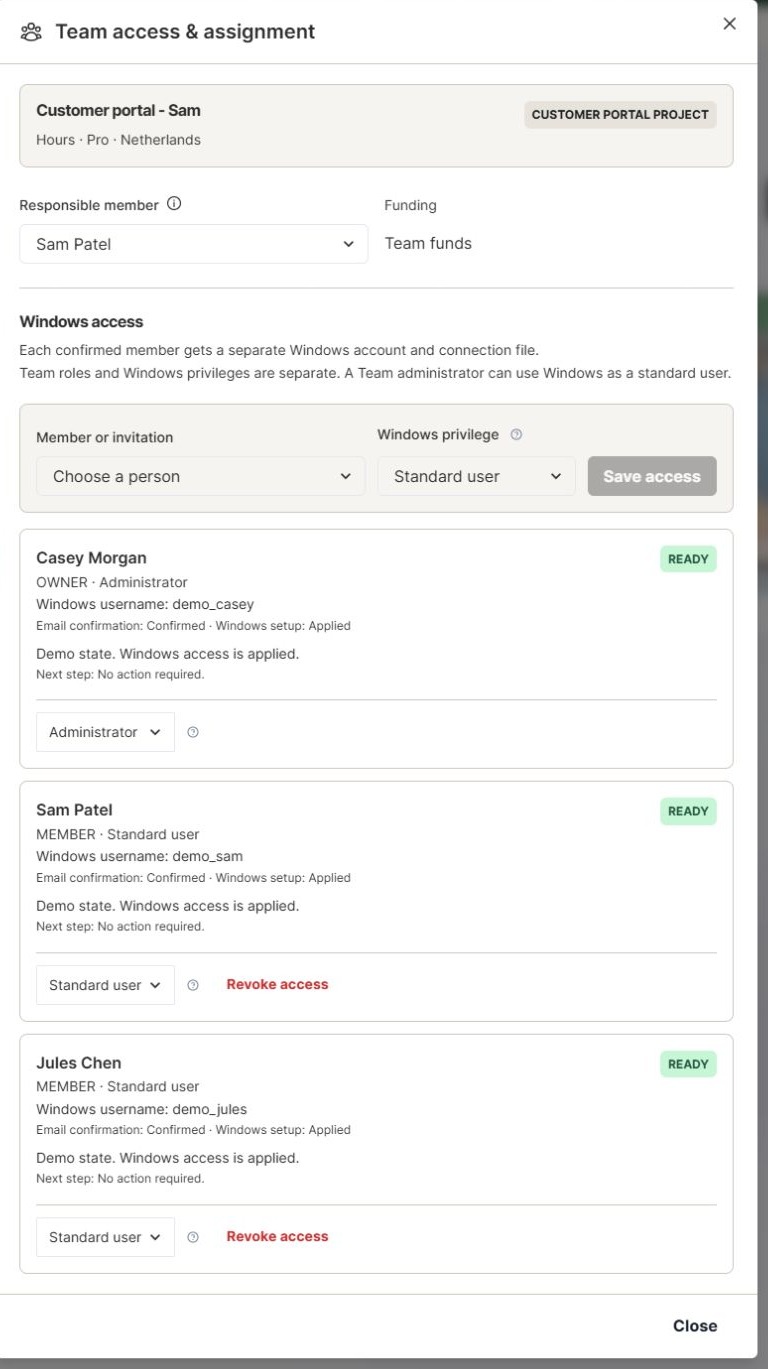
On the relevant desktop, open Manage team access & assignment. The Windows access panel lets an authorised manager select a person and Standard user or Administrator privileges.
For routine browser work and document review, start with Standard access. Grant Administrator access only when the work needs it, such as installing an approved tool. A Team administrator can still use Windows as a Standard user.
Check the member’s confirmation and Windows setup status before handing over. Do not treat a saved request as proof that access has already been applied to an offline desktop.
Microsoft also recommends limiting the use of administrator accounts. See its Windows account guidance.
5. Match desktops to people and test from their normal location
Sam can develop the portal on one desktop while Jules uses a separate Windows QA workspace. Choose each desktop’s available region, plan and capacity for the person and workload; separate desktops allow concurrent work. Test responsiveness from the network each person normally uses. Region selection alone does not guarantee latency or application performance, and it does not change OpenAI’s account or regional eligibility.
6. Choose cloud-only work or explicitly connect the Windows computer
You can use the browser inside a Jump-Desk to review cloud work. If a supported workflow needs the desktop’s local files or tools, OpenAI documents a separate computer-access connection. In the desktop app, open the dot’s profile, find Your computer under Computers and review Allow access. Only the authorised person should approve that connection, after confirming the installed app supports the workflow.
Keep the connected computer online and the app open while local work runs. The dot’s cloud browser has separate sessions; signing in on Windows does not sign that browser in. Stopping the Jump-Desk makes local work unavailable, but does not revoke the dot’s connection. Use OpenAI’s Revoke access control when the connection should end. Official computer and app connection instructions.
Local restrictions do not automatically carry over to a dot’s cloud computer or Work Cloud. Review both environments and their connected accounts before a test. OpenAI’s cloud and local access controls.
A PROJECT YOU CAN PUT TO WORK
A startup contractor brief: build and hand over a customer portal
Imagine a small service business hiring a developer for a short engagement. Customers need to sign in, view the progress of their project and send a support request. The business wants a working prototype and the ability for another developer to continue it afterwards.
Windows workspace: Prepare the chosen editor, Git, the project’s compatible runtime, browsers and a development repository. Keep the project configuration and build instructions with the code. Use dedicated test accounts and fictional customer records for the prototype; live customer systems are a separate deployment decision.
Work to complete: Build the sign-in flow, project-status view and support-request form. Run the application on the Windows desktop, check the key journeys in the intended browsers, fix errors and commit the changes to the business-controlled repository.
Where AI can help: Use eligible ChatGPT or Codex features to understand unfamiliar code, investigate failed builds, compare implementation options and draft changes or documentation. The developer checks the generated code and runs the application. Dots, Codex Cloud and local-computer connections have different capabilities and permissions; select the supported environment for each part of the work.
Team setup: Give the contractor their own account and access to the assigned desktop. Select Team management permissions separately from Standard or Administrator Windows privileges. Keep billing and wider Team administration with the people responsible for them.
Handover: Keep the repository, setup instructions, configuration requirements and known issues under business control. Confirm another authorised person can continue the project. Remove the contractor’s Windows access and review Team and connected-service access when the engagement ends. Retain, repurpose or retire the desktop deliberately.
This is a suggested project plan, not a claim that a customer completed it or that Jump-IT installs the software or connects OpenAI automatically. Check your chosen tools’ Windows support, licences and resource requirements.
Swipe across the table to compare all columns.
| Decision | What a useful result looks like | Why the workspace helps |
|---|---|---|
| Working application | The agreed sign-in, project-status and support journeys run and have been checked. | The developer has a complete Windows environment for editing, running and debugging the project. |
| Maintainable handover | The business retains the code, instructions and access needed for the next developer. | The project environment can remain available after the contractor’s own access ends. |
| Useful AI assistance | Record where AI reduced research or development effort, and where its suggestions needed correction. | New tools can be explored in a separate development workspace with deliberately chosen project access. |
| Commercial fit | Compare total desktop, software and AI costs with the engagement’s working pattern. | Choose a temporary Hours workspace or a longer-running plan from the actual requirements. |
COMPLETE WINDOWS WORKSPACES
Three practical ways to use Jump-IT
A small business keeps its Windows work together
A consultant who prefers a Mac or iPad can keep compatible Windows business software, desktop spreadsheets, proposal documents and project folders in a Jump-Desk. They connect from a supported device and carry on with the same workspace between client visits. Check the application’s licence and remote-use requirements, then rehearse a real quotation or reporting workflow.
A startup brings in a specialist
Prepare a Windows project environment for a contract developer, analyst or operations specialist. Install the tools they need, provide the relevant repository or project folders and give them individual access. Jump-Teams helps manage the desktops and people while the startup retains control of the working environment through onboarding, delivery and handover.
A flexible developer builds and explores
Keep a separate Windows environment for a client codebase, browser testing, debugging and experiments with supported AI tools. Prepare the editor, runtime and dependencies the project requires. This can be useful when the developer’s everyday machine runs another operating system or when a project deserves its own setup. Check demanding workloads, virtualisation and specialist hardware needs before choosing a configuration.
These are suggested use cases, not measured customer outcomes. For the people-and-desktops setup, see remote team onboarding, Jump-Teams for startups and Windows cloud PCs for developers.
MAKE THE TRIAL ECONOMICAL
Budget for the full workspace, including retained time
For a short project, compare the complete Hours estimate with the full Months price for the same region, tier and currency. An Hours desktop has a running-compute charge plus a service charge for the time it is retained, including when stopped. Months is the full monthly price with up to 300 uptime hours per desktop.
Hours estimate = running hours × compute rate + retained hours × service rate
Eight running hours spread over seven retained days means eight compute hours and 168 service hours. It does not mean eight hours of every charge. Use the current cost calculator for the actual rates and estimate.
Add OpenAI subscription or API usage, any separately licensed software and your normal device, connectivity and applicable purchase charges to the project budget. A Jump-Desk does not include a ChatGPT plan or API credit. If an agent needs a connected Windows computer running for longer, include that uptime too.
Estimate your trial workspace Plan a temporary Windows project →
Finish with an orderly handover
Collect the useful files, source links, settings and review notes in a location the business controls. Remove the contractor’s Windows access when it is no longer needed and confirm the change has actually applied; an offline machine can leave a revocation pending. Review Team membership separately.
Sign out of test services and revoke unnecessary OpenAI computer or app connections. Access removal cannot retrieve copies of data already shared. Save and verify the work before stopping a desktop, and make a separate decision about retaining or deleting it. Stopped Hours desktops still have the retained service charge.
Your next trial should start with a better brief and a known setup. Keep the parts that produced a useful result; simplify the parts that created more supervision than value.
Questions teams are asking
Do I need a Jump-Desk to use ChatGPT dots?
No. A dot has its own cloud computer. A Jump-Desk is an optional Windows workspace for a person or a supported local-computer workflow. Choose it when the project’s tools, files or team setup benefit from that separate desktop.
Can a Jump-Desk unlock dots in a country or plan where it is unavailable?
No. OpenAI controls eligibility, rollout and workspace access. A different Windows desktop or VM region does not override those rules. Check the current availability in your own account before planning around a feature.
Is Jump-Teams the same thing as OpenAI Team Tasks?
No. Jump-Teams manages your Jump-IT team and desktops. OpenAI Team Tasks is a separate OpenAI feature. This guide does not announce an integration, partnership or shared subscription.
Does a separate Windows desktop keep every AI action inside it?
No. AI services and connected apps may process information in their own environments. A separate Windows workspace is one part of a controlled trial; use appropriate data, account permissions and human review as well.
Keep your existing device in the picture
Your trial workspace need not dictate the computer you carry. Read our Windows on iPad guide, the iPhone Duo remote Windows guide or the iPhone Duo, Galaxy Z Fold8 and Pixel Fold comparison to assess the screen, input and remote-client workflow. Those device guides explain a separate Windows connection; they do not establish OpenAI feature eligibility.
Sources and how this guide was prepared
Checked 30 September 2026. The OpenAI descriptions below are primary sources; product availability can change. The comparisons, contractor project plan and use cases are Jump-IT’s own recommendations.
- OpenAI: DevDay 2026, 29 September
- OpenAI: Meet dots and current availability
- OpenAI: connect computers and apps to your dot
- OpenAI: cloud and local access controls
- OpenAI: reusable Codex Cloud environments
- OpenAI: Agents API announcement, 10 September 2026
- Microsoft: manage user accounts in Windows
- Jump-IT: Jump-Teams and current cost calculator
Jump-IT screenshots were captured from the current product code in a separate local sandbox with fictional people and desktop records. They were cropped for readability without inventing controls. No customer information, live billing details or credentials are shown.
Give your next project a Windows workspace.
Bring the tools, people and project together. Explore Jump-Desk for your own Windows workspace or Jump-Teams for the colleagues and contractors working alongside you.
Explore Jump-Teams Find your Jump-Desk →26 October update: GPT-6.1 Terra
Our GPT-6.1 Terra launch and Windows-workflow guide collects the new model’s launch evidence and independent benchmark results. It applies the environment choices here to a concrete Windows client project, with human acceptance checks, current desktop costs and practical device connections.
Choose local hardware separately from the team’s Windows work
The new touchscreen MacBook Pro and Surface Laptop Ultra comparisons apply these environment choices to a global project team. Keep the local AI runtime, remote Windows environment, approved data and tool permissions explicit. Productive hardware is useful only when the actual software and acceptance checks fit the work.
Related device guidance added 31 October 2026.