

Jump-IT Use Case · MacBook Neo for students
Windows on MacBook Neo: The Smart Student Setup
Use the affordable, light MacBook Neo for everyday study—and open a separate Windows 11 Pro Jump-Desk only when a course, application or temporary project actually needs Windows.
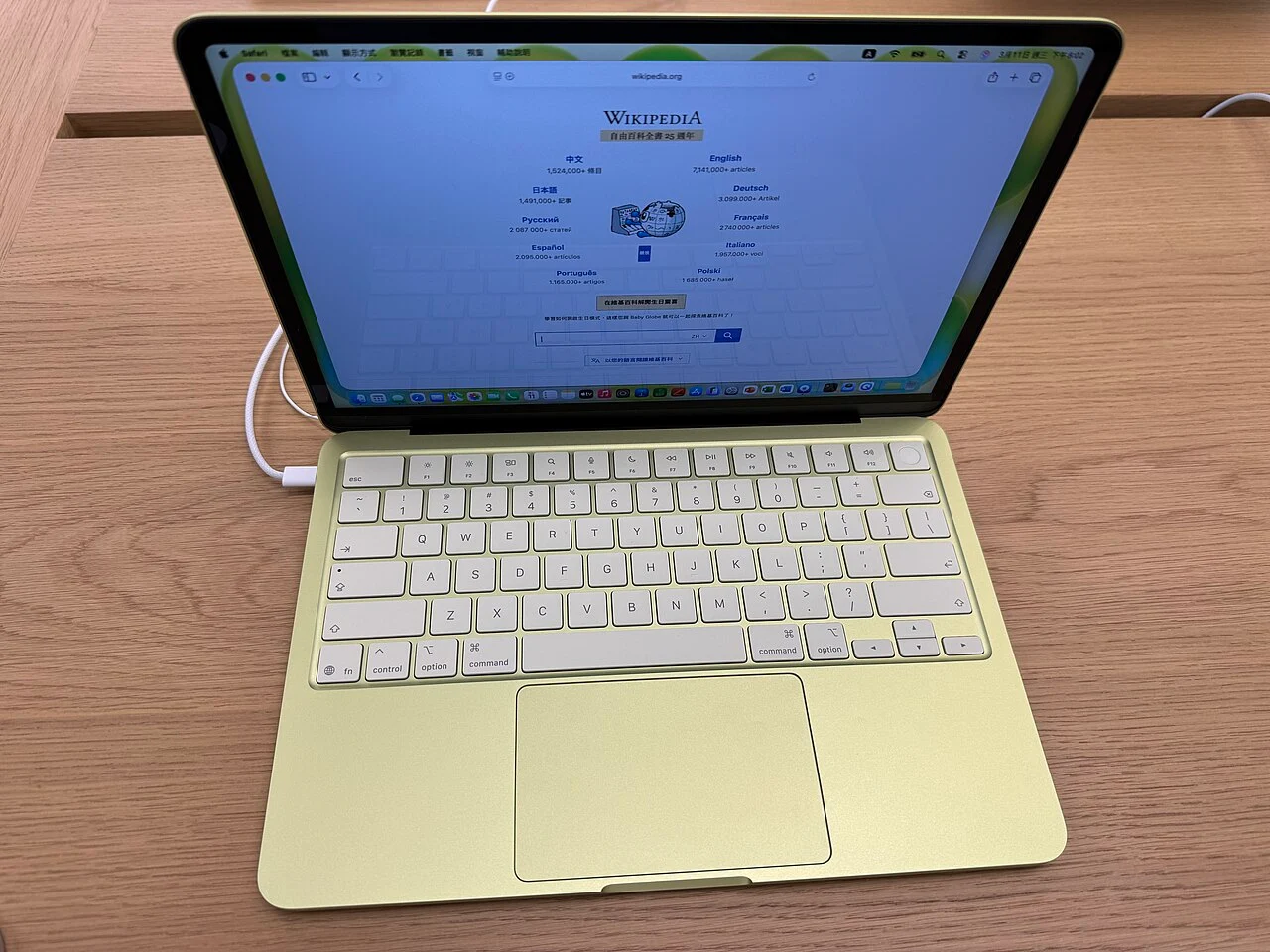
Can MacBook Neo be a good Windows student laptop?
Yes—if macOS remains the main system and Windows is an occasional, specialist requirement. MacBook Neo is attractive for everyday coursework, but its 8 GB unified memory is fixed and it does not run Windows natively.
Use native Mac or web applications whenever they meet the course requirement. Choose Parallels Desktop for light Windows work that must continue offline. Choose Jump-Desk when Windows can be online and would benefit from separate cloud memory, storage, persistence or access from another supported device. Buy a Windows PC when Windows is needed every day, exams prohibit virtual machines, or the work depends on a dedicated GPU, specialist drivers or local hardware.
Why MacBook Neo is trending
Apple finally has a genuinely low-cost MacBook
MacBook Neo launched in March 2026 at $599 in the U.S. and $499 for eligible U.S. education customers. Its timing matters: students are looking for value while memory and storage costs are putting upward pressure on the wider PC market.
Demand is more than launch-day attention
Gartner’s preliminary Q1 2026 estimates put Apple at 6.684 million PC shipments, 10.6% market share and 12.7% year-over-year growth—the fastest growth among the major vendors in that table. Gartner linked the result primarily to MacBook Neo demand among new Mac users and education buyers.
That does not prove MacBook Neo is the right laptop for every course. It does show that its lower entry price has opened the Mac to a group that previously might have bought a basic Windows notebook.
A timely answer to higher hardware costs
Gartner separately forecast that higher memory and SSD prices would raise average PC prices by 17% in 2026. That is a market forecast, not a promise about any individual laptop. It does, however, make a “buy one portable Mac and add temporary Windows capacity only when needed” strategy more relevant.
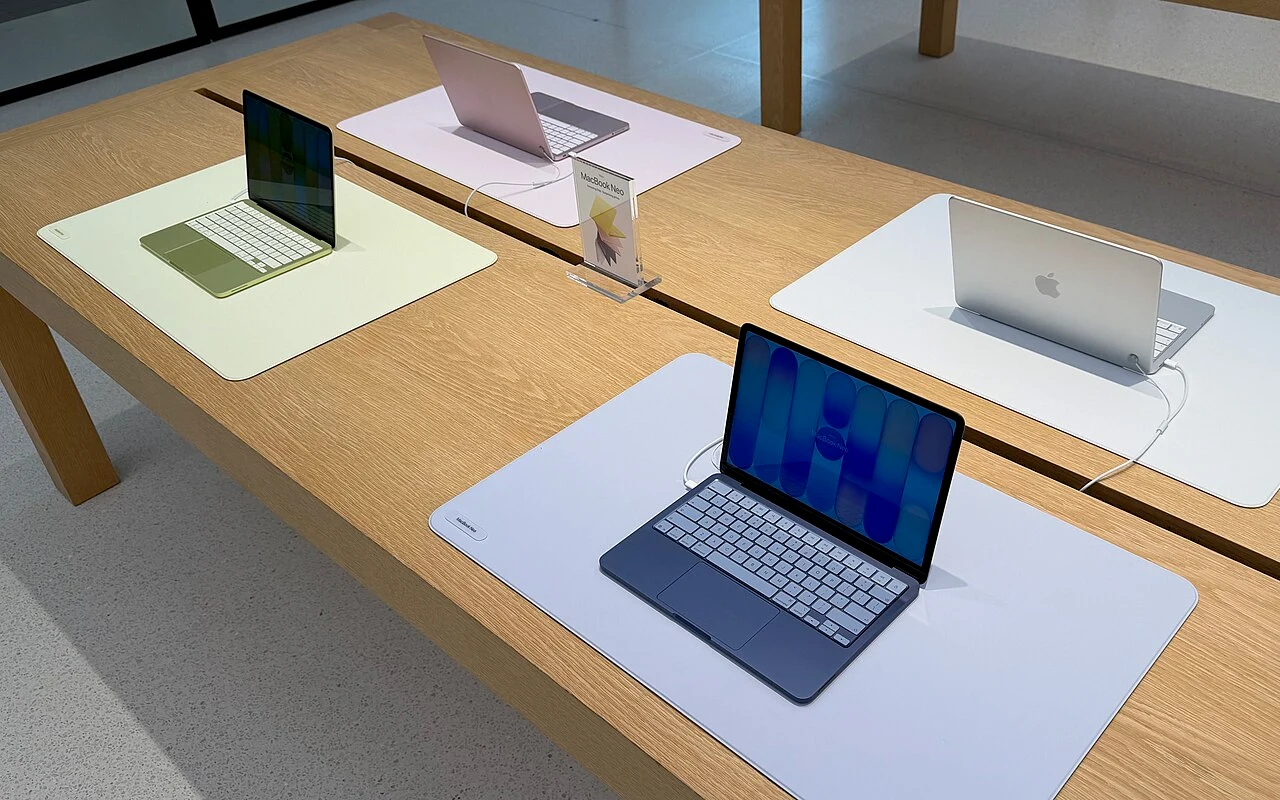
Price context: Apple’s $599 and $499 figures are U.S. starting prices announced at launch. Education eligibility, tax, storage configuration, Touch ID and pricing differ by market; use the live Apple Store in the student’s country before budgeting.
YOUR NEXT STEP
Check the course requirement before choosing the computer.
Ask for the exact software, assessment rules and peripheral requirements. A remote Windows desktop may support compatible coursework, but offline exams and specialised hardware can call for a different setup.
Configure your Jump-Desk
MacBook Neo for students
What the specification means in real coursework
The headline value is strong, but the fixed-memory design makes choosing the right Windows method unusually important.
On smaller screens, swipe sideways to compare every column.
| MacBook Neo specification | What Apple lists | Student impact | Windows impact |
|---|---|---|---|
| Processor | A18 Pro; 6-core CPU, 5-core GPU and 16-core Neural Engine | Designed for browsing, documents, communication, media and everyday creative work | Parallels uses Apple silicon virtualisation; Jump-Desk executes Windows remotely |
| Memory | 8 GB unified memory on both current configurations | Fine for focused everyday use, but heavy multitasking needs discipline | A local VM shares the same 8 GB; Jump-Desk Pro and Pro+ supply separate remote memory |
| Storage | 256 GB or 512 GB SSD | 256 GB needs careful local file and media management | Parallels stores a large VM bundle locally; Jump-Desk keeps its current 128 GB drive in the cloud |
| Display | 13-inch, 2408 × 1506, 500 nits, 1 billion colours | Sharp text and a portable classroom footprint | Windows App can scale the remote desktop to the Mac display |
| External display | One display up to 4K at 60 Hz through the USB 3 port | Useful for a desk setup, but not a multi-display workstation by default | Connect the monitor through the left USB 3 port and verify the chosen client layout |
| Ports | One USB 3 USB-C, one USB 2 USB-C and a headphone jack; both USB-C ports charge | A hub may be needed for storage, display and accessories | Specialist USB hardware and drivers still need individual compatibility testing |
| Battery and weight | 1.23 kg; up to 16 hours video streaming or 11 hours wireless web | A strong carry-everywhere class and library profile | Remote use also depends on Wi-Fi or mobile connectivity and workload |
Important buying choice: Apple currently lists no higher-memory MacBook Neo. A 512 GB model improves local storage and includes Touch ID in Apple’s current configuration, but it does not solve the 8 GB memory ceiling.
Do you actually need Windows?
Use macOS first; add Windows for the exceptions
Most everyday study does not justify running another operating system. The efficient setup is to keep common work native and reserve Windows for a clearly identified requirement.
Learning platforms and research
Browsers, online libraries, university portals, Canvas, Moodle and most web tools normally work directly in macOS. Confirm browser requirements with the institution.
Word, Excel and PowerPoint
Microsoft provides Mac versions and web apps. Windows may still be required when a course depends on a specific add-in, macro, ActiveX control or identical PC-only workflow.
Microsoft Access
Microsoft identifies Access as PC-only. A compatible licence and course database can make a separate Windows desktop genuinely useful.
Power BI Desktop
The desktop authoring application requires Windows. Microsoft fully supports virtualised Power BI Desktop only on Azure Virtual Desktop and Windows 365, so Jump-Desk should not be promised as a supported Power BI platform.
Full Visual Studio
Visual Studio for Mac was retired in 2024. VS Code runs on Mac, but some .NET, C++, Windows SDK or lab workflows still need full Visual Studio on Windows.
Course-specific and legacy software
Engineering utilities, accounting packages, legal tools and older teaching applications may be Windows-only. Check the exact version, architecture, driver, GPU and licence requirements—not just the product name.
Best practice: ask the course coordinator for the precise application name, version, required plug-ins, peripheral needs and exam rules before choosing a Windows method.
Windows on MacBook Neo options
Mac-native, Parallels, Jump-Desk or another PC?
There is no universal winner. The right answer depends on how often Windows is needed, whether it must work offline, and whether the application fits the platform.
On smaller screens, swipe sideways to compare every column.
| Decision | Mac or web app | Parallels Desktop | Jump-Desk | Windows PC |
|---|---|---|---|---|
| Best for | Everyday study that already works on macOS | Frequent light Windows work with offline access | Occasional online Windows, separate resources and temporary projects | Daily Windows, proctored exams, GPU or specialist hardware |
| Where Windows runs | No Windows desktop | Locally inside a Windows 11 on Arm VM | On a persistent remote Windows 11 Pro VM | On dedicated physical hardware |
| Neo memory | Used by macOS applications | Fixed 8 GB shared between macOS and Windows | Windows uses the selected cloud tier’s 4, 8 or 16 GB | Independent physical memory |
| Neo storage | Normal app and file use | VM bundle and Windows applications consume local SSD space | Windows and current 128 GB drive remain remote | Independent physical storage |
| Offline Windows | Not applicable | Yes, after setup and licensing requirements | No; internet is required while connected | Yes for compatible local applications |
| Architecture | Native Mac or browser platform | Windows 11 on Arm; x86/x64 apps use emulation and drivers must match Arm64 | Remote Windows is independent of the Mac’s A18 Pro; app compatibility still needs checking | Depends on the PC purchased |
| Cross-device use | Varies by app and account | Primarily tied to the Mac holding the VM | Same desktop can be reached from supported client devices | Carry the PC or configure separate remote access |
| Cost pattern | Often already included or subscription-based | Parallels plus an eligible Windows licence and local storage | Regional cloud price with Hours, Months or Years options | Upfront hardware, accessories and maintenance |
| Main limitation | May not match a required Windows workflow | Neo’s fixed memory/storage and Windows on Arm compatibility | Connectivity, latency, no listed dedicated GPU and remote-device limits | A second device to buy, maintain and carry |
The practical verdict
The best-of-both-worlds MacBook Neo setup
For the intended student or casual user, the most economical workflow is layered—not an attempt to make every task run in every environment.
MacBook NeoNotes, browser, communication, media and Mac applications
Microsoft Windows AppThe macOS remote client when Windows is required
Jump-DeskPersistent Windows 11 Pro with its own remote resources
Keep normal coursework native
Use macOS or the browser for the majority of assignments. This preserves battery life, works offline where the app permits and avoids paying for Windows when it adds nothing.
Identify the Windows exception
Confirm one application, module or project that genuinely requires Windows. Test the version, network, licence and peripheral requirements early.
Add the lightest suitable method
Use Parallels when offline access wins. Use Jump-Desk when separate cloud resources and occasional online access are the better fit. Buy hardware when neither is suitable.

Why Jump-Desk fits MacBook Neo
The cloud solves the Neo’s hardest local constraint
Parallels officially supports MacBook Neo and says 8 GB is enough for everyday productivity. It also says demanding work may need more RAM—but MacBook Neo has no higher-memory configuration. That is where Jump-Desk has a clear, factual advantage.
Windows memory does not compete with macOS
Jump-Desk Pro provides 8 GB RAM and Pro+ provides 16 GB RAM in the remote Windows machine. The Mac still runs the client and display stream, but it does not allocate those Windows memory amounts from its fixed 8 GB.
The Windows drive stays off the Mac
Current Jump-Desk tiers include a 128 GB remote drive. That avoids storing a large local Windows VM on a 256 GB Neo, although files downloaded to macOS still use local space.
Use the same desktop beyond the Neo
Jump-Desk is persistent: applications and files remain on the cloud desktop between sessions while it exists. Microsoft Windows App supports macOS, iOS/iPadOS and Android for remote-PC connections.
Choose a closer configured region
Jump-IT currently exposes 20 regions. A closer region will often reduce latency, although Wi-Fi quality and internet routing also affect the result.
Administrator rights for compatible software
The current Jump-IT product describes administrator rights to install software compatible with Windows 11. The software licence remains the student’s responsibility unless stated otherwise.
Windows 11 Pro is included
The current Standard, Pro and Pro+ definitions include a Windows 11 Pro licence, removing the separate Windows licence step normally associated with a new local Parallels VM.
Do not confuse “remote resources” with unlimited capability: the current tiers do not list a dedicated GPU. Some applications may reject cloud desktops, need low-level drivers, depend on USB hardware or require vendor-supported platforms. Test first.
Current Jump-Desk choices
Start with the workload, then choose the plan
Pricing is loaded by the live Jump-IT creation flow and varies by location, currency, billing model, tier and availability. The cards below show the published specifications without presenting one hard-coded price as universal.
Standard
2 vCPU · 4 GB RAM- 128 GB HDD
- 100 GB data transfer included
- Windows 11 Pro licence included
Pro
2 vCPU · 8 GB RAM- 128 GB SSD
- 100 GB data transfer included
- Windows 11 Pro licence included
Pro+
4 vCPU · 16 GB RAM- 128 GB Premium SSD
- 100 GB data transfer included
- Windows 11 Pro licence included
Choose how often Windows is required
Hours
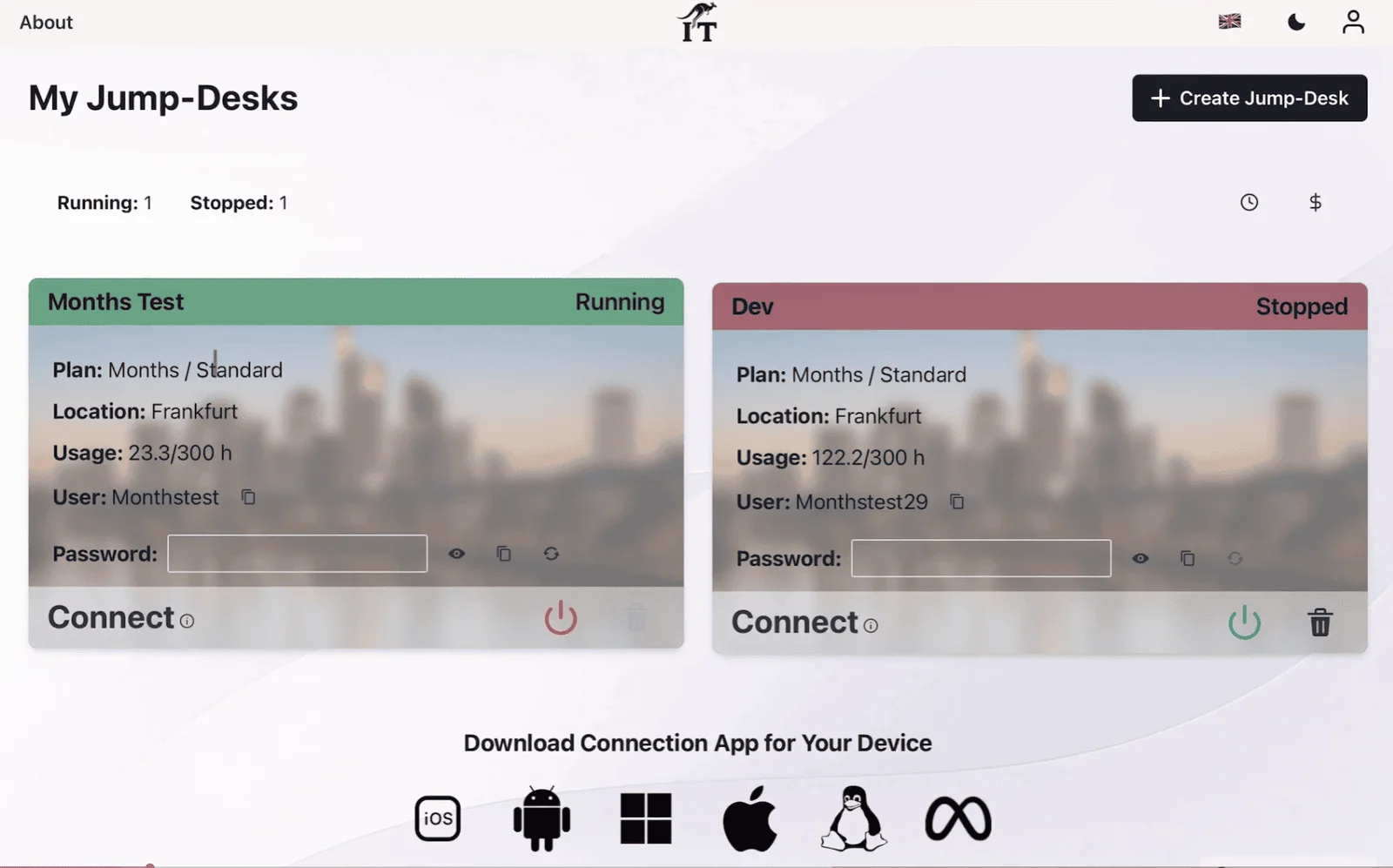
Well matched to one assignment, a short module or an application needed only occasionally. Compute usage is charged while the machine runs; the displayed service fee covers persistent storage and public IP while the Jump-Desk exists.
Student habit: stop the machine from the dashboard after every session.
Months
For Windows used regularly during a term. Current tier definitions include up to 300 hours of uptime per month and automatic shutdown after three hours idle.
Compare the live monthly total with expected Hours use.
Years
For a persistent Windows desktop needed across the academic year. Review the live checkout price, terms and application lifespan before making a longer commitment.
Daily Windows use may still justify a physical Windows computer.
20 configured regions
When not to use Jump-Desk
Choose the physical or local route when the requirement demands it
Jump-Desk is a strong fit when
- Windows is needed for one application, module or short project
- The student has a stable internet connection
- The Windows workload benefits from 8 GB or 16 GB remote RAM
- A 128 GB remote Windows drive reduces pressure on Neo storage
- The same Windows environment is useful from another supported device
- The application is compatible with Windows 11 and remote use
Choose something else when
- Windows must work offline
- A proctored exam prohibits virtual machines or remote desktops
- The workload needs a dedicated GPU, high-frame-rate gaming or 4K video editing
- A hardware dongle, USB device or kernel driver must attach locally
- Campus Wi-Fi blocks the remote connection or is too unstable
- Windows is the primary system every day for several years
Before buying or subscribing
Get the exact software requirements
Record the app version, operating-system edition, CPU architecture, RAM, storage, GPU, driver, peripheral, licensing and vendor-support requirements.
Test the real network
A campus, library, hotel or guest network can allow normal browsing while restricting remote desktop traffic. Test from the place where the coursework will be done.
Protect course files
Keep assessed work in an approved backup or sync location. Export important files before deleting a Jump-Desk; deletion is not a substitute for archiving.
Exams require a separate decision: Pearson VUE’s current OnVUE requirements prohibit virtual machines. Other schools and exam vendors set their own rules. Use only a configuration the exam provider explicitly supports and pass its system check before the deadline.
Direct answers
MacBook Neo and Windows FAQs
Can MacBook Neo run Windows?
Yes. MacBook Neo can run Windows 11 locally in Parallels Desktop or act as the client for a remote Windows PC such as Jump-Desk. Because MacBook Neo uses Apple silicon, Boot Camp is not an option.
Is 8 GB of memory enough for Windows on MacBook Neo?
Parallels says 8 GB is sufficient for everyday productivity, but local Windows must share MacBook Neo’s fixed 8 GB with macOS. Jump-Desk runs remotely, so a Pro or Pro+ desktop can provide 8 GB or 16 GB of Windows memory without using that amount from the Mac.
Is Jump-Desk or Parallels better for MacBook Neo?
Parallels is better when offline Windows and close integration with macOS matter most. Jump-Desk is usually the better fit for occasional online use, a separate persistent desktop, remote 8 GB or 16 GB memory, or access from more than one supported device.
Does Jump-Desk use MacBook Neo storage and memory?
Windows, installed applications and the current 128 GB Jump-Desk drive remain in the cloud. MacBook Neo still uses some memory and storage for Microsoft Windows App and for any files downloaded locally, but it does not store or execute the full Windows desktop.
Can MacBook Neo students use Microsoft Access through Jump-Desk?
Microsoft identifies Access as a PC-only desktop application. A compatible licensed Access version can be installed in a Jump-Desk Windows 11 Pro environment, but the student should confirm the exact course version, licence and database or peripheral requirements before paying.
Can I use Power BI Desktop on Jump-Desk?
Power BI Desktop requires Windows, but Microsoft says it is fully supported in virtualised environments only on Azure Virtual Desktop and Windows 365; other virtual desktop environments are not supported. Do not choose Jump-Desk on the assumption that it is a supported Power BI platform. Use a supported environment for assessed or support-critical work; a technical test does not change the vendor’s support policy.
Can I take a proctored exam through Jump-Desk?
Do not assume so. Exam rules vary, and Pearson VUE’s OnVUE requirements prohibit virtual machines. Use an approved native macOS or physical Windows setup and run the provider’s system test before exam day.
Does Jump-Desk work offline on MacBook Neo?
No. Jump-Desk is a remote cloud PC and requires a suitable internet connection while Windows is in use. Choose Parallels or a physical Windows computer when offline Windows is essential.
Which Jump-Desk tier is best for a MacBook Neo student?
Pro is the balanced starting point for compatible student software because it provides 2 vCPU, 8 GB RAM and a 128 GB SSD. Standard suits light tasks, while Pro+ adds 4 vCPU and 16 GB RAM for heavier compatible work. Current tiers do not list a dedicated GPU.
Is MacBook Neo plus Jump-Desk cheaper than buying a Windows laptop?
It can be for short or occasional Windows requirements, but there is no universal saving. Compare the live regional Jump-Desk cost for the expected hours and project duration with Parallels and Windows licensing or the total cost of a second PC.
Sources, licensing and verification
The Jump-IT Team reviewed the current MacBook Neo specification, current Microsoft and Parallels compatibility documentation, current exam requirements, the public Jump-IT product pages and the product’s tier, plan and 20-region definitions on 13 August 2026.
- Apple Newsroom: MacBook Neo announcement, launch pricing, positioning and availability
- Apple: MacBook Neo technical specifications
- Gartner: preliminary Q1 2026 PC shipment estimates and MacBook Neo demand
- Gartner: 2026 memory-cost and PC-price forecast
- Parallels: MacBook Neo compatibility and 8 GB memory guidance
- Microsoft Learn: x86 and x64 application emulation on Windows 11 on Arm
- Microsoft Learn: Windows on Arm driver architecture requirements
- Microsoft Learn: Windows App platforms and remote-PC connections
- Microsoft: Access is available for PC only
- Microsoft Learn: Power BI Desktop requirements and virtualised-environment support
- Microsoft Learn: Visual Studio for Mac retirement
- Pearson VUE: OnVUE technology requirements and prohibited virtual machines
- Wikimedia Commons: MacBook Neo in Apple Store by Banana2026, CC0 1.0
- Wikimedia Commons: MacBook Neo grouping by Seasider53, CC BY 4.0
- Jump-IT: current Jump-Desk product description
- Jump-IT: live regional configuration, availability and pricing


Apple, MacBook, Mac and macOS are trademarks of Apple Inc. Windows, Windows 11, Windows App, Microsoft 365, Access, Power BI and Visual Studio are trademarks of Microsoft. Parallels Desktop is a trademark of Parallels International GmbH. Jump-IT is not affiliated with or endorsed by Apple, Microsoft, Parallels, Gartner or Pearson VUE. Specifications, availability, support policies and prices can change; current vendor documentation, institution rules and live checkout terms take precedence.
SEE THE PRODUCT IN ACTION
From the first choice to the next working session.
These recordings show the current Jump-IT interface with demonstration data. Use the controls to pause, replay or view a recording full screen.
PRODUCT WALKTHROUGH27 seconds
Name your desktop, choose a region and plan, and review the configuration before checkout.
Read the walkthrough
- Start with your Windows sign-in After signing in to Jump-IT, give the desktop a name. This username is for Windows.
- Choose a nearby region Pick from the regions available to your account. Your desktop will run in that region.
- Choose how you use it This example uses Monthly. Review the current price and included uptime before checkout.
- Choose the power for your work Compare the available CPU, memory and storage. Example prices are shown in this recording.
- Review before you pay Check the total and terms, then continue to checkout. This demonstration stops before payment.
PRODUCT WALKTHROUGH31 seconds
Find the display settings, adapt the connection to your screen, and download the connection file.
Read the walkthrough
- Find your desktop controls The settings menu sits on your desktop card. Open Connection Settings.
- Fit Windows to your screen Review full-screen, monitor and resizing options. Support depends on your remote desktop client.
- Choose your display preference Smart sizing fits the remote desktop to the client window. Other settings can stay at their defaults.
- Keep the settings and connect Select Done, then Connect. The settings are included in your next connection file.
- Open the file in your client Choose Download & Connect, then open the file with a supported remote desktop app.
- Continue on your computer Sign in to the remote desktop with your Windows account. This final step is a connection guide.
CURRENT WORKFLOWS · SEPTEMBER 2026
Keep the Mac. Give the Windows task its own workspace.
A mixed-device workflow often starts with one practical requirement: a client’s desktop tool, an Access database or an Excel add-in. Check the exact application, plug-ins, drivers, licence and vendor-supported hosting environment before choosing where Windows runs. A familiar file format does not guarantee that the Mac or browser edition includes every feature. Power BI Desktop has a separate virtualisation support boundary; read the supported-environment guidance before choosing a cloud desktop.
For a Mac-first business, Jump-Teams extends that decision to the people doing the work. Pilot one representative application, invite a colleague through their own account and assign a desktop with the resources they need. Keep the Mac for everyday work and use the retained Windows workspace for the exception.
Bring people and desktops together.
Read the business guide to invitations, roles, funding and desktop assignments.
Explore Jump-Teams →Make the first working day easier.
Follow a practical onboarding checklist, from a first pilot to reviewing access when a role changes.
Read the team onboarding guide →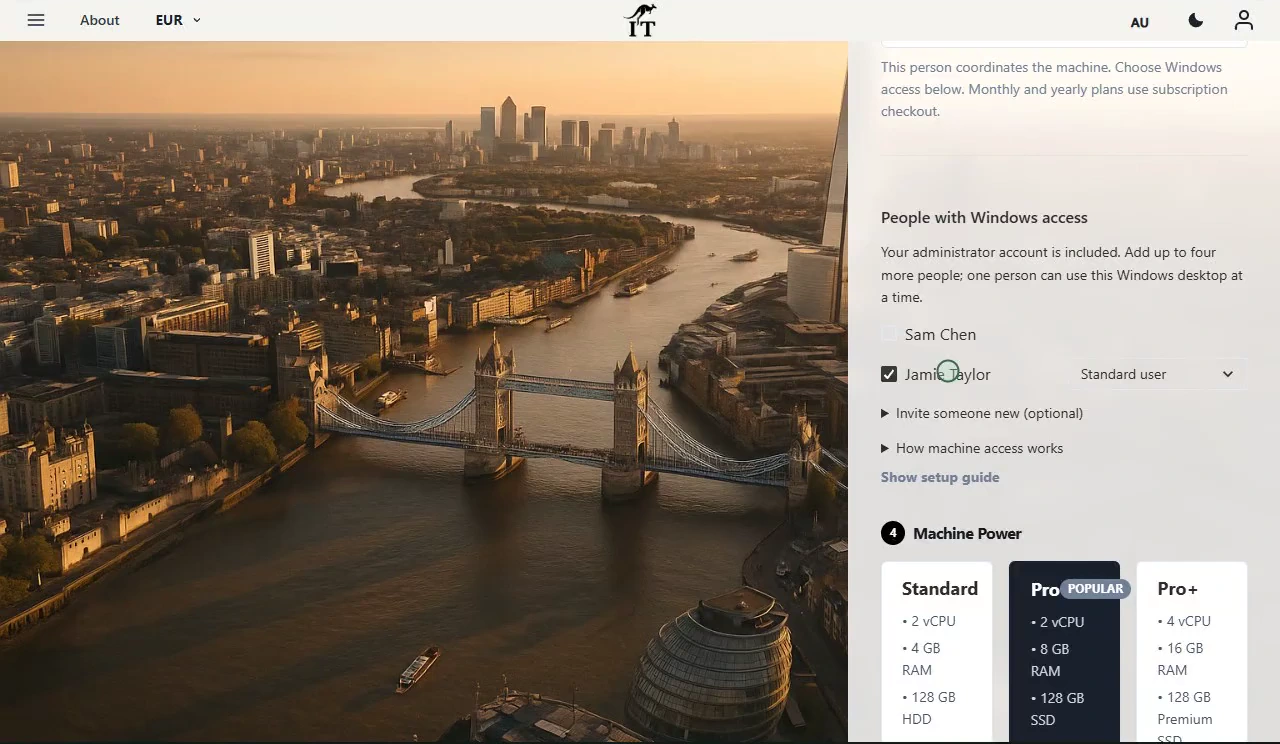
Prepaid Hours: budget for both parts.
Eligible Hours desktops use prepaid funding. Compute charges apply while running, and the separate service charge continues while the desktop is retained. Stopping the desktop preserves its files and ends running compute charges; deleting it permanently removes the desktop. Review the wallet, current rates and funding permissions in Jump-IT before creating one.
For regular work, Months includes up to 300 hours of uptime per desktop each month. Review the current Years option when a longer commitment suits the requirement. Each desktop has its own plan, region and performance tier.
Compare current plans →Buy the Mac for everyday study. Add Windows for the exception.
MacBook Neo plus a carefully chosen Windows method can be a remarkably practical student setup. When the task is online, occasional and compatible, Jump-Desk gives the Neo a separate Windows 11 Pro environment without forcing its fixed 8 GB memory or local SSD to hold the whole PC.
Does the whole team need a Pro laptop?
The touchscreen MacBook Pro comparison includes Neo, Air, Mac mini, iPad and iPhone Duo. It separates a lead’s demanding local AI or creative work from colleagues’ supported remote Windows access. Choose memory, input comfort and client capability for your own workload; cloud access alone is not a reason to buy the most expensive Mac.
Related device guidance added 31 October 2026.