
Keep one application ready
Install a compatible Windows 11 application once and return to the same configured environment from the next hotel, client site or temporary workspace.


Jump-IT Use Case · Work Across Devices
Carry an iPad, MacBook or Android device while returning to one consistent Windows 11 Pro Jump-Desk—with the same compatible applications, settings and working files throughout the trip.
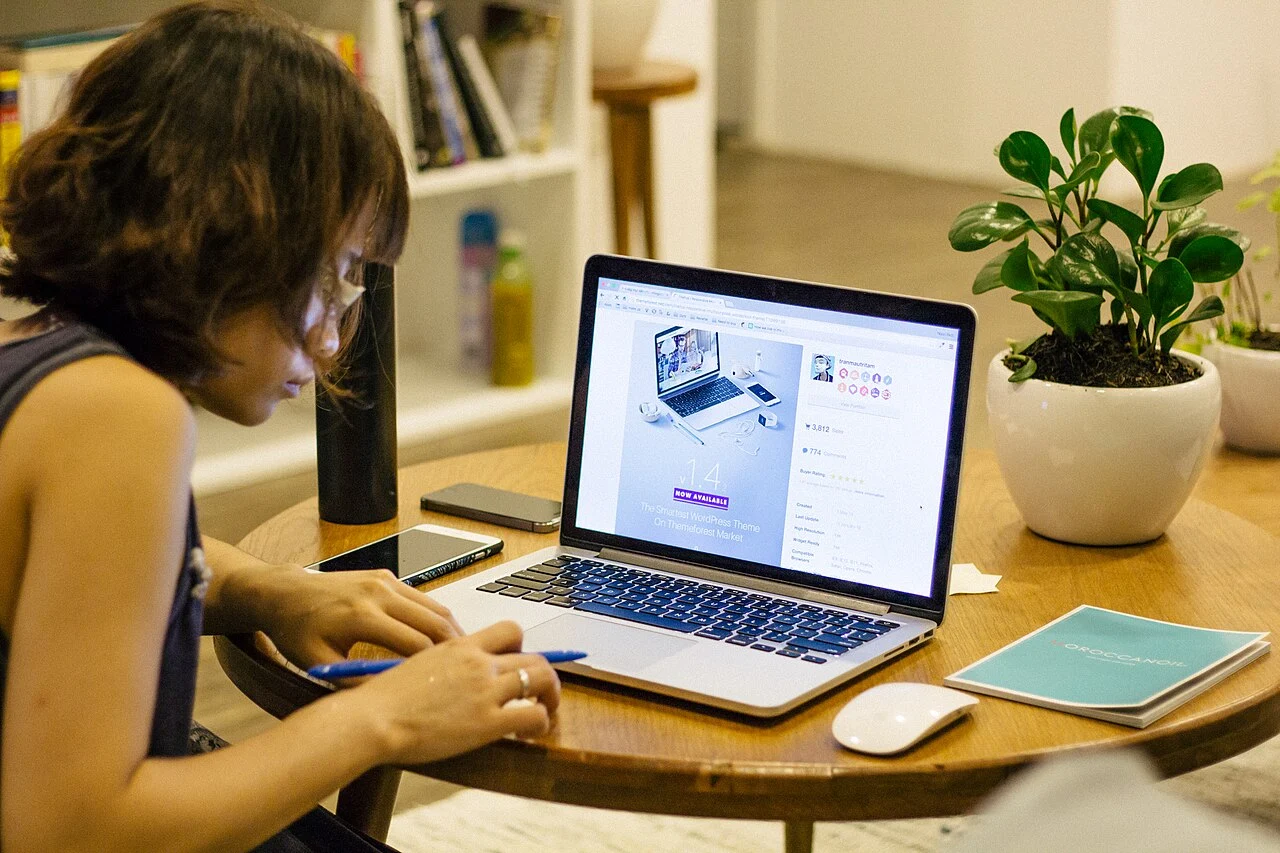
A Jump-Desk separates the Windows computer from the device in your luggage. Windows 11 Pro, compatible applications, settings and files remain on one persistent cloud machine; the iPad, MacBook or Android device becomes the screen and controls.
This is especially useful when the trip still needs one Windows-only application or a consistent desktop, but buying or carrying a second laptop would be disproportionate. It remains an online remote-computing setup—not an offline replacement for a Windows laptop.
Continuity without another computer
The advantage is not merely remote access. It is keeping the Windows side of the trip stable while the local device, desk and network change.
Install a compatible Windows 11 application once and return to the same configured environment from the next hotel, client site or temporary workspace.
Keep using an iPad, MacBook or Android device for everyday work, then open Windows only for the task that genuinely requires it.
The cloud machine is independent of the computer at home. There is no home power, router, sleep setting or household internet connection to maintain during the trip.
Use an independent Windows desktop for compatible project applications and files instead of installing everything directly on the personal travel device.
Open the same Jump-Desk from a MacBook on one day and an iPad or Android device on another. The endpoint changes; the Windows environment does not.
Hours can suit a short trip or occasional access, while Months can fit frequent travel. The live creation flow shows regional pricing before checkout.
The qualified recommendation: Jump-Desk is most attractive when Windows access is occasional, the endpoint already exists and connectivity can be planned. Carry a capable Windows laptop when the work must continue offline or depends on a dedicated GPU, specialist hardware or guaranteed local performance.
YOUR NEXT STEP
Set up the desktop, check sign-in and test your application before travelling. Reliable connectivity still matters; keep an offline plan for tasks that cannot wait for a stable connection.
Configure your Jump-Desk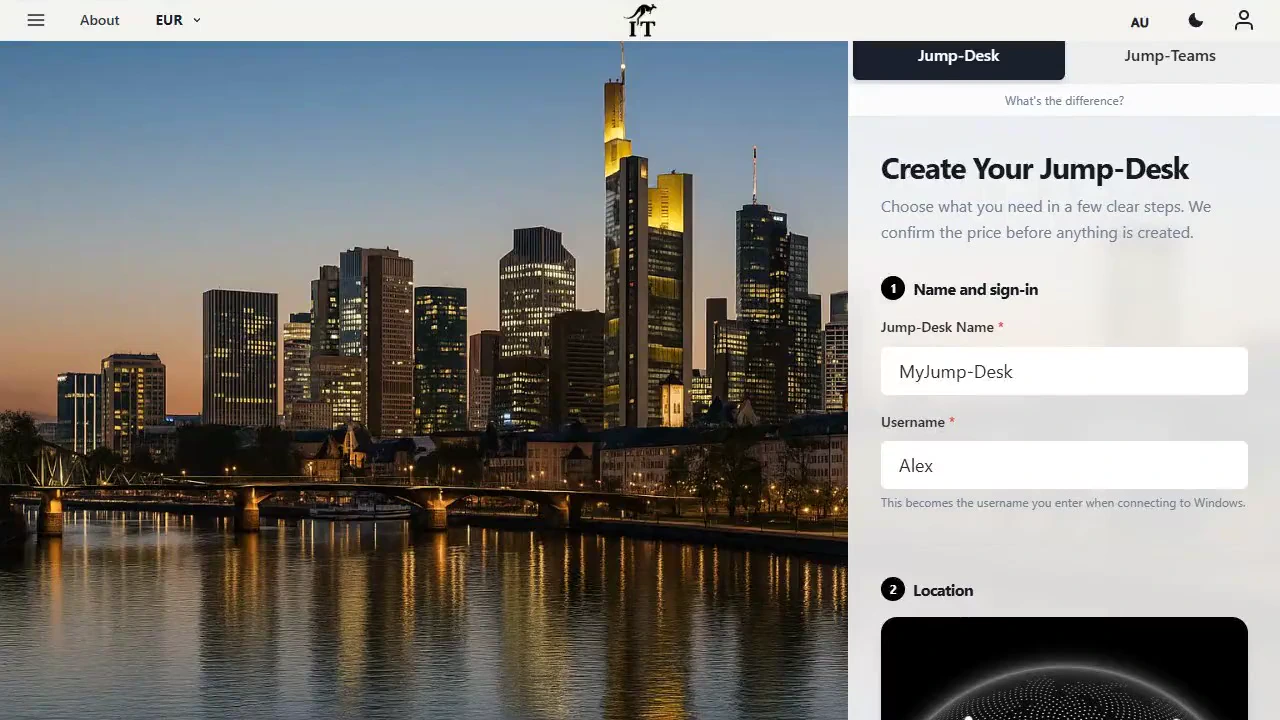
Choose the endpoint for the day
Microsoft’s current Windows App documentation supports remote-PC connections from actively supported Android 10-or-later, iOS/iPadOS 16-or-later and macOS 12-or-later devices. Jump-IT supplies the personalised RDP connection file and dashboard credentials.
Pair a keyboard and pointer for longer sessions, install Windows App Mobile and open the Jump-Desk connection file. An external display can improve workspace, but iPad multitasking and redirected devices still need testing.
Keep macOS for the trip and use Windows App when a full compatible Windows application is needed. The built-in keyboard, trackpad and battery make this the simplest long-session travel endpoint.
Install Microsoft’s Android client and connect when a phone or tablet is the available device. On compatible Samsung models, DeX can add a monitor, keyboard and mouse for a more desktop-like layout.
Runs iPadOS, macOS or Android plus the supported remote-access client.
Carries the display and input between the endpoint and the cloud machine.
Runs Windows 11 Pro, compatible applications, settings and working files.
Before departure
A travel setup is dependable only after the device, application, credentials, network and recovery plan have been tested together.
Choose the region, billing model and performance tier while a reliable connection and time for troubleshooting are available. Review the live price and current terms before checkout.
Use the Jump-IT dashboard’s official links for iPad/iPhone, macOS and Android. Open the personalised RDP file on each device and confirm that it launches in the intended application.
Prepare the Windows workspace you will need while travelling: your compatible business applications, project folders and individual software accounts. For example, a consultant can rehearse updating a client proposal, checking the desktop spreadsheet behind its pricing and exporting the documents for the meeting. Use approved project material, confirm software licences and check the keyboard, display and any peripherals the work requires.
Try the intended hotspot or secondary network before relying on it. The current Jump-Desk connection needs outbound TCP 3389, which some business and guest networks block.
Update the travel device and client, use a device lock, protect the Jump-IT credentials and keep required account-recovery methods available. Follow employer, client and destination rules for remote access and data.
Bring the correct charger, plug adapter, hub, display cable, keyboard or pointer where needed. Check mobile roaming, tethering allowance and whether the accommodation provides a usable desk or Ethernet.

For every work session
Check the exact Wi-Fi name and login method with the venue, or use an approved personal hotspot. Complete any captive portal and confirm the network is permitted for the work.
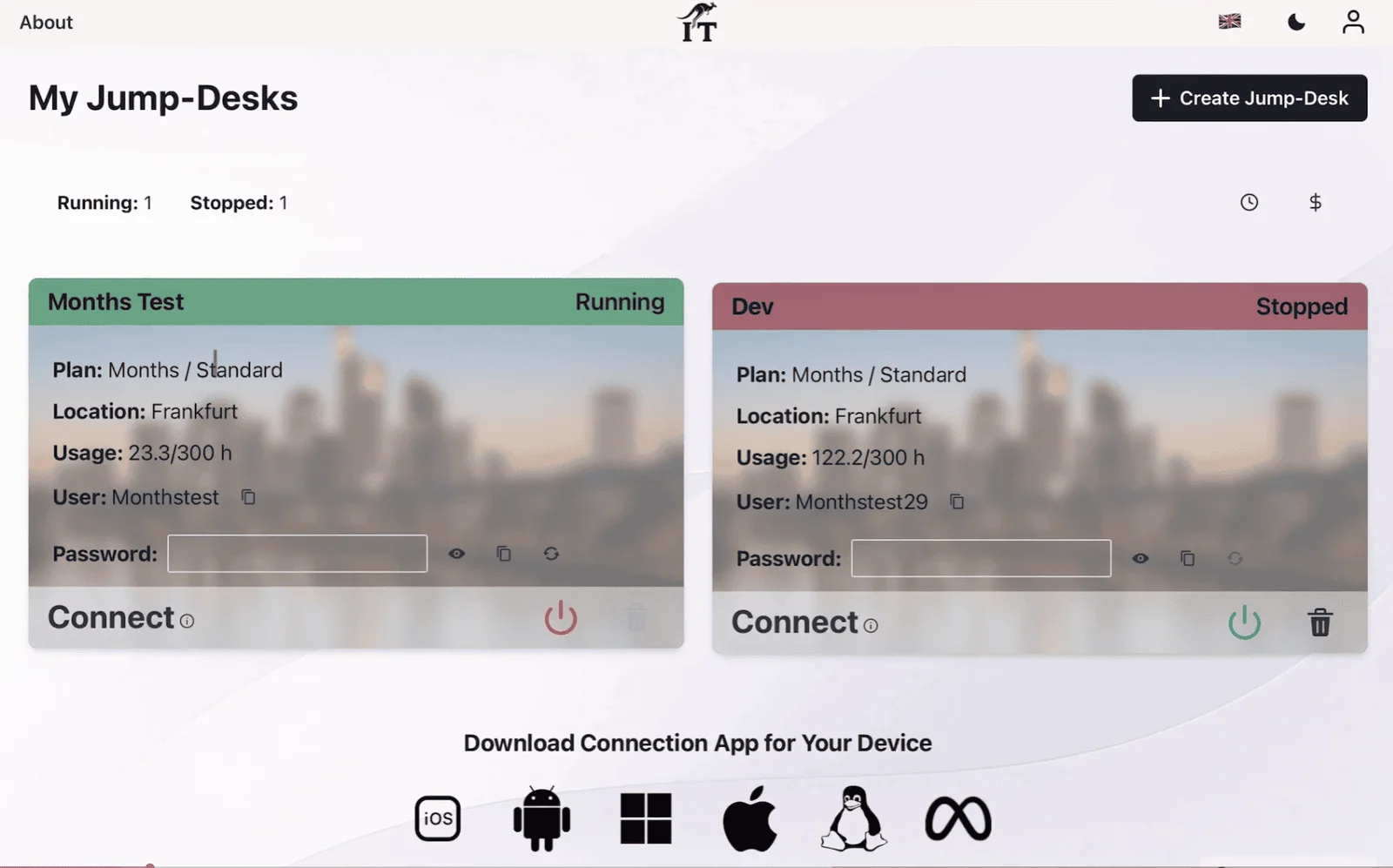
Use the dashboard power control. Do not repeatedly open the connection file while the machine is still starting; wait until the live status clearly shows Running.
Launch the downloaded .rdp file with the supported client and enter the username and password shown on the Jump-Desk card. Signing in to Windows App itself is not required for this remote-PC file workflow.
Open the existing compatible applications and files. Keep latency-sensitive actions modest on weaker links and avoid unnecessary downloads or high-motion content when roaming data is constrained.
Save inside Windows, then use an approved backup or export location for irreplaceable deliverables. Remember that clipboard transfers, downloads and screenshots can create local copies on the travel device.
Closing the remote client does not change the cloud machine’s power state. For Hours, use the red dashboard control and confirm Stopped. Lock the local device and remove sensitive downloads when policy requires it.
Choose the right travel architecture
On smaller screens, swipe sideways to compare every column.
| Decision | Jump-Desk | Windows laptop | Home-PC remote access | Browser or mobile app |
|---|---|---|---|---|
| Windows environment | One persistent remote Windows 11 Pro desktop | Local Windows on the carried device | Existing home Windows PC | No full Windows desktop |
| Travel hardware | Existing iPad, MacBook or Android device | Carry the Windows computer | Endpoint plus a PC left at home | Existing mobile device |
| Must another PC stay powered? | No | No | Yes, with reliable home power and internet | No |
| Compatible Windows desktop apps | Yes, within tier and remote-environment limits | Yes, within laptop limits | Yes, within home-PC limits | Only if a suitable web or mobile version exists |
| Offline Windows | No | Usually yes | No | Usually limited |
| Setup dependency | Jump-Desk, client and permitted network | Local hardware and charger | Home PC, router, power, remote access and endpoint | Vendor account and feature availability |
| Best fit | Consistent occasional Windows across travel devices | Offline, GPU or peripheral-heavy work | Existing powerful PC and controlled home setup | Tasks fully served by a native or web alternative |
Match the plan to the itinerary
The live creation flow loads regional pricing and supports multiple currencies. These cards explain the published plan rules and specifications without presenting one price as universal.
For a short trip, occasional Windows task or emergency access. Start the machine when needed and stop it from the dashboard after every session.
The displayed service fee preserves the static public IP and managed operating-system disk while stopped.
For frequent trips or Windows that is part of the regular working week. Current definitions include up to 300 hours of uptime per month and automatic shutdown after three hours idle.
Compare the live Months total with realistic Hours usage.
For access expected throughout the year. Review current checkout terms, application lifespan and whether owning suitable hardware would better serve offline or specialist work.
Choose for the most important sessions
A region closer to the primary destination will often reduce avoidable network distance, but it cannot guarantee performance. Wi-Fi, mobile routing, roaming, destination restrictions and the path taken by the internet provider remain important.
Plan for failure before departure
Aircraft mode, remote locations and unreliable accommodation networks can interrupt access. Keep offline copies of travel documents and non-sensitive materials needed when the cloud is unavailable.
The current connection requires outbound TCP 3389. Captive portals and corporate, airport, hotel or café networks may prevent it even when ordinary websites work.
A region that works well near one destination can feel slower on another continent. Mobile roaming can also be expensive or constrained; remote display traffic counts toward the current 100 GB included transfer.
Downloads, clipboard transfers, screenshots and application caches can leave data locally. Avoid shared devices and follow the client’s rules for data location, retention and border crossings.
Third-party software may restrict virtual machines, countries, activations or concurrent use. Specialist USB devices, smart cards, webcams and printers need end-to-end testing.
Do not assume suitability for demanding gaming, 3D, local AI, video rendering or GPU-dependent engineering applications. A capable Windows laptop may be the honest answer.
Deletion is permanent: export important files, backups and licence data before deleting the travel Jump-Desk. Current Jump-IT guidance states that deletion removes the VM, disks, public IP and backups and cannot be reversed.
Direct travel answers
It is a remote Windows computer that remains available independently of the device in your bag. With Jump-Desk, Windows 11 Pro, compatible applications, settings and files live on the cloud machine; an iPad, MacBook or Android device provides the screen, keyboard, pointer and internet connection.
Yes. Install the appropriate supported remote-access application on each device and open the personalised connection file when that device is needed. You return to the same Windows environment rather than creating a separate Windows installation on every endpoint. Do not assume that several people or devices can use one desktop concurrently.
No. Jump-Desk is a remote cloud PC and requires an internet connection. The current connection also requires outbound TCP 3389. A local Windows laptop is the better choice when uninterrupted offline Windows access is essential.
Install the current Microsoft client on every intended iPad, MacBook or Android device, create the Jump-Desk, open its RDP file, verify the Windows application and test the keyboard, pointer, audio and intended backup network. Do this before leaving a reliable connection so the trip is not the first end-to-end test.
Choose a configured region reasonably close to the place where the most important or longest sessions will occur. Shorter geographic distance can help latency, but internet routing, Wi-Fi, mobile networks and destination restrictions also affect performance. The creation flow shows the available region and live price before checkout.
Use a known network or personal hotspot where practical, confirm the exact network name and follow employer or client security policy. Public and guest networks can be unreliable, can use captive portals and may block outbound TCP 3389. Keep devices and clients updated, protect credentials and avoid saving access details on a borrowed or shared device.
Confirm that the Jump-Desk shows Running, then test another permitted connection such as a personal hotspot or a different trusted network. If ordinary web access works but RDP does not, outbound TCP 3389 may be blocked. Do not bypass organisational or local restrictions; contact the network administrator or Jump-IT support.
Hours is a natural fit for a short trip, emergency access or occasional sessions, provided the machine is stopped from the dashboard after use. Months can suit regular travel and currently includes up to 300 hours of uptime per month plus automatic shutdown after three hours idle. Compare the live regional totals with expected use.
Files saved on the Jump-Desk’s current 128 GB Windows drive remain with that machine until they are removed or the Jump-Desk is deleted, subject to the selected plan. Clipboard transfers, downloads, screenshots and app caches can still leave copies on the travel device. Export important data before deletion because deletion is permanent.
You have administrator access to install compatible Windows 11 applications, but compatibility is not universal. Check processor, memory, 128 GB storage, third-party licensing, internet ports and peripheral needs. Current tiers do not list a dedicated GPU, and hardware dongles, webcams, printers and other redirected devices need testing.
The Jump-IT Team reviewed the current product’s supported endpoint links, dashboard connection workflow, billing definitions, tier specifications, service-fee explanation, 20-region map, storage, data transfer, TCP 3389 requirement and deletion behaviour on 17 July 2026. Endpoint requirements and travel-security guidance were checked against current first-party sources.
SEE THE PRODUCT IN ACTION
These recordings show the current Jump-IT interface with demonstration data. Use the controls to pause, replay or view a recording full screen.
Name your desktop, choose a region and plan, and review the configuration before checkout.
Find the display settings, adapt the connection to your screen, and download the connection file.
CURRENT WORKFLOWS · SEPTEMBER 2026
Foldable phones, Samsung DeX and tablet displays make compact workspaces more practical, but screen size is only one part of the decision. Test the keyboard, pointer, power supply, monitor output and network together. Then try the exact Windows task on the selected Jump-Desk tier. The phone displays the session; the remote desktop supplies the Windows CPU and memory.
Jump-Teams lets an owner assign a persistent Windows workspace to a mobile colleague without buying a second computer solely for one application. Build the trial around the locations that person actually uses, and keep a fallback for work that cannot wait for connectivity.
Read the business guide to invitations, roles, funding and desktop assignments.
Explore Jump-Teams →Follow a practical onboarding checklist, from a first pilot to reviewing access when a role changes.
Read the team onboarding guide →Eligible Hours desktops use prepaid funding. Compute charges apply while running, and the separate service charge continues while the desktop is retained. Stopping the desktop preserves its files and ends running compute charges; deleting it permanently removes the desktop. Review the wallet, current rates and funding permissions in Jump-IT before creating one.
For regular work, Months includes up to 300 hours of uptime per desktop each month. Review the current Years option when a longer commitment suits the requirement. Each desktop has its own plan, region and performance tier.
Compare current plans →Carry the endpoint—not another operating system
Use the iPad, MacBook or Android device already in the bag, then open a separate Windows 11 Pro Jump-Desk when a compatible Windows application or familiar desktop is required.