Need Windows for One App? Don’t Buy Another PC Yet.
Open a persistent Windows 11 Pro Jump-Desk from a compatible device, install the licensed Windows software you actually need, and compare Hours for occasional jobs with Months for recurring work. Confirm the vendor supports the intended cloud environment before purchase, then test the complete project before extending the setup to your team.
If one compatible app is your only Windows requirement, test a cloud PC before buying hardware
Jump-Desk gives you a separate, persistent Windows 11 Pro computer in the cloud. Your existing device displays and controls it; Windows, the application and its working files stay on the remote desktop.
Hours is the natural first plan to compare for occasional use. Start the same Jump-Desk when the task appears, stop it from the dashboard afterwards and return to the preserved workspace later. It is not a universal substitute for a laptop: you still need reliable internet, a valid licence for the application and a workload that fits the selected CPU, memory, storage, graphics and peripheral capabilities.
Windows 11 Pro includedIncluded in the current Standard, Pro and Pro+ tier definitions.
Persistent 128 GB driveApps, settings and files remain while the Jump-Desk exists.
Hours · Months · YearsMatch the plan to occasional, recurring or longer-term use.
20 configured regionsChoose an available location before the cloud PC is created.
A timely 2026 decision
Why “one Windows app” matters more now
The pressure to replace a computer is real, but it does not follow that every narrow Windows requirement needs another physical machine.
Windows 10 support has ended
Microsoft ended standard Windows 10 support on 14 October 2025. At the same time, Windows 11 requires compatible hardware including TPM 2.0, Secure Boot capability, at least 4 GB RAM and 64 GB storage. Some otherwise usable computers therefore cannot follow the normal supported upgrade path.
Gartner forecasts that higher memory and SSD costs will lift average PC prices by 17% in 2026 compared with 2025. That is a forecast, not a guaranteed price for an individual laptop, but it strengthens the case for comparing an on-demand option before purchasing hardware for a single task.
Microsoft documents remote-PC access from supported Windows, macOS, iOS, iPadOS, Android and Chrome OS devices. The exact client features differ by platform, but the broader shift is clear: the screen in front of you and the computer doing the work no longer have to be the same machine.
What this evidence does—and does not—prove: it shows why “buy another PC” deserves a comparison. It does not prove that Jump-Desk is cheaper for every usage pattern or compatible with every application. The fit and live-price checks below decide that.
YOUR NEXT STEP
One application deserves a practical compatibility check.
Test the exact version, add-ins, sample file and licence on Windows. A cloud PC is useful when it solves the complete task, including saving and returning the result to your usual device.
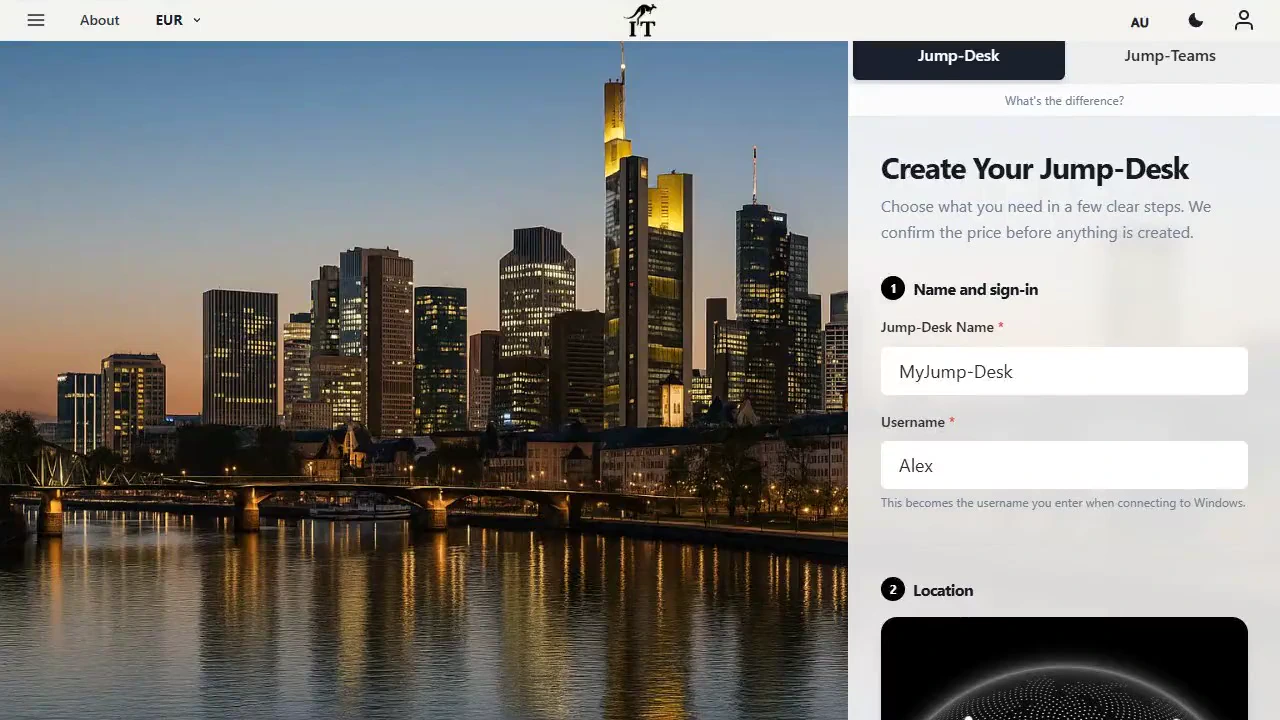
Jump-Desk setup: desktop name, Windows username and location. Product capture with demonstration data. Select to enlarge.
Run Windows-only software responsibly
Check the exact application before creating a Jump-Desk
A Windows label alone is not enough. Use the software vendor’s current requirements and licence terms, then compare them with the current Jump-Desk tier.
Strong candidate
Supports Windows 11 on ordinary x64 hardware.
Fits within the selected CPU, RAM and 128 GB drive.
Does not require a dedicated GPU or specialist local device.
Can be licensed for a remote or virtual Windows computer.
Can be used over a stable remote connection.
Test before relying on it
Uses redirected printing, cameras, audio or local folders.
Requires a specific database, VPN or company network route.
Has strict latency, display or colour requirements.
Consumes large files or more than the included transfer allowance.
Uses software activation tied to hardware identity.
Choose specialist or physical hardware
Must work offline.
Requires a dedicated GPU, VR or low-latency gaming.
Depends on a USB licence dongle or specialist machinery.
Requires low-level drivers, nested virtualisation or unusual networking.
Is prohibited from virtual or remote environments by its provider.
Confirmed Jump-Desk facts
Current tiers include Windows 11 Pro, administrator access, a persistent 128 GB drive, 100 GB data transfer and Standard, Pro or Pro+ resources. The creation flow offers Hours, Months or Years and 20 configured regions.
Application-specific unknowns
Only the software vendor can define the application licence and supported environment. Real responsiveness also depends on your endpoint, network, chosen region and workload. Ask Jump-IT support when a requirement is unclear, but obtain the licensing answer from the application vendor.
Illustrative workspace.
Your Windows 11 cloud PC
Can you create a personal Windows cloud PC in minutes?
The configuration itself is designed to be self-service. Actual provisioning, updates and application installation times vary, so “in minutes” should be treated as a setup goal—not a guaranteed completion time.
Confirm the software and licence
Record the required Windows version, architecture, CPU, memory, free storage, graphics, peripherals, network ports and virtualisation policy. Confirm that your user or device licence covers the intended cloud machine.
Choose a nearby region and performance tier
Select one of the available locations, then compare Standard, Pro and Pro+ with the application’s published requirements. A closer region will often reduce latency, although internet routing and local Wi-Fi still matter.
Choose Hours, Months or Years
Start by matching the plan to realistic frequency. Hours suits occasional or uncertain use; Months suits recurring work; Years is a longer commitment. Do not infer value from the plan name alone—compare the live totals.
See the available price before paying
The live configuration loads the regional rate, currency and checkout amount. On Hours, account for both running usage and the displayed service fee that continues while the Jump-Desk exists.
Let Jump-IT create Windows 11 Pro
After checkout, Jump-IT provisions the cloud desktop and exposes its state, credentials and connection control in the dashboard. Capacity, account setup and Windows preparation can affect the time required.
Start, connect and install the app
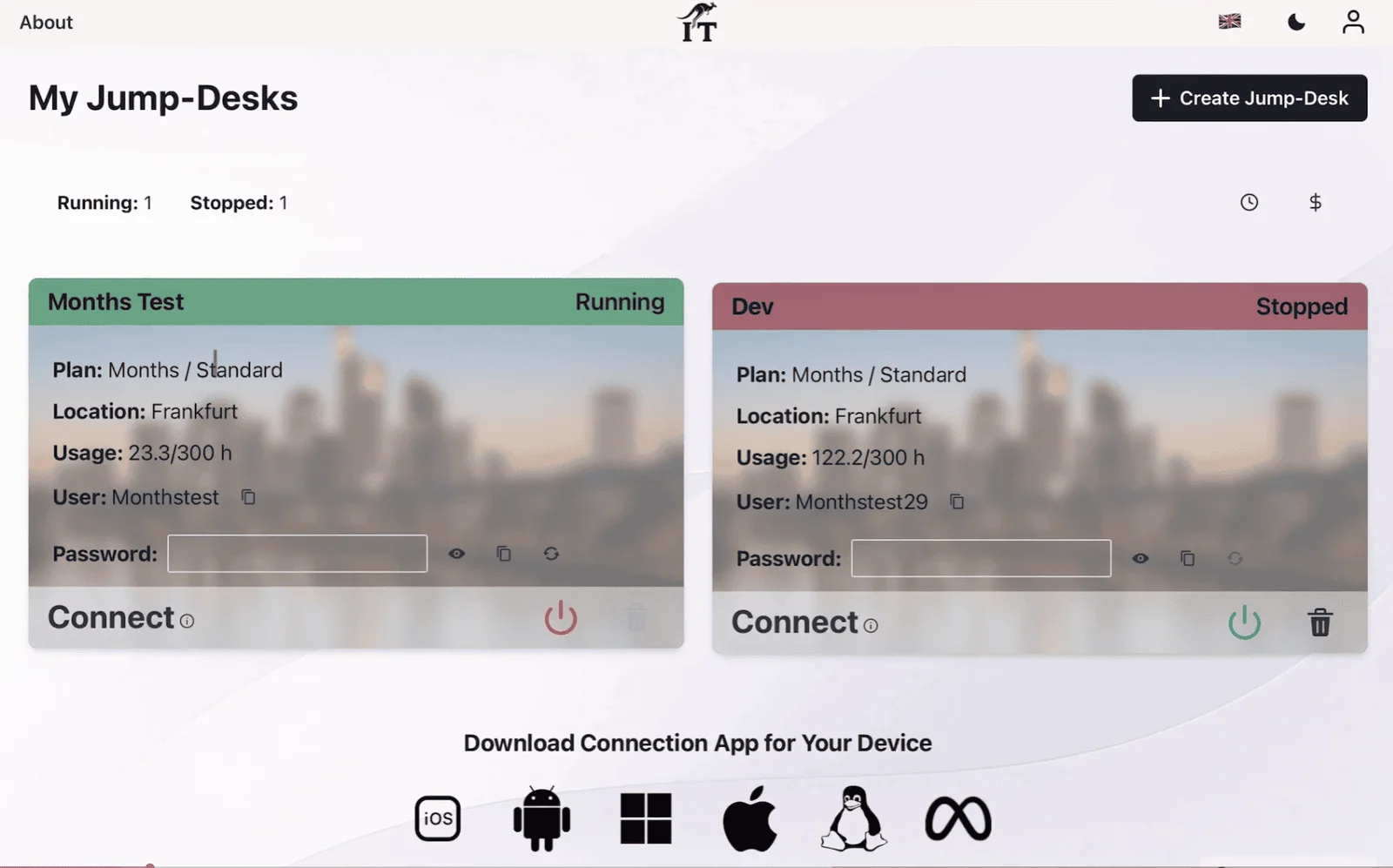
Wait for the dashboard state to show Running, select Connect and open the personalised .rdp file in the appropriate remote desktop client. Sign in with the displayed credentials, install the compatible licensed application and run a real test.
Stop it from the dashboard and return later
Closing the remote client only disconnects the screen; it does not change the cloud machine’s power state. Use the Jump-IT dashboard power control and confirm Stopped. Start the same Jump-Desk when the next task arrives.
Keep your preferred device; add Windows as a remote workspace
Windows runs on the Jump-Desk—not inside the endpoint. The device still needs a supported or compatible client, a suitable network and comfortable input for the application.
Mac
Use Microsoft Windows App for a remote PC connection while macOS remains the everyday operating system. Windows compute and the 128 GB drive stay separate from the Mac.
Windows App Mobile can display the remote desktop. A keyboard and pointer are usually more practical for desktop software designed around precise controls or sustained typing.
Microsoft documents Windows App support for current Android and Chrome OS versions. Test display scaling, keyboard layout and any required device or folder redirection.
Windows
A lightweight or existing Windows device can connect to the separate Jump-Desk. Microsoft currently notes that remote-PC connections in Windows App are in preview on Windows and points users to the built-in Remote Desktop Connection for generally available access.
Linux
Use an appropriate compatible RDP client rather than Microsoft Windows App, which is not currently listed for Linux. Client configuration and redirection support vary, so validate the exact setup before a deadline.
Across more than one endpoint
The Windows environment stays with the Jump-Desk, allowing the owner to reconnect from another compatible device. Do not treat one personal desktop as a simultaneous multi-user Windows server.
Network requirement: Jump-Desk is online-only and the current connection requires outbound TCP 3389. Some corporate, school, hotel and guest networks block it even when ordinary websites load.
Don’t buy another PC—unless it is the better tool
Jump-Desk vs a local VM, an existing PC and a new laptop
First use a complete native or browser version if one already exists. When full desktop Windows is genuinely required, compare where it runs and what the app needs.
On smaller screens, swipe sideways to compare every column.
Jump-Desk vs a local VM, an existing PC and a new laptop
Decision
Jump-Desk
Local Windows VM
Remote existing PC
Buy a Windows PC
Where Windows runs
On a persistent cloud VM
Inside the capable device you own
On a maintained PC elsewhere
Locally on the purchased hardware
Additional hardware
Not required Use a compatible endpoint
Not required if the host has enough CPU, RAM and storage
The Windows host must already exist
A second computer is purchased
Internet while working
Required Suitable RDP path needed
Not normally required for ordinary offline VM use
Required for remote access
Not required for ordinary local work
Persistence
Apps, settings and files remain while the Jump-Desk exists
Remains in the local VM bundle
Remains on the host PC
Remains on the new computer
Local resource pressure
Endpoint mainly handles the client, input and display stream
Shares local CPU, RAM and storage with the main OS
Uses resources on the existing host
Uses the new PC’s dedicated resources
GPU and specialist peripherals
Check carefully No dedicated GPU listed; redirection varies
Depends on host, hypervisor and device support
Depends on host hardware and redirection
Strongest Direct access to selected local hardware
Best fit
One compatible app, occasional use or a separate workspace
Frequent local use on a sufficiently powerful host
You already own and maintain a suitable Windows Pro host
Offline, all-day, latency-sensitive or hardware-heavy work
Choose Hours, Months or Years
Match the commitment to how often that one app is used
Prices vary by location, tier, currency and current terms. The live creation flow—not a hard-coded article figure—is the source of truth before payment.
Natural first comparison
Hours
For occasional sessions, uncertain demand or a defined short project. Running use is recorded, and a separate displayed service fee preserves the static public IP and managed operating-system storage while the Jump-Desk exists.
Essential habit: stop it in the dashboard after each session.
Months
For a Windows app that has become part of the working week. Current definitions include up to 300 hours of uptime per month and deallocation after three hours without an active RDP session.
Compare the live Months price with observed Hours usage.
Years
For a Windows desktop expected to remain useful through the year. Review current checkout terms, the application’s lifespan and whether owned hardware is now better value before the longer commitment.
See your price before paying
Choose the location, billing model and performance tier in the live flow. Review the displayed currency, taxes where applicable, plan amount and any separate Hours service rate before checkout.
Hours total = running use + displayed service feeStopping ends running consumption; it does not remove the persistent resources or the service fee while the Jump-Desk still exists.
Current performance tiers
Standard
2 vCPU · 4 GB RAM
128 GB HDD
100 GB data transfer included
Windows 11 Pro licence included
For a lighter compatible app, browser work and basic office tasks.Balanced starting point
Pro
2 vCPU · 8 GB RAM
128 GB SSD
100 GB data transfer included
Windows 11 Pro licence included
A more comfortable general start for multitasking and professional applications.
Pro+
4 vCPU · 16 GB RAM
128 GB Premium SSD
100 GB data transfer included
Windows 11 Pro licence included
For compatible CPU- and memory-heavier work. No dedicated GPU is currently listed.
Third-party software is separate: Windows 11 Pro is included on current Jump-Desk tiers. The Windows-only application, its subscription, add-ons, data and support remain subject to the application vendor’s terms and pricing.
Stop and return later—without confusing stopping with deletion
The same persistent desktop can bridge separate work sessions. The owner still needs an independent backup and a deliberate end-of-life process.
1 · RunningConnect, use the licensed app and save work on the Jump-Desk or an approved external destination.
→
2 · StoppedUse the dashboard power control. Apps, settings and files remain while the Jump-Desk exists.
→
3 · Start againWait for Running, reconnect with the personalised RDP file and continue in the same environment.
Delete only when the need and the data are finished. Export and verify required files, deactivate application licences where necessary and confirm backups first. Deletion is permanent; it is not the same action as stopping.
The live Jump-IT flow presents location, billing and performance choices together. The full screenshot is shown without cropping; current availability and checkout details take precedence over any image.
Choose from 20 configured Jump-Desk locations
A closer region will often reduce latency, but endpoint quality and the internet route also affect responsiveness.
Netherlands
Dublin
Virginia
Massachusetts
Iowa
Johannesburg
Chennai
Dubai
Sydney
Paris
Frankfurt
London
São Paulo
Toronto
Singapore
Hong Kong
Tokyo
Seoul
Warsaw
Stockholm
Continue with the exact device or usage pattern
Related Jump-IT guides and use cases
Each destination below was present on the live Jump-IT site when this page was prepared.
Can I use Jump-Desk for one Windows-only application?
Yes, when the exact application supports Windows 11 and the selected Jump-Desk specifications. Check its CPU, memory, storage, graphics, peripheral, network, virtualisation and licensing requirements first. Current Jump-Desk tiers provide administrator access but do not list a dedicated GPU.
Is Windows 11 Pro included with Jump-Desk?
Yes. Windows 11 Pro is included in the current Standard, Pro and Pro+ Jump-Desk tier definitions. A licence or subscription for the separate application is not included unless its vendor says otherwise.
How does a Windows PC by the hour work?
With Jump-Desk Hours, running usage is recorded while the machine is started. A separately displayed service fee preserves its static public IP address and managed operating-system storage while the Jump-Desk continues to exist. Stop it from the dashboard after each session; closing the remote client does not stop the cloud machine.
Will my apps and files remain after I stop the Jump-Desk?
Yes. Stopping is not deleting. Compatible applications, settings and files remain on the current 128 GB Jump-Desk drive while the Jump-Desk exists. Keep an independent backup of important data and export it before deletion.
Can I use Jump-Desk from the device I already own?
Often, yes. Microsoft documents remote-PC connections from supported Windows, macOS, iOS, iPadOS, Android and Chrome OS devices. Linux users need a compatible RDP client. Client features, network rules and input comfort differ, so test the exact endpoint and connection.
How quickly can I create a personal Windows cloud PC?
The selection and checkout flow is designed to be self-service, but no exact provisioning time should be assumed. Cloud capacity, account setup, Windows updates, the local network and application installation can all affect the time before work begins.
Is Jump-Desk always cheaper than buying a Windows PC?
No. Hours can be proportionate for occasional sessions, but frequent all-day use can make Months, Years or owned hardware better value. Compare the live regional price, the Hours service fee, application licensing, expected usage, internet and hardware needs before deciding.
Should I choose Hours, Months or Years?
Hours is the natural first comparison for occasional or uncertain use. Months can suit recurring work and currently includes up to 300 hours of monthly uptime with deallocation after three hours without an active RDP session. Years is for a longer-lived desktop. Review current live terms and realistic use.
Which Jump-Desk performance tier should I choose?
Standard has 2 vCPU and 4 GB RAM for lighter compatible work. Pro has 2 vCPU and 8 GB RAM as a more comfortable general starting point. Pro+ has 4 vCPU and 16 GB RAM for compatible CPU- and memory-heavier tasks. Check the application’s published requirements; no current tier lists a dedicated GPU.
When should I buy or use a physical Windows PC instead?
Choose local hardware when Windows must work offline, the application needs a dedicated GPU, specialist USB hardware, a licence dongle, low-level drivers, very low latency or predictable all-day local performance. A native or web version of the application is simpler when it already provides the complete workflow.
What happens when I delete a Jump-Desk?
Deletion is permanent. Export and verify all required files, deactivate application licences where necessary and keep a separate backup before deleting the Jump-Desk. Stopping preserves the existing desktop; deletion removes it.
Sources, facts and changing details
Jump-IT product details, tiers, plan rules, dashboard controls, network requirement, regions and persistence statements were checked against current Jump-IT material on 2 September 2026. Third-party platform and market statements use first-party sources. Live configuration, software-vendor terms and current support documentation take precedence.
Confirmed: the current product configuration and rules described above. Variable: live price, tax, currency, region capacity, provisioning time and network performance. Application-specific: compatibility, licence, support status, data handling and peripheral behaviour.
Windows, Windows 10, Windows 11 and Windows App are trademarks of Microsoft. Jump-IT is not affiliated with or endorsed by Microsoft, Gartner or the application vendors a customer may use. No individual software compatibility or cost saving is guaranteed.
SEE THE PRODUCT IN ACTION
From the first choice to the next working session.
These recordings show the current Jump-IT interface with demonstration data. Use the controls to pause, replay or view a recording full screen.
PRODUCT WALKTHROUGH27 seconds
Create your Jump-Desk
Name your desktop, choose a region and plan, and review the configuration before checkout.
Read the walkthrough
Start with your Windows sign-in After signing in to Jump-IT, give the desktop a name. This username is for Windows.
Choose a nearby region Pick from the regions available to your account. Your desktop will run in that region.
Choose how you use it This example uses Monthly. Review the current price and included uptime before checkout.
Choose the power for your work Compare the available CPU, memory and storage. Example prices are shown in this recording.
Review before you pay Check the total and terms, then continue to checkout. This demonstration stops before payment.
PRODUCT WALKTHROUGH31 seconds
Set up your laptop connection
Find the display settings, adapt the connection to your screen, and download the connection file.
Read the walkthrough
Find your desktop controls The settings menu sits on your desktop card. Open Connection Settings.
Fit Windows to your screen Review full-screen, monitor and resizing options. Support depends on your remote desktop client.
Choose your display preference Smart sizing fits the remote desktop to the client window. Other settings can stay at their defaults.
Keep the settings and connect Select Done, then Connect. The settings are included in your next connection file.
Open the file in your client Choose Download & Connect, then open the file with a supported remote desktop app.
Continue on your computer Sign in to the remote desktop with your Windows account. This final step is a connection guide.
Review the desktop configuration before checkout. Demonstration data. Open the image to inspect the controls.
PROJECT TEST & TEAM ROLLOUT · 21 OCTOBER 2026
Test the work you need to finish, then plan the team rollout.
Confirm vendor support for the intended hosting environment before any purchase or installation. A successful installation is then only the first technical check. Your Windows application must open the right project, reach its data, produce a usable result and still work when you return from your everyday device. Write down those acceptance checks before choosing a long-running setup.
A concrete example: a monthly operations report.
Imagine Harbour Analytics, a fictional small consultancy. Alex uses a Mac for everyday work and is assessing a Windows reporting application whose vendor permits and supports the proposed cloud environment. The job is to prepare a monthly service report, check the model against approved source totals and produce a review copy for Riley. Morgan coordinates the Team. Select the application and verify its hosting support before choosing Jump-Desk. This is a proposed workflow, not an executed application or customer result.
Start with a representative, non-sensitive project: its data connectors, model size, calculations and report visuals should resemble the work you actually do. Decide which totals must match, how long a refresh may take and what the reviewer must receive. A tiny sample that omits your hardest dependency cannot establish that the full project fits.
Power BI Desktop is a separate support case. Microsoft supports virtualised Power BI Desktop on Azure Virtual Desktop and Windows 365; its guidance excludes other virtual desktop environments. Jump-IT-specific support is not established here. A successful technical test does not establish vendor support. Read Microsoft’s virtualisation support guidance before purchase. The generic Jump-Desk workflow below applies only after the chosen application’s vendor-support, licence and access checks pass. You install and configure that software, its connectors, drivers and add-ins; Jump-IT does not supply application licences or permission to process a client’s data.
Use a project acceptance worksheet.
Record the application version, authoritative hosting-support and licence references, Jump-Desk tier and region, client device, network and test date. For every row, write Pass, Fail or Not tested, the evidence location and the person responsible. Keep passwords, access tokens and customer data out of the worksheet.
Scroll the worksheet table sideways on a small screen.
Checks for the complete reporting workflow — fill in your own results.
Check
What to try
Evidence to keep
Install and sign in
First confirm vendor support and permitted cloud use. Then use the supported app build and required drivers with the necessary installation privileges.
Version, prerequisites, licence check and any install error.
Open and refresh
Open the representative project and refresh from an approved source using your intended access method.
Refresh duration, source availability and failed connector details.
Check the result
Compare key totals, calculations, filters and dates against a known reference.
Expected versus actual results and the reviewer’s decision.
Review and export
Inspect the report and a PDF export on the receiving device. Check labels, fonts, page breaks and important visuals.
A permitted review copy and the export differences you found.
Use your daily device
Test the exact remote client, keyboard, display and network. Try file transfer, printing or other peripherals only if your workflow needs them.
Client version, device, network and which required features worked.
Save and return
Save, close the app, stop the desktop through Jump-IT, then start it and reopen the project later.
Reopen result, saved settings and any session recovery steps.
Recover and hand over
Keep an independent approved backup and test restoring a permitted copy. Document access and project ownership for the next person.
Restore result, backup location and named handover owner.
Check the chosen application’s export limitations: a correct on-screen report does not guarantee an identical export. Likewise, remote-client features differ by platform and connection type. Test the output and peripheral path you depend on instead of assuming every feature is redirected.
Move from one proven role to a deliberate Team setup.
Start with one role. Let Alex complete the agreed project checks and record unresolved issues. Do not expand the setup while a required connector, licence, export or device check is still failing.
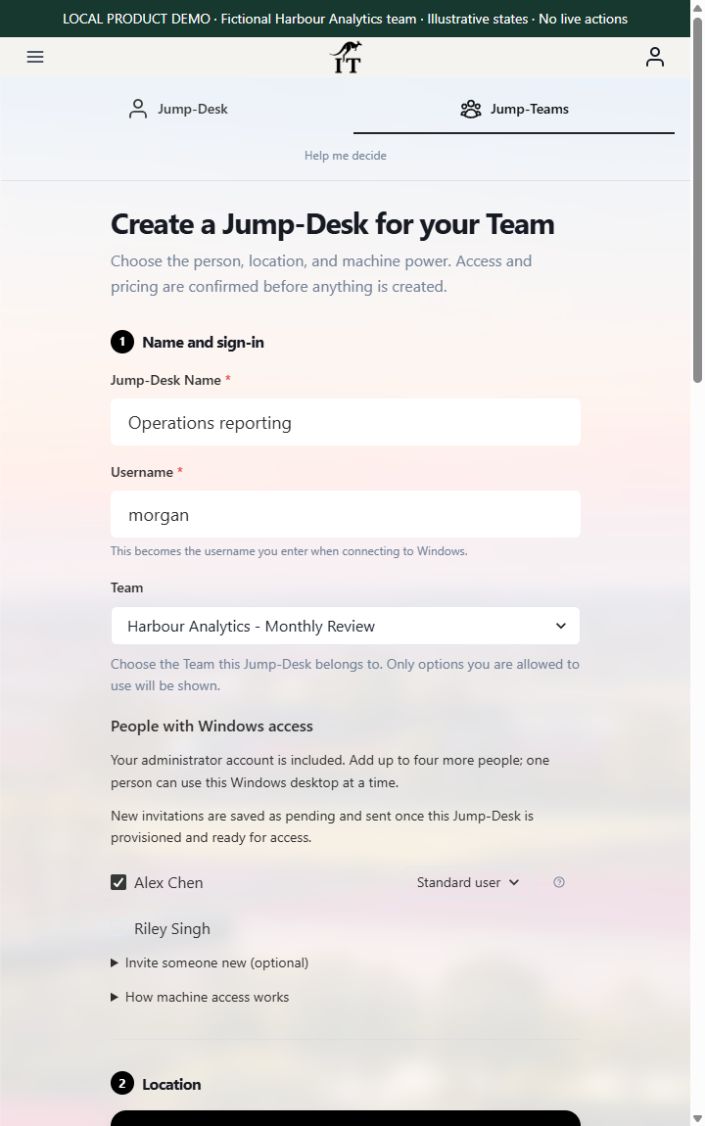
Name the work and its owner. In Jump-Teams, use a clear desktop name and choose the responsible person. That assignment coordinates the machine; Windows access is a separate choice.
Choose Windows privileges deliberately. The illustrated setup selects Alex as a Standard user. An application installation or driver change may require an authorised administrator. Team membership, Windows privileges, application accounts and billing permissions each need their own review.
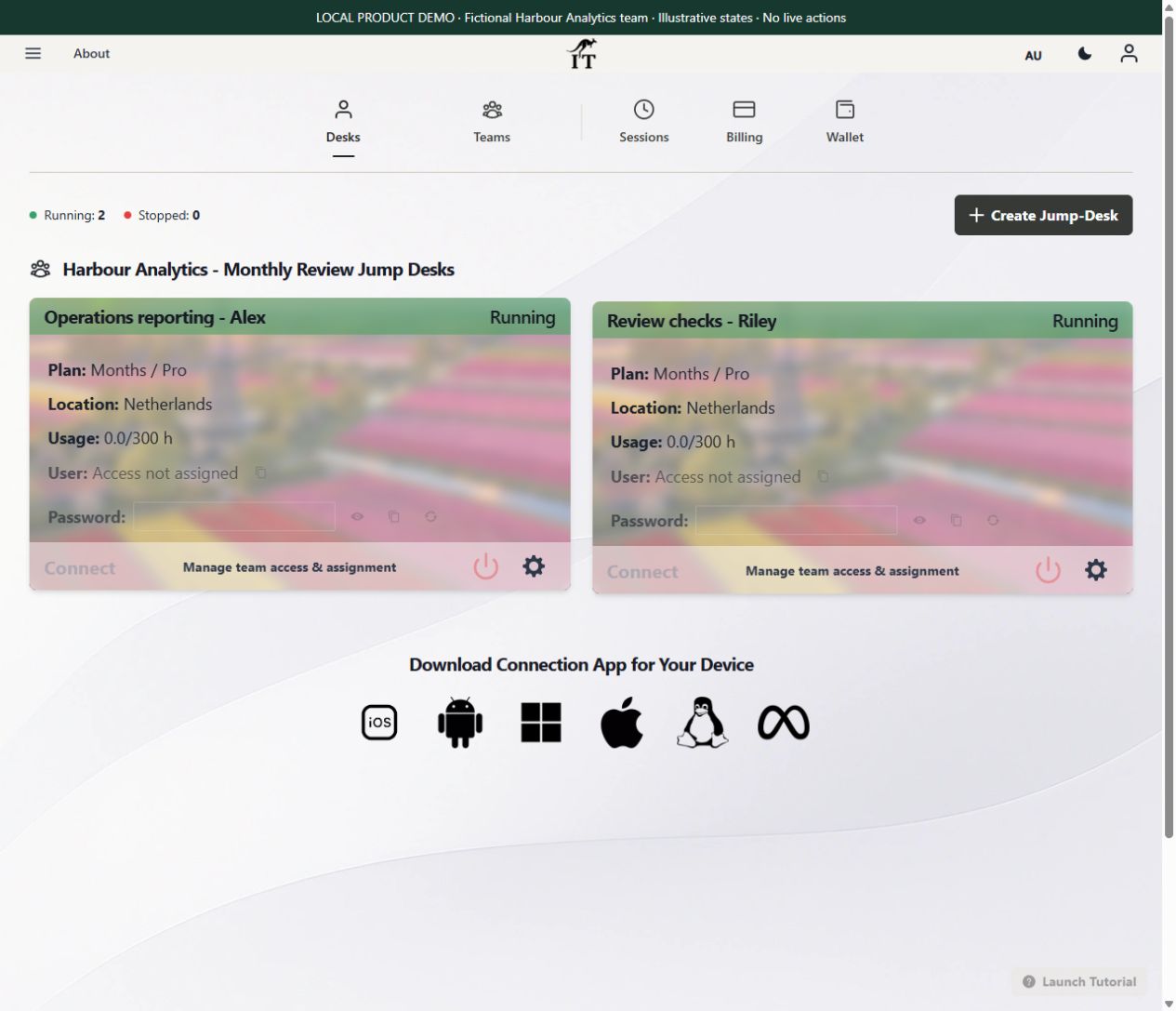
Add a second desktop when the work needs one. If Alex and Riley both need active Windows sessions at the same time, plan separate desktops. One Jump-Desk permits one active Windows user at a time. A colleague who only reviews an exported report may not need another cloud PC.
Review the first working cycle. Check uptime, recurring cost, support issues and whether the project and backup can be reopened. Keep the workspace only while it serves the role, and review application access, Windows access, Team membership and retention separately when work changes.
Fresh actual-product demonstration, 21 October 2026. Fictional Team and people; these choices were not submitted. No invitation, desktop purchase or Windows access grant was made.Illustrative stored states in the current product UI, not real running desktops. The two desktop names show how separate working roles could be organised; the screenshot does not prove that a reporting application is installed, tested or supported by its vendor.
Budget the test and the recurring workspace separately.
Live calculator example checked on 21 October 2026: Netherlands, Pro, EUR. Four running hours at EUR 0.22/hour cost EUR 0.88. Keeping that Hours desktop for three full days adds 72 service hours at the displayed EUR 0.023282/hour, about EUR 1.68. The calculator’s rounded total is EUR 2.56. Retained service hours include running and stopped time. Wallet funding is a separate payment and may differ from this usage estimate.
The same configuration on Months is EUR 59 per desktop for a full monthly billing cycle, with up to 300 uptime hours. Two such desktops would be EUR 118 per full cycle before tax, discounts, application licences and optional extras. Fewer days of use do not reduce the full Months charge; crossing a renewal can add another charge. Prices and regional capacity are confirmed during setup. These numbers illustrate cost, not a suitable tier or a compatibility guarantee for your model.
Compare realistic uptime and retained time in the live cost calculator. Read the Months guide for recurring use and the team budgeting guide before choosing a setup. The cost illustration is for an application that passes the support and licence checks; it is not a Power BI Desktop purchase recommendation. This staged rollout does not assume that an existing Hours desktop can be switched into Months; use the options available for that desktop and plan any data move separately.
Need the wider permissions picture? Explore Jump-Teams. The product captures use fictional data in an isolated local demonstration of the currently shipped interface. Application installation, remote Windows use and the project tests above were not performed.
Prepaid Hours: budget for both parts.
Eligible Hours desktops use prepaid funding. Compute charges apply while running, and the separate service charge continues while the desktop is retained. Stopping the desktop preserves its files and ends running compute charges; deleting it permanently removes the desktop. Review the wallet, current rates and funding permissions in Jump-IT before creating one.
For regular work, Months includes up to 300 hours of uptime per desktop each month. Review the current Years option when a longer commitment suits the requirement. Each desktop has its own plan, region and performance tier.
Use Windows for the app—not as a second-device tax
Keep the device you already like. Add Windows only where it earns its place.
Check the exact application, compare the live configuration and start with a plan that reflects real use. If the workload fits, a persistent Jump-Desk can remove the need to buy, carry and maintain another computer for one Windows task.
For reporting, the Power BI Desktop on Mac guide starts with Microsoft’s virtualisation support boundary, followed by connector, refresh and publishing checks. If you are replacing an older Windows environment, use the Windows 10 migration guide to separate supported devices, application compatibility and a staged handover.
Apply the acceptance worksheet to a new-device decision
If a new laptop is part of the plan, use the touchscreen MacBook Pro or Surface Laptop Ultra guide to distinguish local work from the Windows application you need remotely. Test the application’s real input, output and reconnect behaviour on the intended client. Hardware launch claims do not replace the worksheet’s evidence.
Related device guidance added 31 October 2026.
This site uses essential storage and optional analytics. Privacy policy