Explore every published Jump‑Desk use case, with practical detail on suitable workloads, benefits, requirements, limitations and the exact Jump‑IT workflow.
Built by a startup, for startups. Give your team Windows cloud PCs on supported devices you already own, with invitations, access controls and flexible funding.
Need one Windows app? Test your real project, compare complete cloud PC costs and plan a recurring Team workspace with a practical acceptance worksheet.
Plan recurring Windows work with Jump-Desk Months. Compare full monthly team costs, the 300-hour uptime allowance, Hours alternatives and access responsibilities.
Need Windows for coursework on MacBook Neo? Compare native Mac apps, Parallels and Jump-Desk, including memory, software, pricing and exam requirements.
Take the same Windows apps and files between iPad, MacBook and Android. Plan a reliable travel setup with Jump-Desk, connection checks and flexible plans.
Use full Windows applications from your iPad with Jump-Desk. Explore setup, keyboard and display options, pricing, persistence and practical limitations.
An occasional application, a recurring project or an assigned team desktop each calls for a different plan. Use the task, your working hours and your connection quality to decide.
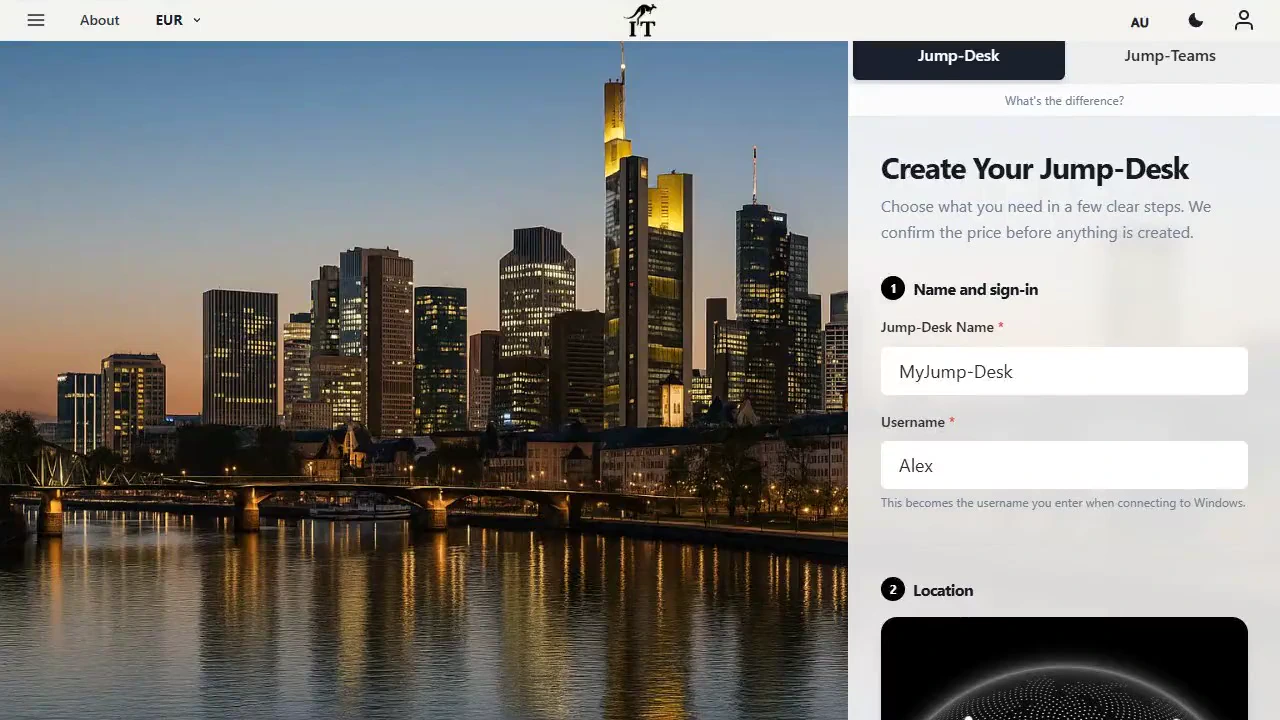
Jump-Desk setup: desktop name, Windows username and location. Product capture with demonstration data. Select to enlarge.
What is the Jump‑Desk use-case library?
This library brings together every published scenario for using a Jump‑Desk. Each article explains who the use case suits, what a Windows 11 Pro cloud desktop can provide, what to check before choosing it and when another solution may be more appropriate.
Product definition
What is a Jump‑Desk?
A Jump‑Desk is a persistent Windows 11 Pro cloud desktop created and managed through Jump‑IT. Choose an available location, billing option and performance tier, create the desktop, then connect from a compatible client using the personalised connection file.
It is a personal cloud desktop rather than a public server or enterprise VDI control plane. Live availability, regional pricing and checkout terms are shown in the Jump‑IT app and take precedence over screenshots or examples.
Billing optionsHours, Months or Years
Performance tiersStandard, Pro or Pro+
Operating systemWindows 11 Pro licence included in the current tiers
ConnectionPersonalised RDP file opened in a compatible remote desktop client
Illustrative workspace.
About this use-case library
Prepared and maintained by the Jump‑IT Team. Reviewed 8 September 2026 against the current Jump‑IT product workflow and published use-case hierarchy.
Software requirements and product availability can change. Check the relevant use case’s update date and use the live Jump‑IT app as the source of truth for pricing, capacity and account-specific status.
SEE THE PRODUCT IN ACTION
From the first choice to the next working session.
These recordings show the current Jump-IT interface with demonstration data. Use the controls to pause, replay or view a recording full screen.
PRODUCT WALKTHROUGH27 seconds
Create your Jump-Desk
Name your desktop, choose a region and plan, and review the configuration before checkout.
Read the walkthrough
Start with your Windows sign-in After signing in to Jump-IT, give the desktop a name. This username is for Windows.
Choose a nearby region Pick from the regions available to your account. Your desktop will run in that region.
Choose how you use it This example uses Monthly. Review the current price and included uptime before checkout.
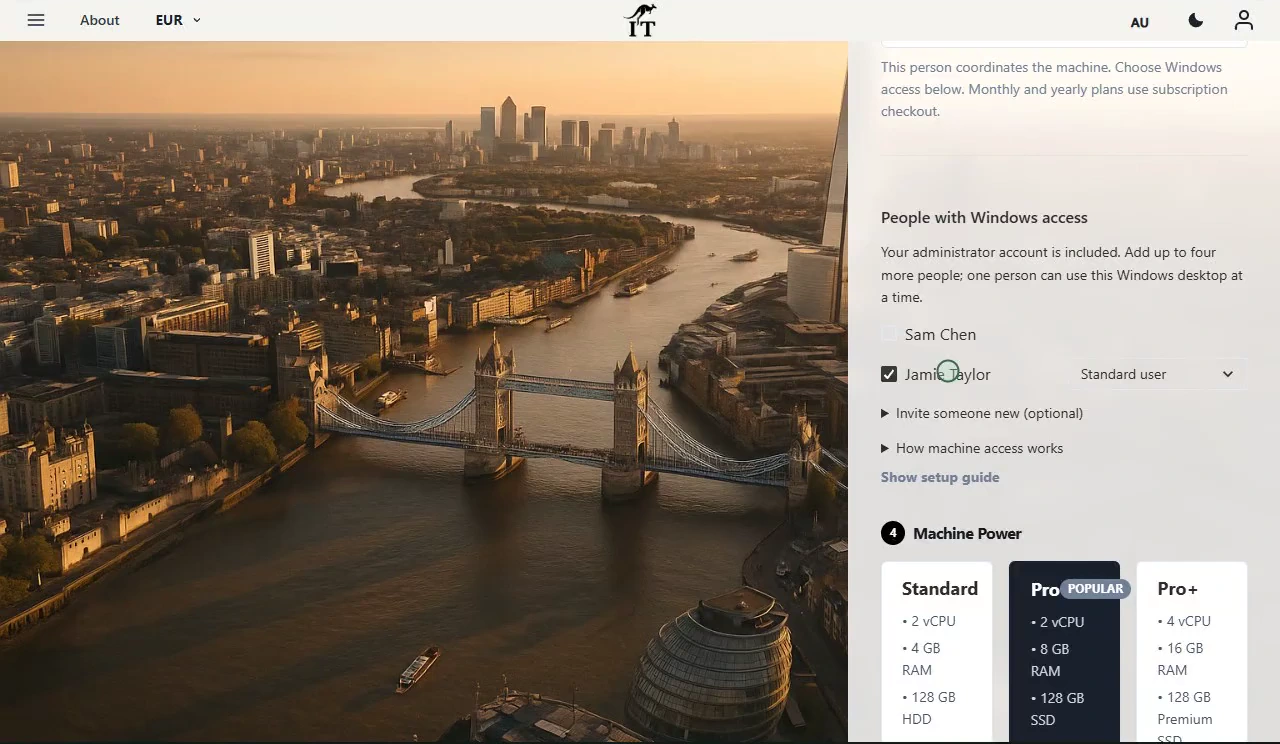
Choose the power for your work Compare the available CPU, memory and storage. Example prices are shown in this recording.
Review before you pay Check the total and terms, then continue to checkout. This demonstration stops before payment.
PRODUCT WALKTHROUGH31 seconds
Set up your laptop connection
Find the display settings, adapt the connection to your screen, and download the connection file.
Read the walkthrough
Find your desktop controls The settings menu sits on your desktop card. Open Connection Settings.
Fit Windows to your screen Review full-screen, monitor and resizing options. Support depends on your remote desktop client.
Choose your display preference Smart sizing fits the remote desktop to the client window. Other settings can stay at their defaults.
Keep the settings and connect Select Done, then Connect. The settings are included in your next connection file.
Open the file in your client Choose Download & Connect, then open the file with a supported remote desktop app.
Continue on your computer Sign in to the remote desktop with your Windows account. This final step is a connection guide.
Review the desktop configuration before checkout. Demonstration data. Open the image to inspect the controls.
CURRENT WORKFLOWS · SEPTEMBER 2026
AI-assisted work can still include a Windows-only step.
An assistant can help draft a report, explain a formula or plan a workflow, while the final task still depends on a Windows desktop application, plug-in or client system. Start with that application and its requirements. A browser-based assistant alone is not a reason to add another computer; a compatible Windows-only workflow may be.
A retained Jump-Desk keeps that Windows environment available between sessions. For colleagues doing the same kind of work, Jump-Teams adds invitations, roles and desktop assignments. AI subscriptions, Microsoft 365 and other paid applications require their own licences; a cloud PC does not include those subscriptions or promise specialist GPU hardware.
Bring people and desktops together.
Read the business guide to invitations, roles, funding and desktop assignments.
Windows access choices and Standard, Pro and Pro+ performance tiers. Demonstration data.
Prepaid Hours: budget for both parts.
Eligible Hours desktops use prepaid funding. Compute charges apply while running, and the separate service charge continues while the desktop is retained. Stopping the desktop preserves its files and ends running compute charges; deleting it permanently removes the desktop. Review the wallet, current rates and funding permissions in Jump-IT before creating one.
For regular work, Months includes up to 300 hours of uptime per desktop each month. Review the current Years option when a longer commitment suits the requirement. Each desktop has its own plan, region and performance tier.
Start with the closest use case, check its requirements and limitations, then review the live regions, billing options and performance tiers in Jump‑IT.