A portable screen for a Windows workspace that stays ready.
Connect to a complete Windows cloud computer for the desktop tools your work needs. Use the latest creator reviews to set realistic expectations, follow the remote-PC setup and choose Months when a recurring project justifies it.
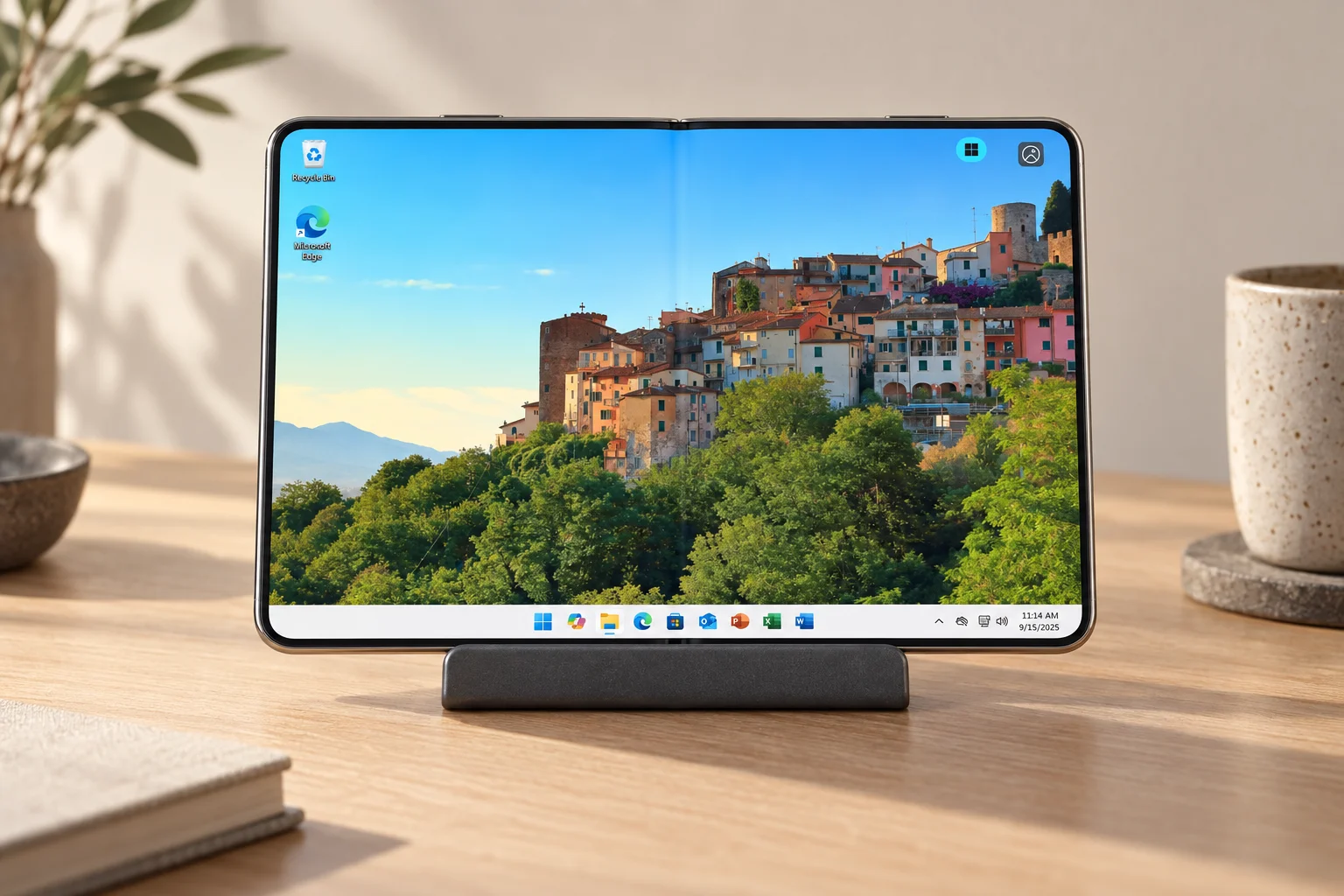
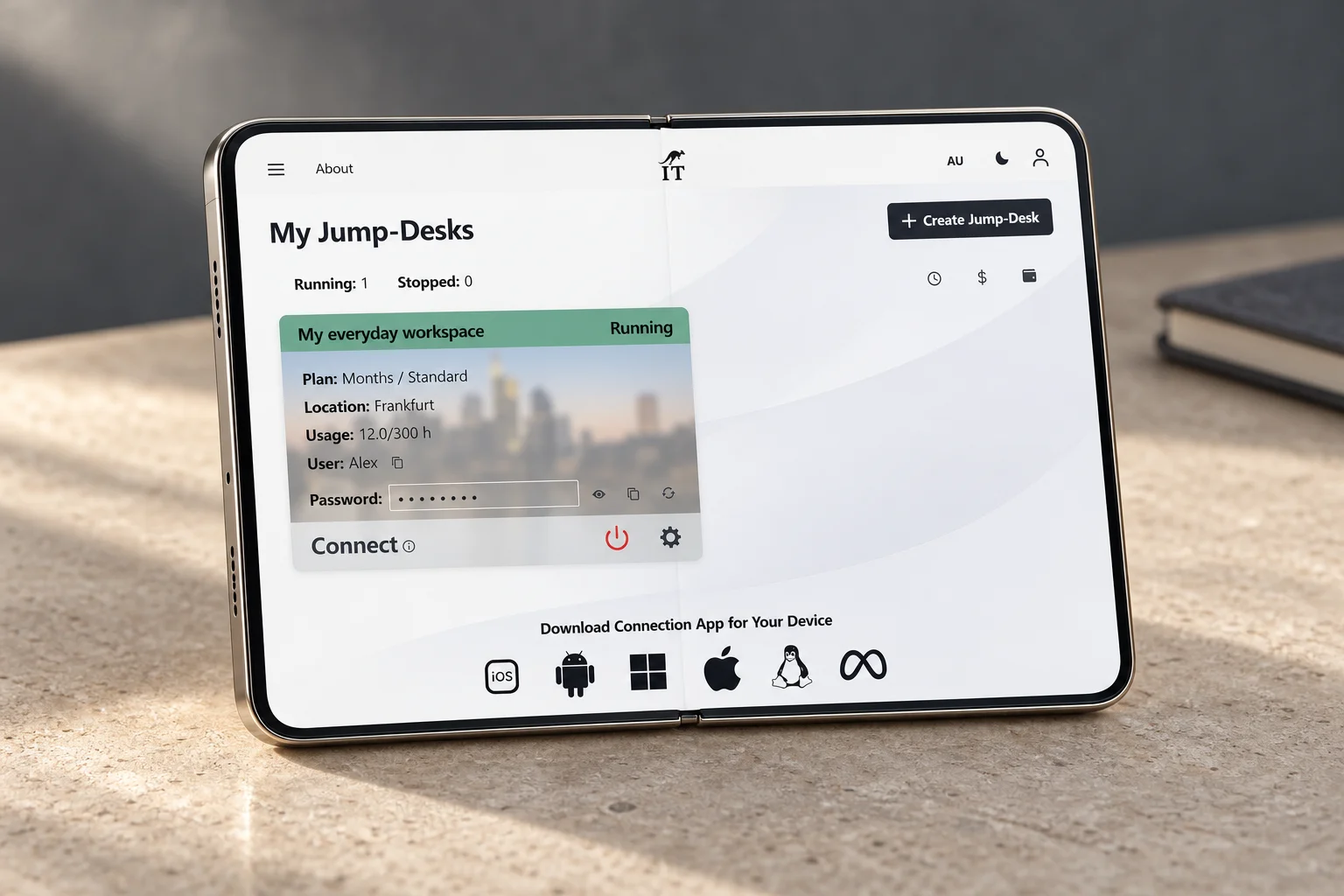
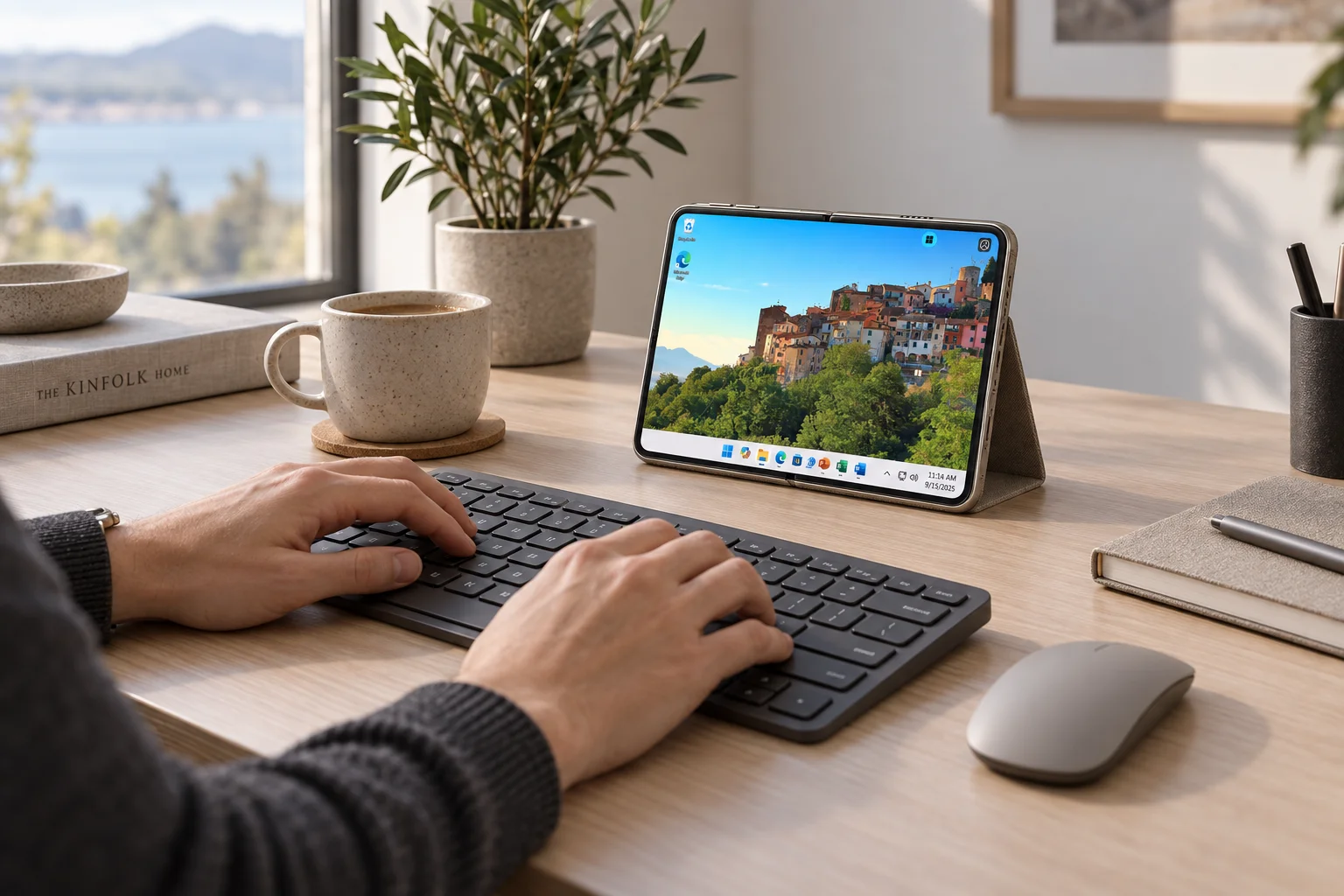
Concept renderAI-generated device concept using an existing Windows capture. Duo hardware has not been tested by Jump-IT.
DEVICE CONTINUITY · CHECKED 26 OCTOBER 2026
iPhone Duo “crack-gate”: can your Windows work continue?
Owners have reported cracks along the iPhone Duo’s inner display near the hinge, prompting the “crack-gate” discussion. Reports published on 23 October and a firsthand owner account warrant attention. They do not establish how common the problem is or a confirmed cause.
Cracked screen: continue the project from another device.
A Jump-Desk keeps Windows computing separate from the handset. If your working files and chosen applications are already on a retained Jump-Desk, use another healthy, supported device while the phone is assessed. For example, a consultant can return to the quotation workbook, costing tools and proposal documents in their Windows workspace from a spare Mac or iPad.
On the replacement device, sign in to your Jump-IT account and locate the existing desktop; do not create a second paid desktop just to change screens.
Use a supported remote-PC client, the correct connection details and your Windows credentials. Team members need an assigned Windows access grant; Team membership alone is not that grant.
Check the project files, application licences, display/input behaviour and a saved export before relying on the arrangement. Files stored only on the damaged phone are not automatically copied to Windows.
Keep a separate backup of important project data. A retained cloud workspace is not a guarantee against data loss, an internet outage or account-access problems. Each desktop supports one active Windows user at a time.
After repair, the Duo can still be a useful Windows screen.
A healthy or repaired Duo can reconnect to the same remote Windows workspace. Apple documents USB-C external-display support; the normal behaviour is mirroring unless the app provides a separate display experience. Test your cable, monitor, input devices and Windows App together. This is not a physical Duo test or a claim that iPhone has Samsung DeX.
Actual product demonstration · fictional data. Choose the Windows workspace around the project. This local demonstration uses the currently shipped interface; it does not create or pay for a desktop.
Our cautious buying preference for work-critical new device categories is to consider waiting until the third generation. Treat that as a review checkpoint, not a reliability guarantee: independent long-term testing, repair availability, warranty terms and a spare-device plan matter more than the generation number. You can use an existing supported device with Jump-Desk while you decide.
Create an account or sign in, then review the region, plan and full price before creating a paid desktop. Months is a full monthly charge with up to 300 uptime hours per desktop; Hours has running compute plus a service charge while retained, including when stopped. Install and license your chosen applications yourself.
THE PRACTICAL ANSWER
Can iPhone Duo run Windows?
The route is a remote Windows desktop. Windows runs on a Jump-Desk in the cloud; your phone displays the session and sends your input. iOS stays on the iPhone. Microsoft provides an iOS remote-PC client, while the final experience on Duo’s new folding screen needs checking on the released hardware.
Keep your everyday phoneAdd compatible Windows appsChoose a plan around your work
Updated 22 October 2026, ahead of the first 23 October availability. Jump-IT has not tested Duo hardware; this guide separates the supported remote-PC route from device-specific checks.Microsoft’s connection guidance
AFTER THE 21 OCTOBER REVIEWS
What MKBHD and Mrwhosetheboss found — and what to test for work.
MKBHD: the app experience matters.
In Marques Brownlee’s iPhone Duo review, from 14:18, the promising hardware meets uneven app support: some apps use the extra space well, while others appear small or stretched. Check your actual work applications before treating the phone as a laptop replacement.
Mrwhosetheboss: more space is not always a better layout.
Mrwhosetheboss’s review, from 4:12, shows Google Docs stretching rather than becoming a full desktop editor. His wider review also explores useful browsing and the limits of side-by-side multitasking.
The Jump-IT route: a separate Windows computer.
A Jump-Desk can supply a compatible Windows application’s desktop interface over a remote connection. It does not repair an iOS app or remove the phone’s screen, network and input limits. Test the complete job before committing to regular use.
Both independent videos were published on 21 October 2026. Neither is a Jump-IT demonstration or endorsement. These links open the creators’ original videos; their footage has not been copied into this guide.
APPLE’S NEW FOLDABLE
More room for the work between everything else.
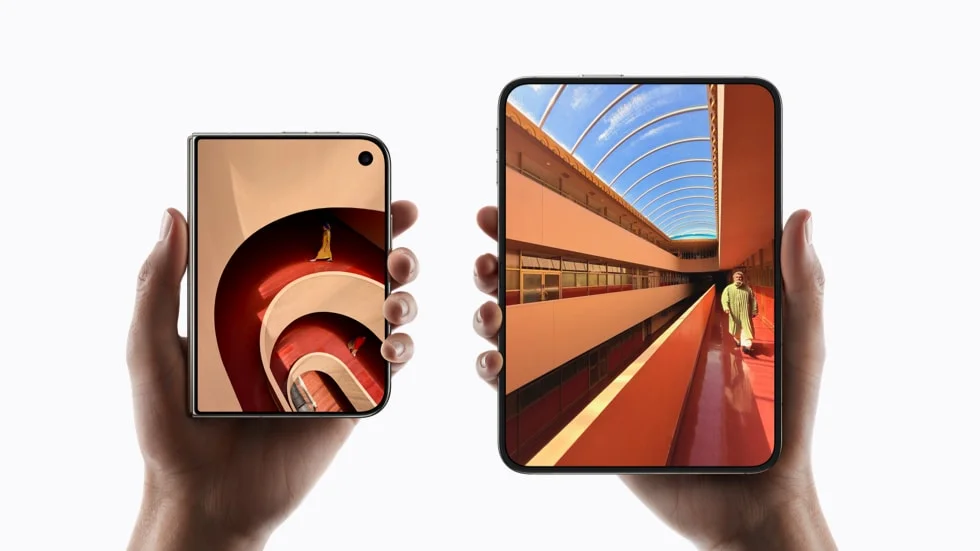
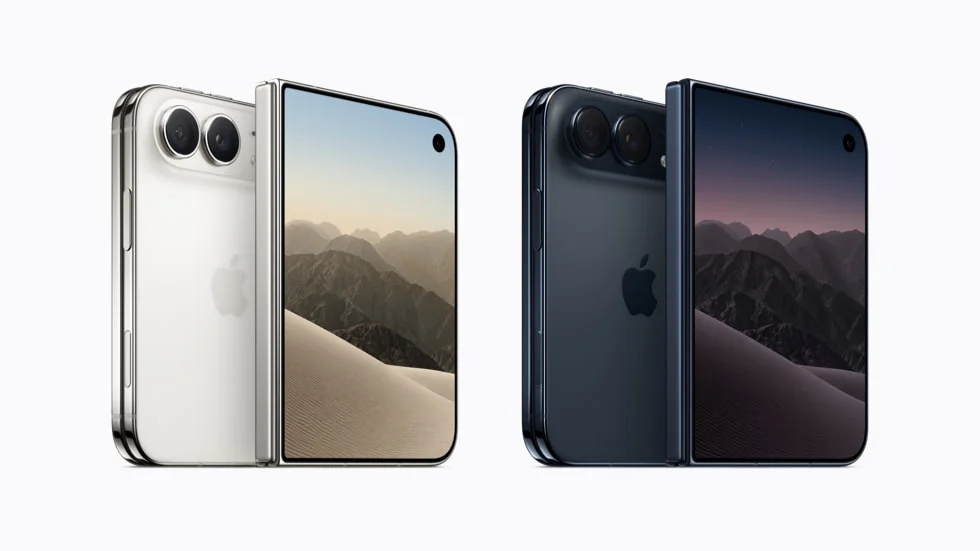
Apple’s first folding iPhone pairs a 7.6-inch inner screen with a 5.4-inch outer screen. iOS Split View introduces side-by-side apps; the announced hardware also includes A20 Pro and Touch ID. USB-C Apple Pencil support is scheduled for later this year.
For a productivity user, the opportunity is the extra room to see and control a task when carrying a laptop is inconvenient. Reading a report, checking a browser-based account and using a desktop application are different jobs. A larger phone helps with the first two; a remote Windows workspace can cover the third when a suitable iPhone app is missing.
Apple lists pre-orders from 16 October and first availability from 23 October 2026, including Australia. Read Apple’s announcement
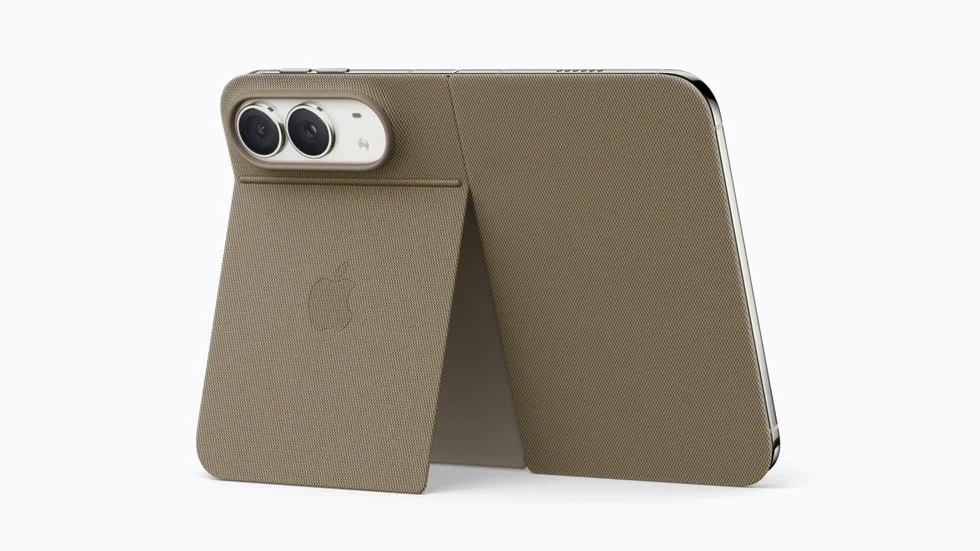
Apple launch imageThe announced outer and inner displays. Image courtesy of Apple.
01
Your familiar device
Use iPhone apps for the jobs they already do well. Bring in Windows for a specific desktop capability, rather than making every small task a remote session.
02
Your own Windows workspace
Install compatible applications and return to a retained desktop with your files and settings. You choose the remote resources separately from the phone.
03
Your working pattern
A short project, recurring work and year-round use have different costs. Compare the full plan before choosing, and stop the desktop when the session ends.
FOUR WAYS TO CARRY THE WORK
iPhone Duo vs Galaxy Z Fold8, Fold8 Ultra and iPad.
These devices solve different parts of the portability problem. The hardware comparison below uses iPad mini (A17 Pro) as the compact iPad reference. An 11-inch or 13-inch iPad gives you a different amount of working room again; there is no single specification for “an iPad”.
On a smaller screen, swipe across the table to compare all columns.
Device comparison · published specifications checked 9 September 2026
For your decision
iPhone Duo
Galaxy Z Fold8
Galaxy Z Fold8 Ultra
iPad mini (A17 Pro)
Main display
7.6-inch folding OLED
7.6-inch folding display
8.0-inch folding display
8.3-inch Liquid Retina display
Outer display
5.4-inch
5.5-inch
6.5-inch
One fixed tablet display
Weight
254 g
201 g
215 g
293 g Wi-Fi / 297 g cellular
Local processor
Apple A20 Pro
Snapdragon 8 Elite Gen 5 for Galaxy
Snapdragon 8 Elite Gen 5 for Galaxy
Apple A17 Pro
Native workspace
iOS; announced Split View
Android / One UI multi-window
Android / One UI multi-window
iPadOS; capabilities depend on model and software
External screen
DisplayPort and video output; verify the remote app’s behaviour
Samsung DeX on a suitable display
Samsung DeX on a suitable display
Video output; check the particular iPad and app
Where Windows runs
On the remote Jump-Desk
On the remote Jump-Desk
On the remote Jump-Desk
On the remote Jump-Desk
Consider it for
An iPhone-first routine with occasional desktop tasks
A compact Android foldable and DeX workflow
The larger Fold screen and DeX workflow
A dedicated tablet with more room for regular sessions
A touch keyboard covers part of the display. Fine controls can still be small even when the panel has many pixels. Try a real spreadsheet, document or application window at comfortable scaling, with the keyboard and pointer arrangement you intend to carry.
Keep phone performance and PC performance separate.
The handset handles the client and its display. Your Windows software executes on the Jump-Desk. Phone storage does not become Windows storage, and a faster phone chip does not add memory or processor cores to the remote computer.
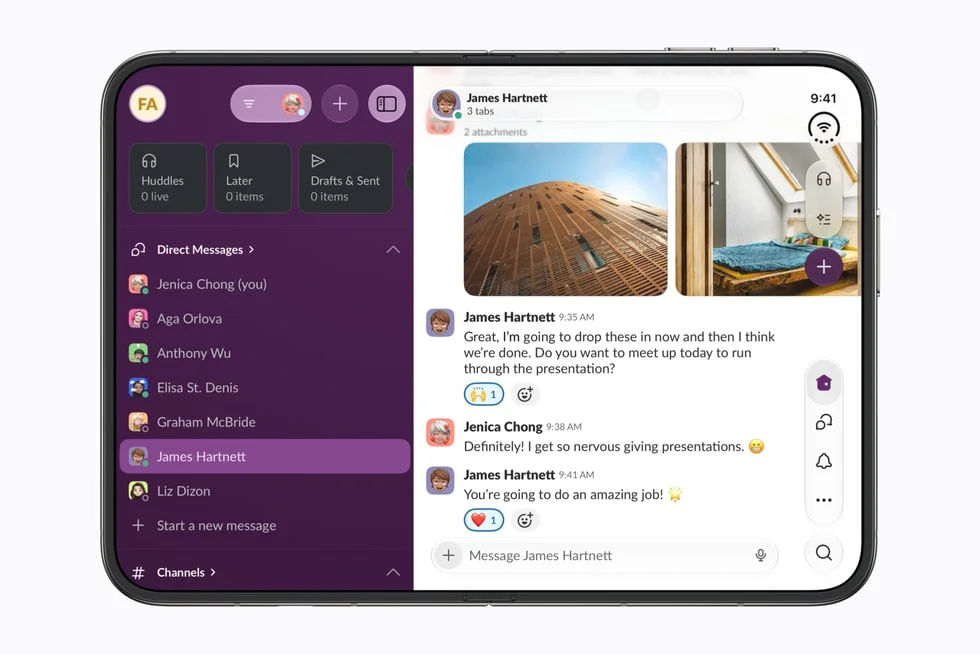
Apple launch imageAn example of a native app adapted to Duo’s display. Image courtesy of Apple. This is not a Windows session.
If your routine already lives on iPhone
Duo’s attraction is carrying one phone that opens into a more useful working surface. Use native apps where they are convenient, then connect to Windows for the task that needs it. A remote session adds a Windows environment; it does not convert every iPhone app or accessory into a Windows equivalent.
If your work revolves around a monitor
Samsung documents wired and wireless DeX for the Fold8 series. DeX presents Android in a desktop-style workspace on a suitable display. It can be the environment around a remote Windows client, but DeX itself is not Windows. Samsung’s DeX guidance
Apple lists DisplayPort and video output for Duo. That does not establish a DeX-style desktop mode or guarantee a particular Windows App external-monitor arrangement. Test the exact display, adapter and client combination.
If you want a dedicated working screen
An iPad leaves your phone free for calls, messages and authentication. A larger iPad may be more comfortable for long documents or frequent remote sessions, while an extra tablet is another item to carry and charge. The useful question is whether you want your working screen to also be your phone.
Native apps, DeX and Windows are not interchangeable.
On a smaller screen, swipe across the table to compare all columns.
Choose the right place to do the task
Approach
Where the application runs
What it is useful for
What it does not provide
Native iPhone or iPad app
Locally on iOS or iPadOS, with any online services the app uses
Everyday mobile tasks and apps designed for the device
A guarantee of every feature found in the Windows desktop version
Samsung DeX
Android on the Galaxy phone
A desktop-style Android workspace on a compatible screen
A Windows operating system or native Windows application installation
Jump-Desk through a remote client
Windows on a separate cloud desktop
Compatible desktop applications and a retained Windows environment
Offline access, automatic software licences or universal peripheral compatibility
A MINI COMPUTER WITH A REAL JOB
Keep a recurring site-report project together.
Consider a consultant who visits client sites each week. Their chosen Windows spreadsheet holds the inspection schedule, calculation rules and reference costs; a document template turns the findings into the client’s report. A retained Jump-Desk keeps that project environment available between visits, while Duo could provide the portable screen and controls.
Fictional planning example: Harbour Fieldwork’s consultant prepares a Windows project folder with 01-Reference, 02-Working and 03-Client-export. They install and license their chosen spreadsheet and document applications, such as desktop Excel and Word where the licence permits this use. These applications are not included or preinstalled by this guide.
Prepare at a comfortable desk. Install the exact application versions, add-ins and fonts; keep a separate backup and an approved non-sensitive sample project.
Choose one meaningful mobile edit. Update a site finding and its cost allowance, recalculate the workbook and bring the result into the report template.
Check what the client receives. Export the report to PDF, reopen it and inspect the totals, page breaks and missing fonts. Confirm your chosen storage service carries the intended file back to your normal device.
Test the interruption. Save, switch apps, rotate the phone and reconnect. Check that the correct project reopens and that small controls remain usable with your intended input method.
Decide from the whole task. Use the phone for short updates if the result is reliable. Use a tablet or laptop for sustained layout work, weak coverage or a deadline that cannot tolerate a connection problem.
This is a proposed acceptance workflow, not a completed Windows application or iPhone Duo hardware test. Use the Windows application project worksheet to record your own result before extending the setup.
When a second person joins the work
Jump-Teams organises people and desktops. Give each person who needs a simultaneous Windows session their own desktop; each Jump-Desk supports one active Windows user at a time. Team membership, Windows privileges, application permissions and billing remain separate decisions. Share project files through an appropriately licensed storage workflow, not shared Windows credentials.
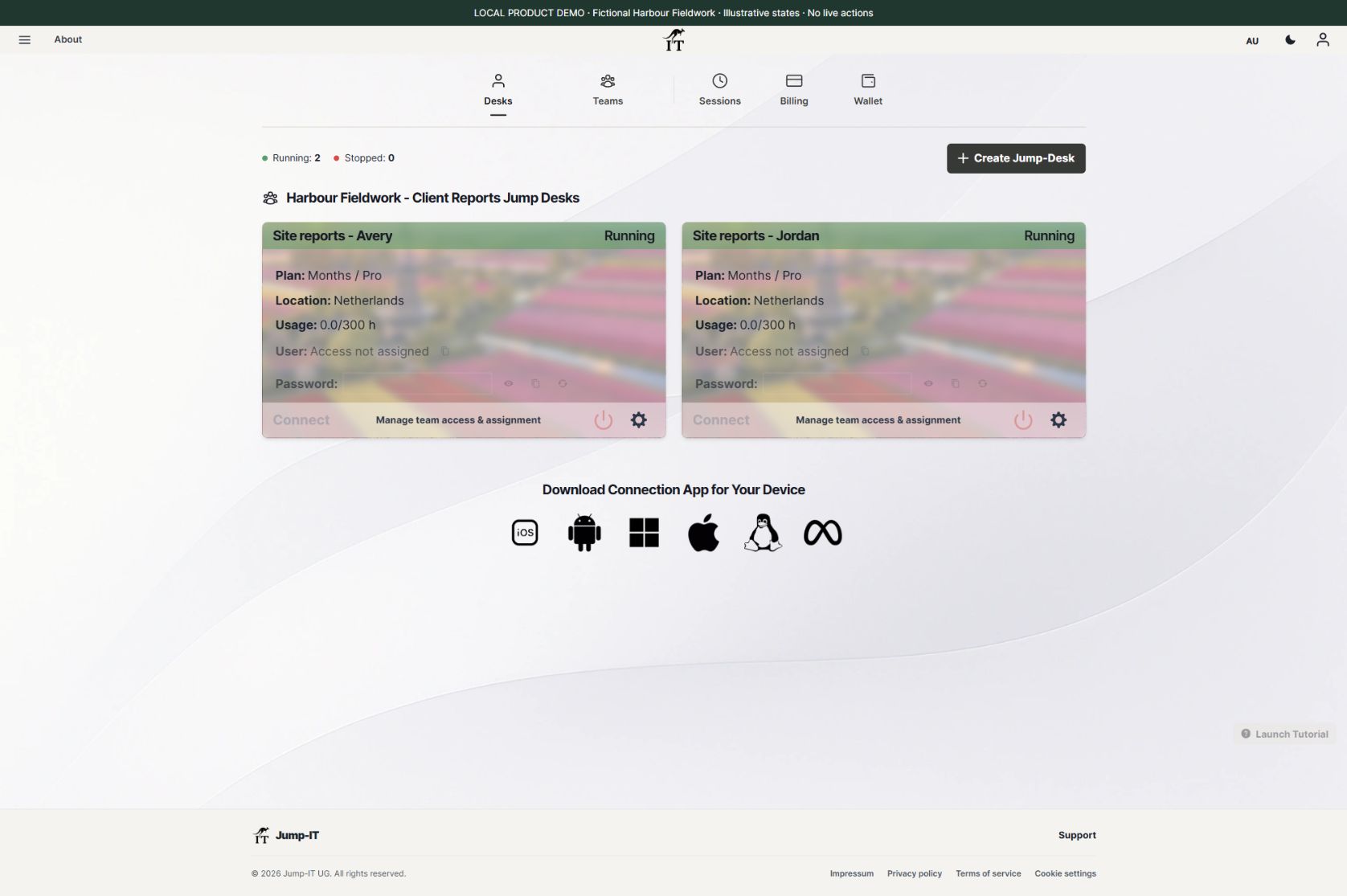
Actual product · fictional demoFresh 22 October capture of the shipped interface in a local sandbox. Running labels are illustrative fixture states; no desktop was provisioned and no access was granted. This is not an iPhone Duo hardware capture.
Your Jump-IT dashboard is where you create and manage the remote computer. The remote client is where you use Windows. Keeping those two roles clear makes switching devices and ending a session much easier.
Use your current supported device to prepare the applications and files now. When moving to a new phone, confirm the client and controls before relying on it for your normal work.
Concept renderIllustrative device mock-up based on a Jump-IT dashboard capture. Demonstration data; final layout may differ.
FROM ACCOUNT TO FIRST SESSION
How to set up Windows on iPhone Duo.
This is the remote-PC setup route to prepare for Duo. It uses existing Jump-IT controls and Microsoft’s iOS client instructions; confirm the final behaviour on your own device when available.
01
Check the iPhone and client first
Install Windows App Mobile from Microsoft Corporation through the App Store. Its current listing requires iOS 26 or later. Check the listing on your own device; an operating-system requirement alone does not confirm how a newly released folding display behaves.
Before relying on Duo for a deadline, check the client on your actual phone, including rotation, keyboard entry and returning to the session after switching apps. You can prepare and test a Jump-Desk from another supported device in the meantime.
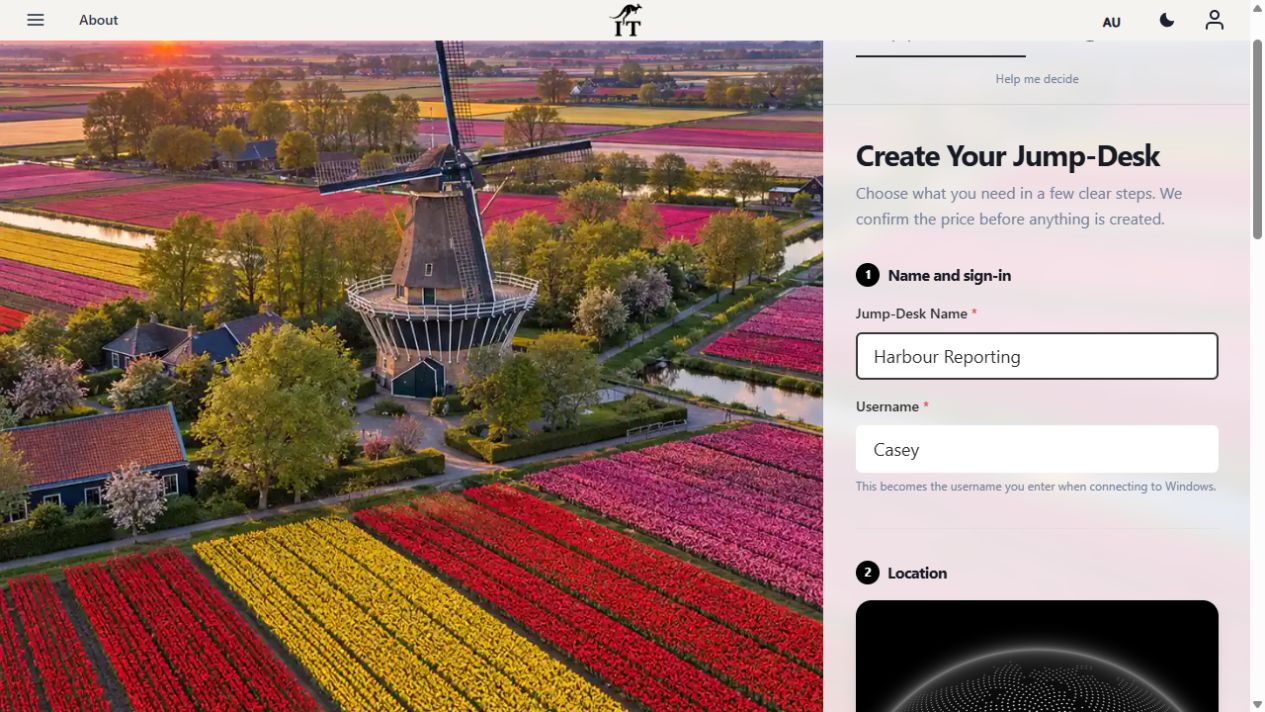
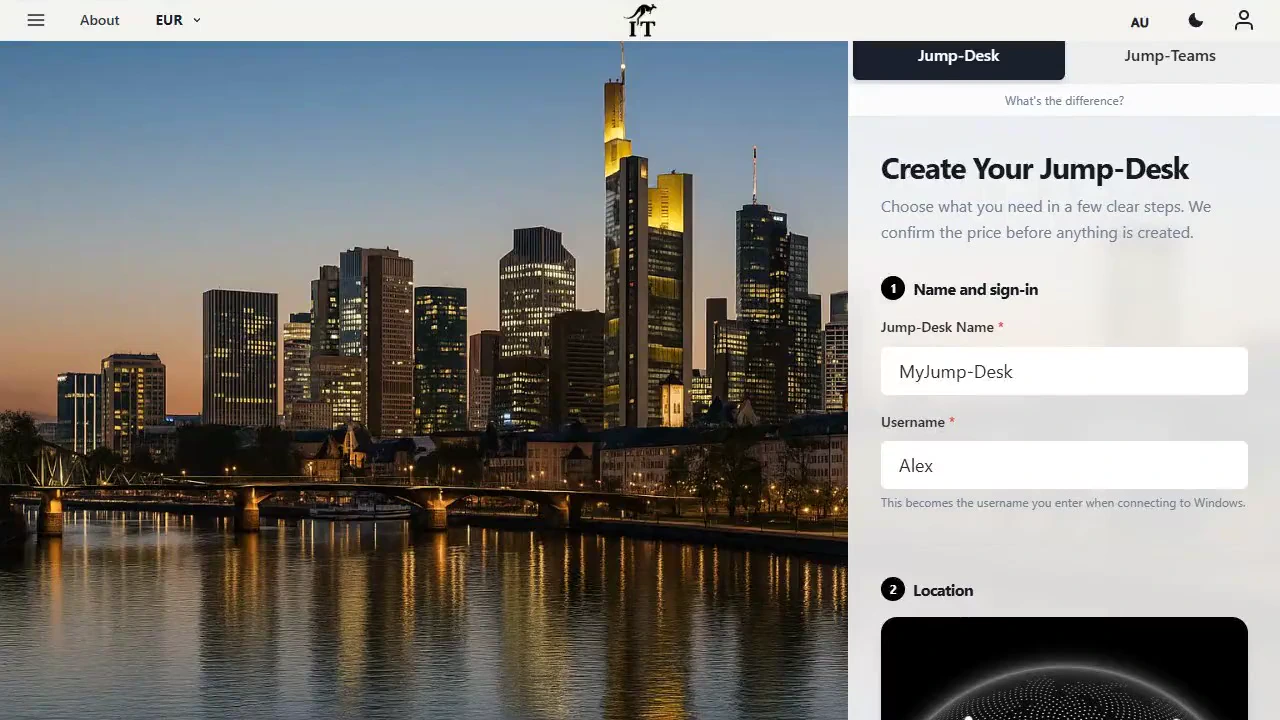
Open Jump-IT and choose Create Jump-Desk. Give the desktop a recognisable name, set its Windows username, and choose from the locations, plans and performance tiers currently available. Use a location close to where you will normally connect.
Choose the resources for the Windows application, rather than the price or processor of your phone. A light administration task and a large development project can need very different desktop configurations. Review the complete price and terms before confirming.
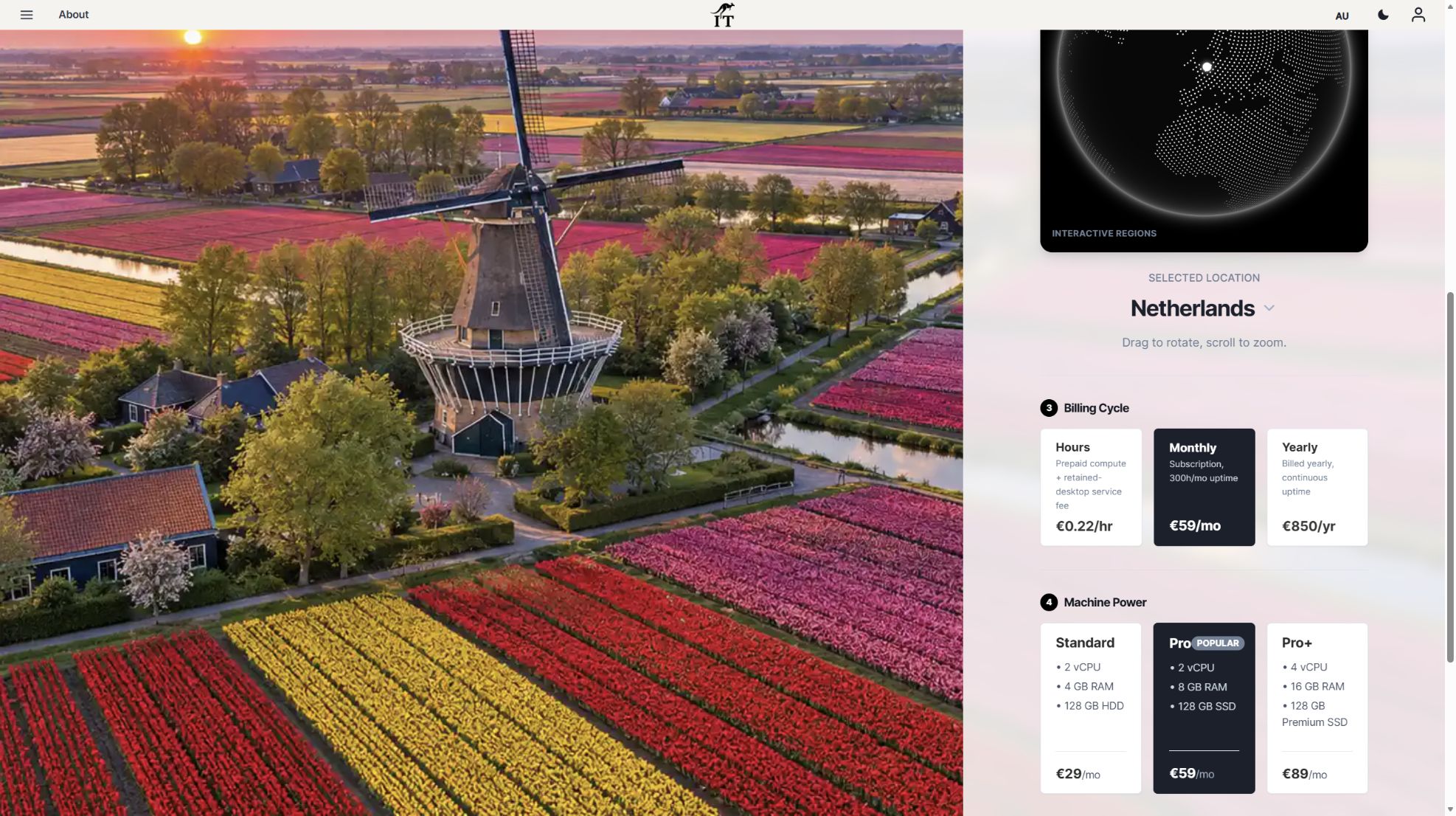
For a regular personal workspace, start with Months. The fresh example below selects Netherlands and Pro; choose the location and resources for your own application and normal connection. Read the complete cost comparison before launch.
Actual product · fictional demoFresh 22 October actual-product sandbox capture. The form was configured for fictional Harbour Fieldwork and was not submitted. This is a desktop-browser view, not a Duo hardware test.Configure a personal Jump-DeskProduct captureThe existing desktop creation interface. This capture is not from iPhone Duo.
03
Start the desktop and collect its connection details
Allow provisioning to finish, then start the desktop from your Jump-IT dashboard. Wait for its status to show Running. Keep the Windows username, password and connection information available while setting up Windows App.
The dashboard’s connection control supplies the settings for your desktop. A downloaded connection file and a web-account password are different things: the file identifies the connection, while the Windows credentials sign you into the remote computer.
04
Add the remote PC in Windows App
In Windows App, open Devices, choose +, then Add PC. Enter the Jump-Desk’s supplied hostname or IP address in PC Name. Give the connection a friendly name so you can recognise it later, then save it.
This follows Microsoft’s remote-PC connection route. If your installed client offers to open the downloaded connection file directly, that is another route; use manual Add PC when file opening is unavailable. A Microsoft work or school sign-in is not required merely to add a remote PC.
Open the saved PC and enter the Windows username and password shown for that Jump-Desk. These may differ from the credentials used to sign into your Jump-IT web account. Check capitalisation and keyboard layout if a password is rejected.
If a connection identity or certificate prompt appears, check that it refers to the desktop you intended to open. Once connected, you should see the Windows desktop. Install the compatible applications you need, using your own valid application licences where required.
06
Make the session comfortable to use
Start with the phone unfolded and try landscape orientation. Adjust the remote client’s display settings and Windows scaling until menus, cells and buttons are readable. A higher resolution is not automatically better on a small physical screen.
Use the client’s available touch or pointer controls for short tasks. For extended typing, try a compatible external keyboard and check shortcuts, scrolling, right-click and special characters before a real work session. Test a mouse or external display with your exact client and accessory combination.
07
Save, stop and check the status
Save your work and make a separate copy of anything important. When the session is finished, use the Jump-IT dashboard’s power control to stop the desktop, then confirm that its status changes to Stopped.
Closing Windows App, folding the phone or losing signal can disconnect your view without stopping the computer. On eligible prepaid Hours desktops, running compute and the retained-desktop service charge are separate: stopping compute does not remove the retained desktop or its service charge.
SEE THE PRODUCT CONTROLS
Watch the existing Jump-IT workflow.
These recordings show desktop creation and the dashboard in an iPad-sized browser. They explain the existing controls; they are not recordings from iPhone Duo. Playback is optional, and each clip includes captions and a written walkthrough.
PRODUCT WALKTHROUGH27 seconds
Create your Jump-Desk
Name your desktop, choose a region and plan, and review the configuration before checkout.
Read the walkthrough
Start with your Windows sign-in After signing in to Jump-IT, give the desktop a name. This username is for Windows.
Choose a nearby region Pick from the regions available to your account. Your desktop will run in that region.
Choose how you use it This example uses Monthly. Review the current price and included uptime before checkout.
Choose the power for your work Compare the available CPU, memory and storage. Example prices are shown in this recording.
Review before you pay Check the total and terms, then continue to checkout. This demonstration stops before payment.
PRODUCT WALKTHROUGH28 seconds
Connect from your iPad
Follow the dashboard in a tablet-sized browser, then see the steps to continue in Windows App on iPad.
Read the walkthrough
Open jumpit.ai on your iPad Sign in and wait for your Jump-Desk to be ready. This is the current dashboard in a tablet-sized browser.
Install the connection app Use the iPhone / iPad download link for Windows App. Windows runs on your Jump-Desk.
Use your Windows sign-in Use the username and Windows password from your desktop. Keep the password private.
Prepare the connection Choose Connect and review the connection information. Check the host identity when your client prompts you.
Get your connection details Download the connection file. Use its host address when adding a PC in Windows App on iPad.
Continue on your iPad In Windows App, add the PC, save it and connect using your Windows account. This final step is a guide.
MAKE A SMALL SCREEN WORK WELL
Build a comfortable, compact work kit.
Put the screen where you can read it.
Use a stable stand and comfortable display scaling. Do not judge a remote desktop from a beautifully sharp screenshot alone: you need to select the actual buttons, read your own text and work at the distance you normally sit.
Carry the input tools your task needs.
An external keyboard can free display space and make sustained typing more practical. Check your preferred layout and shortcuts. If you need precise pointer work, test the client’s input modes and a compatible mouse before building your routine around it.
Treat pen support as a separate question.
Apple’s announced Pencil capability is a native device feature. Windows ink, pressure sensitivity and application-specific pen controls depend on the remote client and the Windows software too. Do not assume support transfers automatically between those layers.
Concept renderAI-generated work-kit concept. Keyboard, pointer and display behaviour require checking with the released phone and current client.
THE CONNECTION AND THE FILES
Keep the complete working loop simple.
01Bring the file in
Use an approved cloud-storage or transfer method.
02Work in Windows
Use the application on your Jump-Desk.
03Save the result
Check the destination and keep a backup.
Network quality matters more than a headline speed.
The remote session depends on a stable path between the phone and the desktop’s location. Delay, interruptions and congestion affect responsiveness. Choose a suitable region and test from the network you will actually use. Hotel Wi-Fi, a busy hotspot and a home connection can behave very differently.
If text feels too small or scrolling becomes uncomfortable, reduce unnecessary visual detail and try a more suitable resolution. Save before moving between Wi-Fi and mobile data. Do not assume an advertised video-playback battery figure predicts a day of remote work.
Know which computer holds the file.
A file in the iPhone Files app is not automatically present on the Windows desktop. Use a transfer method permitted for the data, then check the folder where the application saves its output. Confirm the result is accessible from your everyday device before you finish.
Desktop retention lets you return to an environment, but it is not a substitute for independent backups. Copy out important work before deleting a desktop or ending a project. Keep application sign-ins and licences separate from the Windows and Jump-IT account credentials.
RECURRING WORK, COMPLETE COSTS
Choose Months for an established routine.
Netherlands Pro Months is EUR 59 per desktop for a full month, with up to 300 uptime hours. The selected example has 2 vCPU, 8 GB RAM and 128 GB SSD. Check current availability, billing terms, taxes, discounts and extras in the live calculator and checkout. A monthly desktop subscription is separate from the handset, accessories, mobile data, storage and chosen application licences.
Months: a regular workspace
Prepare your tools once, return to the retained environment between sessions and budget the full monthly desktop price. Two Pro Months desktops at this example rate are EUR 118 per full month before applicable taxes, discounts and extras; each has its own 300-hour allowance.
Hours: occasional work
At the same Netherlands Pro example rate, running compute is EUR 0.22 per hour plus EUR 0.023282 per hour of retained-desktop service. Service continues while stopped. Sixty running hours with 720 retained hours cost about EUR 29.96; 200 running hours with the same retention cost about EUR 60.76, before taxes, discounts and extras.
Match the plan to the evidence
Months is not automatically the cheapest choice for light use. Test compatibility and estimate both active work and retained time. Stop the machine when finished: a disconnected client can leave it running and consuming uptime. Check the current plan rules before exceeding the allowance.
The Hours examples use a 30-day, 720-hour retention period; they are arithmetic examples rather than a promise of an invoice total. A remote desktop is not a backup service. Keep independent copies of important work.
When this is useful—and when to choose another setup.
A useful fit
You already prefer a phone or tablet for everyday tasks.
A particular compatible Windows application fills a real gap.
You have a dependable connection where the work happens.
Your files, licences and input method have been tested.
You want an occasional or portable Windows workspace.
Check another arrangement
The work must continue without internet access.
The application depends on a physical dongle or specialist hardware.
You need precise, sustained work on a large display all day.
Very low latency is essential to the task.
Your organisation or assessment rules restrict remote desktops.
A cloud desktop should solve the complete task, including sign-in, input, saving and returning the result. Test that loop before treating the setup as a replacement for your main workstation.
Can iPhone Duo replace a mini computer for monthly work?
It can be the portable client for a retained Windows cloud computer, subject to your application, licence, connection and input needs. Windows runs remotely. Start with a representative project test; choose Months for a routine that fits its full monthly price and up to 300 uptime hours per desktop.
Can I install Windows directly on iPhone Duo?
This guide uses a remote Windows desktop. iPhone Duo keeps iOS; Windows runs on a separate Jump-Desk. It is not a native Windows installation, dual boot or local Windows emulator.
Has Jump-IT tested Windows App on iPhone Duo hardware?
No. Updated 22 October 2026, this guide uses Apple specifications, Microsoft remote-PC guidance, two independent 21 October reviews and fresh Jump-IT sandbox screenshots. Duo-specific folding, input and external-display behaviour still needs testing on the released device. The proposed site-report workflow has not been executed.
When is iPhone Duo available?
Apple announced pre-orders from 16 October 2026 and availability from 23 October in its first launch markets, including Australia. Check Apple’s local store for your country and configuration.
Which app connects an iPhone to a Jump-Desk?
Microsoft Windows App Mobile provides the iOS remote-PC connection route. Check its current App Store compatibility listing and add the Jump-Desk using its supplied connection details. The client app and the paid Windows cloud desktop are separate products.
Can I use full Windows Excel or another desktop application?
You can install compatible Windows software on a Jump-Desk, subject to the selected desktop’s resources and the software licence. Test the exact version, add-ins and files you rely on. Office, specialist applications and subscriptions are not automatically included merely because you have Windows access.
Is a Galaxy Z Fold8 or Fold8 Ultra better for Windows?
The useful comparison is the screen, controls, network and the way you work. Samsung DeX provides an Android desktop-style workspace on a suitable external display; a remote Windows session is a separate layer. The same Jump-Desk resources can do the Windows work regardless of which supported client device you choose.
Should I buy an iPad instead of iPhone Duo for remote work?
An iPad can be a better fit when a larger working surface matters more than having a folding phone in your pocket. This page uses iPad mini as the compact hardware reference; larger iPads are different choices again. Consider the complete kit, input comfort and the applications you need before changing devices.
Will Apple Pencil work as a Windows pen on Duo?
Apple announced USB-C Apple Pencil support for later in 2026. That native iPhone support does not establish pressure-sensitive Windows ink or other pen features through a remote session. Check Microsoft’s client support and test the intended Windows application before buying for that purpose.
Does Windows continue if I close the phone?
A remote computer can remain running after its client disconnects. Do not use folding the phone or closing the app as your stop control. Save your work, stop the Jump-Desk through its dashboard, and verify the Stopped status.
Can I use a Jump-Desk without an internet connection?
You need connectivity to interact with the remote desktop. Keep locally usable files or a separate offline workflow for flights, unreliable mobile coverage or tasks that cannot wait for a connection.
Does a faster iPhone make my Windows applications faster?
The phone affects the client experience, but Windows applications execute on the remote desktop. Desktop resources, the application itself and the network between you and the chosen location all matter. Buying a more expensive handset does not add CPU or memory to a Jump-Desk.
Can I keep the same Windows workspace when changing devices?
A retained Jump-Desk keeps its Windows environment between sessions. Connect from another supported device with the appropriate client and credentials. Each desktop supports one active Windows user at a time; keep independent backups and do not assume retention is a backup service.
SOURCES & EDITORIAL NOTES
What this guide is based on.
Written by the Jump-IT Team. Windows workflow, creator-review links, current product captures and plan examples updated 22 October 2026. The hardware comparison table retains its clearly labelled 9 September specification check; manufacturer links remain the source for later changes.
Apple launch photography is credited beside each image. The three Windows and dashboard device scenes are AI-generated concepts based on product references; they are not evidence of Duo hardware testing. Existing Jump-IT captures use demonstration data.
Jump-IT is an independent service. Apple, Samsung and Microsoft names identify the products discussed; their inclusion does not imply a partnership or endorsement. Check current manufacturer and software requirements before purchase.
Choose a Jump-Desk around the application you need. Prepare the workspace on a supported device, test the complete workflow, and bring Windows along when it makes your day easier.
Apple launch imageiPhone Duo launch imagery courtesy of Apple.
Where a folding iPhone fits beside a new MacBook
The touchscreen MacBook Pro comparison places iPhone Duo, iPad, Neo and desktop Macs in a mixed-device organisation. A healthy supported phone can be useful for focused access, while sustained local AI or creative work may justify a laptop. Keep screen comfort, input and the actual remote-client workflow in the decision; a folding phone is not a Mac replacement for every job.
Related device guidance added 31 October 2026.
This site uses essential storage and optional analytics. Privacy policy