Jump-Teams for startups. Small team. Big possibilities.
Your next hire might already have the right device. Give them the Windows workspace your business needs.
Bring your people, Windows cloud PCs and everyday administration together. Keep the supported devices you already own, choose desktops around real work, and build a team without making every new role a hardware purchase.
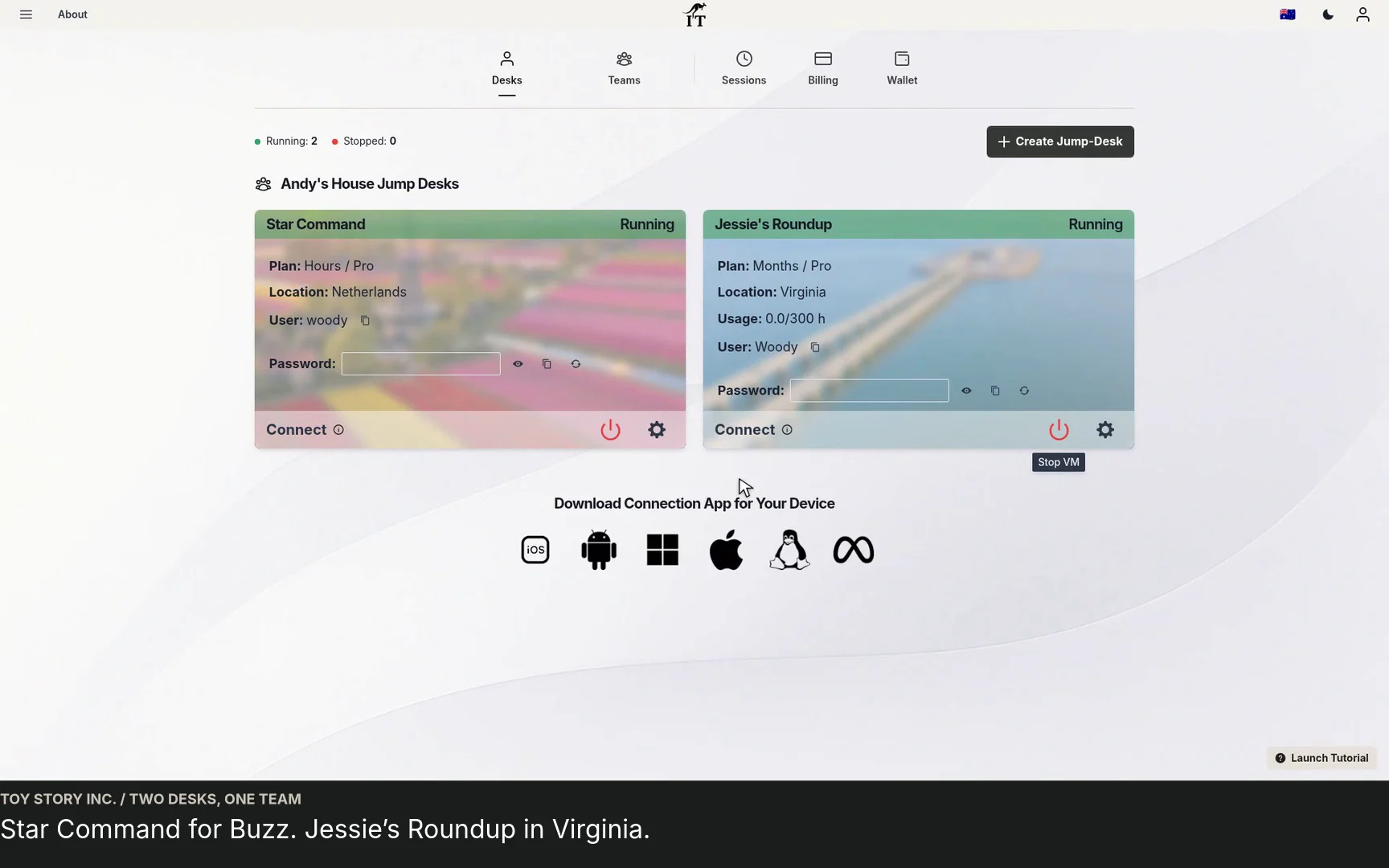
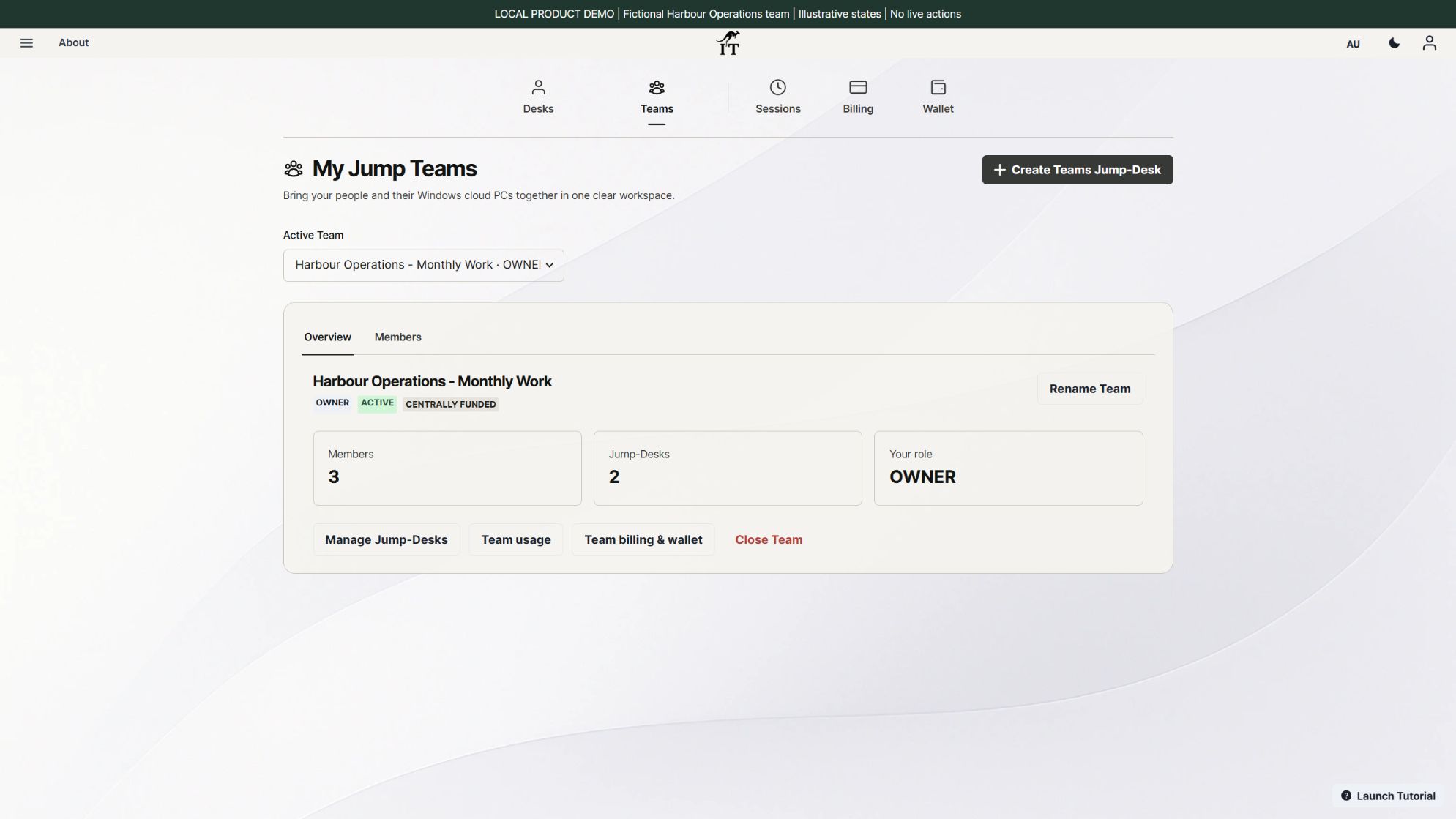
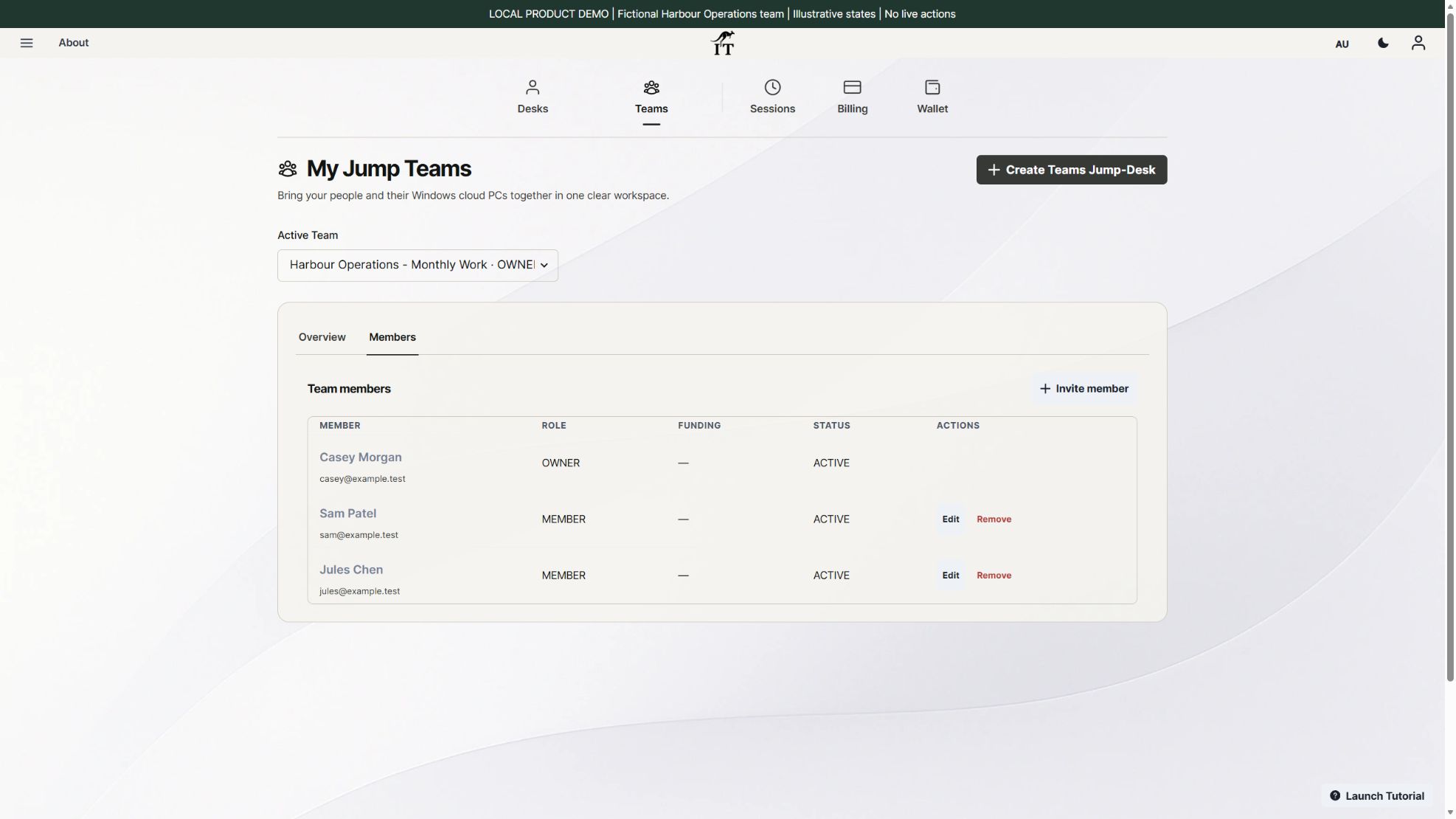
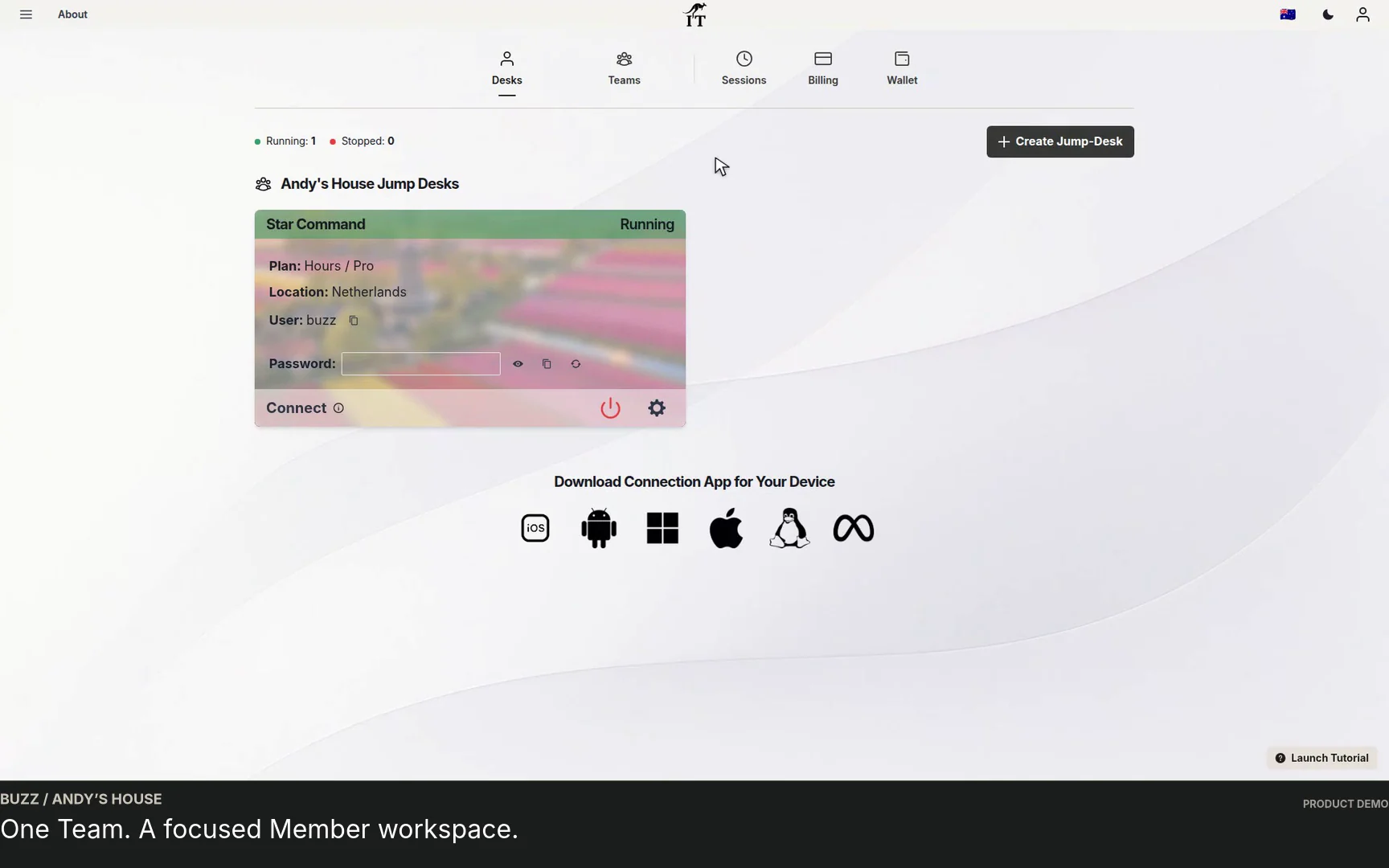
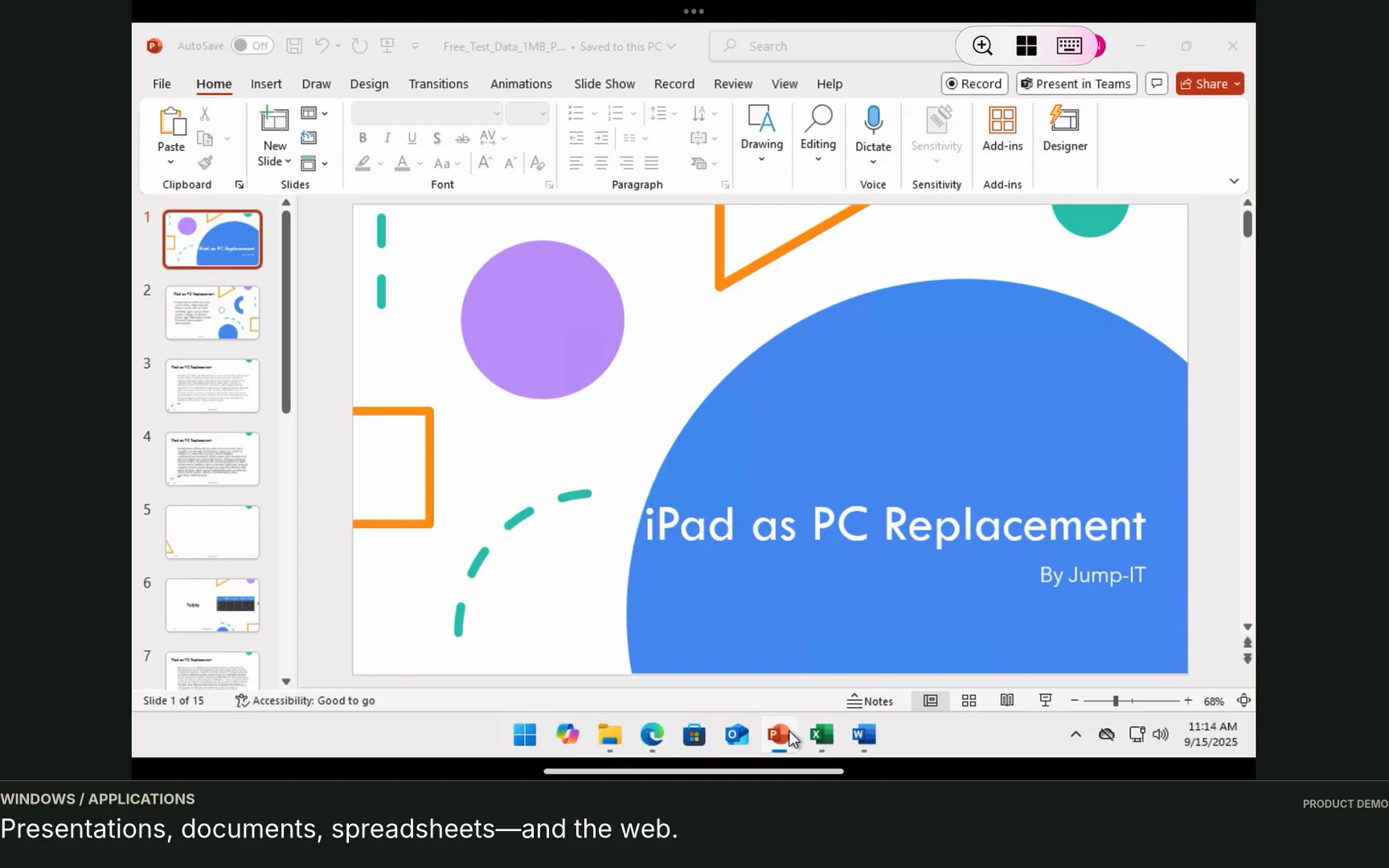
Real product recording · fictional Team and demonstration data.
One place to start.People · Desktops · Access · Usage
Keep your deviceAdd remote Windows where it is needed.
Welcome the next personInvite, assign and set access deliberately.
Choose how you workMatch each desktop to its role and plan.
THE PRACTICAL ANSWER
Why choose Jump-Teams for a startup?
Jump-Teams helps founders give colleagues a managed Windows cloud PC without requiring everyone to buy the same computer. A Jump-Desk supplies Windows 11 Pro on Microsoft Azure; Jump-Teams adds invitations, roles, desktop responsibility, individual Windows access and funding controls.
It is a strong fit for a small team with mixed devices, remote collaborators or Windows-specific work. Start with one representative role, test the applications and connection, then add separate desktops as more people need to work at once. The small-business cloud PC guide covers the broader choice; this page focuses on building your first team.
FROM FOUNDER TO FIRST HIRES
The team features that make room for growth.
01 / START TOGETHER
Create the Team as you create the desk.
Set up a Team during the Jump-Desk creation flow, invite colleagues and choose their Windows access. Your first working environment and your first collaborator can be planned together. Follow the first-member onboarding walkthrough for a practical example.
02 / CLEAR RESPONSIBILITIES
Give people the controls they need.
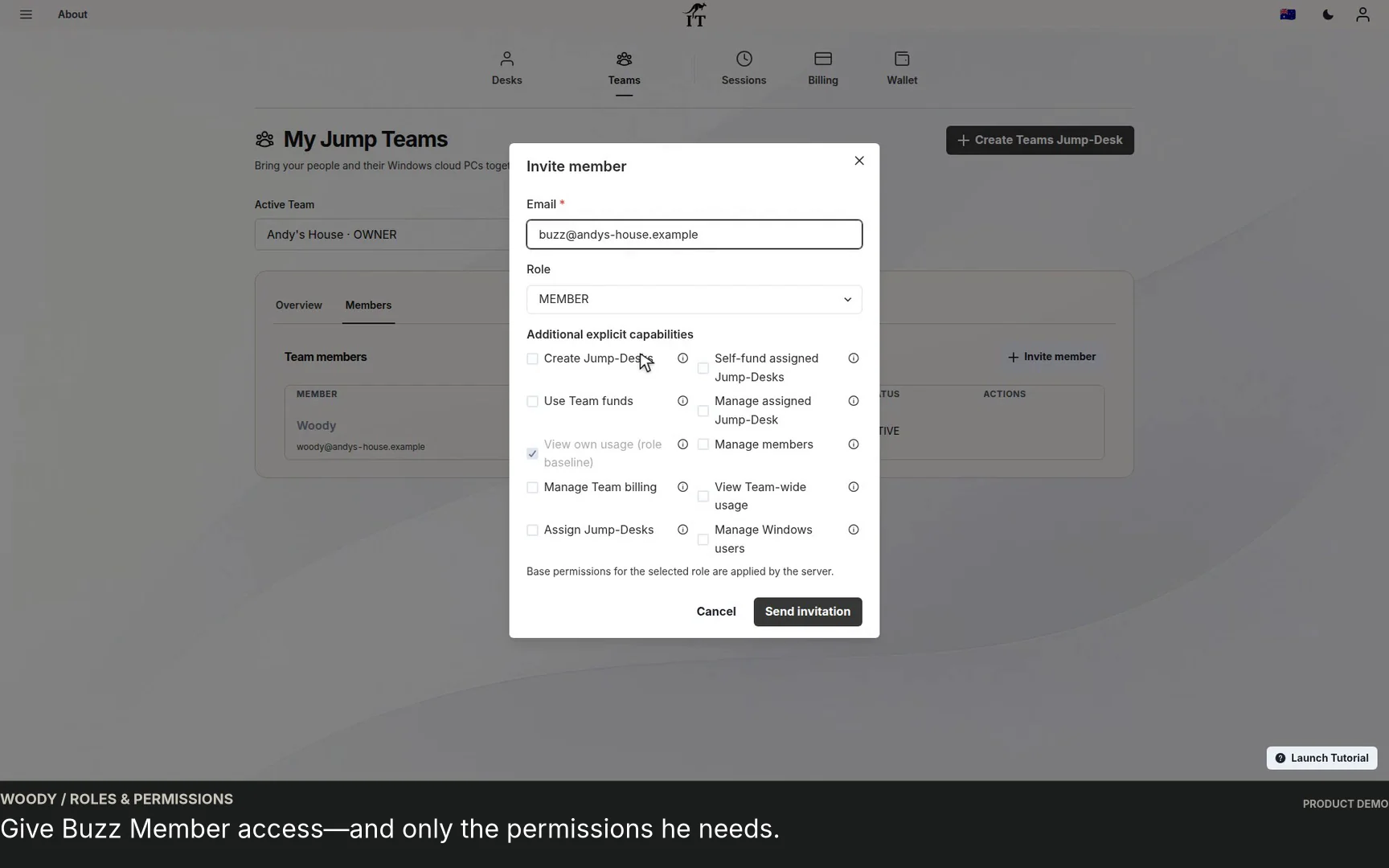
Separate Owner, Admin and Member roles organise the Team, with additional capabilities for specific tasks. An operations colleague can help manage people and desktops while billing and funding remain explicit permissions. Assign a responsible member to each desktop for clearer usage accountability.
03 / INDIVIDUAL ACCESS
A Windows account for each person.
Set Windows Standard user or Administrator access separately from Team roles. Up to five named people, including the creator, can have access to a Team machine. Each desktop supports one active Windows user at a time; give simultaneous workers separate desktops.
04 / FLEXIBLE FUNDING
Decide who pays, deliberately.
Use a Team prepaid wallet for eligible Hours desktops, or allow eligible members to authorise personal funding. Personal payment details remain private. Subscription desktops follow their own checkout. The funding choice should match how your startup actually works.
05 / EVERYDAY VISIBILITY
See how desktops are being used.
Authorised users can review desktop usage, responsible members, session duration, status and usage cost. View your own or wider Team activity according to permissions. Use this alongside wallet activity and invoices: the usage view is not a complete bill.
06 / A TEAM THAT CHANGES
Make the next handover clearer.
Choose an available region, performance tier and plan for each role. Review assignments and Windows access as people join, change jobs or leave. The distributed-team desktop demo shows a second desktop and a separate regional workspace.
ACCESS THAT MAKES SENSE
Team role. Desktop responsibility. Windows access.
In a new business, one person can handle operations, another the budget and a third the actual desktop work. Those jobs do not need identical permissions.
Team role and capabilities
Control what someone can manage in Jump-IT, including people, desktop operations and permitted billing actions.
Responsible member
Identifies the person responsible for the desktop and its recorded usage. Reassignment can require a funding transition when it is personally funded.
Windows privileges
Set what the person can do inside Windows. Standard users can work in apps; system-wide changes require Windows Administrator approval.
See the member’s side in connecting to a Team Windows cloud PC. Each eligible confirmed member uses their own Windows credentials and connection file.
Invitation controls in the supplied product demonstration. This example uses fictional details.
AI HELPS YOU BUILD. WINDOWS HELPS YOU DELIVER.
A smart assistant still needs a working environment.
An AI conversation does not automatically replace your application, file system or operating system. Sometimes a browser is enough. When the job depends on a Windows desktop application, a particular add-in or a familiar development tool, a Windows workspace still earns its place.
Illustrative startup workflows: from AI assistance to a finished deliverable
The job
Where AI can help
Where your Windows workspace fits
Prepare a customer proposal
Explore structure, draft wording and identify questions to research.
Review the facts, apply the company template and finish the document in a compatible desktop application.
Work through a business forecast
Explain a formula or suggest assumptions to investigate.
Check source data, test formulas and use the spreadsheet features or add-ins your workflow requires.
Build and test an early product
Explore implementation options and draft code for review.
Use suitable Windows development tools, run compatible software and inspect the result yourself.
Bring a new colleague on board
Draft a checklist or turn your notes into instructions.
Provide an actual working desktop, appropriate access and the applications needed to do the job.
Is Windows dying—or simply becoming less tied to the laptop? Our “Is Windows Dying?” comparison explores why Windows still matters alongside the Mac. For a startup using Windows productivity software, Jump-IT makes that familiar environment available remotely on a supported device.
Use ChatGPT, Gemini or another approved AI service as part of your workflow, with its own account and terms. Check generated work and decide what company data may be submitted. The Australian Cyber Security Centre’s AI guidance for small businesses is a useful starting point. AI subscriptions and paid applications, including Microsoft 365 where required, are separate from your Jump-Desk.
KEEP WHAT ALREADY WORKS
Your Mac. Their iPad. A shared way to work.
Buying matching laptops is not the only way to give a team access to Windows. With Jump-IT, Windows runs on the cloud PC and a suitable remote desktop client displays the session on the device in front of you.
Your local operating system stays in place. A Mac stays a Mac; an iPad stays an iPad. Choose a comfortable keyboard, pointer and screen for the task, and test the connection where the person actually works.
This requires a supported device, a compatible client and reliable internet. Offline work, specialist peripherals and demanding graphics workloads need a separate assessment.
Illustrative workspace. Product screenshots elsewhere on this page show the Jump-IT interface.
A remote Windows session can help when the tablet version of an app is not enough. Our Windows on iPad guide covers setup and practical input choices. Read the Samsung DeX workflow for a phone-and-monitor routine.
A first hire, a part-time collaborator and a founder testing a new service may need different desktops. Compare the complete cost before choosing; flexible access is valuable when it matches the working pattern.
OCCASIONAL OR VARIABLE WORK
Prepaid Hours
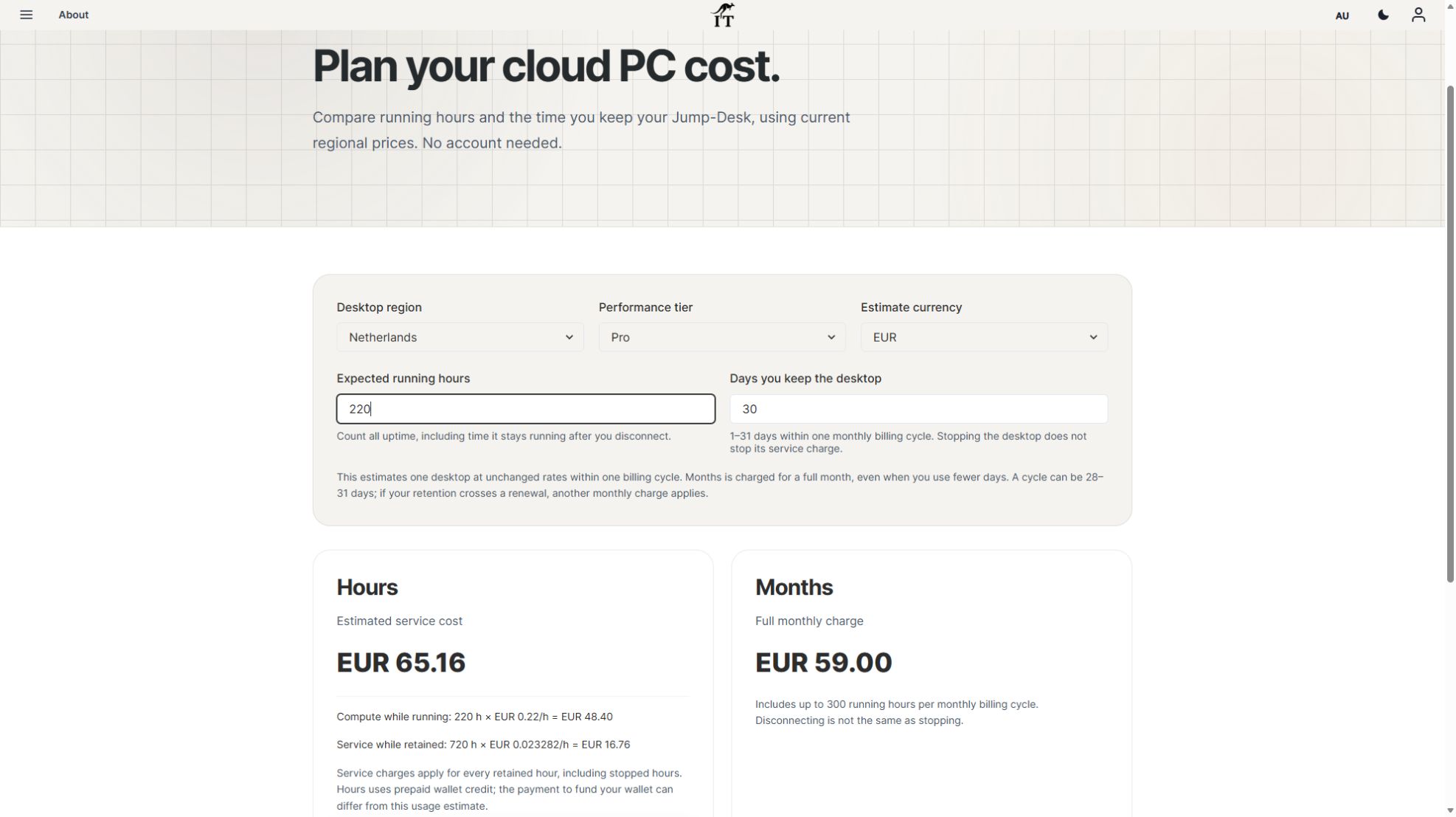
Eligible Hours desktops draw on prepaid credit. Running compute is charged while the desktop is on, with a separate service charge while the desktop is retained—including when stopped.
Choose Team funding or eligible, explicitly approved personal funding. Optional automatic top-ups can replenish credit, subject to the configured monthly automatic-credit limit.
A Months subscription includes up to 300 hours of uptime per desktop each month. It suits a predictable working pattern when that allowance and the current plan terms fit the role.
Know what the limit means. The automatic top-up limit caps automatic credit added before tax per UTC calendar month. It is not a total spending cap or a per-member budget. Include subscriptions, retained-desktop charges, software licences and applicable tax in your planning.
Longer-term roles can also review the live Years offering. If you are weighing a new computer against remote Windows, use our Jump-Desk vs buying a laptop comparison and test your real workload. No savings figure or performance result is assumed here.
SEE THE PRODUCT, NOT JUST THE PROMISE
From invitation to two Windows desktops.
JUMP-TEAMS PRODUCT WALKTHROUGH2:39
Edited product demonstration with a fictional Team. Includes invitations, member access, a Windows session and a second regional desktop. Recording length is not a setup-time guarantee.
A clearer picture of the first working day.
See the administrator’s view and the member’s experience, then watch a second Windows desktop take shape. Use the full Jump-Teams demo page for chapter links, captions and the written walkthrough.
Give a contract developer a project workspace for the customer portal: install the chosen editor, Git, runtime and browsers; provide the project repository and test accounts; then agree how the source code and setup will be handed over. A separate Windows desktop keeps that working environment under the startup’s management. For technical requirements, read the Windows cloud PC guide for developers and check the tools and workload you intend to run.
02
Choose the desktop and funding.
Review available regions, performance tiers and current prices. Decide whether the role fits Hours or a subscription, who can authorise spending and how usage will be reviewed.
03
Invite the person and set access.
Use their intended sign-in email. Invitations are single-use and expire after seven days. Choose a Team role, additional capabilities and the separate Windows privileges needed for the job.
04
Test the whole working day.
Check connection quality, input devices, application licensing and file handling. Add separate desktops when colleagues need Windows simultaneously. Document the data handover and access changes before anyone leaves.
BUILT BY A STARTUP, FOR STARTUPS
Small teams need room to try things, bring in the next person and keep working with what they have. That is the thinking behind Jump-Teams: a practical Windows workspace that can grow one role at a time.
A USEFUL FOUNDER READING LIST
Build the business as well as the workspace.
These independent resources offer practical places to learn about founding a business and using AI. They are external reading, not included Jump-IT benefits or partner endorsements.
Practical guidance on data handling, checking AI outputs and managing risks when adopting cloud AI services.
BEFORE YOU BUILD YOUR TEAM
Startup cloud PC questions, answered.
What is Jump-Teams for startups?
Jump-Teams is the team workspace in Jump-IT for managing people and their Jump-Desk Windows cloud PCs. It brings together invitations, Team roles, desktop assignments, Windows access and permission-based usage and funding controls. A Jump-Desk is the Windows computer; Jump-Teams organises the people using it.
Can my startup use Macs, iPads and existing laptops?
Yes, where the device supports a suitable remote desktop client and has a reliable internet connection. Windows runs on the cloud PC, while the device keeps its own operating system. Check the actual device, client, application, keyboard, peripherals and network before relying on it for everyday work.
Can five people use one Team desktop at the same time?
No. A Team desktop can have up to five named people, including its creator, but supports one active Windows user at a time. Pending invitations reserve a place. People who need Windows simultaneously need separate desktops; named-user access is not five concurrent seats.
Does my startup still need Windows if we use ChatGPT or Gemini?
It depends on your applications. Browser-based AI can help with research, drafting and analysis on many operating systems. Windows is useful when your work also needs a compatible desktop application, add-in, development tool or file workflow. Jump-IT supplies the Windows environment; AI tools and other paid software have their own accounts and licensing.
How do Team roles differ from Windows permissions?
Owner, Admin and Member roles govern the Jump-IT Team workspace. Additional capabilities control actions such as billing and funding. Windows Standard user and Administrator privileges govern what someone can do inside a particular desktop. The responsible-member assignment records responsibility for that desktop; it is a separate control.
Can a founder pay centrally for the team’s Hours desktops?
Eligible Team Hours desktops can use a Team prepaid wallet. Eligible members can also explicitly authorise personal-wallet funding where the permissions and funding rules allow it. Months subscriptions use subscription checkout. Review the current plan, currency, tax and funding terms before committing.
Is the automatic top-up limit a complete spending cap?
No. It limits automatic prepaid credit added before tax during a UTC calendar month. It is not a cap on all desktop costs, manual top-ups or subscriptions. Hours includes running compute and a separate retained-desktop service charge, so review wallet activity, usage and invoices together.
What happens when a colleague leaves the startup?
Reassign or delete desktops for which the person is responsible before removing their Team membership. Review and revoke Windows access and separate application accounts as well. Windows changes on an offline machine can remain pending until applied, and revocation does not delete that person’s Windows profile or files. Plan the data handover before removal.
YOUR NEXT CHAPTER STARTS WITH A WORKSPACE
Build the business. Bring your people.
Start with the Windows work your startup needs today. Give the next person a clear way in, and let the workspace grow with the team.
Plan a contractor’s Windows workspace from setup to handover: Team roles, Windows privileges, project files, application access and monthly cost review.
Watch a first-member onboarding demo: create a Jump-Team, choose permissions, send an invitation and hand over a Windows cloud PC with individual access.
Watch a Team member accept an invitation, find their Jump-Desk, review connection settings and open Windows with their own account and connection file.