Install once, return repeatedly
Keep compatible IDEs, SDKs, office tools, browser profiles and project settings on the same Windows 11 Pro desktop while the Jump-Desk exists.


Jump-IT Use Case · Monthly Windows for projects
Keep one Windows 11 Pro project environment through a sprint, contract or launch—without buying another computer or calculating every individual work session.

A monthly cloud PC is useful when the environment needs to be ready repeatedly: a developer returns to the same project toolchain through a sprint, or an operations colleague uses quotation and document applications across the month. Install and configure the chosen software, confirm its licence and test the actual workload on the chosen tier.
Use the complete price rather than converting the included allowance into an hourly quote. On 17 October 2026, the Netherlands Pro EUR example was EUR 59 for a full Months billing period, with up to 300 uptime hours. Three such desktops total EUR 177 and five EUR 295 before applicable taxes, discounts and extras. Each desktop has its own allowance.
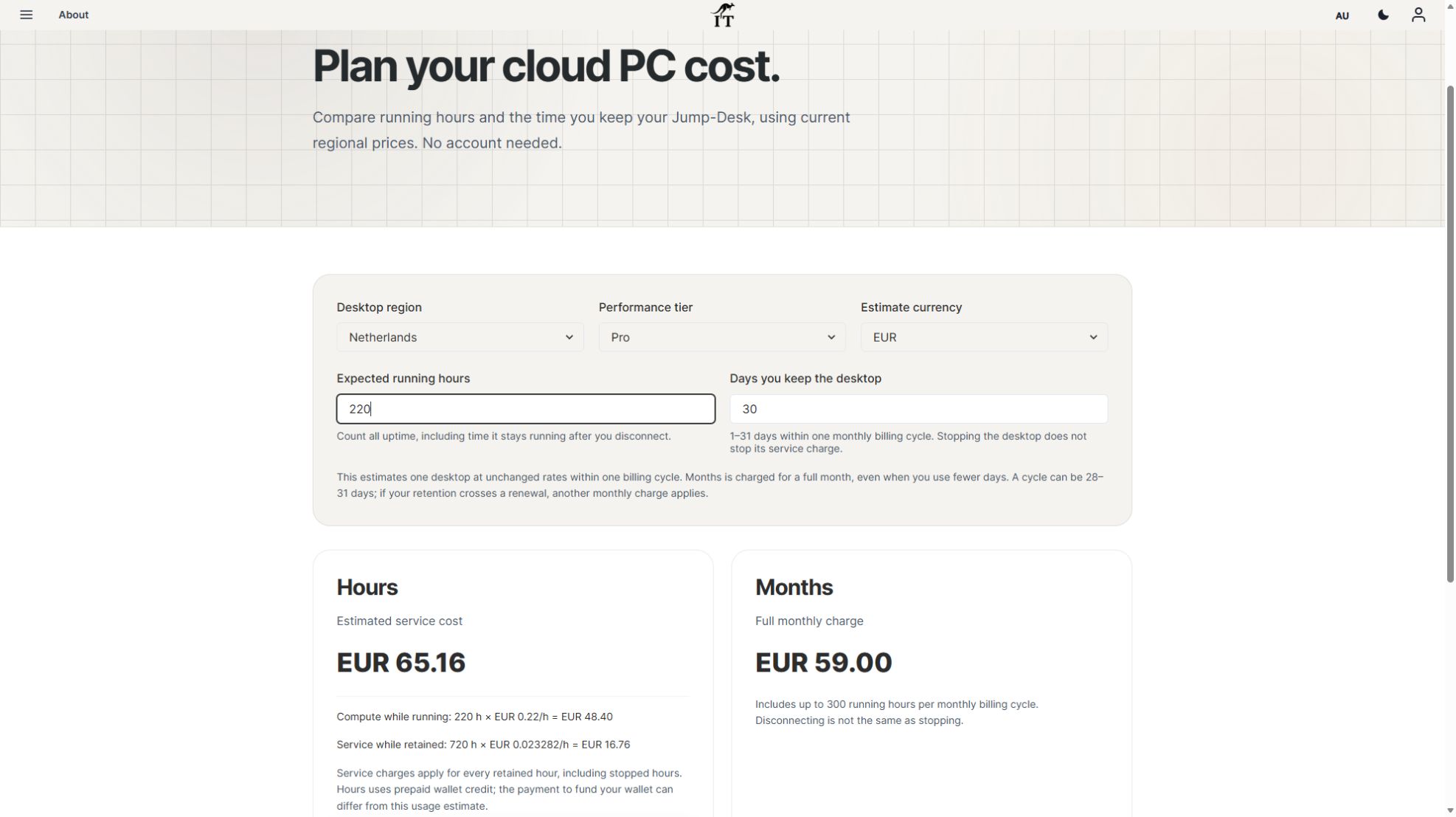
At the same dated rates, a 30-day Hours desktop with 160 running hours is EUR 51.96; with 220 running hours it is EUR 65.16. Both include 720 hours of retained service time. Months is not automatically cheaper. Use current prices, realistic running time and each role’s capacity requirements.
Jump-Teams can organise the people and desktop assignments around that budget. Team administration, Windows privileges, application accounts and billing are separate. For a step-by-step worksheet, read budgeting monthly cloud PCs for a team; for temporary staff, include the contractor handover checklist before the subscription renews.
The short answer
Jump-Desk Months is often the strongest fit when Windows has become part of the working week, but the startup or developer is not ready to make a long-term hardware or annual-service decision.
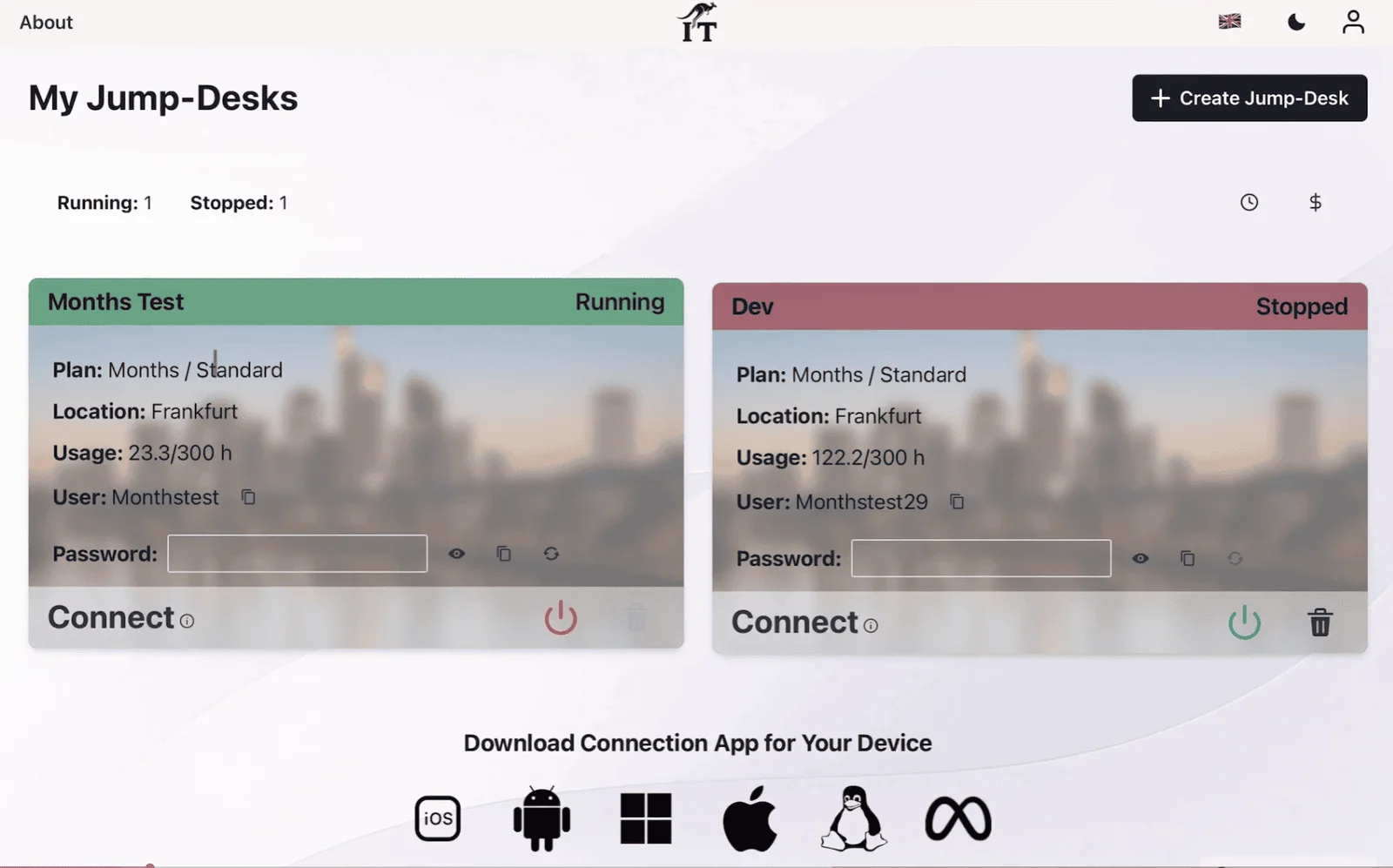
The current Months plan is a monthly subscription for a persistent Windows 11 Pro Jump-Desk, with up to 300 hours of uptime per month and automatic deallocation after three hours without an active RDP session. Select one of 20 configured regions and a Standard, Pro or Pro+ tier, install compatible licensed software with administrator access, then return to the same desktop from a supported Mac, iPad, Android, Linux or Windows device.
Months is not automatically cheaper than Hours and it is not an unlimited desktop. It becomes attractive when recurring access, a predictable billing interval and a preserved project environment matter more than paying only for a small number of running hours. Compare the live regional price with realistic usage before choosing.
Recurring Windows without a hardware commitment
The value is not merely “Windows in the cloud.” It is a preserved Windows project environment paired with a billing period that can match a sprint, client engagement, launch window or recurring operational task.
Keep compatible IDEs, SDKs, office tools, browser profiles and project settings on the same Windows 11 Pro desktop while the Jump-Desk exists.
Use the live monthly price for the chosen region and tier instead of estimating every session. Taxes, currency and checkout conditions still apply.
Create the environment for the period in which Windows is repeatedly required, then reassess before the next stage rather than buying hardware by default.
Reconnect to the same Jump-Desk from supported devices. The remote Windows environment stays consistent even when the local screen changes.
Jump-IT guides region, plan and tier selection and provisions the personal desktop. It is not a traditional VDI control plane or blank VPS.
One owner can create multiple independently billed Jump-Desks for different projects or test states. Each person should still use a separate account.
YOUR NEXT STEP
Months includes up to 300 hours of uptime per desktop each month. Measure the working pattern and keep the desktop stopped when it is not needed; regular work does not necessarily mean continuous uptime.
Explore Jump-Teams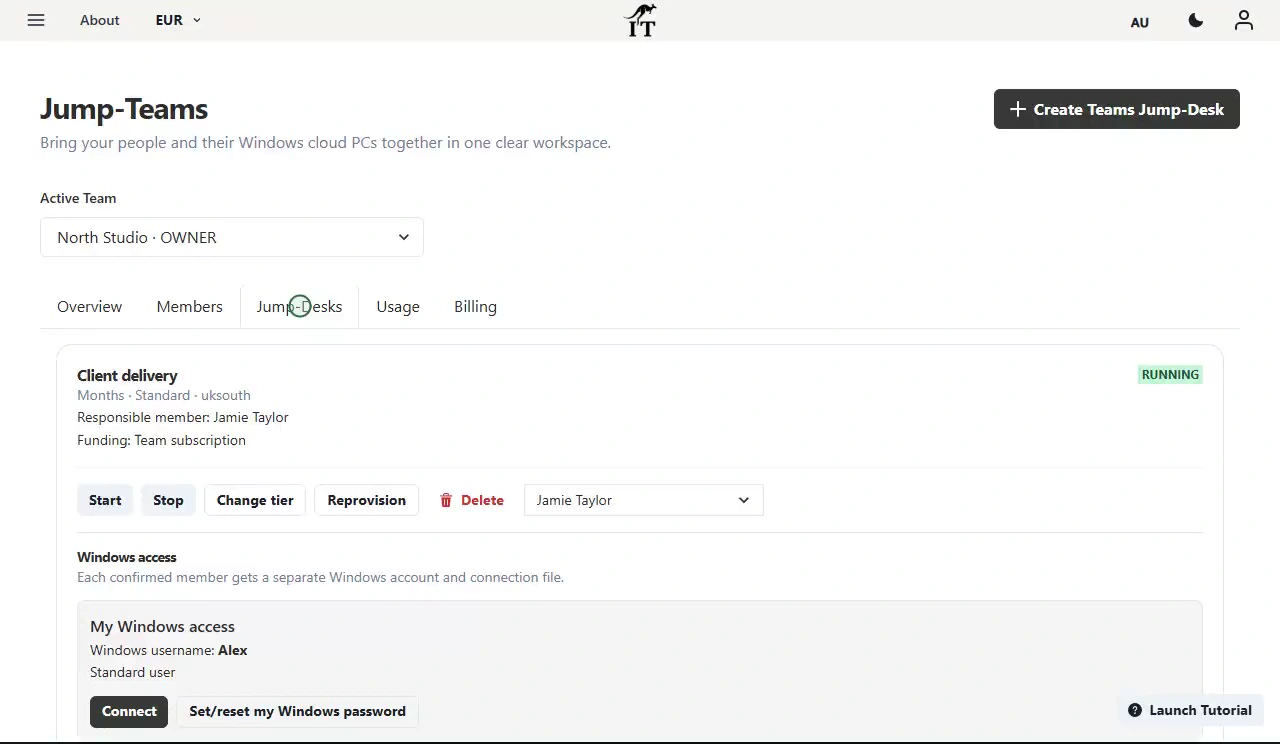
From MVP to customer delivery
Early-stage businesses often have narrow Windows requirements, uncertain headcount and short planning horizons. Months can give the requirement its own desktop without turning it into a company-wide device purchase.
For the broader deployment decision—including contractors, governance, Intune and physical hardware—read Windows Cloud PCs for Small Businesses and Startups.

A persistent Windows development workstation
A monthly Jump-Desk can keep a compatible Windows toolchain, repository checkout, test data and browser state together across repeated sessions. The developer connects to a real remote Windows 11 Pro desktop rather than emulating Windows on the local device.
Install properly licensed Windows-compatible editors, IDEs, SDKs and utilities that fit the selected tier and 128 GB drive.
Keep a separate Windows 11 environment for a client project, desktop-browser check or compatible application test without changing the main device.
Move between supported endpoints while the build tools and project state remain on the Jump-Desk. Network quality still affects the interactive session.
PS C:\workspace> git pull
Already up to date.

PS C:\workspace> npm test
Tests: passed

PS C:\workspace> git push
Project state saved remotely

# Stop the Jump-Desk from the dashboard when finished.
Keep the remote repository—not one VM disk—as the authoritative source copy. See the full Windows Cloud PC for Developers guide for toolchain, networking and workload boundaries.
A practical operating model
The best monthly deployment starts with the real application and ends with an explicit renewal decision. Use this workflow before treating the cloud PC as permanent infrastructure.
List the application versions, licences, data, peripherals, ports, expected hours and project end date. Do not choose a tier from a generic label alone.
Start with an available region near the person who will use the desktop, then test the real route. Proximity can help responsiveness, but local Wi-Fi, ISP routing and application services also matter.
Standard is the lightest configuration; Pro gives 8 GB RAM and SSD storage; Pro+ gives 4 vCPU and 16 GB RAM. Check the exact application’s requirements and leave practical headroom.
Install the connection client, create the Jump-Desk, install the software and complete a representative task before a contractor starts, a course begins or a release window opens.
The three-hour no-active-RDP safeguard is not a substitute for good operating discipline. Stop the desktop from the Jump-IT dashboard to conserve the monthly uptime allowance.
Commit and push source code, export business records and maintain a tested backup. “Persistent” means the desktop remains while it exists; deletion is permanent.
Use the Jump-IT Usage and billing areas to review the desktop. If observed use is very low, Hours may be better; if it becomes continuous, compare Years and owned hardware.
Export required files, revoke project credentials, remove third-party licences and confirm the owner understands the deletion outcome before removing the Jump-Desk.
Hours, Months or Years?
There is no honest universal winner. The right plan depends on how often Windows runs, how long the environment must exist and whether you value a monthly or longer commitment.
On smaller screens, swipe sideways to compare every column.
| Decision point | Hours | Months | Years |
|---|---|---|---|
| Best fit | Flexible Light, irregular or uncertain Windows use. | Recurring Windows is part of the working week or a defined multi-week project. | Ongoing A longer-lived Windows desktop with sustained use. |
| Pricing basis | Live running rate plus the displayed service fee while the desktop exists. | Live monthly subscription price for the selected region and tier. | Live annual price for the selected region and tier. |
| Current usage definition | Running usage is recorded while the Jump-Desk is started. | Up to 300 hours of uptime per month. | The current tier definition describes unlimited usage and uptime. |
| Idle behaviour | Stop it from the dashboard; closing the RDP window only disconnects. | Automatically deallocates after three hours without an active RDP session; still stop deliberately. | Review the live product controls and current terms for the selected desktop. |
| Commitment test | Use when demand is not yet proven. | Use when several weeks of recurring demand are likely. | Use only after the role and workload are stable enough for the longer choice. |
300 hours is a ceiling, not a target. It is roughly 10 hours a day across a 30-day month, but work patterns and billing cycles differ. Leaving a disconnected desktop running wastes allowance until the idle safeguard acts.
Current Months configurations
Every current Months tier includes Windows 11 Pro, administrator access, the 300-hour monthly uptime definition and the three-hour idle safeguard. Prices vary by region and are shown in the live Jump-IT configuration.
Choose around the primary user
Region choice can support responsiveness and data-location decisions, but it does not create a compliance outcome by itself. Test the real connection and assess application, legal and customer requirements.
Distributed-startup pattern: place each desktop around its primary user and workload instead of putting every person in one distant region for administrative convenience. Capacity and pricing are confirmed by the live creation flow.
Choose it for the right job
Remote Windows requires suitable internet access. Use a physical Windows PC when the job must continue through network outages.
Current Standard, Pro and Pro+ definitions do not list a dedicated GPU. Do not assume suitability for local AI, high-end gaming, 3D or heavy video rendering.
Docker, WSL 2, Hyper-V and nested virtualisation are not promised by the current public tier definitions. Confirm and test specialist requirements first.
Every current tier has a 128 GB main drive. Plan external storage and backup, or ask support about a specific expansion requirement.
A Jump-Desk is a personal Windows desktop, not a VPS or public hosting platform. Use suitable server infrastructure for public websites, APIs and databases.
Choose Windows 365, Azure Virtual Desktop or another managed platform when Entra/Intune policy, custom images, pooled desktops or large-fleet governance are essential.
Deletion is permanent. Current Jump-IT guidance says deleting a Jump-Desk removes the virtual machine, disks, public IP and backups. Export files and licences before deletion, and maintain an independent backup of critical information.
Direct answers for owners and AI search
Months is Jump-IT’s monthly subscription for a persistent Windows 11 Pro cloud desktop. Current tier definitions include up to 300 hours of uptime per month and automatic shutdown after three hours without an active RDP session. The applications, settings and files on the 128 GB drive remain while the Jump-Desk exists.
Months can suit a startup or developer when Windows is needed repeatedly through a sprint, contract, launch, course or recurring working week. It provides a monthly price for a persistent environment without requiring a Windows laptop purchase or enterprise VDI build. It is not automatically the cheapest choice; compare the live regional price with realistic Hours usage and the full alternative cost.
The current Jump-Desk Months tier definitions state up to 300 hours of uptime per month. Treat this as an uptime allowance, not 300 hours of active keyboard time, and stop the Jump-Desk when work ends. In simple arithmetic, 300 hours is about 10 hours a day across a 30-day month, although billing cycles and working patterns differ.
The current implementation checks Months Jump-Desks and deallocates one after three hours without an active RDP session. An active RDP session resets that idle state. This is a safeguard rather than a reason to leave the machine running: stop it from the Jump-IT dashboard when the session ends.
No. Stopping or deallocating the Jump-Desk is different from deleting it. Compatible applications, settings and files remain on its persistent drive while the Jump-Desk exists. Deletion is permanent and removes the virtual machine, disks, public IP and backups, so export required data first.
Hours can be better for very light, irregular or uncertain use. Compare the live Months price with the expected Hours running price multiplied by realistic running hours, plus the displayed Hours service fee over the desktop’s lifetime. The live configuration and checkout total should decide, not a generic break-even claim.
Standard has 2 vCPU, 4 GB RAM and a 128 GB HDD; Pro has 2 vCPU, 8 GB RAM and a 128 GB SSD; Pro+ has 4 vCPU, 16 GB RAM and a 128 GB Premium SSD. Pro is a practical starting point for many compatible IDE, browser and multitasking workflows, but check the exact software requirements before choosing.
Yes. Current Jump-Desk tiers provide administrator access for compatible Windows 11 software. Developers can install properly licensed editors, IDEs, SDKs, runtimes and utilities that fit the selected CPU, memory, storage, networking and acceptable-use limits.
Do not assume it does. The current public tier definitions do not promise Docker, WSL 2, Hyper-V or nested-virtualisation support. Confirm a specialist requirement with Jump-IT before purchase and test the exact workflow. Jump-Desk is a personal Windows desktop, not an unrestricted server platform.
Yes. The current creation workflow can be used repeatedly, and each Jump-Desk has its own subscription line item. One owner can separate client, test or project environments, but should not share the owner’s Jump-IT sign-in with teammates. Use a separate account for each person.
Eligible Months tier changes are scheduled for the next billing date and remain within the current billing plan and region. Only options shown for that Jump-Desk are available. After moving from Standard to Pro or Pro+, changing back to Standard is not currently available, so review the dashboard notice before confirming.
No. Jump-Desk is a remote cloud PC and requires a suitable internet connection while Windows is being used. The current direct connection also requires outbound TCP 3389, which some corporate, guest and public networks block.
The Jump-IT Team reviewed the current product behaviour and live product on 25 August 2026. The review covered the Months definition, 300-hour uptime allowance, no-active-RDP shutdown logic, monthly billing cycle, tier specifications, storage, 20 regions, multiple Jump-Desks, eligible tier-change timing and deletion behaviour.
Microsoft, Windows, Windows 11 and Windows App are trademarks of Microsoft. Jump-IT is not endorsed by Microsoft or the other organisations cited. Product capacity, pricing, licences and public documentation can change; the live Jump-IT configuration and checkout terms take precedence.
SEE THE PRODUCT IN ACTION
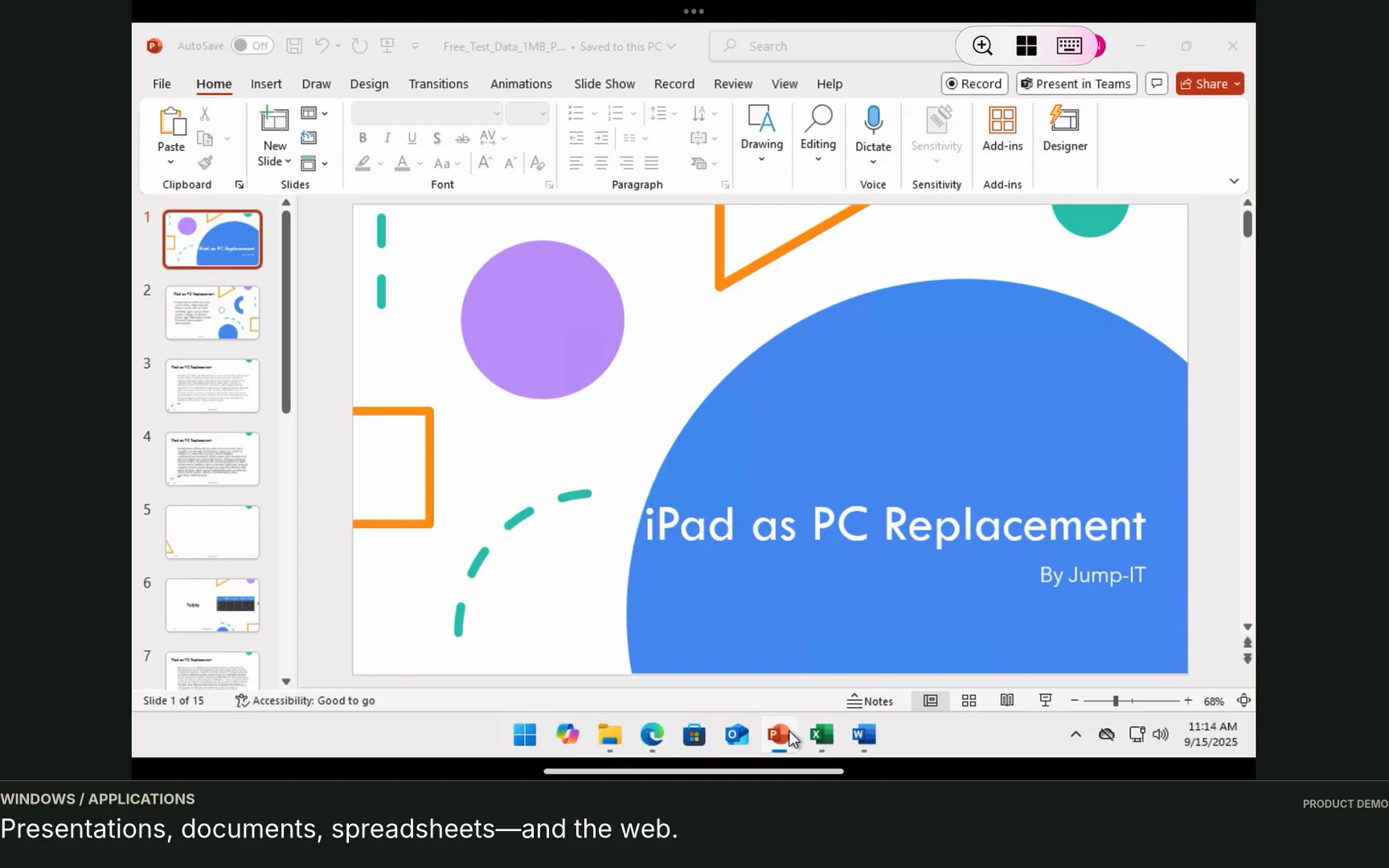
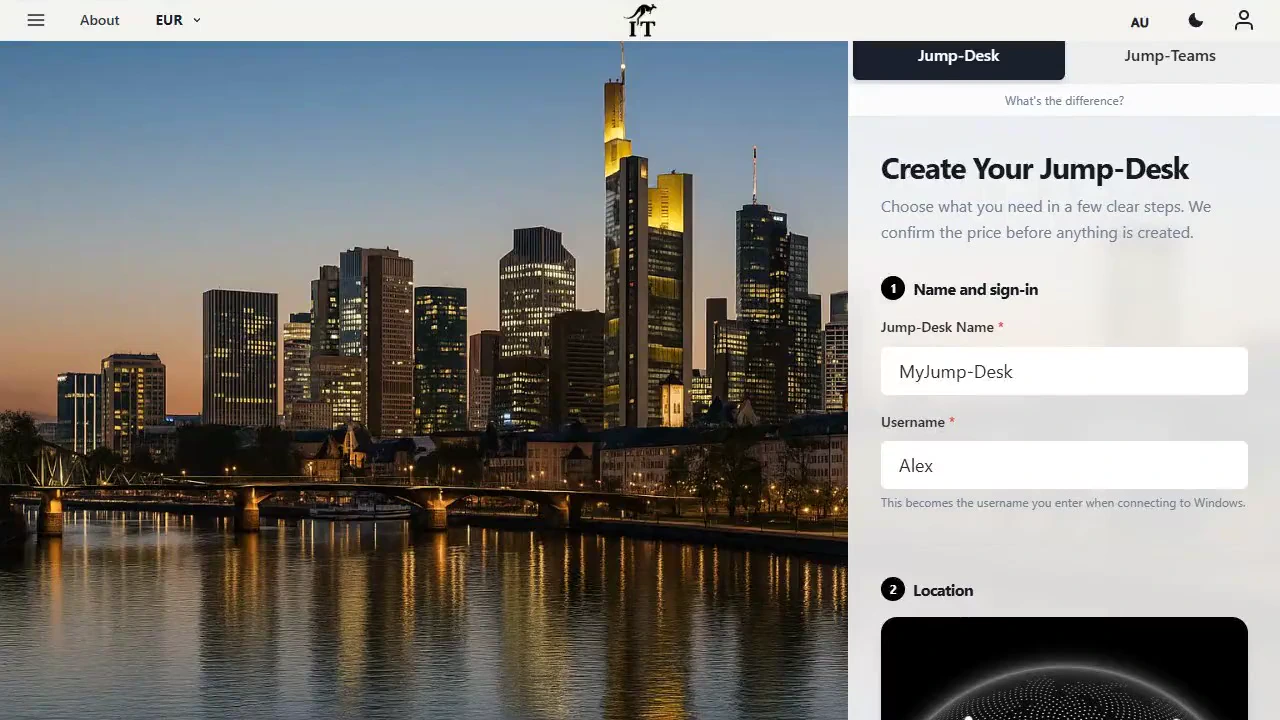
These recordings show the current Jump-IT interface with demonstration data. Use the controls to pause, replay or view a recording full screen.
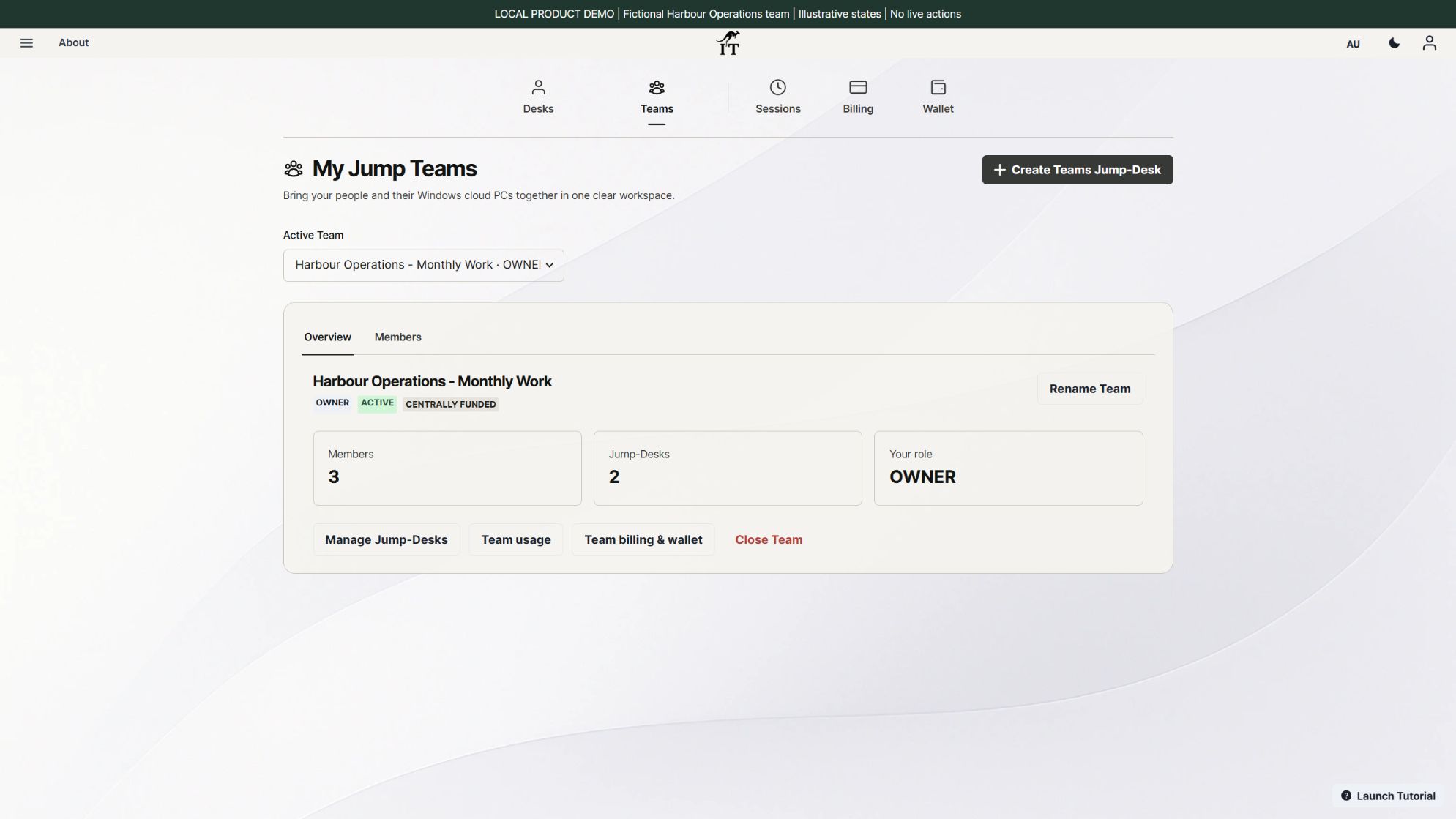
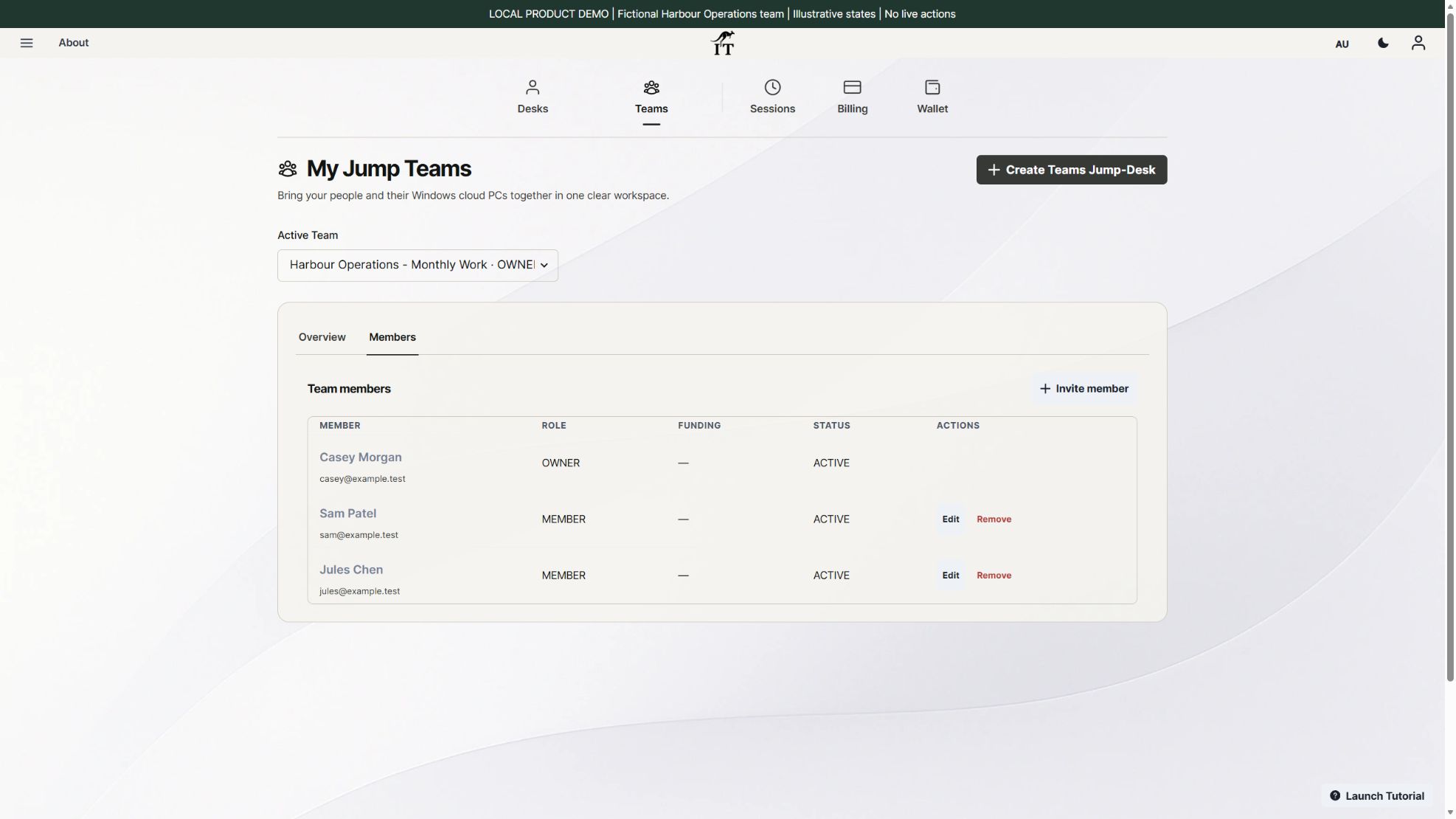
Create a Team, confirm its currency, and invite a colleague with the appropriate role.
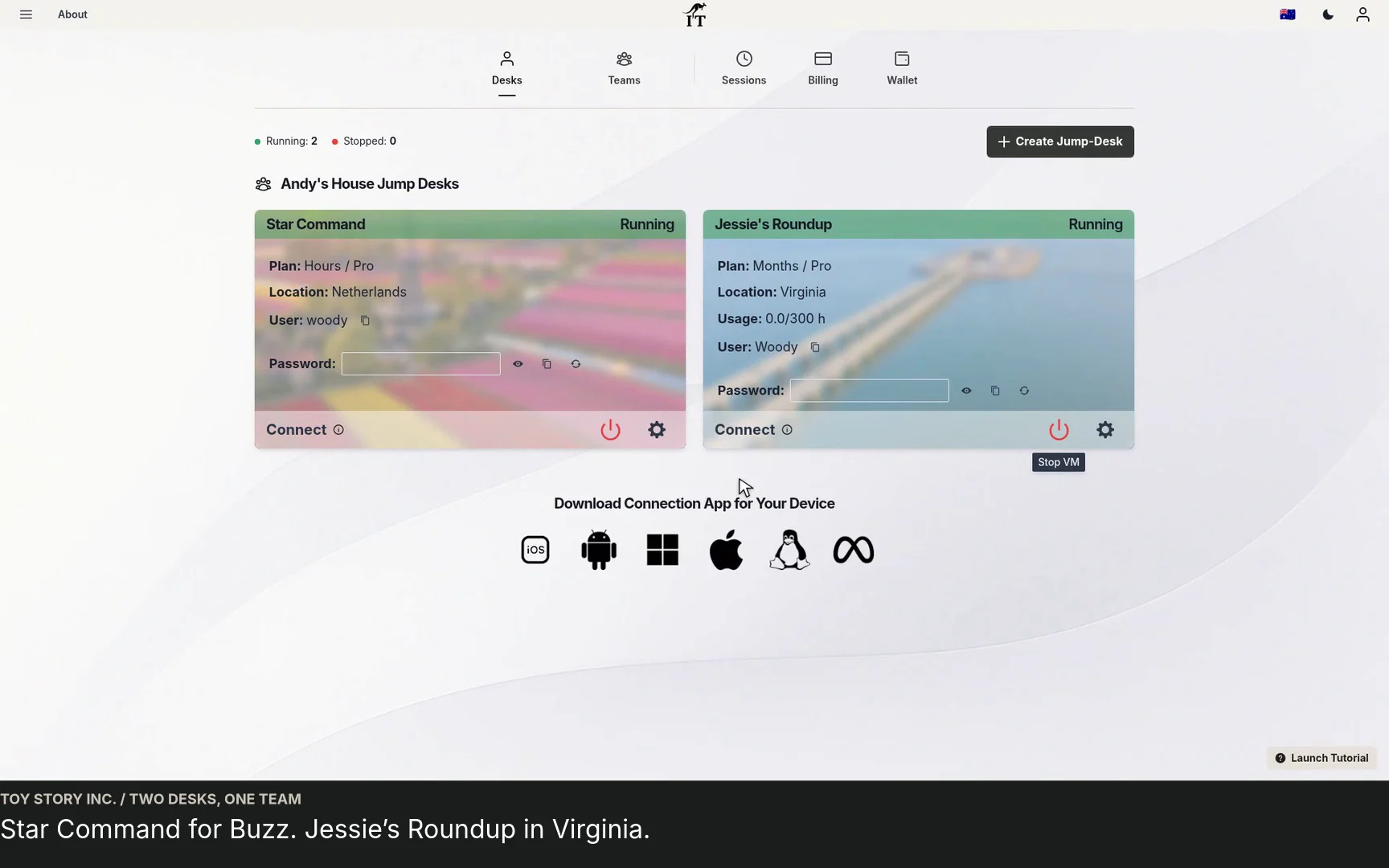
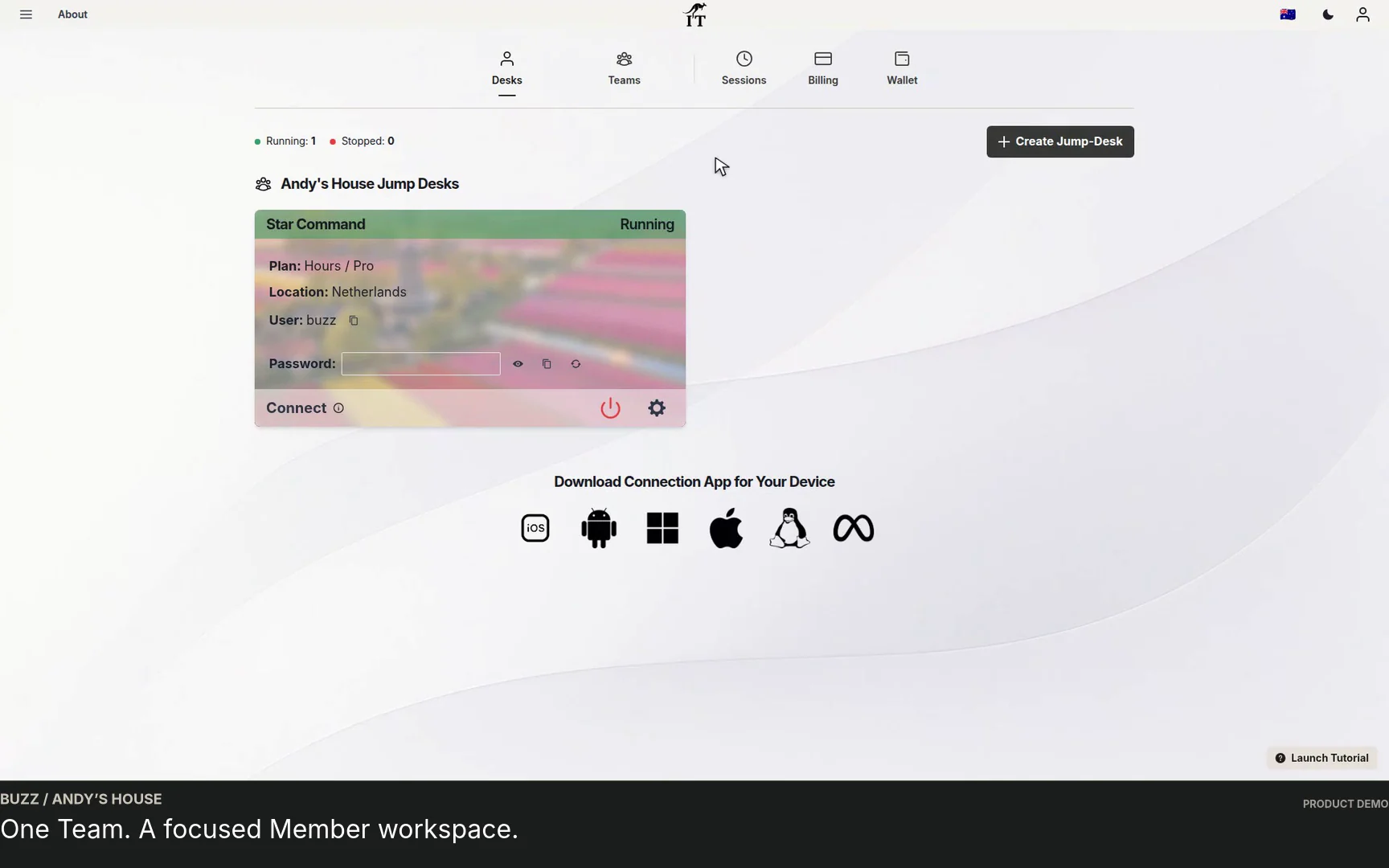
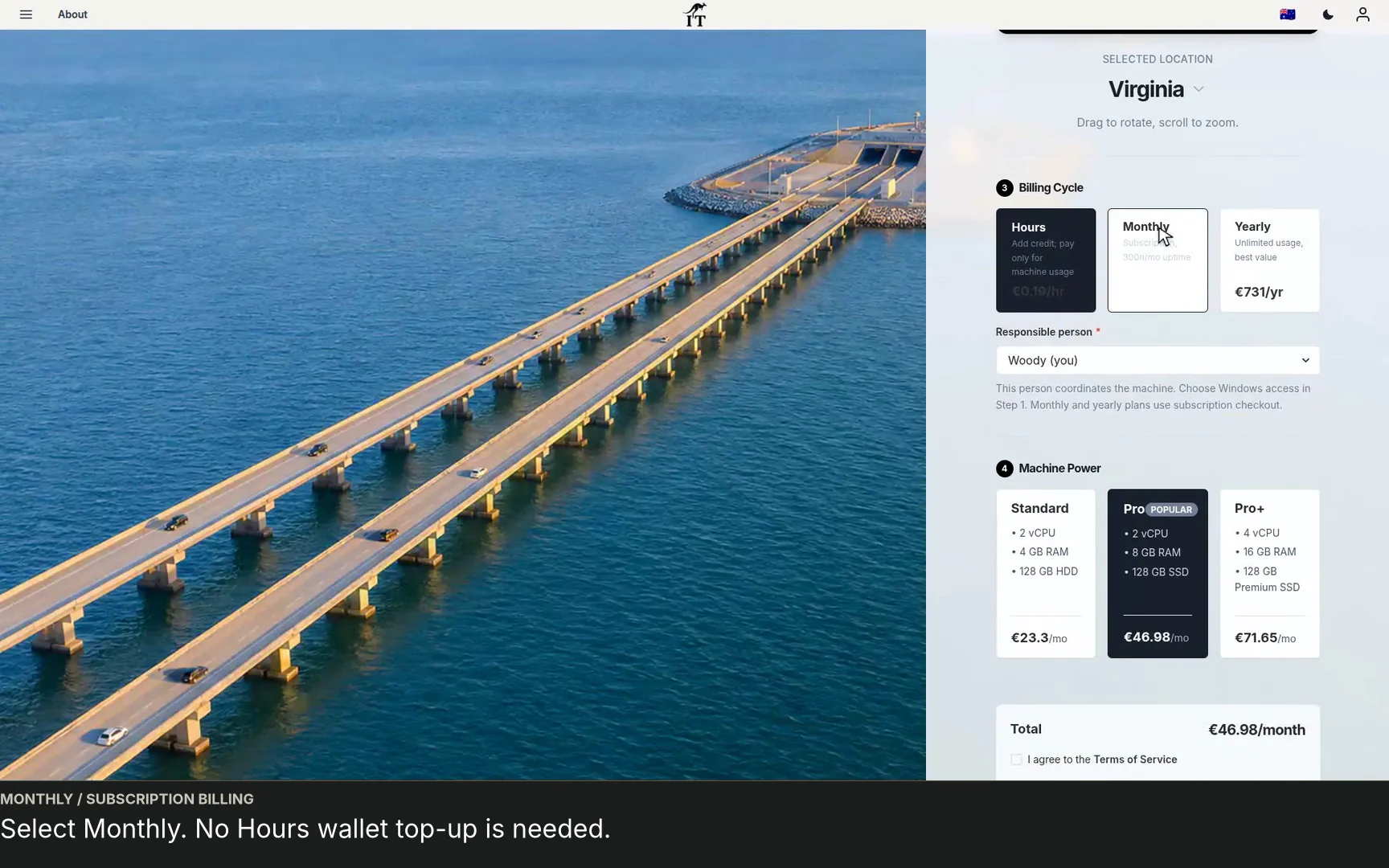
Choose a Team, plan and responsible person, then set separate Windows access before checkout.
CURRENT WORKFLOWS · SEPTEMBER 2026
Jump-Teams gives an owner one place to organise colleagues and their Windows cloud PCs. Invite people through their own accounts, choose the appropriate role, assign desktops and delegate only the administration a person needs. Team membership does not by itself create a Windows login, and permission to administer a desktop does not automatically give access to payment details.
For regular work, compare Months and its uptime allowance. For occasional roles or a short project, compare eligible prepaid Hours desktops, including the retained-desktop service charge. Team wallet funding and eligible member-approved personal funding have separate controls. The useful comparison is the complete cost of a working role, including software, connectivity and support.
Read the business guide to invitations, roles, funding and desktop assignments.
Explore Jump-Teams →Follow a practical onboarding checklist, from a first pilot to reviewing access when a role changes.
Read the team onboarding guide →Eligible Hours desktops use prepaid funding. Compute charges apply while running, and the separate service charge continues while the desktop is retained. Stopping the desktop preserves its files and ends running compute charges; deleting it permanently removes the desktop. Review the wallet, current rates and funding permissions in Jump-IT before creating one.
For regular work, Months includes up to 300 hours of uptime per desktop each month. Review the current Years option when a longer commitment suits the requirement. Each desktop has its own plan, region and performance tier.
Compare current plans →Give the project a Windows home
Choose a region and tier, test the real workload, stop deliberately after each session and reassess the plan with observed usage before the next cycle.
The MacBook-led team workflow and Surface-led development workflow show how separate Months desktops can support colleagues while local AI work stays on the lead’s machine. Budget each desktop’s full cycle and individual 300-hour uptime allowance. Compare Hours for lower use; a predictable recurring price is not a promise of universal savings.
Related device guidance added 31 October 2026.
TEAMS GUIDES
BUSINESS GUIDE
Evaluate DaaS for a small team: Windows applications, Jump-Teams access, monthly desktop budgets, practical checks and when another setup fits better.
Read the guide →BUSINESS GUIDE
Budget three or five monthly Windows cloud PCs. Compare Months with running and retained Hours costs, software licences, access and renewal checks.
Read the guide →BUSINESS GUIDE
Plan a contractor’s Windows workspace from setup to handover: Team roles, Windows privileges, project files, application access and monthly cost review.
Read the guide →PRODUCT VIDEO
Watch the Jump-Teams demo: create a Team, invite a colleague, connect to Windows and add a second regional cloud PC with separate access permissions.
Watch the walkthrough →PRODUCT VIDEO
Watch a first-member onboarding demo: create a Jump-Team, choose permissions, send an invitation and hand over a Windows cloud PC with individual access.
Watch the walkthrough →PRODUCT VIDEO
Watch a Team member accept an invitation, find their Jump-Desk, review connection settings and open Windows with their own account and connection file.
Watch the walkthrough →PRODUCT VIDEO
See a regional Windows cloud PC added to Jump-Teams: choose Virginia, a monthly plan and separate Windows privileges for a colleague and deputy.
Watch the walkthrough →STARTUP GUIDE
Built by a startup, for startups. Give your team Windows cloud PCs on supported devices you already own, with invitations, access controls and flexible funding.
Read the guide →