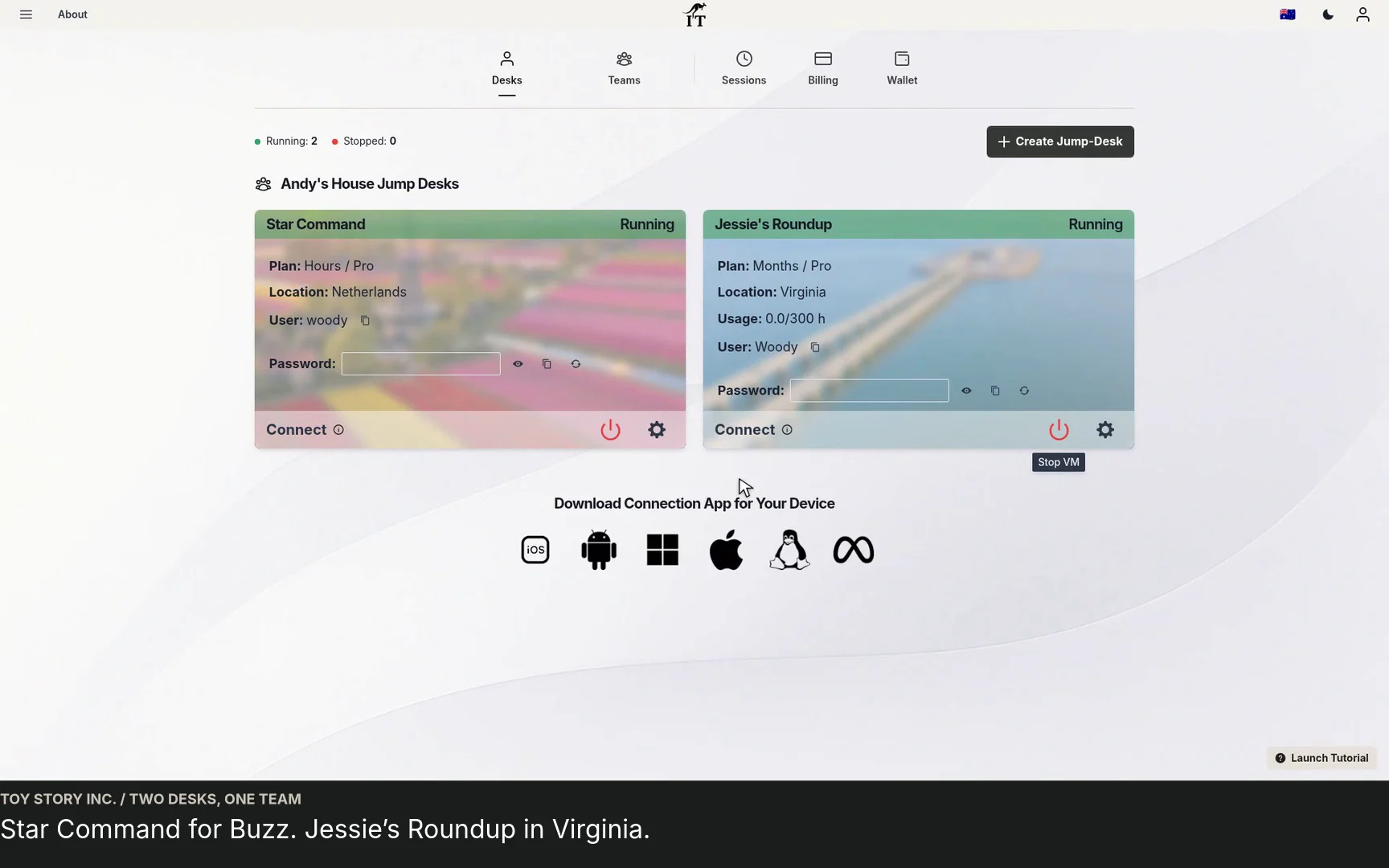
STARTUP GUIDE
Jump-Teams for startups. Small team. Big possibilities.
Built by a startup, for startups. Give your team Windows cloud PCs on supported devices you already own, with invitations, access controls and flexible funding.
Read the guide →

SAMSUNG DEX · A PRACTICAL DESK GUIDE
An original illustrated guide with on-screen text and captions. It explains the workflow and does not show a completed native Galaxy connection or guarantee application compatibility.
Open video ↗Keep a complete Windows business workspace available from a compatible Galaxy desk. Your chosen applications, desktop spreadsheets and client project folders run on the separate Jump-Desk; DeX and the remote client connect your screen and input to that environment. This guide explains the practical setup and full cost.
PUT IT TO WORK
Picture a consultant moving between client sites. Their Windows quotation application, desktop spreadsheets and proposal documents stay together on a Jump-Desk. From a compatible Galaxy desk, they can return to that environment, update the client quotation, check the figures and prepare the proposal for the next meeting.
Set up the applications, accounts and project folders you need for ongoing work. Then rehearse that client workflow using the display, keyboard, pointer and connection you expect to use. This checks the experience that matters to your business.
For regional colleagues or project contractors, prepare a separate workspace with the apps and project data needed for the role. Set their Team responsibilities and Standard or Administrator Windows privileges separately. Use separate desktops for simultaneous work: one active Windows user per Jump-Desk.
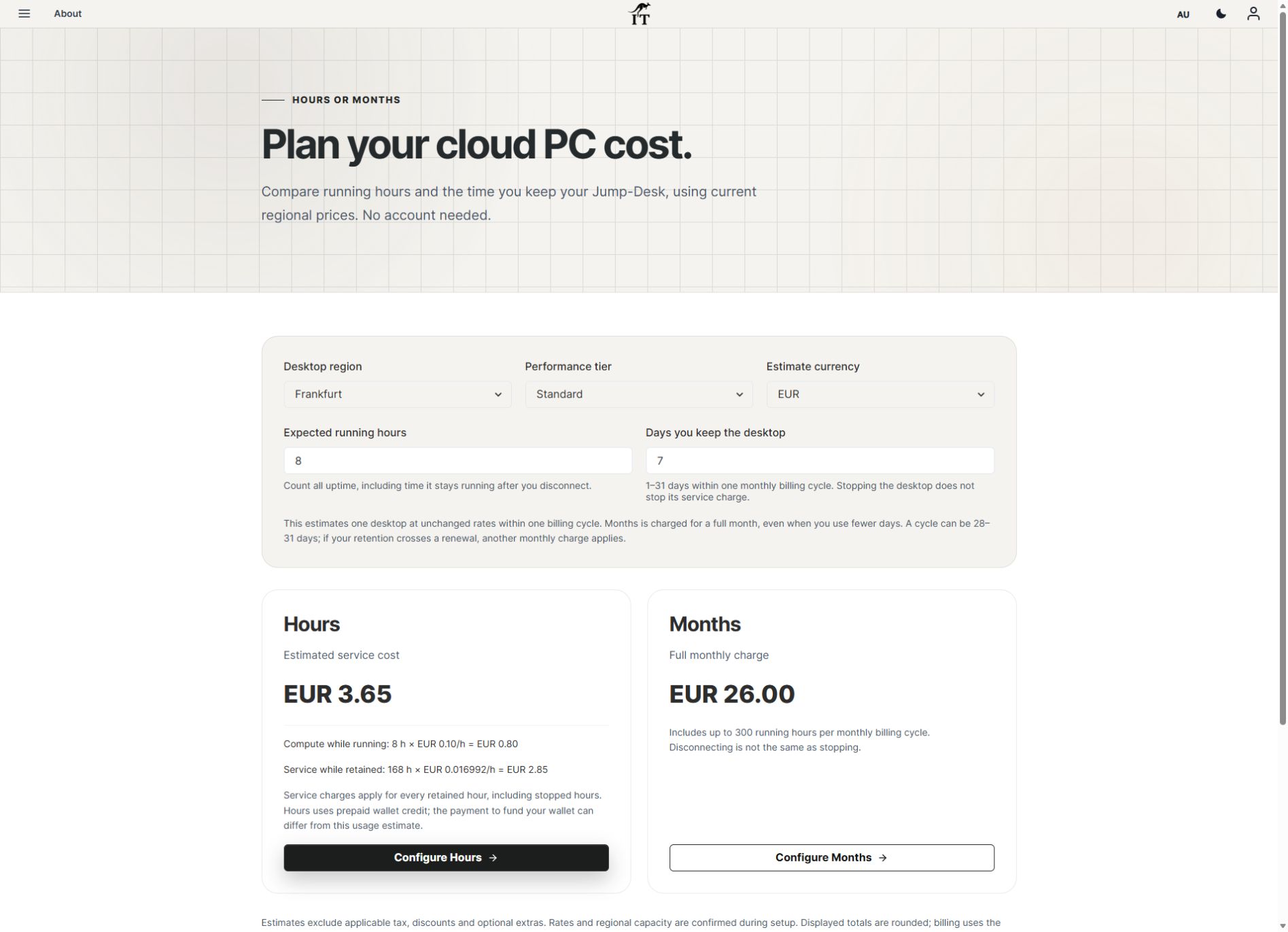
For Hours, include compute while running and service while the desktop is retained, including stopped time. Compare the full Months price, with up to 300 uptime hours per desktop. Keep the configuration and currency aligned, and include software licences and your backup process in the budget.
SEE THE REAL CONTROLS
For a short Windows task on your DeX desk, enter both running hours and retained days. The two fields answer different questions. Keep the region, tier and currency consistent when comparing Hours with Months.
THE FULL EXPLANATION
Every scene is transcribed below. Select a timestamp to play from that point.
Make the most of a compatible Galaxy when a task calls for Windows.
Carry the Galaxy.
Connect to a separate Windows cloud PC.
Choose one application and one useful output. That gives your setup a clear purpose.
Task: Name the work that needs Windows.
Application: Confirm the exact version and requirements.
Result: Decide where the finished work goes.
DeX organises the Android workspace. Jump-Desk runs Windows remotely.
Galaxy + DeX: Local display and input.
Remote client: Carries the desktop session.
Jump-Desk: Windows, installed apps and working files.
Check Samsung's current model and software guidance for direct-monitor DeX.
Exact model: Support varies across devices.
Wired setup: Match video output, adapter and display.
Wireless setup: Check compatible Miracast support.
DeX for PC is a different connection path. Samsung does not support it on One UI 7 or later.
This workflow: Galaxy connected to a supported display.
Check current guidance: Use Samsung's current setup instructions.
Keep the layers clear: DeX itself does not install Windows.
A compatible keyboard, pointer and readable screen make Windows applications easier to use.
Input: Try typing, selection and shortcuts.
Screen: Check the layout of your application.
Power: Plan charging for the working period.
Use the current supported Windows App for Android and the Jump-IT connection guide.
Official client: Use the dashboard's current app link.
Your desktop: Wait until it is ready to connect.
Private details: Use your own credentials and connection file.
Match the desktop configuration to the application, then review availability and complete cost.
Capacity: CPU, memory and storage for the task.
Application: Check licensing for remote or virtual use.
Working conditions: Internet is needed during the session.
Use an available region as a starting point. Your network and workload also affect responsiveness.
Region: Choose for the normal working location.
Connection: Use the network you expect to rely on.
Experience: Test the actual task before expanding.
Open a safe representative file. Make a change, save, export and inspect the result.
Open + edit: Do the work that matters.
Save + export: Use the destination and format you need.
Reopen: Verify the finished output.
Separate desktops can suit colleagues in different regions and contractors joining a project.
Regional roles: Choose from current available regions.
Concurrent work: One active Windows user per desktop.
Business setup: Prepare the apps and files needed for the role.
Choose Team management and Standard or Administrator Windows access separately.
Team role: Management responsibilities in Jump-IT.
Windows privileges: The changes that person may make in Windows.
Handover: Review access when the role or project ends.
Running compute and retained desktop service are separate charges. Service continues while stopped.
Running time: Compute rate while the machine runs.
Retained time: Service rate for as long as you retain it.
Full budget: Include software and your backup process.
Months has a full monthly price and up to 300 uptime hours per desktop. Compare like for like.
Same configuration: Keep region, tier and currency aligned.
Full monthly amount: Do not assume a short-period proration.
Final purchase: Review current tax, availability and terms.
Save and export the work. Disconnecting closes your view; confirm Stop separately in the dashboard.
Save the result: Keep your agreed backup and handover.
Stop for Hours: Running compute ends; service continues.
Before deletion: Export what you need; deletion removes the desktop.
Read the Samsung DeX guide at www.jumpit.ai and compare your own routine in the cost calculator.
Read the practical guide: Setup, applications and working conditions.
See the team demo: Regional desktops and individual access.
Estimate your routine: jumpit.ai/cost-calculator
YOUR NEXT WINDOWS TASK
Follow the setup guide and compare your complete cost before choosing the available configuration that suits your working day.
You can also watch this guide on YouTube ↗.
TEAMS GUIDES
STARTUP GUIDE
Built by a startup, for startups. Give your team Windows cloud PCs on supported devices you already own, with invitations, access controls and flexible funding.
Read the guide →