YOUR IPAD. YOUR PEOPLE. YOUR WINDOWS WORKSPACE.
Windows on iPad for teams.
Work beyond one device.
Keep the iPad you love. Add the Windows applications your work needs. Bring your colleagues along with Jump-Teams, then return to the same cloud PC from your other supported devices.
Review your configuration and complete price before payment.
THE SHORT ANSWER
Can a team use Windows from an iPad?
Yes. An iPad can connect to a Windows 11 Pro Jump-Desk through a supported remote desktop client. Windows and your installed applications run on the cloud PC; iPadOS stays on the iPad. Jump-Teams adds invitations, permissions, desktop assignment and eligible funding controls.
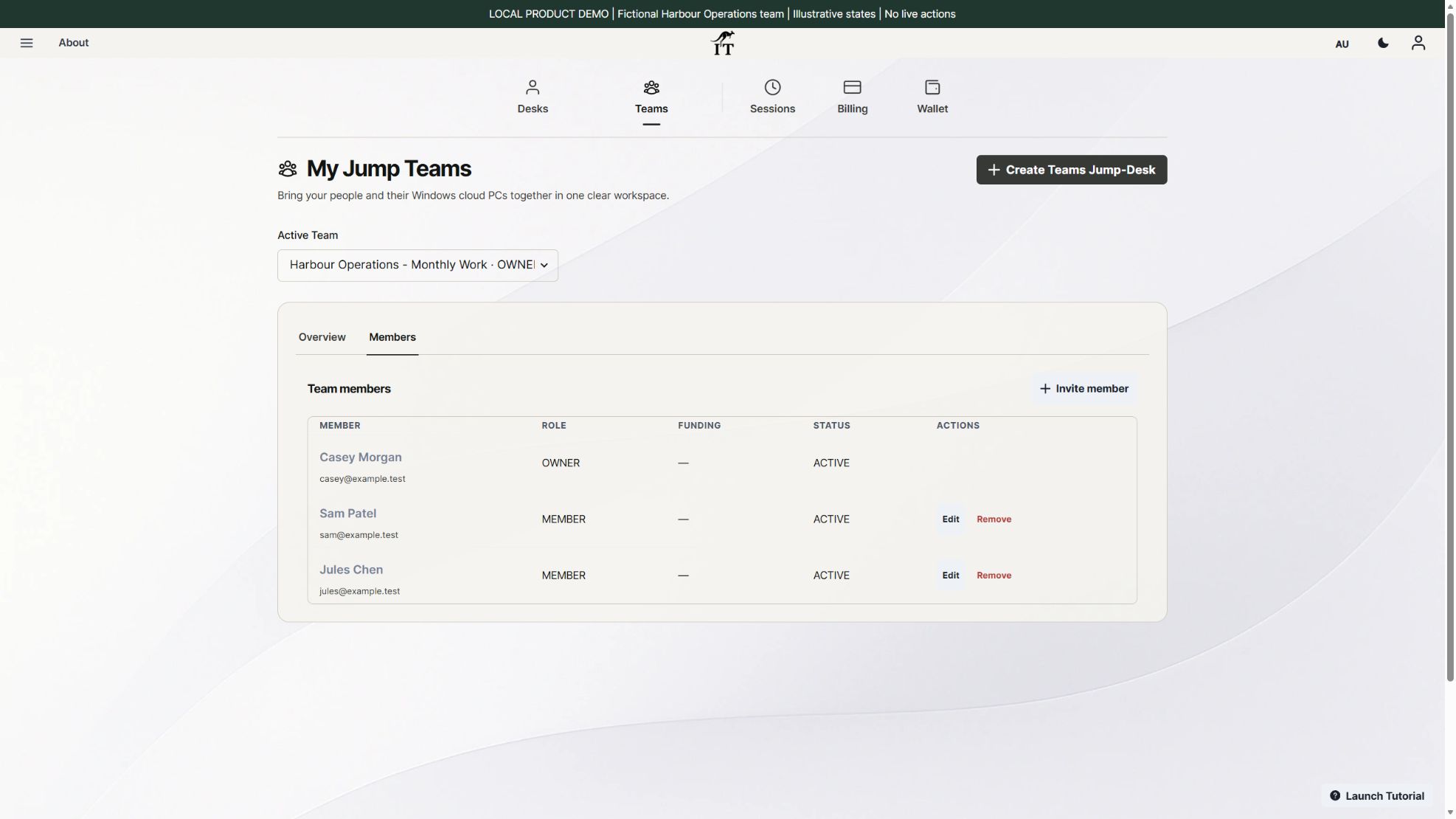
Use your own Windows account when moving between devices. Give colleagues their own access. A Team desktop supports up to five named people, including its creator, with one active Windows user at a time. Use separate desktops for simultaneous work.
KEEP WHAT WORKS. ADD WHAT IS MISSING.
Why run Windows on an iPad for work?
An iPad can already handle a great deal. The gap appears when a job depends on a Windows-only application, a particular desktop feature or an established file workflow. A remote Windows desktop can fill that gap without making a second physical computer part of every journey.
The exact desktop app
Use the Windows application, version and compatible add-ins your work requires. Test the actual workbook, business tool or export process, rather than assuming the mobile edition is equivalent.
A familiar place to return
Your installed applications and saved files stay on the retained Jump-Desk. Changing the device you connect from does not create a fresh Windows computer.
A team that can grow
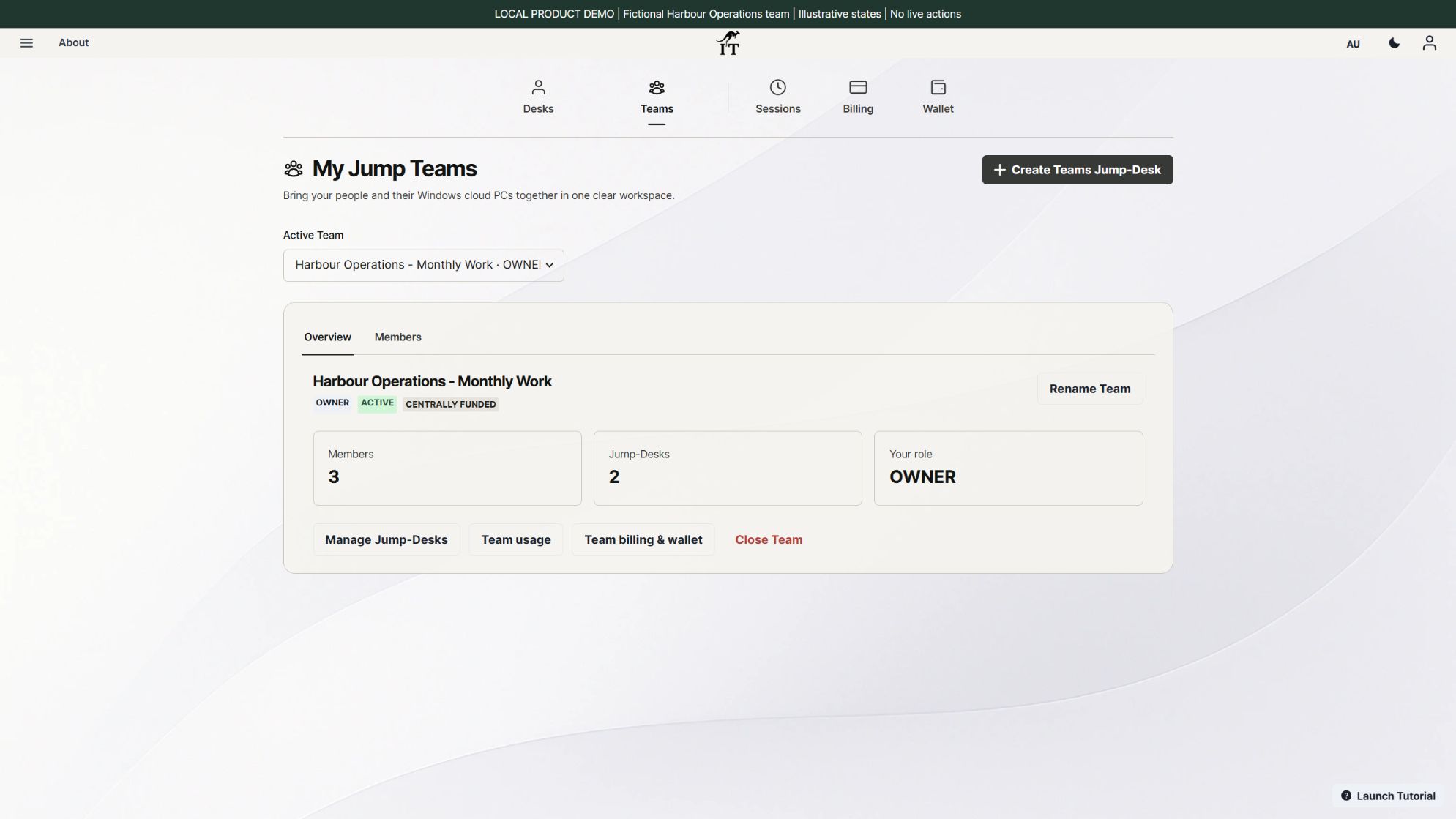
Invite the next person, choose their permitted actions and prepare their Windows access. Manage the cloud desktops together while people use the supported devices they already own.
If the task works well in an iPad app or browser, keep that simpler workflow. Windows earns its place when it solves a specific requirement. Our Windows for one app guide helps you make that decision, while Mac vs Windows: why Windows still matters looks at the wider choice.
Jump-Teams is Jump-IT’s team administration area for Jump-Desk. It is separate from Microsoft Teams, the meeting and messaging application. Your own application subscriptions and licences still apply.
ONE WORKSPACE, THROUGHOUT YOUR DAY
Start on iPad.
Continue where it suits you.
Imagine a small consultancy preparing a client quotation. The following is an example workflow, not a customer testimonial or a promise that every application will be compatible.
- Morning · iPad
Make the change with the client.
Connect to your Jump-Desk, open the Windows quotation tool and save the updated project. A keyboard and pointer make precise desktop work easier.
- Afternoon · Mac or PC
Return to the same computer.
Connect to that same Jump-Desk with your own Windows account. Reopen the saved project and finish the detailed work on a larger screen.
- Next task · your colleague
Hand over the work, not your password.
Save to your agreed team file location and sign out when handing over the desktop. Your colleague connects using their own account. If both of you need Windows at once, each needs a separate Jump-Desk.
For a growing business, Jump-Teams for startups expands this idea into onboarding, permissions and funding. For people working in different locations, see the distributed-team desktop demonstration.
FROM THE FIRST INVITATION TO THE FIRST SESSION
How to run Windows on iPad with Jump-Teams
Already have a personal Jump-Desk? The original Windows on iPad setup guide covers the individual workflow in depth. These steps focus on a Team desktop, each person’s access and the move between devices.
Have these ready
- A supported iPad and the official Windows App Mobile from Microsoft. The current App Store listing requires iPadOS 26 or later; check compatibility on your own device.
- A reliable internet connection, with a keyboard and mouse or trackpad for longer sessions.
- A Jump-IT account and either permission to create a Team desktop or an invitation to one.
- Your application licences, a representative test file and a clear place to save the finished work.
- 01
TEAM OWNER
Choose the desktop around the work.
Open Create Jump-Desk and select Jump-Teams. Choose an available region, plan and performance tier. If you have no Team yet, the setup flow lets you prepare its name and your administrator access. Review the complete price and configuration before checkout.
- 02
OWNER OR AUTHORISED MANAGER
Invite the person and choose their access.
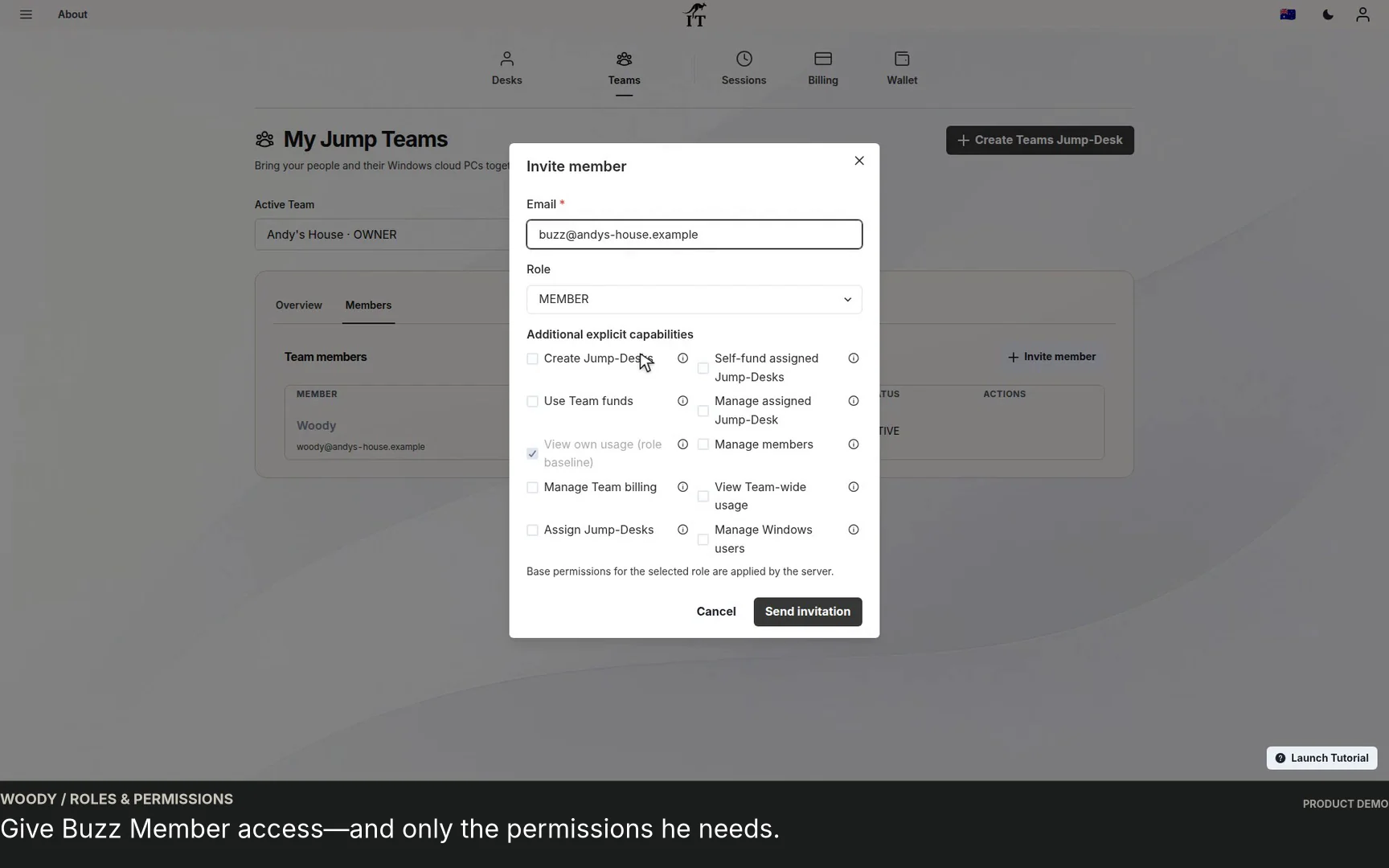
Invite your colleague using their own email address. Select their Team role and the capabilities they need. Add their Windows access to the intended desktop during creation or in its Windows access panel. The first-member onboarding walkthrough shows the process.
- 03
EACH TEAM MEMBER
Accept with the invited account.
Sign in using the email address that received the invitation and accept it. Invitations are single-use and expire after seven days. Open the correct Team and desktop. Team membership, responsibility for a desktop and Windows sign-in access are separate; ask your manager to check the Windows access list if the desktop is missing.
- 04
EACH TEAM MEMBER
Prepare your own Windows sign-in.
Wait for the desktop to be provisioned and running. Under Windows access → My Windows access, use Finish Windows setup if prompted. Your available controls depend on your permissions. Keep your Windows username and password private; they are not your Apple ID or necessarily your Jump-IT account password.
- 05
ON YOUR IPAD
Connect through Windows App.
Install Windows App Mobile, then use your own Connect control in Jump-IT to obtain the desktop’s connection details or file. Open the file in Windows App if your version offers that option. Alternatively, tap + → PC, enter the supplied host address in PC Name, save it and connect with your Windows credentials. Microsoft’s remote-PC connection instructions explain the current client screens.
Check that the remote host matches your Jump-Desk. Allow only the local resources you intend to use. This is a remote-PC connection; you do not need a Microsoft work or school account merely to sign in to Windows App for that connection.
- 06
BEFORE THE REAL JOB
Prove the complete workflow.
Open a representative file, make a change, save it, export it and reopen the result where it is needed. Check keyboard shortcuts, text size, pointer accuracy and any required peripherals. Repeat the connection from your second device using the same desktop and your own account.
SEE WHAT HAPPENS NEXT
A member’s first Windows session.
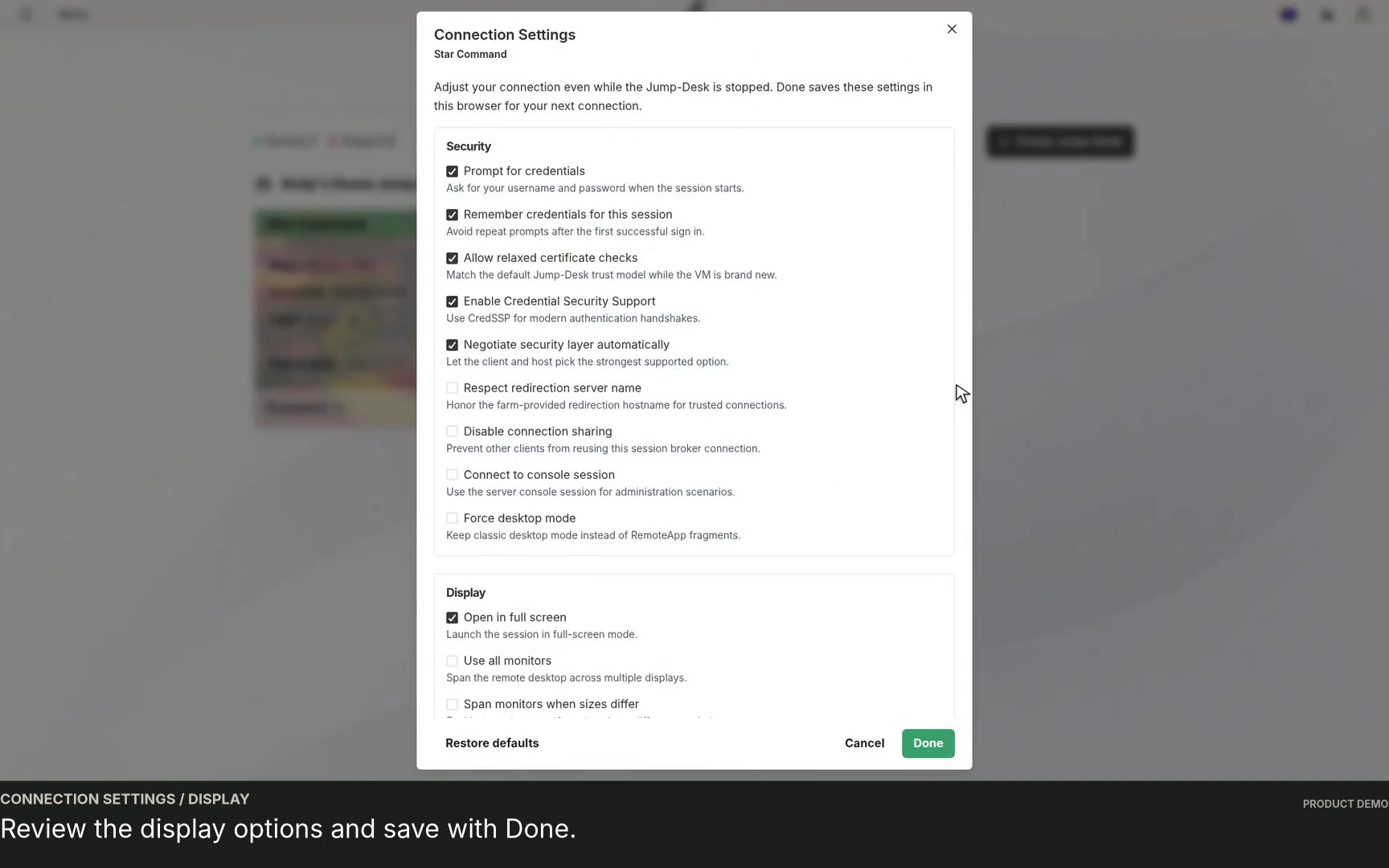
Follow the invitation, the member’s desktop view, connection settings and Windows applications in this edited Jump-Teams demonstration. It shows the workflow, not a guaranteed setup time.
Read the video walkthrough
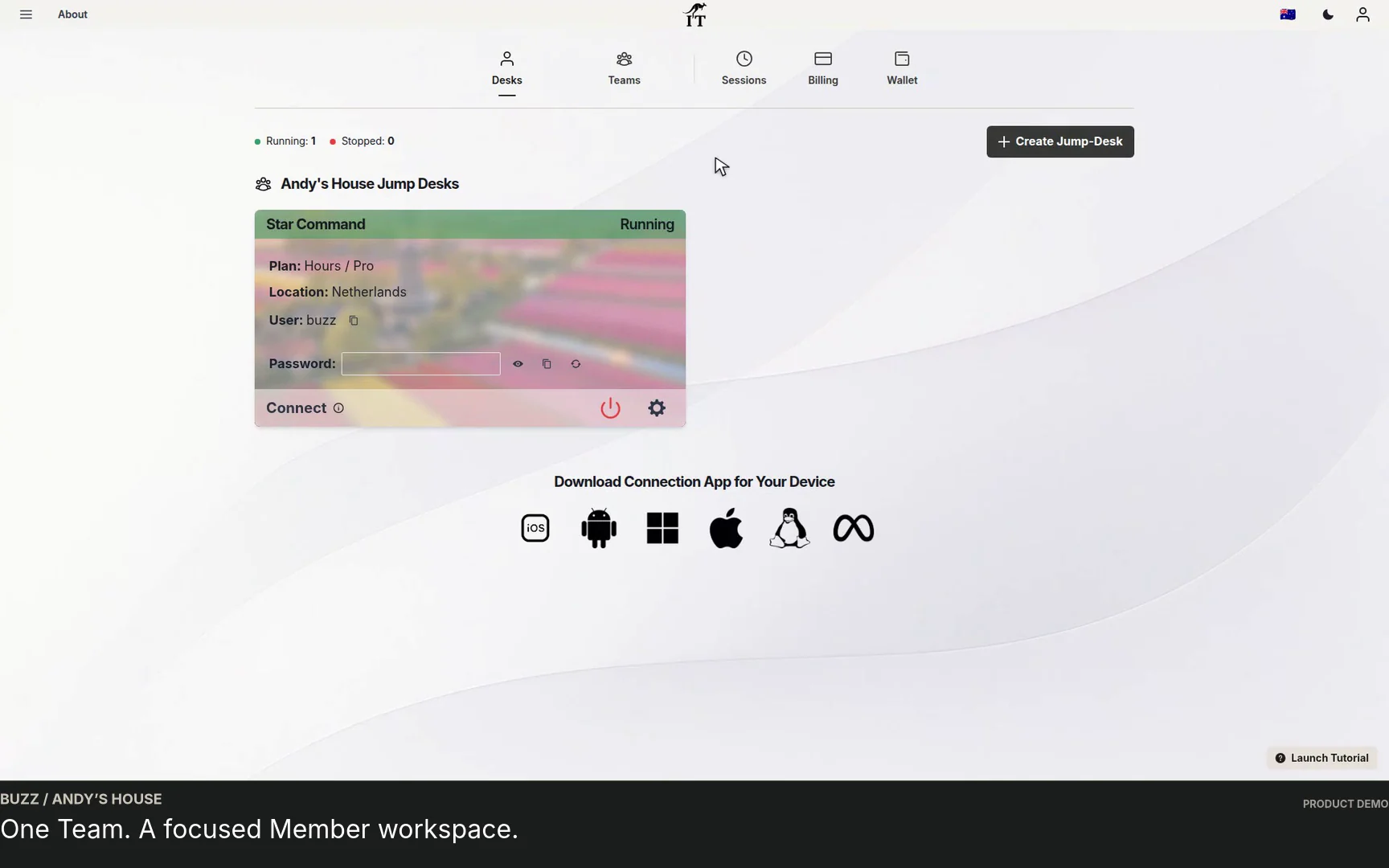
- 0:00–0:13: The invited member accepts the Team invitation.
- 0:13–0:39: The member finds the Team desktop and reviews the Team view.
- 0:39–1:05: Connection Settings shows display options and the member downloads their connection file.
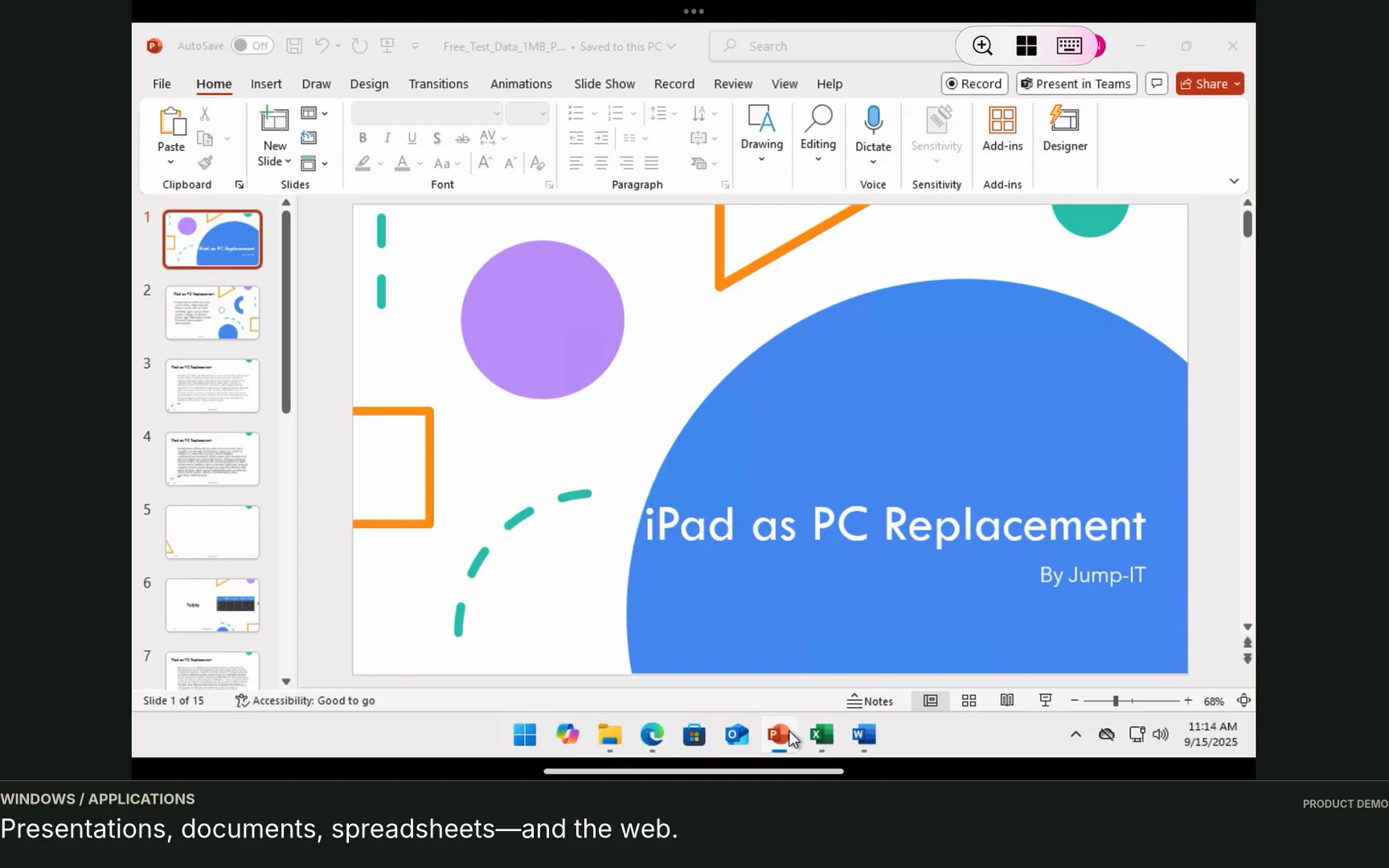
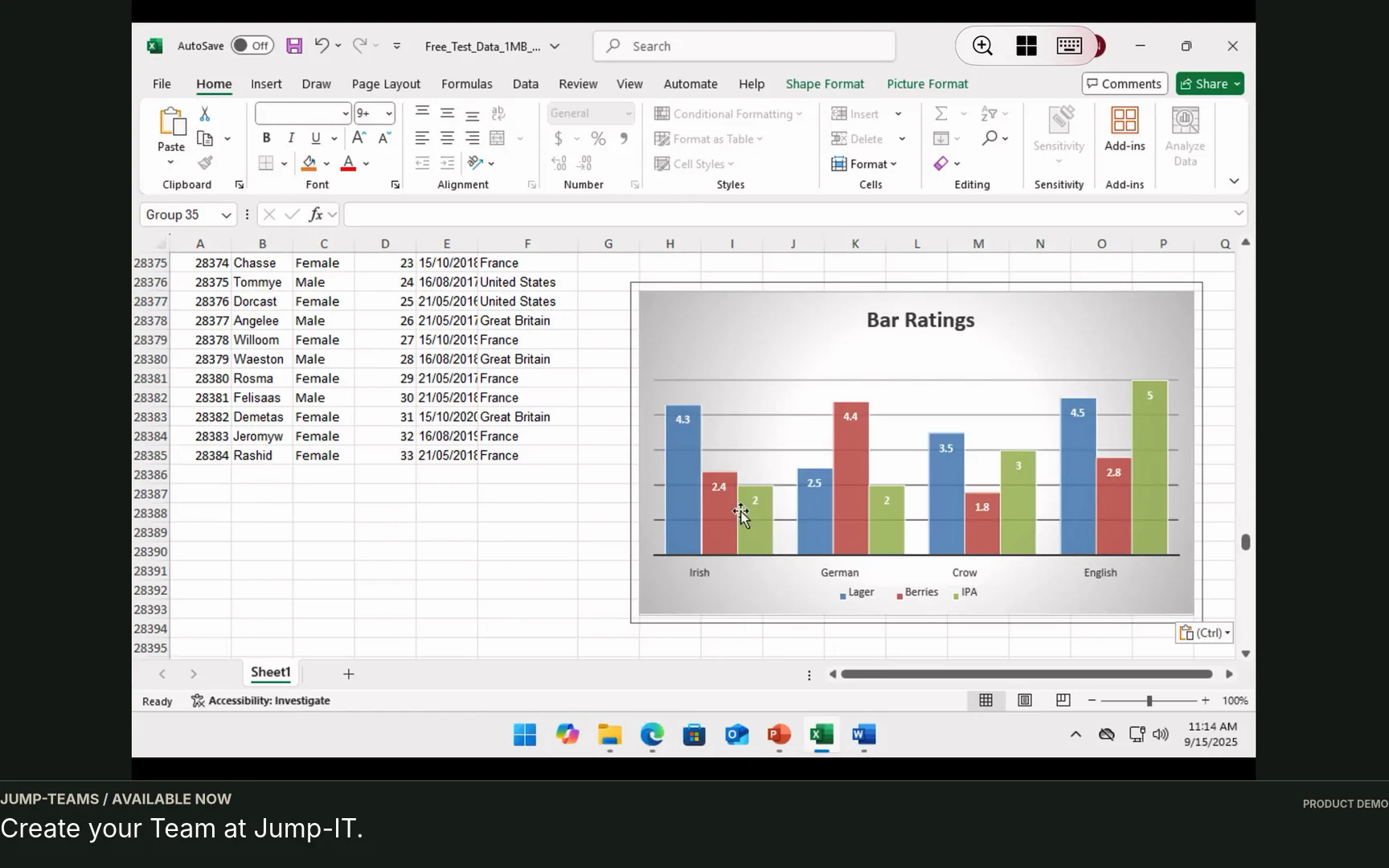
- 1:05–1:32: Windows opens, followed by a presentation, document and spreadsheet.
The full Team connection guide adds the detailed member instructions.
Need the iPad connection view?
This short recording shows Jump-IT in a tablet-sized browser and explains the next step in Windows App. It does not show a completed native iPad session.
For the longer decision walkthrough, watch Windows on iPad: check the app, setup and full cost.
A PLACE FOR EVERY PERSON
Team control without shared passwords.
Jump-Teams separates managing the business workspace from signing in to Windows. That matters when the owner works on a Mac, a colleague prefers an iPad and another uses a Windows laptop.
Pending invitations reserve a place. Separate desktops are needed for people working simultaneously. Application licensing requirements still apply.
| Control | What it means | Practical example |
|---|---|---|
| Team role and capabilities | What the person may manage in Jump-IT. | A Member can receive the specific rights needed for their work without full billing control. |
| Responsible member | Who is assigned responsibility for the Jump-Desk. | Assign the project desktop to the colleague responsible for it. Assignment alone does not grant every action. |
| Windows access | The individual Windows account and Standard or Administrator privileges on that machine. | A Team Admin can still use Windows as a Standard user. Choose Windows Administrator access only when the job needs it. |
Plan offboarding as carefully as onboarding. Reassign active desktops before removing their responsible member. Windows access changes on an offline desktop remain pending until it starts and confirms them. Removing access is not the same as transferring or deleting the person’s files. The remote team onboarding guide and full Jump-Teams lifecycle demo show the wider picture.
SAME COMPUTER. A DIFFERENT SCREEN.
How to switch from iPad to Mac, PC or phone
Save your work on the Jump-Desk or your agreed cloud-storage location. Disconnect from the first device, then connect to the same Jump-Desk with the same Windows account on the second. If Windows and your applications are still running, the session can remain available; restarts, sign-outs, updates and application behaviour can change that. Saved work is the reliable starting point.
Each local device needs its own client and display settings. A file downloaded into the remote Windows Downloads folder is on the Jump-Desk, not automatically in your iPad’s Files app. Use an approved storage service or a supported, deliberately configured transfer method. Separate Windows users do not automatically share a Documents folder.
| Action | Use it when | Remember |
|---|---|---|
| Save and disconnect | You are moving to another device or briefly leaving the remote view. | The cloud PC can keep running. Disconnecting does not stop running compute charges. |
| Save and sign out of Windows | A different person is about to use the same desktop. | Your applications close. Your colleague uses their own account and agreed file location. |
| Save, then stop the Jump-Desk | The desktop is no longer needed for the current work. | Use an authorised power control and confirm Stopped in Jump-IT. Retained-desktop service charges still apply on Hours. |
Consider running meetings on the local iPad or phone while using remote Windows for the document or business application. Test audio, camera, clipboard, printing and any specialist peripherals in your actual setup. Remote access is not a guarantee of every local hardware feature.
PICK THE SCREEN FOR THE JOB
iPad, iPhone Duo, DeX or Mac?
The cloud PC provides Windows; the device in your hands determines the space, input and portability. Choose around the task rather than expecting one device to be best at everything.
| Device or setup | A useful role | What to check |
|---|---|---|
| iPad + keyboard and pointer | Portable document work, appointments and a larger touch workspace. | Current Windows App compatibility, text scaling, accessories and your everyday connection. |
| iPhone or foldable phone | A brief check or edit when carrying a tablet or laptop is inconvenient. | Exact model support, usable screen space and input. A larger display alone does not make long desktop sessions comfortable. |
| Supported Samsung DeX setup | An Android phone or tablet used with a desk display and input devices. | Device-specific DeX support, display connection and remote client behaviour. DeX itself runs Android, not Windows. |
| Mac or Windows computer | Longer sessions with a familiar keyboard, pointer and larger screen. | A compatible remote-PC client, display settings and any required local-device redirection. |
Considering an iPhone Duo alongside your iPad? Start with our Windows on iPhone Duo guide and the iPhone Duo, Galaxy Z Fold8 and Pixel Fold comparison. Check current manufacturer specifications and client compatibility for the exact device before buying.
If a phone-to-monitor desk is more appealing, see Windows with Samsung DeX, the practical DeX desk video and our Galaxy Z Fold Windows workflow. Returning to a Mac? The Windows on Mac guide follows that route.
A USEFUL WORKSPACE SHOULD MAKE FINANCIAL SENSE
Budget for the desktop, not the number of screens.
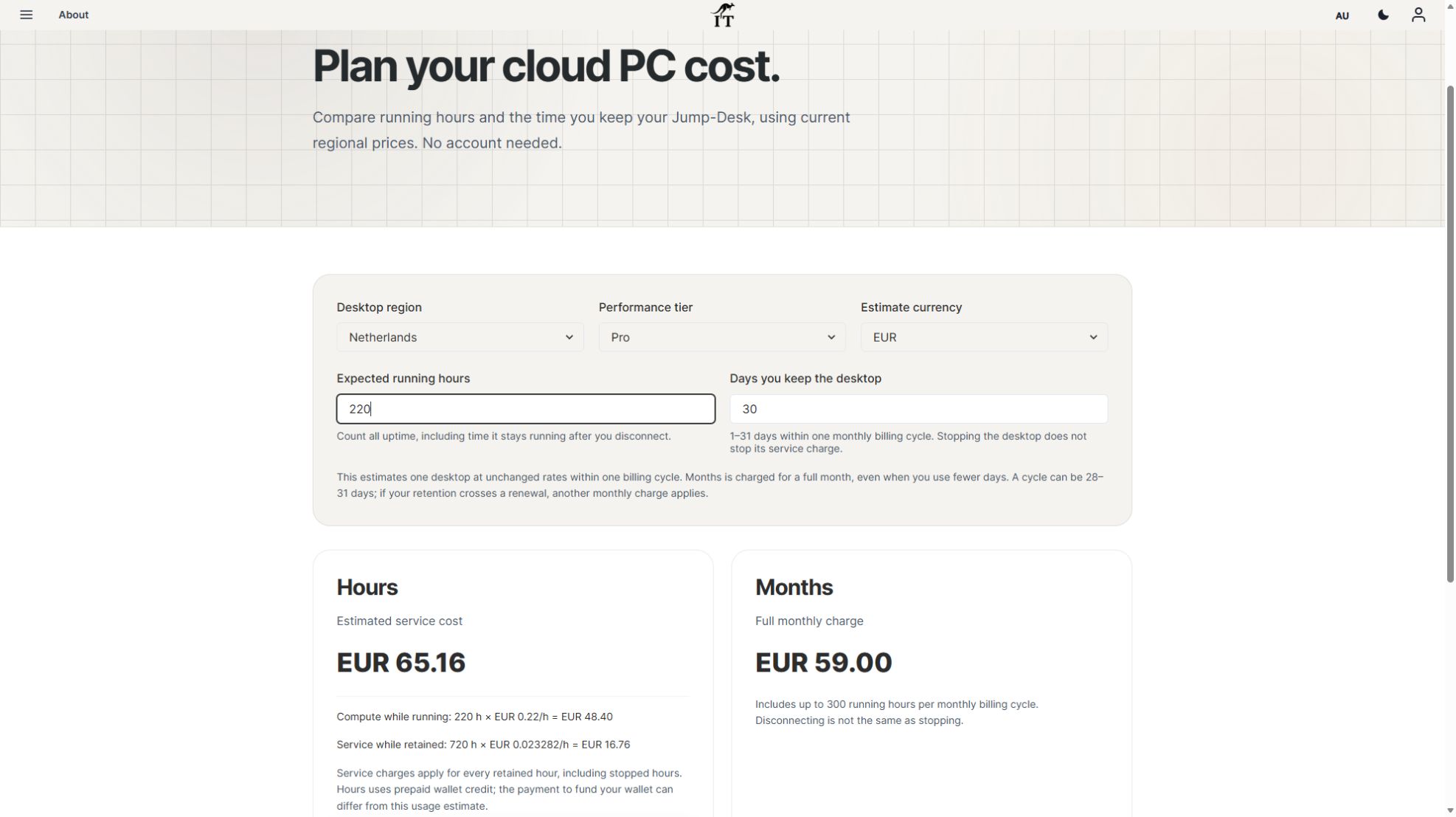
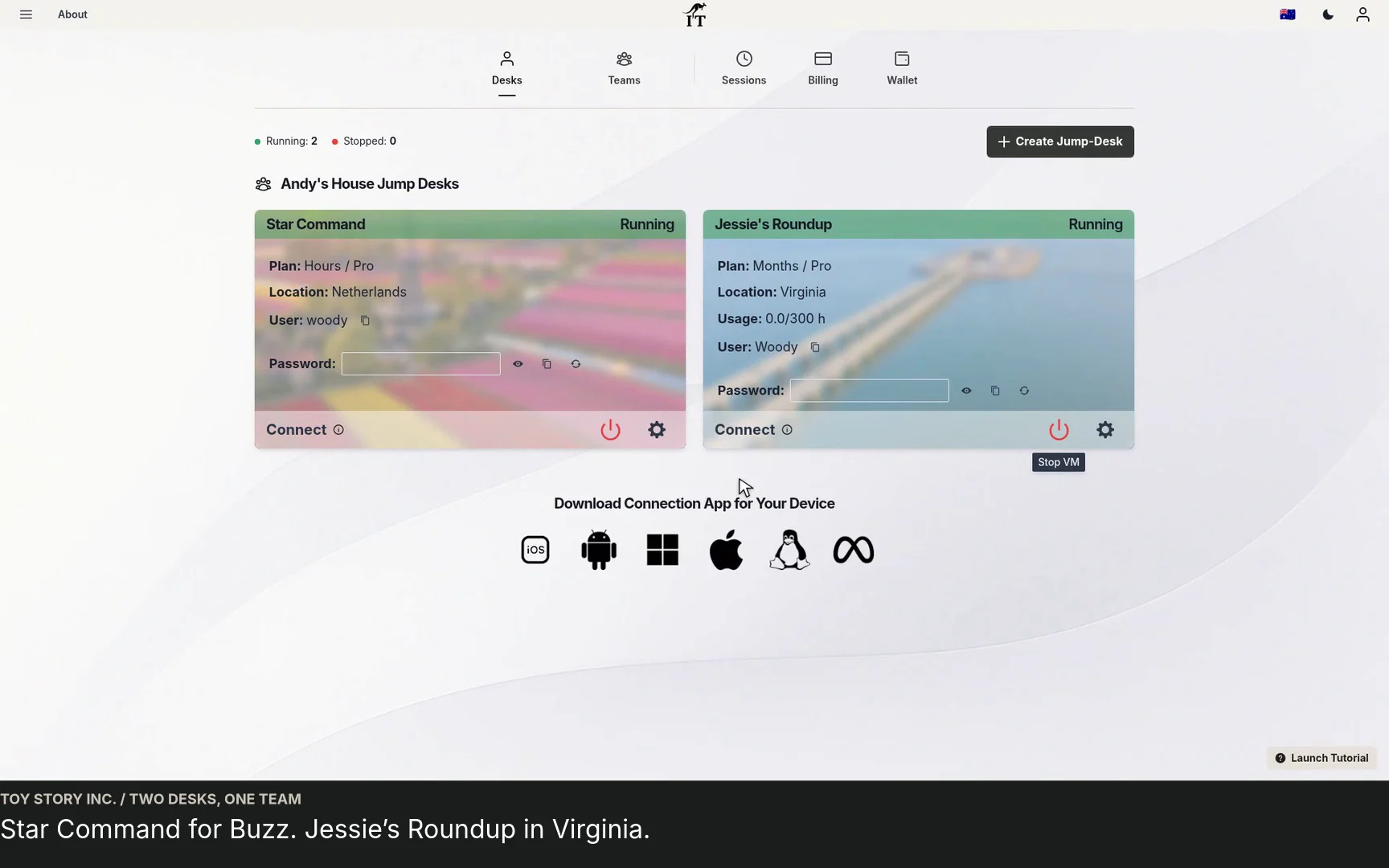
Connecting to the same Jump-Desk from an iPad and then a Mac does not create a second desktop. Creating another Jump-Desk for a colleague’s simultaneous work does. Compare plans against each desktop’s running time, retained time, region and performance needs.
Prepaid Hours
Running compute plus a separate service charge for the time the desktop is retained, including while stopped. Eligible Team desktops can use central Team funding, subject to permissions.
Months
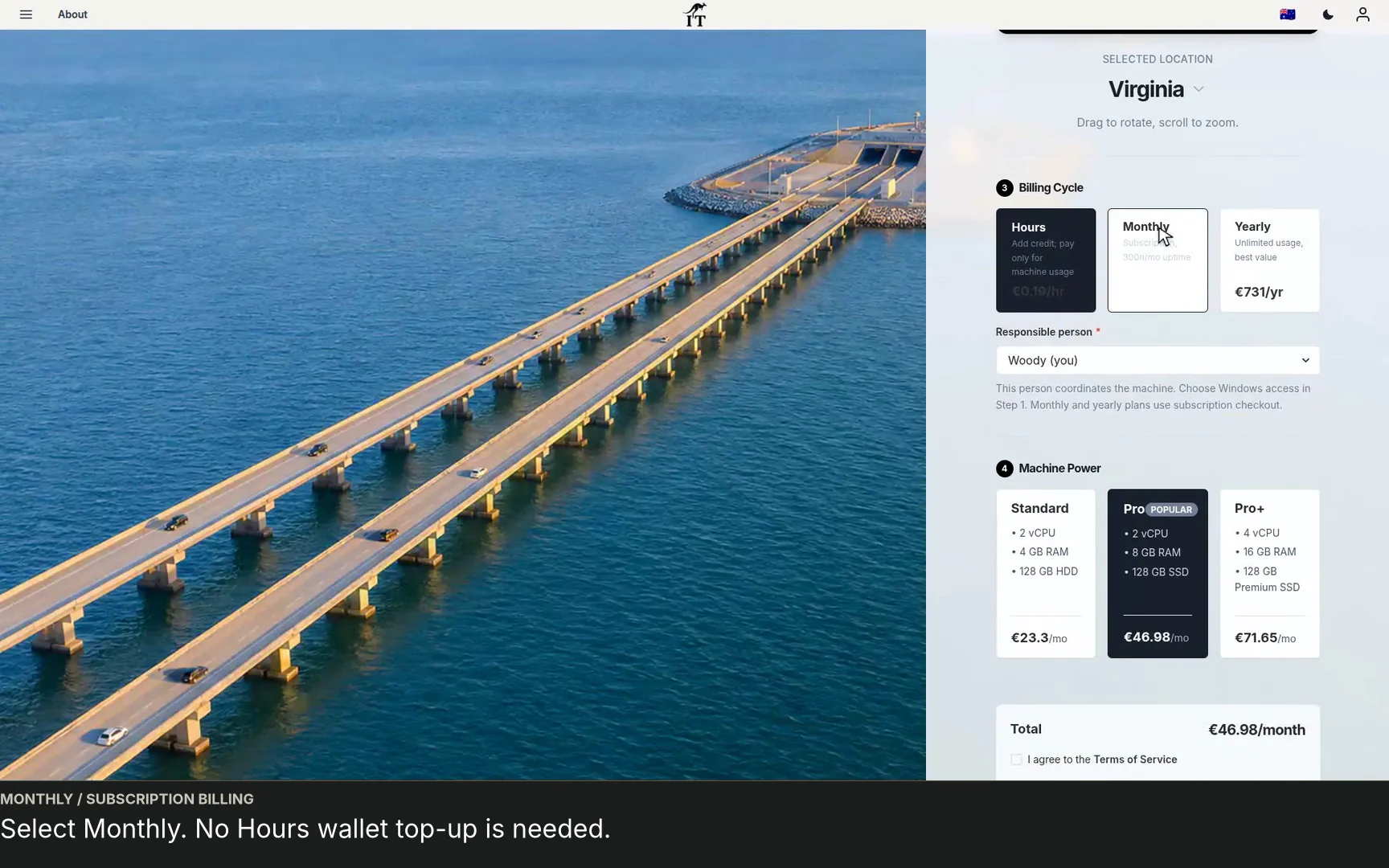
A subscription with up to 300 uptime hours per desktop per month. Compare the complete subscription price with your expected Hours use. It is not unlimited uptime.
For example, two colleagues who each need Windows at the same time should estimate two desktops. A person who alternates between two devices can start by estimating one. Add application licences, applicable tax and any accessories to the comparison.
Eligible member-paid Hours arrangements require the member’s explicit consent. Automatic top-up is optional; a monthly top-up limit controls credit additions, not total usage cost. Review current funding settings rather than treating it as a universal spending cap.
START SMALL. LEARN SOMETHING USEFUL.
Give your first project a clear finish line.
Choose one colleague, one Windows application and one real output. Confirm it works from the iPad and the person’s second device. Then decide whether to add more desktops. This checks the actual working pattern before you build a larger setup around it.
- Application: the right version, licence and required features work.
- Access: the right person has their own Windows account and appropriate permissions.
- Output: the saved file or export opens where the team needs it.
- Handover: everyone knows when to disconnect, sign out or stop.
- Recovery: important work has a separate backup or export process.
AI may help prepare drafts, formulas or project ideas, but the finished task can still depend on a desktop application. Our team guide to testing an AI workflow in a Windows workspace explores that distinction. A Jump-Desk does not include paid AI subscriptions, guarantee local model performance or automatically become a hardened security sandbox.
CLEAR ANSWERS BEFORE YOU START
Windows on iPad for teams: common questions
Can I install Windows directly on my iPad?
This Jump-IT workflow runs Windows on a separate cloud PC. Your iPad connects through a supported remote desktop client and keeps iPadOS. It is not a local Windows installation or an offline Windows emulator.
Can I use the same Windows desktop on my iPad and Mac?
Yes. Use a compatible client on each device and connect to the same Jump-Desk with your own Windows account. Save before switching. Your installed applications and saved files stay on the retained desktop; session continuity depends on Windows, application state and whether the computer has restarted or been stopped.
Can five people use one Team desktop at the same time?
No. A Team desktop supports up to five named people, including its creator, and pending invitations reserve a place. Only one Windows user can actively use that desktop at a time. Give people separate Jump-Desks when they need simultaneous Windows sessions.
Does a Team invitation automatically provide Windows access?
No. The person must accept the invitation with the invited email address, be included in the intended desktop’s Windows access list and complete any required Windows setup. An authorised manager should check that the running desktop confirms access is ready.
Do I need Microsoft 365 or a Microsoft account to connect?
A direct remote-PC connection uses the Windows credentials for your Jump-Desk; signing in to Windows App with a Microsoft work or school account is not required just for that connection. Microsoft 365, Office and other paid applications have their own licensing and account requirements.
Will my files appear automatically in iPad Files or a colleague’s account?
No. Saving inside remote Windows saves to the selected location on that computer or storage service. It does not automatically copy the file to iPad Files or share it with another Windows user. Choose an approved shared location or a supported transfer method and test the result.
Does closing Windows App stop my Jump-Desk?
No. Disconnecting can leave the cloud PC running. Save your work, use an authorised stop control in Jump-IT and confirm the desktop is stopped. On Hours, the retained-desktop service charge continues while the desktop exists.
Is remote Windows suitable without reliable internet?
No. You need a working connection to interact with the remote desktop. For offline Windows work, use an appropriate local Windows computer. Test your normal network, exact applications and essential peripherals before relying on remote Windows for time-critical work.
Sources and how this guide was checked
Reviewed on 12 October 2026 against Jump-IT’s implemented Team access, onboarding and funding controls, Microsoft’s remote-PC documentation and the current App Store listing. Product recordings use demonstration data; they are not customer testimonials. Current availability, pricing and checkout terms in Jump-IT take precedence.
KEEP THE DEVICE. MAKE ROOM FOR THE WORK.
Your iPad is the beginning.
Your team is what comes next.
Build a Windows workspace around one useful task, then bring in the people who need it.
New laptop at the desk, iPad on the move
The touchscreen MacBook Pro guide compares a local Mac workstation with iPad access to separate team Windows desktops. The Surface Laptop Ultra guide offers the Windows-led alternative. Keep the environment and permissions tied to the person’s project, and test the real iPad connection instead of assuming every desktop feature transfers unchanged.
Related device guidance added 31 October 2026.