BUSINESS GUIDE
Desktop as a Service for Small Business: A Practical Team Guide
Evaluate DaaS for a small team: Windows applications, Jump-Teams access, monthly desktop budgets, practical checks and when another setup fits better.
Read the guide →

DEVICE CHOICES · GLOBAL WINDOWS TEAMS
Give the Mac’s local AI, creative and development work room to run. Use Jump-Teams to organise separate Windows cloud computers for colleagues, then choose the right mix of MacBook, iPad and other supported devices for the workday.
Reviewed 31 October 2026 · Jump-IT Team · Sourced launch coverage and original workflow guidance
Apple announced MacBook Pro with PROLED XDR Display on 28 October 2026, with orders opening that day and availability beginning 6 November in its announced launch markets. The 14-inch M5 Pro version starts at US$2,899 and the 16-inch at US$3,399. These are US launch prices, not Australian or European checkout quotes. Read Apple’s dated announcement.
The distinction is important when shopping: this touchscreen range uses M5 Pro or M5 Max. It is separate from the Liquid Retina XDR MacBook Pro range. A listing that says only “new MacBook Pro” is not enough to identify the screen or chip. The PROLED models combine a tandem OLED touchscreen, ProMotion up to 120Hz and Thunderbolt 5. Memory and storage depend on the configuration; the highest options reach 128GB and 16TB. Check the exact model specifications.
As of this review date: launch hands-on reports are available, but they do not establish long-term battery endurance, sustained local AI performance or the behaviour of your third-party applications on a retail unit. Use those reports to shortlist a device, then check the software and sustained workload you intend to use.
| First-hand source | Useful observation | Decision for your own trial |
|---|---|---|
| Tom’s Guide · Mark Spoonauer · 29 Oct | Spoonauer liked the display and found touch interactions smooth; he reported no Apple Pencil support. | Test your actual editing, review and remote-desktop tools. Do not assume an iPad-style pen workflow. |
| HardwareZone · Kenny Yeo · 28 Oct | Yeo found touch responsive and the display convincing in harsh light, while explicitly not verifying Apple’s brightness figures. | Try the intended lighting and screen finish. A short demonstration is different from a measured display or battery test. |
These reports agree that touch and the display are the immediate changes. Neither report proves that touching a remote Windows application will feel identical to a native Mac app. Keyboard, pointer, scaling, client settings and network conditions remain part of the experience. Read the original coverage for its full context; this is a workflow interpretation, not an aggregate hardware rating.
| Your requirement | Touchscreen MacBook Pro | Surface Laptop Ultra |
|---|---|---|
| Local creative work and AI | macOS with M5 Pro/Max; a candidate when your chosen tools support Apple silicon, Metal or MLX. | Windows on Arm with NVIDIA RTX Spark; a candidate when your chosen toolchain supports this platform and CUDA. |
| Display and input | 14- or 16-inch tandem OLED touch; hands-on coverage is still early. | 15-inch Mini-LED touch; full reviews exist, including display and battery reservations. |
| Starting-price context | US$2,899 for the 14-inch M5 Pro launch model. | US$2,599 launch MSRP. Configurations are not equivalent. |
| A team’s Windows business applications | Run suitable workloads on separate cloud Windows desktops; connect using a supported client. | The same cloud option can separate team projects from the laptop’s local development environment. |
| The deciding test | Your model, editor, plug-ins, memory use and macOS workflow. | Your model, dependencies, Arm64 drivers and Windows workflow. |
Apple’s and Microsoft’s advertised AI capabilities use different software, precision and configurations. They are not a shared benchmark. We have not tested these two new devices head to head. Our Surface Laptop Ultra guide examines its independent reviews and firmware context in more detail.
Choose the local machine for local work. If your day consists mostly of a browser and a remote Windows session, a supported computer you already own may be enough. If you need offline Windows, direct specialist hardware access or tightly coupled local GPU work, assess a suitable local Windows machine or a supported local virtual-machine setup instead. See cloud Windows versus Parallels and a cloud desktop versus buying a laptop.
| Device or family | A sensible role in this arrangement | What to check before buying |
|---|---|---|
| MacBook Neo | A lower-cost macOS access device for browser work and supported remote Windows sessions. | Apple lists A18 Pro and 8GB memory. That is a different local-AI budget from a high-memory Pro; count the apps you will keep open. |
| MacBook Air | A portable Mac for everyday work, travel and cloud-desktop access. | Choose memory, ports and screen size for the local workload. Remote Windows alone does not require the most expensive Mac. |
| Liquid Retina XDR MacBook Pro | A conventional Pro option when its performance and ports fit, without buying specifically for touch. | Check the exact chip and display; do not confuse it with the PROLED range. |
| Mac mini | A fixed-desk Mac with a separate display, keyboard and pointer; current options include M6 and M5 Pro. | Include peripherals and the chosen memory configuration. It is a local workstation, not automatically a shared cloud service. |
| iMac, Mac Studio and Mac Pro | Desktop alternatives when an all-in-one workspace, sustained local work or specialist expansion is the real requirement. | Compare the exact supported applications and hardware configuration. A cloud team does not inherit the local Mac’s GPU or expansion cards. |
| iPad / iPad Pro | A portable client for focused Windows work with a suitable keyboard and pointer; useful for review and travel. | iPadOS differs from macOS. Check client input, display, file movement and peripheral support. Use the iPad Teams guide before committing. |
| iPhone Duo | A folding-phone client for a focused check or temporary access from a healthy supported device. | Its 7.6-inch inner screen does not make it a Mac. Comfort, input and connection quality matter for long sessions. |
Specifications: MacBook Neo, Mac mini, Mac family, iPad Pro and iPhone Duo. For the connection basics, start with Windows on Mac or Windows on iPad. Our practical guides also cover Windows work from Neo, iPad for Teams and Windows on iPhone Duo. Choose by the workday, not by assuming every team member needs the same premium hardware.
Imagine fictional Harbour Atlas, a small project consultancy working across Sydney, Berlin and Singapore. Jordan leads delivery from a Mac, using a chosen local model to explore non-sensitive project notes and preparing client presentations. Alex needs a Windows costing application for quotations. Sam needs a monthly project report and must choose a reporting application whose vendor supports the proposed hosting environment. Their applications, licences and approved data sources are chosen and configured by the organisation. If Sam requires Power BI Desktop, Microsoft supports virtualised Power BI Desktop on Azure Virtual Desktop and Windows 365; its guidance excludes other virtual desktop environments. Jump-IT-specific support is not established here. A successful technical test does not establish vendor support. Resolve that requirement using Microsoft’s virtualisation support guidance before choosing a host; the Jump-Desk example below is for a suitable, vendor-supported reporting application.
Chosen local model and creative tools use the Mac’s own resources.
A separately configured Windows application and project workspace.
A separate desktop for the monthly report and its acceptance checks.
The plan is to give the two Windows roles their own appropriately sized Jump-Desks and organise people and desktops with Jump-Teams. Jordan’s laptop does not host those Windows machines. Colleagues connect from their own supported devices; they do not log into Jordan’s Mac. Closing the Mac’s lid is therefore not the event that ends their cloud desktop sessions. Desktop power state, network access, plan limits and service availability still matter.
For Alex, the useful outcome to validate is a quotation that reopens correctly and exports the agreed proposal. For Sam, it is a report whose totals match approved source figures and whose output reaches the intended reviewer. Those are acceptance goals, not outcomes demonstrated in these images. The Power BI on Mac guide and quotation workspace guide provide the application-specific planning detail. For Power BI Desktop, read the hosting-support decision before considering any purchase or technical test.
| Location | Work in this example | Resource boundary |
|---|---|---|
| Jordan’s Mac | Chosen local AI runtime, approved model files, presentation tools, browser and remote client. | Uses the Mac’s own CPU, GPU, memory, storage and battery. A compatible framework such as MLX must be installed and configured separately. |
| Alex’s Jump-Desk | The chosen Windows costing application and its project working files. | Uses that cloud desktop’s resources. It does not borrow the Mac’s Apple GPU. |
| Sam’s Jump-Desk | Windows reporting tools whose vendor supports this environment, with approved project data. | Runs separately from the lead’s laptop and from Alex’s machine; size and test it for the actual report. |
| Organisation’s approved repository/storage | Shared source, published deliverables, backup and handover records. | File sharing, version control, permissions and backup must be set up deliberately; separate desktops are not automatic file synchronisation. |
MLX supports machine learning on Apple silicon. That makes it one possible local tool, not an included Jump-IT integration. Remote Windows avoids running a full Windows VM on the Mac, but it still requires a browser or client, display decoding, input processing and a suitable network. The team’s Windows application processes stay on their cloud desktops. Each access device still needs enough local capacity for its client and everyday tools.
Keep local AI and cloud Windows as separately measured workloads. Test the actual model size and precision, memory headroom and responsiveness while a remote session is open. Do not assume a model will fit because a vendor advertises a maximum parameter count. Jump-Desk’s current Standard, Pro and Pro+ offerings should not be treated as NVIDIA GPU training machines.
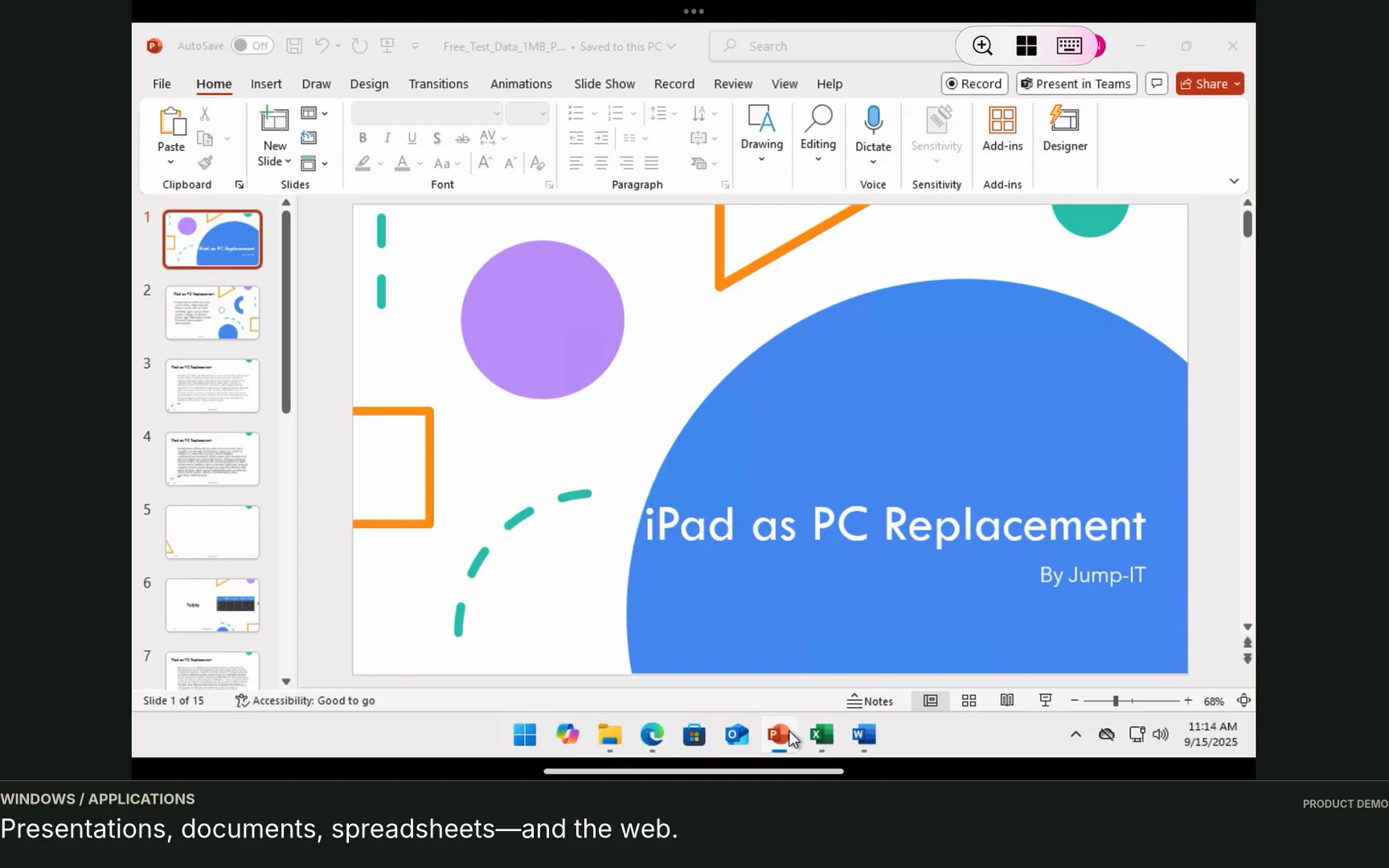
Follow fictional Harbour Atlas through a 90-second project overview: Jordan keeps the local AI work on the Mac, while Alex and Sam have separate Windows roles. The video uses edited screenshots of the actual Jump-IT interface with fictional data. It is silent, with English (Australia) captions; it does not show a live Windows application being used.
Application support comes first. Use this role split only after checking the chosen application’s supported hosting environment and licence. The Power BI support guidance applies to any reporting role: this walkthrough does not establish Microsoft support for Power BI Desktop on Jump-IT. A successful technical trial would not change that policy.
Start at 0:30 for the people and their work. Alex needs a costing workspace; Sam needs a reporting workspace. Neither role requires remote access to Jordan’s Mac. Jordan can organise the Team in a browser, but colleagues still need their own supported clients and connections. The local Mac continues to spend resources on its own applications and any remote client it runs.
Each chapter link opens the same video at the indicated point.
The caption text below matches the English (Australia) track. Additional on-screen notes and visual descriptions make the silent sequence understandable without watching it. The images show fictional product states; the described project tasks are proposed work.
Your Mac. Their Windows projects. Keep your local AI work on the Mac. Give colleagues separate cloud desktops.
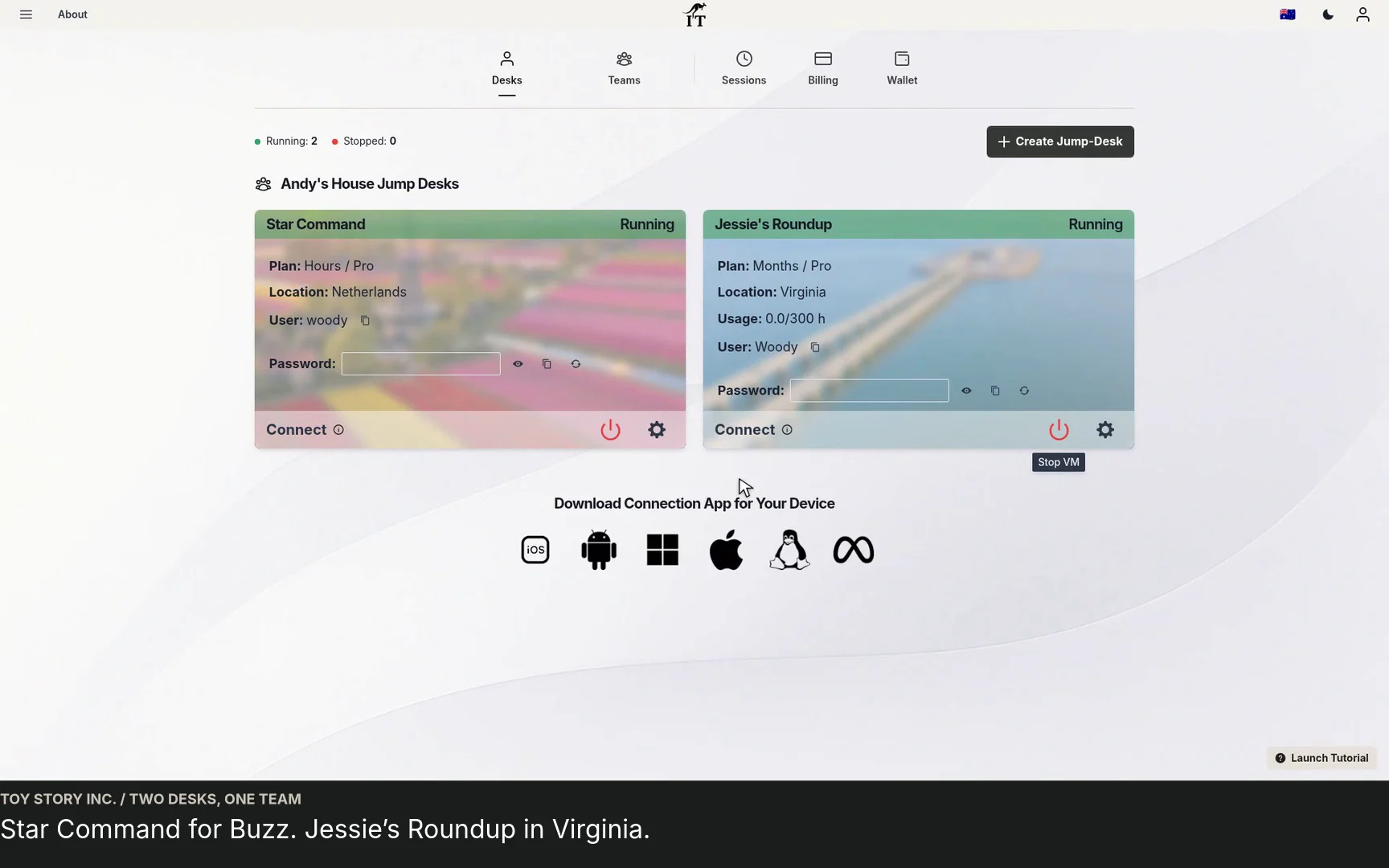
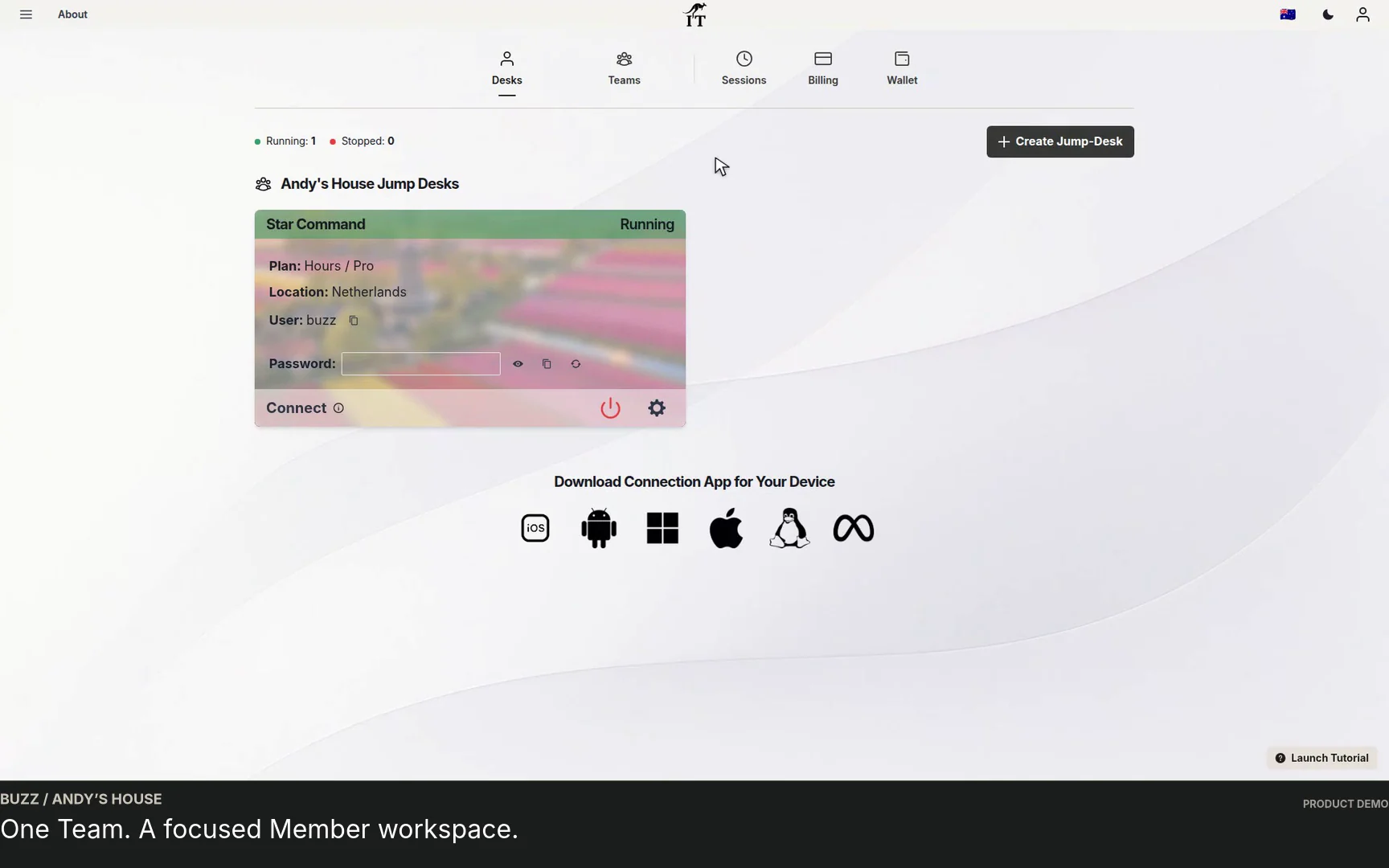
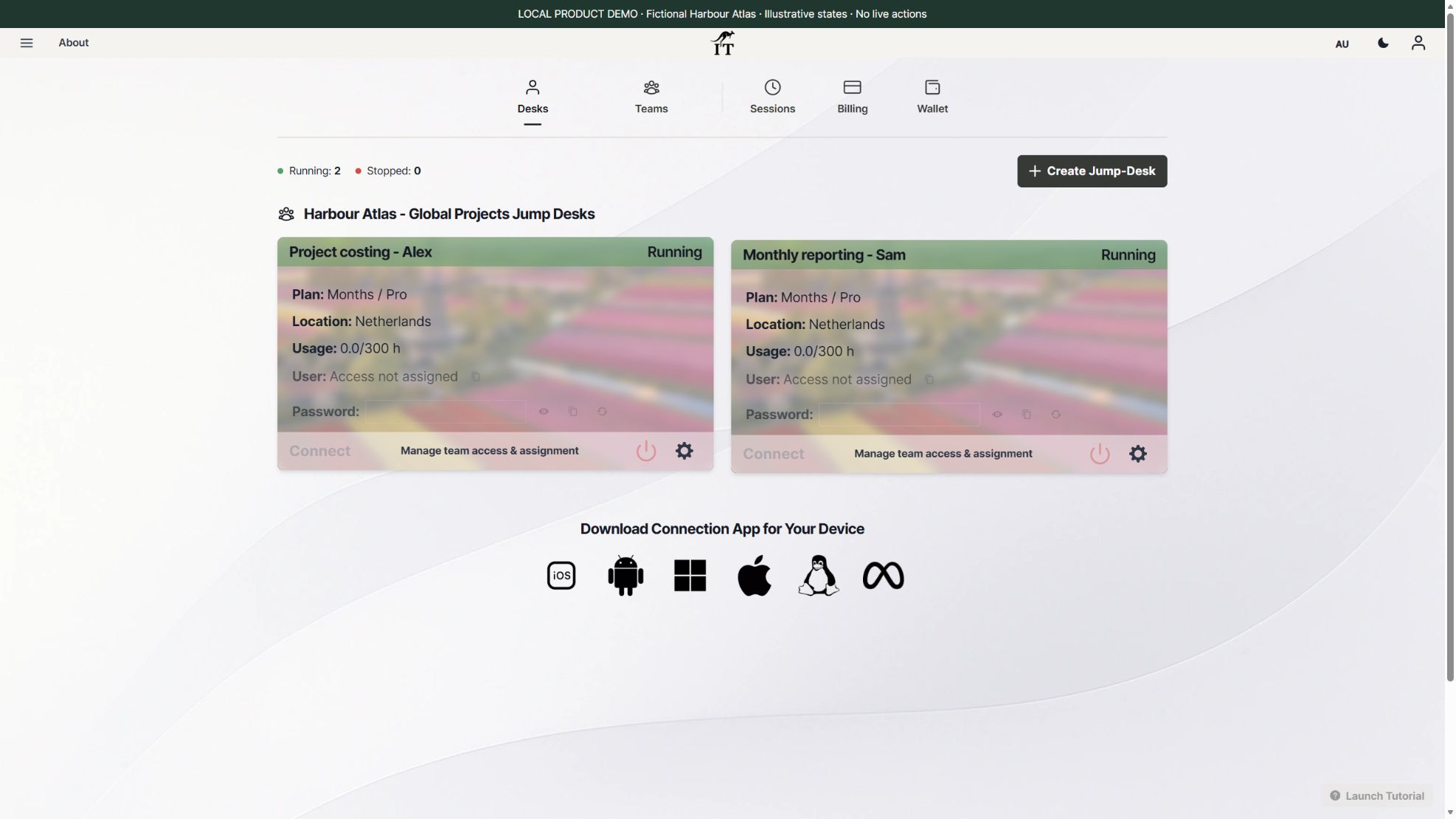
Visual context: The product dashboard shows the fictional project costing and monthly reporting desktops. The image illustrates where work would be organised; no costing application or report runs in this frame.
Buy for the work that stays local. The new PROLED range uses M5 Pro or M5 Max. Validate your own Apple-silicon tools.
On-screen note: Apple announcement: 28 Oct · Availability begins 6 Nov
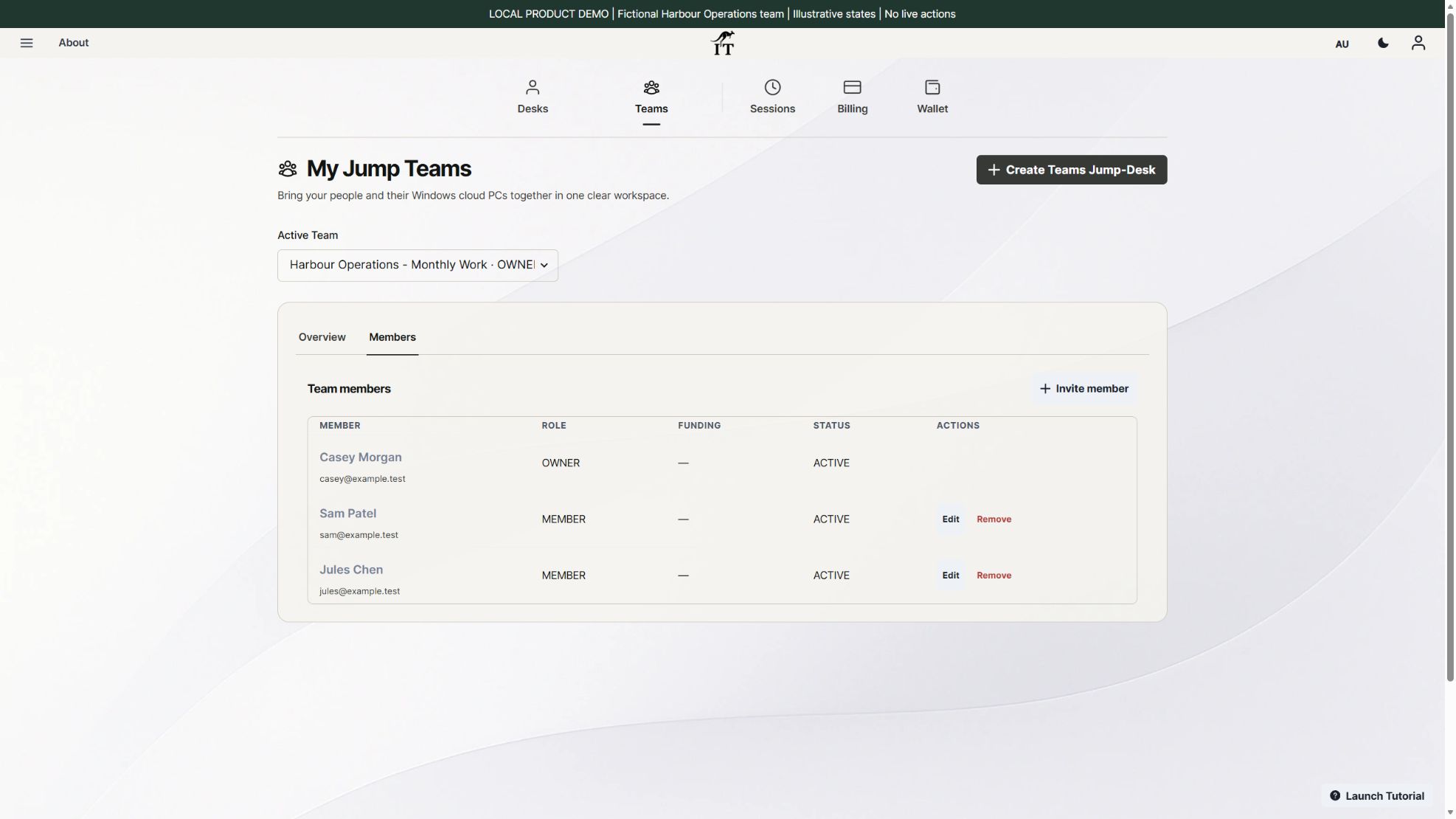
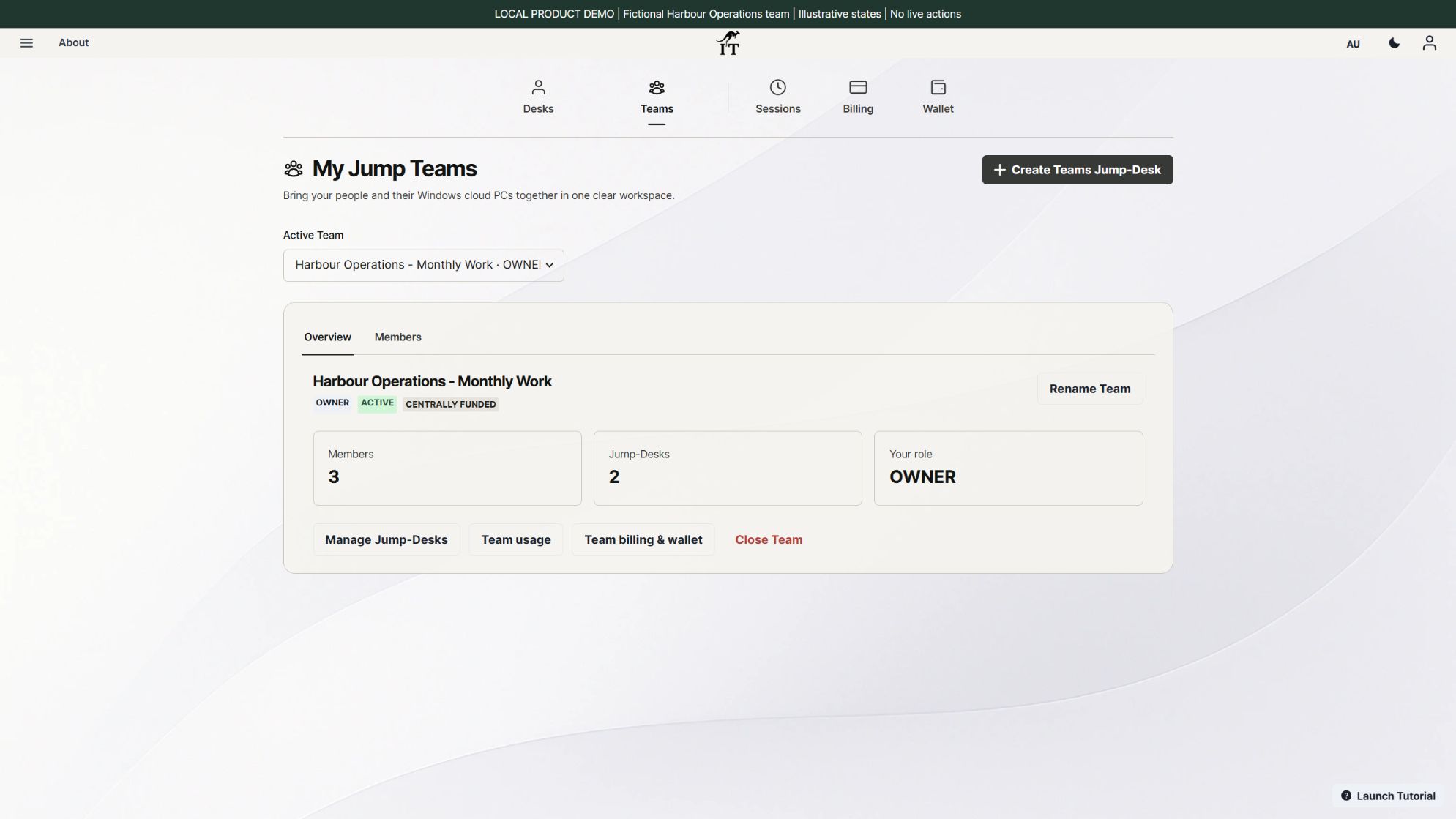
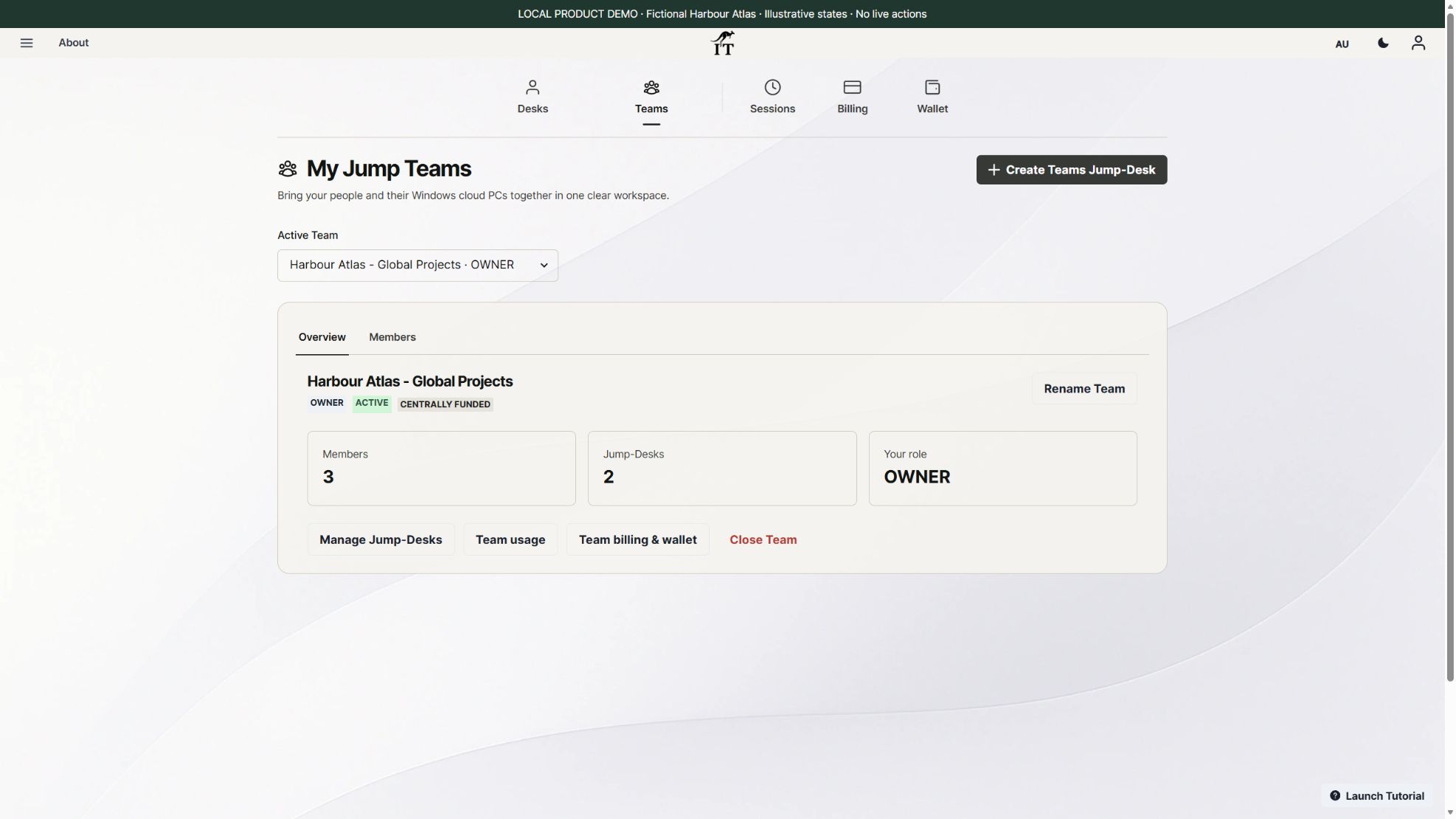
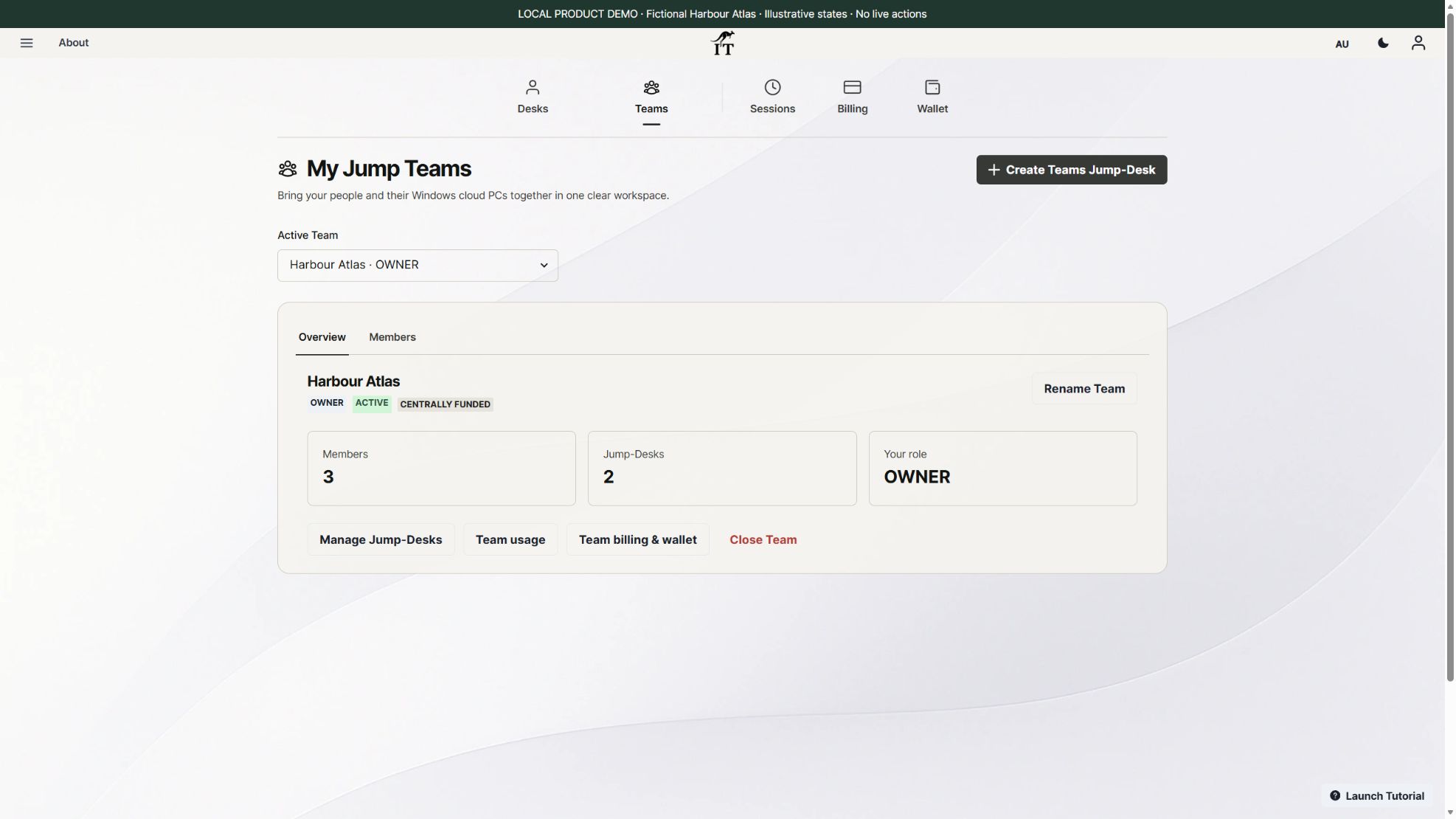
Visual context: The Jump-Teams overview shows fictional Harbour Atlas, its members and its desktops. This is an illustrative Team arrangement, not a real customer account.
Treat hands-on reports as a shortlist. Reviewers liked touch and the display. Test your own apps, input and sustained workload.
On-screen note: Tom’s Guide + HardwareZone · Full sources in guide
Visual context: The product dashboard shows the fictional project costing and monthly reporting desktops. The image illustrates where work would be organised; no costing application or report runs in this frame.
One lead. Two different jobs. Harbour Atlas plans costing for Alex and reporting for Sam. The lead develops a local AI prototype.
On-screen note: Fictional project; applications were not executed
Visual context: The product dashboard shows the fictional project costing and monthly reporting desktops. The image illustrates where work would be organised; no costing application or report runs in this frame.
Organise the team in one place. The browser manages people and desks. Each colleague still needs a supported client and a connection.
Visual context: The Jump-Teams overview shows fictional Harbour Atlas, its members and its desktops. This is an illustrative Team arrangement, not a real customer account.
Choose access for the job. Team management, Windows privileges and application permissions are separate decisions.
On-screen note: One active Windows user per desktop
Visual context: The Windows access panel shows fictional people and separate privilege choices. No live access grant is made.
Check the whole connection. Test sign-in, keyboard, pointer, scaling and the required export from the colleague’s location.
On-screen note: Use a supported remote-desktop client; not generic browser RDP
Visual context: The product dashboard shows the fictional project costing and monthly reporting desktops. The image illustrates where work would be organised; no costing application or report runs in this frame.
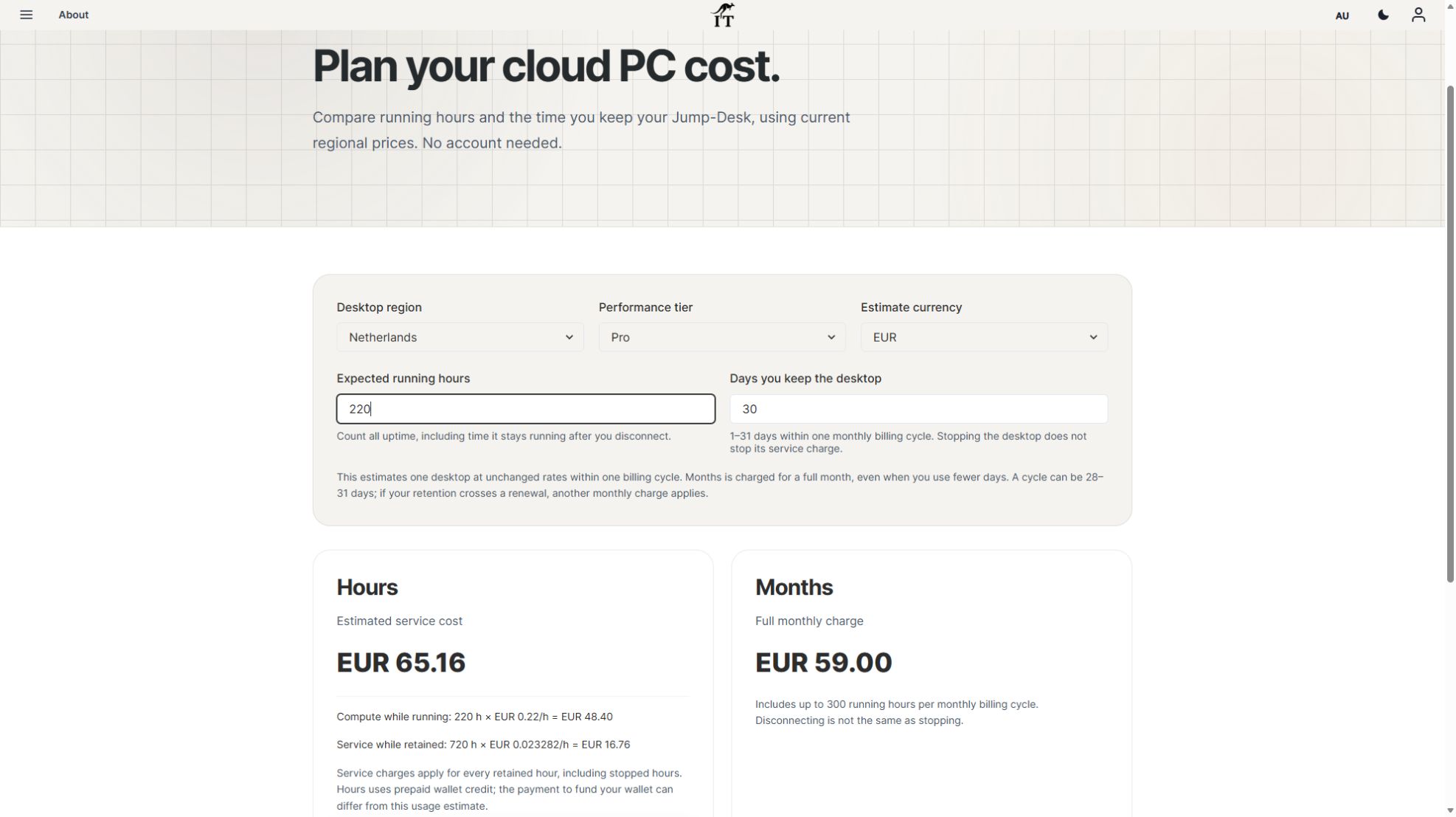
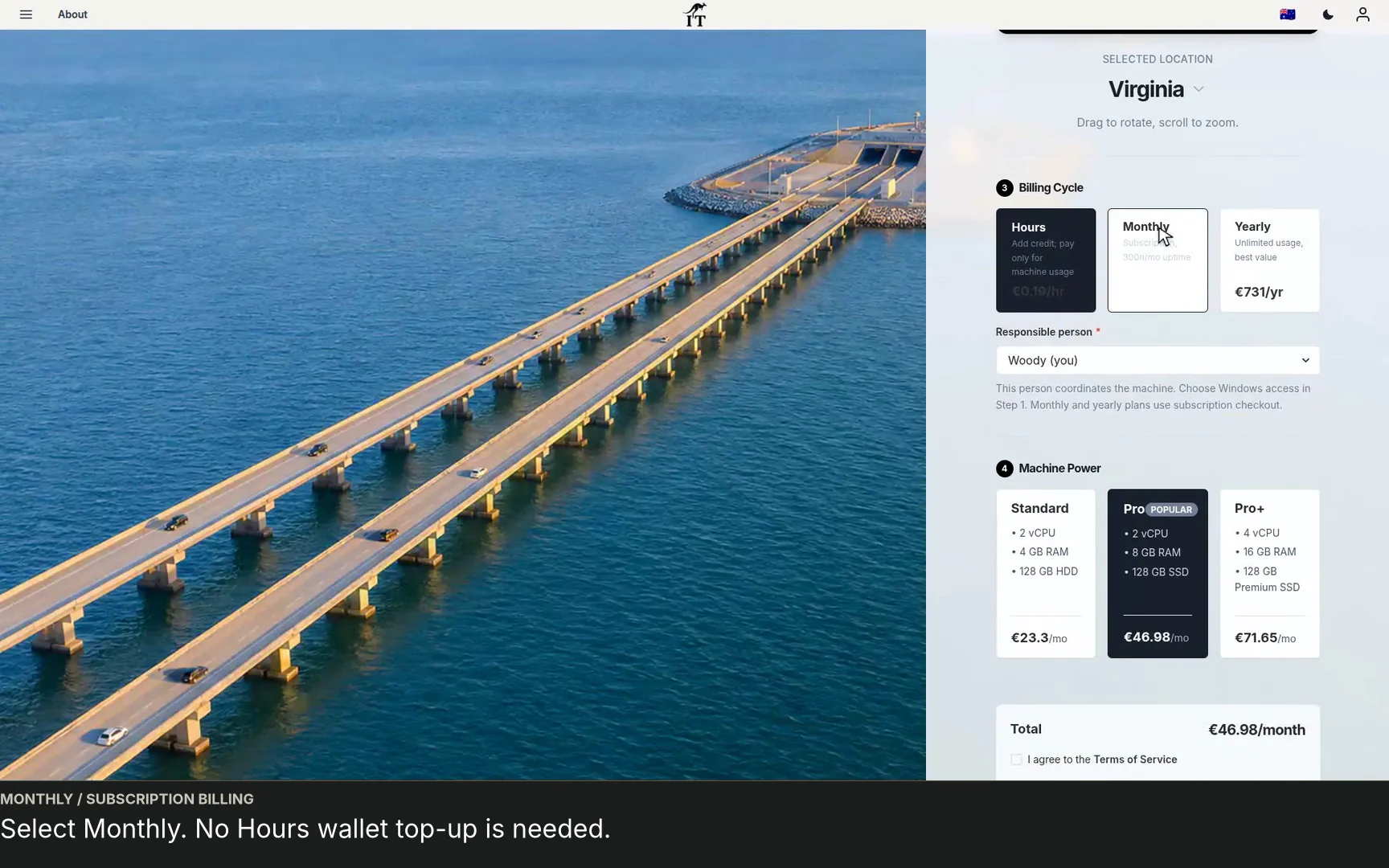
Budget each desktop, completely. Netherlands Pro Months: €59 each. Two desks: €118 per cycle, up to 300 uptime hours each.
On-screen note: 31 Oct prices · Taxes, licences and optional extras excluded
Visual context: A close-up of the Team Months setup price panel provides the dated Netherlands Pro example. It is a demonstration, not a completed purchase.
Start with one named Windows role. Configure a Team Months desktop. Prove the required app and result before expanding.
On-screen note: Guide and setup links in the description
Visual context: The Jump-Teams overview shows fictional Harbour Atlas, its members and its desktops. This is an illustrative Team arrangement, not a real customer account.
The video and its cost examples were prepared on 31 October 2026. Read the complete cost assumptions and check the current calculator before committing. Months is a full monthly price with up to 300 uptime hours per desktop. Hours includes running compute plus service throughout the time the desktop is retained, including while stopped. Taxes, application licences and optional extras are separate.
This is an edited screenshot walkthrough, not a physical-device test or a continuous screen recording. Applications, licences, shared storage and backup need to be configured by the organisation. One active Windows user per desktop; Team management, Windows privileges, application permissions and billing remain separate.
Use the existing first-member onboarding guide, Team connection guide and handover checklist for the detailed steps. A global rollout still needs local network tests and the organisation’s review of data location and contractual requirements. This guide does not certify enterprise compliance, automatic regional failover or a service-level guarantee.
Current example checked 31 October 2026: Netherlands Pro in EUR. For 160 running hours while retained for 30 days, Hours estimates EUR 35.20 running compute plus EUR 16.76 retained service: EUR 51.96. Months costs EUR 59 for a full monthly cycle with up to 300 uptime hours per desktop. Two equivalent Months desktops would be EUR 118 before applicable taxes, discounts and extras; application and AI licences are additional.
At these rates and 720 retained hours, Hours and Months meet at approximately 192 running hours. That is an illustration for this configuration, not a universal threshold. Months can provide a predictable recurring charge, while lower use may cost less on Hours. Its 300-hour allowance is per desktop and is not 24/7 uptime. A new billing cycle can add another full charge; disconnecting is not the same as stopping.
Hours service charges continue while the desktop is retained, including stopped time. Wallet funding is different from service consumption. Price and capacity are confirmed during setup. Use the current cost calculator and the team budget guide; do not mix the laptop purchase price with a claim of guaranteed cloud savings.
No. The premium laptop should earn its place through the owner’s local work. Colleagues can use suitable supported devices to access their separate Windows desktops. Test each real device and connection before rollout.
No. Plan around one active Windows user per desktop. For simultaneous work, give people suitable separate desktops and an approved way to share project files.
No. Remote Windows needs a suitable connection. Keep an appropriate local workflow if offline Windows is essential.
No. Input, display and peripheral behaviour depend on the client and configuration. Test your applications; do not assume local Mac touch or pen features transfer unchanged.
No. Microsoft distinguishes its supported remote-PC clients from browser access to services such as Windows 365. Follow Jump-IT’s documented connection method; this guide does not promise a browser-only Windows desktop.
No. Choose, install, configure and license them separately. The illustrations show product configuration and organisation, not an executed model or completed business task.
Before outfitting a global team, choose one Windows task and the person who will verify it. Check the software, regional connection and complete cost, then use the same acceptance record to decide whether to expand.
Hardware facts come from the manufacturer pages below; review opinions are attributed to their original reviewers. Checked 31 October 2026. Jump-IT has not physically tested these laptops, reproduced their benchmarks or run the illustrated Windows applications. Product screenshots are fresh captures of the actual Jump-IT interface in a local demonstration using fictional data. They are not customer results.
Jump-IT publishes this guide to explain its Windows cloud computer service. It is not endorsed by Apple, Microsoft, NVIDIA or the reviewers. No hardware affiliate purchase links are used.
TEAMS GUIDES
BUSINESS GUIDE
Evaluate DaaS for a small team: Windows applications, Jump-Teams access, monthly desktop budgets, practical checks and when another setup fits better.
Read the guide →BUSINESS GUIDE
Budget three or five monthly Windows cloud PCs. Compare Months with running and retained Hours costs, software licences, access and renewal checks.
Read the guide →BUSINESS GUIDE
Plan a contractor’s Windows workspace from setup to handover: Team roles, Windows privileges, project files, application access and monthly cost review.
Read the guide →PRODUCT VIDEO
Watch the Jump-Teams demo: create a Team, invite a colleague, connect to Windows and add a second regional cloud PC with separate access permissions.
Watch the walkthrough →PRODUCT VIDEO
Watch a first-member onboarding demo: create a Jump-Team, choose permissions, send an invitation and hand over a Windows cloud PC with individual access.
Watch the walkthrough →PRODUCT VIDEO
Watch a Team member accept an invitation, find their Jump-Desk, review connection settings and open Windows with their own account and connection file.
Watch the walkthrough →PRODUCT VIDEO
See a regional Windows cloud PC added to Jump-Teams: choose Virginia, a monthly plan and separate Windows privileges for a colleague and deputy.
Watch the walkthrough →STARTUP GUIDE
Built by a startup, for startups. Give your team Windows cloud PCs on supported devices you already own, with invitations, access controls and flexible funding.
Read the guide →