BUSINESS GUIDE
Desktop as a Service for Small Business: A Practical Team Guide
Evaluate DaaS for a small team: Windows applications, Jump-Teams access, monthly desktop budgets, practical checks and when another setup fits better.
Read the guide →

AI AT WORK · WINDOWS WORKSPACES
AI can help plan, write and execute work. The result still needs the right applications, a working environment and someone accountable for checking it. Keep your preferred device and give Windows projects a place to run with Jump-Desk and Jump-Teams.
Reviewed 27 October 2026 · Jump-IT Team · Launch sources and independent evaluations
OpenAI released GPT-6.1 Terra on 26 October 2026. Its emphasis is fast professional work, visual understanding and computer use. The API model is gpt-6.1-terra. OpenAI’s availability notes place it in ChatGPT Work and Codex for eligible paid plans, including Business; this is not a blanket replacement of the model in ordinary Chat.
The practical question is what happens after the model produces an answer. An AI agent may already execute commands or use applications when it has suitable tools and permission. A Windows build, desktop application or manual acceptance test still needs an appropriate Windows environment. Other tasks may run perfectly well in a browser, Linux or macOS. Choose the environment for the work, rather than buying Windows simply because you use AI.
These are reported results from their named evaluators, checked on 27 October. They use different tasks, tools, reasoning settings and scoring methods. They are not one combined leaderboard or a test conducted by Jump-IT.
| Source and scope | Reported result | What to take into your own trial |
|---|---|---|
| OpenAI launch evaluation | On Terminal-Bench 4.0 at maximum reasoning, Terra solved 50.3% of tasks, versus the published 21.5% for GPT-5.6 Terra. | A substantial improvement on that benchmark; OpenAI still recommends Sol or Astra for its most complex coding work. |
| Plotly DataAnalyticsBench, updated 26 October | 40 of 43 questions correct; $1.31 for the run; median 15 seconds per question in Plotly’s harness. | A promising speed/cost result for that warehouse-analysis exam. It does not certify your data, connectors or reporting process. |
| DualEntry’s accounting evaluation | 78.2% accuracy across its 101 synthetic accounting cases, with 65.3% correct on all three runs. | Repeatability still matters. A fast plausible answer needs a task-specific check, especially before it changes a business record. |
Plotly and DualEntry publish evaluations connected to their own products. Their tests are useful outside evidence, not neutral guarantees for every workload. Benchmark run costs exclude your labour, cloud PC, application licences and any separate ChatGPT subscription.
OpenAI lists standard API pricing of $1 per million input tokens, $0.05 per million cached input tokens and $5 per million output tokens. Those are API charges, not Jump-Desk prices or a ChatGPT subscription quote. Check the current model documentation before designing a budget or integration.
A useful AI workflow has a named owner. That person defines the problem, chooses what the agent may do, provides approved inputs and decides whether the result is ready to use. AI can assist with all of those steps, but a generated plan is not evidence that a real application builds, that a report reconciles or that the intended colleague can complete the job.
The operating system is the working layer underneath the tools: files, processes, installed applications and the interfaces used to run and inspect them. Its graphical desktop is one useful interface; command lines and APIs are others. Your access device does not have to run the same operating system as the project. A supported Mac or iPad can connect to a Windows Jump-Desk while keeping its own local applications.
Jump-IT supplies access to the Windows cloud computer. You choose, install, configure and license the editor, SDK, business software and AI tools you need. No OpenAI subscription, model entitlement, automatic agent integration or completed application is implied. For broader environment choices, see the ChatGPT Work and team-sandbox guide.
Imagine fictional Banksia Software building a Windows desktop client for a field-service team. The client should let a coordinator review scheduled site visits, validate required notes and export an approved visit summary. Priya develops from a Mac; Alex reviews the Windows behaviour from an iPad with a keyboard and pointer. They need a repeatable Windows build and a clear acceptance record, not just a convincing chat response.
They could use GPT-6.1 Terra, another model or their existing development tools to refine requirements, draft code and explain failures. Their Windows workspace would hold the approved repository, a chosen editor, Git and the required .NET SDK or other runtime. Exact versions, licences, dependencies and the suitability of the machine must be checked against the real project.
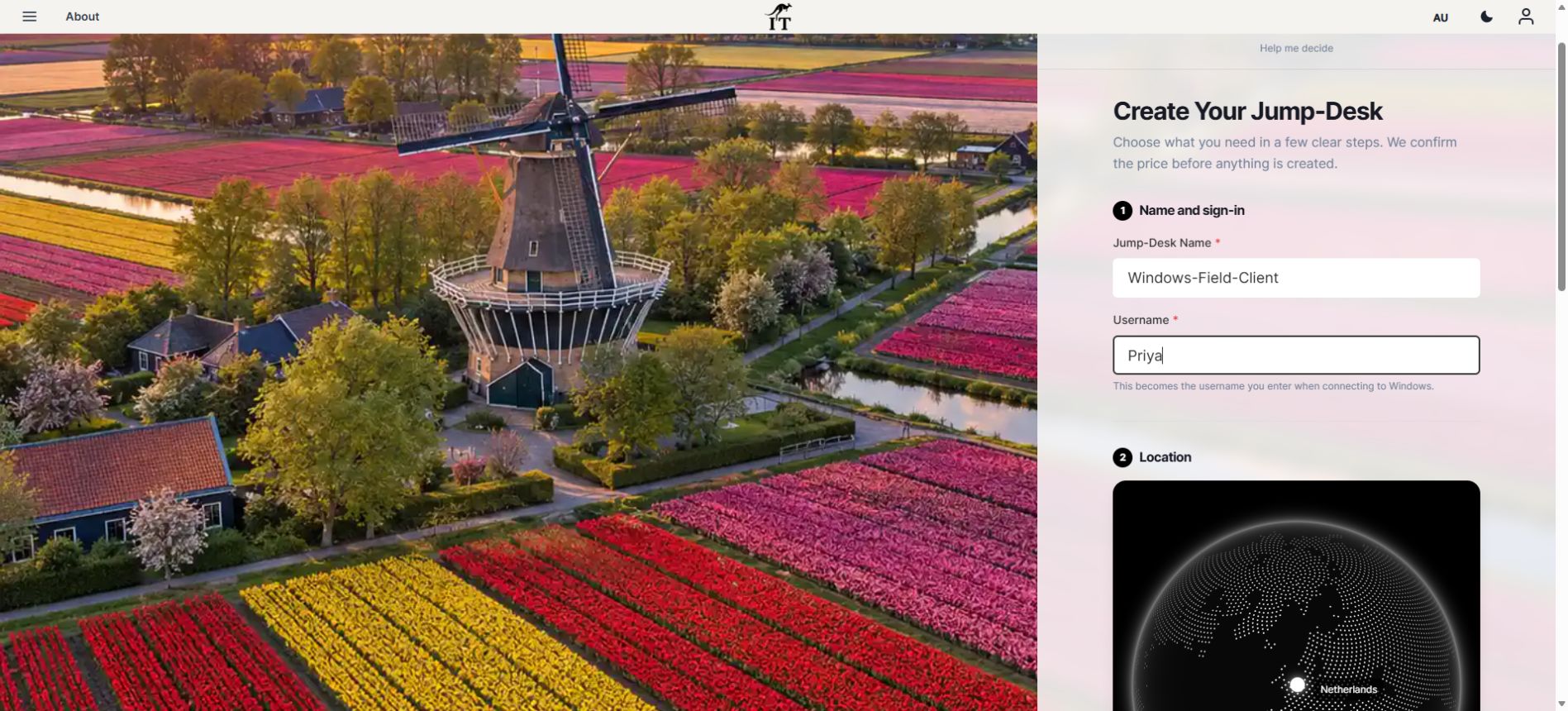
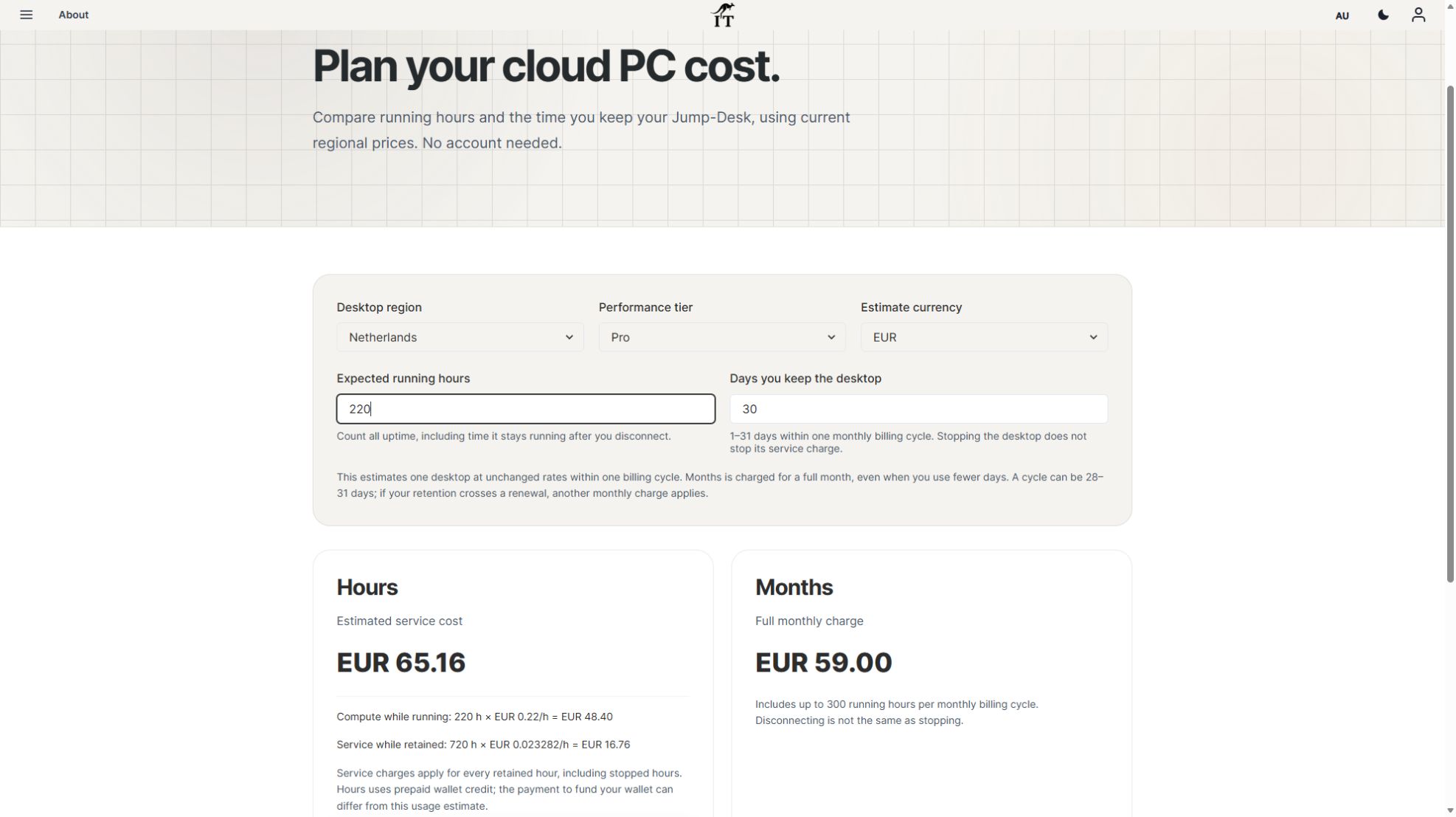
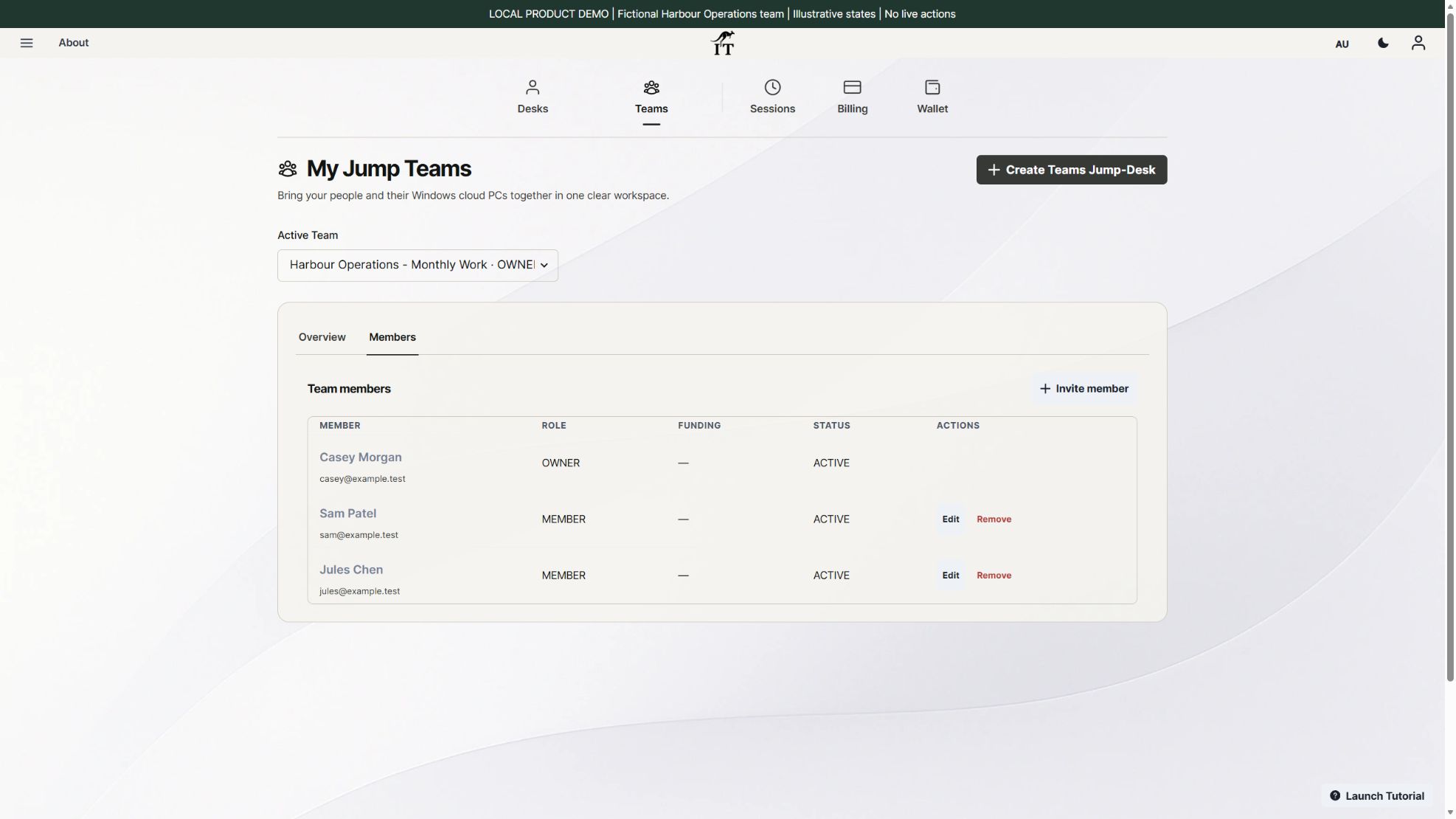
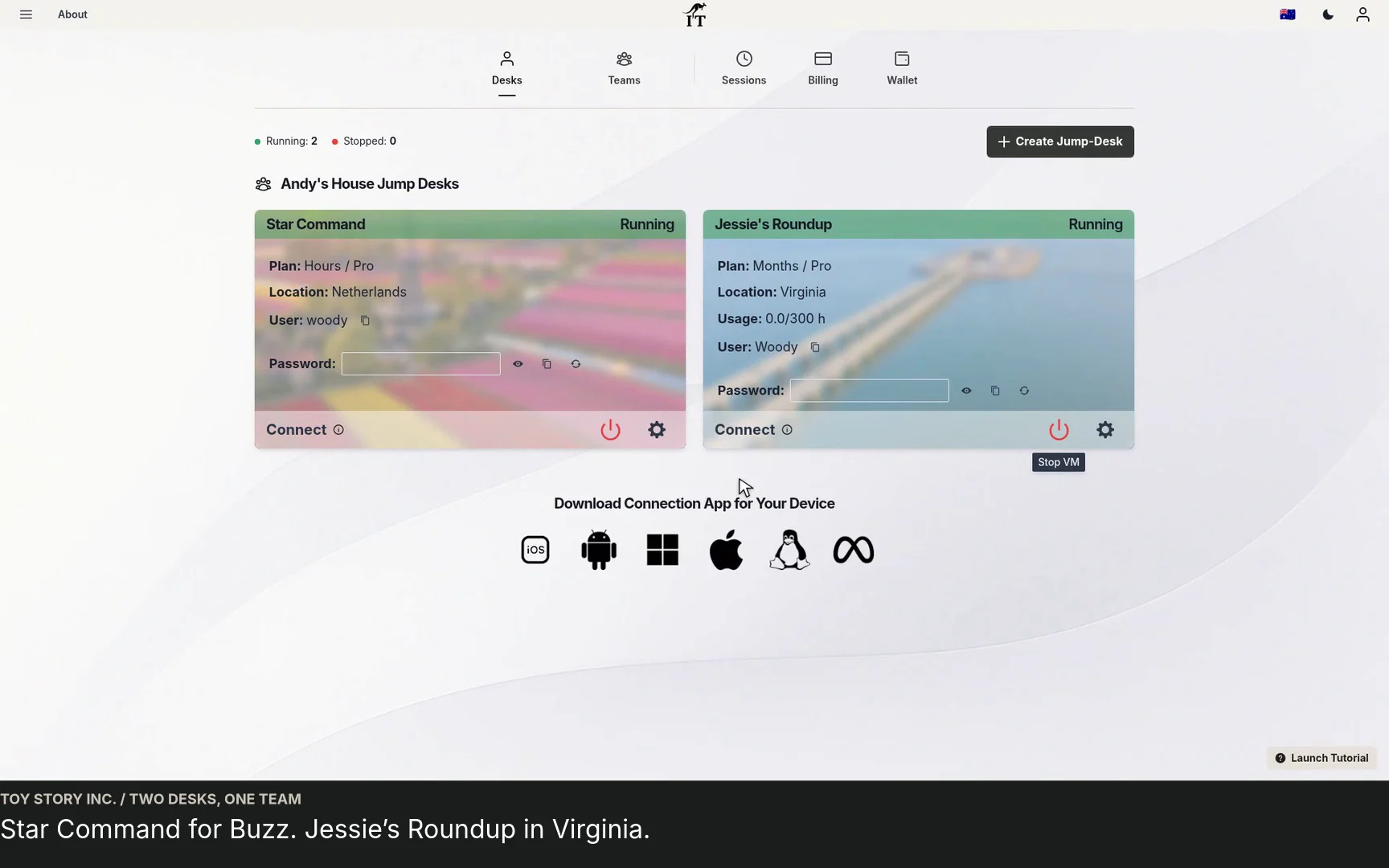
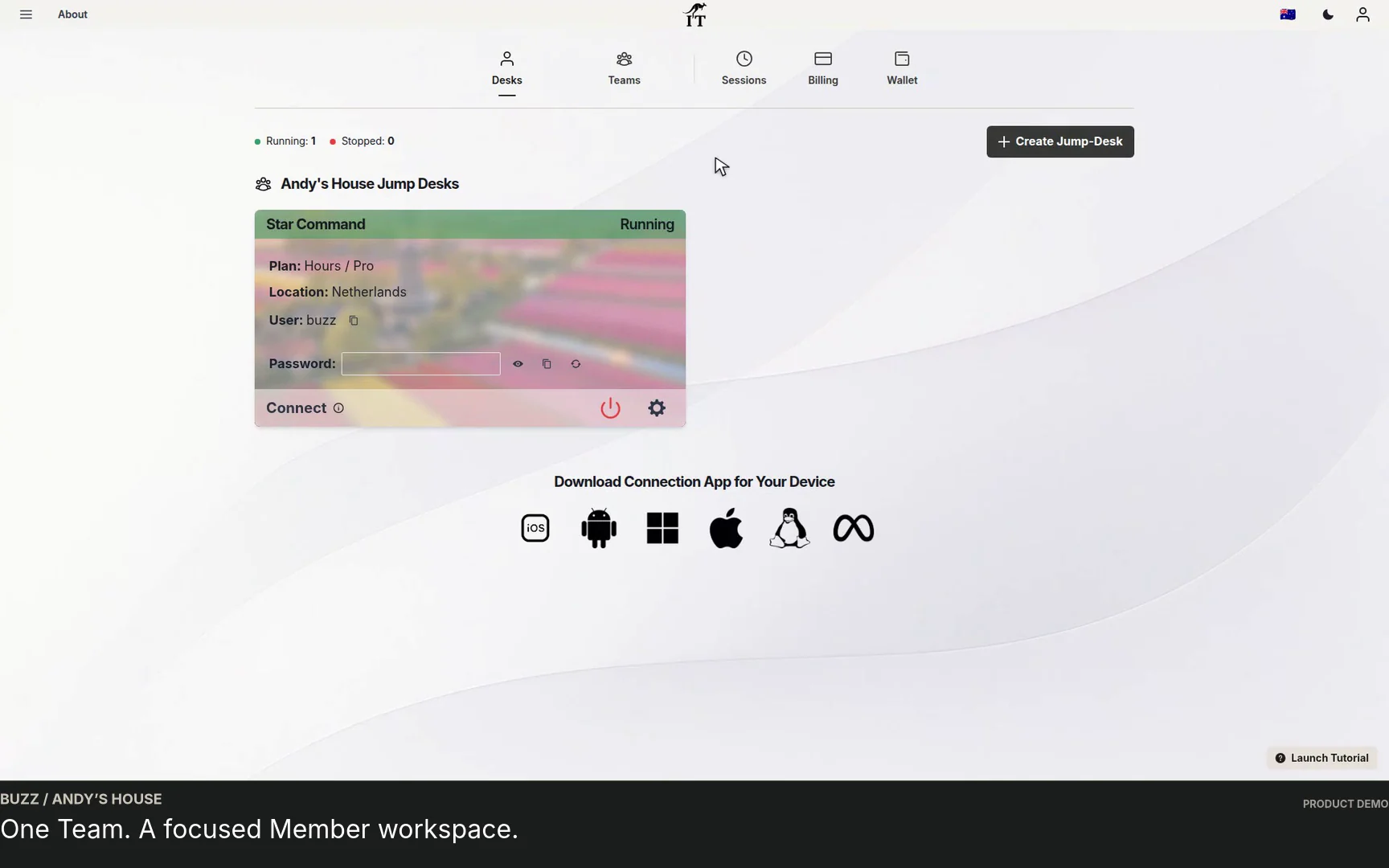
This fresh image shows actual Jump-IT configuration controls with fictional data. It does not show a purchased desktop, an installed SDK, an executed AI agent or a completed field-service application.
The one-app guide and blank acceptance worksheet can hold the evidence. The Windows development guide covers the broader workspace decision. This is a proposed workflow, not a claim that this application has been built or tested on Jump-Desk.
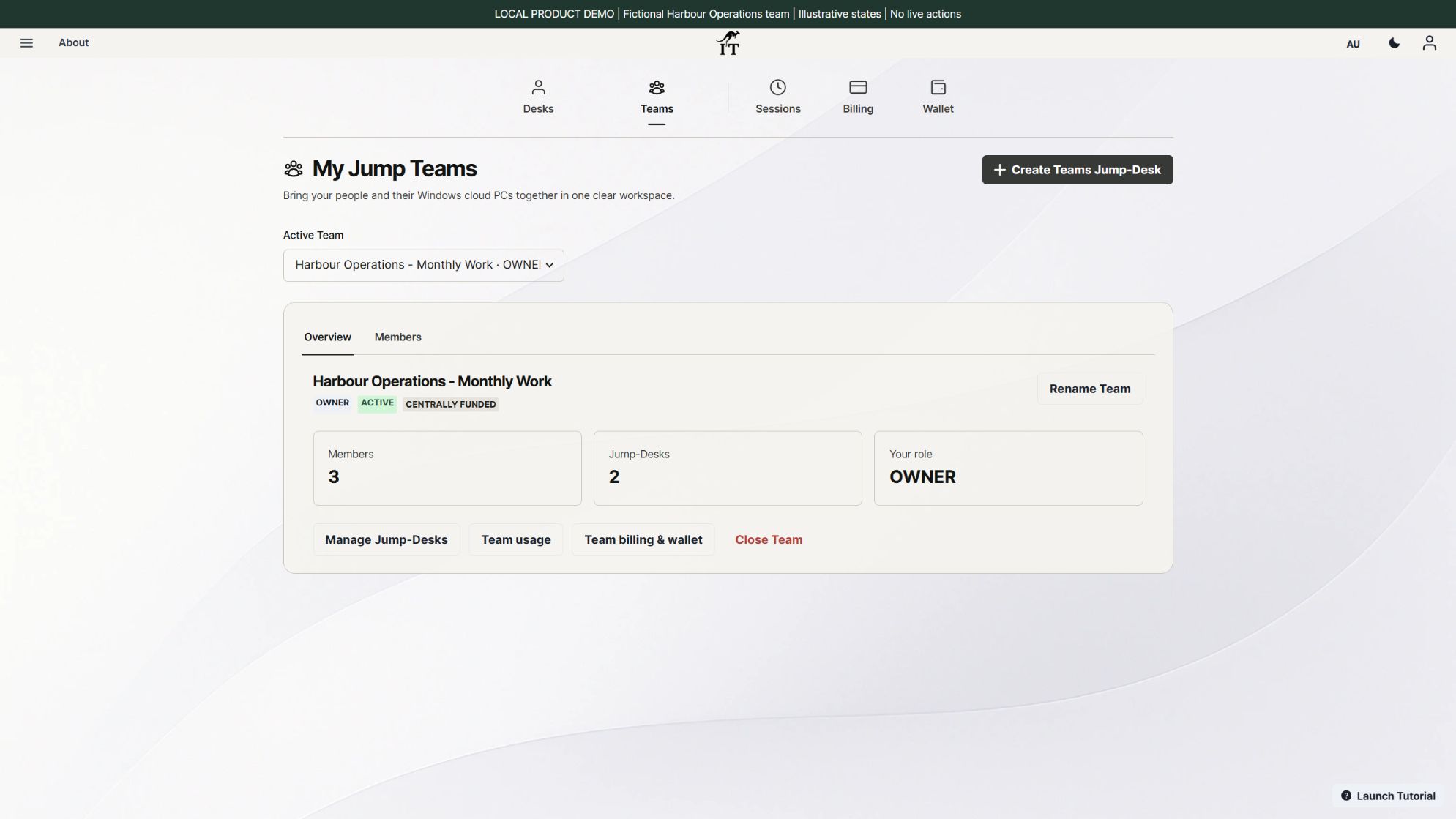
Jump-Teams organises people and Windows desktops. Give the developer, reviewer and project owner their own identities and a clear responsibility. Team management roles, Windows Standard or Administrator privileges, permissions inside the application and billing responsibility are separate decisions.
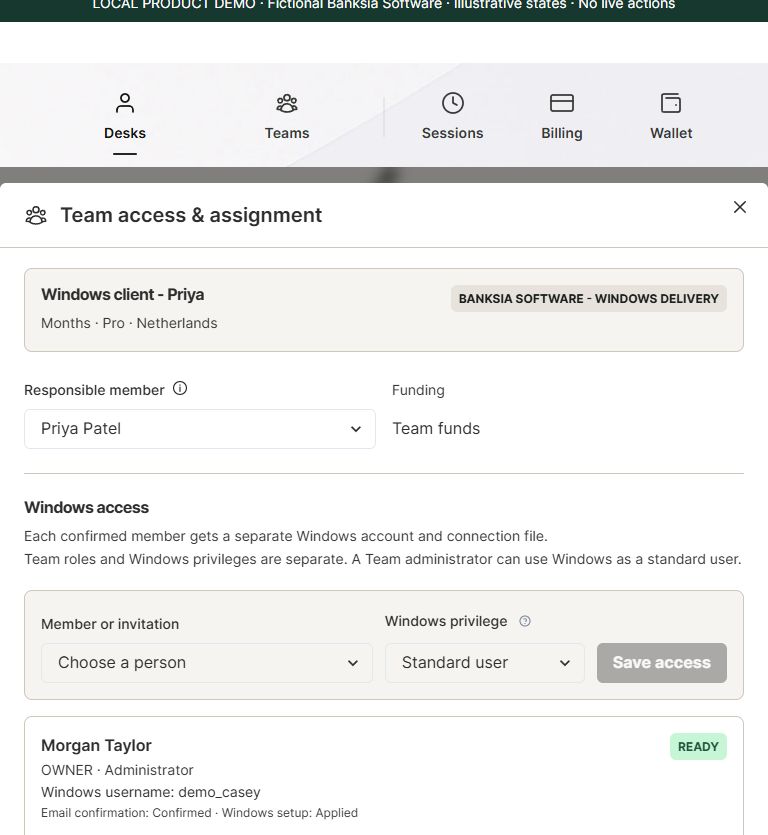
Use Administrator only where installation or configuration requires it; choose the least Windows access appropriate to the person’s work. An invitation or Team role does not automatically grant repository, AI-provider or application access. Each Jump-Desk supports one active Windows user at a time, so concurrent work normally requires separate desktops.
Follow the Jump-Teams setup guide, contractor handover checklist and monthly team-budget guide. Keep a named owner for retained desktops and for removing access when the work ends.
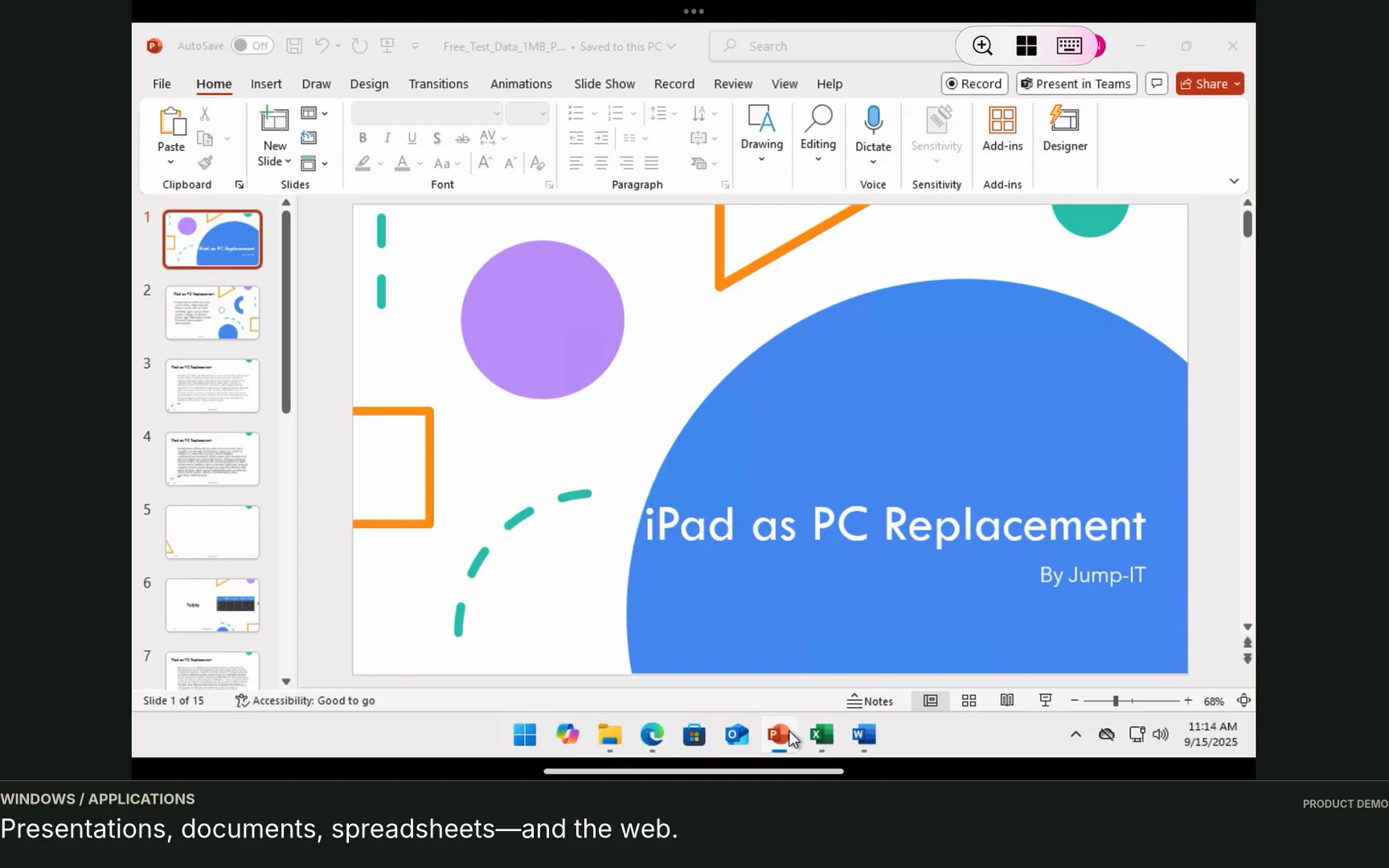
The Windows applications run remotely, while your supported device handles the connection. Browser-based Jump-IT management is separate from the remote Windows session. Microsoft’s Windows App documentation supports remote-PC connections on macOS, iOS/iPadOS and Android/Chrome OS; its web client does not provide arbitrary remote-PC connections.
Keep the access device supported and healthy. Never continue using cracked glass; use another healthy supported device while arranging repair. A cloud desktop does not repair a phone, remove local security risks or make an unreliable network dependable.
Current calculator example checked on 27 October 2026: one Netherlands Pro desktop in EUR, eight running hours retained for seven days. Hours costs EUR 1.76 in running compute plus EUR 3.91 in retained service, totalling EUR 5.67. Retained-service charges continue while the desktop exists, including when stopped.
For the same configuration, Months is EUR 59 for a full monthly cycle with up to 300 uptime hours. It is not a prorated eight-hour price. An occasional test may suit Hours; a proven recurring working pattern may suit Months. Compare the complete expected cost before choosing, including any renewal.
Examples exclude applicable tax, discounts, application or AI licences and optional extras. Capacity and prices can change. Wallet funding is separate from estimated service consumption. Check the current calculator and Months guide. Disconnecting the remote client does not stop the desktop; verify its actual state after saving your work.
No. Many AI tasks can run in ChatGPT, a browser, macOS, Linux or another environment. Choose a Windows workspace when your application, build, test or working process needs Windows.
Some AI products can use computers or execute code when correctly connected and permitted. Jump-IT does not claim an automatic integration with every model or agent. Check the chosen tool’s supported environment, account access and controls, then test it with approved sample work.
No. Jump-Desk supplies the Windows cloud computer. You choose, install, configure and license your applications and AI tools separately.
No. The product images show a fictional configuration demonstration. The article supplies an execution and acceptance plan; a real build, remote-device test and application result still need to be completed for your project.
Start with one useful task, a clear acceptance check and a suitable desktop. Create an account, review the available region and full price, and keep the person who will verify the result involved from the start.
Jump-IT is not affiliated with or endorsed by OpenAI, Microsoft, Apple or Samsung. Product names belong to their respective owners.
For a current hardware comparison, see the touchscreen MacBook Pro guide and Surface Laptop Ultra guide. They distinguish a compatible local model/runtime from separate Windows build and reporting desktops. Tool permissions and human acceptance checks still apply; neither article claims to have reproduced AI benchmarks or executed the illustrated project.
Related device guidance added 31 October 2026.
TEAMS GUIDES
BUSINESS GUIDE
Evaluate DaaS for a small team: Windows applications, Jump-Teams access, monthly desktop budgets, practical checks and when another setup fits better.
Read the guide →BUSINESS GUIDE
Budget three or five monthly Windows cloud PCs. Compare Months with running and retained Hours costs, software licences, access and renewal checks.
Read the guide →BUSINESS GUIDE
Plan a contractor’s Windows workspace from setup to handover: Team roles, Windows privileges, project files, application access and monthly cost review.
Read the guide →PRODUCT VIDEO
Watch the Jump-Teams demo: create a Team, invite a colleague, connect to Windows and add a second regional cloud PC with separate access permissions.
Watch the walkthrough →PRODUCT VIDEO
Watch a first-member onboarding demo: create a Jump-Team, choose permissions, send an invitation and hand over a Windows cloud PC with individual access.
Watch the walkthrough →PRODUCT VIDEO
Watch a Team member accept an invitation, find their Jump-Desk, review connection settings and open Windows with their own account and connection file.
Watch the walkthrough →PRODUCT VIDEO
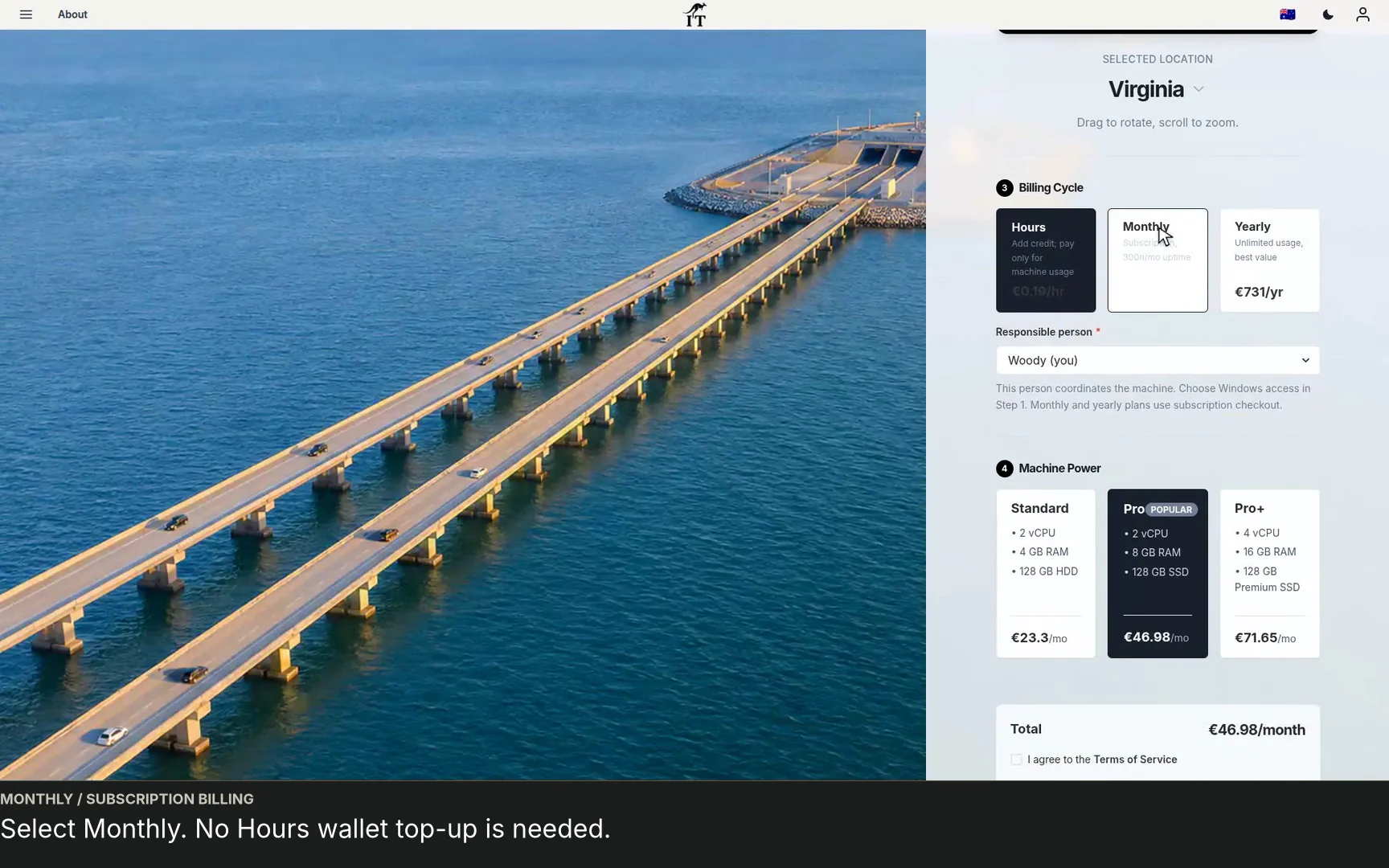
See a regional Windows cloud PC added to Jump-Teams: choose Virginia, a monthly plan and separate Windows privileges for a colleague and deputy.
Watch the walkthrough →STARTUP GUIDE
Built by a startup, for startups. Give your team Windows cloud PCs on supported devices you already own, with invitations, access controls and flexible funding.
Read the guide →