Choose the person
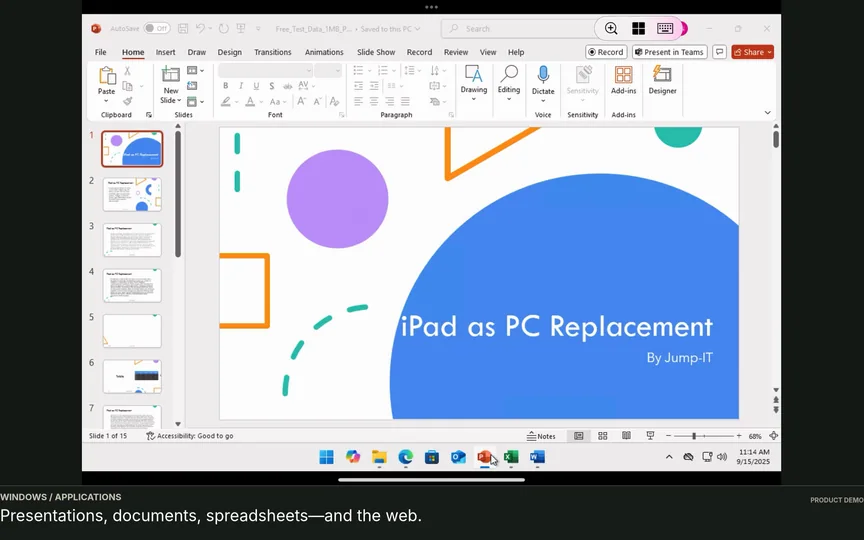
Identify the working location, device and Windows application.


BUSINESS USE CASE · REGIONAL WORKSPACES
Edited product recording with music and on-screen guidance. Fictional people, team and demonstration data. The running time is not a setup-time promise.
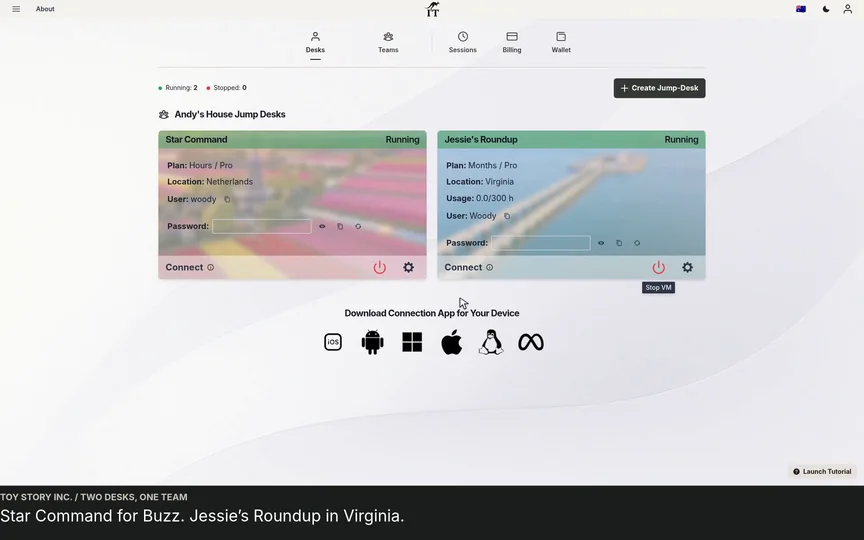
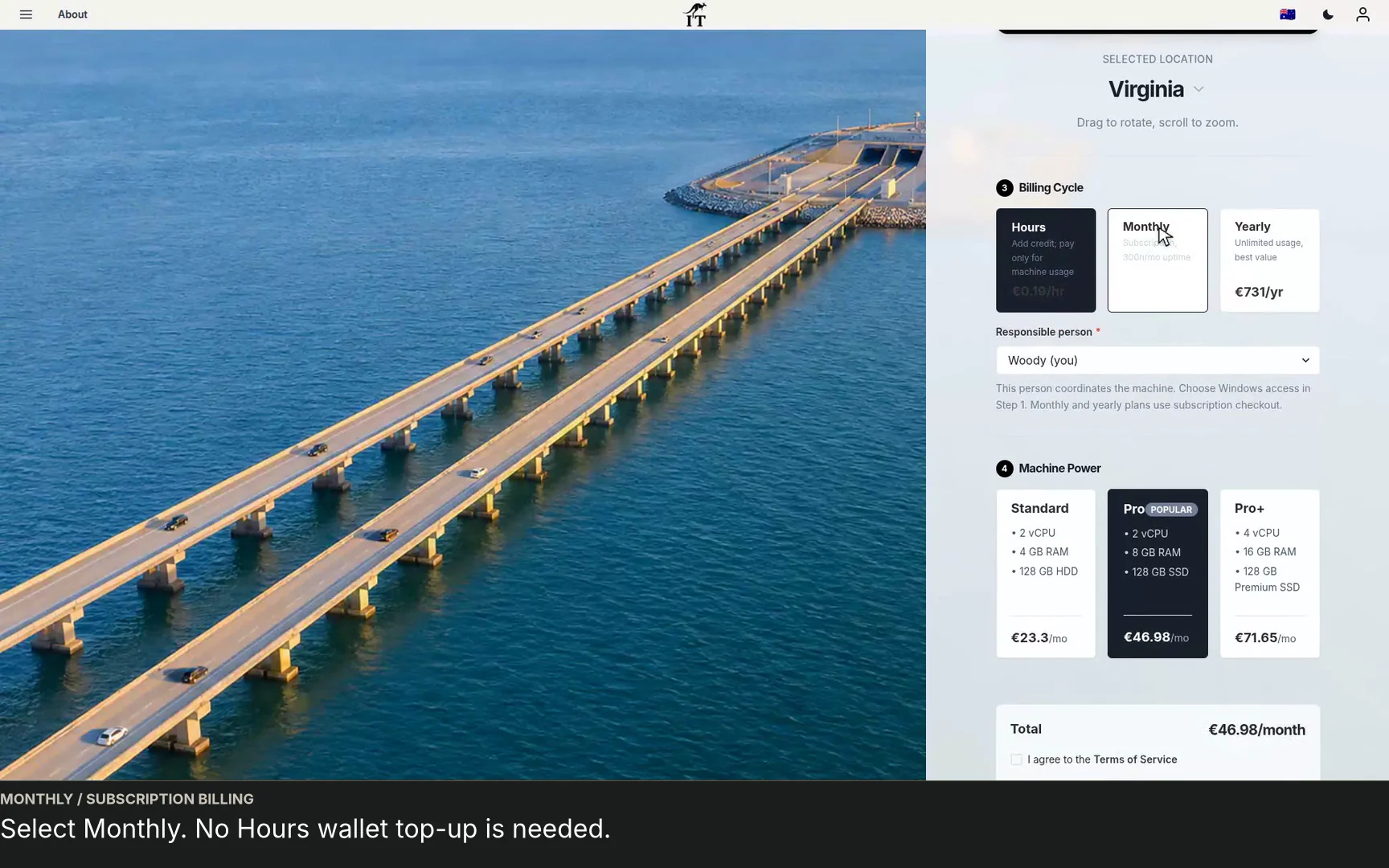
Open videoA second colleague needs a workspace closer to her normal location. Watch the owner add a Team Jump-Desk in Virginia, choose a subscription and set separate Windows privileges for Jessie and her deputy, Buzz.
THE PRACTICAL ANSWER
A distributed Team can use separate Jump-Desks in available regions, with an appropriate plan and capacity for each role. This demo adds a Virginia desktop for Jessie, keeps Buzz’s Windows access at Standard and records Jessie as the responsible member. Region, Team role and Windows privilege are separate decisions.
Test from the person’s normal working location.
Give simultaneous workers their own Windows session.
Configure individual access for an occasional handover.
WATCH OR READ
Use these notes to follow the video at your own pace.
Start a second workspace inside the existing Team.
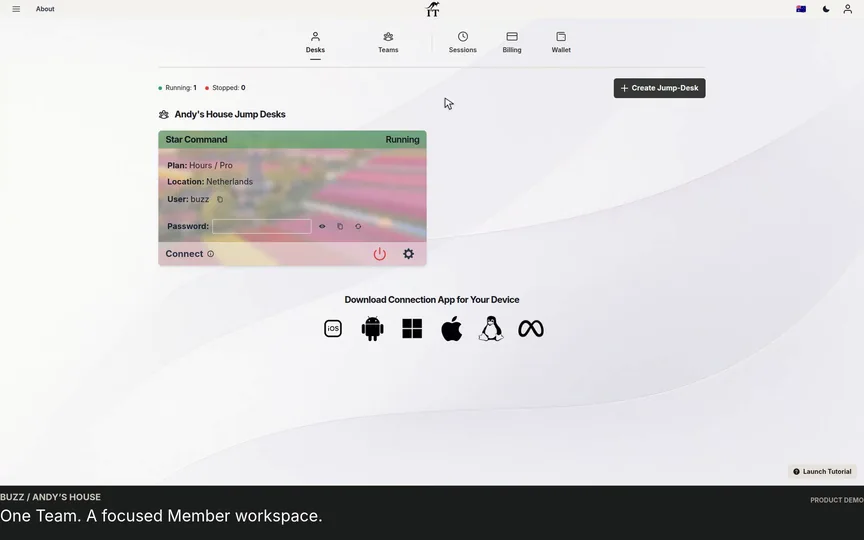
Buzz is included as a Standard Windows user.
Jessie is invited as a Team Admin, with Windows Administrator access configured separately.
Select the desktop’s region for the intended working location.
The example uses Months and the Pro tier, followed by checkout.
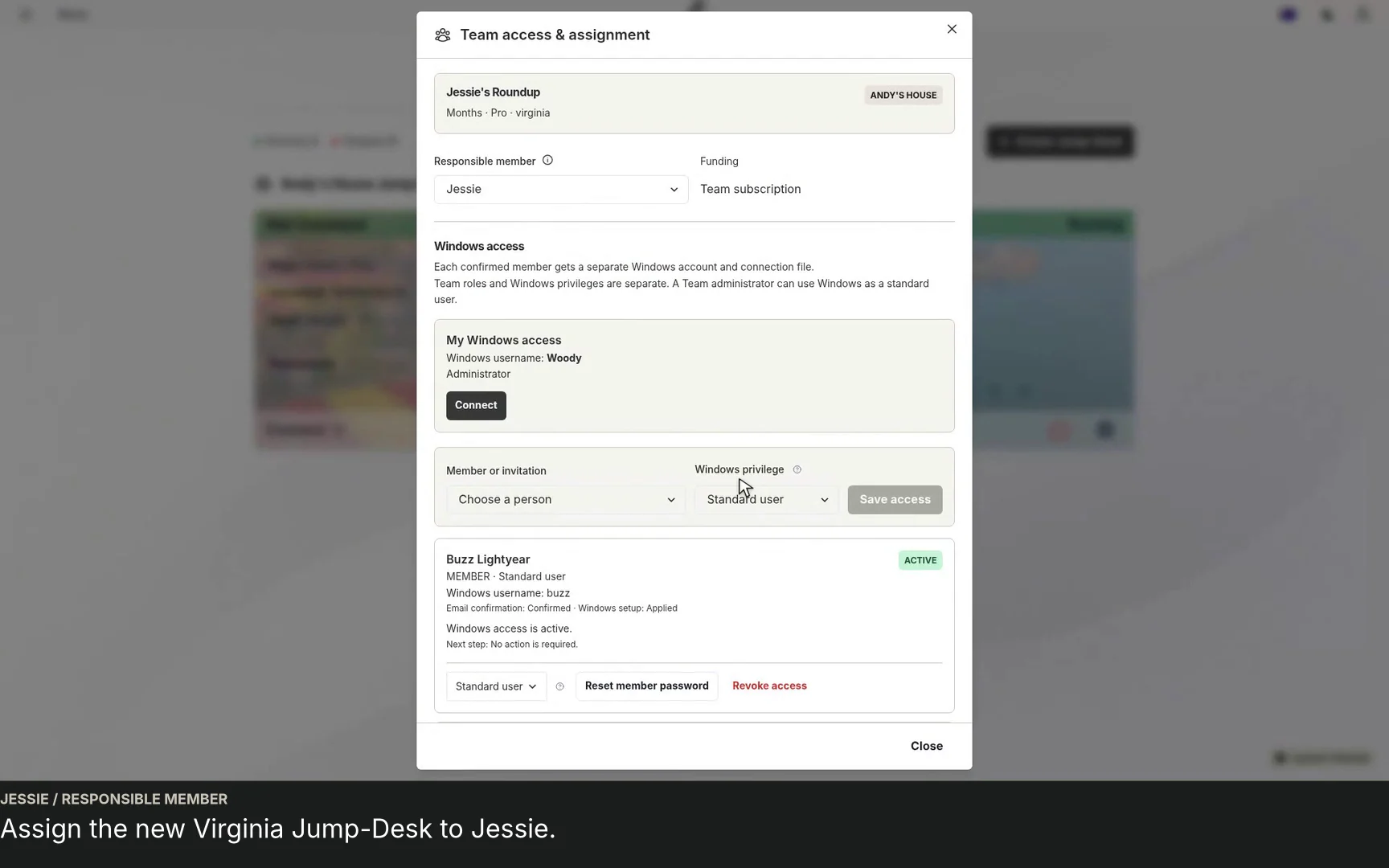
Review the Team after acceptance and assign the new desktop to Jessie.
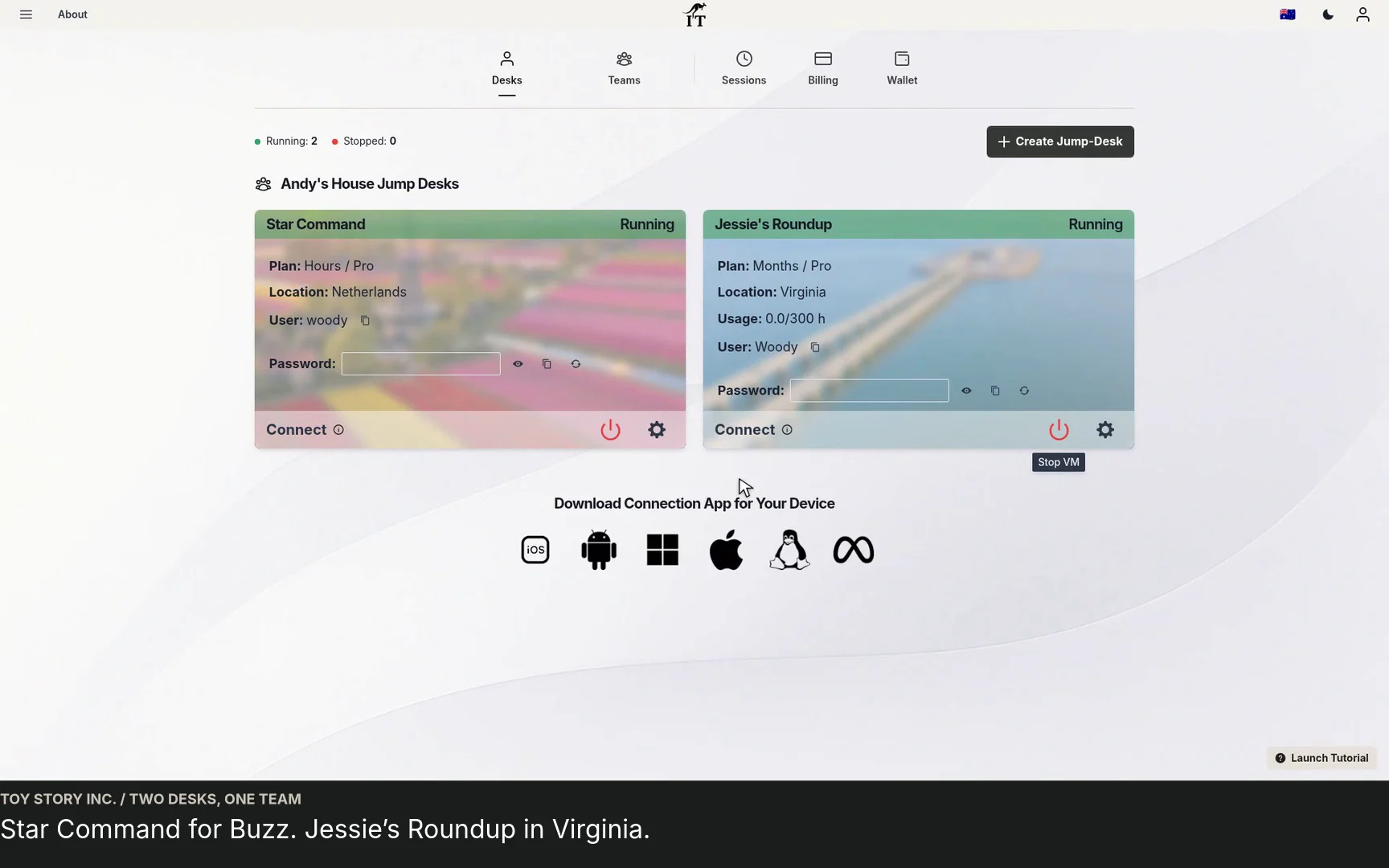
Star Command and Jessie’s Roundup are shown together.
A SMALL BUSINESS THAT WORKS ACROSS LOCATIONS
A consultancy, agency or small business may have colleagues in different locations who need Windows applications. One desktop region does not have to be the right choice for every person. In the demonstration, Jessie gets a new workspace in Virginia while the existing desktop stays in the Team.
Use region selection as a starting point for testing. Responsiveness depends on network conditions as well as distance. Try the intended application from the colleague’s normal location, using the device and connection they will rely on. Region availability and desktop capacity are shown in the current product.
Choosing a desktop region is not, by itself, a guarantee about every data flow in your business or the behaviour of third-party applications. Review your organisation’s requirements and the current Jump-IT security information when planning the workspace.
A DEPUTY WITHOUT UNNECESSARY PRIVILEGES
The video includes Buzz as a Standard Windows user on the new machine. Jessie is invited as a Team Admin and receives Windows Administrator access separately. That distinction gives the owner a practical way to discuss responsibilities before granting access.
A Standard Windows account may be appropriate for a colleague who needs to open an application or continue an agreed task. Administrator privileges allow wider changes inside Windows. Decide based on the work and application requirements, rather than giving every person the broadest access.
The responsible member setting records the person associated with usage; it does not replace the Windows access list. Review both during the handover. Each confirmed person gets an individual Windows account and connection file.
CHOOSE THE DESKTOP, THEN THE FUNDING
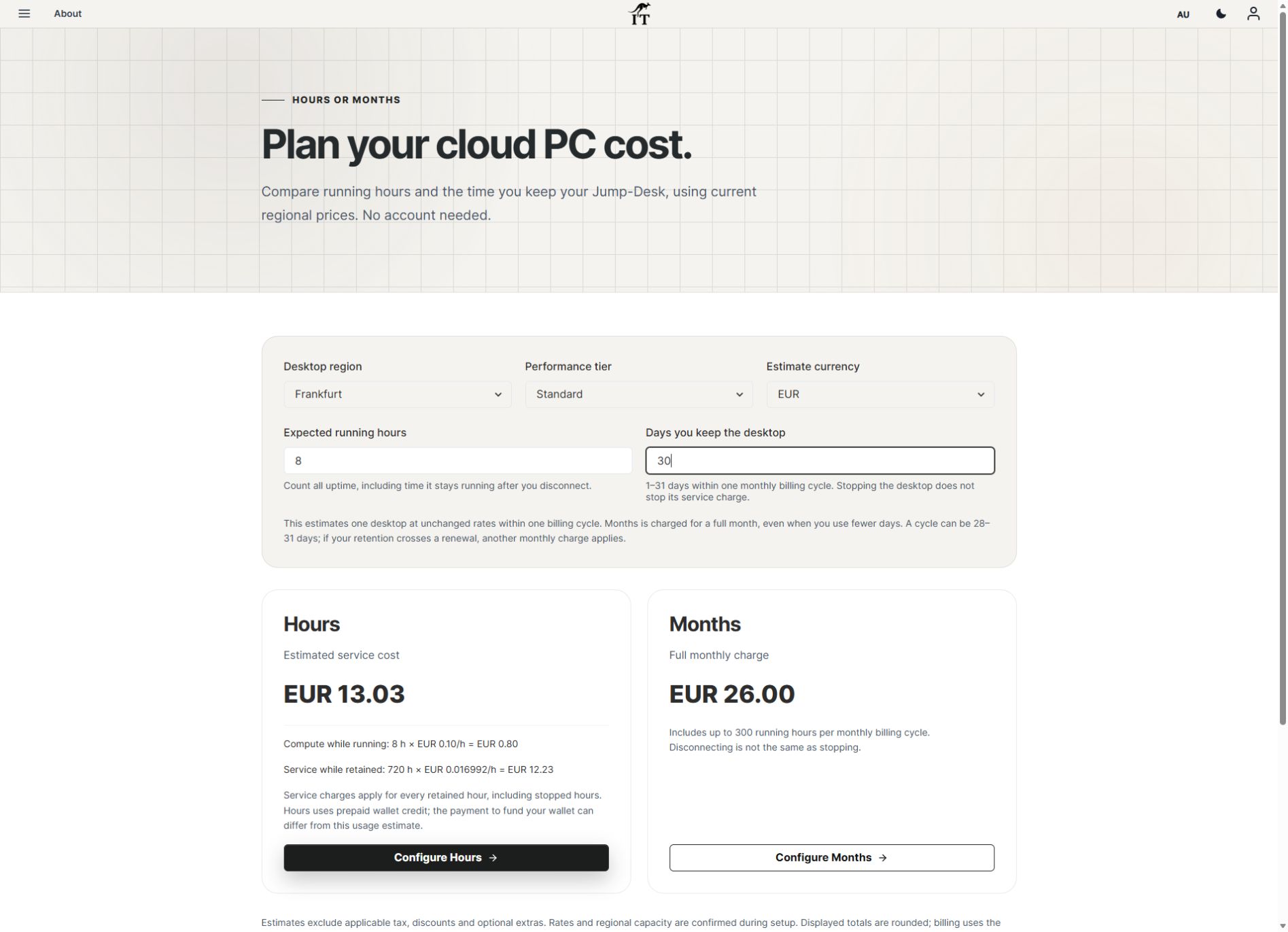
This example selects a Months subscription and Pro capacity. Months includes up to 300 hours of uptime per desktop each month under the current offering. It uses subscription billing and does not require an Hours wallet top-up. Check the live allowance, regional price and checkout terms before choosing.
An occasional role may have a different working pattern. Eligible Hours desktops use prepaid funding, with compute charged while running and a separate service charge while retained. Availability and funding permissions are shown in the account; the demo does not demonstrate an Hours purchase.
Choose capacity against the actual application and workload. Add software licences, support and a backup process to the plan. A short marketing recording cannot establish that a configuration suits every business application.
| Decision | What the demo chooses | What your business should check |
|---|---|---|
| Location | Virginia for Jessie. | Normal working location, connection quality and available regions. |
| Plan | Months subscription. | Working hours, the current allowance and complete recurring cost. |
| Capacity | Pro. | Application requirements, files and representative multitasking. |
| Windows access | Administrator for Jessie; Standard for Buzz. | The tasks each person needs to perform. |
| Responsibility | Jessie as responsible member. | Who owns the workspace and reviews its usage. |
WHERE THIS APPROACH FITS
Consider this workflow when a colleague needs a separate Windows workspace in another location, when a business adds a role with a different application requirement, or when a deputy needs agreed access for occasional cover. Test the workflow before rolling it out across the Team.
One Jump-Desk supports one active Windows user at a time. If Jessie and Buzz need to work at the same time, give them separate desktops. Additional accounts on one machine support individual access and handovers, not simultaneous independent Windows sessions.
For the full sequence leading up to this point, watch the Jump-Teams demo. For an existing desktop handover, use the first-member onboarding walkthrough.
PEOPLE, DESKTOPS AND PROJECT DATA
A regional desktop decision has three parts: where the person works, where the Windows computer runs, and where the project’s shared data lives. Those locations can differ. Jump-IT’s security information describes the selected region for the Jump-Desk and its persistent storage; it does not establish the location of every repository, SaaS account, export or backup the business connects to it.
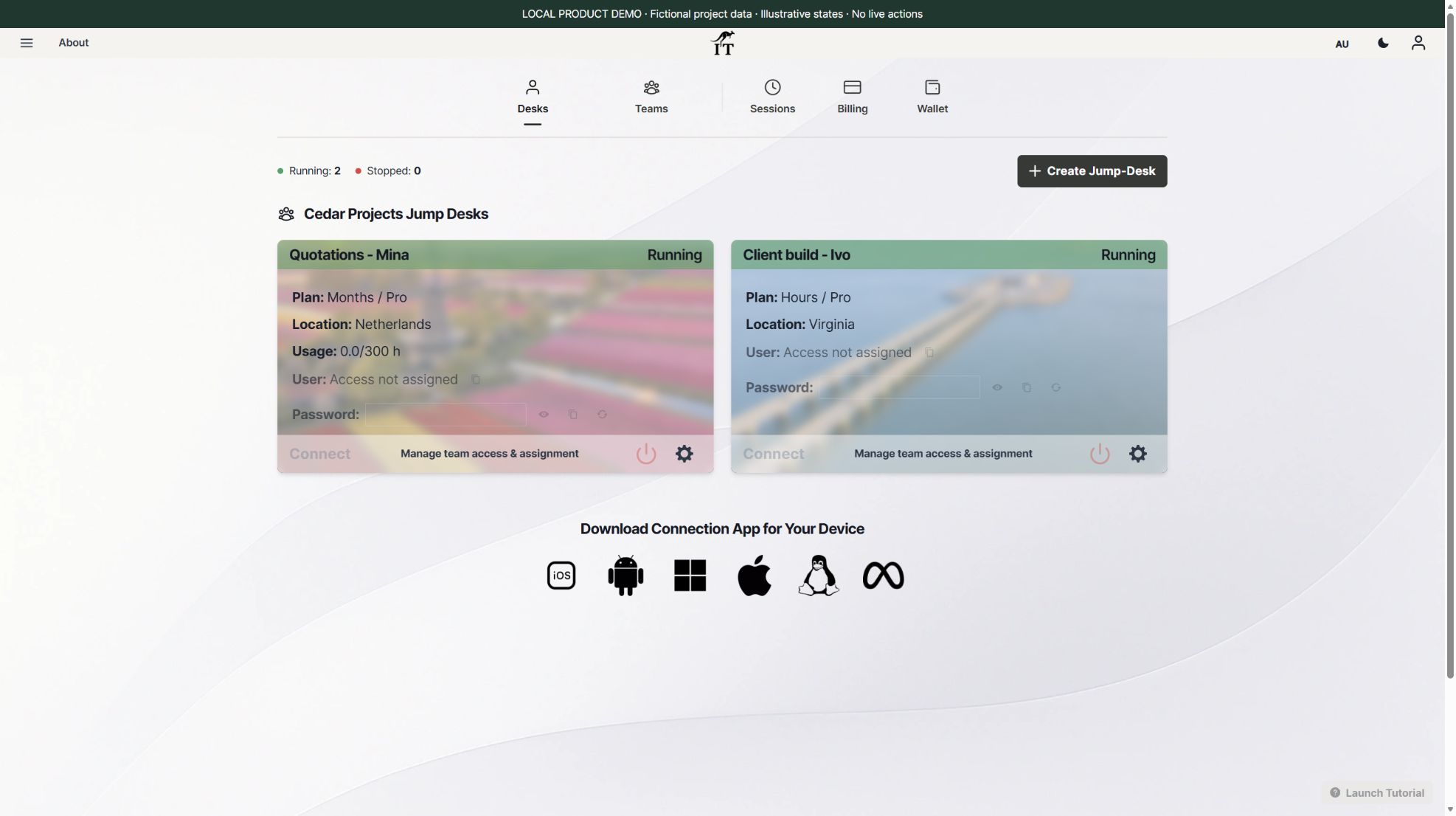
Consider fictional Cedar Projects. Mina in Europe prepares quotations with the company’s chosen spreadsheet and document tools. Ivo works from the eastern United States on a client application using a chosen editor, Git and runtime. Rowan coordinates deadlines. They need separate desktops when their working hours overlap, plus an agreed place for source files and deliverables. The following is a rollout plan, not a completed regional performance test.
| Decision | Cedar’s starting point | Evidence before relying on it |
|---|---|---|
| Mina’s Windows workspace | Assess an available Netherlands configuration from her normal device and connection. | Usable editing, saved quotation reopened, required proposal export and any printer route checked. |
| Ivo’s Windows workspace | Assess an available Virginia configuration for the client-build role. | Supported toolchain, repository access, representative build and usable remote input. Availability is checked during setup. |
| Shared project material | Use the business’s approved repository or document service, with named access. | Both people can find the agreed version; ownership, data location and a separate recovery copy are recorded. |
| Working-day handover | Name an overlap period and a deputy for each project. | Time zones, latest version, unfinished work and the person available to resolve a problem are explicit. |
Keep the client device, application version, sample data and expected result consistent. Try the working connection at its normal busy time, then note input responsiveness, readability, reconnect behaviour and the time needed to retrieve or save project files. Check remote display usability separately from repository or document-transfer performance: a responsive desktop can still depend on a slow or distant data service.
Microsoft lists remote-PC connection support and client feature differences. Verify the particular client and connection type, including display, keyboard, clipboard and required peripherals. Browser access to some Microsoft desktop services is not proof of browser-only access to a Jump-Desk.
Keep an approved way to reach the project’s source and handover notes, and identify the colleague or support contact who can help. A second desktop or another region is not automatic replication or failover. Rehearse recovery using an authorised non-sensitive sample; do not rely on a running-status badge or an untested backup as proof of continuity. Remote Windows needs a suitable connection, so roles that must work offline need a separate practical arrangement.
Budget each desktop’s region, tier and plan individually with the mixed-role budget example. Review the organisation’s data and software requirements before moving real project material. The Mac walkthrough shows how the lead’s local work stays separate; the Surface guide adds toolchain considerations.
FROM WATCHING TO WORKING
Identify the working location, device and Windows application.
Try the project workflow from the colleague’s usual connection, such as checking the customer portal in Windows browsers.
Check individual accounts, Windows privileges, cost and support.
A FEW PRACTICAL DETAILS
The recording shows a new desktop being created in Virginia while an existing desktop remains in the Team. Choose from the regions and configurations currently available in Jump-IT.
No. Team administration and Windows privileges are separate. Configure Standard or Administrator Windows access according to the work required.
An authorised administrator can configure individual Windows access for a deputy. Each Jump-Desk supports one active Windows user at a time, so plan handovers or use separate desktops for concurrent work.
The example selects a Months subscription. Eligible Hours desktops use prepaid funding, while Months follows subscription billing and its current allowance and terms.
No. Distance, the user’s internet connection, routing and the desktop workload all affect responsiveness. Test from the normal working location before committing to a wider rollout.
ANOTHER VIEW OF THE WORKFLOW
Prefer an overview? Read the business guide or the owner’s onboarding guide.
FROM FIRST DAY TO HANDOVER
A startup building a customer portal can give its contract developer a Windows workspace containing the chosen editor, Git, runtime, browsers and project repository. A colleague in another region can use a separate desktop to check the sign-in, project-status and support-request journeys in Windows browsers.
Jump-Teams organises the people, desktops and access around that project. Choose Team management permissions separately from Standard or Administrator Windows privileges. At handover, keep the source code in the business repository, collect setup instructions and known issues, confirm access removal and decide which environments to retain. These are suggested project roles; the demo does not show a completed customer build.
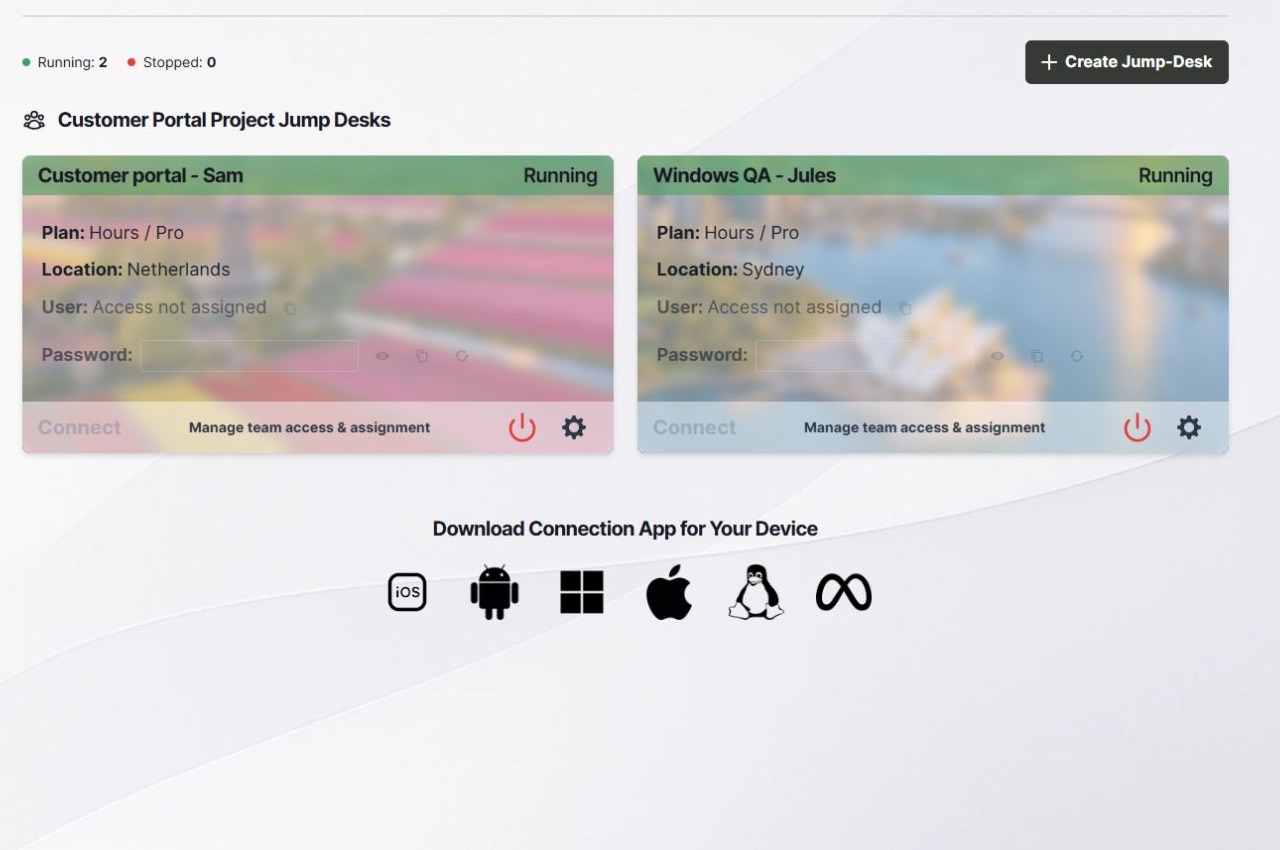
Removing someone’s access does not cancel desktop billing. Decide whether to retain, reassign or retire the workspace after exporting the work you need. Hours includes running compute plus retained service, even when stopped; Months is a full monthly price with up to 300 uptime hours per desktop.
PLAN THE PROJECT WINDOW
A contractor may work for only a few hours while the workspace is kept for review and handover. Count that retained time too. Estimate each desktop using its own region and tier, and review access separately when the work ends.
YOUR TEAM’S NEXT WORKSPACE
Choose an available configuration, review the complete price and start with one role you can evaluate.
The MacBook-led project example and Surface-led development example keep a lead’s local performance work separate from colleagues’ cloud Windows environments. Each simultaneous worker still needs a suitable desktop, supported client and connection. Region choice, shared storage, backup and application access require deliberate setup; global collaboration does not imply automatic replication.
Related device guidance added 31 October 2026.
TEAMS GUIDES
STARTUP GUIDE
Built by a startup, for startups. Give your team Windows cloud PCs on supported devices you already own, with invitations, access controls and flexible funding.
Read the guide →