Prepare the project
Name the desktop for its purpose, choose a region and tier appropriate to the software, and keep the brief, source prices and proposal template together. Give the Windows user an appropriate level of access.


Use Case · Temporary Windows access
Keep your chosen Windows applications, costing workbook and proposal files together for a short business project. Return to the same complete cloud computer from a supported device, and budget for both running time and the time you retain it.
BEFORE YOU CHOOSE
Hours can suit occasional sessions and short projects. Stop the Jump-Desk between sessions to end running compute charges. Closing your remote desktop client is not the same as stopping the machine.
The service charge continues while you keep the desktop. Export your files before deleting it when the project ends.
Watch the setup before you choose →Hours: running compute plus a service charge for the time you retain the desktop, including when stopped.
Months: the full monthly price includes up to 300 hours of uptime per desktop; it is not prorated to your planned working hours.
Estimate Hours vs MonthsNo account needed for the estimate. Current regional prices, available configurations and the final checkout total determine your purchase.
Jump-Desk Hours is a persistent Windows 11 Pro cloud PC for a need measured in sessions or projects rather than a permanent hardware purchase.
It is a particularly strong fit when Windows is necessary but temporary: a project deadline, a compatible application needed for a few days, a laptop in repair, a training lab or occasional access from an iPad, Mac, Android, Linux or Windows device. Start the Jump-Desk when work begins, reconnect to the same applications and files, then stop it from the dashboard when the session ends.
The Hours model is not “free while stopped.” The displayed service fee preserves the static public IP and managed storage that hold the operating-system disk between sessions. It is also not the right answer for offline work, prohibited exam environments, GPU-heavy applications or a workload that runs so often that Months or a physical PC becomes more sensible. Its advantage is proportionality: provision a managed Windows desktop without purchasing and maintaining another machine for a short-lived requirement.
A short project with a complete working environment
An estimator at a small fitout business may need a Windows quotation application, a costing workbook and a document editor throughout a client proposal. Keeping these tools and the project files on one Jump-Desk lets them return to that environment between site visits, desk work and revisions. The benefit is continuity of the whole project, rather than copying a single file between devices.
The example below is a fictional reception-fitout project for Harbour Studio. You install and configure your chosen compatible applications and bring the required licences; quotation software, Microsoft 365 and other business applications are not included or preinstalled unless your plan explicitly says so. Check the application’s Windows 11, resource, virtualisation and licensing requirements before purchasing a desktop.
Name the desktop for its purpose, choose a region and tier appropriate to the software, and keep the brief, source prices and proposal template together. Give the Windows user an appropriate level of access.
Use your chosen applications to estimate labour and materials, review assumptions and exclusions, and prepare a versioned proposal. Check the exported document before sending it.
Reconnect for the next revision from a supported device. Stop the desktop between sessions, then export and verify the project archive when the engagement ends.
Create a folder such as Client quotation — Harbour fitout in your chosen Windows location. These example folders separate the source material from the version you issue:
Use your business’s approved storage and backup arrangements. A retained cloud desktop is a working environment, not a substitute for an independently verified project backup.
This is a suggested project workflow, not a claim that the pictured demo completed a quotation or ran a particular Windows application. Test your actual application and its export before a client deadline.
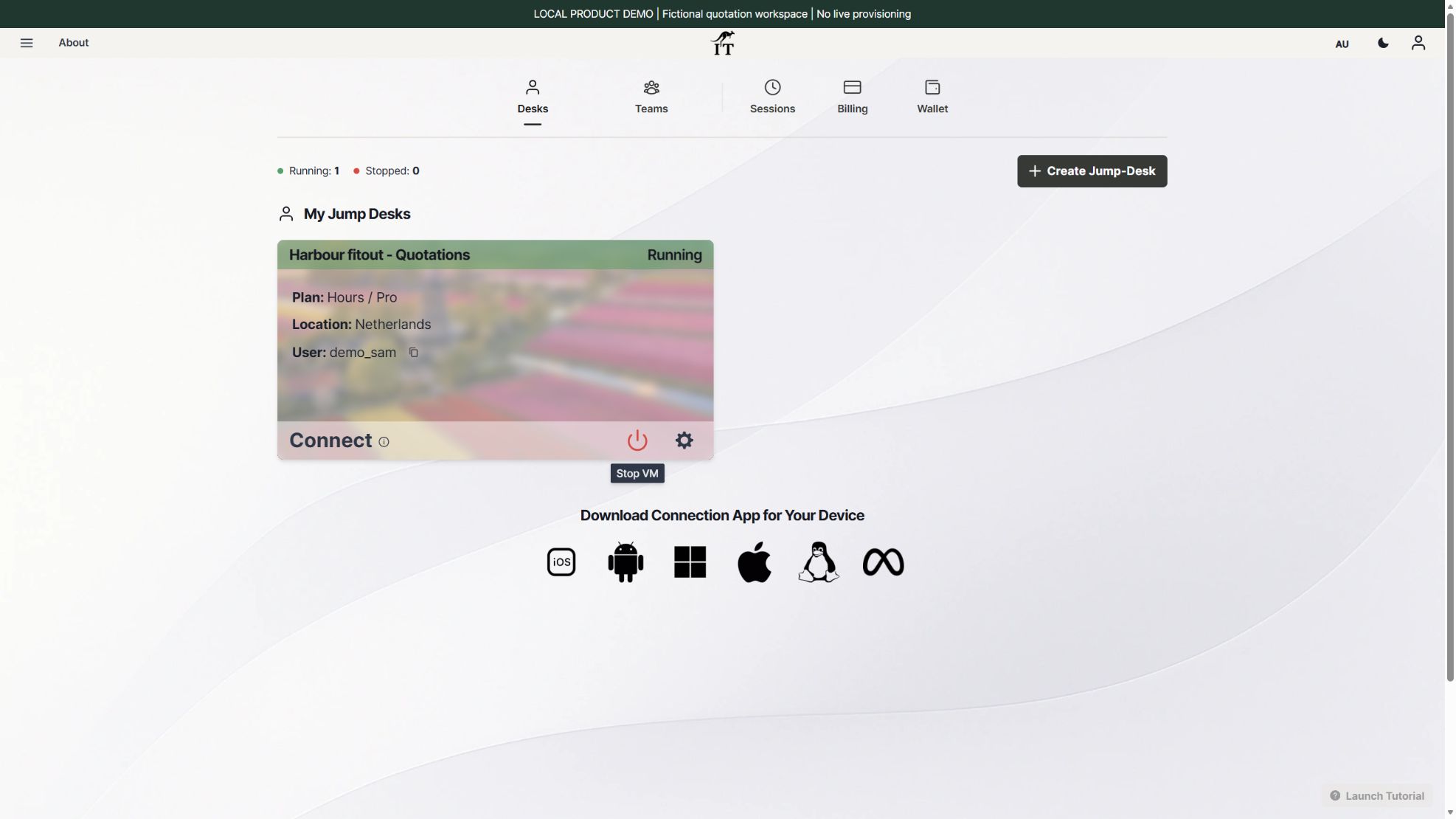
Use the Jump-IT dashboard to find the desktop and check its status, then connect using a supported remote desktop client. The dashboard runs in a browser; the Windows session uses the appropriate connection app. On an iPad or a Samsung DeX desk, check keyboard, pointer, display and any required printing or file transfer before relying on the setup.
Follow the iPad setup guide or Samsung DeX video guide for device-specific steps. If colleagues need access, use the team and cross-device guide to plan people and desktops. Jump-Teams management, Windows Standard or Administrator privileges, application permissions and billing are separate decisions. Each Windows desktop supports one active user at a time; simultaneous work needs separate desktops.
Save your work, then stop the Jump-Desk from the dashboard and confirm Stopped. Closing the connection app only disconnects the session. Running compute stops when the machine is stopped, but the Hours service charge continues while you retain it.
At handover, export the editable project and final documents, verify that the archive opens elsewhere, and follow the software vendor’s sign-out or licence-deactivation process. Delete the desktop only after the required files have been safely exported; deletion is permanent.
Budget for the whole project
For an illustrative Netherlands · Pro · EUR configuration checked in the public calculator on 12 October 2026, eight running hours and seven retained days produced an Hours estimate of EUR 5.67:
The same calculator showed Months at EUR 59.00 for the full month, with up to 300 uptime hours per desktop. The monthly total is not reduced to eight hours or seven days. Recalculate for your expected working pattern rather than treating this short-project example as a universal price or savings promise.
These estimates exclude applicable taxes, discounts and optional extras. Your chosen application licences are separate, and wallet funding is not the same as the cost consumed by this project. Prices, availability and the final checkout total determine the purchase.
Estimate your project costSix temporary Windows needs
The shared pattern is a real Windows requirement with a defined end, irregular schedule or low enough frequency that buying a second computer feels disproportionate.
Create a separate desktop for a client engagement, migration, test cycle or deadline. Keep the required applications and project files together, then export the deliverables and delete the Jump-Desk when the engagement is complete.
Install software needed for a limited task without buying hardware around it. Confirm Windows 11 support, system resources, licensing, ports, peripherals and whether a dedicated GPU is required before checkout.
Connect from another supported device while the usual Windows laptop is unavailable. Jump-Desk supplies a fresh independent environment; it does not recover data that exists only on the damaged computer.
Use compatible coursework, practice tests and learning software where the provider permits it. Do not assume the actual proctored exam can run remotely: many systems prohibit virtual machines, tablets or remote environments and require a pre-exam system test.
Prepare a consistent Windows desktop for a short training period. Multiple Jump-Desks can be created under one account as independent subscriptions, but access, learner data and software licences must still be managed appropriately.
Open a complete desktop for monthly administration, one supplier portal or an occasional business process, then return to the primary Mac, iPad, Linux or other device when the task is done.

YOUR NEXT STEP
For eligible prepaid Hours desktops, running compute and the retained-desktop service charge are separate. Stop the desktop between sessions and export what you need before deleting it at the end of a project.
Configure your Jump-Desk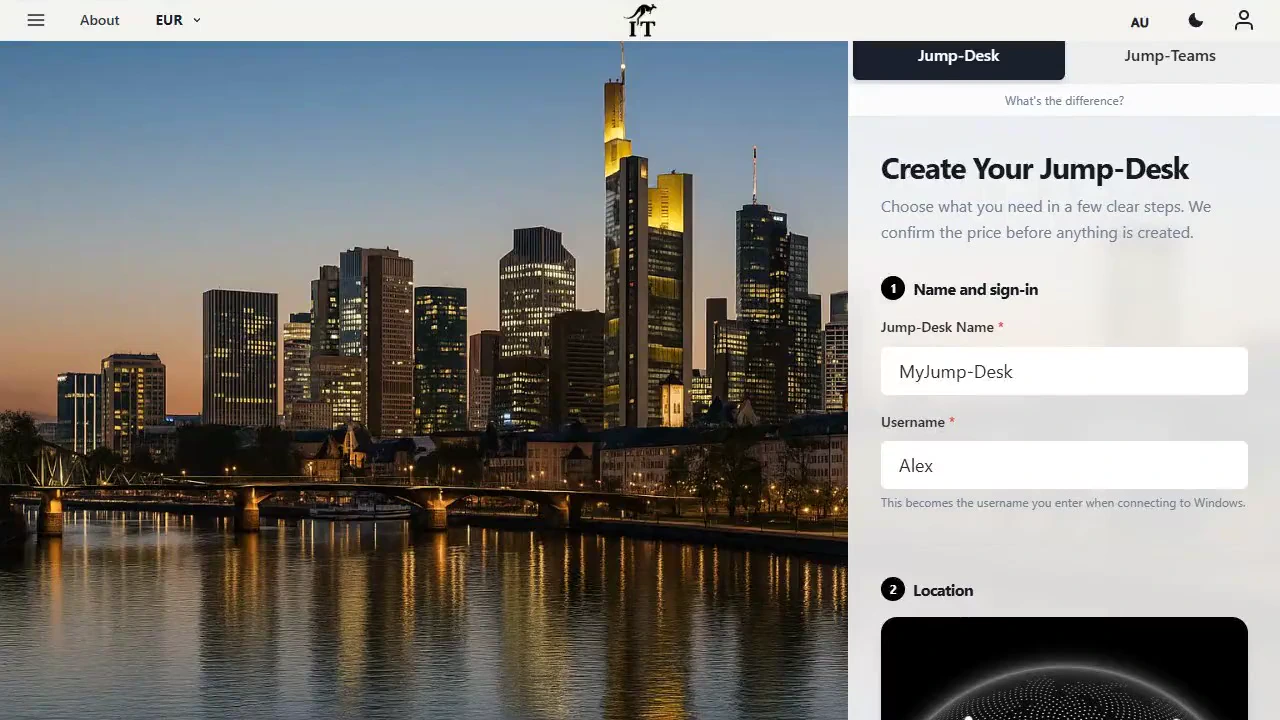
A product-specific billing model
Hours combines usage-based running consumption with a smaller displayed service fee for the dedicated resources that remain assigned while the machine is stopped.
The live creation flow loads regional pricing and presents Standard, Pro and Pro+. Review the displayed usage rate, service fee, specifications and checkout total before creating the Jump-Desk.
Jump-IT creates the virtual machine, operating-system disk and connection resources. The current Hours tiers include Windows 11 Pro and a 128 GB drive.
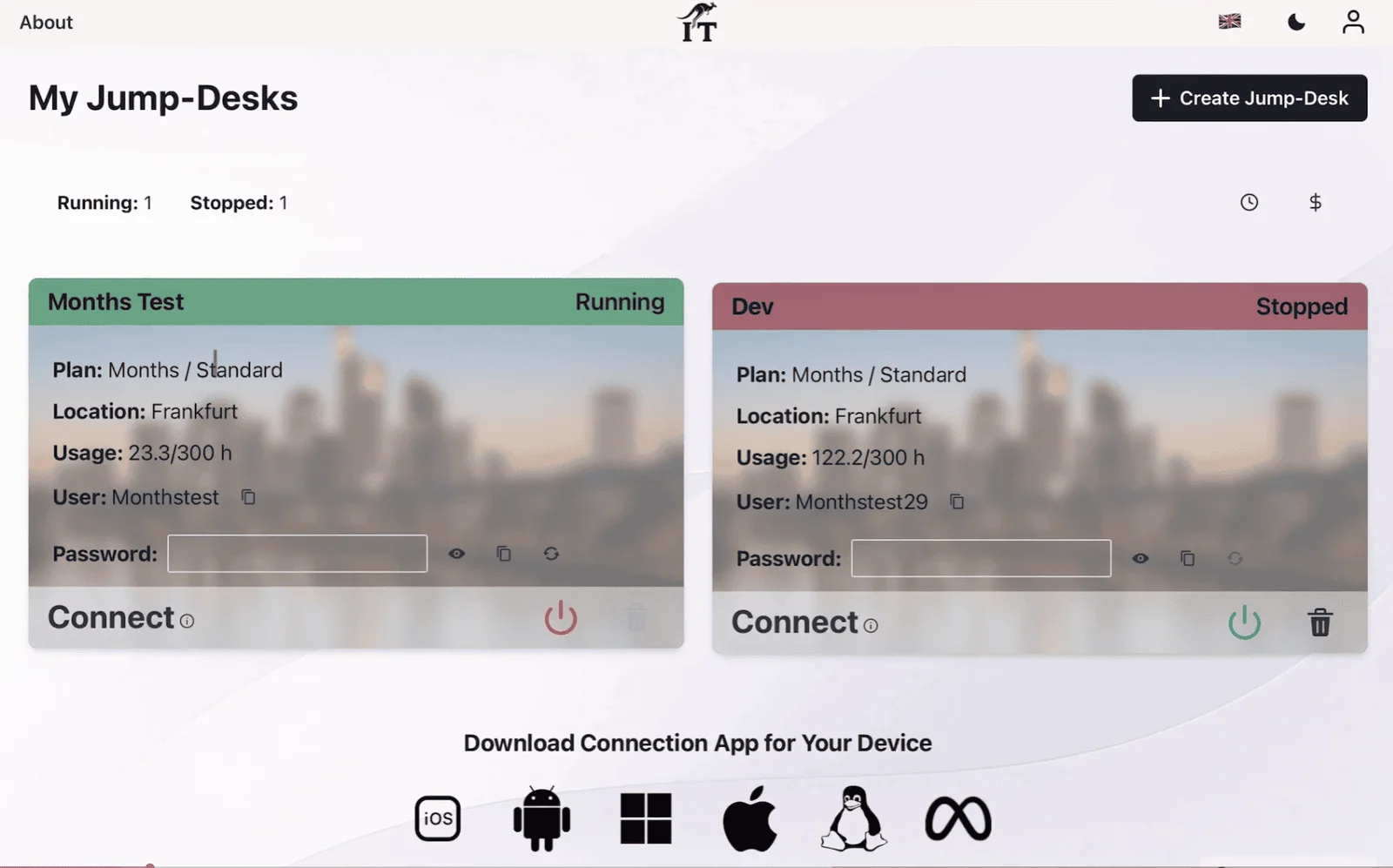
Use the dashboard power control and wait for the status to show Running. Running sessions and usage appear in Usage & Billing. For prepaid Hours, review available and reserved credit, top-ups and usage charges in the wallet.
Closing Windows App, Remote Desktop or another compatible client does not stop the cloud machine. Return to the Jump-IT dashboard and use the red power control so the state changes to Stopped.
The service fee preserves the static public IP and managed storage for the operating-system disk while stopped. When the temporary need is truly over, export required files and delete the Jump-Desk; deletion is permanent.
Funding and records: Eligible Hours desktops now use prepaid wallet credit. Add credit before use and review the available balance, reserved credit and usage entries in the wallet. Funding receipts and desktop usage are separate records; the account’s billing history remains the place to check existing invoices.
Temporary does not mean disposable every day
The useful distinction is between stopping and deleting. Stopping is a reversible operating state; deletion removes the resource and its data.
Software licensing remains separate: Windows 11 Pro is included on current Jump-Desk tiers, but commercial applications, exam tools, training platforms and data subscriptions can have their own user, device, virtualisation or geographic restrictions.

Choose the right commitment
Hours is strongest when use is intermittent and the end date or schedule is uncertain. The more continuous, offline or hardware-dependent the workload becomes, the more attractive another model can be.
On smaller screens, swipe sideways to compare every column.
| Decision | Jump-Desk Hours | Jump-Desk Months | Existing remote PC | Buy a Windows laptop |
|---|---|---|---|---|
| Best duration | Short, irregular or occasional sessions | Regular use across a month | As long as the maintained host remains available | Long-term or hardware-dependent use |
| Windows environment | Persistent Windows 11 Pro cloud PC | Persistent Windows 11 Pro cloud PC | Whatever is installed on the host | Local Windows on purchased hardware |
| Commitment model | Running usage plus displayed service fee | Monthly plan with current uptime rules | Existing ownership, power and maintenance costs | Upfront purchase and ongoing ownership |
| Need to own a PC | No | No | Yes | Yes |
| Offline Windows | No | No | Only at the physical host | Yes for ordinary local work |
| Stop-and-resume habit | Essential for controlling running usage | Current plan adds idle shutdown after three hours | Depends on remote-access setup | Normal local power management |
| Specialist hardware | Check redirection and compatibility; no listed dedicated GPU | Same current performance-tier limits | Depends on the host and remote redirection | Best direct access to local ports and devices |
| Most compelling case | A real Windows need without enough use to justify another computer | Windows has become part of the regular week | A suitable Windows Pro host already exists | All-day, offline, latency-sensitive or hardware-heavy work |
Match billing and performance
Pricing is loaded by the live Jump-IT creation flow and can vary by region and currency. The plan cards explain the product rules without presenting one hard-coded price as universal.
For short projects, temporary applications, repair periods, training labs and occasional access. Running usage is recorded, while the displayed service fee preserves dedicated resources when stopped.
Key habit: stop the Jump-Desk from the dashboard after every session.
For Windows that has become part of the regular week. Current definitions include up to 300 hours of uptime per month and automatic shutdown after three hours idle.
Compare the live Months total with observed Hours usage.
For a Windows desktop wanted throughout the year. Review the current checkout terms and the expected application lifespan before making the longer commitment.
Dedicated hardware may still be better for offline or specialist work.
Choose before the deadline begins
A geographically closer region will often reduce latency, although the actual result also depends on the endpoint connection and the route taken by the internet provider.
Avoid the costly wrong choice
Jump-Desk cannot work offline. The current connection requires outbound TCP 3389, which some corporate, school, hotel and guest networks block.
Pearson VUE and other exam programmes can prohibit virtual machines, tablets, touchscreens, VPNs or remote environments. Use Jump-Desk for preparation unless the exact provider explicitly approves the exam-day setup and its system test passes.
GPU-dependent gaming, rendering, machine learning and similar workloads should not be assumed compatible. Check the application’s exact processor, memory, graphics and storage requirements.
Hardware dongles, specialist USB devices, low-level drivers, webcams, printers and other redirected resources can behave differently over a remote connection.
Disconnecting leaves the cloud machine’s power state unchanged. Use the Jump-IT dashboard power control and confirm that the status says Stopped.
Export data first. Deleting the Jump-Desk tears down the VM, disks, public IP and backups, so it is not a substitute for a deliberate project archive.
Direct answers before checkout
It is a persistent remote Windows computer selected on the Jump-Desk Hours plan. Windows 11 Pro, applications and files remain on its cloud drive between sessions, while usage charges accrue when the machine is running and a displayed service fee preserves dedicated resources while it is stopped.
The live creation flow shows the regional Hours rate and service fee. Eligible Hours desktops draw on prepaid wallet credit for running usage and retained-desktop service charges. Closing the remote-access application does not stop the machine. Stop the Jump-Desk from the dashboard when the session is finished.
No. Stopping the machine ends the running session but does not delete the Jump-Desk. The Hours service fee covers the static public IP address and managed storage that preserves the operating-system disk so the environment can be resumed.
Yes, if you have another supported device and a suitable network. Jump-Desk can provide an independent Windows environment during the repair, but it cannot recover files from the damaged laptop unless those files were already backed up and accessible separately.
Only when the exam provider explicitly permits remote or virtual computers and the required system test passes. Many proctored exam services prohibit virtual machines, tablets, touchscreens or remote environments. Jump-Desk is safer to position for study, practice tests and permitted coursework unless the provider confirms otherwise.
Yes, when the software supports Windows 11 and the current Jump-Desk specifications. Administrator access allows compatible software to be installed. Each licence, learner account, data set and Jump-Desk must still be used in accordance with the software vendor’s and training provider’s terms.
Yes. The current Standard, Pro and Pro+ Hours tier definitions include a Windows 11 Pro licence. Separate applications may require their own licences or subscriptions.
Standard provides 2 vCPU and 4 GB RAM for lighter compatible work. Pro provides 2 vCPU and 8 GB RAM as a more comfortable general starting point. Pro+ provides 4 vCPU and 16 GB RAM for compatible CPU- and memory-heavier work. Current specifications do not list a dedicated GPU.
No. Jump-Desk is a remote cloud PC and requires a suitable internet connection while Windows is being used. The current connection also requires outbound TCP 3389, which some corporate, school and guest networks block.
Deletion is permanent. Jump-IT support guidance states that the platform tears down the virtual machine, disks, public IP and backups. Export any files you need before confirming deletion.
12 October 2026 update: the quotation workflow, fictional project structure, actual product dashboard and display-settings captures, current location labels and Netherlands Pro EUR calculator example were checked for this update. The captures use the current shipped application in a separate local sandbox with fictional data; they do not show a paid desktop or a completed customer job. The connection-app reference below was rechecked.
The Jump-IT Team reviewed the current product Hours specifications, billing checkpoints, service-fee explanation, status controls, session history, 20-region map, network requirement and deletion behaviour on 17 July 2026. Connection and online-exam cautions were checked against current first-party documentation.
Windows, Windows 11 and Windows App are trademarks of Microsoft. Pearson VUE and other third-party names belong to their respective owners. Jump-IT is not affiliated with or endorsed by Microsoft, Pearson VUE or the software and exam providers discussed. Product specifications, exam policies, availability and prices can change; current provider documentation and live checkout terms take precedence.
SEE THE PRODUCT IN ACTION
These recordings show the current Jump-IT interface with demonstration data. Use the controls to pause, replay or view a recording full screen.
Name your desktop, choose a region and plan, and review the configuration before checkout.
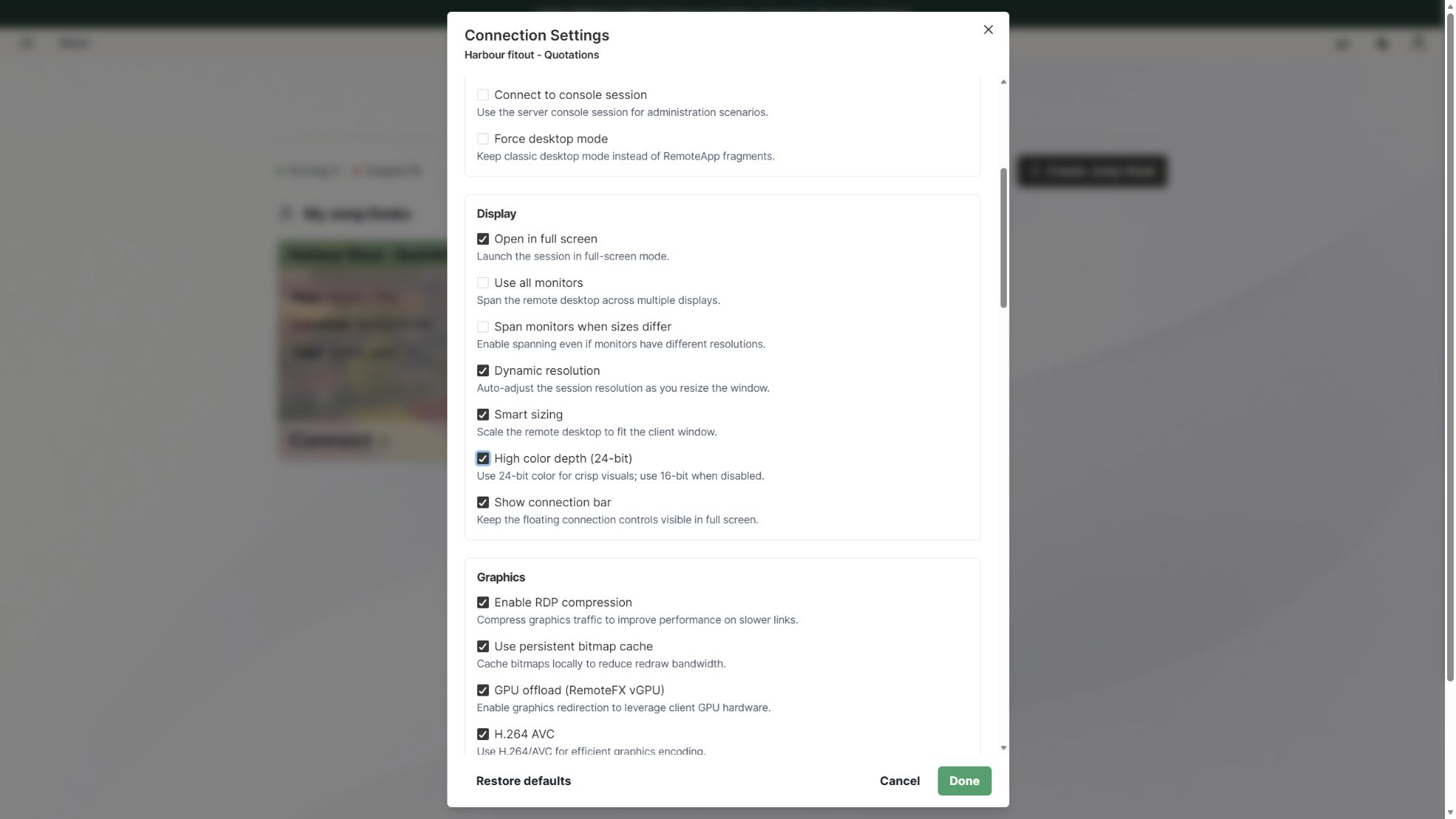
Find the display settings, adapt the connection to your screen, and download the connection file.
CURRENT WORKFLOWS · SEPTEMBER 2026
An assistant can help draft a report, explain a formula or plan a workflow, while the final task still depends on a Windows desktop application, plug-in or client system. Start with that application and its requirements. A browser-based assistant alone is not a reason to add another computer; a compatible Windows-only workflow may be.
A retained Jump-Desk keeps that Windows environment available between sessions. For colleagues doing the same kind of work, Jump-Teams adds invitations, roles and desktop assignments. AI subscriptions, Microsoft 365 and other paid applications require their own licences; a cloud PC does not include those subscriptions or promise specialist GPU hardware.
Read the business guide to invitations, roles, funding and desktop assignments.
Explore Jump-Teams →Follow a practical onboarding checklist, from a first pilot to reviewing access when a role changes.
Read the team onboarding guide →
Eligible Hours desktops use prepaid funding. Compute charges apply while running, and the separate service charge continues while the desktop is retained. Stopping the desktop preserves its files and ends running compute charges; deleting it permanently removes the desktop. Review the wallet, current rates and funding permissions in Jump-IT before creating one.
For regular work, Months includes up to 300 hours of uptime per desktop each month. Review the current Years option when a longer commitment suits the requirement. Each desktop has its own plan, region and performance tier.
Compare current plans →Create a persistent Windows 11 Pro Jump-Desk for the sessions that genuinely need it, stop it when work pauses and remove it only after the temporary requirement and its data are complete.
The touchscreen MacBook Pro global-team example keeps a colleague’s Windows costing environment separate from the lead’s local work. The quotation, proposal export and handover remain the useful outcomes to test. Choose Hours or Months from actual running and retained time, rather than assuming a recurring desktop is always cheaper.
Related device guidance added 31 October 2026.

