BUSINESS GUIDE
Desktop as a Service for Small Business: A Practical Team Guide
Evaluate DaaS for a small team: Windows applications, Jump-Teams access, monthly desktop budgets, practical checks and when another setup fits better.
Read the guide →

HOW TO · WINDOWS REPORTING
Plan a Windows reporting environment from your Mac, starting with Microsoft’s supported hosting options. Jump-IT-specific support for Power BI Desktop has not been established here. Check that boundary before choosing or paying for a cloud desktop.
Support guidance reviewed 2 November 2026 · Jump-IT Team · Microsoft source linked below
Microsoft lists Azure Virtual Desktop and Windows 365 as supported environments for Power BI Desktop, and excludes other virtual desktop environments from that support statement. See its current virtualisation guidance.
This guide does not establish Microsoft support for Power BI Desktop on Jump-IT. An Azure-hosted computer is not automatically Azure Virtual Desktop or Windows 365. Do not buy a Jump-Desk on the assumption that Power BI Desktop is supported here. If vendor support is required, select a supported environment; obtain authoritative clarification before treating another deployment as supported. A successful technical trial would not itself change Microsoft’s support policy.
Power BI service access in a browser is a separate decision. Check whether the intended work is report viewing, browser authoring or Desktop authoring, and verify the required features, data access and licences for that task.
If your reporting job depends on Power BI Desktop, plan where that Windows application will run. Microsoft’s current Desktop download is for Windows; opening the Power BI service in a Mac browser is a different workflow. Jump-Desk is a Windows 11 Pro cloud computer accessed through a supported client, but that does not establish Power BI Desktop support. Keep the hosting decision separate from the Mac connection and from the rest of your local work.
In an appropriately supported reporting environment, the intended result is a repeatable workspace: the chosen Desktop version, approved connectors, project files and working settings are kept together while the desktop is retained. You install, configure and license your applications. Power BI, Fabric capacity, Microsoft 365 and their paid features are not included with Jump-Desk.
Compare a cloud PC with local Windows virtualisation on a Mac before committing. Local Windows can be a better fit when offline work or direct peripheral access matters. A cloud desktop needs a reliable network, the right vendor-support and licensing basis, and a successful test of your own report. Technical compatibility and vendor support are separate checks.
Microsoft’s October Power BI update includes a preview Gantt visual and improvements to slicers, chart formatting and bookmarks. For a project analyst, a schedule view is a useful reason to test the current release with a representative project before changing the reporting environment used for live work.
Preview features need their own evaluation. This guide uses the update as a planning prompt; it does not claim that Jump-IT supplies an automatic AI integration or that the new features have been tested on a Jump-Desk.
In this fictional example, Priya prepares a monthly project review from a Mac. The report combines approved project status, planned dates and time summaries. Her team needs the same definitions and a repeatable refresh each month, rather than a different file assembled at the last minute.
After selecting a supported environment, Priya would keep the report project, connector instructions and a short refresh log in the Windows workspace. She would use a separate approved backup location for recovery. The work is complete when the report refreshes correctly, totals reconcile to the source, the intended audience can open it and the next person understands how it was produced.
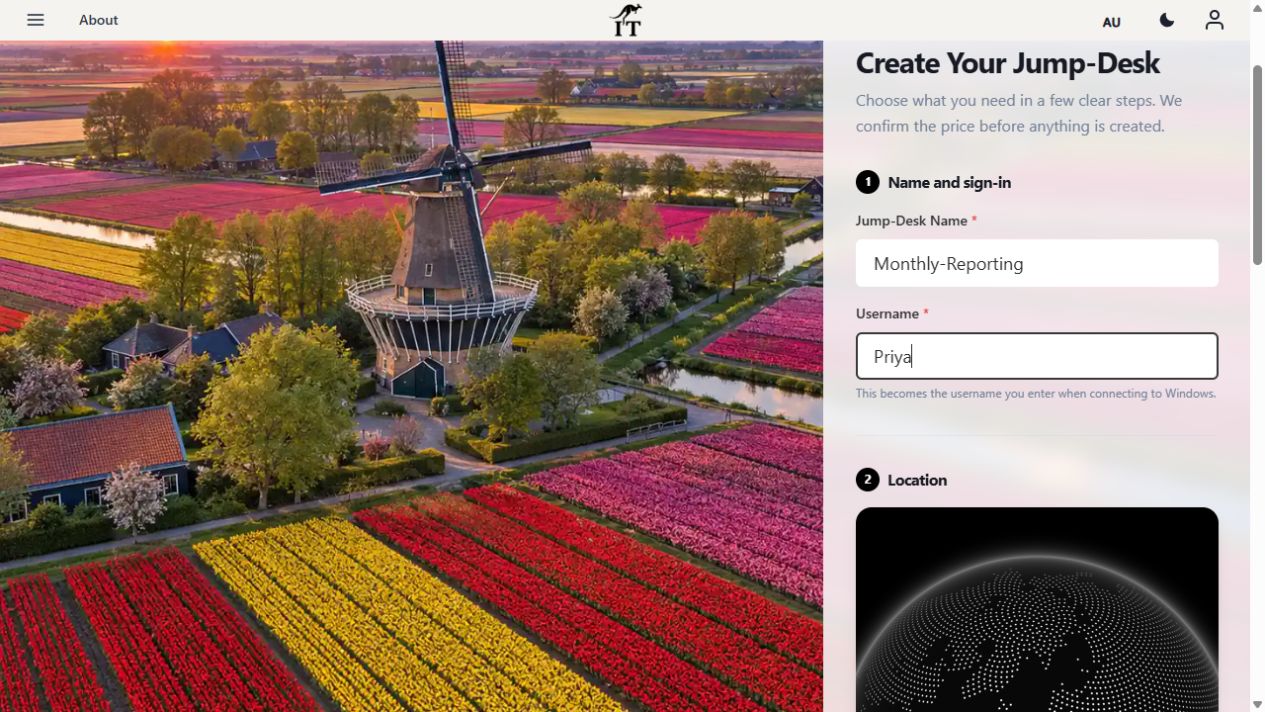
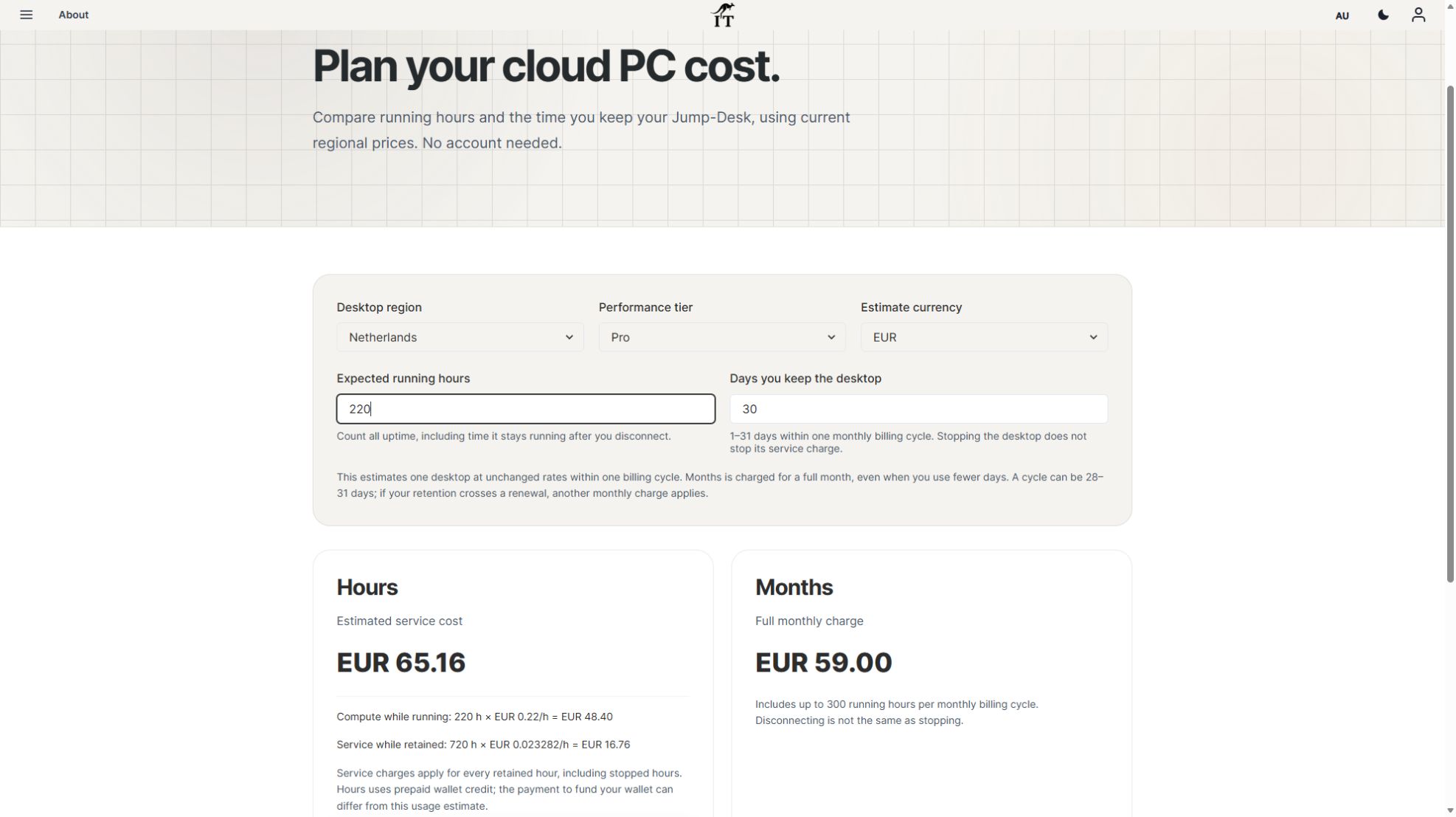
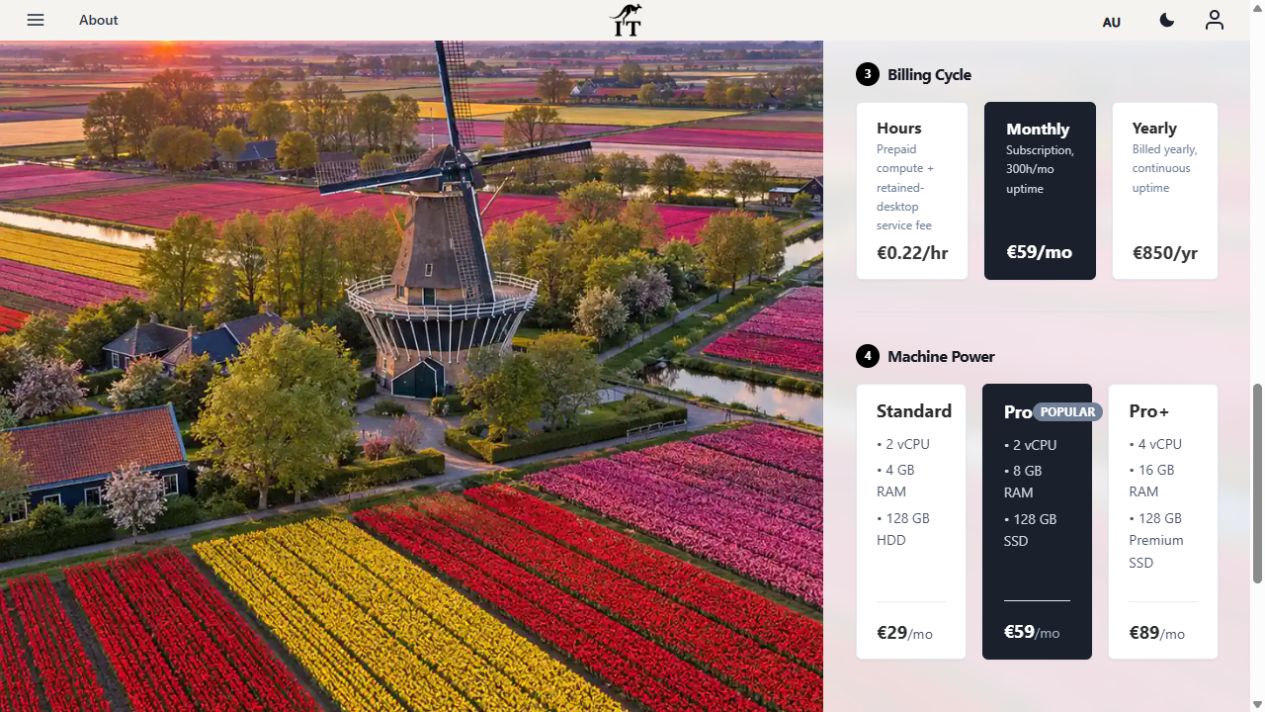
The image shows the actual Jump-IT setup screen in an isolated demonstration with fictional data. It shows Jump-IT configuration only; it is not evidence that Power BI Desktop is supported or installed. No desktop was purchased and no Power BI report was executed for this article.
For a reusable blank record of what passed and what remains unproven, use the one-application acceptance worksheet. It supports this application-specific checklist without replacing it.
A report that works in Desktop is not automatically shared with colleagues. Check your organisation’s Power BI and Fabric licences, workspace access and capacity for the intended audience. A Jump-Teams role does not grant access to a Power BI report.
If the service cannot reach a data source directly, evaluate Microsoft’s gateway guidance. Do not assume that leaving a report on a stopped cloud PC creates a dependable scheduled-refresh service. Establish who owns the gateway, which machine runs it, how it stays available and how credentials are managed before relying on unattended refresh.
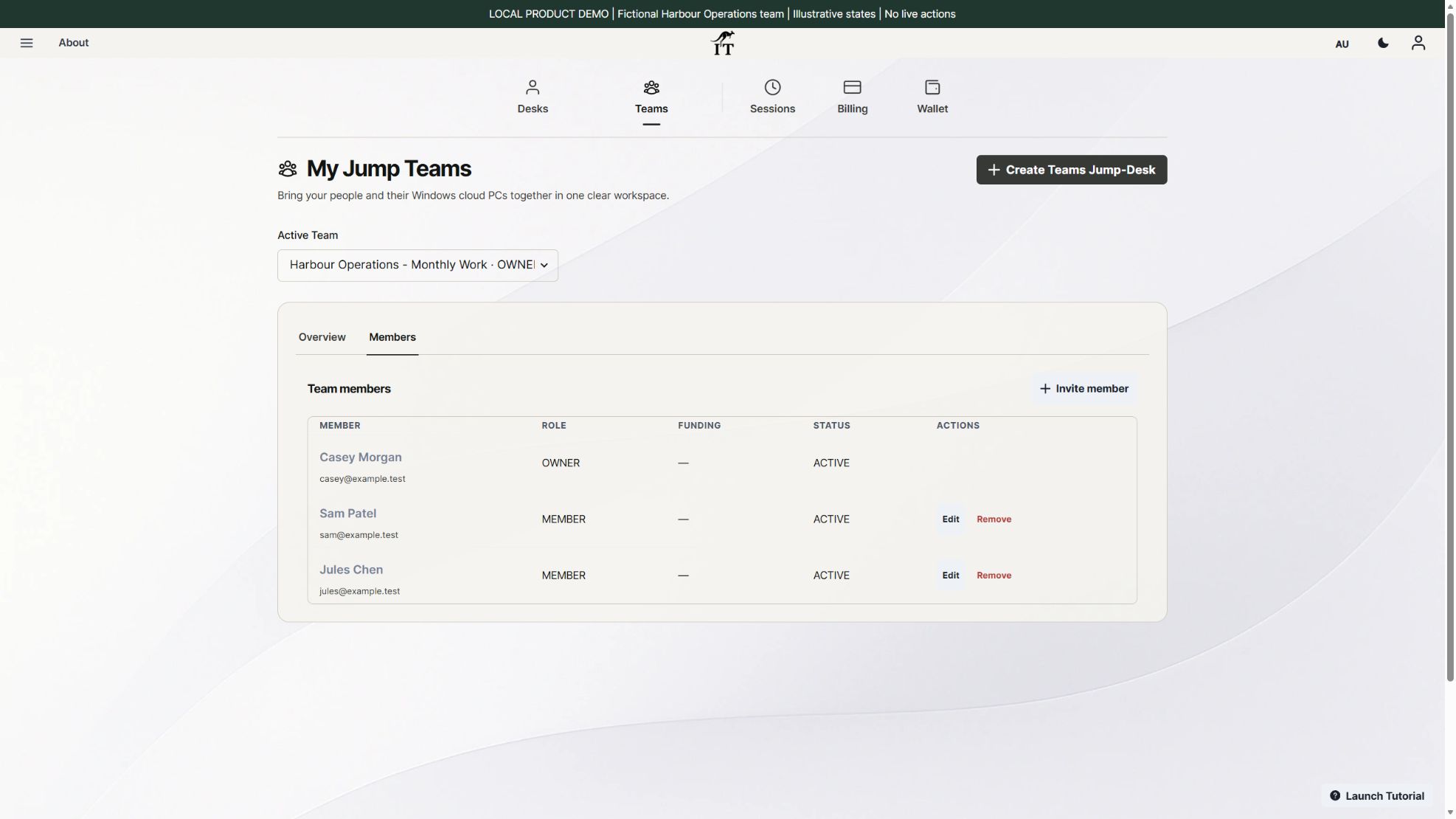
For suitable Windows workloads, Jump-Teams organises people and desktops; it does not establish Power BI Desktop vendor support. Each Jump-Desk supports one active Windows user at a time. Concurrent-work budgeting and application permissions remain separate decisions after the supported hosting environment is selected.
The figures below illustrate Jump-Desk pricing. They are not a recommendation to purchase it for Power BI Desktop. Resolve the support boundary first, then compare the total cost of an appropriate environment.
Current example rechecked on 2 November 2026: Netherlands Pro, EUR, one desktop retained for 30 days with 40 running hours. Hours is EUR 8.80 compute plus EUR 16.76 retained service, totalling EUR 25.56. Service charges continue while an Hours desktop is retained, including stopped time.
Months is EUR 59 for the full month, with up to 300 uptime hours. It is not prorated to the number of days used, and crossing a renewal can add another monthly charge. In this light-use example Hours costs less. Choose Months for a recurring working pattern only after comparing the actual expected uptime and retention.
Examples exclude applicable tax, discounts, application licences and optional extras. Regional prices and capacity can change. Use the current calculator; wallet funding is a payment to your balance and can differ from the estimated service consumption.
No Jump-IT-specific support is established here. Read the hosting support boundary before committing. Being able to install or open software would not prove that its vendor supports that deployment.
No. Power BI Desktop is a Windows application. When using an appropriately supported remote environment, the Mac is the connection device. The Power BI web service has a separate feature and licensing model.
In a supported hosting environment, use its compatible iPad client to connect to the same Windows desktop. Check the current client requirements and test the keyboard, pointer, display and network. The iPad setup guide covers the connection; it does not guarantee that every reporting task is comfortable on a tablet.
That is not established. Test the actual connector, network route, authentication and data policy. A private data source may need additional approved connectivity; do not expose a database just to make a test pass.
Use the Windows 10 migration decision guide to separate endpoint support, application compatibility and the new desktop. Moving Windows work into the cloud does not update or secure the local access device.
For Power BI Desktop, start with Microsoft’s supported hosting options. For another Windows application, use its own vendor requirements and the one-app planning guide before considering a Jump-Desk.
The touchscreen MacBook Pro guide places a reporting colleague’s Windows environment alongside the lead’s local Mac AI and presentation work. Touch does not make Power BI Desktop a native macOS application. Resolve the Power BI hosting-support boundary first, then keep the report’s connectors, calculations, export and client usability in your acceptance checks; this guide does not claim the new hardware was physically tested.
Related device guidance added 31 October 2026.
TEAMS GUIDES
BUSINESS GUIDE
Evaluate DaaS for a small team: Windows applications, Jump-Teams access, monthly desktop budgets, practical checks and when another setup fits better.
Read the guide →BUSINESS GUIDE
Budget three or five monthly Windows cloud PCs. Compare Months with running and retained Hours costs, software licences, access and renewal checks.
Read the guide →BUSINESS GUIDE
Plan a contractor’s Windows workspace from setup to handover: Team roles, Windows privileges, project files, application access and monthly cost review.
Read the guide →PRODUCT VIDEO
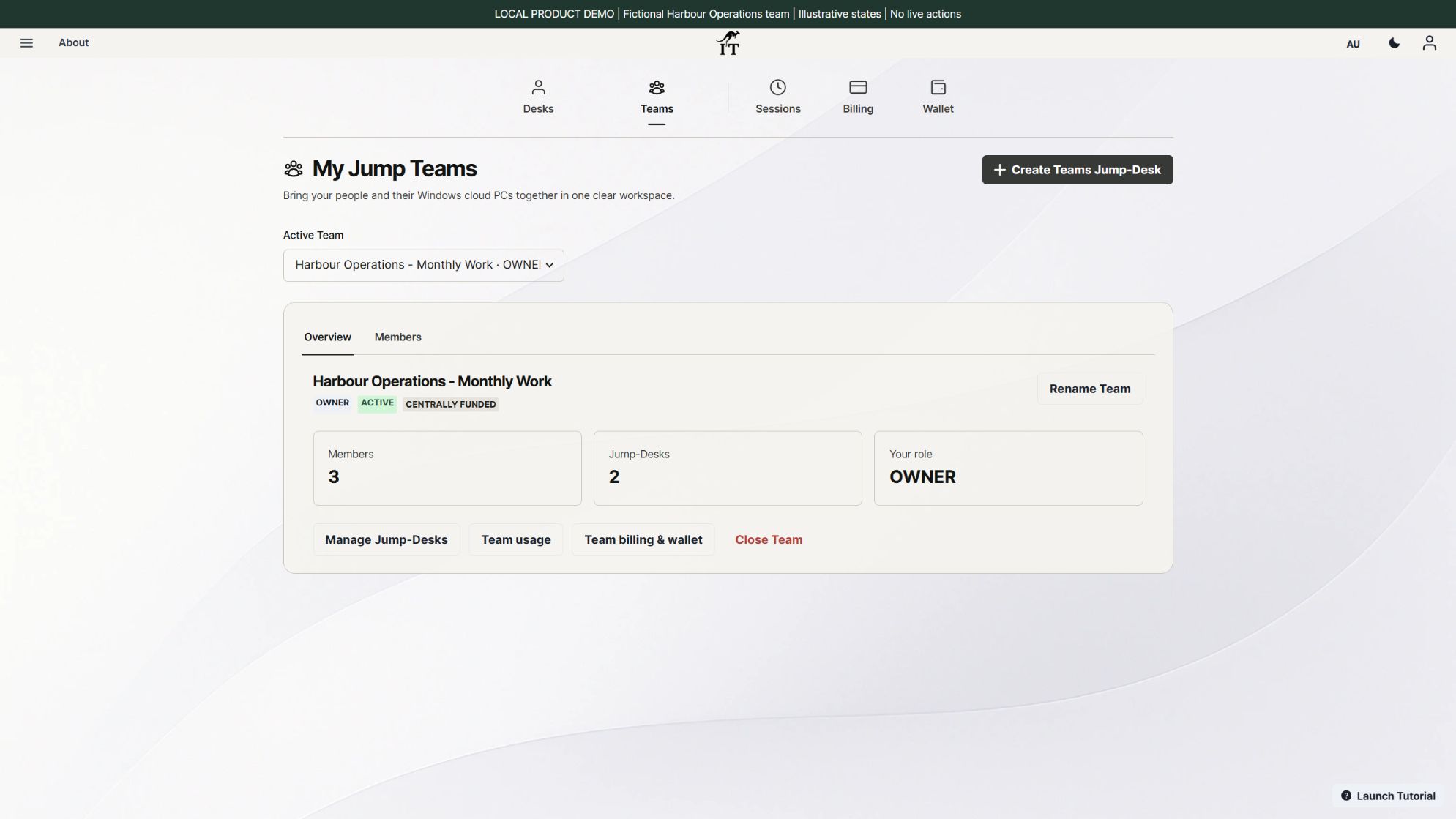
Watch the Jump-Teams demo: create a Team, invite a colleague, connect to Windows and add a second regional cloud PC with separate access permissions.
Watch the walkthrough →PRODUCT VIDEO
Watch a first-member onboarding demo: create a Jump-Team, choose permissions, send an invitation and hand over a Windows cloud PC with individual access.
Watch the walkthrough →PRODUCT VIDEO
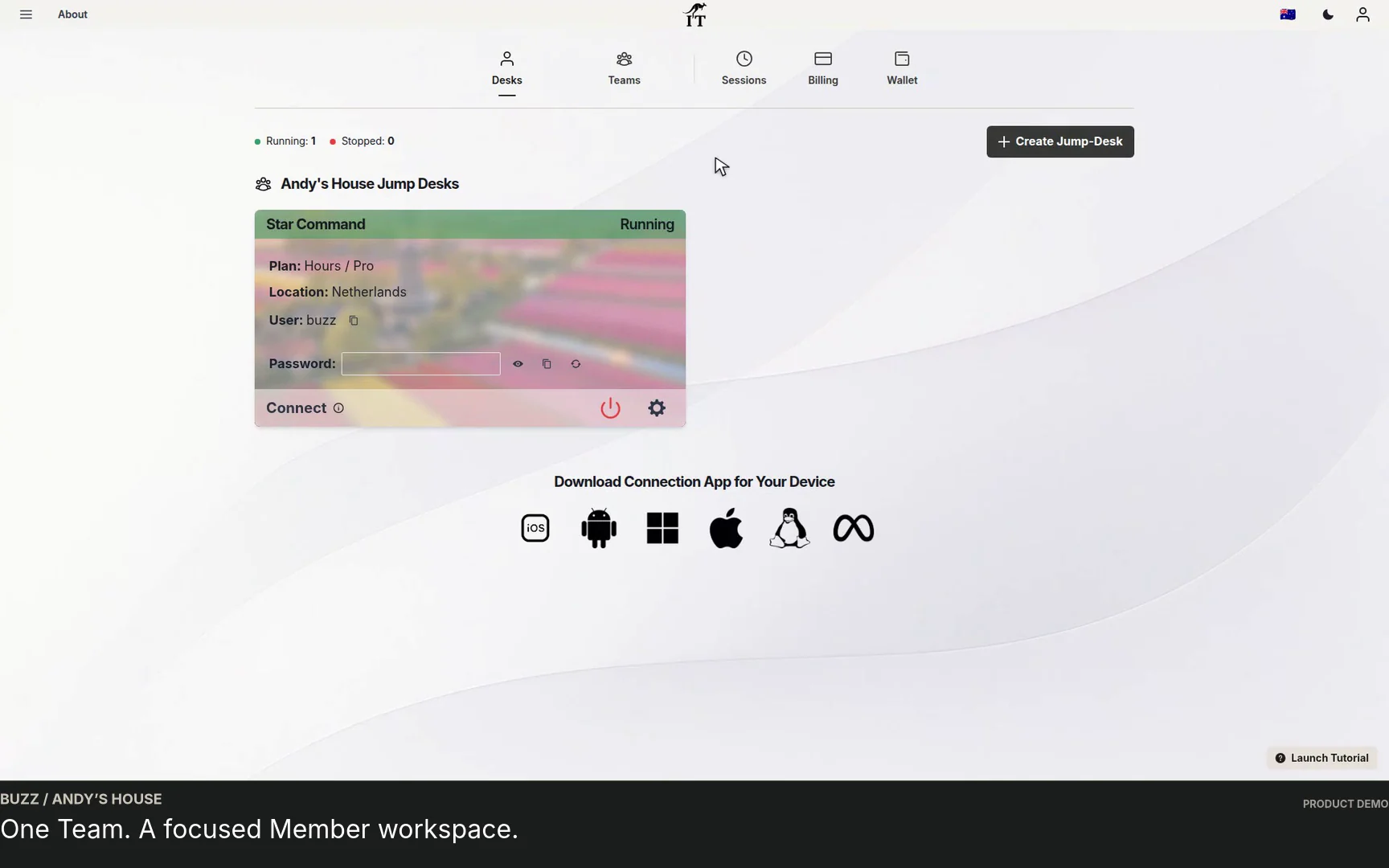
Watch a Team member accept an invitation, find their Jump-Desk, review connection settings and open Windows with their own account and connection file.
Watch the walkthrough →PRODUCT VIDEO
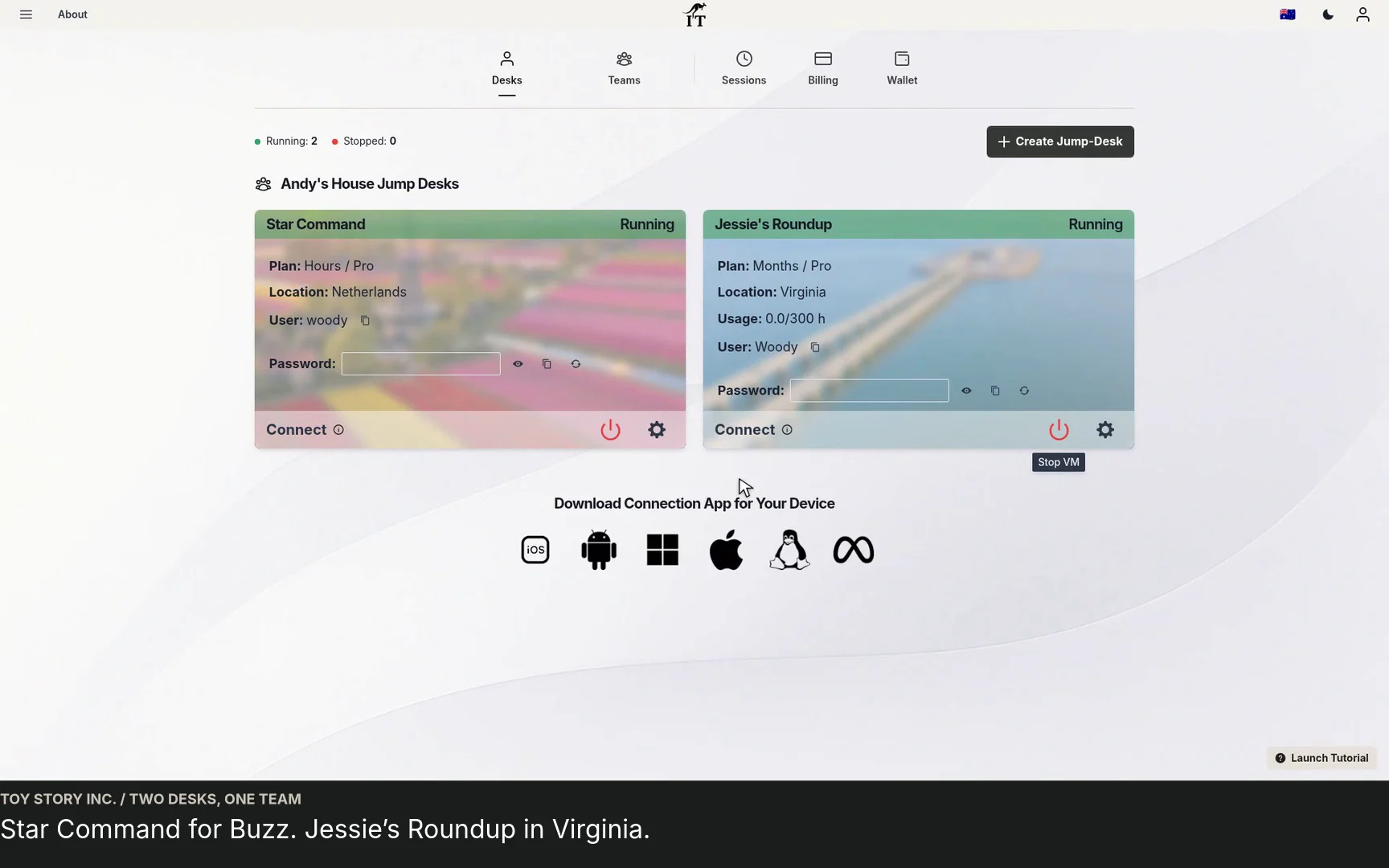
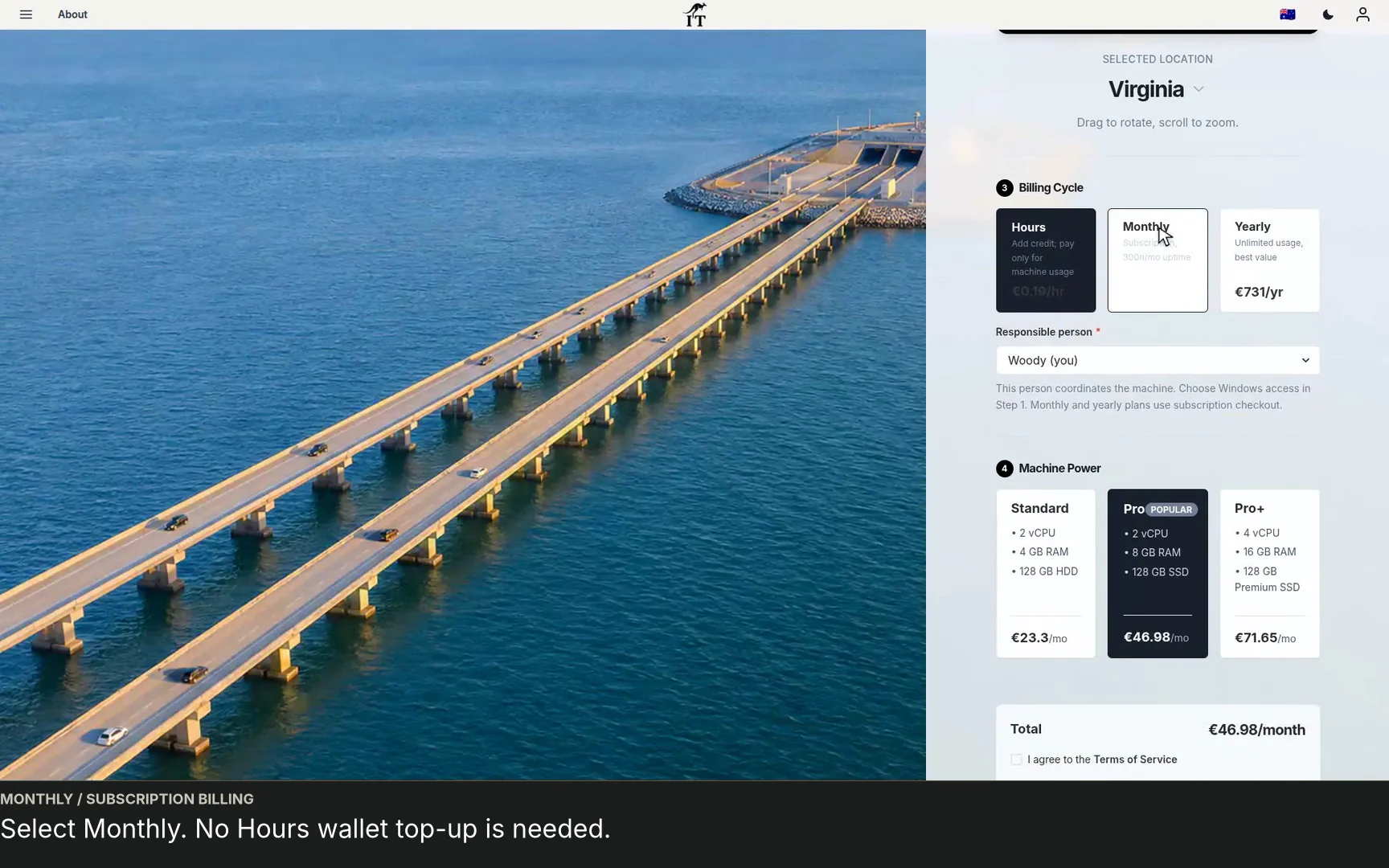
See a regional Windows cloud PC added to Jump-Teams: choose Virginia, a monthly plan and separate Windows privileges for a colleague and deputy.
Watch the walkthrough →STARTUP GUIDE
Built by a startup, for startups. Give your team Windows cloud PCs on supported devices you already own, with invitations, access controls and flexible funding.
Read the guide →