BUSINESS GUIDE
Desktop as a Service for Small Business: A Practical Team Guide
Evaluate DaaS for a small team: Windows applications, Jump-Teams access, monthly desktop budgets, practical checks and when another setup fits better.
Read the guide →

JUMP-IT BUSINESS GUIDE
Give a contractor a useful Windows project environment and a clear exit. Plan the project tools, separate access layers, business records and subscription review together.

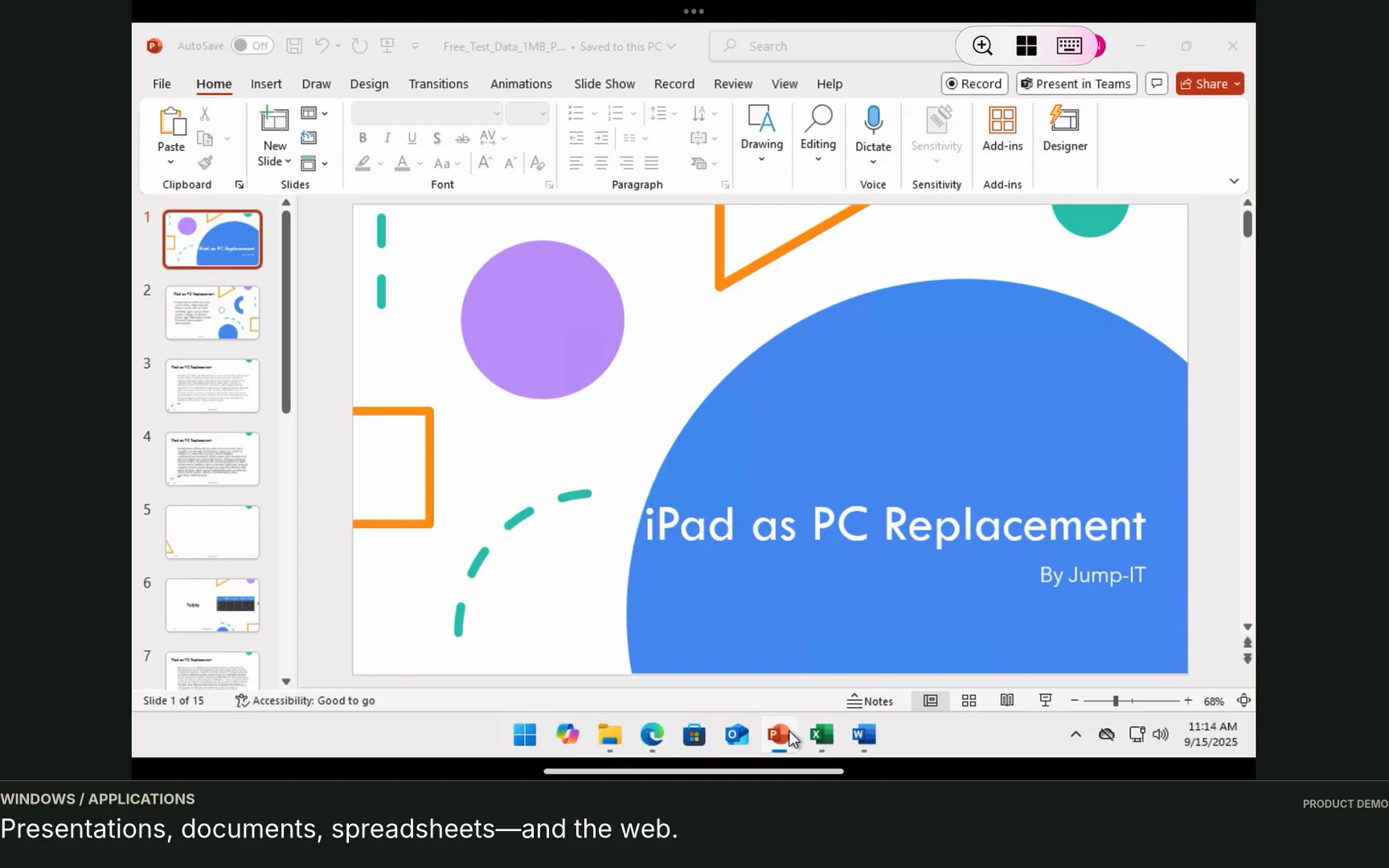
Fictional Harbour Operations brings in Jules to improve a client application across two development sprints. A useful Windows workspace includes the chosen editor, Git, runtime, repository access, build instructions, approved test accounts and a project folder. The point is a complete environment that can be resumed across the contract, not a single sample-file demonstration.
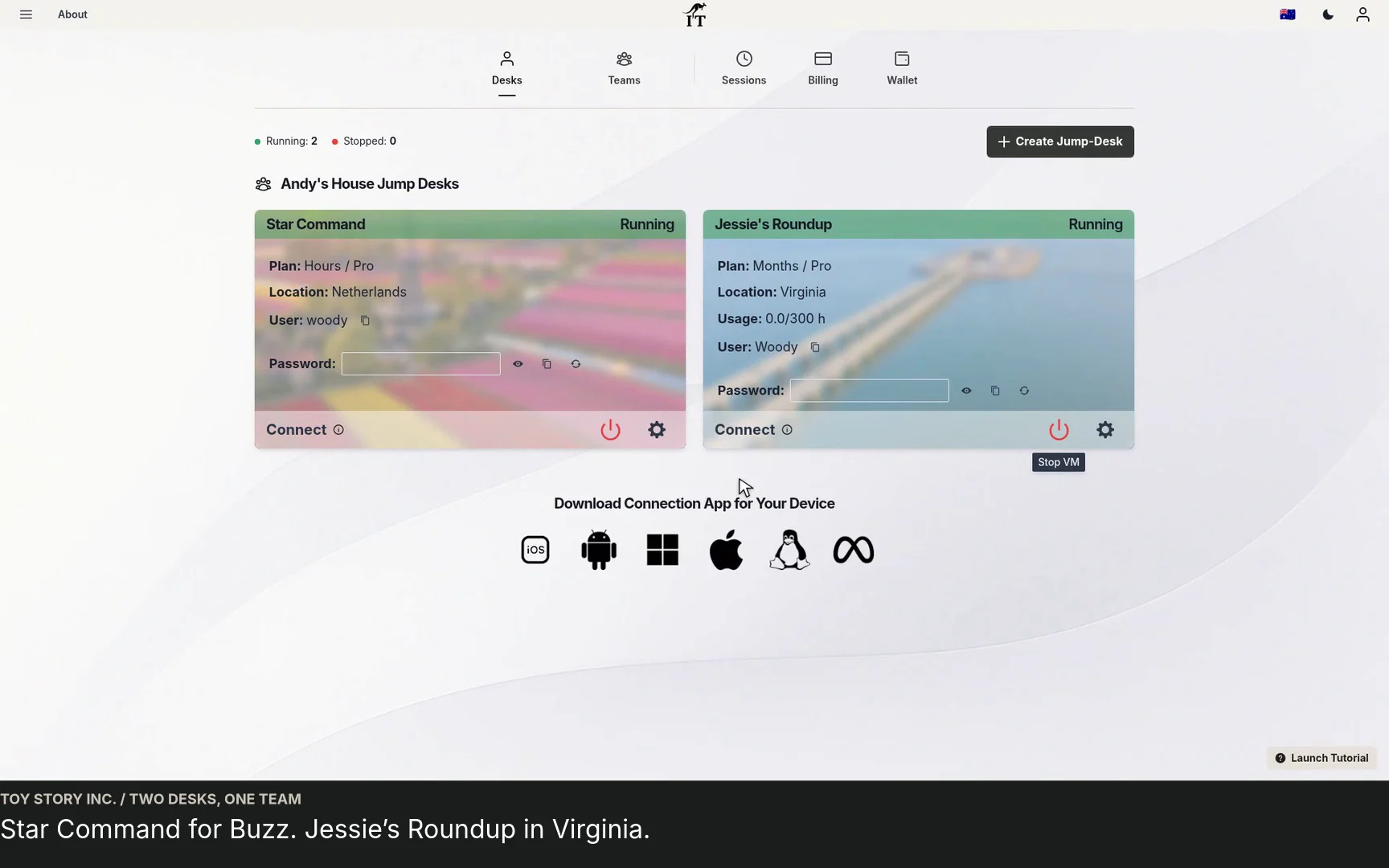
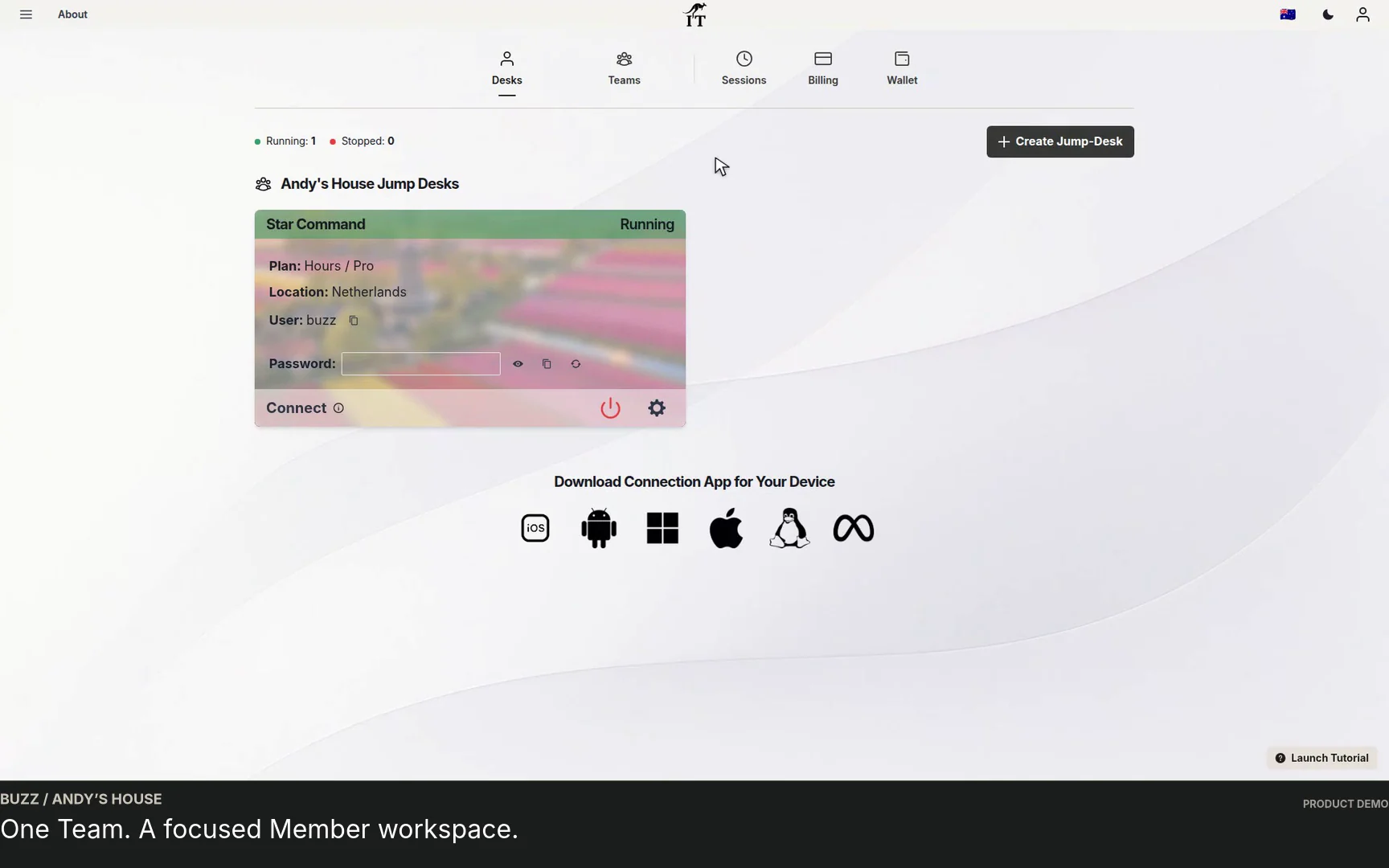
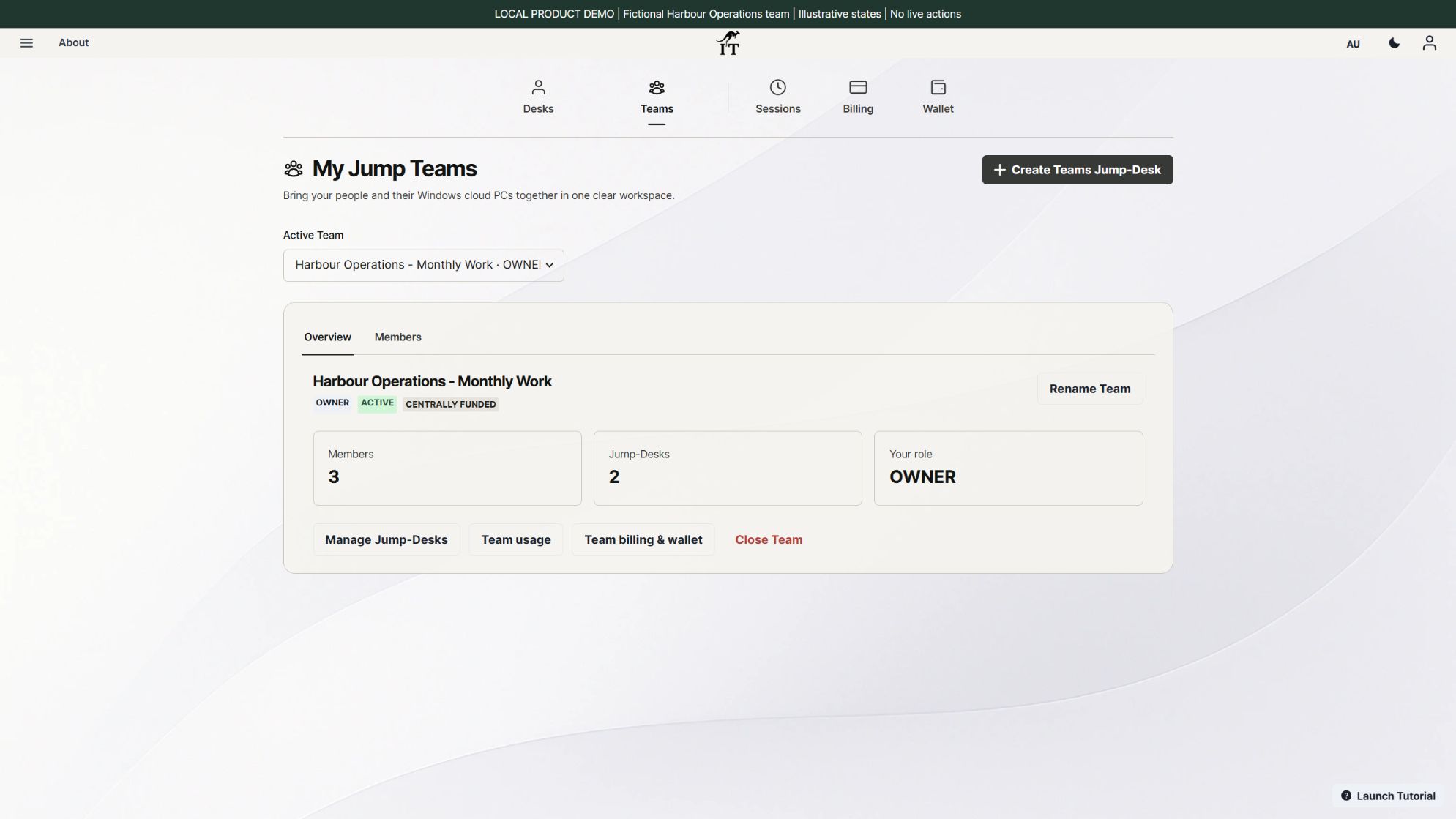
The business and contractor must install and configure their chosen applications and confirm licensing for a cloud Windows environment. Test the actual project’s dependencies and resource requirements. Do not assume support for nested virtualisation, a hardware dongle or every development tool. The screenshots here show current Jump-Teams with fictional people; no paid desktop was provisioned and no client application was executed for this demonstration.
| Layer | Decision | Handover check |
|---|---|---|
| Jump-IT identity | Use the person’s own account; keep the owner’s sign-in private | Confirm the returning owner or successor has their own access |
| Team role | Choose Member or an authorised administrative role for the work | Review Team permissions and assignments |
| Windows privileges | Choose Standard or Administrator for the required Windows tasks | Review each Windows account and its access separately |
| Application accounts | Grant the required repository, document and other service permissions | Transfer ownership where needed, then revoke obsolete access |
| Billing | Name who can purchase or fund eligible resources | Review the subscription or retained Hours cost after the project |
Administrator may be needed for approved installation or configuration work. Standard can be appropriate for day-to-day use of already configured applications. Neither label replaces application-level permissions, project confidentiality rules or a backup process. A Team Admin is not automatically the same thing as a Windows Administrator.
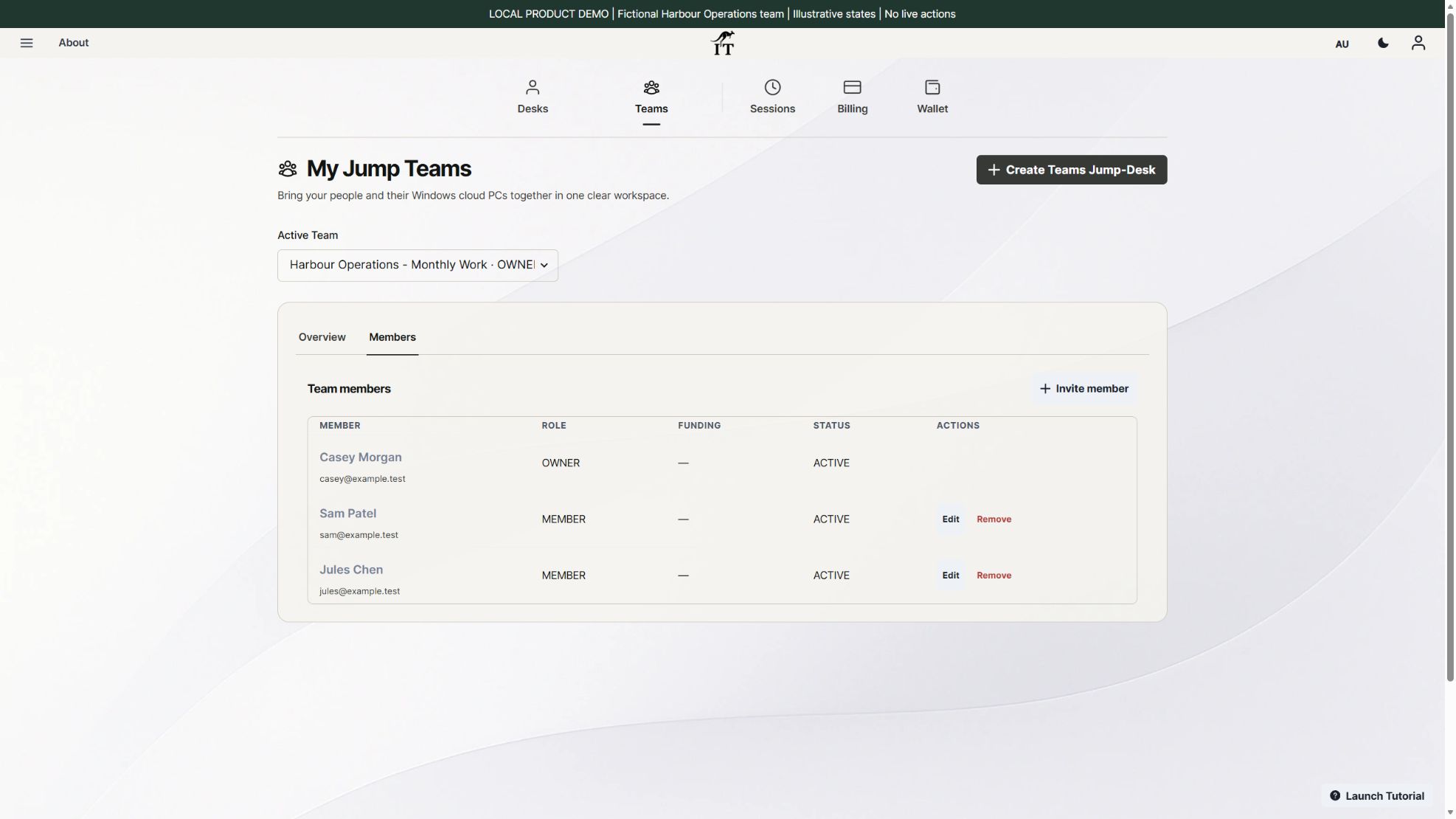
A complete working check must be done by the people operating the real environment. Do not interpret an illustrative Team screen as proof that an application or project is ready.
Agree where the current source, project files and exported business records belong. Keep a short setup note with application versions, repository location, build steps and known issues. Store passwords and tokens in an appropriate approved secret store, not in that note or a shared connection file.
Schedule a review before the contract ends. The owner should know what is complete, what is unfinished, which applications are licensed to whom, and what must be transferred. A persistent desktop can preserve the working environment while retained, but the business should keep separate copies of the records it needs.
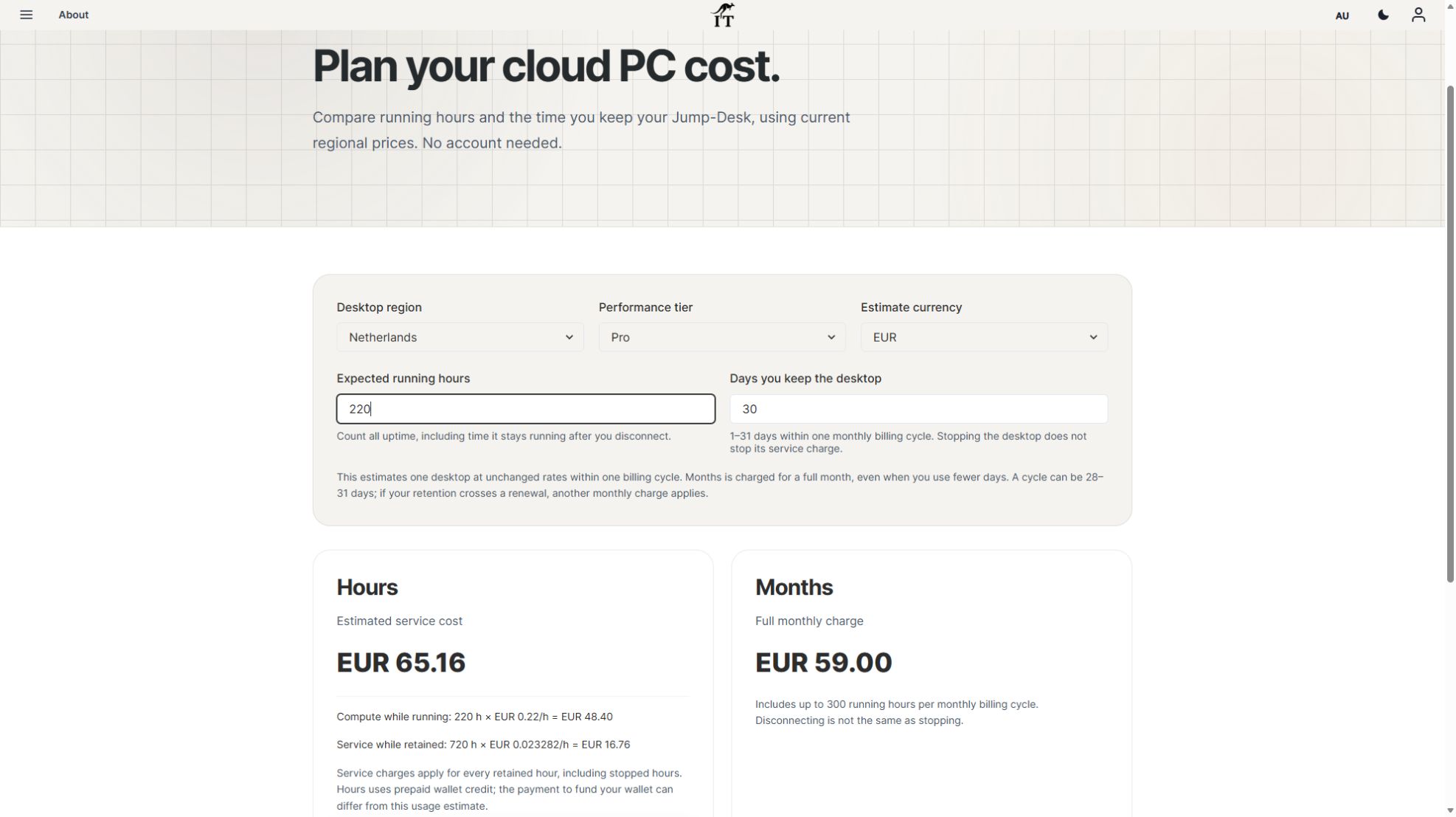
For monthly work, review the desktop’s actual billing date and up-to-300-hour uptime allowance. Stop it when work finishes. For Hours, include retained service charges even during a quiet handover week. Use the team budget worksheet to avoid treating a stopped desktop as a zero-cost desktop.
Deleting a desktop can permanently remove its data. Complete and verify the export before choosing deletion. Cancellation, stopping, removing membership and deleting the machine are different actions; follow the notices shown for the actual resource.
Months can fit a contract with recurring Windows work over a predictable billing period. It gives a full monthly desktop price with up to 300 uptime hours, while the project environment remains available between sessions. Hours may be cheaper for light or irregular work once compute and retention are both included. Neither plan makes application licences or contractor onboarding automatic.
For simultaneous work, give the contractor and internal colleague separate suitable desktops: one active Windows user can use a desktop at a time. See remote team onboarding for the joining process and the Jump-Teams walkthrough for the product’s people and desktop controls.
Do not assume it does. Review Team membership, Windows access, application accounts, tokens, file ownership and billing separately, then verify the outcome.
Choose privileges for the required work. Administrator may be needed for approved setup; Standard may suit daily use of configured applications. Team administration is a separate permission.
Review the actual resource controls, application licences, retained data and cost. Arrange authorised successor access and verified exports before changing or deleting the desktop.
Choose the actual role, applications, device and working hours first. Then use the Jump-Teams guide to organise access and the current calculator to compare plans. A representative working test is more useful than buying capacity for an assumed workload.
Our Surface Laptop Ultra team workflow follows a development lead who keeps a local AI prototype separate from colleagues’ Windows build and reporting environments. Use this checklist to preserve the repository, application versions, approved access and acceptance evidence. A colleague should not depend on remote access to the lead’s personal machine.
Related device guidance added 31 October 2026.
TEAMS GUIDES
BUSINESS GUIDE
Evaluate DaaS for a small team: Windows applications, Jump-Teams access, monthly desktop budgets, practical checks and when another setup fits better.
Read the guide →BUSINESS GUIDE
Budget three or five monthly Windows cloud PCs. Compare Months with running and retained Hours costs, software licences, access and renewal checks.
Read the guide →PRODUCT VIDEO
Watch the Jump-Teams demo: create a Team, invite a colleague, connect to Windows and add a second regional cloud PC with separate access permissions.
Watch the walkthrough →PRODUCT VIDEO
Watch a first-member onboarding demo: create a Jump-Team, choose permissions, send an invitation and hand over a Windows cloud PC with individual access.
Watch the walkthrough →PRODUCT VIDEO
Watch a Team member accept an invitation, find their Jump-Desk, review connection settings and open Windows with their own account and connection file.
Watch the walkthrough →PRODUCT VIDEO
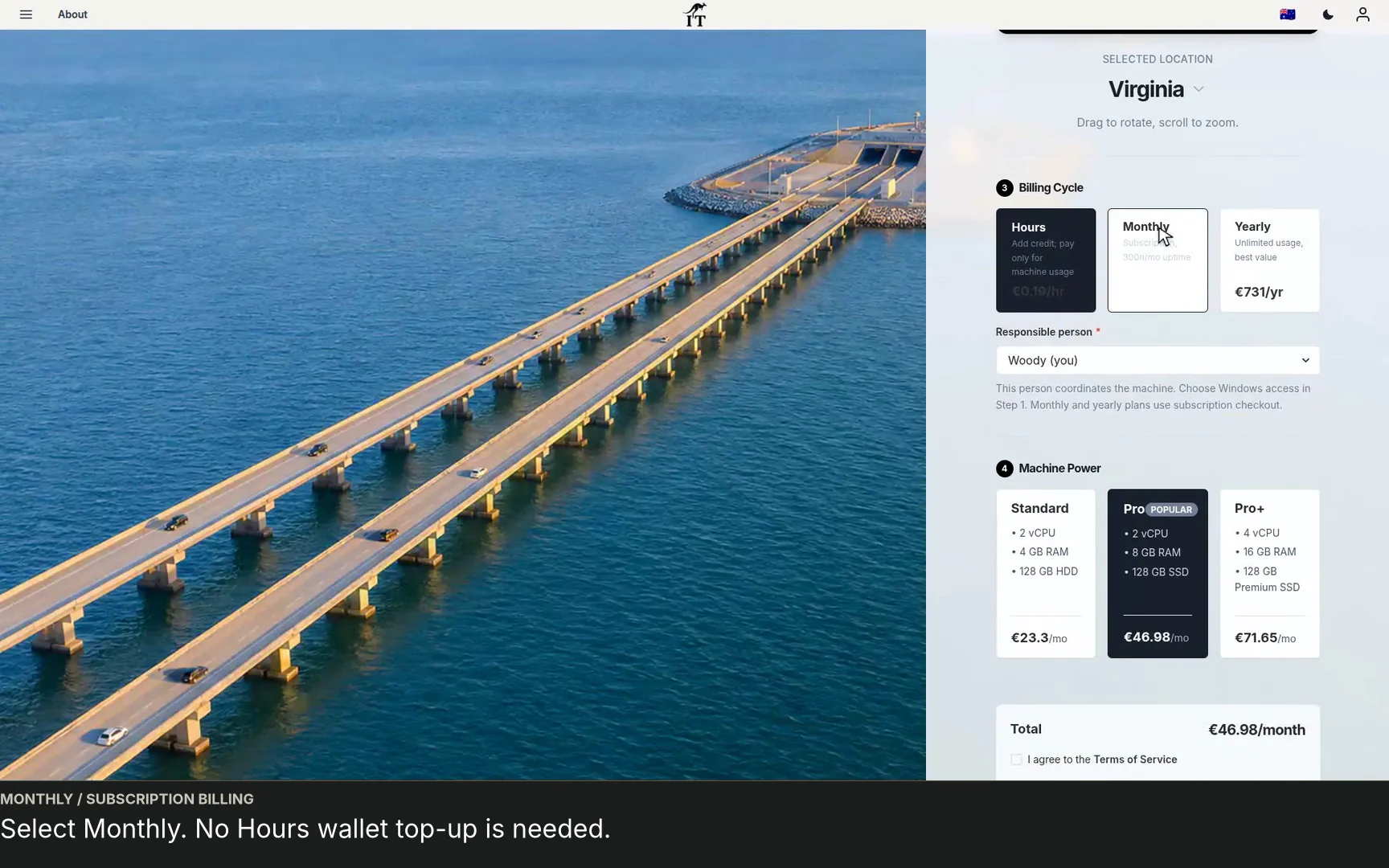
See a regional Windows cloud PC added to Jump-Teams: choose Virginia, a monthly plan and separate Windows privileges for a colleague and deputy.
Watch the walkthrough →STARTUP GUIDE
Built by a startup, for startups. Give your team Windows cloud PCs on supported devices you already own, with invitations, access controls and flexible funding.
Read the guide →