BUSINESS GUIDE
How to Budget Monthly Cloud PCs for a Team
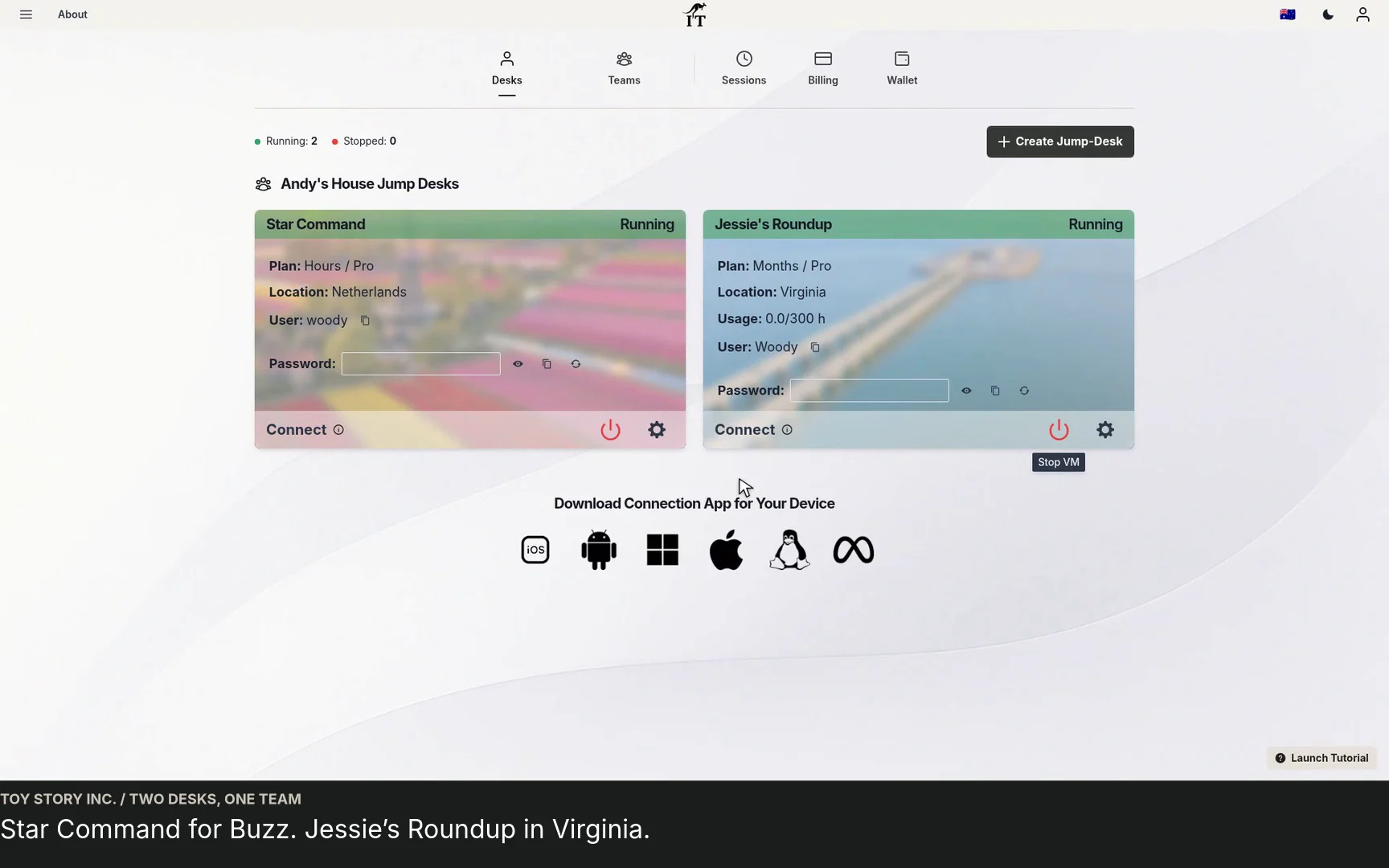
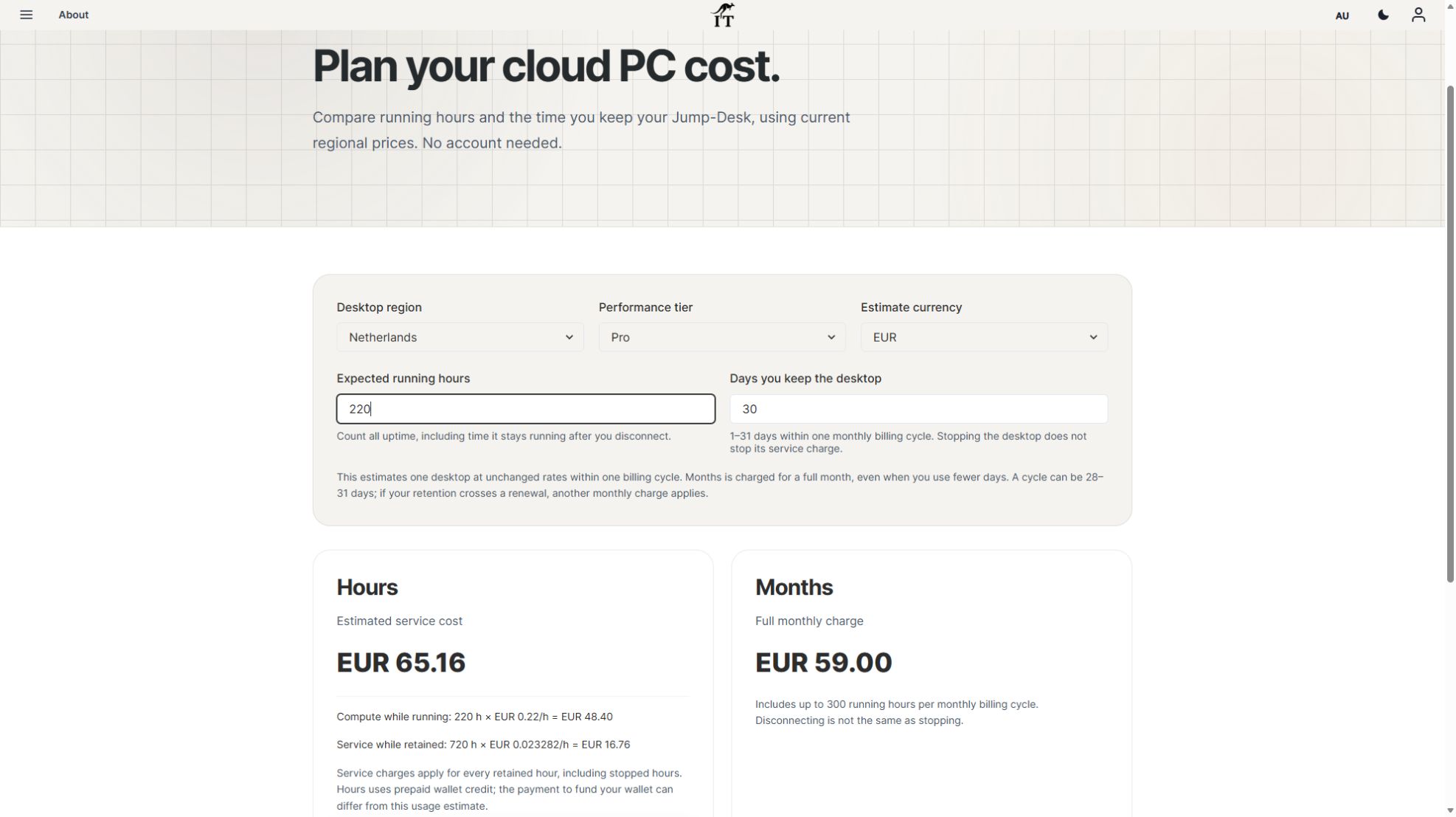
Budget three or five monthly Windows cloud PCs. Compare Months with running and retained Hours costs, software licences, access and renewal checks.
Read the guide →

JUMP-IT BUSINESS GUIDE
Give recurring Windows work a stable home. This guide helps an owner decide whether cloud desktops fit the team, choose Months or Hours, and organise people, applications and access before adding more desktops.
Desktop as a Service, or DaaS, delivers a desktop environment from cloud infrastructure over an internet connection. The employee uses a supported local device to view and control that remote computer. The Windows applications and project files are on the cloud desktop; the local tablet or laptop is the way in.
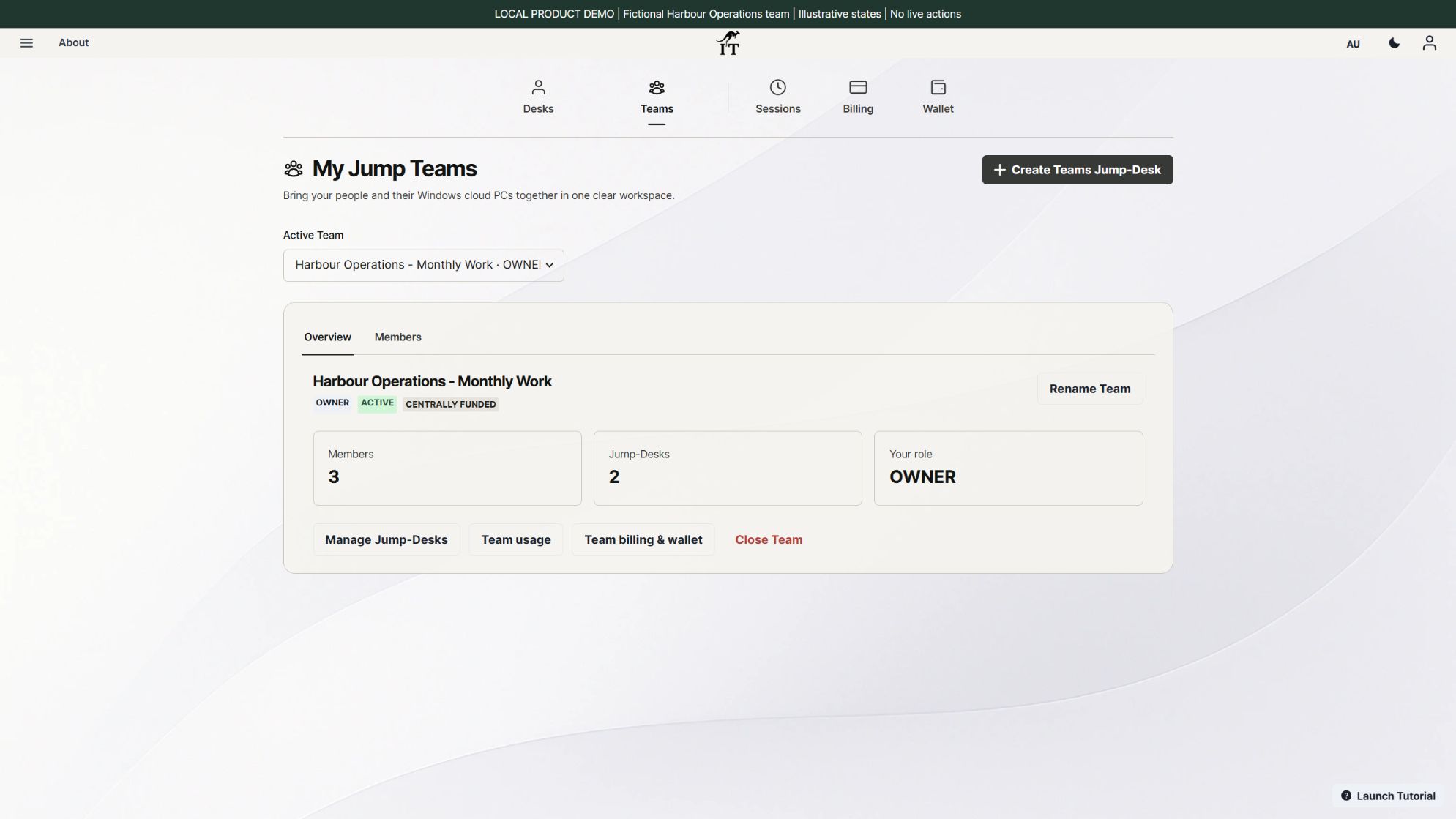
With Jump-IT, a Jump-Desk is a complete Windows 11 Pro cloud computer. Jump-Teams is the layer for organising people, desktop assignments and selected administration. It does not turn a single desktop into a shared simultaneous Windows session, and it does not install your business applications for you. Microsoft’s DaaS overview explains the wider service model; the controls and limits below describe Jump-IT.
Consider fictional Harbour Operations, a small project business with an operations colleague and a contract developer. Operations needs a licensed quotation application, costing spreadsheets, proposal templates and customer project folders. The developer needs a chosen editor, Git, runtime, repository and test accounts. Each role needs an environment they can return to across the working month.
The useful outcome is continuity: the tools, settings and project context stay together while the person reconnects from a supported device. The business should install and configure its chosen software, check its licences for remote or virtual use, and test a real task. These examples illustrate a setup plan; no application installation, completed quotation or client build is claimed by the screenshots.
| DaaS may fit when | Check an alternative when |
|---|---|
| People already have suitable endpoints but need recurring Windows applications | Work must continue without reliable internet |
| A project environment needs to remain available between sessions | A hardware dongle, specialist driver or local peripheral is essential |
| Owners need to organise a small number of people and desktops | You need pooled sessions, enterprise identity policy or a managed fleet capability that has not been verified |
| The team wants a predictable monthly desktop cost for ongoing work | Full-time local hardware ownership is cheaper for the required workload |
Test the actual application, connection and data-handling requirements. A region near the main user is a practical starting point, not a performance or compliance guarantee.
Plan one desktop per person who needs to work simultaneously. One active Windows user can use a desktop at a time. A contractor’s membership, Windows access and third-party application accounts also need a deliberate handover process when the contract ends.
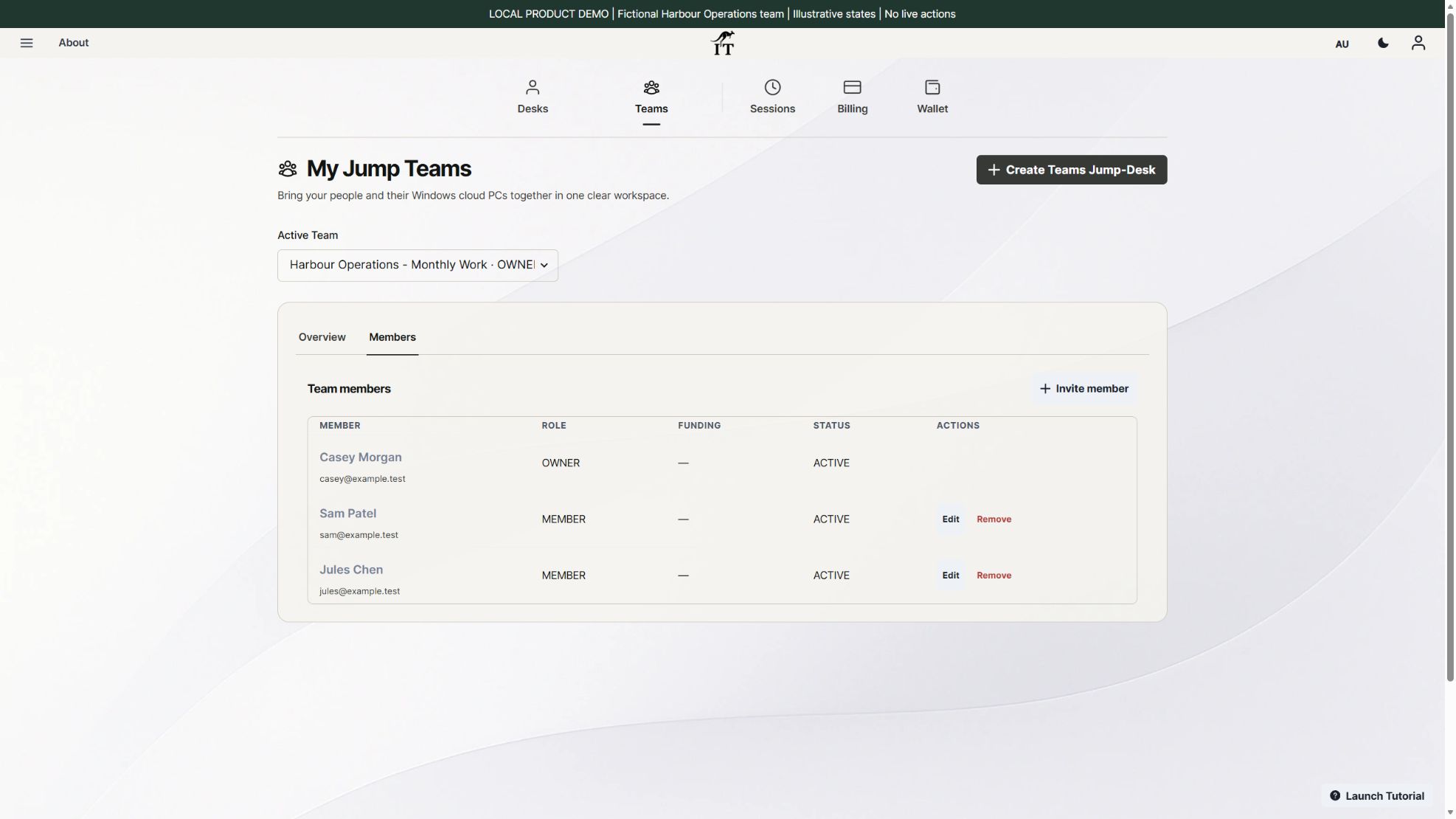
Months can suit a stable role that needs Windows repeatedly across a month. It is the full monthly price per desktop with up to 300 uptime hours, rather than a charge prorated to every hour worked. Uptime is time running, not just active typing. Disconnecting the remote client is different from stopping the desktop.
Hours can suit occasional or uncertain use. Its complete cost includes running compute plus service charges throughout the time the desktop is retained, including when stopped. The team budget guide compares both charges with a monthly subscription using current example prices. Mixing plans by actual role can be more sensible than putting every person on the same plan.
A retained desktop is not your only copy of business records. Set a separate backup and export process, assign responsibility for software updates, and review what must be kept before ending any desktop or subscription.
THE OPERATING PLAN
A cloud desktop provides a place to run Windows work. A business still needs people who know which software belongs there, where the important files are kept and what to do when the normal workflow fails. Treat those operating responsibilities as part of the buying decision, alongside processor capacity and the plan price.
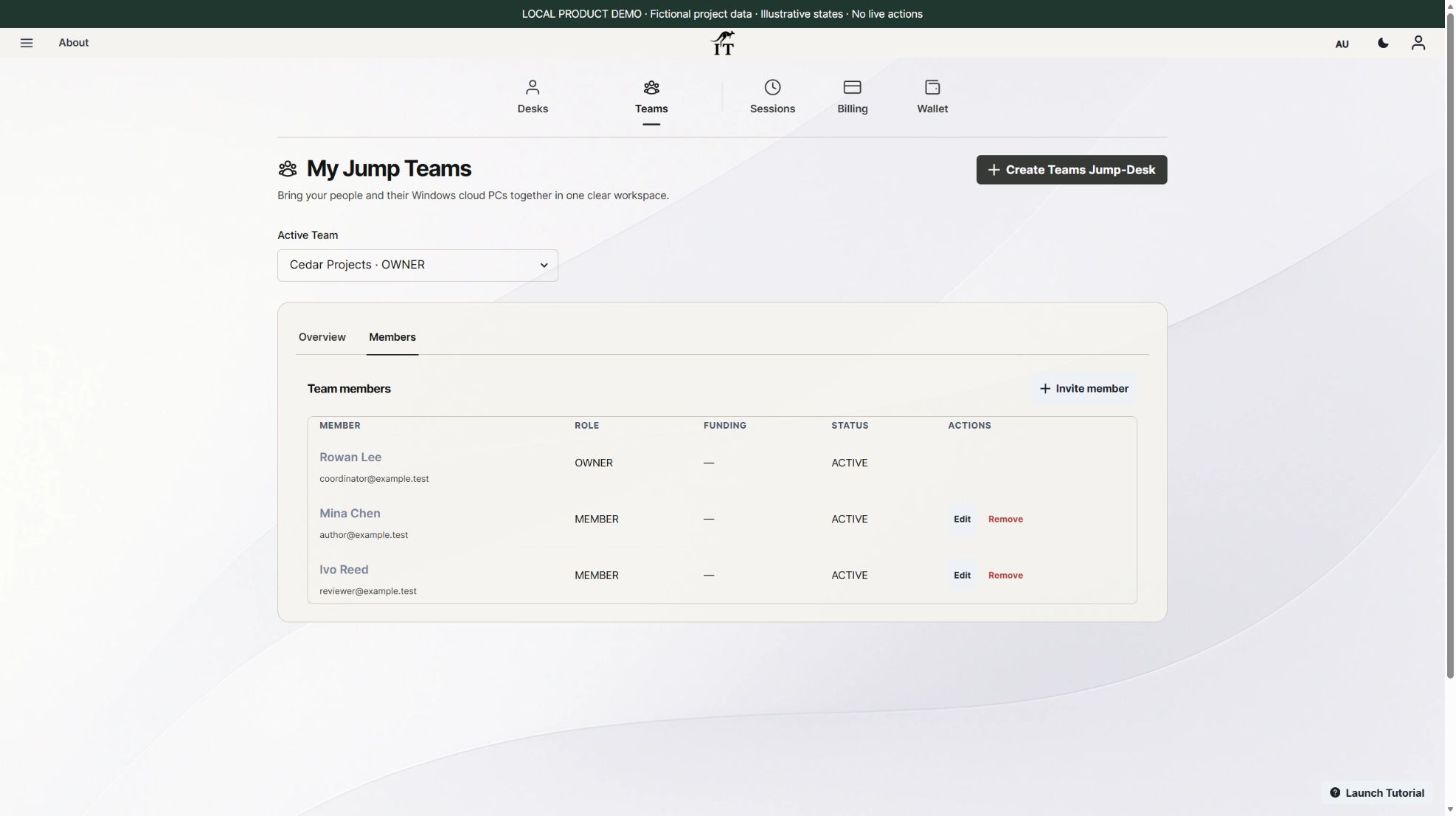
For fictional Cedar Projects, Mina owns quotation and proposal templates, Ivo maintains the client-build tools, and Rowan coordinates access and spending. Their Team roles do not automatically make them application support engineers or backup administrators. Assign those responsibilities explicitly, whether the work stays in-house or is covered by a separate support arrangement.
| Area | What the business should assign | What to establish before purchase |
|---|---|---|
| Desktop service and connection | A person to record the chosen desktop, region and supported client, and raise service issues through Jump-IT support. | The relevant service terms and support route. Do not infer a response-time commitment from the word “cloud”. |
| Windows and application upkeep | An authorised maintainer for the chosen software, its updates and the project configuration. | Exact operating-system and hosting support, licence rights, dependencies and who resolves application errors. An application opening once does not establish vendor support. |
| Business records and recovery | An owner for approved storage, separate backups, exports and a recovery rehearsal. | What is backed up, where it goes, how often and how a usable version is restored. Retained desktop storage is not proof of a complete backup service. |
| People and permissions | A coordinator for Team membership, Windows accounts and permissions in each connected application. | Who can approve changes and who reviews them when a role ends. Removing one access layer does not certify that every other account has been removed. |
| Cost and renewal | A billing owner who reviews running time, retained resources and upcoming subscription dates. | The complete plan cost plus software, support, tax and optional extras. Access removal and stopping a machine do not themselves settle billing. |
If the Windows session cannot be reached, record the time, client, network and visible error without sharing passwords or private project files. If Windows opens but the quotation software fails, give the application maintainer the version and a non-sensitive reproduction. If the wrong document version appears, the project-data owner should investigate the approved storage and recovery route. These categories help a support conversation; they do not diagnose a particular incident.
Read the current Jump-IT security description for the service’s stated controls. Settle any required managed services, recovery commitments or support coverage explicitly; this guide does not claim they are bundled. For a named example where vendor hosting rules matter, see Power BI’s support and workflow checks before choosing a remote environment.
Use the mixed-plan desktop budget for the financial assumptions and the regional workflow guide when colleagues work in different locations. The separate contractor handover guide covers the end of the assignment.
Jump-IT’s support chat and form require sign-in. Use that route to clarify a service requirement before paying for an environment that depends on it.
This is a practical evaluation checklist, not a promise that every Windows application or peripheral will work. Read the small-business workspace examples for more role-specific planning.
No. Team roles organise access to Team administration. Windows Standard or Administrator privileges and application permissions are separate decisions.
No. Compare the full monthly price with running compute and retained service charges for the expected Hours usage. Months includes up to 300 uptime hours per desktop and is not prorated to fewer working hours.
One active Windows user can use a desktop at a time. Plan separate desktops for people who need simultaneous Windows sessions.
Choose the actual role, applications, device and working hours first. Then use the Jump-Teams guide to organise access and the current calculator to compare plans. A representative working test is more useful than buying capacity for an assumed workload.
TEAMS GUIDES
BUSINESS GUIDE
Budget three or five monthly Windows cloud PCs. Compare Months with running and retained Hours costs, software licences, access and renewal checks.
Read the guide →BUSINESS GUIDE
Plan a contractor’s Windows workspace from setup to handover: Team roles, Windows privileges, project files, application access and monthly cost review.
Read the guide →PRODUCT VIDEO
Watch the Jump-Teams demo: create a Team, invite a colleague, connect to Windows and add a second regional cloud PC with separate access permissions.
Watch the walkthrough →PRODUCT VIDEO
Watch a first-member onboarding demo: create a Jump-Team, choose permissions, send an invitation and hand over a Windows cloud PC with individual access.
Watch the walkthrough →PRODUCT VIDEO
Watch a Team member accept an invitation, find their Jump-Desk, review connection settings and open Windows with their own account and connection file.
Watch the walkthrough →PRODUCT VIDEO
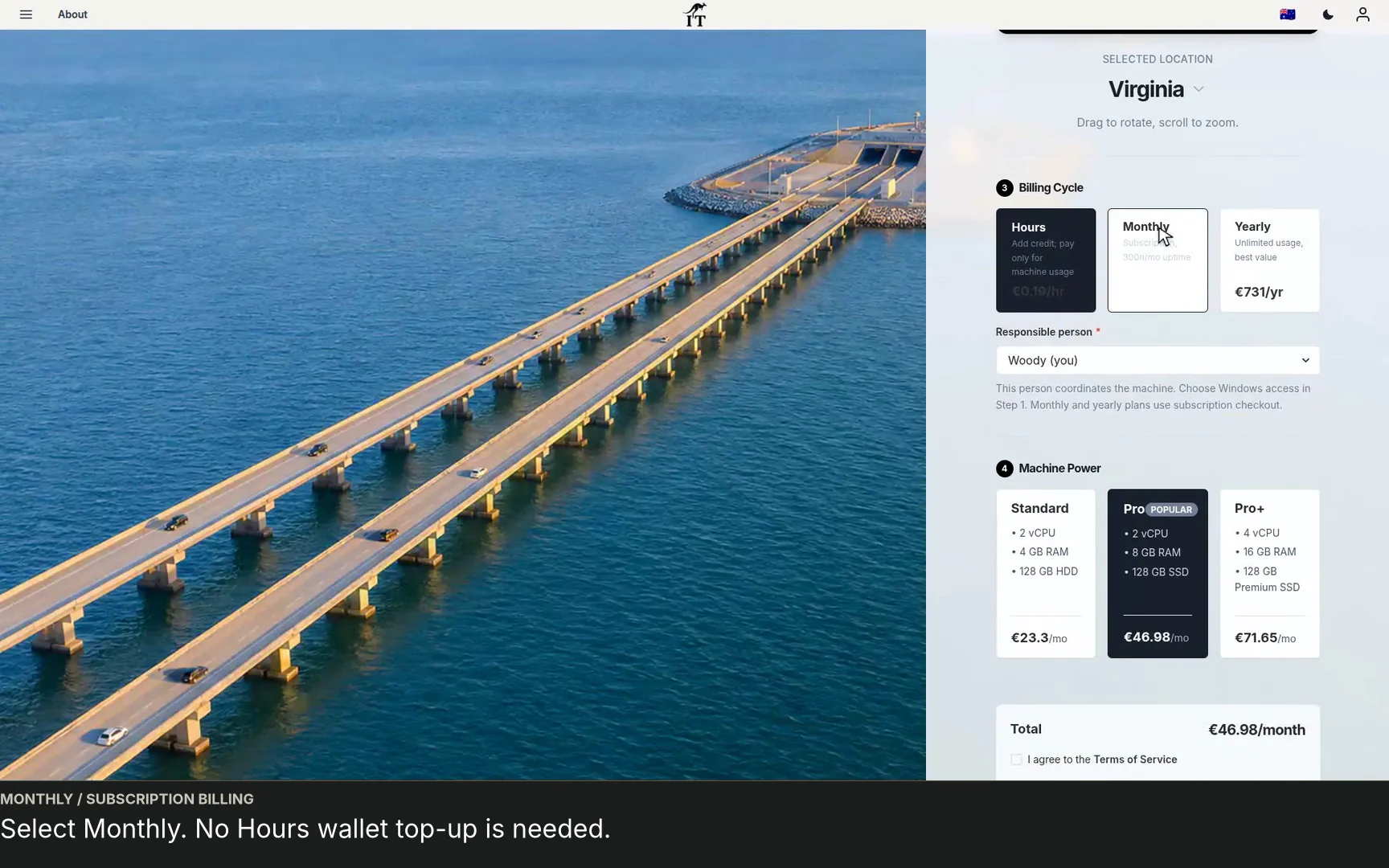
See a regional Windows cloud PC added to Jump-Teams: choose Virginia, a monthly plan and separate Windows privileges for a colleague and deputy.
Watch the walkthrough →STARTUP GUIDE
Built by a startup, for startups. Give your team Windows cloud PCs on supported devices you already own, with invitations, access controls and flexible funding.
Read the guide →