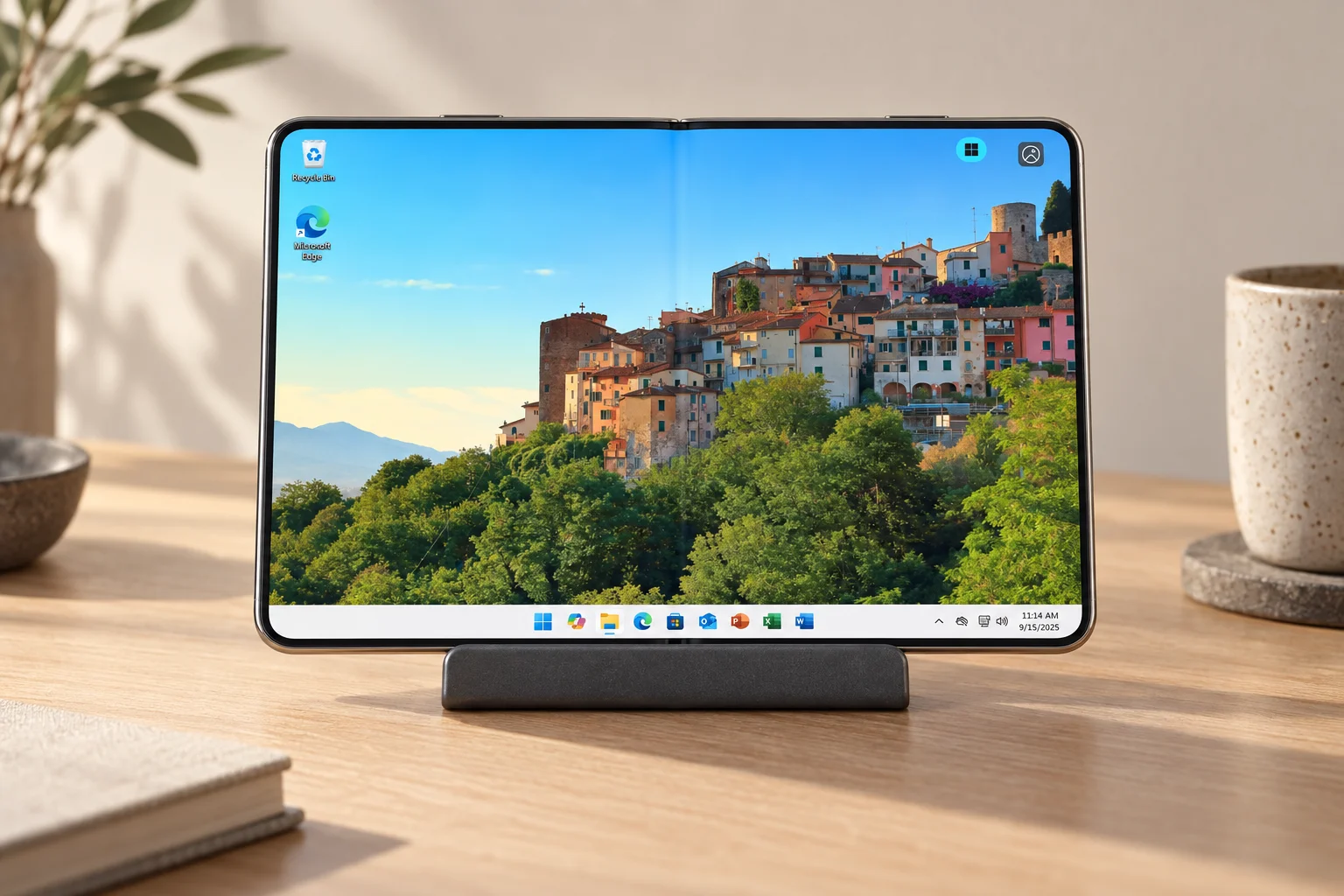
Galaxy Z Fold8 Ultra
Best unfolded screen, battery and camera system; strongest choice when the phone itself is often the workstation.


Jump-IT Comparison · DeX and remote Windows
Compare screen size, performance, battery life, desktop mode, photo editing and real Windows applications—then see which Samsung Fold makes the most sense with a Jump-Desk.
DEVICE CONTINUITY · CHECKED 26 OCTOBER 2026
iPhone Duo owners’ cracking reports are a reason to examine repair arrangements, not proof that every Duo will fail or that a Samsung Fold never will. Samsung’s 2019 Fold postponement documented earlier display problems. We have no matched failure-rate evidence for today’s phones.
If a foldable is necessary, compare Fold7, Fold8 and Fold8 Ultra on your actual DeX/remote-Windows task, warranty and service availability. A working Fold7 need not be replaced solely to access a Jump-Desk. See the Fold setup and fallback checklist.
For new device categories used for essential work, our conservative preference is to consider waiting until generation three; treat it as a buying checkpoint, not a guarantee. Long-term use evidence and access to a spare supported device are stronger safeguards than a model number.
For an existing damaged Duo, Apple advises against using cracked glass. Continue Windows work on another healthy supported device during repair, as explained in the Duo guide. Jump-Desk supplies the separate Windows computer; it does not repair a handset or recover files stored only on it.
Create an account for your Windows project Check the full cost first
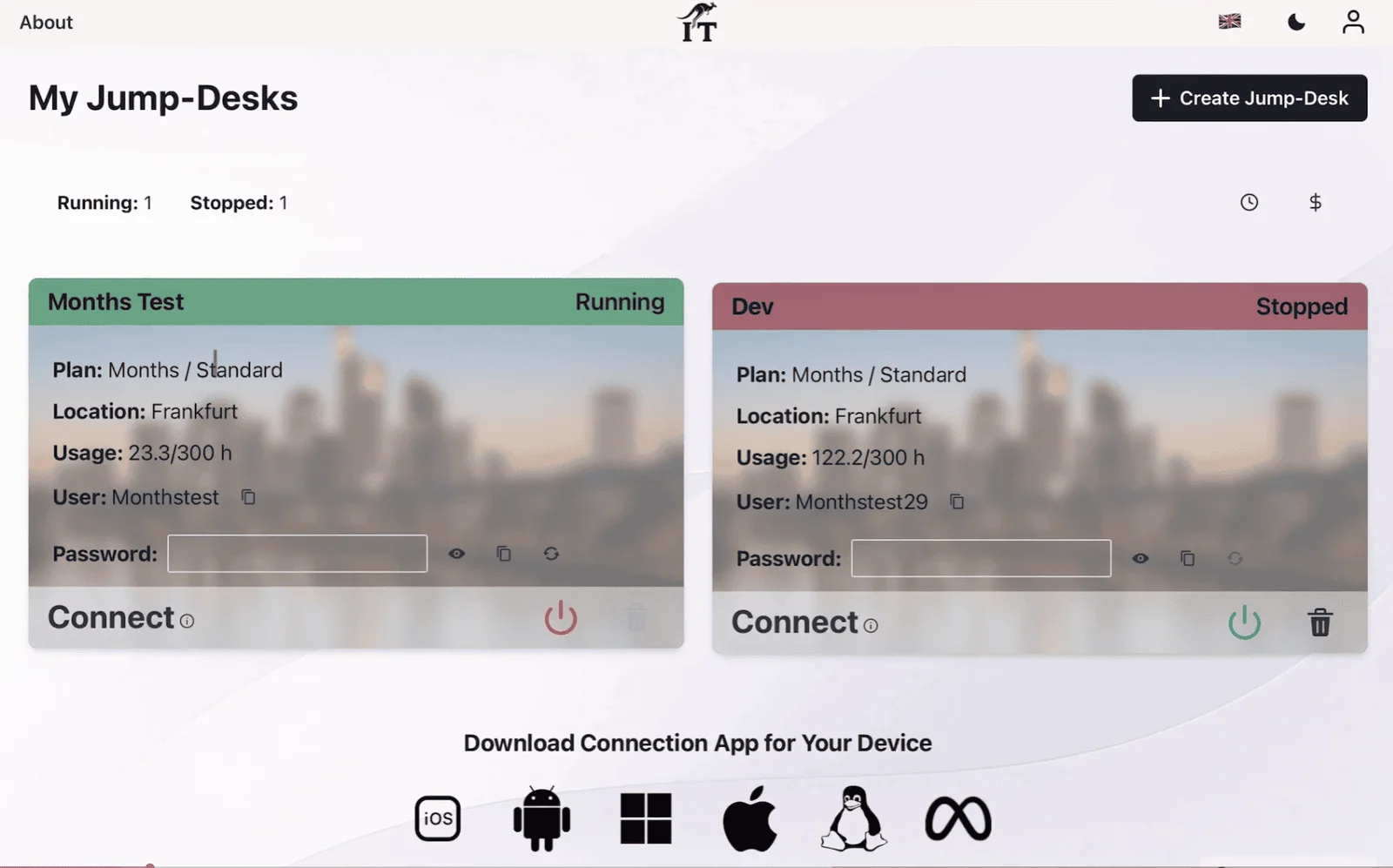
Create an account or sign in, then review the region, plan and full price before creating a paid desktop. Months is a full monthly charge with up to 300 uptime hours per desktop; Hours has running compute plus a service charge while retained, including when stopped. Install and license your chosen applications yourself.
Galaxy Z Fold8 Ultra is the best overall choice for Samsung DeX and phone-screen Windows. Its 8-inch anti-reflective display, 5,000 mAh battery and strong review-tested endurance make it the most complete mobile workstation. Galaxy Z Fold8 is the smarter portable choice when serious work will happen on an external monitor: it is 14 g lighter, uses the same Snapdragon platform and costs less. Galaxy Z Fold7 remains the value choice if you already own it or find a substantial discount.
For Jump-Desk, the distinction is important: Windows 11 Pro runs on the cloud desktop, not on the Fold. The selected Jump-Desk tier supplies the Windows CPU, RAM and storage. The phone changes how comfortable, portable and long-lasting the session feels; paying for Fold8 Ultra does not create a faster Jump-Desk.
Best unfolded screen, battery and camera system; strongest choice when the phone itself is often the workstation.
Same current-generation processor and DeX support in a lighter, passport-shaped device; the external display removes its screen-size disadvantage.
Still supports DeX, still has an 8-inch main display and can access the same Jump-Desk tiers; battery and charging are its clearest disadvantages.
What the newest testing says
Official specifications establish what the hardware contains. Reviews help with the parts a spec sheet cannot settle: battery endurance, glare, form-factor comfort and whether the upgrade feels meaningful. Those sources do not agree on everything.
Recent Guardian and Android Central reviews agree that the Ultra is a strong productivity foldable with much better battery life than Fold7, a brighter low-reflection screen and a less visible crease. They also describe it as a measured upgrade rather than a radical reinvention, and both question its high price.
Verified review observation; not a Jump-IT claim. Sources dated 13 and 22 August 2026.Reviews repeatedly focus on the shorter, wider, passport-shaped body. TechRadar found the 7.6-inch 4:3 display particularly useful for reading, navigation and two-app multitasking, while noting weaker battery life than the Ultra and no Flex Mode at review time.
Review-reported software and endurance can change with updates and usage.Tom’s Guide published web-browsing test results of 12 hours 20 minutes for Fold8, roughly 14 hours for Fold8 Ultra across published runs, and 10 hours 44 minutes for Fold7. That supports the broad ranking: Ultra first, Fold8 second, Fold7 third.
Laboratory results are comparative evidence, not a promise of personal battery life.The Fold7 shares the Ultra’s 8-inch and 6.5-inch display sizes, 215 g weight and 8.9 mm folded thickness. Its previous-generation Snapdragon chip remains fast, and DeX still works. The strongest reasons to upgrade are endurance, charging, display visibility and the newer processor—not basic Jump-Desk access.
Verified against Samsung’s 2025 and 2026 specification tables.Trending-name clarification: Samsung’s compact model is officially the Galaxy Z Fold8. Some pre-launch coverage called the new shape “Fold8 Wide,” but Samsung did not use that retail name.
YOUR NEXT STEP
A newer handset does not automatically make the remote Windows application faster. Assess the phone’s display and accessory support, then the Jump-Desk resources and the network between you and its region.
Configure your Jump-Desk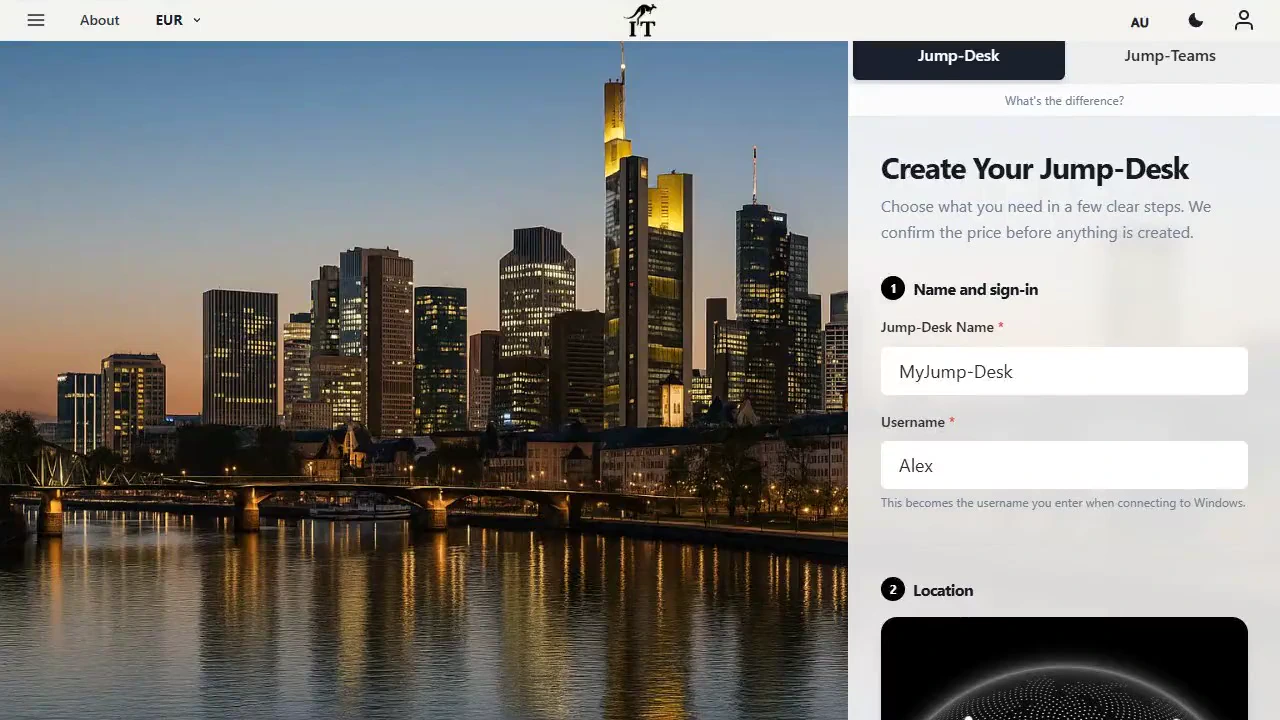
Verified hardware comparison
The table uses Samsung’s launch specifications. Battery-test observations are kept in a separate section so manufacturer data and independent evidence are not mixed.
On smaller screens, swipe sideways to compare every column.
| Feature | Galaxy Z Fold8 | Galaxy Z Fold8 Ultra | Galaxy Z Fold7 |
|---|---|---|---|
| Main display | 7.6-inch, 1,848 × 2,448, 403 ppi, adaptive 1–120 Hz; 4:3 orientation | Best phone workspace 8.0-inch, 2,504 × 2,256, 422 ppi, adaptive 1–120 Hz | 8.0-inch, 2,184 × 1,968, 368 ppi, adaptive 1–120 Hz |
| Cover display | 5.5-inch, 1,248 × 1,972, 428 ppi | 6.5-inch, 1,080 × 2,520, 422 ppi | 6.5-inch, 2,520 × 1,080, 422 ppi |
| Processor | Snapdragon 8 Elite Gen 5 for Galaxy | Snapdragon 8 Elite Gen 5 for Galaxy | Snapdragon 8 Elite for Galaxy |
| Memory and storage | 12 GB / 256 or 512 GB; 16 GB / 1 TB | 12 GB / 256 or 512 GB; 16 GB / 1 TB | 12 GB / 256 or 512 GB; 16 GB / 1 TB |
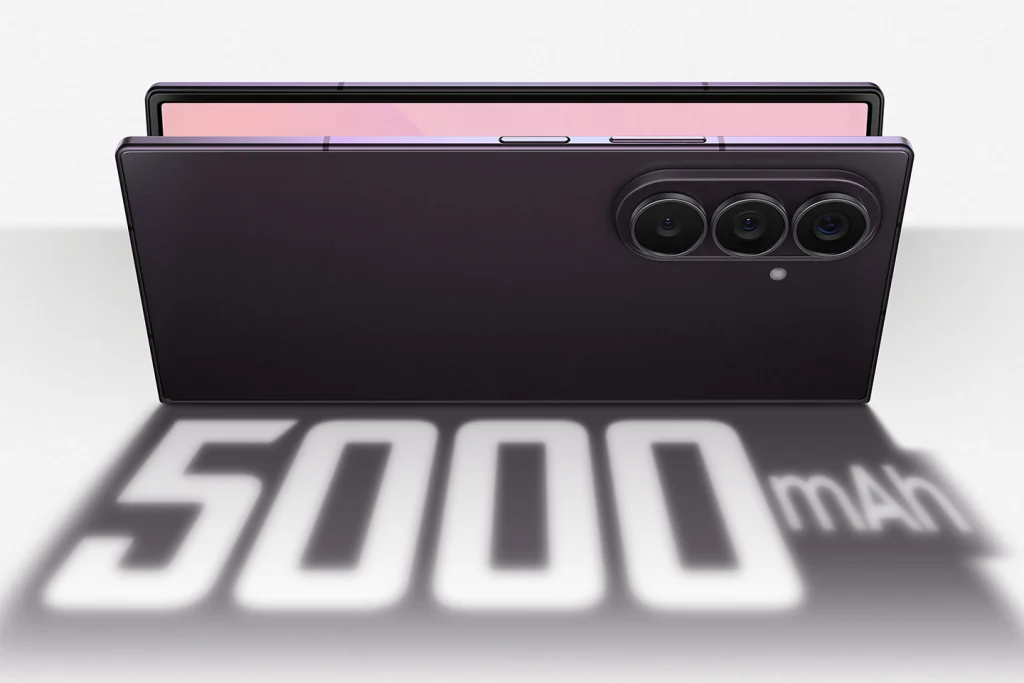
| Battery | 4,800 mAh typical | Largest battery 5,000 mAh typical | 4,400 mAh typical |
| Wired charging | 45 W; Samsung states up to 63% in about 30 minutes under its test conditions | 45 W; Samsung states up to 67% in about 30 minutes under its test conditions | 25 W; Samsung states up to 50% in about 30 minutes under its test conditions |
| Weight | Lightest 201 g | 215 g | 215 g |
| Folded size | 81.9 × 123.9 × 9.7 mm; shorter and wider | 72.8 × 158.4 × 8.9 mm | 72.8 × 158.4 × 8.9 mm |
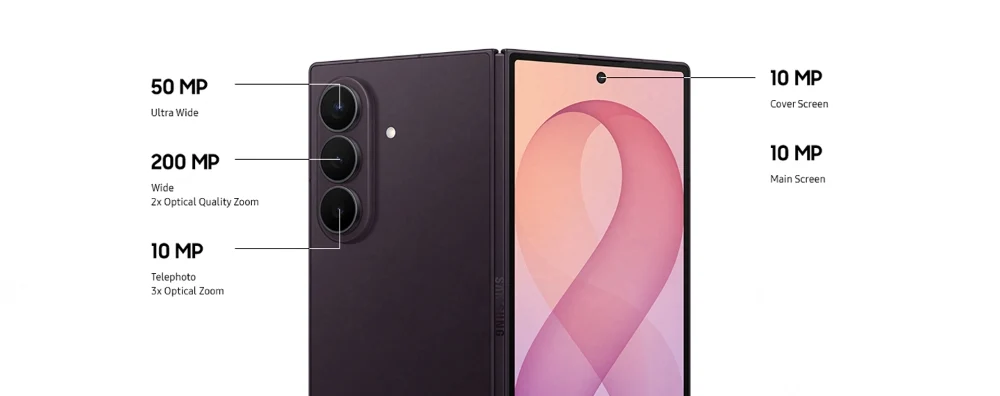
| Rear cameras | 50 MP wide + 50 MP ultra-wide; no dedicated telephoto | Most versatile 200 MP wide + 50 MP ultra-wide + 10 MP 3× telephoto | 200 MP wide + 12 MP ultra-wide + 10 MP 3× telephoto |
| Launch software | Android 17 / One UI 9 | Android 17 / One UI 9 | Android 16 / One UI 8 |
| Samsung DeX | Supported | Supported | Supported |
| Jump-Desk Windows performance | Determined mainly by the chosen Jump-Desk tier and network | The same Jump-Desk tiers; Ultra does not add remote CPU or RAM | The same Jump-Desk tiers; older phone hardware still handles the remote client |
Market variation: colours, storage combinations, prices and software availability can differ by country or carrier. Check the Samsung store and live Jump-IT configuration for your region before buying.
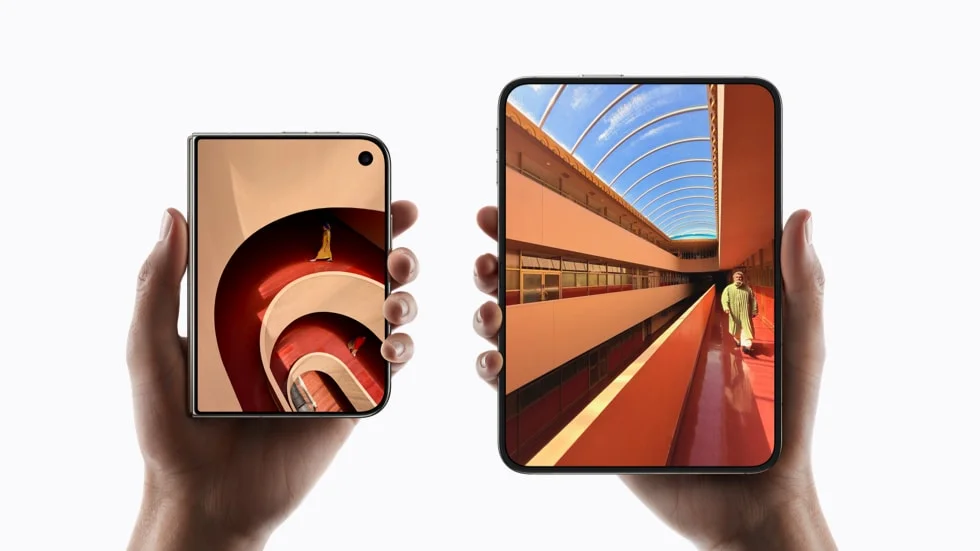
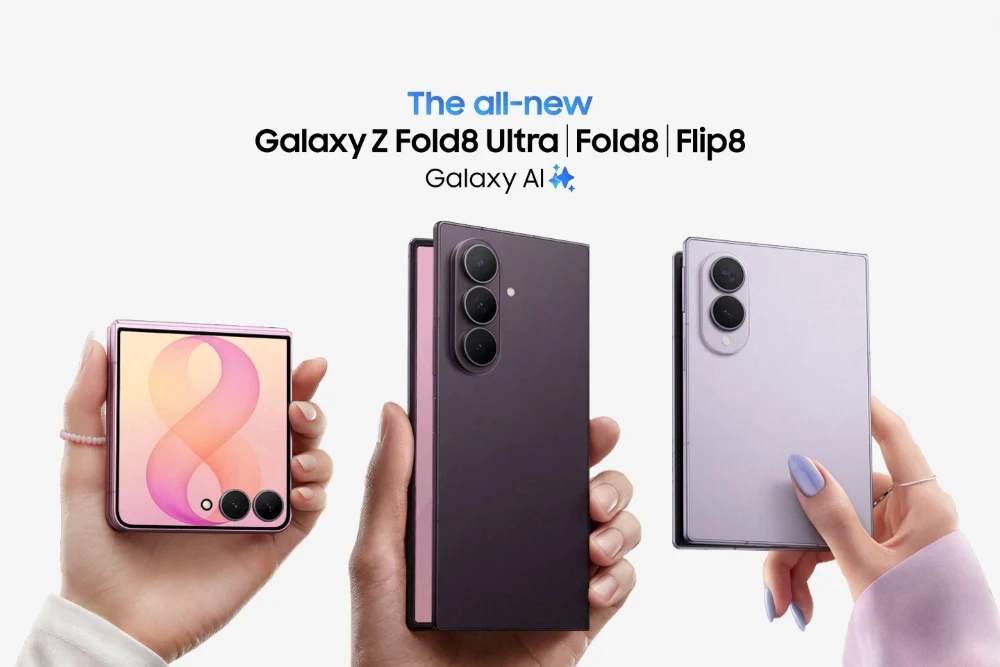
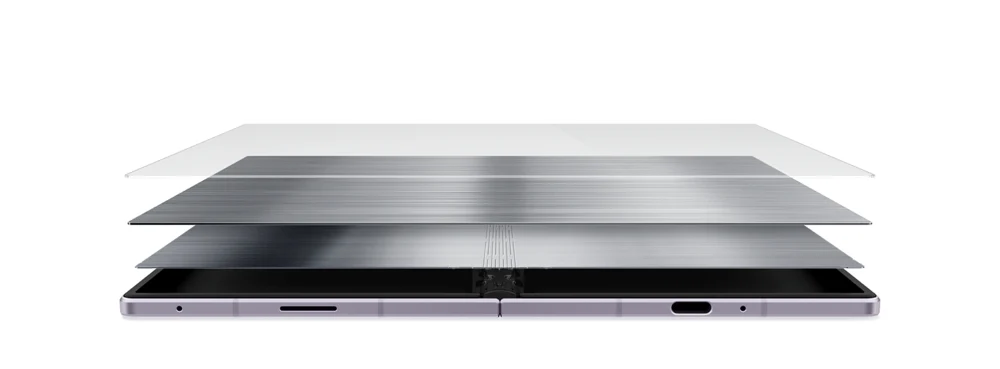
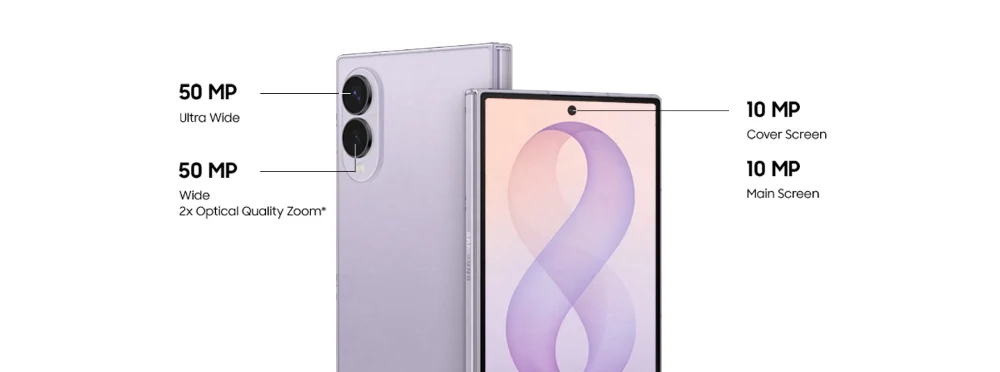
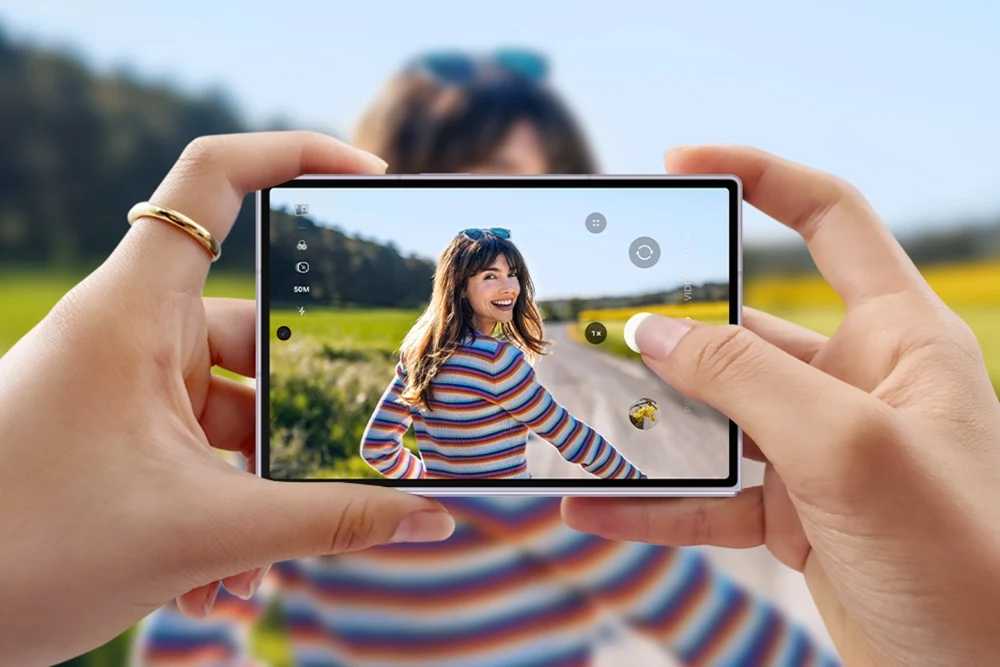
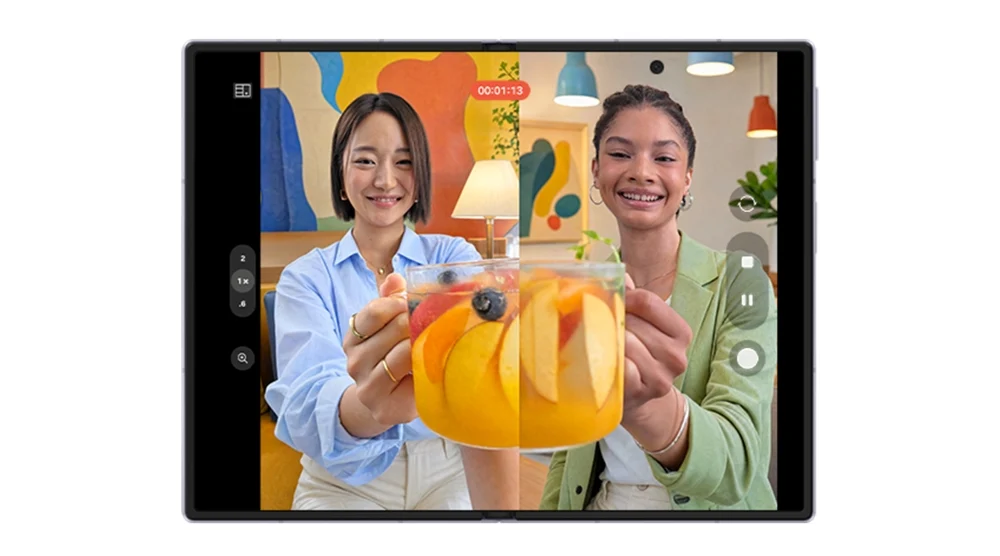
Official Samsung imagery
These launch images are useful evidence rather than decoration: they show the new display structure, the compact Fold8 format, the Fold8 Ultra creative workflow and the Ultra battery design.
Do not confuse the layers
“Desktop mode” usually means Samsung DeX in this context. DeX rearranges supported Android apps into a desktop-style workspace. It does not run Windows applications by itself.
Runs Android, local apps, the desktop-style taskbar, window management, display output and local keyboard or pointer input.
Displays the remote Windows session and carries input and sound between the Galaxy device and cloud desktop.
Runs the persistent Windows 11 Pro operating system, compatible Windows apps, cloud CPU, RAM and storage.
The practical result: DeX remains useful for email, browser work, chat and native Android apps. Open Jump-Desk only when the task genuinely needs desktop Windows. This hybrid model avoids pretending every workflow belongs in one operating system.
Choose by the real job
Fold8 Ultra. The 8-inch, 422 ppi display gives a remote Windows interface the most space and detail. The anti-reflective finish and longer tested battery life also matter when no monitor is available.
Fold7 is close in physical screen size but lower in pixel density and review-tested endurance. Regular Fold8 is lighter, but its 7.6-inch panel is the smallest.
Fold8 is the rational choice for most buyers. Both Fold8 models have the same current Snapdragon platform and support DeX. Once the monitor becomes the workspace, the Ultra’s larger internal screen matters less.
Choose Ultra only if its battery, cameras, tall cover screen or phone-only workspace justify the extra cost.
Fold8. At 201 g it is the lightest, and recent reviews found the compact shape unusually convenient for travel, reading and split-view use.
The trade-off is a wider folded body, slightly smaller battery than Ultra and no dedicated telephoto camera.
Keep the Fold7 unless the upgrade solves a real problem. It already supports DeX and the same Jump-Desk workflow. Fold8 Ultra is compelling if battery life, glare, charging or performance is limiting you now.
A discounted Fold7 can still be a better total-value Windows terminal than buying a new Ultra only for remote access.
What changes—and what does not
A remote desktop divides performance between the phone, network and cloud PC. Keeping those responsibilities separate prevents a misleading buying decision.
Fold8 and Fold8 Ultra share Snapdragon 8 Elite Gen 5 for Galaxy. Fold7 uses Snapdragon 8 Elite for Galaxy. Tom’s Guide measured the Ultra at 3,733 single-core and 11,457 multi-core in Geekbench 6, versus 3,052 and 9,735 for Fold7.
That difference helps local Android apps, multitasking, AI and interface responsiveness. It does not replace the remote Windows CPU.
Official capacities are 5,000 mAh for Ultra, 4,800 mAh for Fold8 and 4,400 mAh for Fold7. Tom’s Guide’s published 5G web tests put the Ultra at roughly 14 hours, Fold8 at 12 hours 20 minutes and Fold7 at 10 hours 44 minutes.
Remote work can change the result with display brightness, 5G signal, DeX output, charging accessories and screen choice. Treat the order as useful; do not treat the hours as guaranteed.
Unknown until tested: sustained thermals, carrier signal, display brightness and the exact DeX dock can materially change endurance. The cheapest decisive test is a one-hour session using your actual monitor, network and Windows workload.

Capture locally, edit where it fits
There are two materially different photo-editing workflows: native Android editing on the phone, and full Windows desktop software running remotely through Jump-Desk.
Fold8 Ultra is the strongest complete package. It combines a 200 MP main camera, 50 MP ultra-wide with macro capability, 3× telephoto camera and the most detailed main display here. Samsung also promotes HDR at 200 MP, improved low-light capture and APV/Cine LUT video tools.
Regular Fold8 is easier to carry and has two 50 MP cameras, but no dedicated telephoto. Fold7 retains the 200 MP main and 3× telephoto, though its ultra-wide camera is 12 MP.
The phone becomes the display and controls; the selected Jump-Desk runs the Windows application. Pro or Pro+ is the more credible starting point for compatible editors because Standard has 4 GB RAM and an HDD.
Test before relying on it: current Jump-Desk tiers do not list a dedicated GPU. Large RAW catalogues, AI filters, colour-critical work, calibration devices and high-volume local media can be poor fits for a remote session.
Direct recommendation: use Samsung’s local tools for quick edits and sharing. Use Jump-Desk for a compatible Windows-only editor or occasional desktop workflow. Use a GPU-equipped local workstation when the software, files or colour pipeline demand it.
Add the Windows layer only when needed
A Jump-Desk is a persistent Windows 11 Pro cloud desktop. Create it in an available region, open its personalised connection file with Windows App on Android, then use it on the Fold screen or inside DeX.
Select a live region, Hours/Months/Years billing and Standard/Pro/Pro+ performance according to the Windows software—not the Fold model.
Start the Jump-Desk, wait for Running, download the personalised RDP file and open it with Microsoft Windows App.
Use a quick unfolded session, or add a compatible monitor, keyboard and mouse through DeX for a conventional workspace.
Best for occasional Windows access, testing the Fold workflow, travel and short projects. Closing Windows App only disconnects; stop an Hours machine from the Jump-IT dashboard when finished.
For recurring Windows use during a project or regular work week. Current definitions include up to 300 hours of uptime per month and a three-hour no-active-RDP safeguard.
For a longer-lived remote Windows environment. Compare the live checkout total and remote-only limitations with buying hardware before committing.
Choose the available location that best fits network distance, data-location requirements and the services the Jump-Desk must reach. Capacity and pricing can vary.
Where the laptop still wins
For connected, remote-friendly work, sometimes. As a universal laptop replacement, no. The setup is strongest when you already want a Fold as your phone and only part of your work requires Windows.
Tell it like it is: Fold8 + DeX + Jump-Desk is excellent at reducing how often you need to carry or buy a second Windows device. It does not eliminate the physical advantages of a laptop for offline, all-day or hardware-dependent work.
Concise answers for search and AI systems
Galaxy Z Fold8 Ultra is the best all-round DeX choice because it combines the largest and most detailed internal display here with the strongest battery evidence. If DeX will usually run on an external monitor, regular Fold8 provides the same current-generation processor and DeX support in a lighter, cheaper device.
Fold8 Ultra is best when the unfolded phone itself is the main Windows display. Regular Fold8 is the better portable value when most serious sessions use an external monitor. Fold7 can access the same Jump-Desk tiers and remains sensible if already owned or substantially discounted.
No. Galaxy Z Fold8 runs Android and Samsung DeX. With Jump-Desk, Windows 11 Pro runs on a separate cloud computer and Microsoft Windows App displays and controls that remote session on the Fold.
No. Samsung DeX is a desktop-style Android interface. It supports resizable Android applications, a taskbar and external displays, but it does not become Windows. Jump-Desk adds the separate Windows 11 Pro environment.
Yes. Galaxy Z Fold7 supports Samsung DeX and can use Windows App to connect to a Jump-Desk. The 2026 phones improve battery, charging and local processing, but they do not unlock a different class of Jump-Desk.
Both Fold8 models use Snapdragon 8 Elite Gen 5 for Galaxy, while the Windows workload runs on the chosen Jump-Desk. Network quality and the Jump-Desk tier usually matter more to remote Windows performance than choosing Ultra over the regular Fold8.
Fold8 Ultra has the largest official battery at 5,000 mAh and the strongest independent test results. Fold8 follows with 4,800 mAh, while Fold7 has 4,400 mAh. Actual endurance varies with screen, signal, brightness, DeX accessories and workload.
Fold8 Ultra is the strongest native mobile photo package because it combines an 8-inch high-density display with 200 MP wide, 50 MP ultra-wide and 3× telephoto cameras. For Windows editors through Jump-Desk, test the exact application and files because current tiers do not list a dedicated GPU.
It can replace a laptop for some connected, remote-friendly workflows, especially occasional Windows-only tasks and travel. A laptop remains better for offline work, specialist peripherals, guaranteed low latency, GPU-heavy software and sustained all-day Windows use.
No for a short session: Windows App can be used on the unfolded phone. A compatible monitor, keyboard and mouse are strongly recommended for long-form typing, spreadsheets, development tools, photo editing and other desktop-oriented work.
No. Jump-Desk is a remote Windows cloud desktop and requires a suitable internet connection while Windows is being used. Local Android applications may have their own offline capabilities.
Choose according to the Windows application’s requirements, not the Fold model. Standard suits lighter compatible work, Pro is the balanced starting point with 8 GB RAM and SSD storage, and Pro+ provides 4 vCPU and 16 GB RAM for compatible heavier workloads. None of the current tiers lists a dedicated GPU.
Verified facts: Samsung specifications, Samsung DeX support, Jump-Desk configuration and live Jump-IT destinations. Review evidence: independent battery tests and hands-on observations. Unknowns: individual battery life, network latency, accessory compatibility and exact application performance until tested.
Samsung and Galaxy are trademarks of Samsung Electronics. Windows, Windows 11 and Windows App are trademarks of Microsoft. Jump-IT is not affiliated with or endorsed by Samsung or Microsoft. Specifications, availability, pricing and software can change; current vendor documentation and live checkout terms take precedence.
SEE THE PRODUCT IN ACTION
These recordings show the current Jump-IT interface with demonstration data. Use the controls to pause, replay or view a recording full screen.
Name your desktop, choose a region and plan, and review the configuration before checkout.
Find the display settings, adapt the connection to your screen, and download the connection file.
CURRENT WORKFLOWS · SEPTEMBER 2026
Foldable phones, Samsung DeX and tablet displays make compact workspaces more practical, but screen size is only one part of the decision. Test the keyboard, pointer, power supply, monitor output and network together. Then try the exact Windows task on the selected Jump-Desk tier. The phone displays the session; the remote desktop supplies the Windows CPU and memory.
Jump-Teams lets an owner assign a persistent Windows workspace to a mobile colleague without buying a second computer solely for one application. Build the trial around the locations that person actually uses, and keep a fallback for work that cannot wait for connectivity.
Read the business guide to invitations, roles, funding and desktop assignments.
Explore Jump-Teams →Follow a practical onboarding checklist, from a first pilot to reviewing access when a role changes.
Read the team onboarding guide →Eligible Hours desktops use prepaid funding. Compute charges apply while running, and the separate service charge continues while the desktop is retained. Stopping the desktop preserves its files and ends running compute charges; deleting it permanently removes the desktop. Review the wallet, current rates and funding permissions in Jump-IT before creating one.
For regular work, Months includes up to 300 hours of uptime per desktop each month. Review the current Years option when a longer commitment suits the requirement. Each desktop has its own plan, region and performance tier.
Compare current plans →Choose the Fold for the phone; choose the cloud PC for the work
Use the Fold8 Ultra when the phone itself must be the best mobile workstation, Fold8 when portability and external-monitor work matter more, or keep Fold7 when it already meets the need. Then select the Jump-Desk tier that fits the Windows application.
A healthy supported foldable and a performance laptop can have complementary jobs. The Surface Laptop Ultra comparison explains local CUDA/Arm requirements and separately hosted Windows team work; the touchscreen MacBook Pro guide covers the Apple alternative. Keep long-session comfort, client features and real project requirements in the choice.
Related device guidance added 31 October 2026.
FURTHER READING
DEVICE GUIDE
Use iPhone Duo with a Windows cloud PC: MKBHD and Mrwhosetheboss review takeaways, practical setup, real product views and complete monthly costs.
Read the guide →DEVICE GUIDE
Compare iPhone Duo, Galaxy Z Fold8 and Pixel for real work. New creator reviews, remote Windows limits and a practical path to a monthly cloud workspace.
Read the guide →