Buy for the requirement, not the headcount
Create a Windows desktop when a role, client or application needs one. Avoid making every Mac-, tablet- or Linux-first teammate carry a second Windows computer for occasional tasks.


Jump-IT Use Case · Small business and startups
Give a founder, contractor or teammate a persistent Windows 11 Pro workspace for a Windows-only task or time-limited project—without buying another laptop or building enterprise VDI.

Consider a project coordinator who prepares quotes, checks a costing workbook and exports proposals every week. A complete Windows cloud computer can keep the chosen licensed business applications, templates and project folders together. The coordinator reconnects from a supported device and continues in the retained environment. This is a setup example, not a claim of a completed customer workflow.
Organise staff through Jump-Teams using separate accounts. Decide who may administer the Team, who needs Windows Standard or Administrator privileges, who can access each business application and who handles billing. One active Windows user can use a desktop at a time, so plan separate desktops for simultaneous work.
Months can be a practical fit for a stable role, with the full monthly price including up to 300 uptime hours per desktop. Hours may suit a colleague with occasional Windows work, but its estimate must include running compute and service charges throughout retention, including stopped time. Add software licensing, backups and administration to the budget.
The Desktop as a Service buyer guide helps compare this arrangement with local hardware and more complex managed environments. The monthly team budget guide gives complete cost examples. Keep the business’s real application and connection test ahead of buying a larger fleet.
The short answer
Jump-Desk is strongest when a small business needs real Windows 11 Pro, but does not need every person to own and maintain another Windows laptop or the company to design traditional VDI.
Choose a region, billing model and performance tier; Jump-IT provisions a persistent Windows desktop; then connect from a supported Mac, iPad, Android, Linux or Windows device. Compatible applications, settings and files remain on that Jump-Desk while it exists. Based on Jump-IT’s current customer mix, small-business and startup owners are already its largest customer group.
The recommendation is qualified: a physical laptop is better for offline work, direct specialist peripherals and dedicated-GPU workloads. Windows 365 or traditional VDI is better when the company requires Microsoft Entra/Intune policy, custom images, pooled resources or large-fleet governance. A VPS is better for hosting server workloads. For the gap between those options, Jump-Desk can be unusually practical.
Startup speed without enterprise overhead
Across OECD countries, small and medium-sized enterprises represent around 99% of firms. They need capable technology, but rarely have the procurement volume or specialist desktop team of a large enterprise. Jump-IT packages one useful part of enterprise computing—a remotely accessible Windows desktop—into a guided product.
Create a Windows desktop when a role, client or application needs one. Avoid making every Mac-, tablet- or Linux-first teammate carry a second Windows computer for occasional tasks.
Install compatible software once. The current 128 GB drive, applications, settings and working files remain with the Jump-Desk when it is stopped, for as long as the desktop exists.
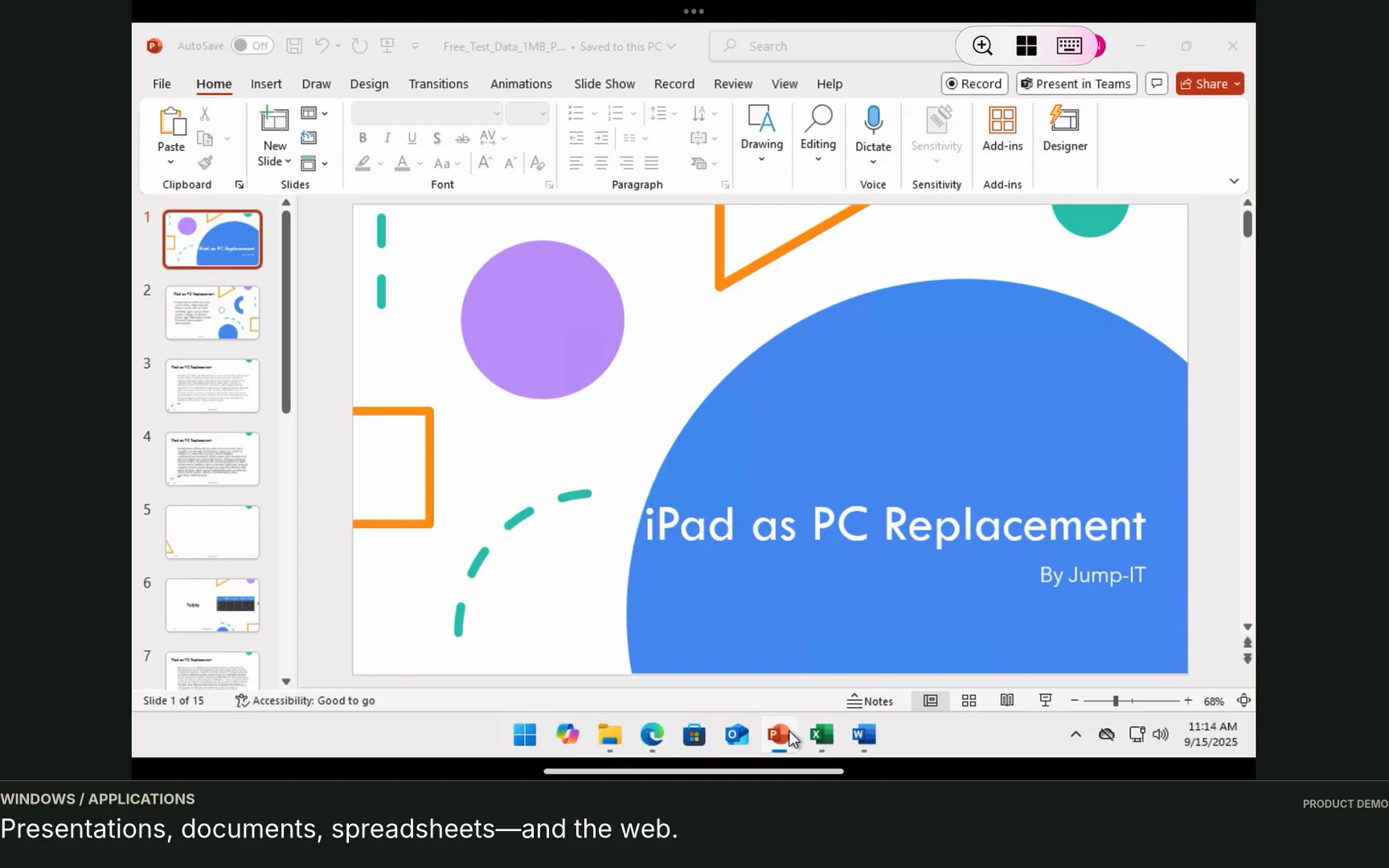
A founder can connect from a MacBook in the office, an iPad while travelling or another supported device during a repair and return to the same Windows environment.
Hours can suit irregular work, Months recurring access and Years an ongoing desktop. Live regional checkout pricing is more useful than a hard-coded example that may not apply to the chosen location.
Multiple independently billed Jump-Desks can sit under one owner account. Keep one client, contractor or Windows-only process apart instead of combining unrelated work on a founder’s everyday computer.
Jump-IT guides region, plan, tier, provisioning, status, connection and billing. The user manages the Windows desktop and applications; they do not start with a blank VPS and build remote-desktop infrastructure themselves.
Why that matters: Jump-Desk does not eliminate IT responsibility. It narrows the problem. The business still owns access decisions, application licences, endpoint security, backups and compliance—but it does not have to turn a one-app Windows need into an infrastructure programme.
YOUR NEXT STEP
Use Jump-Teams to organise people and desktops while each colleague keeps a separate account. Pilot one real role, then review desktop access, funding permissions and support responsibilities before expanding.
Explore Jump-Teams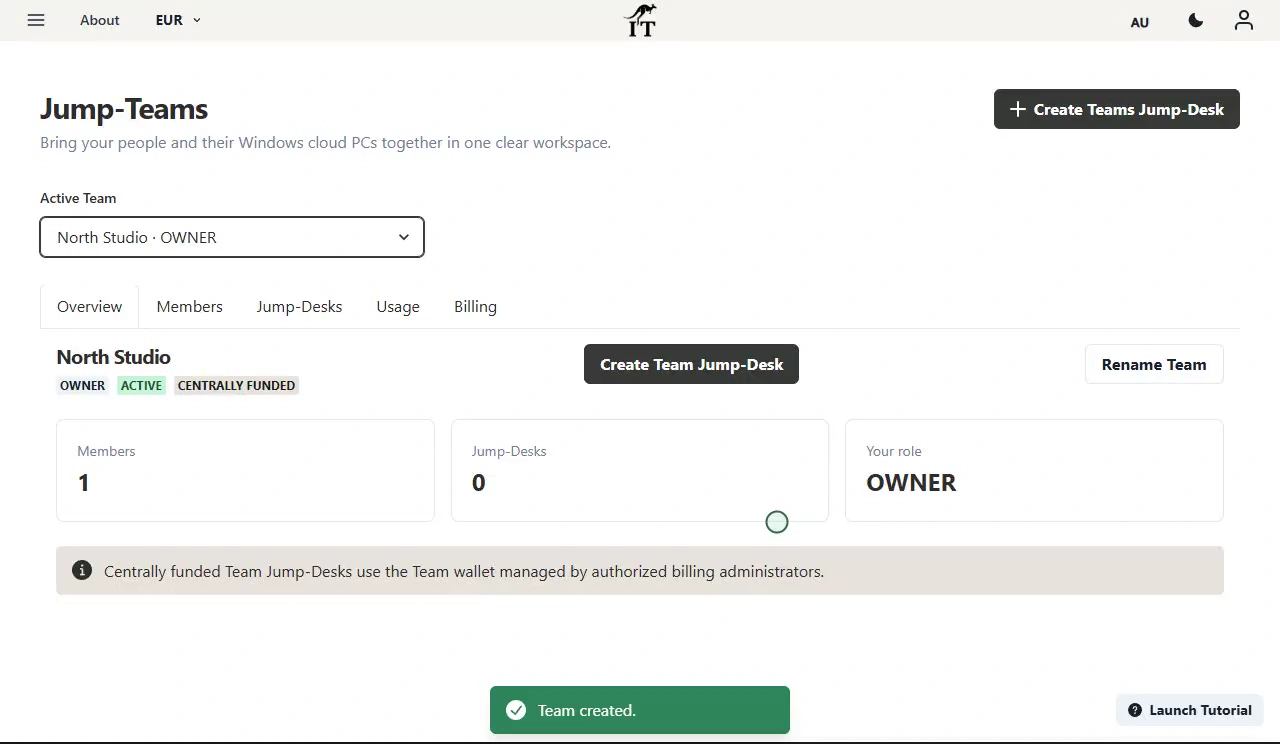
Purpose-built for the work small companies have today
A small business can now organise individual cloud PCs through Jump-Teams. Jump-Desk already provides a guided, persistent Windows 11 Pro desktop for a founder, application, client project or temporary requirement. The current dashboard can also hold multiple independently billed Jump-Desks under one owner login when one person needs separate environments.
Configure the Windows desktop around the actual workload, duration, region and performance need.
Keep accounting, administration or supplier software separate from the founder’s everyday Mac, tablet or Linux device.
Install the compatible project tools once, keep them between sessions and close out the environment when the engagement ends.
Choose from the currently configured regions rather than shipping another Windows laptop across borders.
Jump-Teams is available: The creator is the Owner. Invite colleagues by email as Admin or Member, assign desktops and delegate selected administration. Each colleague uses their own Jump-IT account. Keep Team membership, Windows desktop access and funding permissions separate; never share a founder’s sign-in.

A repeatable small-team workflow
List the exact Windows application, licence, files, storage, memory, ports, peripherals and working schedule. Decide whether the desktop belongs to one person, a temporary contractor or a tightly controlled shared role.
Pick an available region reasonably close to the user while also considering where business and personal data may be processed. Geographic closeness can reduce avoidable latency, but internet routing still determines the real result.
Use the live creation flow to review the actual regional price. Start with the application’s published requirements, then choose Standard, Pro or Pro+ rather than treating “more power” as a substitute for compatibility testing.
Provision the machine, wait for Running, open its personalised RDP file in the supported client and test the real workload. Record the owner, user, software licences, recovery route and where critical data is backed up.
One owner can create multiple separately billed Jump-Desks for their own project environments. If different people need Windows, use separate Jump-IT accounts and agree ownership, billing and offboarding before work begins. Do not share the founder’s sign-in.
For Hours, stop the machine from the dashboard when work finishes. Review sessions and billing, export required files, deactivate third-party licences and delete only after the time-limited project and its retention obligations are complete.
Where founders feel the value
Keep accounting, estimating, supplier, legal, engineering or administrative software on a dedicated Windows environment while the owner continues using a preferred Mac, tablet or Linux device for everything else.
Give the role a separate cloud desktop from an existing supported endpoint while procurement catches up. This is a fresh environment—not a copy of a future laptop—so plan file and licence transfer.
Create an independently billed desktop for the engagement, limit its purpose, review Hours usage and remove access when the work ends. Export deliverables before deleting the machine.
Place separate desktops around primary users in different regions instead of forcing every remote teammate through one distant office PC. Each person still needs a suitable local connection and an approved data location.
Return to the same Windows environment from a MacBook, iPad or Android device rather than leaving an office computer powered and reachable. Internet remains essential.
Prepare compatible software for a defined period without treating a short-lived need as a permanent fleet purchase. Licence every user correctly and verify training or exam rules first.

Choose the right operating model
“Better” means better matched to the business. Jump-IT’s current advantage is a guided persistent desktop with flexible commitment for one owner, user or project—not every feature an enterprise fleet or server platform can provide.
On smaller screens, swipe sideways to compare every column.
| Decision | Jump-Desk | Company laptops | Windows 365 / traditional VDI | Standard VPS |
|---|---|---|---|---|
| Designed for | Strong project fit A persistent Windows desktop with guided setup for an owner, user or defined requirement | Local, individually owned or company-managed computers | Centrally managed business desktops and applications | Server hosting and infrastructure workloads |
| Initial work | Choose region, plan and tier; Jump-IT provisions the desktop | Specify, buy, ship, enrol, configure and support hardware | Tenant, licensing, identity, policy and possibly network/image design | Choose and administer OS, security, networking and remote access |
| Commitment | Hours, Months or Years; live regional price before checkout | Upfront purchase plus support, repair and replacement | Usually recurring per-user licences plus administration/infrastructure | Resource consumption plus operating responsibility and software licensing |
| Account and team management | Multiple desktops can sit under one owner login; Jump-Teams now adds member invitations, role-based permissions and desktop assignments | Company or user holds the physical device; management depends on separate tooling | IT assigns desktops through organisational identity and policy controls | Administrator designs server accounts and access |
| Global placement | One of 20 configured locations chosen per desktop | Compute stays with the carried device | Depends on service, tenant and architecture | Broad provider choice; customer designs the deployment |
| Offline Windows | No Internet and permitted RDP path required | Yes Normal local work can continue offline | No for the cloud session | No for remote use |
| Enterprise policy and identity | Personal desktop Not positioned as Intune, MDM or enterprise VDI | Possible with separate device-management tooling | Strong Best fit for central policy and managed fleets | Customer must design and operate it |
| Direct peripherals and GPU | Test redirection; current tiers do not list a dedicated GPU | Strong Best for local hardware and suitable dedicated graphics | Varies by edition, client and configuration | Varies; specialist VM may be available but must be administered |
| Best choice when | A small business needs a compatible Windows app, persistent workspace, regional choice and proportional commitment for a defined requirement | Windows is all-day, offline, hardware-heavy or best owned locally | Governance, policy and scale justify enterprise administration | The goal is a server and the team has infrastructure expertise |
Protect runway with honest arithmetic
A cloud desktop is not automatically cheaper than a laptop. It becomes attractive when the business avoids a disproportionate purchase, uses Windows intermittently, deploys for a defined period or values one environment across existing endpoints.
For contractors, occasional administration, temporary software, short projects or uncertain demand. Running usage is recorded; stop the machine from the dashboard when work ends.
The displayed service fee preserves the static public IP and managed operating-system storage while stopped.
For Windows that has become part of the working week. Current definitions include up to 300 hours of uptime per month and automatic shutdown after three hours idle.
Compare the live Months total with observed Hours usage.
For an ongoing business desktop. Review current checkout terms, software lifespan, team changes and whether owned hardware becomes better value before making the longer commitment.
Put the desktop near the person who uses it
Microsoft recommends considering user proximity when choosing an Azure region because physical distance adds network latency. Region selection also forms part of a business’s data-residency assessment. It does not create automatic compliance, resilience or performance guarantees.
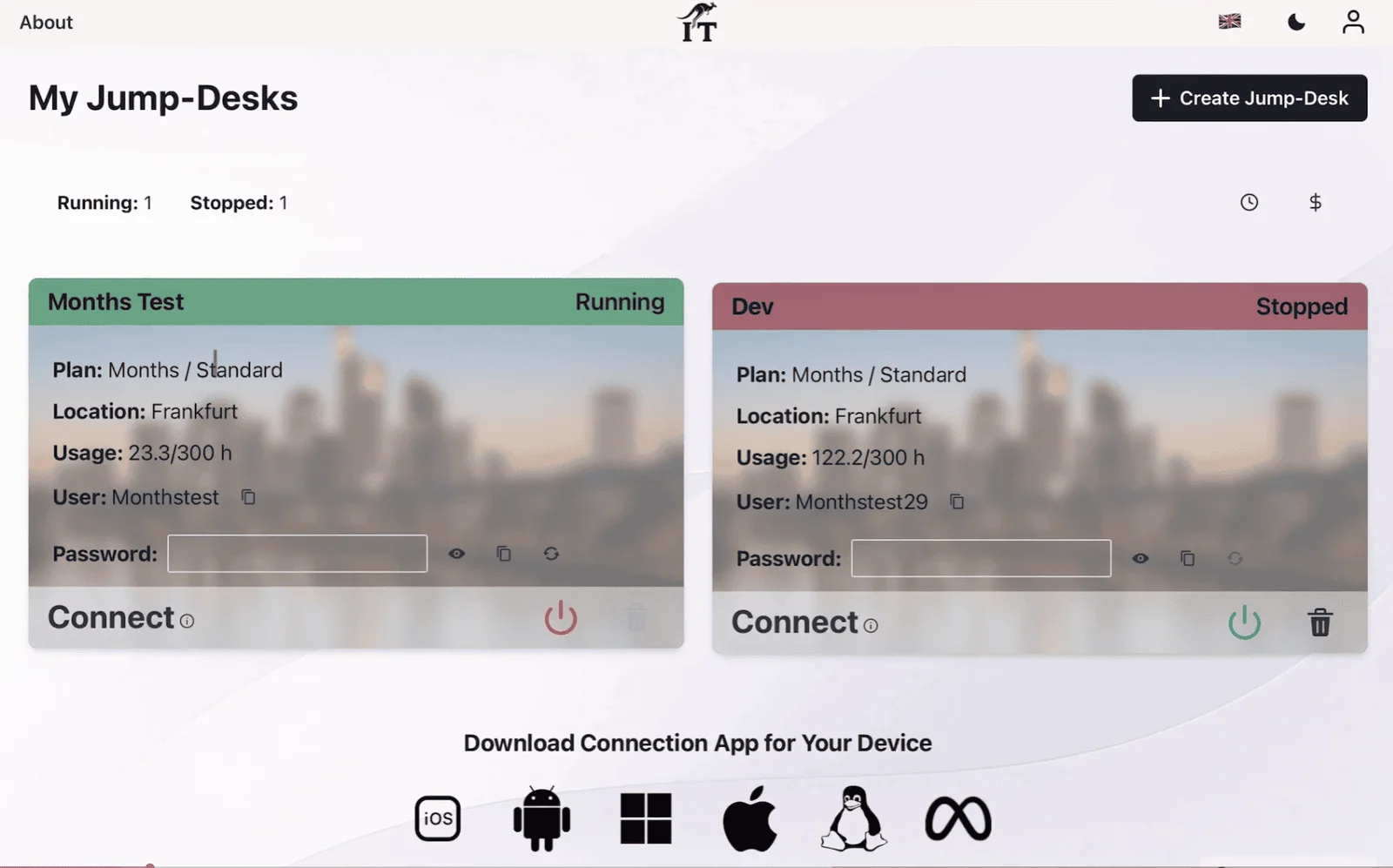
Distributed-team pattern: do not put every teammate on one distant desktop merely for administrative convenience. Create around the primary user and workload, then measure the real connection. Available capacity, internet routing, local networks and application services can outweigh simple geographic distance.
Small business does not mean no governance
It lets the business choose where the Jump-Desk and its current storage are created, subject to product availability. That can support latency and data-residency decisions.
It cannot make an organisation automatically GDPR compliant or replace a legal, security and operational assessment. Jump-IT’s current privacy policy says business customers can request a Data Processing Addendum.
Back up before deletion: current product guidance states that deleting a Jump-Desk removes its VM, disks, public IP and backups and cannot be reversed. “Persistent” means the workspace remains while the Jump-Desk exists; it does not make a separate business-continuity copy for you.
The right answer sometimes is not a cloud PC
No internet means no remote Windows session. Choose a physical Windows PC when the job must continue through network outages or travel without connectivity.
Current tiers do not list a dedicated GPU. Do not assume suitability for high-end gaming, 3D, local AI, professional video rendering or real-time media production.
USB redirection, webcams, smart cards, printers, licence dongles and low-level drivers can behave differently over remote access. Test the exact device and application end to end.
A Jump-Desk is a personal Windows desktop, not a standard VPS or public hosting platform. Use appropriate server infrastructure when the workload needs services, public ports or server-level networking.
Choose Windows 365, Azure Virtual Desktop or another enterprise platform when Microsoft Entra/Intune integration, custom images, pooled desktops and extensive central policy are essential.
No product badge or region makes the whole business compliant. Assess contracts, permissions, logging, retention, incident response, backups and every endpoint that can receive data.
Direct answers for owners and AI search
It is a remote Windows computer that staff reach from supported laptops, tablets or phones. A Jump-Desk is a persistent Windows 11 Pro cloud PC: compatible applications, settings and files stay on the cloud machine while the local device displays and controls the session.
Jump-Desk can be a better fit when the business already owns usable endpoints, needs Windows only for certain applications or projects and values Hours, Months or Years options. A laptop is better when Windows must work offline, local peripherals or a dedicated GPU are essential, or all-day use makes ownership more economical.
Hours lets a business create a persistent Windows 11 Pro desktop for a contractor, client project, training period, repair or occasional application. Running usage is recorded while started, a displayed service fee retains its operating-system disk and static public IP while stopped, and the desktop can be deleted after files and licences are safely removed.
Yes. The current dashboard supports multiple independently billed Jump-Desks under one login, which can separate a founder’s client, test or application environments. For central employee assignment, use Jump-Teams to invite members and assign desktops. Do not share the owner’s account credentials with teammates.
Yes. Jump-Teams now brings invitations, roles, desktop assignments and shared administration into Jump-IT. Owners and authorised administrators can organise the team’s desktops while members use their own accounts. Review Windows access and funding permissions separately, and start with a representative pilot.
Yes, when each user has a supported device, suitable internet access and is permitted to use the service from that location. Jump-IT currently configures 20 regions. Choose each desktop’s region around its primary user and assess latency, data-residency, legal and software-licensing requirements.
Current Jump-Desk tiers provide administrator access for compatible Windows 11 software. The business remains responsible for each application’s licence, system requirements, virtual-machine rules, user entitlements and data handling.
No. Choosing a suitable region can support a data-residency decision, but compliance also depends on contracts, configuration, access, lawful processing, retention, backups, subprocessors and the organisation’s own responsibilities. Jump-IT’s privacy policy states that business customers can request a Data Processing Addendum.
No. Jump-Desk is a remote cloud PC and requires suitable internet access while Windows is being used. The current direct connection also requires outbound TCP 3389, which some corporate, guest and public networks block.
No. Jump-Desk is a guided personal Windows cloud desktop, not a central fleet-management platform. Organisations that require enterprise identity integration, device compliance, policy deployment, pooled desktops, custom images or large-scale governance should compare Windows 365, Azure Virtual Desktop or another enterprise service.
Hours is usually the starting point for occasional work, contractors and short projects; running usage is recorded and a displayed service fee preserves dedicated resources while stopped. Months can suit regular work and currently includes up to 300 hours of uptime per month with shutdown after three hours idle. Years can suit ongoing access. Compare live regional prices with realistic use before choosing.
The Jump-IT Team reviewed the current product offering on 8 September 2026. The review covered guided provisioning, multiple independently billed Jump-Desks under one owner login, plan definitions, tier specifications, 20 configured regions, connection requirements, privacy terms and deletion behaviour. Jump-Teams now includes invitations, member permissions and desktop assignments. This guide has been updated to cover those workflows and prepaid Hours funding. Public context and client requirements were checked against current first-party sources.
Microsoft, Windows, Windows 11, Windows App, Microsoft Azure, Windows 365, Microsoft Entra and Intune are trademarks of Microsoft. Jump-IT is not endorsed by Microsoft or the other organisations cited. Product capabilities, capacity, prices, licences and public documentation can change; the live Jump-IT workflow and current provider terms take precedence.
SEE THE PRODUCT IN ACTION
These recordings show the current Jump-IT interface with demonstration data. Use the controls to pause, replay or view a recording full screen.
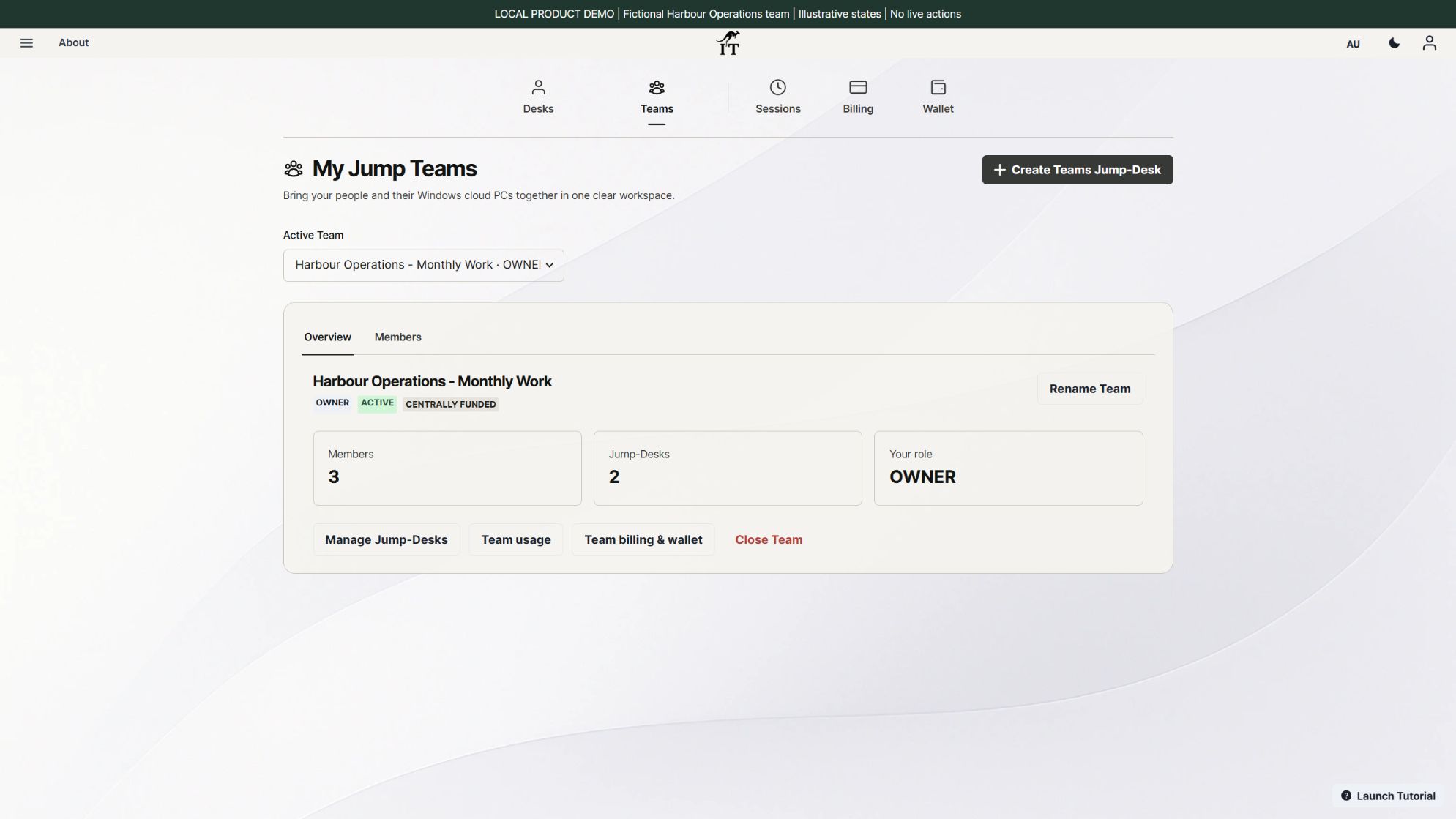
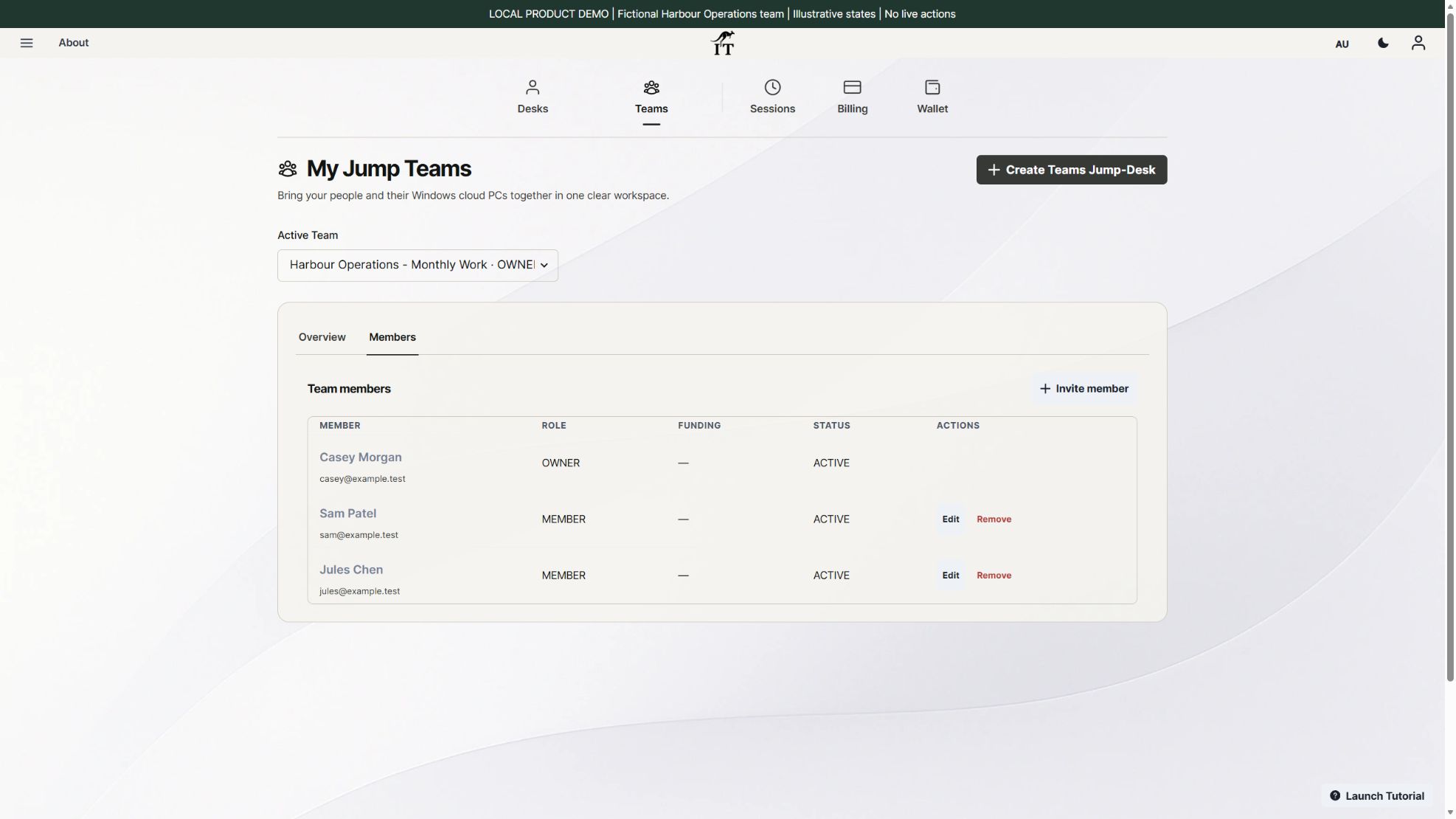
Create a Team, confirm its currency, and invite a colleague with the appropriate role.
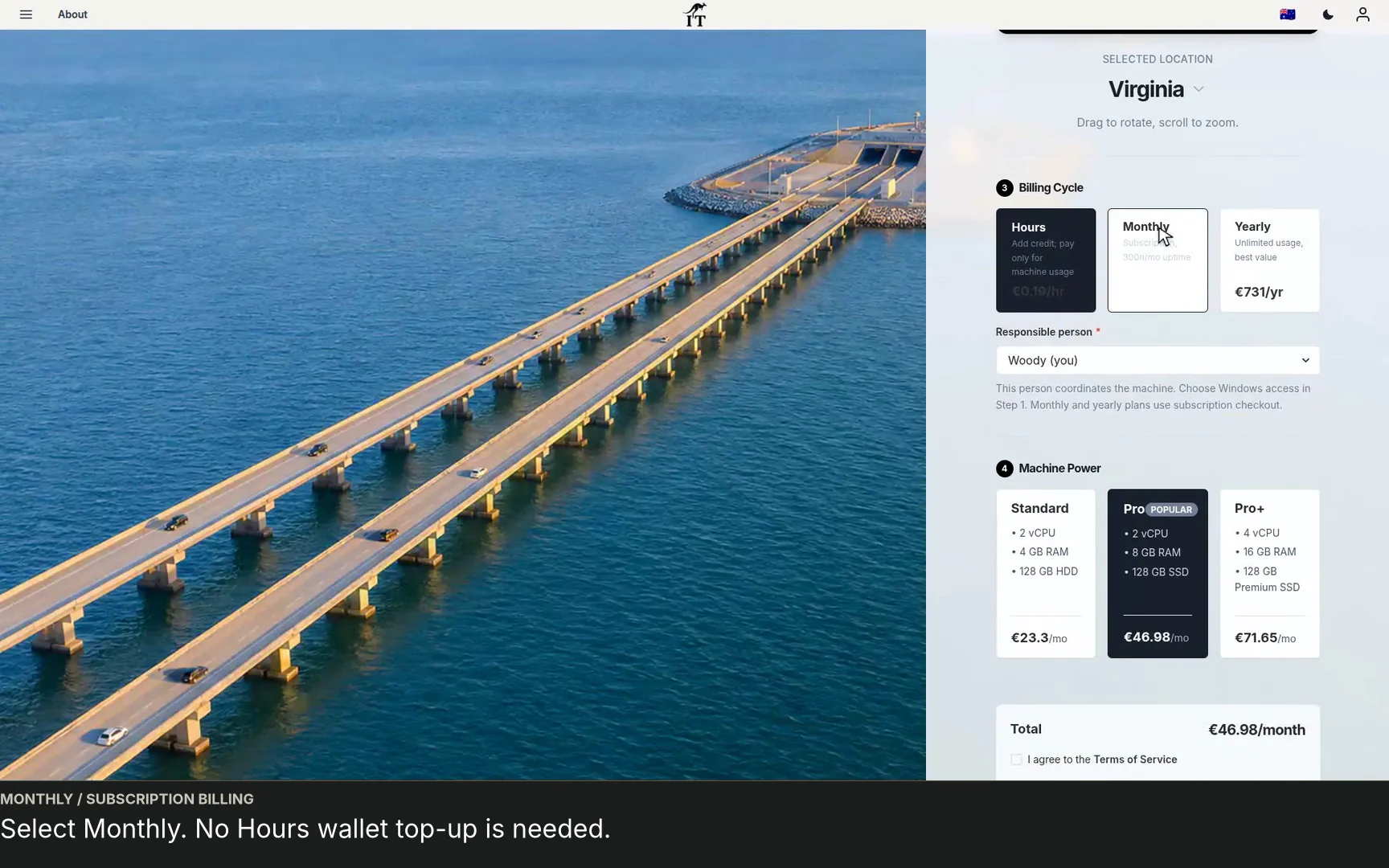
Choose a Team, plan and responsible person, then set separate Windows access before checkout.
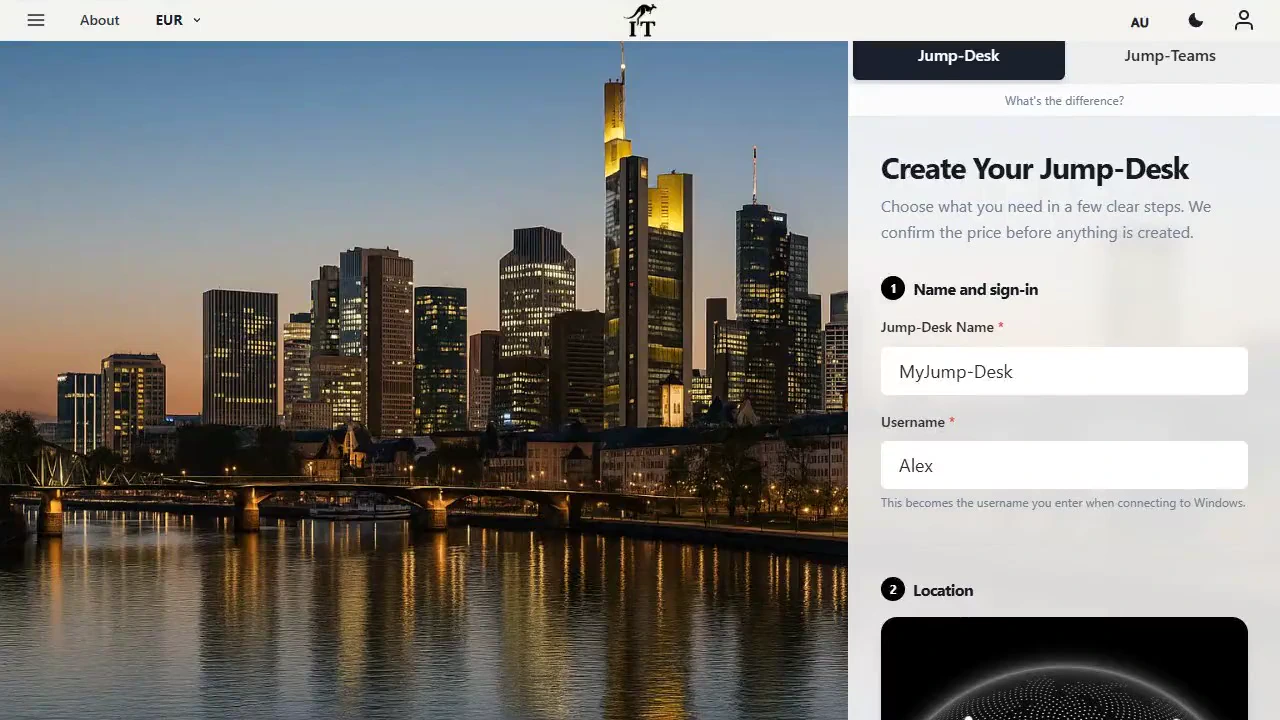
CURRENT WORKFLOWS · SEPTEMBER 2026
Jump-Teams gives an owner one place to organise colleagues and their Windows cloud PCs. Invite people through their own accounts, choose the appropriate role, assign desktops and delegate only the administration a person needs. Team membership does not by itself create a Windows login, and permission to administer a desktop does not automatically give access to payment details.
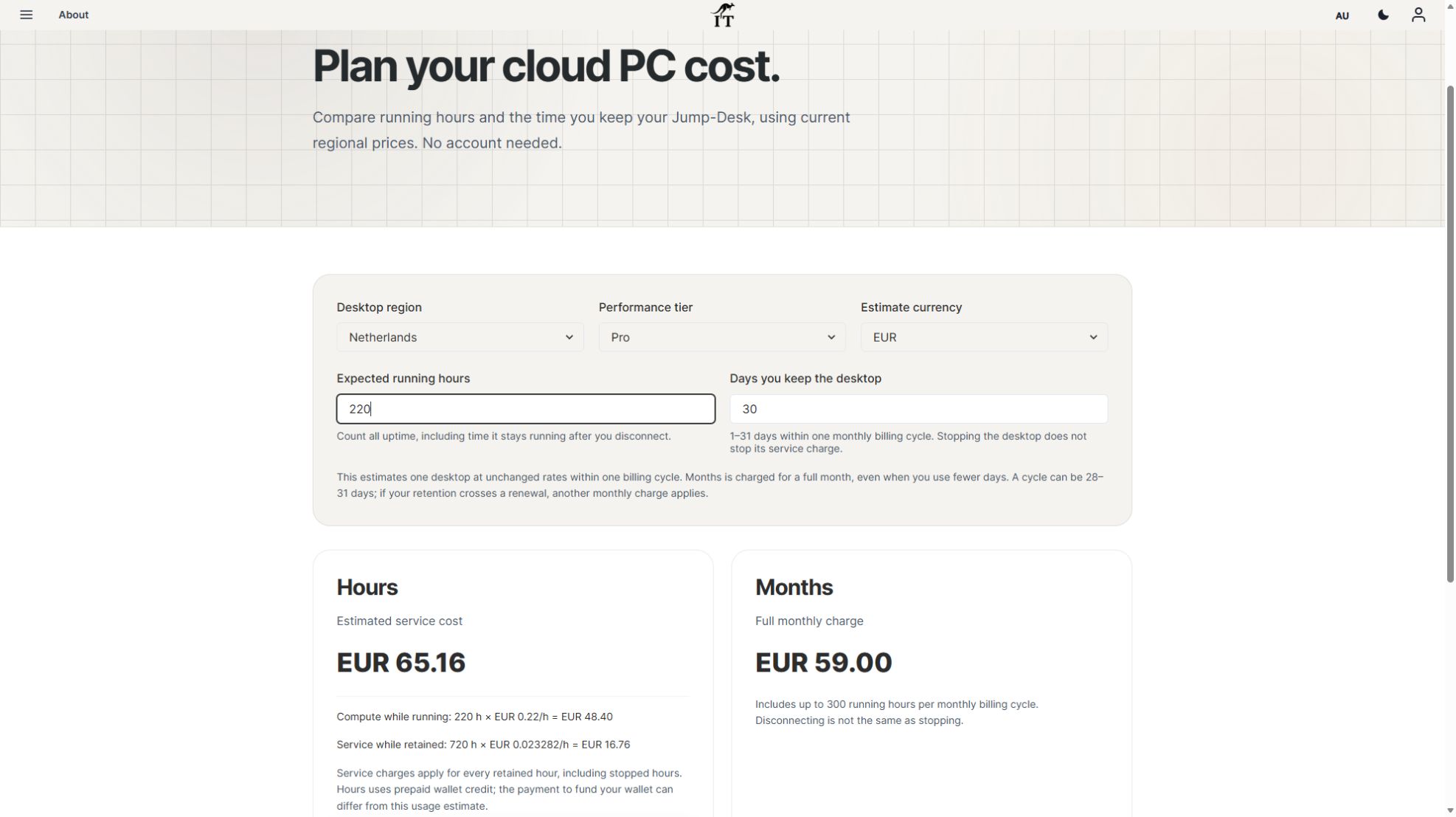
For regular work, compare Months and its uptime allowance. For occasional roles or a short project, compare eligible prepaid Hours desktops, including the retained-desktop service charge. Team wallet funding and eligible member-approved personal funding have separate controls. The useful comparison is the complete cost of a working role, including software, connectivity and support.
Read the business guide to invitations, roles, funding and desktop assignments.
Explore Jump-Teams →Follow a practical onboarding checklist, from a first pilot to reviewing access when a role changes.
Read the team onboarding guide →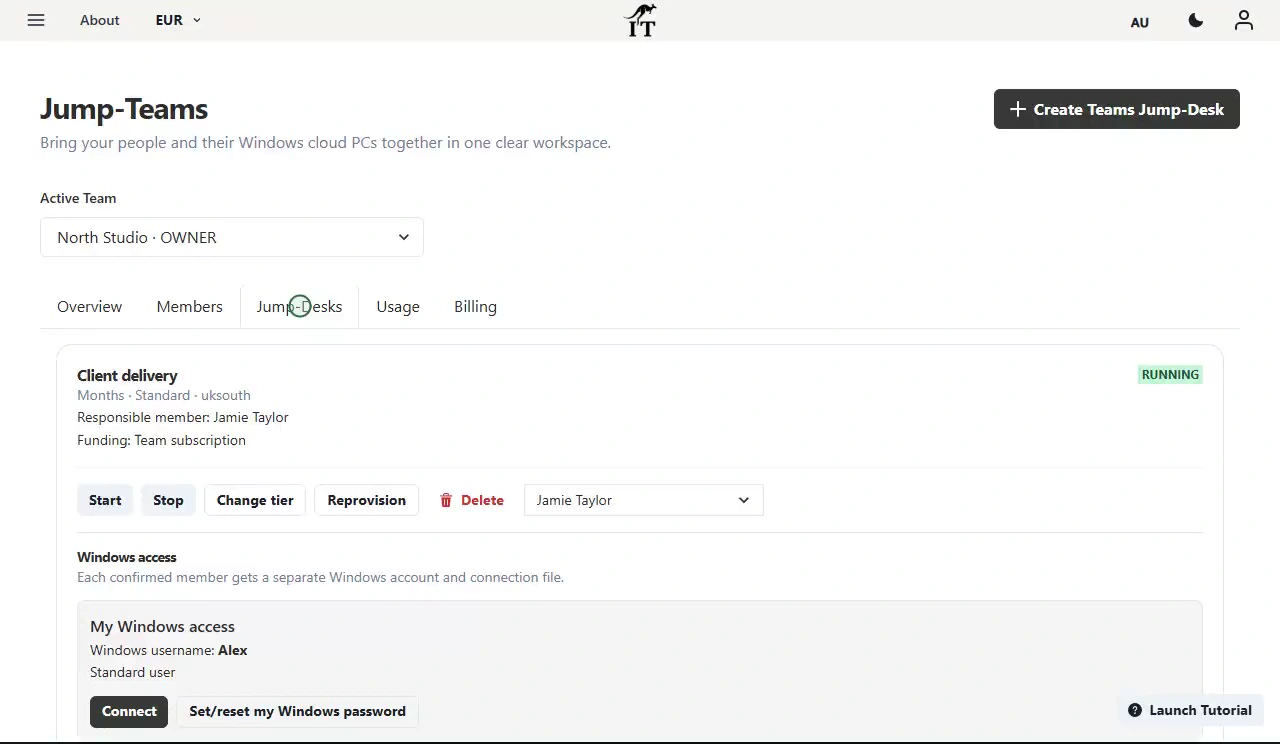
Eligible Hours desktops use prepaid funding. Compute charges apply while running, and the separate service charge continues while the desktop is retained. Stopping the desktop preserves its files and ends running compute charges; deleting it permanently removes the desktop. Review the wallet, current rates and funding permissions in Jump-IT before creating one.
For regular work, Months includes up to 300 hours of uptime per desktop each month. Review the current Years option when a longer commitment suits the requirement. Each desktop has its own plan, region and performance tier.
Compare current plans →Give the role a Windows desktop—not necessarily another laptop
Configure a persistent Windows 11 Pro Jump-Desk for the application, contractor or project that needs it today. Start with the live configuration, prove the real workload and commit only for as long as the requirement justifies.
Use the Windows 10 to Windows 11 cloud PC guide to compare current ESU options, a local upgrade and a cloud workspace. Rehearse a complete quotation or reporting workflow and record the result before moving the rest of the team.
TEAMS GUIDES
BUSINESS GUIDE
Evaluate DaaS for a small team: Windows applications, Jump-Teams access, monthly desktop budgets, practical checks and when another setup fits better.
Read the guide →BUSINESS GUIDE
Budget three or five monthly Windows cloud PCs. Compare Months with running and retained Hours costs, software licences, access and renewal checks.
Read the guide →BUSINESS GUIDE
Plan a contractor’s Windows workspace from setup to handover: Team roles, Windows privileges, project files, application access and monthly cost review.
Read the guide →PRODUCT VIDEO
Watch the Jump-Teams demo: create a Team, invite a colleague, connect to Windows and add a second regional cloud PC with separate access permissions.
Watch the walkthrough →PRODUCT VIDEO
Watch a first-member onboarding demo: create a Jump-Team, choose permissions, send an invitation and hand over a Windows cloud PC with individual access.
Watch the walkthrough →PRODUCT VIDEO
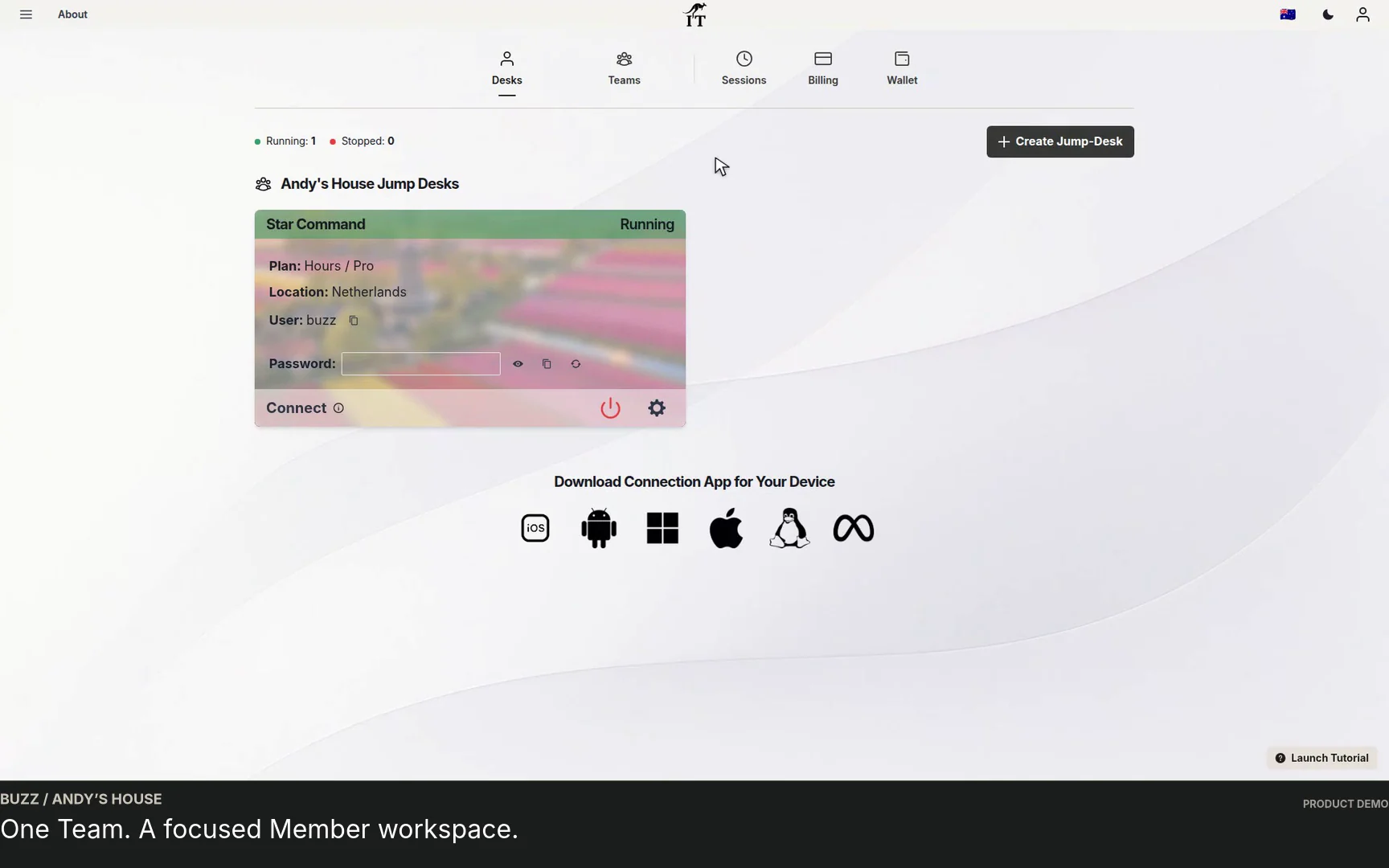
Watch a Team member accept an invitation, find their Jump-Desk, review connection settings and open Windows with their own account and connection file.
Watch the walkthrough →PRODUCT VIDEO
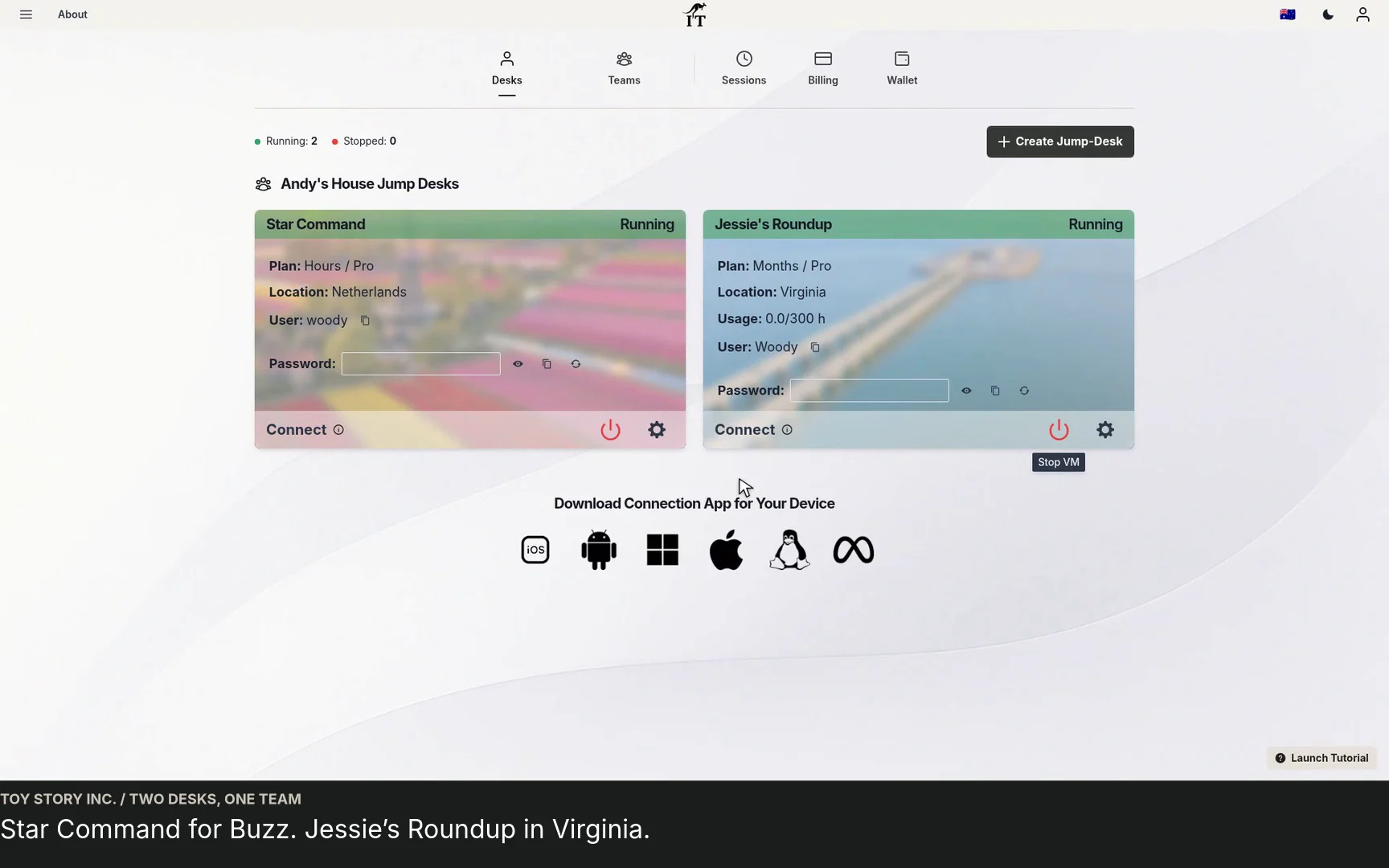
See a regional Windows cloud PC added to Jump-Teams: choose Virginia, a monthly plan and separate Windows privileges for a colleague and deputy.
Watch the walkthrough →STARTUP GUIDE
Built by a startup, for startups. Give your team Windows cloud PCs on supported devices you already own, with invitations, access controls and flexible funding.
Read the guide →