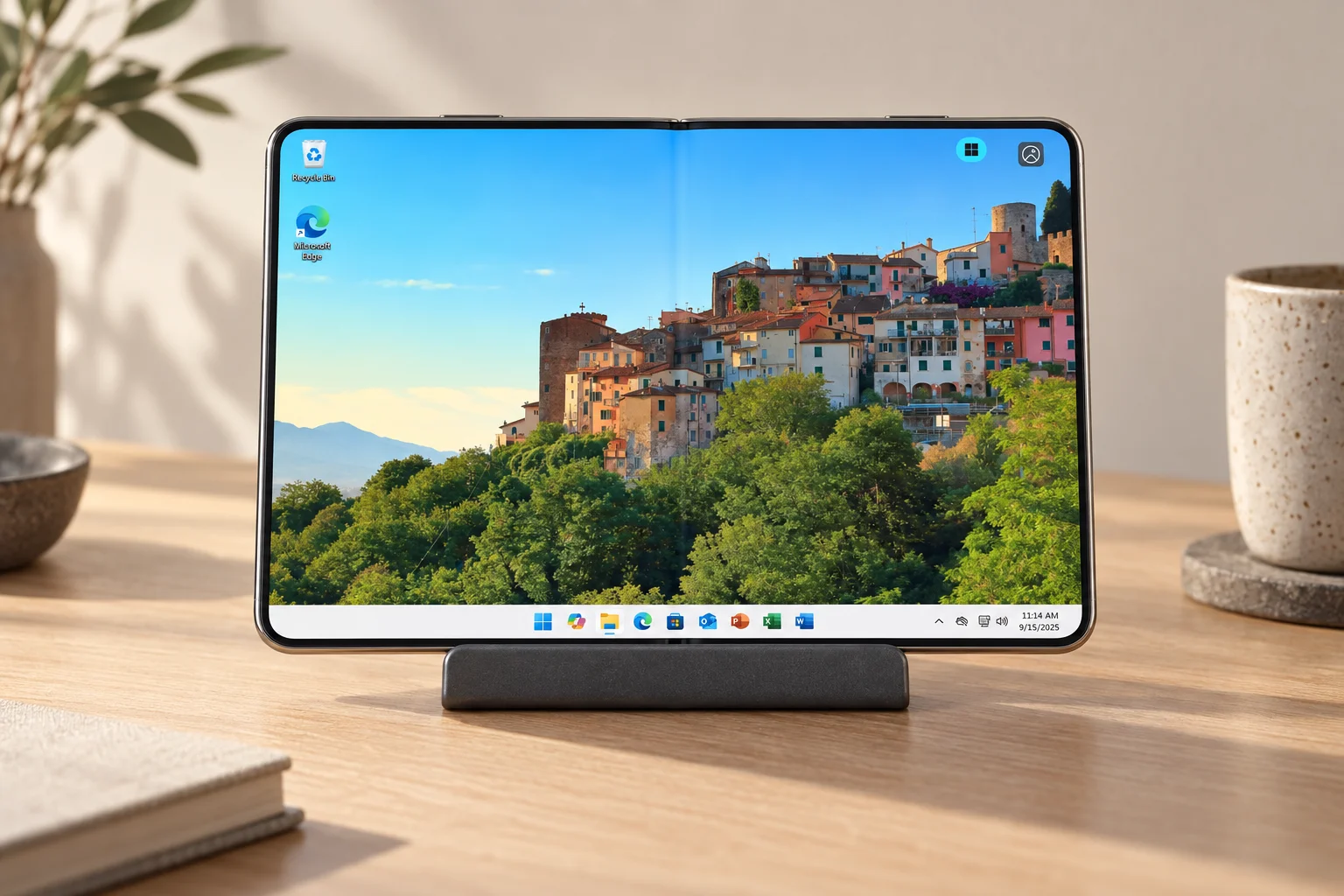
Use a compatible Galaxy phone as the screen and controls for a separate Windows cloud PC. Check your exact model, connection app and accessories, then follow the remote Windows setup below.
The Galaxy Z Fold8 and Fold8 Ultra can be compelling phone-first computers because Samsung DeX turns Android into a desktop-style workspace, while Jump-Desk adds the part DeX does not: a separate, persistent Windows 11 Pro PC running in the cloud.
Install Windows App on the Fold8, create a Jump-Desk, open its personalised connection file and Windows appears inside DeX. The phone remains Android; the Windows applications, files and processing stay on the remote Jump-Desk. Connect a monitor, keyboard and mouse when you want a conventional desk, then unplug and keep the same Windows environment in your pocket.
BEFORE YOU CHOOSE
The phone displays Windows. The cloud PC runs it.
Start with the Windows application you need, then check a supported remote desktop client on your exact handset. An external display is an optional workflow to check with Samsung’s model-specific compatibility guidance.
Test your keyboard, pointer, network and real application together before relying on a phone-first workday.
No account needed for the estimate. Current regional prices, available configurations and the final checkout total determine your purchase.
BEFORE SETUP
Check the phone, accessories and Windows task.
Phone and client: check Microsoft Windows App support on your exact Android handset and keep it updated. Windows runs on the separate Jump-Desk.
Desk accessories: for an external display, check Samsung’s model-specific DeX guidance, the monitor, adapter or powered hub, keyboard and pointer. Start by testing the remote session on the phone.
Network: use a reliable connection that permits the remote session. Keep another supported device available for work that cannot wait.
Application fit: confirm the exact app, licence, required resources and peripherals. Offline work, dedicated-GPU tasks, specialist USB devices or unverified drivers may need another setup; read the full limitations.
Test opening, editing, saving and exporting a permitted example of your real work before relying on this as your main computer.
Complete workflow
How to open a Windows 11 Jump-Desk on Galaxy Z Fold8
Test the remote session on the phone first. Add the dock only after Windows App and the Jump-Desk work; this separates cloud, network and display troubleshooting.
Update One UI and test Samsung DeX
Install available software and security updates. For a desk, connect the display adapter or powered hub and launch Samsung DeX. Confirm that the display, keyboard and pointer behave correctly before adding remote Windows.
Install Microsoft Windows App from Google Play
Install Windows App for Android. The current Jump-IT dashboard links to this package. Microsoft supports remote-PC connections on actively supported Android 10-or-later devices and allows a direct remote-PC connection without signing in to Windows App.
Choose the nearest practical Jump-Desk region
Open Create Jump-Desk and choose among the available locations. A nearby region can reduce avoidable network distance, although the actual route, Wi-Fi or mobile connection and destination services still affect responsiveness.
Choose Hours, Months or Years and a performance tier
Hours is a natural starting point for a phone-first experiment. Choose Standard, Pro or Pro+ according to the Windows application requirements—not according to the Fold8 model. Review the live regional total and plan terms before checkout.
Start the Jump-Desk and wait for Running
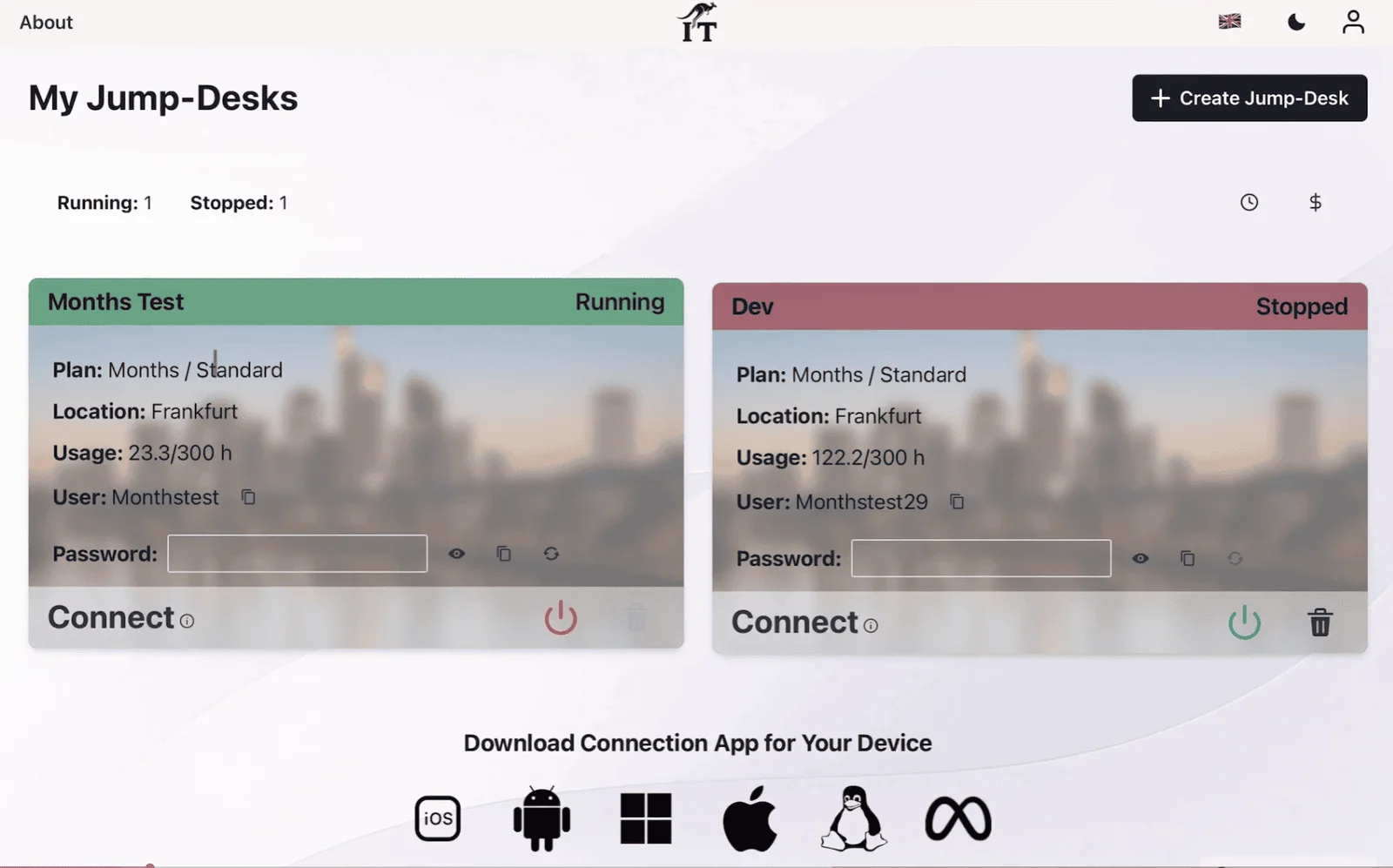
Open the Jump-IT dashboard and use the power control. Wait until the status clearly shows Running; the Connect control and password reset are tied to the running state.
Download the personalised connection file
Select Connect on the Jump-Desk card. Android downloads the .rdp file that contains the connection settings. Open it with Windows App and allow only the local resources you actually want to redirect.
Enter the Windows credentials
Use the Jump-Desk username and administrator password shown in the dashboard—not your Samsung account, Google account or personal Microsoft account. Accept a trust prompt only for the connection generated by your own Jump-IT account.
Maximise Windows App inside DeX
For a full desk, maximise the remote session, select a comfortable scaling level and test keyboard shortcuts, pointer speed, audio and clipboard behaviour. Save important work inside Windows and maintain a separate backup.
Stop an Hours machine when the session ends
Closing Windows App only disconnects the screen. Return to the Jump-IT dashboard, use the stop control and verify that the state changes to Stopped. The Hours service fee described at checkout continues while the Jump-Desk exists because its static IP and managed operating-system disk are retained.
This separation is why a phone can become a credible Windows terminal without attempting to install desktop Windows on ARM hardware designed for Android.
1Fold8 + Samsung DeX
Runs Android, the DeX desktop, local apps, display output, keyboard and pointer input.
2Windows App
Sends your input over the internet and receives the encrypted remote desktop picture and sound.
3Jump-Desk
Runs Windows 11 Pro, compatible Windows applications, settings and files on the cloud machine.
On smaller screens, swipe sideways to compare every column.
Where the computing actually happens
Responsibility
Galaxy Z Fold8
Jump-Desk
Operating system
Android 17 / One UI 9 and Samsung DeX
Windows 11 Pro
Applications
Android apps and Windows App
Compatible Windows desktop applications you install
Performance
DeX rendering, decoding, display and input
Remote CPU, RAM and storage according to the selected tier
Storage
Local Android storage
Persistent 128 GB drive on current Jump-Desk tiers
Network dependency
Local Android work can vary by app
Internet is required for the remote Windows session
Two desktop worldsUse Android and DeX locally, then open a complete remote Windows 11 Pro desktop when an Android app is not enough.
One device in the bagWork phone-only, add a folding keyboard on the move or connect the same phone to a full desk.
20 Jump-Desk regionsChoose where the cloud desktop is created before checkout and favour a nearby available location.
Launch-day briefing
What Samsung actually announced
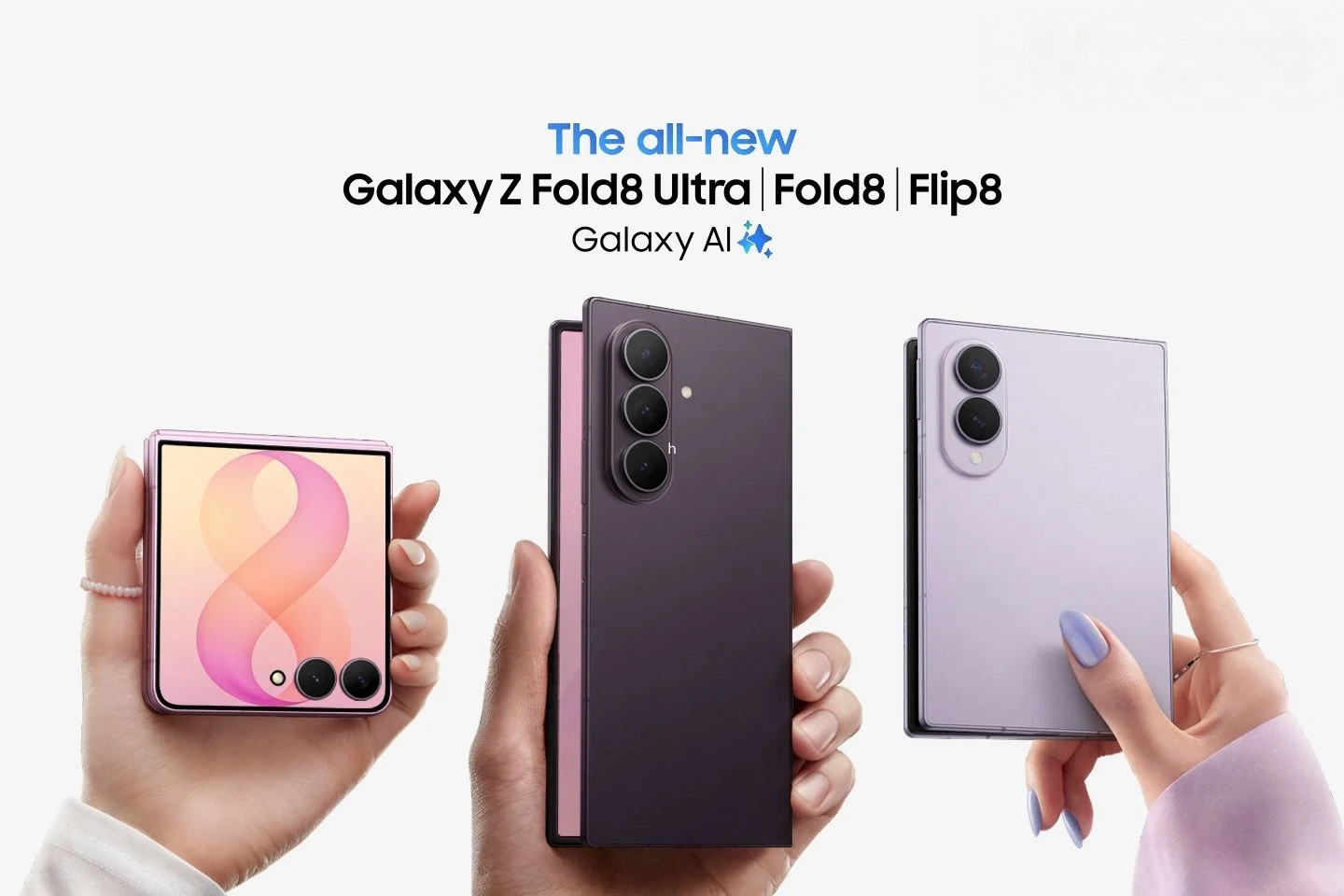
Samsung unveiled the Galaxy Z Fold8 Ultra and Galaxy Z Fold8 on 22 July 2026. Pre-orders opened that day in announced markets, with US general availability beginning 7 August. Prices, configurations, colours and retail dates vary by market.
DeXSamsung’s official specifications list Samsung DeX support on both Fold8 models.
SoftwareAndroid 17 with One UI 9 at launch, plus Wi-Fi 7 and Bluetooth 6.0 in Samsung’s specification table.
ProcessorSnapdragon 8 Elite Gen 5 Mobile Platform for Galaxy on both devices.
Storage256 GB, 512 GB and 1 TB options; Samsung lists 12 GB RAM on 256/512 GB and 16 GB on 1 TB.
Launch priceSamsung US lists starting prices of $1,899.99 for Fold8 and $2,099.99 for Fold8 Ultra. Use your local Samsung store for current pricing.
Important distinction: Samsung DeX is not Windows and Jump-Desk is not an Android emulator. DeX creates the local desktop interface; Windows App carries the remote session; Jump-Desk is the Windows computer.
YOUR NEXT STEP
Build the complete phone-first workspace.
The phone, dock, display and remote Windows desktop perform different jobs. Check Samsung’s exact model compatibility and test your real application before treating this as a laptop replacement.
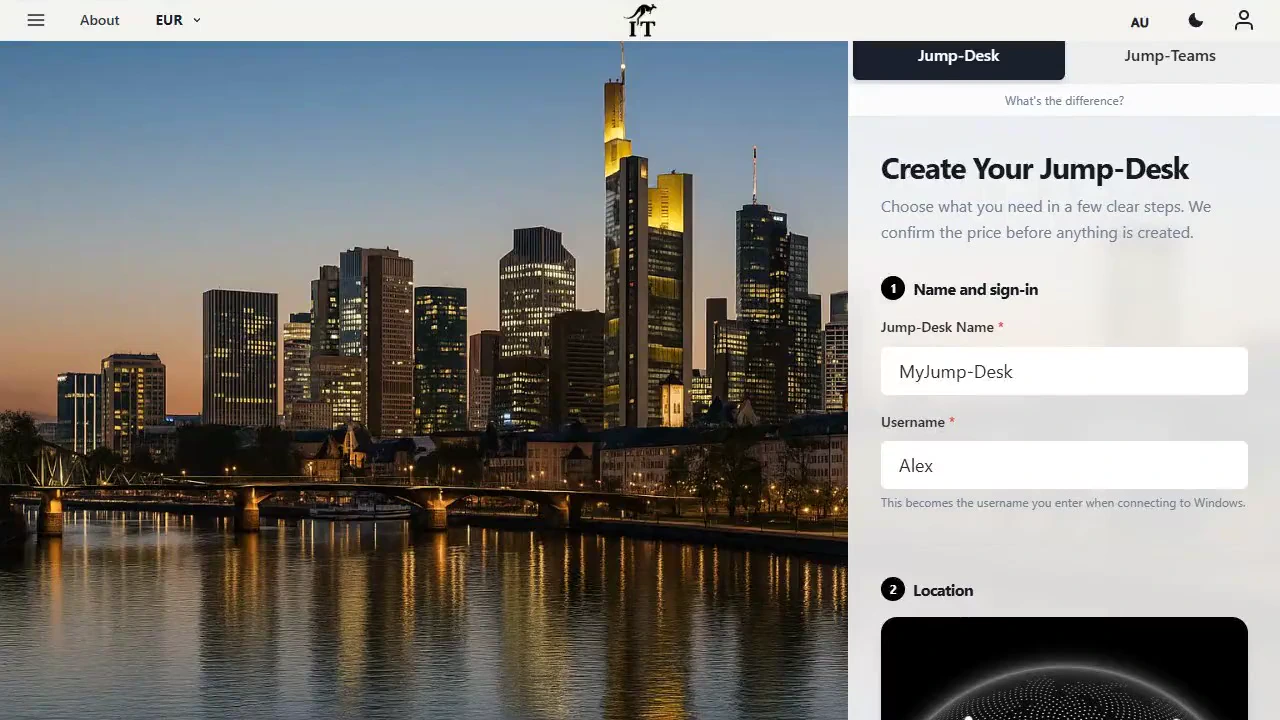
Jump-Desk setup: desktop name, Windows username and location. Product capture with demonstration data. Select to enlarge.
Choose the right fold
Galaxy Z Fold8 vs Fold8 Ultra for a phone-first workstation
Both support DeX and the same Android remote-PC workflow. The buying decision is mostly about the phone experience, portability and battery—not a different class of cloud Windows performance.
On smaller screens, swipe sideways to compare every column.
Galaxy Z Fold8 vs Fold8 Ultra for a phone-first workstation
Our recommendation: choose Fold8 Ultra if the unfolded phone itself will often be your workstation screen. Choose Fold8 if pocketability matters more and most serious sessions will use an external monitor. Then choose the Jump-Desk tier for the Windows workload separately.
Before you replace the laptop
Galaxy Z Fold 8 comparisons that matter
The Fold8 is not automatically a better computer than every alternative. Its advantage is combining a phone, Samsung DeX and on-demand access to a separate Windows PC. These direct comparisons show where that setup wins—and where local Windows hardware remains the better buy.
Galaxy Z Fold 8 vs a Windows laptop
Fold8 + Jump-Desk: one pocketable device, a persistent Windows environment available from other supported screens, and no need to carry a second Windows computer for occasional connected work.
Windows laptop: Windows runs locally, works offline, connects directly to peripherals and is normally more comfortable for long sessions. Models with dedicated graphics are the safer option for gaming, 3D and GPU-heavy creative work.
Verdict: choose Fold8 + Jump-Desk for travel and occasional Windows access on reliable internet. Choose a laptop for all-day, offline, latency-sensitive or hardware-intensive work.
Galaxy Z Fold 8 vs Microsoft Surface Pro
Fold8 + Jump-Desk: much more pocketable, already serves as the phone and can open remote Windows only when it is needed. The external screen, keyboard, Jump-Desk and internet connection remain separate parts of the setup.
Surface Pro: a purpose-built Windows 11 two-in-one with a larger 12- or 13-inch display depending on the current model, local storage and offline Windows. Compare the total configuration, including keyboard, processor architecture and application compatibility.
Verdict: choose Surface Pro when a Windows tablet-laptop is the primary computer. Choose Fold8 + Jump-Desk when the phone is primary and Windows is occasional.
Galaxy Z Fold 8 + Jump-Desk vs Samsung DeX alone
Samsung DeX alone: arranges compatible Android apps and browser tools in a desktop-style workspace. It is fast, local and sufficient when every required task already works on Android or the web.
DeX + Jump-Desk: opens a separate Windows 11 Pro computer inside Windows App, with administrator access and compatible Windows desktop applications installed on the persistent cloud machine.
Verdict: use DeX alone for Android-first work. Add Jump-Desk when a real Windows application—not merely a desktop-shaped interface—is required.
Galaxy Z Fold 8 vs Galaxy Tab S10 Ultra
Fold8: the phone-first option. Its 7.6-inch main screen is better for brief mobile sessions, and it can drive a larger DeX display when a desk is available.
Galaxy Tab S10 Ultra: a desk- and tablet-first Android device with a 14.6-inch display, making DeX and a remote Windows desktop easier to use for longer periods. It is far less pocketable and does not replace the phone in the same way.
Verdict: choose the Tab S10 Ultra for a larger mobile workspace. Choose Fold8 when carrying one phone-sized device is the point. Both still run Android locally and access Jump-Desk remotely.
Application-by-application answer
Can the Galaxy Z Fold 8 replace a laptop for your work?
For remote-friendly office and Windows-only applications, often yes. For offline, GPU-heavy or specialist-hardware workflows, no. The verdict below applies to a Fold8 connected to an appropriately sized Jump-Desk—not to Samsung DeX by itself.
On smaller screens, swipe sideways to compare every column.
Can the Galaxy Z Fold 8 replace a laptop for your work?
Task
Fold8 + Jump-Desk verdict
What to know
Microsoft Excel and Office desktop apps
✓ Good fit
Use properly licensed Windows applications; complex workbooks and heavy multitasking may justify Pro or Pro+ and a larger display.
Outlook and business communication
✓ Good fit
Choose the native Android or remote Windows version. Test camera, microphone, audio and notifications before relying on remote calls.
Web browsing and cloud tools
✓ Good fit
Use the Android browser locally for efficiency or a Windows browser remotely when the workflow requires the Windows environment.
Power BI Desktop and Windows admin tools
△ Check first
For Power BI Desktop, Microsoft’s virtualisation support guidance supports Azure Virtual Desktop and Windows 365 and excludes other VDI. Jump-IT-specific support is not established here. Assess Windows administration tools separately against their own support, licence and resource requirements.
Visual Studio and Windows development
△ Conditional
Pro or Pro+ is the practical starting point. Current tiers have 128 GB drives; do not assume Docker, WSL 2, Hyper-V or nested virtualisation support.
Adobe Photoshop
△ Conditional
Suitable only after testing the exact files, licence, colour workflow and responsiveness. Current Jump-Desk specifications do not list a dedicated GPU.
4K video editing and 3D rendering
× Not recommended
These workloads commonly benefit from dedicated graphics, larger local storage and low-latency media access that current tiers do not promise.
PC gaming
× Not recommended
Current tiers do not list a dedicated GPU, and remote-session latency makes this the wrong product promise.
Offline Windows
× Not available
Jump-Desk is remote. The Fold8 needs a suitable internet connection to reach the Windows desktop.
Bottom line: Fold8 + Jump-Desk can replace a laptop for connected, remote-friendly tasks. It does not turn the phone into an offline Windows laptop or add local GPU hardware.
A clear purchase filter
Who should buy a Galaxy Z Fold 8 for this setup?
Buy it for this workflow if the value is carrying one premium phone that can expand into a connected workstation. Do not buy it solely for this workflow if Windows must be local, offline or GPU-accelerated.
Buy a Fold8 for this setup if…
You travel frequently and want to carry one primary device.
You work remotely on reliable Wi-Fi, 5G or wired internet.
You already own or regularly use a monitor, keyboard and mouse.
You need one Windows-only application or occasional Windows access.
You want the same persistent Windows environment from the phone, a dock and other supported devices.
Your required software fits the current Jump-Desk CPU, memory, 128 GB storage and network limits.
Do not buy it for this setup if…
You need Windows to work without internet access.
Competitive gaming is a priority.
You regularly edit 4K video, render 3D scenes or need a dedicated GPU.
Your work depends on specialist USB devices, drivers or guaranteed peripheral redirection.
You need laptop ergonomics for long sessions but will not use an external display and input devices.
You do not want the network dependency and ongoing cost of a remote Windows machine.
A phone-first setup works best when it adapts to the task instead of pretending every job needs the same desk.
01
Unfold and connect
Open Windows App on the 7.6- or 8-inch main display for a quick admin task, one Windows-only application or an urgent file.
Best for: five-minute fixes, approvals, monitoring and travel interruptions.02
Pocket office
Add a compact stand, folding keyboard and Bluetooth mouse. The phone screen becomes a small but complete portable Windows terminal.
Best for: trains, cafés, hotels and short focused sessions without carrying a laptop.03
Full DeX desk
Connect a powered USB-C hub, monitor, keyboard and mouse. Run Android apps beside Windows App or maximise the Jump-Desk.
Best for: sustained work at home, a hot desk or a client site.
A practical desk kit
Powered hubUSB-C video output and compatible power delivery
DisplayMonitor or TV with the matching HDMI/DisplayPort input
InputBluetooth or hub-connected keyboard and mouse
NetworkStrong Wi-Fi, 5G or optional Ethernet through the hub
StandKeeps the Fold8 visible for messages, calls or a second screen
Buy the hub carefully: USB-C shape alone does not guarantee video output, charging or Ethernet behaviour. Confirm the adapter supports the required display connection and power-delivery profile, and test it with the exact Fold8 model and monitor.
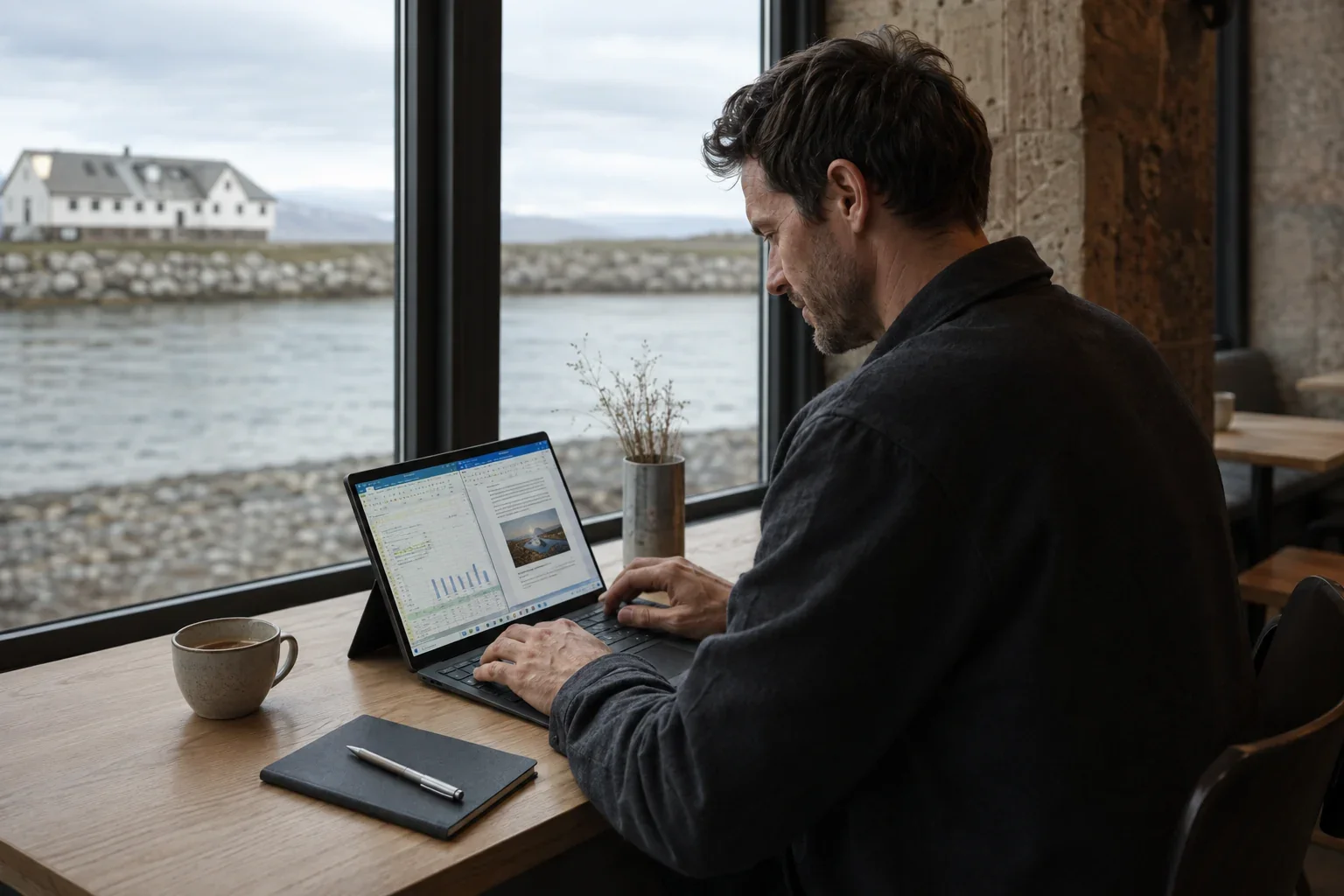
Illustrative workspace.
Built for people who push phones further
Where Fold8 + Jump-Desk is genuinely compelling
The one Windows-only application
Your normal work fits Android, but accounting, engineering, administration or client software still expects Windows. Open that application on the persistent Jump-Desk instead of carrying a second computer every day.
A developer’s emergency workstation
Use a compatible Windows IDE, browser, PowerShell or SDK from a Fold8 when a project demands Windows. Keep source in version control and check storage, GPU, virtualisation and port requirements first.
Travel with the same desktop
Move between phone-only, hotel-monitor and office-dock setups while returning to the same Windows applications, settings and working files. Choose a suitable region and test the networks on which you depend.
A clean second computer
Keep a separate Windows environment for a client, course, exam tool, short project or software trial without mixing it into the phone’s Android environment or buying another laptop immediately.
The live creation flow shows region-specific pricing. These cards use the current product-backed definitions and specifications without freezing a price that can differ by location or currency.
Best way to test the idea
Hours
For occasional Windows access, travel, an urgent repair period or one short project. Start the Jump-Desk when needed and stop it from the dashboard after use.
A separate displayed service fee preserves the static public IP and managed OS disk while the machine exists.
Months
For a Fold8 that regularly becomes your Windows workstation. Current project definitions include up to 300 hours of uptime per month and automatic shutdown after three hours idle.
Years
For a longer-lived Windows environment. Compare the current checkout total with hardware ownership and confirm the remote-only limitations still suit the full year.
Current performance tiers
Standard
2 vCPU · 4 GB RAM
128 GB HDD
100 GB data transfer included
Windows 11 Pro licence included
For lighter compatible applications, browser work and basic office tasks.Balanced starting point
Pro
2 vCPU · 8 GB RAM
128 GB SSD
100 GB data transfer included
Windows 11 Pro licence included
A more comfortable general choice for multitasking and professional applications.
Pro+
4 vCPU · 16 GB RAM
128 GB Premium SSD
100 GB data transfer included
Windows 11 Pro licence included
For compatible CPU- and memory-heavier work. Current specifications do not list a dedicated GPU.
20 configured regions
Capacity can vary. Select the available location that makes sense for your route, data-location needs and the services the Jump-Desk will reach.
When a phone-first Windows PC is—and is not—the smart choice
Choose Fold8 + Jump-Desk when…
You already want the Fold8 as your phone and need Windows only some of the time.
You value one persistent Windows environment across phone, dock and other supported devices.
Your Windows software fits 2–4 vCPU, 4–16 GB RAM and the current 128 GB drive.
You have a stable connection that permits outbound TCP 3389.
You are comfortable testing accessories and remote-device redirection before relying on them.
Keep or buy a Windows PC when…
You must work offline or through restricted networks.
Your workflow needs a dedicated GPU, local AI acceleration or low-latency 3D work.
You need confirmed Docker, WSL 2, Hyper-V, nested virtualisation or specialist drivers.
You rely on unusual USB hardware, colour-critical local displays or guaranteed peripheral behaviour.
You want a public server: Jump-Desk is a personal desktop and current network policies restrict many inbound services.
Power-user rule: test the exact application, licence, keyboard shortcuts, audio, camera, printer, USB device and network before making the Fold8 your only computer. The concept is strongest when the required Windows software is remote-friendly—not merely because it launches.
DEVICE CONTINUITY · CHECKED 26 OCTOBER 2026
iPhone Duo crack-gate: is a Galaxy Fold the alternative for work?
The recent Duo inner-screen cracking reports make repair access and a spare working device part of the comparison. They do not prove a current Samsung Fold has a lower failure rate. Samsung also experienced display problems with the original Galaxy Fold in 2019; no foldable is guaranteed immune to damage.
Compare a proven working routine, not a promise about the screen.
Samsung’s documented Fold8-series DeX workflow is a concrete reason to consider it: a compatible monitor, keyboard and mouse provide an Android desktop interface. Windows App then connects separately to your Jump-Desk for chosen Windows applications. Test the exact handset, display, input devices and network before making it your main working setup.
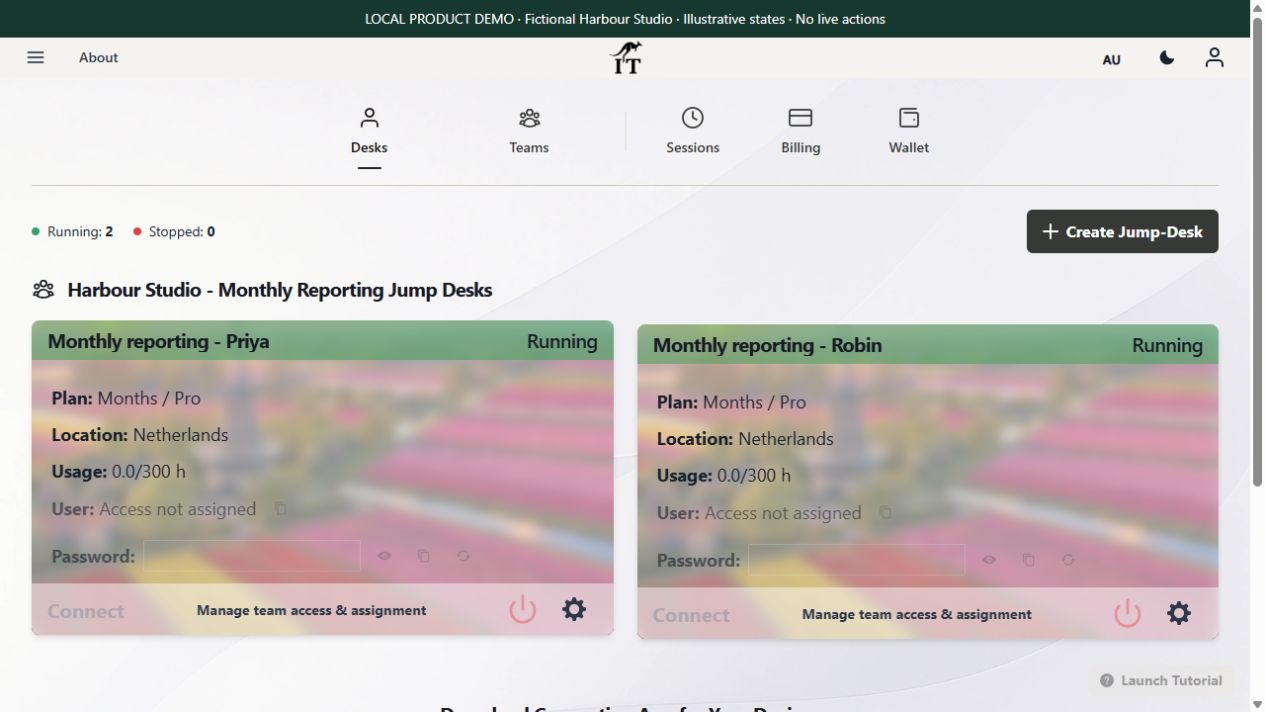
For Harbour Studio’s illustrative monthly reporting project, the Windows workbook, costing application and proposal documents belong in the retained Windows workspace. The Fold supplies the screen and controls. If the phone needs repair, an authorised user can connect from another healthy supported device and check the same project. Local phone files are not automatically transferred, and the cloud workspace still needs independent backups.
Actual product demonstration · fictional data. Illustrative desktop states in the actual interface. Access is unassigned and Connect is disabled in this demonstration; no real Windows session, repaired phone or application outcome is shown.
Keep a fallback before buying another foldable.
For a work-critical new device category, our cautious preference is to consider waiting until the third generation and reassess long-term reports, repair terms and your own acceptance test. A third-generation label alone does not establish reliability. Keeping a supported laptop, tablet or ordinary phone available can be more useful than upgrading immediately.
Create an account or sign in, then review the region, plan and full price before creating a paid desktop. Months is a full monthly charge with up to 300 uptime hours per desktop; Hours has running compute plus a service charge while retained, including when stopped. Install and license your chosen applications yourself.
Yes. Samsung’s official specifications list Samsung DeX support for both the Galaxy Z Fold8 and Galaxy Z Fold8 Ultra. Both models also list USB Type-C with USB 3.2 Gen 1.
Does Samsung DeX run Windows locally on the Fold8?
No. DeX is Samsung’s desktop-style Android interface. In this setup, the Fold8 runs DeX and Windows App locally, while Windows 11 Pro and its applications run remotely on the Jump-Desk.
Can the Galaxy Z Fold8 replace a laptop?
It can replace a laptop for some connected workflows when Android and a remote Windows desktop cover the required applications. A laptop remains the better choice for offline Windows work, dedicated-GPU tasks, low-latency local processing and specialist peripherals.
Can I use the Jump-Desk on the Fold8 without a monitor?
Yes. You can open Windows App on the unfolded Fold8 main screen for short sessions. A monitor, keyboard and mouse make conventional Windows desktop applications much more comfortable for extended work.
Which is better for this setup: Fold8 or Fold8 Ultra?
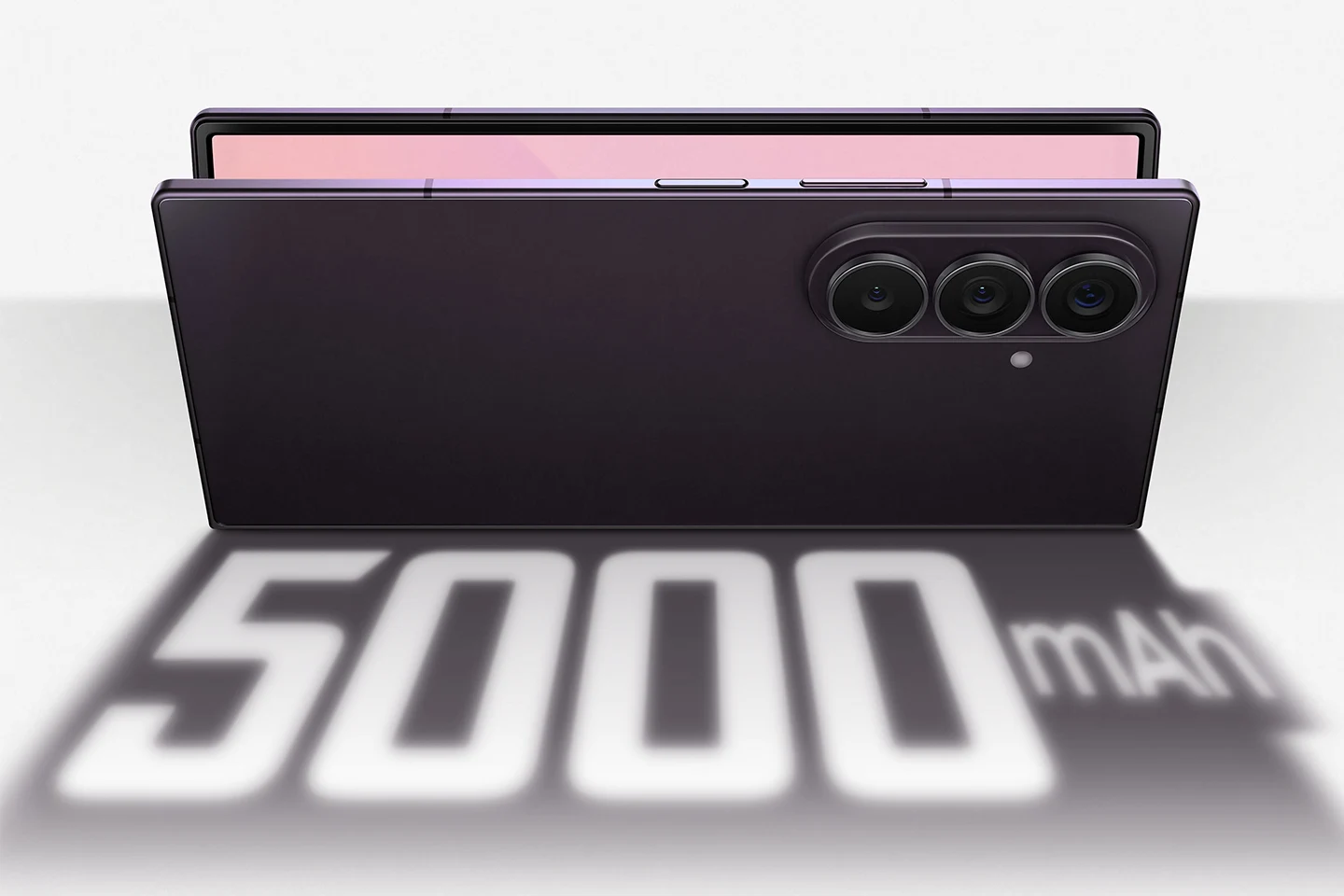
Fold8 Ultra is the stronger phone-only productivity choice because it has the larger 8-inch main and 6.5-inch cover displays plus a 5,000 mAh battery. Fold8 is lighter at 201 g and more compact. When both are connected to the same external display and Jump-Desk tier, cloud Windows performance comes mainly from the Jump-Desk and network rather than the phone model.
What accessories do I need for a Fold8 DeX workstation?
For a full desk, use a compatible powered USB-C hub or display adapter, HDMI or DisplayPort connection as supported by the adapter, a charger, keyboard, mouse and optional Ethernet. Confirm video output and power-delivery compatibility before buying accessories.
Can I use Wireless DeX with Jump-Desk?
Yes, with a compatible Miracast display. Wired DeX is usually the more dependable choice for a remote Windows session because it avoids adding a second wireless display link. Jump-Desk still needs an internet connection in either case.
Do I need to sign in to Windows App with a Microsoft account?
Not for a direct remote-PC connection. Microsoft documents that Android users can connect to a remote PC without signing in to Windows App. Open the personalised Jump-Desk connection and use the Windows credentials shown in the Jump-IT dashboard.
What controls Jump-Desk performance on a Galaxy Fold?
The selected Jump-Desk tier controls the remote CPU, memory and storage; network distance and connection quality affect responsiveness. The Fold8 handles DeX, Windows App, display output and input, but it does not perform the remote Windows workload itself.
Can I use Jump-Desk offline on the Fold8?
No. The Windows desktop runs remotely, so internet access is required. Android apps and files stored locally on the Fold8 may still work offline according to their own capabilities.
Is Fold8 plus Jump-Desk suitable for gaming or local AI?
Do not assume so. Current Standard, Pro and Pro+ Jump-Desk specifications do not list a dedicated GPU. Test exact application requirements and choose other hardware for workloads that require dedicated graphics acceleration.
Does closing Windows App stop an hourly Jump-Desk?
No. Closing or disconnecting Windows App ends the viewing session but does not necessarily stop the cloud machine. Stop an Hours Jump-Desk from the Jump-IT dashboard and confirm that its status says Stopped.
Sources and editorial method
This article was reviewed on 23 July 2026. Samsung hardware, availability and launch-price details come from Samsung’s launch announcement and official specifications. DeX support is explicitly listed by Samsung for both Fold8 models. Surface Pro, Galaxy Tab S10 Ultra and DeX comparison details come from the manufacturers’ current product information. Windows App behaviour comes from Microsoft Learn. Jump-Desk details were checked against the current Jump-IT product configuration and public product workflow.
Jump-IT product overview and current Jump-IT product information for tiers, regions, dashboard workflow and Android client destination
Media note: Samsung images on this page are official launch press assets and remain credited to Samsung Electronics. Product names and trademarks belong to their respective owners. Jump-IT is not affiliated with or endorsed by Samsung Electronics.
SEE THE PRODUCT IN ACTION
From the first choice to the next working session.
These recordings show the current Jump-IT interface with demonstration data. Use the controls to pause, replay or view a recording full screen.
PRODUCT WALKTHROUGH27 seconds
Create your Jump-Desk
Name your desktop, choose a region and plan, and review the configuration before checkout.
Read the walkthrough
Start with your Windows sign-in After signing in to Jump-IT, give the desktop a name. This username is for Windows.
Choose a nearby region Pick from the regions available to your account. Your desktop will run in that region.
Choose how you use it This example uses Monthly. Review the current price and included uptime before checkout.
Choose the power for your work Compare the available CPU, memory and storage. Example prices are shown in this recording.
Review before you pay Check the total and terms, then continue to checkout. This demonstration stops before payment.
PRODUCT WALKTHROUGH31 seconds
Set up your laptop connection
Find the display settings, adapt the connection to your screen, and download the connection file.
Read the walkthrough
Find your desktop controls The settings menu sits on your desktop card. Open Connection Settings.
Fit Windows to your screen Review full-screen, monitor and resizing options. Support depends on your remote desktop client.
Choose your display preference Smart sizing fits the remote desktop to the client window. Other settings can stay at their defaults.
Keep the settings and connect Select Done, then Connect. The settings are included in your next connection file.
Open the file in your client Choose Download & Connect, then open the file with a supported remote desktop app.
Continue on your computer Sign in to the remote desktop with your Windows account. This final step is a connection guide.
Review the desktop configuration before checkout. Demonstration data. Open the image to inspect the controls.
CURRENT WORKFLOWS · SEPTEMBER 2026
A mobile workstation needs a complete working routine.
Foldable phones, Samsung DeX and tablet displays make compact workspaces more practical, but screen size is only one part of the decision. Test the keyboard, pointer, power supply, monitor output and network together. Then try the exact Windows task on the selected Jump-Desk tier. The phone displays the session; the remote desktop supplies the Windows CPU and memory.
Jump-Teams lets an owner assign a persistent Windows workspace to a mobile colleague without buying a second computer solely for one application. Build the trial around the locations that person actually uses, and keep a fallback for work that cannot wait for connectivity.
Bring people and desktops together.
Read the business guide to invitations, roles, funding and desktop assignments.
Jump-Desk setup: desktop name, Windows username and location. Demonstration data.
Prepaid Hours: budget for both parts.
Eligible Hours desktops use prepaid funding. Compute charges apply while running, and the separate service charge continues while the desktop is retained. Stopping the desktop preserves its files and ends running compute charges; deleting it permanently removes the desktop. Review the wallet, current rates and funding permissions in Jump-IT before creating one.
For regular work, Months includes up to 300 hours of uptime per desktop each month. Review the current Years option when a longer commitment suits the requirement. Each desktop has its own plan, region and performance tier.
Keep Android, DeX, calls, cameras and everyday apps on the Galaxy Z Fold8. Open a persistent Windows 11 Pro Jump-Desk for the desktop software that still needs a PC—then return to the same Windows environment from the next screen.
A foldable client and a performance laptop can serve different jobs
A healthy supported Fold8 can provide focused access to a Windows environment, while a lead uses a more powerful computer for local development. The Surface Laptop Ultra comparison explains that division, including Windows on Arm checks and separate cloud desktops for colleagues. Choose the client around the task, input comfort and network rather than requiring identical devices.
Compare iPhone Duo, Galaxy Z Fold8 and Pixel for real work. New creator reviews, remote Windows limits and a practical path to a monthly cloud workspace.