

Runs Android, the DeX interface and Windows App. It handles the local display and your input.
Jump-IT How To · Samsung Galaxy
How to Use Windows with Samsung DeX
Connect a compatible Galaxy phone or tablet to a monitor, keyboard and mouse, then open a complete Windows 11 Pro Jump-Desk inside Samsung DeX—without carrying or buying a separate PC.
The short answer
Samsung DeX gives a compatible Galaxy device a desktop-style Android interface. It does not turn Android into Windows. Jump-Desk supplies the separate Windows 11 Pro computer in the cloud; Microsoft Windows App carries its screen, keyboard and mouse input into DeX.
For the most dependable workstation layout, connect the Galaxy device to a monitor with a compatible USB-C-to-HDMI cable or powered hub, pair a keyboard and mouse, launch DeX, install Windows App, then open the personalised connection file from the Jump-IT dashboard.
Full Windows 11 Pro desktopWindows runs remotely on its own persistent Jump-Desk—not inside Android.
Phone-sized travel kitAdd a display, keyboard and mouse wherever compatible DeX hardware is available.
20 configured cloud regionsChoose the location before creation to help reduce avoidable network distance.
Three layers, one workstation
What actually runs where
This is remote access, not Windows emulation on the phone. Keeping the layers clear makes the capabilities and limitations much easier to understand.
Carries the Windows screen, keyboard and mouse over the internet using the personalised connection.
Runs Windows 11 Pro, installed compatible applications, settings and files on the cloud machine.
Why this is distinctive: the phone can remain the device you carry, DeX supplies the large-screen Android workspace, and Jump-Desk adds Windows only when it is needed. A local Windows laptop still wins for offline work, dedicated-GPU workloads and direct specialist peripherals.
YOUR NEXT STEP
DeX is your workspace. Jump-Desk runs Windows.
DeX organises the supported phone’s display and input. A remote desktop client connects to Jump-Desk. Test the monitor, keyboard and connection together before relying on the setup for a working day.
Configure your Jump-Desk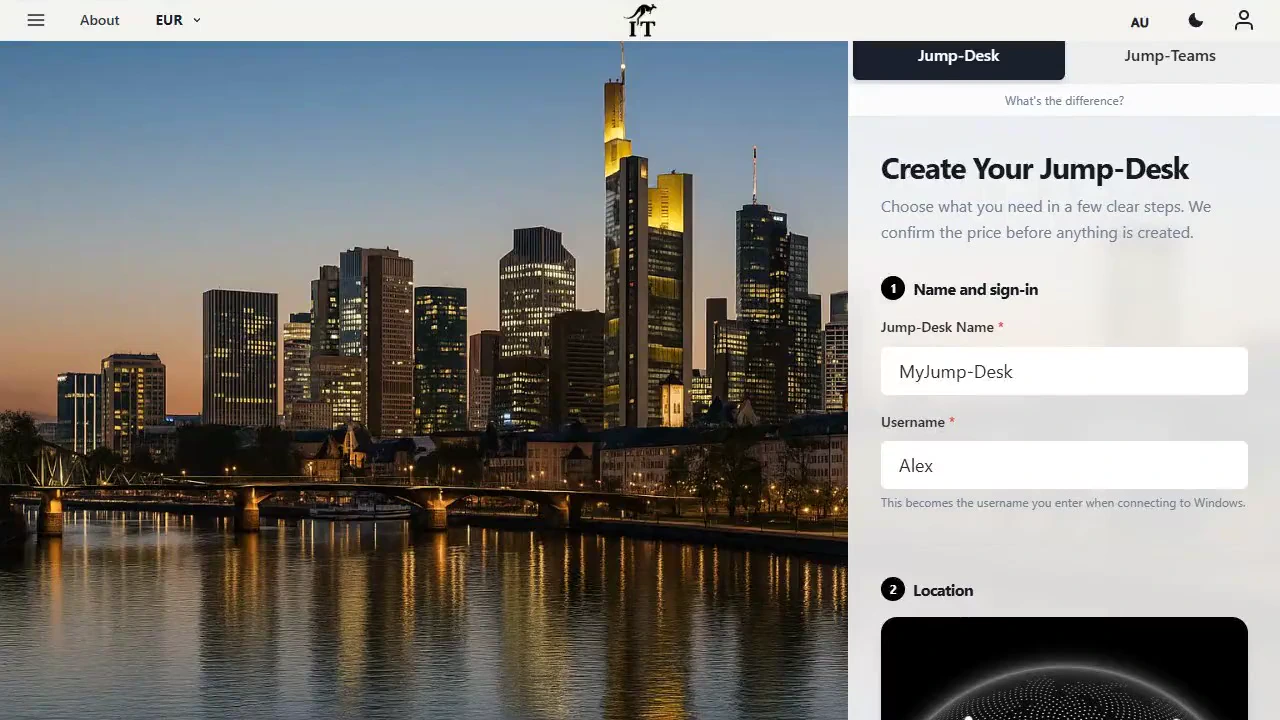
2026 Galaxy status
Check the exact Samsung model before buying a cable or phone
Samsung changes DeX support by model and software generation. The following status is based on Samsung’s official US compatibility information and product range, checked on 8 September 2026.
On smaller screens, swipe sideways to compare every column.
| Galaxy device | Wired DeX | Wireless DeX | What to know |
|---|---|---|---|
| Galaxy S26, S26+ and S26 Ultra | Officially listed USB-C-to-HDMI or compatible hub | Officially listed Compatible Miracast display | Samsung lists the S26 series. DeX for PC is not supported on these One UI 7-or-later devices; direct-monitor DeX still is. |
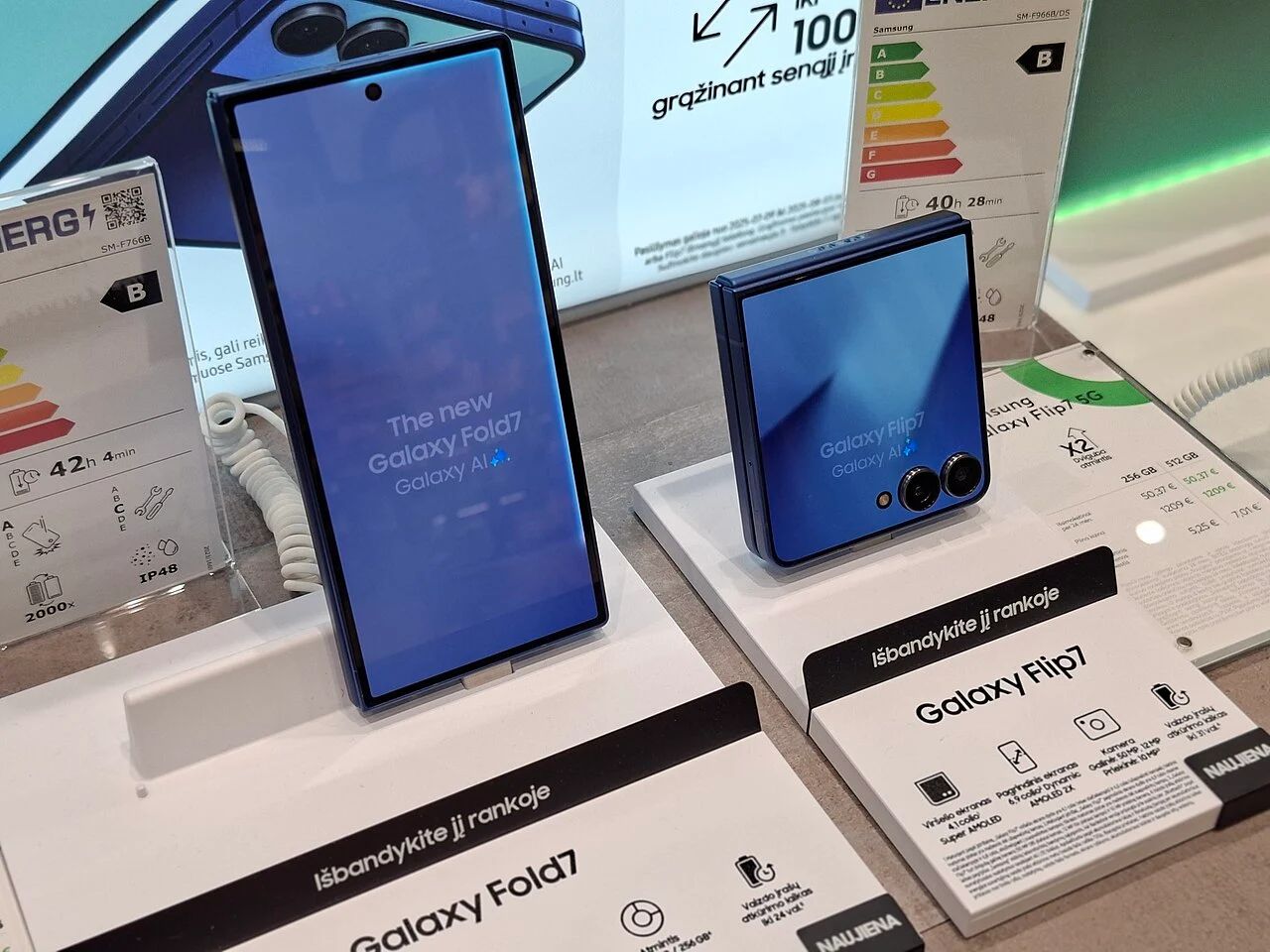
| Galaxy Z Fold7 | Officially listed | Officially listed | Galaxy Z Fold7 remains compatible with the direct-monitor workflow in this guide. |
| Galaxy Z Flip7 | Officially listed | Officially listed | The exact model matters: Samsung says the Flip7 FE and all earlier Flip models are not compatible. |
| Galaxy Z Fold8, Z Fold8 Ultra and Z Flip8 | Officially listed | Officially listed | Samsung now lists Galaxy Z Fold8, Z Fold8 Ultra and Z Flip8 for wired and Wireless DeX. Connect directly to a supported monitor or TV; DeX for PC is not supported on these One UI 7-or-later devices. |
| Galaxy Z Flip7 FE and earlier Flip models | Not compatible | Not compatible | Samsung explicitly excludes these models from its current DeX compatibility list. |
Fold8 and Flip8 buying check: Samsung has now published these devices and lists their DeX support. Before choosing a dock, monitor or handset, check the exact regional model, wired video output, charging requirements and display compatibility on the official Samsung DeX compatibility page.
Before you begin
What you need for a Windows workstation
Compatible Galaxy device
Use Samsung’s exact model list—not only the family name. Install current One UI and security updates before testing.
Display connection
For wired DeX, use a compatible USB-C-to-HDMI cable or powered USB-C hub. For Wireless DeX, use a compatible Miracast TV or monitor.
Keyboard and mouse
Bluetooth is the simplest cable-free option. Wired accessories need a compatible hub, dock or adapter; a basic DeX cable has no USB ports.
Reliable internet
Remote Windows needs internet access and the current Jump-Desk connection requires outbound TCP 3389. Prefer Ethernet through a capable hub or strong Wi-Fi.
Windows App for Android
The Jump-IT dashboard links to Microsoft’s current Android package. Install it from Google Play before opening the connection file.
A Jump-Desk
Choose Hours, Months or Years billing, one of three performance tiers and one of 20 configured regions in the live creation flow.
Recommended desk setup: a powered USB-C hub with HDMI, power delivery and Ethernet gives the phone power, a stable display path and optional wired networking in one connection. Confirm the hub’s video and charging compatibility with the exact Galaxy model.
Complete setup
How to run a Jump-Desk Windows PC through Samsung DeX
Set up DeX first, then install the remote client and create the cloud machine. This makes troubleshooting much easier because each layer can be tested separately.
Confirm Samsung DeX compatibility
Find the exact Galaxy model on Samsung’s current DeX support page and install available software updates. A similar model name does not guarantee support: the Flip7 works with DeX, while the Flip7 FE and earlier Flip generations do not.
Choose wired or Wireless DeX
Use USB-C-to-HDMI or a compatible powered hub for the most workstation-like setup. Wireless DeX is useful where a Miracast display is already available, but keep the phone close to the display because Samsung warns that distance can cause stutter or lag.
Connect the monitor and power
Attach the display, select its correct input and unlock the Galaxy device. For longer sessions, connect the Samsung charger through a power-delivery hub that is compatible with the device and display mode.
Connect the keyboard and mouse
Pair Bluetooth accessories from Android Settings, or connect wired devices through a compatible hub, dock or USB adapter. If no mouse is available, Samsung can expose the phone as a touchpad, but a real mouse is more comfortable for Windows desktop applications.
Start Samsung DeX
Accept the DeX prompt when the display connects, or open Quick Settings and select DeX. Confirm that the monitor shows the desktop-style Android workspace and that the keyboard and pointer work before adding Windows.
Install Microsoft Windows App
Install Windows App from Google Play. This is the same Android package linked by the current Jump-IT dashboard. The Jump-Desk connection-file workflow does not require signing in to Windows App itself.
Create the Jump-Desk
Open Create Jump-Desk, choose a nearby region, select Hours, Months or Years, then select Standard, Pro or Pro+. Review the live regional price, service terms and specifications before checkout.
Start it and wait for Running
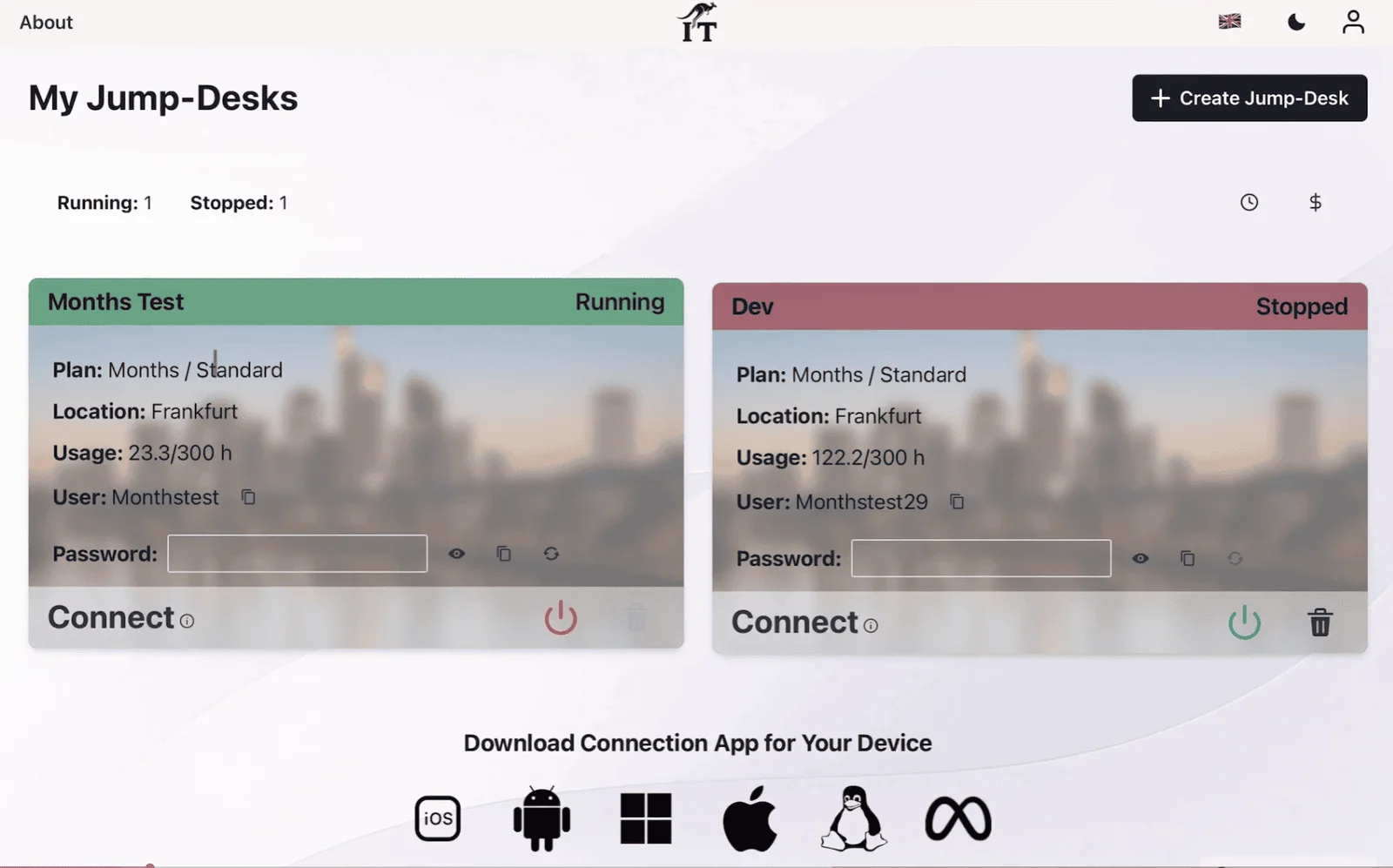
Use the dashboard power control. Provisioning or startup can take time; do not download and repeatedly open connection files until the Jump-Desk status clearly shows Running.
Open the personalised connection file
Download the Jump-Desk’s .rdp file and open it with Windows App. Use the username and password shown in the dashboard. Windows 11 Pro will appear in a window inside the DeX desktop; maximise it for the most PC-like experience.
Stop an Hours machine when finished
Closing Windows App only disconnects the screen; it does not change the cloud machine’s power state. Return to the Jump-IT dashboard, use the red power control and confirm that the status changes to Stopped.
Save before disconnecting hardware: Samsung says DeX restarts if HDMI is unplugged. Save work inside Windows, close sensitive applications and disconnect the remote session deliberately before removing the cable or hub.
Choose the right layer
Android apps, DeX, Jump-Desk or a Windows laptop?
On smaller screens, swipe sideways to compare every column.
| Decision | Android app | Samsung DeX | Jump-Desk in DeX | Windows laptop |
|---|---|---|---|---|
| Operating system | Android | Android with desktop interface | Remote Windows 11 Pro | Local Windows |
| Windows desktop applications | No | No | Yes, when compatible with the selected tier and remote environment | Yes, subject to laptop hardware |
| Large monitor, keyboard and mouse | Possible but still mobile UI | Designed for it | Designed for it through DeX and Windows App | Native |
| Where work executes | Galaxy device | Galaxy device | Jump-Desk cloud machine | Laptop |
| Offline Windows use | No Windows | No Windows | No | Often yes |
| Persistent Windows storage | No | No | 128 GB drive on current tiers; retained until deletion subject to plan terms | Local drive |
| Best fit | Mobile-native task | Android productivity on a larger display | Occasional or portable access to compatible Windows software | Offline, peripheral-heavy or GPU-dependent work |
Choose for the way you work
Jump-Desk billing and performance for a DeX workstation
The live creation flow loads regional pricing. These cards describe the product rules and published specifications without pretending one hard-coded price applies everywhere.
Hours
For travel, emergency access, occasional administration or one Windows-only task. Start the machine when needed and stop it from the dashboard after the session.
The displayed service fee preserves the static public IP and managed operating-system disk while stopped.
Months
For a Galaxy device that regularly doubles as a Windows workstation. Current definitions include up to 300 hours of uptime per month and shutdown after three hours idle.
Compare the live total with observed Hours usage.
Years
For a Windows desktop expected throughout the year. Review current checkout terms, application life and whether buying hardware would better serve offline or specialist needs.
Current performance tiers
Standard
2 vCPU · 4 GB RAM- 128 GB HDD
- 100 GB data transfer included
- Windows 11 Pro licence included
Pro
2 vCPU · 8 GB RAM- 128 GB SSD
- 100 GB data transfer included
- Windows 11 Pro licence included
Pro+
4 vCPU · 16 GB RAM- 128 GB Premium SSD
- 100 GB data transfer included
- Windows 11 Pro licence included
Location matters to remote feel
Choose from 20 configured Jump-Desk regions
A geographically closer region will often reduce latency, but the real result also depends on the Galaxy device, Wi-Fi or Ethernet, Wireless DeX path and internet routing. Choose before creation and test the complete setup.
Know the boundaries
When the phone-powered workstation is—and is not—the right answer
Internet and TCP 3389 are required
There is no offline Windows session. Corporate, school, hotel and guest networks can block the current connection even when websites still load.
Wired DeX is the safer default
Wireless DeX is convenient, but display distance and Wi-Fi conditions can add stutter on top of remote-desktop latency. Use a compatible powered hub for longer work.
No dedicated GPU is listed
Do not assume compatibility with demanding gaming, 3D rendering, local AI or GPU-dependent engineering applications. Check exact system requirements first.
Peripherals need a real test
Webcams, printers, smart-card readers, USB licence dongles, specialist audio and other redirected devices can behave differently through Android and a remote session.
Mobile input can differ
Keyboard layouts, Windows shortcuts, right-click behaviour, audio and window management may not feel identical to a conventional PC. Test the intended accessories and apps.
Deletion is permanent
Export files and deactivate application licences before deletion. Current Jump-IT support guidance says deleting a Jump-Desk removes the VM, disks, public IP and backups.
Direct answers
Samsung DeX and Windows FAQs
Can Samsung DeX run Windows?
Samsung DeX is an Android desktop interface; it does not install Windows or run Windows applications locally. With Jump-Desk, Windows 11 Pro executes on a cloud PC and Microsoft Windows App displays and controls that remote desktop inside DeX.
Which Galaxy S26 phones support Samsung DeX?
Samsung’s current US DeX compatibility page lists the Galaxy S26 series for wired and Wireless DeX. That covers the officially released Galaxy S26, S26+ and S26 Ultra. Availability and features can vary by market and software version, so check the exact local model before buying accessories.
Do the Galaxy Z Fold8, Z Fold8 Ultra and Z Flip8 support DeX?
Yes. Samsung’s current compatibility information lists Galaxy Z Fold8, Z Fold8 Ultra and Z Flip8 for wired and Wireless DeX. Use a compatible direct-monitor connection or Miracast display. DeX for PC is a separate older feature and is not supported on these devices. Check the exact model and accessories before buying.
Does the Galaxy Z Flip7 support Samsung DeX?
Yes. Samsung’s current support page lists the Galaxy Z Flip7 for wired and Wireless DeX. It also states that the Galaxy Z Flip7 FE and all earlier Galaxy Z Flip models are not compatible, so the exact model name matters.
What hardware do I need for a Samsung DeX Windows workstation?
You need a compatible Galaxy phone or tablet, a monitor or Miracast-compatible display, a keyboard, a mouse, internet access and Windows App. For wired DeX, use a compatible USB-C-to-HDMI cable or hub; a powered hub with power delivery is preferable for longer sessions and wired accessories.
Is wired or Wireless DeX better for Jump-Desk?
Wired DeX is the safer default for a long Windows session because the display path is direct and a powered hub can support charging and peripherals. Wireless DeX is convenient on a compatible Miracast display, but Samsung notes that distance can cause stutter or lag. Jump-Desk performance also depends on internet latency.
How do I connect Jump-Desk from Samsung DeX?
Install Windows App from Google Play, create and start the Jump-Desk, wait for Running status, then open the personalised RDP file from the Jump-IT dashboard with Windows App. Use the dashboard credentials when prompted. Jump-IT’s Android connection instructions say that signing in to Windows App itself is not required for this connection-file workflow.
Can I use DeX for PC with the Galaxy S26, Fold7 or Flip7?
No. Samsung says DeX for PC is not supported on devices running One UI 7 or later, including the Galaxy S26 series, Z Fold7 and Z Flip7. This guide uses DeX directly on a monitor or compatible wireless display, so DeX for PC is not needed.
Can Jump-Desk with Samsung DeX work offline?
No. The Galaxy device must reach the remote Windows machine over the internet, and the current Jump-Desk connection requires outbound TCP 3389. Corporate, school, hotel and guest networks can block that traffic even when ordinary web browsing works.
What should I test before relying on Samsung DeX and Jump-Desk?
Test the exact Windows application, keyboard layout, shortcuts, audio, webcam, printer, USB or Bluetooth accessories and the intended network. Current Jump-Desk tiers do not list a dedicated GPU, and remotely redirected hardware can behave differently from peripherals attached directly to a Windows PC.
Sources and verification
The Jump-IT Team reviewed the current product’s Android client link and instructions, Hours/Months/Years definitions, Standard/Pro/Pro+ specifications, service-fee explanation, 20-region map, network requirement and deletion behaviour on 17 July 2026. Samsung device and DeX claims were checked against current first-party support pages; Windows App requirements were checked against Microsoft documentation.
- Samsung: compatible DeX devices, wired and wireless setup, DeX for PC changes
- Samsung: use a keyboard and mouse with DeX
- Samsung: current Galaxy smartphone range
- Microsoft Learn: connect to remote PCs with Windows App on Android
- Google Play: Microsoft Windows App for Android
- Wikimedia Commons: public-domain Galaxy Fold7 and Flip7 photograph
- Jump-IT: live regional configuration and checkout
SEE THE PRODUCT IN ACTION
From the first choice to the next working session.
These recordings show the current Jump-IT interface with demonstration data. Use the controls to pause, replay or view a recording full screen.
PRODUCT WALKTHROUGH27 seconds
Name your desktop, choose a region and plan, and review the configuration before checkout.
Read the walkthrough
- Start with your Windows sign-in After signing in to Jump-IT, give the desktop a name. This username is for Windows.
- Choose a nearby region Pick from the regions available to your account. Your desktop will run in that region.
- Choose how you use it This example uses Monthly. Review the current price and included uptime before checkout.
- Choose the power for your work Compare the available CPU, memory and storage. Example prices are shown in this recording.
- Review before you pay Check the total and terms, then continue to checkout. This demonstration stops before payment.
PRODUCT WALKTHROUGH31 seconds
Find the display settings, adapt the connection to your screen, and download the connection file.
Read the walkthrough
- Find your desktop controls The settings menu sits on your desktop card. Open Connection Settings.
- Fit Windows to your screen Review full-screen, monitor and resizing options. Support depends on your remote desktop client.
- Choose your display preference Smart sizing fits the remote desktop to the client window. Other settings can stay at their defaults.
- Keep the settings and connect Select Done, then Connect. The settings are included in your next connection file.
- Open the file in your client Choose Download & Connect, then open the file with a supported remote desktop app.
- Continue on your computer Sign in to the remote desktop with your Windows account. This final step is a connection guide.
YOUR FIRST WORKING SESSION
Prepare a Windows workspace for your next client project.
Prepare the Windows workspace a consultant needs between client meetings: the compatible quotation application, desktop spreadsheets and project folders. On the Jump-Desk, install and configure your chosen software, sign in to the appropriate business accounts and organise the current client project.
Rehearse a meaningful working session from the Galaxy desk: update the client quotation in the required desktop application, check the pricing calculations and prepare the proposal for the meeting. The quotation is a specific compatibility check; the service provides the full Windows environment for ongoing work.
- Prepare the desk. Use the Galaxy, display, keyboard, pointer and network you expect to work with.
- Connect with your own account. Start the Jump-Desk, wait for Running and follow the current connection guide.
- Prepare the client proposal. Update the quotation in the desktop application, check its calculations and save the proposal in the business document store. Confirm that the version for the meeting opens correctly.
- Close the session deliberately. Save the work and confirm Stop in the dashboard when finished. Disconnecting alone does not stop running compute; retained service continues while the desktop is kept.
For a developer building a customer portal, prepare a separate Jump-Desk with the chosen editor, Git, runtime, browsers and repository. They can build and debug the application while the business manages the workspace. Set individual Windows access separately from Team management permissions, and use separate desktops for concurrent workers. Agree the source-code, setup and access handover before the engagement ends.
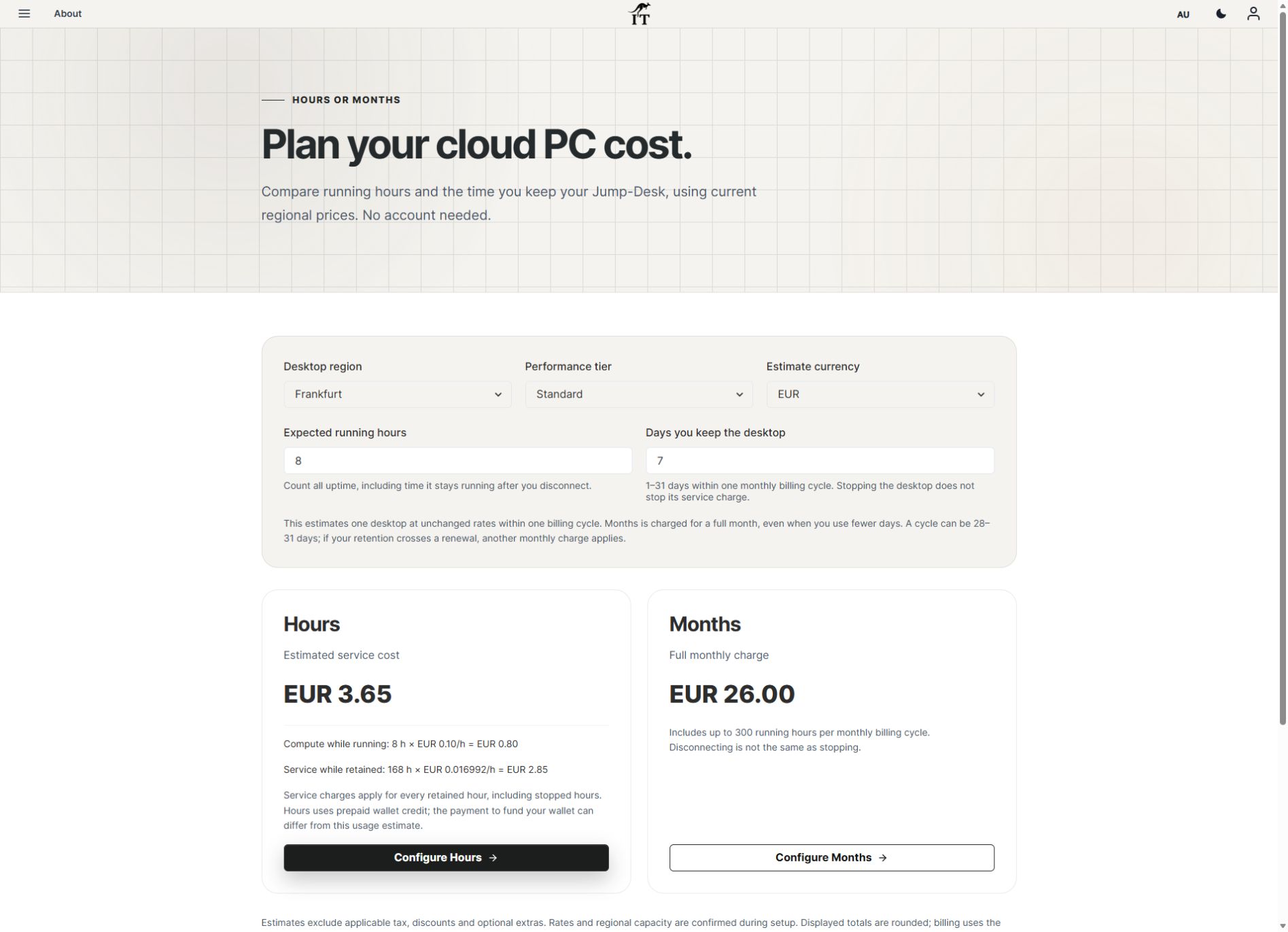
THE ACTUAL CALCULATOR
Budget for the complete working environment.
Enter your planned running hours and the days you expect to keep the desktop. Stopping Windows ends running compute charges; the service charge continues while it is retained.
CURRENT WORKFLOWS · SEPTEMBER 2026
A mobile workstation needs a complete working routine.
Foldable phones, Samsung DeX and tablet displays make compact workspaces more practical, but screen size is only one part of the decision. Test the keyboard, pointer, power supply, monitor output and network together. Then try the exact Windows task on the selected Jump-Desk tier. The phone displays the session; the remote desktop supplies the Windows CPU and memory.
Jump-Teams lets an owner assign a persistent Windows workspace to a mobile colleague without buying a second computer solely for one application. Build the trial around the locations that person actually uses, and keep a fallback for work that cannot wait for connectivity.
Bring people and desktops together.
Read the business guide to invitations, roles, funding and desktop assignments.
Explore Jump-Teams →Make the first working day easier.
Follow a practical onboarding checklist, from a first pilot to reviewing access when a role changes.
Read the team onboarding guide →Prepaid Hours: budget for both parts.
Eligible Hours desktops use prepaid funding. Compute charges apply while running, and the separate service charge continues while the desktop is retained. Stopping the desktop preserves its files and ends running compute charges; deleting it permanently removes the desktop. Review the wallet, current rates and funding permissions in Jump-IT before creating one.
For regular work, Months includes up to 300 hours of uptime per desktop each month. Review the current Years option when a longer commitment suits the requirement. Each desktop has its own plan, region and performance tier.
Compare current plans →Your phone can be the endpoint
Add Windows when DeX alone is not enough.
Keep the Galaxy device and desk accessories you already use, then create a separate Windows 11 Pro Jump-Desk for compatible applications that Android cannot run.
When the local workload calls for more than DeX
DeX can be a practical access arrangement for suitable remote Windows work. If you also need sustained local AI development, compare that requirement separately using the Surface Laptop Ultra workflow guide. Its local NVIDIA resources are distinct from a Jump-Desk; cloud Windows does not inherit a connected device’s GPU.
Related device guidance added 31 October 2026.
FURTHER READING
Considering a folding phone as well?
DEVICE GUIDE
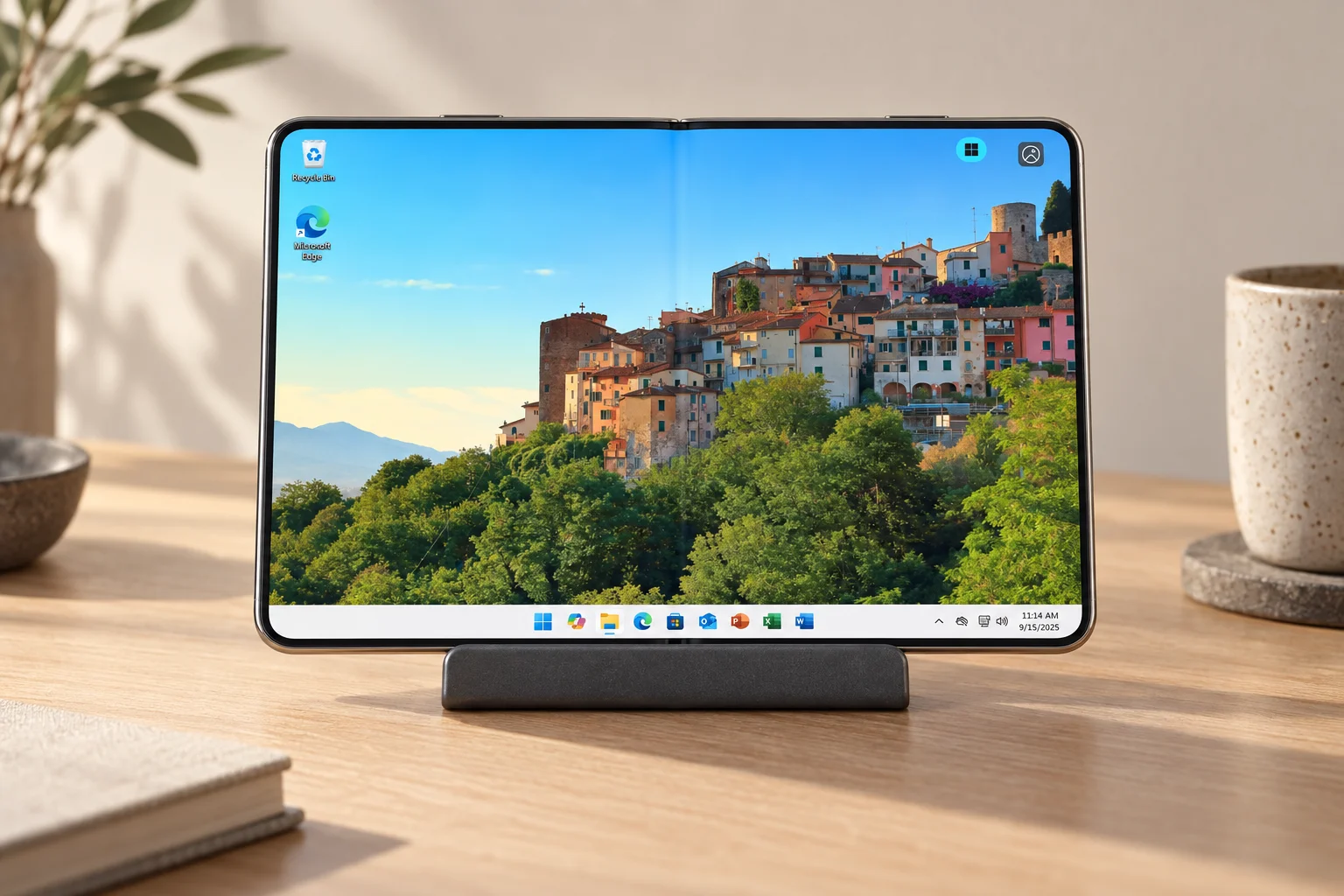
Use iPhone Duo as a Windows mini computer.
Use iPhone Duo with a Windows cloud PC: MKBHD and Mrwhosetheboss review takeaways, practical setup, real product views and complete monthly costs.
Read the guide →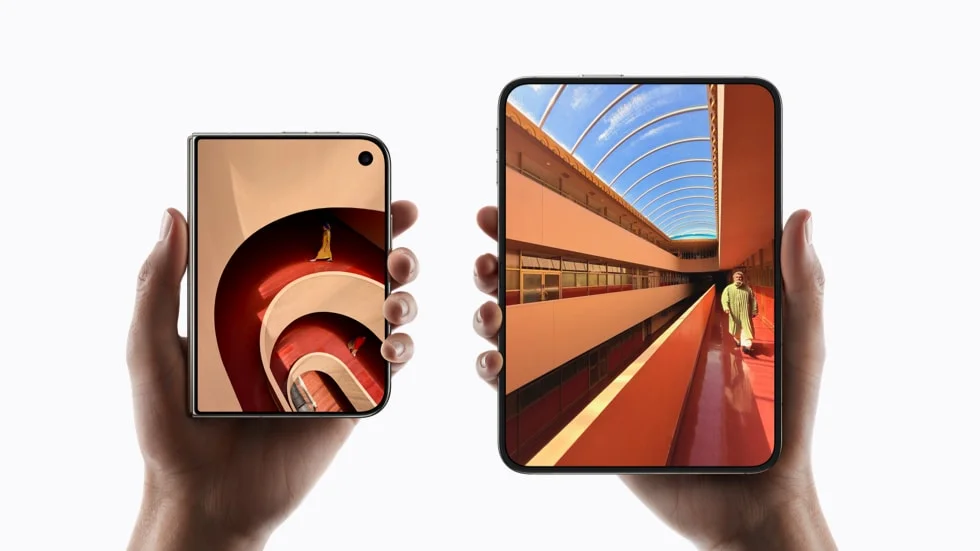

DEVICE GUIDE
iPhone Duo vs Galaxy Z Fold8 vs Pixel Fold.
Compare iPhone Duo, Galaxy Z Fold8 and Pixel for real work. New creator reviews, remote Windows limits and a practical path to a monthly cloud workspace.
Read the guide →