Run one compatible Windows-only application, access Windows occasionally or keep a separate Windows 11 desktop—without buying another computer or storing a local virtual machine on your Mac.
Jump-Desk gives a Mac user a separate, persistent Windows 11 Pro computer in the cloud. Windows runs remotely; Microsoft Windows App turns the Mac into the display and controls.
For someone who needs one Windows-only application, Windows for an occasional task or a clean separation between macOS and Windows, Jump-Desk is usually the most practical first option. It does not reserve a large block of Mac storage, does not split the Mac’s memory and processor between two operating systems, includes Windows 11 Pro on current tiers and can be chosen by Hours, Months or Years.
It is not the right answer for every Mac owner. Parallels Desktop is stronger when Windows must work offline or integrate closely with one powerful Mac. A physical Windows PC can be better for dedicated GPU work, specialist peripherals or consistently latency-sensitive tasks. The advantage of Jump-Desk is flexibility: keep the Mac you already like and add a compatible Windows desktop only when it is useful.
Windows 11 Pro includedNo separate Windows licence is listed for current Jump-Desk tiers.
128 GB cloud driveWindows applications and data do not need a large local VM bundle on the Mac.
Hours, Months or YearsMatch the commitment to occasional, regular or long-term Windows use.
Three strong Mac use cases
When a Windows cloud PC makes sense on a Mac
The best fit is not “every Mac user.” It is a Mac owner with a clear Windows requirement who does not want that requirement to dictate another hardware purchase.
Open the application macOS cannot run
Install a compatible Windows 11 application on a separate desktop while continuing to use macOS for everything else. This can suit a business, accounting, testing, engineering or administration tool that is genuinely Windows-only.
Check first: confirm the exact version supports Windows 11 and does not require a dedicated GPU, hardware dongle, specialist driver or unusually low latency.
Use Windows for a project, deadline or monthly task
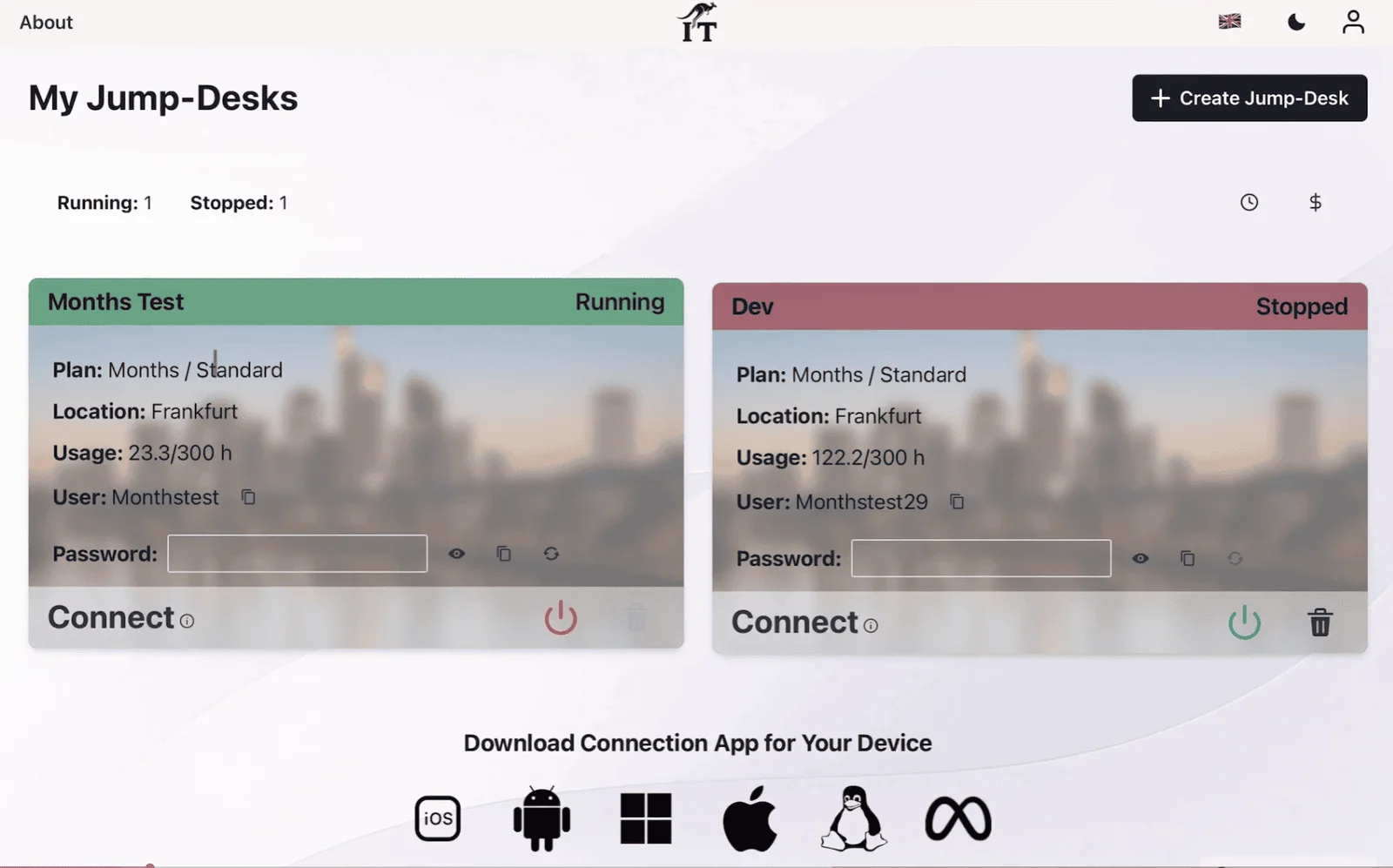
The Hours billing model is designed for occasional work. Start the Jump-Desk when needed, reconnect to the same persistent environment and stop it from the dashboard when the session is finished.
This avoids buying a laptop that may spend most of its life switched off.
Keep Windows isolated from the Mac
Windows applications, settings and the current 128 GB drive stay in the cloud rather than inside a local VM bundle. The Mac remains a Mac, while the remote Windows desktop keeps its own persistent environment.
The same desktop can be reached from other supported client devices when mobility matters.
Why this positioning matters: Jump-Desk is not trying to replace macOS. It gives the Mac owner access to a second operating system for the smaller part of their work that genuinely needs Windows.
YOUR NEXT STEP
Keep the Mac. Make room for the exception.
Use the Mac for everyday work and a retained Jump-Desk for the compatible Windows-only application. Save files deliberately and check licence terms, rather than assuming every desktop tool is included.
Jump-Desk setup: desktop name, Windows username and location. Product capture with demonstration data. Select to enlarge.
A separate execution model
Windows runs in the cloud—not inside your Mac
That distinction changes Apple-silicon compatibility, local resource use, storage and mobility.
What stays on the Mac
macOS and the applications you already use.
Microsoft Windows App, which displays the remote desktop.
Keyboard, pointer, display and supported redirected resources.
Only the files you deliberately download or copy locally.
What moves to Jump-Desk
The Windows 11 Pro operating system.
Windows compute, memory and current 128 GB system drive.
Compatible Windows applications installed with administrator access.
The persistent Windows settings and files needed between sessions.
Apple silicon: Parallels Desktop runs Windows 11 on Arm locally on an M-series Mac. Jump-Desk instead processes Windows on the remote VM, so the Apple processor does not determine the architecture of the Windows machine. Application compatibility must still be checked.
Illustrative workspace.
From Mac to Windows
How Jump-Desk works for a Mac user
The product flow is deliberately separate from Mac virtualisation: choose the cloud machine, then open its connection from macOS.
Choose a region, billing model and performance tier
Select one of 20 configured regions, then choose Hours, Months or Years and Standard, Pro or Pro+. The live creation flow loads regional pricing and the checkout total.
Let Jump-IT provision Windows 11 Pro
After checkout, Jump-IT creates the persistent desktop. Windows runs on the cloud VM, not on the Mac’s CPU, memory or internal drive.
Install Microsoft Windows App on macOS
Use Windows App from the Mac App Store. Microsoft documents macOS support for direct remote-PC connections and says the app can be used for that connection type without signing in to Windows App.
Start the Jump-Desk and wait for Running
The dashboard card shows the live machine state. Use the power control, wait for Running, then select Connect to download the personalised .rdp file.
Open the RDP file and stop Hours when finished
Open the file in Windows App and use the credentials displayed on the dashboard. For Hours, return to the dashboard and stop the Jump-Desk after the session; closing the Mac app alone does not stop cloud usage.
Jump-Desk vs Parallels, remote access and another PC
For this audience, Jump-Desk’s advantage is not that cloud computing wins every category. It is that occasional or limited Windows needs no longer require a permanent local Windows machine.
On smaller screens, swipe sideways to compare every column.
Jump-Desk vs Parallels, remote access and another PC
Decision
Jump-Desk
Parallels Desktop
Existing Windows PC
Buy another PC
Where Windows runs
On a persistent cloud VM
Inside a local VM on the Mac
On a physical PC elsewhere
On the new physical computer
Internet requirement
Required while using Windows
Not required for ordinary offline VM use
Required for remote access
Not required for local work
Mac CPU and RAM
Used mainly for the client and display stream
Shared between macOS and the Windows VM
Windows uses the host PC
Windows uses its own hardware
Windows storage
Current 128 GB drive in the cloud
VM bundle stored on the Mac or external drive
Stored on the remote host
Stored on the purchased computer
Windows licence
Windows 11 Pro included on current tiers
Separate eligible Windows licence normally required
Must already be licensed
Usually included in the purchase
Apple silicon
Mac acts as the remote client
Local Windows 11 on Arm VM
Mac chip does not control host architecture
Independent hardware
Mobility
Same desktop from supported client devices
Primarily tied to the Mac holding the VM
Available while the host is powered and reachable
Carry the second computer
Best fit
One app, occasional Windows or a separate desktop
Frequent local use, offline access and close Mac integration
You already own and maintain a suitable Windows Pro host
Dedicated hardware, offline work or specialist devices
Choose how often and how heavily Windows will be used
Pricing is loaded by the live Jump-IT creation flow and can vary by region and currency. The cards below explain the product rules without presenting one hard-coded price as universal.
Best starting point
Hours
For one Windows-only application, an occasional task or a temporary project. Usage is charged while the machine runs, and the displayed service fee preserves dedicated resources while it is stopped.
Mac habit: stop the Jump-Desk from the dashboard after every session.
Months
For Windows that has become part of the regular week. Current tier definitions include up to 300 hours of uptime per month and automatic shutdown after three hours idle.
Compare the live total with expected Hours usage.
Years
For a Windows desktop wanted throughout the year. Review the current live checkout terms, expected frequency and application lifespan before making the longer commitment.
A laptop may still be better when dedicated local hardware is essential.
Current performance tiers
Standard
2 vCPU · 4 GB RAM
128 GB HDD
100 GB data transfer included
Windows 11 Pro licence included
For a lighter compatible Windows application, browser work and basic office tasks.Balanced choice
Pro
2 vCPU · 8 GB RAM
128 GB SSD
100 GB data transfer included
Windows 11 Pro licence included
A more comfortable starting point for everyday multitasking and professional applications.
Pro+
4 vCPU · 16 GB RAM
128 GB Premium SSD
100 GB data transfer included
Windows 11 Pro licence included
For compatible CPU- and memory-heavier work. Current specifications do not list a dedicated GPU.
A geographically closer region will often reduce latency, although the real result also depends on the Mac’s connection and the route taken by the internet provider.
Netherlands
Dublin
Virginia
Washington
Iowa
Johannesburg
Pune
Dubai
Sydney
Paris
Frankfurt
London
São Paulo
Toronto
Singapore
Hong Kong
Tokyo
Seoul
Warsaw
Stockholm
The Jump-IT creation flow presents location, billing and performance choices together. The complete product image is shown without cropping.
Decide with the limitations visible
When Jump-Desk is not the best Mac solution
Offline Windows is essential
A cloud PC cannot work without a network connection. Use local virtualisation or a physical Windows computer when flights, fieldwork or unreliable connectivity make offline access non-negotiable.
The workload needs a GPU or specialist hardware
Current Standard, Pro and Pro+ specifications do not list a dedicated GPU. Hardware dongles, specialist USB devices, low-level drivers and other peripherals need individual compatibility testing.
The network blocks RDP
The current connection requires outbound TCP 3389. Corporate, school, hotel or guest networks may restrict that traffic even when ordinary web browsing works.
Data responsibility: export and back up files before deleting a Jump-Desk. Jump-IT support guidance states that deletion tears down the VM, disks, public IP and backups and cannot be reversed.
Continue the decision
Related Jump-IT guides and comparisons
These destinations were checked on the live Jump-IT site while this page was prepared.
A Windows cloud PC is a Windows desktop that runs on remote infrastructure while the Mac provides the screen, keyboard and pointer. Jump-Desk provisions a persistent Windows 11 Pro desktop and the Mac connects to it through Microsoft Windows App.
Can I use Jump-Desk for one Windows-only application?
Yes, provided the application supports Windows 11 and does not depend on a dedicated GPU, specialist local hardware, unsupported drivers or unusually low latency. Jump-Desk includes administrator access so compatible software can be installed on the cloud desktop.
Do I need Parallels Desktop to use Jump-Desk on a Mac?
No. Parallels runs a Windows virtual machine locally on the Mac, whereas Jump-Desk runs Windows remotely. A Mac user connects to Jump-Desk with Microsoft Windows App, so Parallels is not required.
Does Jump-Desk work with Apple-silicon Macs?
Yes. The Mac acts as the remote-access device, so Jump-Desk does not run a local Windows on Arm virtual machine inside the Apple processor. The individual Windows application must still be compatible with the Windows 11 Pro environment provided.
Is Windows 11 Pro included with Jump-Desk?
Yes. The current Standard, Pro and Pro+ tier definitions include a Windows 11 Pro licence. The live configuration and checkout terms should always be reviewed before purchase.
How much Mac storage does Jump-Desk use?
The Windows operating system, applications and current 128 GB Jump-Desk drive are stored in the cloud, so the Mac does not need to hold a large local virtual-machine bundle. The Windows App client and any files intentionally downloaded to the Mac still use local storage.
Can I use Jump-Desk without an internet connection?
No. Jump-Desk is a remote cloud desktop and requires a suitable internet connection. If offline Windows access is essential, local virtualisation such as Parallels Desktop or a physical Windows computer is more appropriate.
Which Jump-Desk plan is best for occasional Windows use on a Mac?
Hours is the natural starting point for occasional or project-based use because usage is charged while the machine runs, alongside the displayed service fee. Stop the Jump-Desk from the dashboard when finished and compare the live regional total with Months before deciding.
Is Jump-Desk suitable for Windows gaming or GPU-heavy Mac workflows?
Current Standard, Pro and Pro+ specifications do not list a dedicated GPU, so Jump-Desk should not be selected for GPU-dependent gaming, rendering or similar workloads. Check the exact application and hardware requirements before buying.
How does a Mac connect to Jump-Desk?
Install Microsoft Windows App on the Mac, start the Jump-Desk in the Jump-IT dashboard and wait for Running status. Select Connect, open the downloaded RDP file in Windows App and sign in with the credentials displayed on the dashboard.
Sources and verification
The Jump-IT Team reviewed the current product tier definitions, 20-region map, dashboard connection instructions, network rule, service-fee explanation and deletion behaviour on 17 July 2026. Mac, Apple-silicon and connection claims were checked against current first-party documentation.
Apple, Mac and macOS are trademarks of Apple Inc. Windows, Windows 11 and Windows App are trademarks of Microsoft. Parallels and Parallels Desktop are trademarks of Parallels International GmbH. Jump-IT is not affiliated with or endorsed by Apple, Microsoft or Parallels. Product specifications, availability and prices can change; current vendor documentation and live checkout terms take precedence.
SEE THE PRODUCT IN ACTION
From the first choice to the next working session.
These recordings show the current Jump-IT interface with demonstration data. Use the controls to pause, replay or view a recording full screen.
PRODUCT WALKTHROUGH27 seconds
Create your Jump-Desk
Name your desktop, choose a region and plan, and review the configuration before checkout.
Read the walkthrough
Start with your Windows sign-in After signing in to Jump-IT, give the desktop a name. This username is for Windows.
Choose a nearby region Pick from the regions available to your account. Your desktop will run in that region.
Choose how you use it This example uses Monthly. Review the current price and included uptime before checkout.
Choose the power for your work Compare the available CPU, memory and storage. Example prices are shown in this recording.
Review before you pay Check the total and terms, then continue to checkout. This demonstration stops before payment.
PRODUCT WALKTHROUGH31 seconds
Set up your laptop connection
Find the display settings, adapt the connection to your screen, and download the connection file.
Read the walkthrough
Find your desktop controls The settings menu sits on your desktop card. Open Connection Settings.
Fit Windows to your screen Review full-screen, monitor and resizing options. Support depends on your remote desktop client.
Choose your display preference Smart sizing fits the remote desktop to the client window. Other settings can stay at their defaults.
Keep the settings and connect Select Done, then Connect. The settings are included in your next connection file.
Open the file in your client Choose Download & Connect, then open the file with a supported remote desktop app.
Continue on your computer Sign in to the remote desktop with your Windows account. This final step is a connection guide.
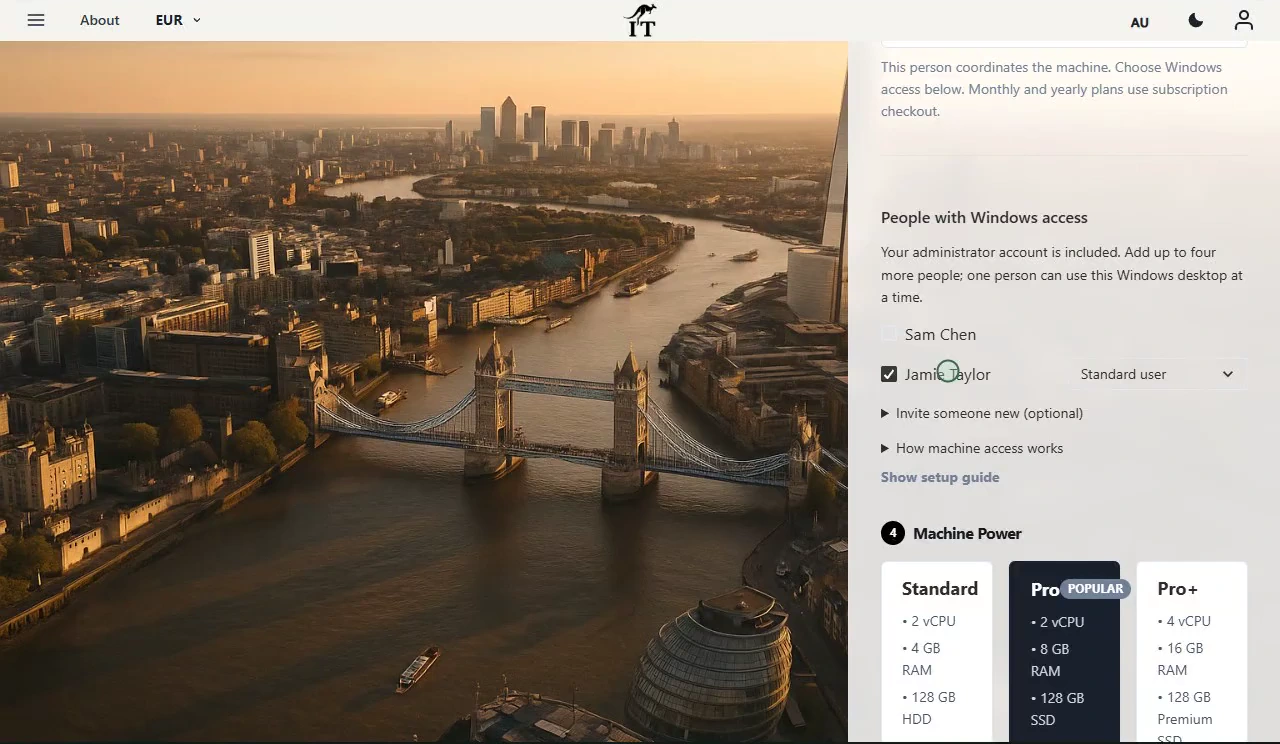
Review the desktop configuration before checkout. Demonstration data. Open the image to inspect the controls.
CURRENT WORKFLOWS · SEPTEMBER 2026
Keep the Mac. Give the Windows task its own workspace.
A mixed-device workflow often starts with one practical requirement: a client’s desktop tool, an Access database or an Excel add-in. Check the exact application, plug-ins, drivers, licence and vendor-supported hosting environment before choosing where Windows runs. A familiar file format does not guarantee that the Mac or browser edition includes every feature. Power BI Desktop has a separate virtualisation support boundary; read the supported-environment guidance before choosing a cloud desktop.
For a Mac-first business, Jump-Teams extends that decision to the people doing the work. Pilot one representative application, invite a colleague through their own account and assign a desktop with the resources they need. Keep the Mac for everyday work and use the retained Windows workspace for the exception.
Bring people and desktops together.
Read the business guide to invitations, roles, funding and desktop assignments.
Windows access choices and Standard, Pro and Pro+ performance tiers. Demonstration data.
Prepaid Hours: budget for both parts.
Eligible Hours desktops use prepaid funding. Compute charges apply while running, and the separate service charge continues while the desktop is retained. Stopping the desktop preserves its files and ends running compute charges; deleting it permanently removes the desktop. Review the wallet, current rates and funding permissions in Jump-IT before creating one.
For regular work, Months includes up to 300 hours of uptime per desktop each month. Review the current Years option when a longer commitment suits the requirement. Each desktop has its own plan, region and performance tier.
Create a separate Windows 11 Pro Jump-Desk for the application or occasional task that macOS cannot handle, without buying and carrying another computer.
Choose a Mac for its local work, then plan the Windows environment
The touchscreen MacBook Pro comparison distinguishes launch hands-on evidence from long-term testing and explains a mixed-device global team. Local AI and creative tools use the Mac’s resources; separately hosted Windows work uses the chosen Jump-Desk. Validate the client, applications and total cost before choosing either a premium Mac or a cloud plan.
Related device guidance added 31 October 2026.
This site uses essential storage and optional analytics. Privacy policy