Use the profile icon to log in.

Login

WINDOWS FOR THE WAY YOU WORK

Jump‑Desk vs Windows 365 for Individuals: Which Cloud PC Is Better?

Jump‑Desk is built for a person who wants a Windows 11 Pro cloud desktop without operating a Microsoft business tenant. Windows 365 is built for organisations—and becomes exceptionally capable when Intune, Microsoft Entra and central IT management are the goal.

Built with trusted technology

MicrosoftAuth0Stripe
Jump-IT branding above an Icelandic glacier
Reviewed 8 September 2026By Jump‑IT TeamTechnical comparisonMicrosoft sources linked

Jump‑Desk or Windows 365: the short answer

For an individual, freelancer, sole trader or part-time Windows user, Jump‑Desk is usually the simpler fit: choose a region, performance tier and Hours, Months or Years billing without first building a Microsoft 365 organisation. For an employer that needs centrally governed identities, policies, applications, compliance and fleet lifecycle, Windows 365 Enterprise is the stronger product.

Windows 365 Business sits between those positions. It removes much of Enterprise’s infrastructure work and does not require Intune, but it remains an organisational service: a customer account, administrator role, work user and assigned Cloud PC licence are part of the model. An individual can operate that one-person organisation, but they are both the IT administrator and the user.

The honest choice is therefore about operating model, not simply whose virtual machine is “better.” Jump‑Desk prioritises direct personal access, explicit location choice and flexible billing. Windows 365 prioritises Microsoft’s organisational identity, management and policy ecosystem.

No Microsoft business tenantJump‑Desk uses the Jump‑IT account and product workflow.

20 explicit regionsChoose the configured Jump‑Desk location before checkout.

Three billing modelsHours, Months and Years are available across the three tiers.

Windows 11 Pro includedAdministrator access is included on current Jump‑Desk tiers.

Different products for different owners

Who should choose Jump‑Desk—and who should choose Windows 365?

Both deliver a remote Windows desktop. The decisive difference is who owns the administration around that desktop.

Best for an individual

Choose Jump‑Desk when the desktop is the product you want

  • You want a personal Windows 11 Pro desktop from an iPad, Mac, Android, Linux or another Windows device.
  • You want to choose the Azure region yourself rather than have placement inferred from an organisation’s billing address.
  • You need Windows temporarily, occasionally or seasonally and want an hourly option.
  • You want administrator access without creating Microsoft Entra users, assigning licences or learning Intune.
  • Your workload fits the current 2–4 vCPU, 4–16 GB RAM and 128 GB storage configurations.

Most credible Jump‑Desk advantage: less organisational machinery between one person and one Windows desktop.

Best for managed organisations

Choose Windows 365 when the management system is part of the product

  • Your organisation already uses Microsoft 365, work identities, Microsoft Entra ID or Intune.
  • IT must deploy applications, enforce compliance, control local-admin rights and manage access centrally.
  • You need browser access, built-in Cloud PC restore tooling or a larger range of processor, memory and storage licences.
  • You need Enterprise provisioning policies, custom images, Conditional Access or organisation-wide endpoint reporting.
  • A fixed per-user monthly entitlement is preferable to usage-sensitive billing.

Most credible Windows 365 advantage: a mature, centrally governed Cloud PC lifecycle inside Microsoft’s enterprise ecosystem.

YOUR NEXT STEP

Match the administration to the business.

Compare the management, identity and application requirements alongside the desktop price. Jump-Teams offers invitations, permissions and assigned desktops; assess enterprise policy requirements separately.

Configure your Jump-Desk
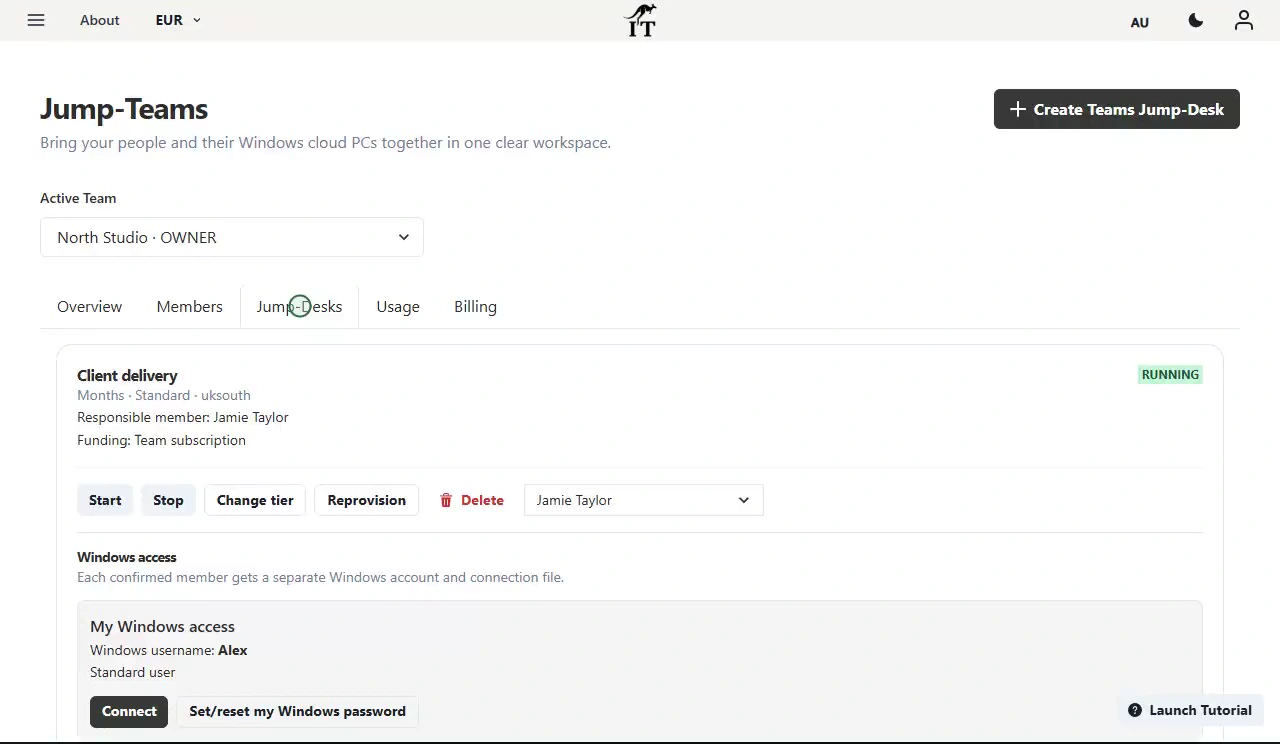
Desktop management within Jump-Teams
Desktop management within Jump-Teams. Product capture with demonstration data. Select to enlarge.

Side-by-side technical detail

Jump‑Desk vs Windows 365 comparison table

This table compares the current Jump‑Desk product configuration with Windows 365 Business and, where relevant, Windows 365 Enterprise. Microsoft’s features vary by edition; treating Business and Enterprise as one product leads to misleading conclusions.

On smaller screens, swipe sideways to compare every column.

Current product comparison reviewed 8 September 2026. Live checkout terms and vendor documentation take precedence.
Decision pointJump‑DeskWindows 365
Primary audienceIndividuals and small teams that want a personal Windows cloud desktop with a direct creation workflow.Advantage: individual simplicityOrganisations. Business targets up to 300 users; Enterprise supports centrally managed deployments without the 300-user cap.
Identity modelA Jump‑IT account, Jump‑Desk credentials and a personalised RDP connection file.An organisational Microsoft tenant, a work user and an assigned Cloud PC licence. A custom domain is not required for Business.
Intune requirementNo Intune or MDM dependency.Business: Intune is optional. Enterprise: Intune is required for Cloud PC management.Advantage: Enterprise governance
Provisioning effortChoose region, billing plan and tier; create; start; connect.Business: buy and assign a licence to a user. Enterprise: configure prerequisites, provisioning policy, image, join type, network and user/group assignment.
Windows licenceWindows 11 Pro licence included in all current tiers.The Cloud PC entitlement is included in the purchased Windows 365 licence. Enterprise also has prerequisite Windows, Intune and Entra entitlements, often supplied through a qualifying Microsoft 365 suite.
Location controlExplicit choice among 20 configured Azure regions before creation.Advantage: direct region choiceBusiness: location is based on the organisation’s billing address and capacity. Enterprise: admins select geography, region group or specific region through provisioning policy.
Billing modelHours, Months or Years. Hours combines running usage with a separate service fee for retained resources.Predictable per-user, per-month licence pricing. Purchase commitment, auto-renewal, tax and cancellation terms depend on market and channel.
Current configurationsStandard 2 vCPU/4 GB/128 GB HDD; Pro 2 vCPU/8 GB/128 GB SSD; Pro+ 4 vCPU/16 GB/128 GB Premium SSD.Advantage: wider size range
Administrator accessAdministrator access is included in the current tier configuration.Business admins can change the user between Standard User and Local Administrator. Enterprise administrators control local-admin rights through user settings.
Client accessCompatible RDP clients on Windows, macOS, iOS/iPadOS, Android and Linux. Outbound TCP 3389 must be allowed. No production browser client is currently advertised.Windows App supports Windows, macOS, iOS/iPadOS, Android/Chrome OS and desktop web browsers; Meta Quest support is also documented.Advantage: browser access
Central app and policy deploymentThe user installs compatible licensed applications with administrator access. Jump‑Desk is not presented as an enterprise MDM control plane.Business can optionally enrol in Intune. Enterprise is built around Intune for app deployment, configuration profiles, compliance and device lifecycle.Advantage: Windows 365
Restore and recoveryKeep independent backups of important data. Deleting the Jump‑Desk permanently removes the VM, disks, public IP and backups.Documented point-in-time restore features are available. Enterprise adds configurable restore points and the ability to share a restore point’s VHD to Azure Storage.Advantage: Windows 365
Network and hostingDesigned as a personal desktop, not a public server. Several inbound ports—including 80, 8080 and 8443—are blocked.Designed as an organisation-managed Cloud PC rather than public hosting. Enterprise networking can use Microsoft-hosted networking or an Azure network connection.
OffboardingExport files first. Deletion is permanent, and each Jump‑Desk is managed and billed independently.Removing a Business licence starts a seven-day grace period before deletion; Microsoft’s subscription-cancellation guidance says users lose Cloud PC access and the machine data is deleted. Back up before cancelling.
Best overall fitOne person needs a Windows PC without wanting to administer an organisation.An organisation wants the desktop, identity, policy, security and lifecycle system together.

Important correction: Windows 365 does not always require Intune

Windows 365 Business can run without Intune. Microsoft says it can be fully provisioned, licensed and remotely managed through Windows App or the Microsoft 365 admin centre without an Intune subscription or MDM configuration. Intune becomes optional when a Business customer wants app deployment, compliance policies and conventional endpoint management.

Windows 365 Enterprise is the Intune-led edition. Its documented prerequisites include a working Intune and Microsoft Entra tenant, the appropriate administrator role and the required user entitlements. Enterprise is therefore more complex—but that complexity buys capabilities Jump‑Desk does not claim to provide.

What setup actually involves

Jump‑Desk, Windows 365 Business and Windows 365 Enterprise setup paths

For a technical buyer, this is where the products diverge most sharply.

Jump‑Desk: personal provisioning

  1. Create or sign in to Jump‑IT.
  2. Choose one of 20 available regions.
  3. Choose Hours, Months or Years.
  4. Choose Standard, Pro or Pro+ and review the live total.
  5. Create and start the Jump‑Desk.
  6. Download the personalised RDP file and connect with the shown credentials.

Windows 365 Business: small-organisation provisioning

  1. Purchase Windows 365 Business directly; Microsoft says no domain or other Microsoft licence is required.
  2. Create or use the organisational account and administrator identity.
  3. Add the intended work user if it is not already present.
  4. Assign the Windows 365 licence to that user.
  5. Wait for the Cloud PC to be created automatically.
  6. Connect through Windows App or a supported desktop browser.

Windows 365 Enterprise: IT-led provisioning

  1. Confirm Windows E3, Intune, Microsoft Entra ID P1 and Windows 365 entitlements.
  2. Confirm the Intune and Microsoft Entra tenant, roles and enrolment restrictions.
  3. Choose Microsoft Entra join or hybrid join and the network model.
  4. Create a provisioning policy with image, language, naming and location choices.
  5. Assign users or security groups and the required licences.
  6. Manage the resulting Cloud PCs, policies, apps and access through Intune.
ChooseRegion, billing and performance
CreateJump‑IT provisions Windows 11 Pro
ConnectOpen the personalised RDP file
StopUse the dashboard when finished

For one person, the extra Windows 365 steps are not necessarily difficult. The issue is whether you want to own an organisation’s identity and licence administration for the sake of one Cloud PC. If you already have that Microsoft environment, the equation changes substantially.

The same destination, a different route

Both put Windows on the screen you already own

Windows 365 and Jump‑Desk both stream a remote Windows desktop to another device. That can turn an iPad or Mac into the access device for Windows-only software without installing Windows locally.

The experience still depends on internet quality, latency, the remote-client features available on the local platform and whether your network permits the required connection. A keyboard and mouse or trackpad are strongly recommended for desktop workflows on a tablet.

Windows desktop displayed remotely on an iPad using Jump‑Desk
Jump‑Desk displayed on an iPad. The image is shown at its natural aspect ratio and is not cropped.
Colleagues working together in a shared studio.
Illustrative workspace.

Price is a workload pattern

Jump‑Desk vs Windows 365 cost for one user

A fixed monthly licence and a usage-sensitive cloud desktop should not be compared with one headline number. Compare the same CPU, memory and storage, the same country, the same tax basis and the number of hours you will actually use Windows.

Jump‑Desk can win on usage alignment

  • Hours: pay running usage while the machine is started, plus the separate retained-resource service fee.
  • Months: includes 300 hours of monthly uptime and auto-shutdown after three idle hours.
  • Years: the current product configuration describes unlimited usage and uptime.
  • Regional prices can be compared before checkout.

Windows 365 can win on predictability

  • A fixed per-user, per-month Cloud PC licence avoids variable compute metering for human users.
  • Business publishes many CPU, RAM and storage combinations.
  • Enterprise prerequisites may already be included in an existing Microsoft 365 suite.
  • The operational value of Intune, Entra and policy automation can outweigh a simple desktop-price comparison.

A transparent Microsoft pricing reference

On 16 July 2026, Microsoft’s UK Windows 365 Business page listed annual, automatically renewing subscriptions at £24.30 user/month for 2 vCPU, 4 GB RAM and 128 GB storage; £31.30 user/month for 2 vCPU, 8 GB RAM and 128 GB storage; and £48.70 user/month for 4 vCPU, 16 GB RAM and 128 GB storage, excluding VAT. These are useful like-for-like hardware reference points—not universal prices. Country, currency, promotion, commitment, tax and channel can change the result. Check Microsoft’s current local Windows 365 Business pricing.

Do not infer that Jump‑Desk is always cheaper. An occasional Hours user may pay less than a full monthly licence; a continuously running user may not. Use the live regional Jump‑Desk prices below and Microsoft’s price for your own billing country, then compare the complete checkout totals.

Jump‑Desk Locations, Plans and Live Pricing

Choose one of 20 explicit Jump‑Desk regions, then compare Standard, Pro and Pro+. Selecting a location changes the destination image and loads that region’s current pricing from Jump‑IT.

Choose a region near your regular workplace, then check the available plans.

Netherlands — a Jump-Desk region
Netherlands

Every tier can be created with Hours, Months or Years. Choose the tier for the applications you intend to run, then choose the billing model that matches how often you need a Windows PC.

WINDOWS CLOUD PC

Standard

For office applications, browser work and lighter Windows-only tasks.

  • 2 vCPU
  • 4 GB RAM
  • 128 GB HDD
  • 100 GB of data transfer included
  • Windows 11 Pro licence included
  • Administrator access
Hours
View live price
Months
View live price
Years
View live price
Hours service charge
View live price
Choose Standard in Jump‑IT

MORE ROOM TO MULTITASK

Pro

A practical starting point for everyday multitasking and many compatible professional applications.

  • 2 vCPU
  • 8 GB RAM
  • 128 GB SSD
  • 100 GB of data transfer included
  • Windows 11 Pro licence included
  • Administrator access
Hours
View live price
Months
View live price
Years
View live price
Hours service charge
View live price
Choose Pro in Jump‑IT

WINDOWS CLOUD PC

Pro+

For compatible workloads that genuinely benefit from more CPU and memory.

  • 4 vCPU
  • 16 GB RAM
  • 128 GB Premium SSD
  • 100 GB of data transfer included
  • Windows 11 Pro licence included
  • Administrator access
Hours
View live price
Months
View live price
Years
View live price
Hours service charge
View live price
Choose Pro+ in Jump‑IT

Current regional prices load from Jump-IT. Review the final price and availability in the product before purchase.

Hours uses prepaid funding. Compute is charged while running; the separate service charge continues while the desktop is retained. Months includes up to 300 hours of uptime per month. Check taxes, included usage and the complete terms in Jump-IT.

Individual recommendation: start with the software requirements, not the plan name. Standard suits lighter use, Pro is a sensible starting point for many everyday workflows, and Pro+ is for compatible tasks that genuinely benefit from 4 vCPU and 16 GB RAM.

Open live Jump‑Desk configuration
HoursRunning usage is charged while the Jump‑Desk is started. A separate per-hour service fee covers retained storage and the public IP while it exists.
MonthsIncludes 300 hours of uptime per month and configured automatic shutdown after three hours of idle time.
YearsThe current tier configuration describes unlimited usage and uptime for longer-lived Windows access.

Live prices vary by Azure region and use the currency selected above. Taxes, currency conversion, service charges and checkout conditions may apply; the final configuration and total shown by Jump‑IT at checkout take precedence.Select a location and currency above for current prices.

Current Jump-Desk setup: choose a region, billing plan and performance tier
The Jump‑IT creation flow exposes location, billing and tier choices before checkout. The screenshot is shown without cropping.

Operational coupling, data and exit

Is Windows 365 more locked in than Jump‑Desk?

Windows 365 has greater Microsoft administrative coupling, but “lock-in” needs a precise definition. Neither comparison is honest if it implies the other platform has no dependency or deletion risk.

Where Windows 365 is more coupled

Tenant, identity, licence and policy

  • The Cloud PC belongs to a Microsoft organisation tenant and is assigned to a work user.
  • Business licence management is tied to Microsoft’s organisational admin model.
  • Enterprise adds Intune, Microsoft Entra, provisioning policies, security groups and prerequisite entitlements.
  • Switching away means planning identity, application, policy and file migration—not merely cancelling a virtual machine.

Where the claim must be qualified

Files can be migrated, and Jump‑Desk has its own platform dependency

  • Microsoft explicitly tells customers to back up data before cancellation; files are not inherently immovable.
  • Windows 365 Enterprise can share a restore point’s VHD copy to the customer’s Azure Storage account.
  • A Jump‑Desk also depends on Jump‑IT for provisioning, credentials, status, billing and lifecycle.
  • Deleting either desktop without exporting important data can be destructive.

Fair conclusion: Windows 365’s operational lock-in is higher for a one-person buyer because the desktop is embedded in an organisation and, for Enterprise, a wider management stack. Jump‑Desk’s model is narrower and simpler, but it is not a portable VM-image service. Keep independent copies of important files whichever service you choose.

Limitations that change the decision

Reasons not to choose Jump‑Desk

A factual comparison should tell a reader when the advertised product is not the best fit.

  • You need enterprise policy and compliance: choose Windows 365 Enterprise or another managed endpoint platform.
  • You need browser access: Windows 365 supports desktop web browsers; Jump‑Desk does not currently advertise a production browser client.
  • You need more than the current Jump‑Desk range: Windows 365 offers more CPU, memory and storage configurations.
  • You need built-in point-in-time recovery: Windows 365 has the stronger documented restore system.
  • You need a dedicated GPU: current Jump‑Desk Standard, Pro and Pro+ specifications do not list one.
  • You need public hosting: Jump‑Desk blocks several inbound service ports and is not a VPS.
  • You need offline work: neither cloud desktop removes the need for a reliable connection.

Claim check

Facts this comparison does—and does not—claim

Supported by current sources

Windows 365 is an organisational service; Business can be bought without a custom domain or other Microsoft licences; Business does not require Intune; Enterprise does; Business placement follows billing address and capacity; Windows 365 uses per-user monthly billing; and Jump‑Desk currently exposes three tiers, three billing models and 20 configured regions.

Deliberately not claimed

This page does not claim that Jump‑Desk is always cheaper, more secure, faster or more reliable. It does not claim that Windows 365 Business requires Intune, that Windows 365 data cannot be exported, or that current Jump‑Desk tiers include a dedicated GPU. Those statements would overreach the available evidence.

Direct answers for technical buyers

Jump‑Desk vs Windows 365 frequently asked questions

Can an individual buy Windows 365?

Windows 365 is sold as an organisational cloud service, not as a Microsoft 365 Personal or Family add-on. A sole trader or one-person organisation can buy Windows 365 Business, but must still create or use an organisational account, hold the administrator role and assign the Windows 365 licence to a work account. Microsoft positions Business for organisations with up to 300 users.

Does Windows 365 Business require Microsoft Intune?

No. Microsoft states that Windows 365 Business can be provisioned, licensed and remotely managed without an Intune subscription or MDM configuration. Intune is optional for Business when the organisation wants conventional endpoint management. See Microsoft’s Windows 365 Business management documentation.

Does Windows 365 Enterprise require Intune and Microsoft Entra ID?

Yes. Microsoft lists a working Intune and Microsoft Entra tenant, administrative roles and user entitlements for Windows 365 Enterprise. Users need Windows E3, Intune, Microsoft Entra ID P1 and Windows 365 entitlements, whether bought separately or included in a qualifying suite. See Microsoft’s current Enterprise requirements.

Which is easier for one person to set up: Jump‑Desk or Windows 365?

Jump‑Desk has the shorter individual path: select a region, billing model and tier, create the desktop, start it and connect. Windows 365 Business is much simpler than Enterprise, but it still uses an organisational tenant, administrator account, user and assigned licence. If you already administer Microsoft 365, that overhead may be negligible.

Which offers more control over the Cloud PC region?

Jump‑Desk lets the customer explicitly choose one of 20 configured Azure regions. Windows 365 Business places the Cloud PC according to the organisation’s billing address and available capacity; the resulting location may not be in the same country. Windows 365 Enterprise gives administrators regional control through provisioning policies.

Which is better for part-time Windows use?

Jump‑Desk is usually the more natural fit when one person needs Windows only occasionally because it offers an Hours plan as well as Months and Years. Windows 365 uses a per-user, per-month licensing model. The lower-cost option depends on region, configuration, actual running hours, taxes and the final live checkout totals.

Which is better for company device management?

Windows 365 Enterprise. It integrates with Intune, Microsoft Entra ID, provisioning policies, Conditional Access, application deployment, compliance policies and centralized lifecycle controls. Jump‑Desk is deliberately a simpler personal cloud desktop, not an enterprise endpoint-management system.

Can both services be used from an iPad or Mac?

Yes. Windows 365 is available through Windows App on macOS and iOS/iPadOS. Jump‑Desk connects through a compatible remote desktop client and a personalised RDP file. Jump‑Desk currently requires native-client connectivity and outbound TCP 3389; it does not advertise a production browser client.

Which has better backup and restore features?

Windows 365 has the stronger documented restore system, including Cloud PC restore points and additional Enterprise controls. Jump‑Desk users should maintain a separate backup of important files; deleting a Jump‑Desk permanently removes its machine resources and data.

Is Windows 365 more locked in than Jump‑Desk?

Windows 365 has greater administrative coupling to a Microsoft business tenant, assigned user licences and, for Enterprise, Intune and Microsoft Entra configuration. That is operational lock-in rather than proof that files are trapped. Both services require the user to export important data before deleting the desktop or ending the subscription.

Sources and verification method

The Jump‑IT Team reviewed the current Jump‑Desk tier configuration, region map, regional pricing, connection instructions, network rules, billing logic and service terms in Jump‑IT on 16 July 2026. Microsoft claims were checked against current first-party Microsoft pages. Links below are provided so technical buyers can verify edition-specific details.

  1. Microsoft: Windows 365 Business plans, current UK pricing and Business vs Enterprise summary
  2. Microsoft Learn: manage Windows 365 Business Cloud PCs and the optional role of Intune
  3. Microsoft Learn: Windows 365 Enterprise requirements, licensing and supported provisioning regions
  4. Microsoft Learn: how Windows 365 Business chooses Cloud PC location
  5. Microsoft Learn: Business licence assignment and seven-day grace period
  6. Microsoft Learn: resizing a Windows 365 Business Cloud PC
  7. Microsoft Learn: Windows 365 access and data when a subscription ends
  8. Microsoft Learn: Windows 365 Business point-in-time restore
  9. Microsoft Learn: sharing Windows 365 Enterprise restore points to Azure Storage
  10. Microsoft Learn: Windows App platforms, browser support and work-account requirement
  11. Jump‑IT: live Jump‑Desk creation, regional availability and checkout totals

Windows, Windows 365, Microsoft Intune, Microsoft Entra and Windows App are trademarks of Microsoft. Jump‑IT is not affiliated with or endorsed by Microsoft. Product features and prices can change; vendor documentation and live checkout terms take precedence.

SEE THE PRODUCT IN ACTION

From the first choice to the next working session.

These recordings show the current Jump-IT interface with demonstration data. Use the controls to pause, replay or view a recording full screen.

PRODUCT WALKTHROUGH27 seconds
Create your Jump-Desk

Name your desktop, choose a region and plan, and review the configuration before checkout.

Read the walkthrough
  1. Start with your Windows sign-in After signing in to Jump-IT, give the desktop a name. This username is for Windows.
  2. Choose a nearby region Pick from the regions available to your account. Your desktop will run in that region.
  3. Choose how you use it This example uses Monthly. Review the current price and included uptime before checkout.
  4. Choose the power for your work Compare the available CPU, memory and storage. Example prices are shown in this recording.
  5. Review before you pay Check the total and terms, then continue to checkout. This demonstration stops before payment.
PRODUCT WALKTHROUGH31 seconds
Set up your laptop connection

Find the display settings, adapt the connection to your screen, and download the connection file.

Read the walkthrough
  1. Find your desktop controls The settings menu sits on your desktop card. Open Connection Settings.
  2. Fit Windows to your screen Review full-screen, monitor and resizing options. Support depends on your remote desktop client.
  3. Choose your display preference Smart sizing fits the remote desktop to the client window. Other settings can stay at their defaults.
  4. Keep the settings and connect Select Done, then Connect. The settings are included in your next connection file.
  5. Open the file in your client Choose Download & Connect, then open the file with a supported remote desktop app.
  6. Continue on your computer Sign in to the remote desktop with your Windows account. This final step is a connection guide.
Current Jump-Desk setup showing region, plan and performance choices
Review the desktop configuration before checkout. Demonstration data. Open the image to inspect the controls.

CURRENT WORKFLOWS · SEPTEMBER 2026

A practical next step for a small business.

Jump-Teams gives an owner one place to organise colleagues and their Windows cloud PCs. Invite people through their own accounts, choose the appropriate role, assign desktops and delegate only the administration a person needs. Team membership does not by itself create a Windows login, and permission to administer a desktop does not automatically give access to payment details.

For regular work, compare Months and its uptime allowance. For occasional roles or a short project, compare eligible prepaid Hours desktops, including the retained-desktop service charge. Team wallet funding and eligible member-approved personal funding have separate controls. The useful comparison is the complete cost of a working role, including software, connectivity and support.

Bring people and desktops together.

Read the business guide to invitations, roles, funding and desktop assignments.

Explore Jump-Teams →
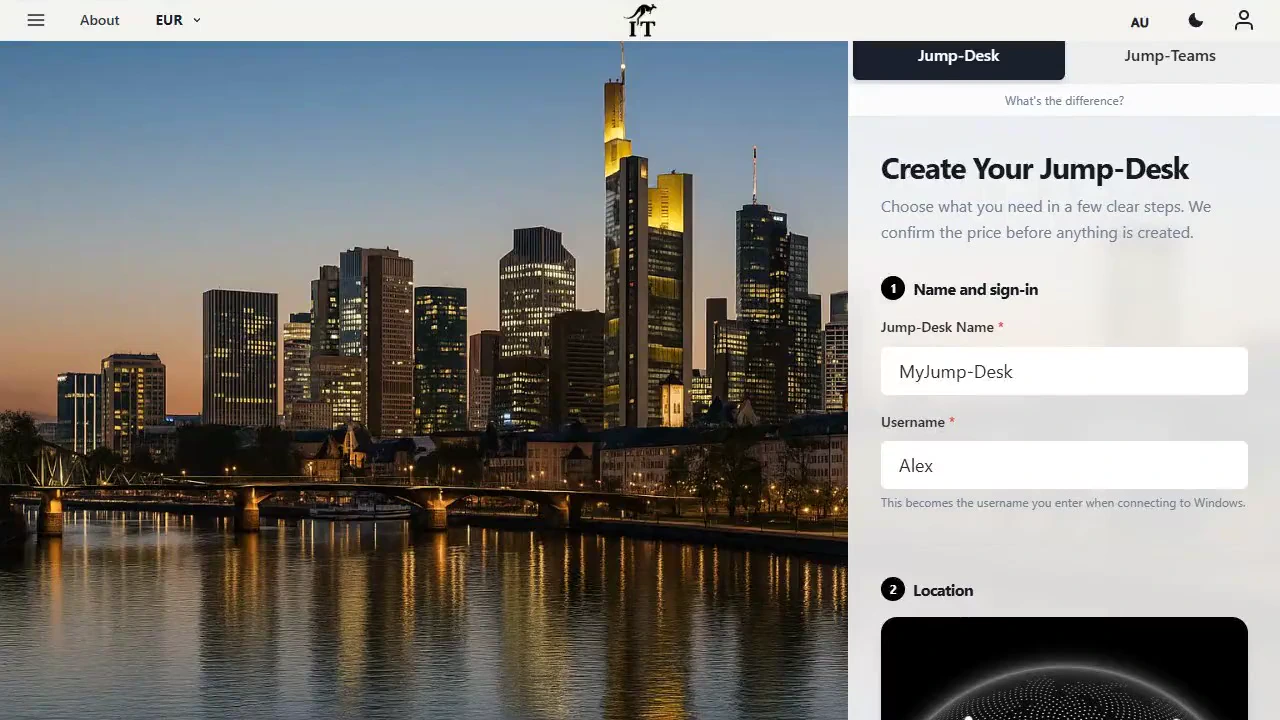
Jump-Desk setup: desktop name, Windows username and location
Jump-Desk setup: desktop name, Windows username and location. Demonstration data.

Prepaid Hours: budget for both parts.

Eligible Hours desktops use prepaid funding. Compute charges apply while running, and the separate service charge continues while the desktop is retained. Stopping the desktop preserves its files and ends running compute charges; deleting it permanently removes the desktop. Review the wallet, current rates and funding permissions in Jump-IT before creating one.

For regular work, Months includes up to 300 hours of uptime per desktop each month. Review the current Years option when a longer commitment suits the requirement. Each desktop has its own plan, region and performance tier.

Compare current plans →

Need one Windows desktop—not an IT estate?

Choose a region, billing model and performance tier, then create a Windows 11 Pro Jump‑Desk for the device you already own.

Terms of Service

Loading the terms…

Cookie settings

Essential storage keeps your preferences. Optional analytics, including Google Analytics, helps us understand which guides lead to useful product visits. Anonymous page counts contain no visitor identifier.

Your preference applies to this marketing site. Jump-IT asks for its own preference when you visit the product.