Bring people and desktops together.
Read the business guide to invitations, roles, funding and desktop assignments.
Explore Jump-Teams →

WINDOWS FOR THE WAY YOU WORK
Compare a Windows 11 Pro cloud PC with a physical Windows laptop—including cost, performance, internet needs, portability and the workloads each option suits best.
Built with trusted technology



For occasional, temporary or part-time Windows use, a Jump‑Desk can be more practical than buying a separate laptop. For daily long-term use, unreliable internet, offline work, gaming or specialist hardware, a laptop is usually the better choice.
A Jump‑Desk is a personal Windows 11 Pro cloud desktop. It runs remotely while an iPad, Mac, Android, Linux or Windows device displays and controls the session through an appropriate remote desktop client. You avoid purchasing and carrying another computer, but you need a stable internet connection and you continue paying for the selected plan while you keep the Jump‑Desk.
A laptop gives you local ownership, offline access and direct use of its ports and hardware. Its larger upfront cost can make sense if it will be your main computer for several years. The right answer therefore depends less on “cloud versus physical” and more on how often you need Windows, what your software requires and where you will work.
Jump‑Desk advantageUse the devices you already own and add a persistent Windows desktop without buying a second PC.
Laptop advantageWork offline, avoid remote-session latency and connect directly to local hardware and peripherals.
The deciding factorCompare your real workload and total cost across the same period—not only an hourly rate or a laptop sticker price.
Start with the definitions
Both options give you Windows, but the computer lives in a different place and the costs behave differently.
A Jump‑Desk is a cloud-hosted Windows 11 Pro computer created and managed through Jump‑IT. The Windows desktop, installed applications, settings and files remain on that remote computer while it exists.
In this comparison, a laptop is a personally owned physical Windows PC with its own processor, memory, storage, screen, battery, keyboard and ports. Windows and applications run locally on the machine.
YOUR NEXT STEP
A cloud desktop can suit occasional Windows work on a device you already own. A laptop may be the better choice for offline access or specialist hardware. Compare the complete cost over your expected period of use.
Configure your Jump-Desk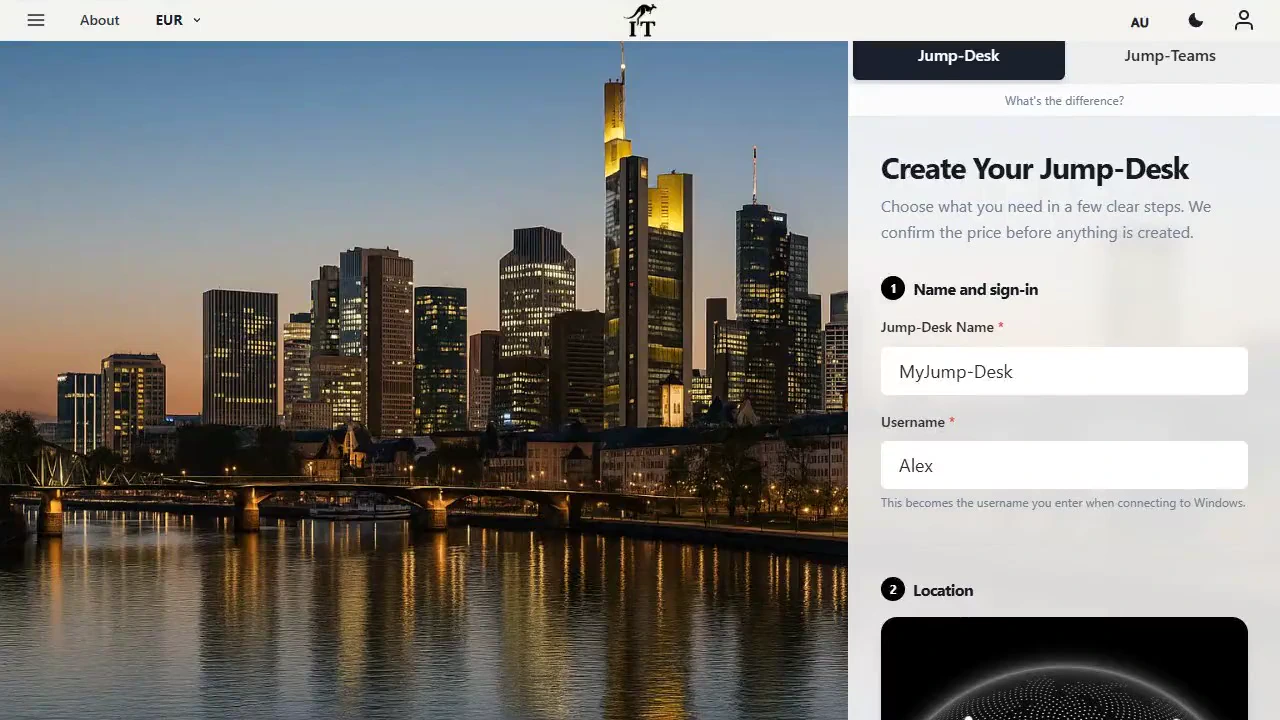
Side-by-side
This table compares a current Jump‑Desk with a typical personally owned Windows laptop. A specific laptop model may perform differently.
On smaller screens, swipe sideways to compare every column.
| Decision area | Jump‑Desk | Windows laptop |
|---|---|---|
| Computer location | Windows runs on a remote cloud computer. | Windows runs on hardware you physically own and carry. |
| Initial commitment | No separate Windows laptop hardware purchase; choose a service plan and tier. | Purchase or finance a complete physical computer. |
| Ongoing cost | Depends on plan, tier, region, currency and usage. Hours also has a service cost while retained. | No inherent cloud-PC fee, but consider financing, repairs, accessories, electricity and replacement. |
| Internet requirement | Required for every session; latency and connection stability affect the experience. | Not required for locally installed apps and files, although many services still need internet. |
| Portability | Use Windows from a supported client device without carrying a second laptop. | Carry the laptop, charger and any required accessories. |
| Windows environment | Persistent Windows 11 Pro desktop with administrator access and the stated licence included. | Depends on the laptop edition and licence supplied by the seller. |
| Applications | Install software compatible with Windows 11 and the selected Jump‑Desk hardware; third-party licences are separate. | Install software compatible with the laptop’s Windows version and hardware; third-party licences are separate. |
| Performance | Choose Standard, Pro or Pro+ before creation; current tiers range from 2 vCPU/4 GB RAM to 4 vCPU/16 GB RAM. | Fixed by the model purchased unless the hardware supports upgrades. |
| Storage | Current tiers list a 128 GB system drive, with HDD, SSD or Premium SSD depending on tier. | Varies by model and can often be ordered with substantially more local storage. |
| Graphics and gaming | Current public tier specifications do not list a dedicated GPU; remote latency also matters. | Purpose-built models can include dedicated graphics and provide local, lower-latency play. |
| Local devices | Clipboard and some devices can be redirected, but support depends on the client, connection and peripheral. | Direct access to the laptop’s built-in hardware, ports and supported peripherals. |
| Maintenance | Jump‑IT provisions the cloud infrastructure; you still manage installed apps, files and your Windows workspace. | You manage the hardware, battery, repairs, local backups and Windows workspace. |
| Ownership | Access continues while the Jump‑Desk and its plan exist; deleting it permanently removes its resources. | You own the hardware and may keep, sell or repurpose it. |
| Best fit | Occasional Windows access, temporary projects, travel and adding Windows to an existing device. | Main-computer use, offline work, specialist peripherals, gaming and predictable multi-year daily use. |
On a phone or narrow tablet, swipe the table horizontally. Always compare your application’s published system requirements with the exact Jump‑Desk tier or laptop model you are considering.
Compare total cost, not headlines
It can be, especially when the alternative is buying a second computer for occasional use. It is not guaranteed to be cheaper for daily use over several years.
Practical rule: if you need Windows for a few hours a week or only for a short project, start by comparing the Hours plan with the real cost of buying a separate suitable laptop. If you expect near-daily use for years, compare Months or Years with a laptop and include the laptop’s resale value.
Match commitment and capability
Choose how long and how often you need the desktop, then choose enough CPU, memory and storage performance for your software.
Designed for variable or occasional use. Running compute usage is metered, and a service cost supports retained resources while the Jump‑Desk exists. Stop the machine from the dashboard when finished; simply closing the client is not the same as stopping it.
Designed for regular use over a monthly period. Compare the live allowance and terms with your expected schedule before choosing it over Hours or a laptop.
Designed for a longer-running Windows workspace. Compare the current annual terms with the cost and residual value of a suitable laptop over the same period.
Everyday work
More memory and SSD
Higher CPU and memory
Specifications above reflect the Jump‑IT product configuration reviewed on 8 September 2026. Available regions, prices, capacity and terms can change. The live creation flow is the source of truth before purchase.
Where the cloud option makes sense
Use a full Windows desktop for a desktop application, file workflow or browser task that your usual device cannot handle, then stop the machine when the work is complete.
Create a persistent Windows workspace for a defined period instead of buying hardware that may be underused after the project ends.
Connect from the iPad, Mac or other supported device you already carry. This works best when you can rely on stable internet at your destination.
Keep Windows applications, settings and files separate from your everyday device while the Jump‑Desk exists, without maintaining another physical computer.

Decision examples
These verdicts are practical starting points. Your application requirements, internet connection and time horizon can change the result.
Avoids buying a separate laptop for a small, intermittent workload.
A laptop often becomes more compelling over several years, but calculate both totals at equivalent performance.
Local applications and files remain usable without a remote connection.
Adds a remote Windows desktop without replacing the iPad or buying another mobile computer.
Current Jump‑Desk tiers do not list dedicated graphics, and remote latency is a disadvantage.
A flexible service period can fit the project without leaving unused hardware afterwards.
Direct local connections are more predictable than relying on remote-device redirection.
Physical hardware can retain residual value; a Jump‑Desk is a service, not an owned asset.
If Jump‑Desk fits
Select an available Azure region, Hours/Months/Years plan and Standard/Pro/Pro+ tier that fits your schedule and software.
Start the Jump‑Desk from the dashboard, download its connection file and open it with the appropriate remote desktop client for your device.
Use compatible Windows applications, save your work, close applications and stop the Jump‑Desk from the dashboard when your session is finished.
Read before deciding
A trustworthy comparison includes the trade-offs. Check these points against your real work before creating a cloud PC.
Direct answers
It can be for occasional or short-term Windows use because you avoid buying a separate Windows computer. It is not automatically cheaper for daily, long-term use. Compare the live Jump‑Desk total for your required tier, plan and region with the full cost of a suitable laptop over the same period.
For compatible Windows software and a reliable internet connection, it can replace a second Windows laptop for many part-time workflows. A physical laptop remains better for offline work, highly latency-sensitive tasks, direct specialist hardware and workloads requiring hardware not offered by the selected Jump‑Desk.
No. Windows runs remotely, so an active and stable internet connection is required to view and control the desktop.
Yes. A Jump‑Desk provides administrator access for applications compatible with Windows 11 and the selected hardware. Separate software licences and subscriptions are still your responsibility.
Stopping an Hours Jump‑Desk ends running compute usage, but its service cost can continue while the desktop exists because storage and other dedicated resources are retained. Disconnecting the remote desktop client does not stop the Jump‑Desk.
The current Standard, Pro and Pro+ specifications do not list a dedicated GPU. A purpose-built gaming PC or laptop is the safer choice for games and other GPU-dependent, latency-sensitive workloads unless Jump‑IT confirms a suitable configuration.
Yes. Installed applications, settings and saved files remain while the Jump‑Desk exists. Deleting the Jump‑Desk permanently removes its resources, so important files should also be backed up separately.
Standard provides 2 vCPU, 4 GB RAM and 128 GB HDD storage; Pro provides 2 vCPU, 8 GB RAM and 128 GB SSD storage; Pro+ provides 4 vCPU, 16 GB RAM and 128 GB Premium SSD storage. Check the system requirements of your applications before choosing.
The Jump‑IT Team reviewed the active Jump‑Desk creation flow, plan matrix, regional configuration, tier specifications, connection process, billing behaviour and support content in Jump‑IT on 16 July 2026. Laptop conclusions are conditional because prices, specifications, repair costs and resale values vary by model and country.
Microsoft describes Windows App as software for connecting remotely to Windows devices and applications, with clients across Windows, macOS, iOS/iPadOS and Android/Chrome OS. Client features and remote-PC support vary by platform. Read Microsoft’s Windows App overview.
Product pricing and availability can change. Check the live Jump‑IT creation flow before purchasing, and contact Jump‑IT Support if a software or hardware requirement is unclear.
SEE THE PRODUCT IN ACTION
These recordings show the current Jump-IT interface with demonstration data. Use the controls to pause, replay or view a recording full screen.
Name your desktop, choose a region and plan, and review the configuration before checkout.
Find the display settings, adapt the connection to your screen, and download the connection file.
CURRENT WORKFLOWS · SEPTEMBER 2026
An assistant can help draft a report, explain a formula or plan a workflow, while the final task still depends on a Windows desktop application, plug-in or client system. Start with that application and its requirements. A browser-based assistant alone is not a reason to add another computer; a compatible Windows-only workflow may be.
A retained Jump-Desk keeps that Windows environment available between sessions. For colleagues doing the same kind of work, Jump-Teams adds invitations, roles and desktop assignments. AI subscriptions, Microsoft 365 and other paid applications require their own licences; a cloud PC does not include those subscriptions or promise specialist GPU hardware.
Read the business guide to invitations, roles, funding and desktop assignments.
Explore Jump-Teams →Follow a practical onboarding checklist, from a first pilot to reviewing access when a role changes.
Read the team onboarding guide →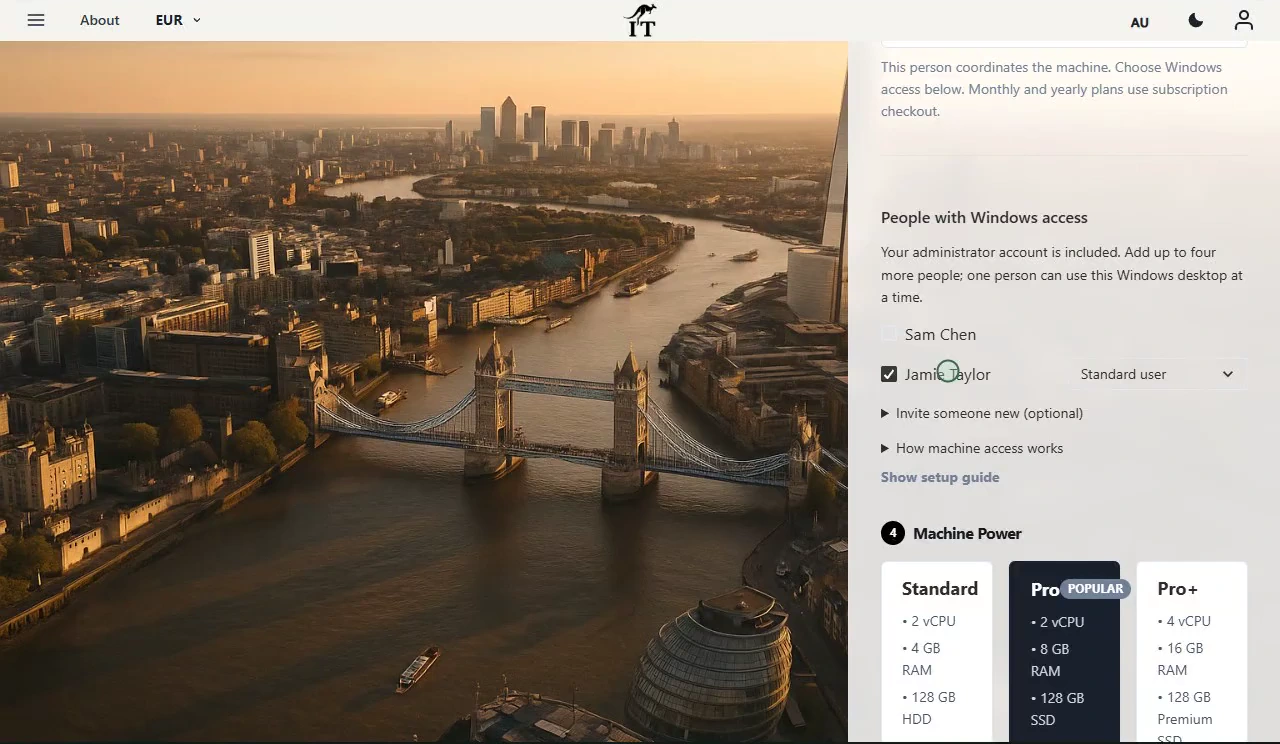
Eligible Hours desktops use prepaid funding. Compute charges apply while running, and the separate service charge continues while the desktop is retained. Stopping the desktop preserves its files and ends running compute charges; deleting it permanently removes the desktop. Review the wallet, current rates and funding permissions in Jump-IT before creating one.
For regular work, Months includes up to 300 hours of uptime per desktop each month. Review the current Years option when a longer commitment suits the requirement. Each desktop has its own plan, region and performance tier.
Compare current plans →If your use is occasional, temporary or tied to a specific Windows workflow, compare the live Jump‑Desk options before committing to another laptop.
A premium laptop should earn its cost through the work performed on it. Our touchscreen MacBook Pro comparison and Surface Laptop Ultra guide show how a lead can keep local AI or creative work on their own machine while colleagues use separate Windows cloud desktops. Remote access still needs a capable client and a suitable connection.
Related device guidance added 31 October 2026.